2013 KIA CEED rds n
[x] Cancel search: rds nPage 853 of 1168

Features of your vehicle
190
4
Traffic Announcement (TA)
Shortly pressing the key
(under 0.8 seconds): Set
/TA
Traffic Announcement) mode.
PTY Up/Down
Press the , key when searching PTY in RDS
Broadcasting Program Type selection.
MENU Within key are the AST, AF,
Region and News functions.
AST (Auto Store)
Press the key Set [ AST]
through TUNE knob or key.
Select AST (Auto Store) to save fre-
quencies with superior reception topresets
~ . If no frequencies
are received, then the most recently received frequency will be broadcast.
❈
Saves only to the Preset memory
~ of FMA or AMA mode.
AF (Alternative Frequency)
Press the key Set [ AF]
through TUNE knob or key.
The Alternative Frequency option can be
turned On/Off. Region
Press the key Set [ Region]
through TUNE knob or key.
The Region option can be turned On/Off.
News
Press the key Set [ News]
through TUNE knob or key.
The News option can be turned On/Off.
Info Volume
Info Volume refers to the sound volume
upon receiving News or Traffic information.
The info volume can be controlled by
turning the VOL knob left/right whilst a
news or traffic broadcast is playing. ❈ AF, Region, and News are RDS Radio
menus.
4
MENU
3
MENU
2 RDM
MENU
61
61
1 RPT
MENU
MENU
FOLDERPTY
OffOn
TA/SCAN
JD RHD 4b(169~).QXP 7/21/2012 1:00 PM Page 190
Page 855 of 1168

Features of your vehicle
192
4
Changing Song/File
Whilst song (file) is playing key
Shortly pressing the key (under 0.8
seconds): Plays the current song from the beginning.
❈ If the key is pressed again
within 1 second, the previous song is
played.
Pressing and holding the key (over 0.8 seconds): Rewinds the song.
Whilst song (file) is playing key
Shortly pressing the key (under 0.8seconds): Plays the next song.
Pressing and holding the key (over 0.8 seconds): Fast forwards the song. Scan
Whilst song (file) is playingkey
Pressing and holding the key (over 0.8
seconds) : Scans all songs for 10 sec-
onds starting from the next song.
❈ Press the key again to turn
off.
❈ The SCAN function is not supported in
iPod mode.
Folder Search : MP3 CD, USB Mode
Whilst file is playing (Folder
Up) key
Searches the next folder.
Whilst file is playing (Folder
Down) key
Searches the parent folder. ❈ If a folder is selected by pressing the
TUNE knob, the first file within the
selected folder will be played.
❈ In iPod mode, moves to the Parent
Folder. Searching Songs (File)
Turning
TUNEknob : Searches for
songs (files)
Pressing TUNE knob : Plays select- ed song (file).
FOLDER
PTY
TA/SCAN
TA/SCAN
SEEK
TRACK
TRACK
JD RHD 4b(169~).QXP 7/21/2012 1:00 PM Page 192
Page 873 of 1168

Features of your vehicle
210
4
SYSTEM CONTROLLERS AND FUNCTIONS
Audio Head Unit (1) (EJECT) Ejects the disc. (2)
Switches to Radio(FM/AM) mode.
Each time the key is pressed,the mode is changed in order of FM1
➟
FM2 ➟FMA
➟ AM ➟AMA.
(3)
Switches to Media mode.
Each time the key is pressed, the mode
is changed in order of CD, USB(iPod)
AUX, My Music, BT Audio. (4)
Switches to Phone mode.❈ When a phone is not connected, the
connection screen is displayed.
(5) PWR/VOL knob Power : Press to turn power on/off.
Volume : Turn left/right to control vol-
ume. (6)
When pressed shortly(under 0.8 seconds)
- Radio mode : plays previous/next fre-
quency.
- Media (CD/USB/iPod/My Music) modes : changes the track, Song(file)
When pressed and held (0.8 seconds)
- Radio mode : continuously changes the frequency. Upon release, plays the
current frequency
-
Media(CD/USB/iPod/My Music) modes :
rewinds or fast forwards the track or file
- During a Handsfree call, controls the call volume.
(7)
RDS Radio mode : searches RDS pro-
gram types.
CD/USB/MP3 modes : searches folders.
PTY
FOLDER
SEEK
TRACK
PHONE
MEDIA
RADIO
JD RHD 4c(209~).QXP 8/27/2012 10:01 AM Page 210
Page 875 of 1168

Features of your vehicle
212
4
Steering remote controller
(1) VOLUME
Used to control volume. (2) MUTE
Mutes audio volume. (3) SEEK
When pressed shortly (under 0.8 seconds)
- Radio mode : searches broadcast fre-
quencies saved to presets.
- Media (CD / USB / iPod / My Music / BT Audio) modes : changes the track, file. When pressed and held (over 0.8 seconds)
- Radio mode, automatically searches broadcast frequencies and channels
- Media(CD/USB/iPod/My Music) modes, rewinds or fast forwards the track or song(file)
(4) MODE
Each time this key is pressed, the mode is changed in order of FM1
➟FM2
➟FMA➟AM➟AMA➟USB or iPod➟AUX
➟My Music➟BT Audio
If the media is not connected or a disc is
not inserted, corresponding modes will
be disabled. (5)
When pressed shortly (under 0.8 seconds)
- Starts voice recognition
- When selecting during a voice prompt, stops the prompt and converts to voice
command waiting state
When pressed and held (over 0.8 seconds)
- Ends voice recognition (6)
When pressed shortly (under 0.8 seconds)
- When pressed in the phone screen,
displays call history screen
- When pressed in the dial screen, makes a call
- When pressed in the incoming call screen, answers the call
- When pressed during call waiting, switches to waiting call (Call Waiting)
When pressed and held (over 0.8 seconds)
- When pressed in the Bluetooth®
Wireless Technology Handsfree wait
mode, redials the last call
- When pressed during a
Bluetooth®
Wireless Technology Handsfree call,
switches call back to mobile phone
(Private)
- When pressed whilst calling on the mobile phone, switches call back to
Bluetooth®Wireless Technology
Handsfree (Operates only when
Bluetooth®Wireless Technology
Handsfree is connected)
(7) Ends phone call
JD RHD 4c(209~).QXP 8/27/2012 10:02 AM Page 212
Page 876 of 1168
![KIA CEED 2013 Owners Manual 4 213
Features of your vehicle
RADIO MODE Basic Mode Screen(1
)Mode Display
Displays currently operating mode (2 )Frequency
Displays the current frequency(3 )Preset
Displays current preset number [1]](/manual-img/2/57944/w960_57944-875.png "KIA CEED 2013 Owners Manual 4 213
Features of your vehicle
RADIO MODE Basic Mode Screen(1
)Mode Display
Displays currently operating mode (2 )Frequency
Displays the current frequency(3 )Preset
Displays current preset number [1]")
4 213
Features of your vehicle
RADIO MODE Basic Mode Screen(1
)Mode Display
Displays currently operating mode (2 )Frequency
Displays the current frequency(3 )Preset
Displays current preset number [1] ~ [6] (4 )Preset Display
Displays saved presets(5 )Autostore
Automatically saves frequencies with
superior reception to Preset buttons (6 )RDS Menu
Displays the RDS Menu(7 )RDS Info
Displays RDS broadcast information Switching to Radio Mode
Pressing the key will change
the operating mode in order of FM1
➟FM2➟FMA➟AM➟AMA.
If [Pop-up Mode] is turned on within [Display], then pressing the
key will display the Radio Pop-
up Mode screen.
Turn the TUNE knob to move the
focus. Press the knob to select.
RADIO
SETUP
RADIO
JD RHD 4c(209~).QXP 8/27/2012 10:02 AM Page 213
Page 878 of 1168

4 215
Features of your vehicle
RDS Menu
Press the button to set the AF
(Alternative Frequency), Region and
News features.
✽✽NOTICE
The RDS Menu is not supported within
AM or AMA mode.
Scan
Press the key to preview fre-
quencies with superior reception for5 seconds each.
✽✽ NOTICE
Once scan is complete, the previous fre-
quency will be restored.
Whilst Scan is operating, pressing the key will cancel the scan opera-
tion.
Program Type
Press the key to search for
the desired Program type.
Turn the TUNE knob left/right to
search for the desired program type.
Once you find the desired program type,
press the TUNE knob.
After selecting the desired Program Type
and whilst the Program Type is blinking
(approximately 5 seconds), pressing the
key will allow you to select a
different Program Type broadcast. TA (Traffic Announcement)
Press the key to turn the TA
(Traffic Announcement) feature
On/Off.
TA
PTY
FOLDER
PTY
FOLDER
SCAN
SCAN
JD RHD 4c(209~).QXP 8/27/2012 10:02 AM Page 215
Page 921 of 1168
Features of your vehicle
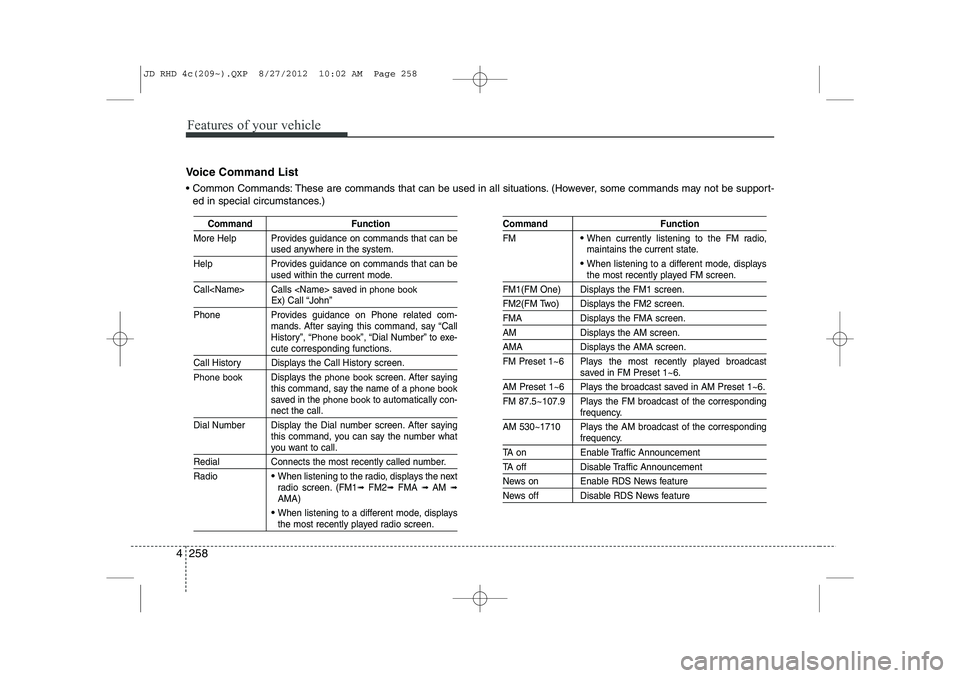
258
4
Command Function
More Help Provides guidance on commands that can be
used anywhere in the system.
Help Provides guidance on commands that can be
used within the current mode.
Call
phone bookEx) Call “John”
Phone Provides guidance on Phone related com- mands. After saying this command, say “Call
History”, “
Phone book”, “Dial Number” to exe-cute corresponding functions.
Call History Displays the Call History screen.
Phone bookDisplays the phone bookscreen. After saying
this command, say the name of a phone booksaved in the phone bookto automatically con-nect the call.
Dial Number Display the Dial number screen. After saying this command, you can say the number what
you want to call.
Redial Connects the most recently called number. Radio
When listening to the radio, displays the next
radio screen. (FM1 ➟FM2 ➟FMA ➟ AM ➟
AMA)
When listening to a different mode, displaysthe most recently played radio screen.
Command Function FM
When currently listening to the FM radio,
maintains the current state.
When listening to a different mode, displaysthe most recently played FM screen.
FM1(FM One) Displays the FM1 screen.
FM2(FM Two) Displays the FM2 screen.
FMA Displays the FMA screen.
AM Displays the AM screen.
AMA Displays the AMA screen.
FM Preset 1~6 Plays the most recently played broadcast
saved in FM Preset 1~6.
AM Preset 1~6 Plays the broadcast saved in AM Preset 1~6.
FM 87.5~107.9 Plays the FM broadcast of the corresponding
frequency.
AM 530~1710 Plays the AM broadcast of the corresponding
frequency.
TA on Enable Traffic Announcement
TA off Disable Traffic Announcement
News on Enable RDS News feature
News off Disable RDS News feature
Voice Command List
Common Commands: These are commands that can be used in all situations. (However, some commands may not be support- ed in special circumstances.)
JD RHD 4c(209~).QXP 8/27/2012 10:02 AM Page 258
Page 923 of 1168
Features of your vehicle
260
4
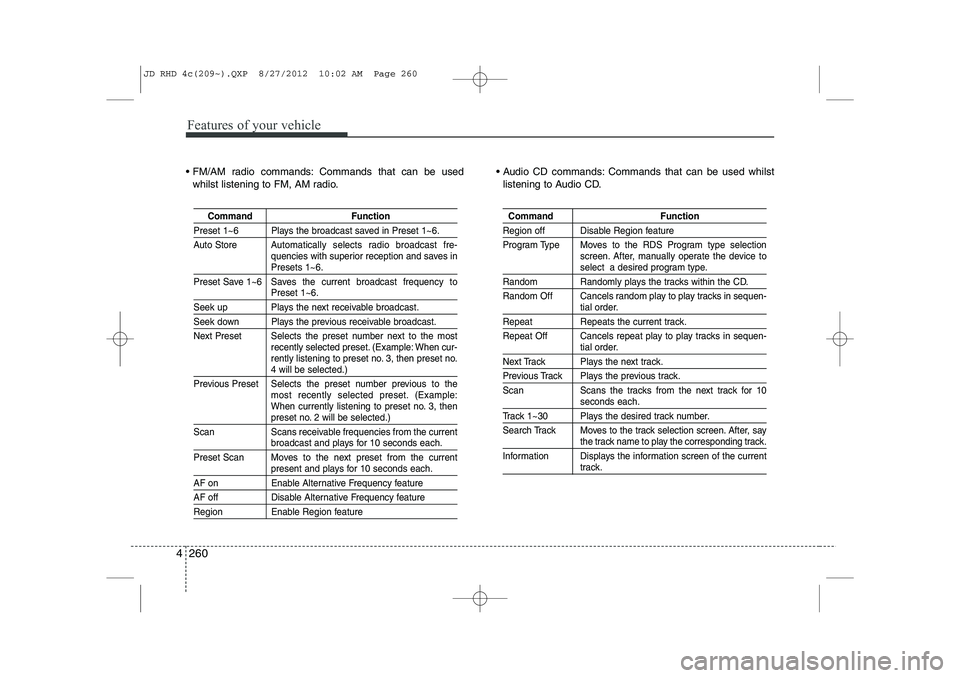
FM/AM radio commands: Commands that can be used
whilst listening to FM, AM radio. Audio CD commands: Commands that can be used whilst
listening to Audio CD.
Command Function
Preset 1~6 Plays the broadcast saved in Preset 1~6.
Auto Store A utomatically selects radio broadcast fre-
quencies with superior reception and saves in
Presets 1~6.
Preset Save 1~6 Saves the current broadcast frequency to
Preset 1~6.
Seek up Plays the next receivable broadcast.
Seek down Plays the previous receivable broadcast.
Next Preset Selects the preset number next to the most recently selected preset. (Example: When cur-
rently listening to preset no. 3, then preset no.
4 will be selected.)
Previous Preset Selects the preset number previous to the most recently selected preset. (Example:
When currently listening to preset no. 3, then
preset no. 2 will be selected.)
Scan Scans receivable frequencies from the current
broadcast and plays for 10 seconds each.
Preset Scan Moves to the next preset from the current
present and plays for 10 seconds each.
AF on Enable Alternative Frequency feature
AF off Disable Alternative Frequency feature
Region Enable Region feature
Command Function
Region off Disable Region feature
Program Type Moves to the RDS Program type selection screen. After, manually operate the device to
select a desired program type.
Random Randomly plays the tracks within the CD.
Random Off Cancels random play to play tracks in sequen-
tial order.
Repeat Repeats the current track.
Repeat Off Cancels repeat play to play tracks in sequen-
tial order.
Next Track Plays the next track.
Previous Track Plays the previous track.
Scan Scans the tracks from the next track for 10
seconds each.
Track 1~30 Plays the desired track number.
Search Track Moves to the track selection screen. After, say
the track name to play the corresponding track.
Information Displays the information screen of the current
track.
JD RHD 4c(209~).QXP 8/27/2012 10:02 AM Page 260