Page 196 of 554

Switch beeps settings
Select the “Switch Beeps” key. The Switch
Beeps settings screen will appear.
With this option on (indicator light illuminated) , a
beep will sound if any control panel button is
pressed.
Camera settings
Select the “Camera” key. The Camera settings
screen will appear.
When this option is on (indicator light illumi-
nated) , predictive course lines will be displayed
when the RearView monitor is displayed on the
screen. See “RearView Monitor” in this section
for more information.
Comfort settings
Select the “Comfort” key by using the INFINITI
controller. The comfort option screen will be dis-
played.
You can set the following operating conditions by
highlighting the desired item using the INFINITI
controller. The amber indicator (box at the right of
the selected item) alternately turns on and off
each time the ENTER button is pressed.
Indicator light is illuminated — ON
Indicator light is not illuminated — OFF
LHA1305LHA1306SAA3150
Monitor, climate, audio, phone and voice recognition systems4-11
Page 197 of 554

Auto Interior Illumination:Select to turn on or
turn off the illumination of the interior lights when
any door is unlocked.
Light Sensitivity: Select to adjust the sensitivity
of the automatic headlights higher (right) or lower
(left) .
Light Off Delay: Select to change the duration
of the automatic headlight off timer from 0-, 30-,
45-, 60-, 90-, 120-, 150- and 180-second peri-
ods.
Selective Door Unlock: When this item is
turned on, only the driver’s door is unlocked first
after the door unlock operation. When the door
handle request switch on the driver’s or front
passenger’s side door is pushed to be unlocked,
only the corresponding door is unlocked first. All
the doors can be unlocked if the door unlock
operation is performed again within 1 minute.
When this item is turned to off, all the doors will
be unlocked after the door unlock operation is
performed once.
Intelligent Key Lock / Unlock: Select to turn
on or turn off the door lock/unlock function by
pushing the door handle request switch. Lift Steering Wheel on Exit (if so equipped):
Select to turn on or turn off the steering wheel
moving upward for easy exit when the ignition
switch is in the OFF position and the driver’s door
is opened. After getting into the vehicle and
pushing the ignition switch to the ACC position,
the steering wheel moves to the previous posi-
tion.
Slide Driver Seat Back on Exit (if so
equipped):
Select to turn on or turn off the
driver’s seat moving backward for easy exit when
the ignition switch is in the OFF position and the
driver’s door is opened. After getting into the
vehicle and pushing the ignition switch to the
ACC position, the driver’s seat moves to the
previous position.
Return All Settings to Default: Select to
change all the comfort and convenience systems
to their default settings.
LANGUAGE / UNITS
Use the INFINITI controller to select the “Lan-
guage / Units” key. Select which setting you want
to change using the INFINITI controller.
LHA0934
4-12Monitor, climate, audio, phone and voice recognition systems
Page 201 of 554
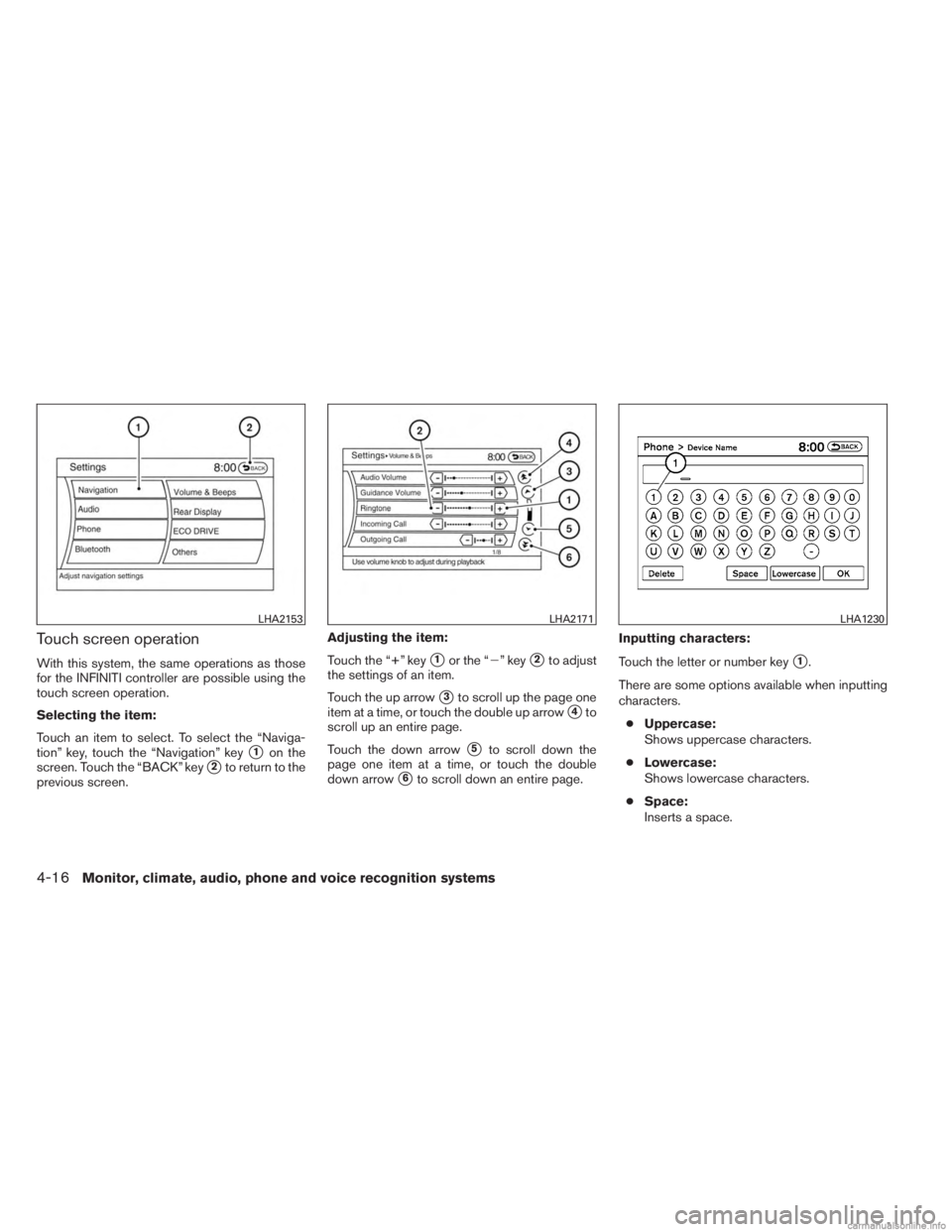
Touch screen operation
With this system, the same operations as those
for the INFINITI controller are possible using the
touch screen operation.
Selecting the item:
Touch an item to select. To select the “Naviga-
tion” key, touch the “Navigation” key
�1on the
screen. Touch the “BACK” key
�2to return to the
previous screen. Adjusting the item:
Touch the “+” key
�1or the “�” key�2to adjust
the settings of an item.
Touch the up arrow
�3to scroll up the page one
item at a time, or touch the double up arrow
�4to
scroll up an entire page.
Touch the down arrow
�5to scroll down the
page one item at a time, or touch the double
down arrow
�6to scroll down an entire page. Inputting characters:
Touch the letter or number key
�1.
There are some options available when inputting
characters. ● Uppercase:
Shows uppercase characters.
● Lowercase:
Shows lowercase characters.
● Space:
Inserts a space.
LHA2153LHA2171LHA1230
4-16Monitor, climate, audio, phone and voice recognition systems
Page 202 of 554

●Delete:
Deletes the last inputted character with one
touch. Touch and hold the “Delete” key to
delete all of the characters.
● OK:
Completes the character input.
Touch screen maintenance
If you clean the display screen, use a dry, soft
cloth. If additional cleaning is necessary, use a
small amount of neutral detergent with a soft
cloth. Never spray the screen with water or de-
tergent. Dampen the cloth first, and then wipe the
screen.
MENU OPTIONS
The start menu can be displayed using the menu
control switch on the steering wheel controls.
1. While the MAP or STATUS screen is dis- played, press and hold the menu control
switch until the “Menu Options” screen ap-
pears.
2. Highlight the preferred item by tilting the menu control switch up or down. Press the
menu control switch to select the high-
lighted item.
Available items
Destination/Route:
These items are for the navigation system. See
the separate Navigation System Owner’s Manual
for details.
Info:
Displays the information screen. It is the same
screen that appears when you press the INFO
button. Settings:
Displays the settings screen. It is the same
screen that appears when you press the SET-
TING button.
SAA2476
Monitor, climate, audio, phone and voice recognition systems4-17
Page 206 of 554

Displaying the maintenance notice re-
minder
Select the “Interval Reminder ON” key to display
the MAINTENANCE INFORMATION automati-
cally at the set maintenance interval. The indica-
tor light will illuminate when it is ON.
The MAINTENANCE NOTICE screen will be au-
tomatically displayed as shown when both of the
following conditions are met:● The vehicle is driven the set distance and the
ignition switch is placed in the OFF position.
● The ignition switch is placed in the ON po-
sition the next time the vehicle is driven. To return to the previous display after the MAIN-
TENANCE NOTICE screen is displayed, press
the BACK button.
The MAINTENANCE NOTICE screen displays
each time the key is turned ON until one of the
following conditions are met:
● The “Reset” key is selected.
● The “Interval Reminder ON” key is set to
OFF (indicator light not illuminated) .
● The maintenance interval is set again.
Traffic Info
Refer to the separate Navigation System Own-
er’s Manual for information regarding this item.
Weather Info
Refer to the separate Navigation System Own-
er’s Manual for information regarding this item.
Where am I?
Refer to the separate Navigation System Own-
er’s Manual for information regarding this item.
Map Update
Refer to the separate Navigation System Own-
er’s Manual for information regarding this item.
Other options
For Navigation Version and GPS Position, refer to
the separate Navigation System Owner’s
Manual.
For Voice Recognition settings, refer to “INFINITI
Voice Recognition system” in this section.
SAA3003
Monitor, climate, audio, phone and voice recognition systems4-21
Page 207 of 554

HOW TO USE THE SETTING
BUTTON
Press the SETTING button to display the Set-
tings screen. You can select and/or adjust sev-
eral functions, features and modes that are avail-
able for your vehicle. Use the INFINITI controller
to select each item to be set.
Navigation settings
Refer to the separate Navigation System Owner’s
Manual for information regarding these settings.
Audio settings
For audio settings, refer to “Audio System” in this
section.
Phone settings
For phone settings refer to “Bluetooth® Hands-
Free Phone System with Navigation System” in
this section.
Bluetooth® settings
For Bluetooth® phone settings, refer to
“Bluetooth® Hands-Free Phone System with
Navigation System” in this section.
For Bluetooth® audio settings, refer to
“Bluetooth® streaming audio” in this section.
Volume & beeps settings
Navigation volume
For navigation volume settings, refer to the sepa-
rate Navigation System Owner’s Manual for infor-
mation regarding these settings.
Phone volume
For phone volume settings refer to “Bluetooth®
Hands-Free Phone System with Navigation Sys-
tem” in this section.
Infiniti Connection volume
For Infiniti Connection volume settings refer to
“Infiniti Connection” in this section.Switch beeps
With this option on (indicator light illuminated) , a
beep will sound if any control panel button is
pressed.LHA2152LHA1253
4-22Monitor, climate, audio, phone and voice recognition systems
Page 208 of 554

Rear display settings
To control the rear display settings, select the
“Display Control” key. Select the “ON” key for
either the left or right display to alternately enable
or disable the display for the left or right rear
passengers. If the display is enabled, select the
key (DVD, USB, front AUX or rear AUX) that you
wish to have displayed on the corresponding
screen. The front AUX setting is for devices
plugged into the AUX jacks in the center console.
The rear AUX setting is for devices plugged into
the AUX jacks on the back of the center console.Select the “Auto Display” to set the rear displays
to always power on when a movie is played from
a DVD or USB device.
ECO DRIVE settings (if so equipped)
To adjust the Eco pedal driver’s assist, select the
“Standard”, “Soft” or “OFF” key and adjust it with
the INFINITI controller. For more information
about the ECO DRIVE system, see “ECO pedal
system” in the “Starting and driving” section.
LHA1254LHA2154LHA2155
Monitor, climate, audio, phone and voice recognition systems4-23
Page 209 of 554

Others settings
Select the “Others” key using the INFINITI con-
troller. The voice recognition, language and units
setting screen will be displayed.Display settings
The display as illustrated will appear when press-
ing the SETTING button and selecting the “Oth-
ers” key and then selecting the “Display” key.
Display Adjustment:
To adjust the display settings, select the “Display
Adjustment” key. The following settings are avail-
able.
● Display
To turn off the screen, press the ENTER button
and turn the “Display” indicator off. The other method is to press and hold the
OFF button for more than two seconds.
When any mode button is pressed with the
screen off, the screen turns on for further opera-
tion. The screen will turn off automatically five
seconds after the operation is finished.
To turn on the screen, set this item to the ON
position, or press and hold the
OFF but-
ton.
● Brightness/Contrast/Background Color
To adjust the brightness and contrast of the
screen, select the “Brightness” or “Contrast” key.
Use the INFINITI controller to adjust each item.
For information on the “Background Color” key,
refer to the separate Navigation System Owner’s
Manual.
Color Theme:
Choose between “Black”, “Brown” or “Silver” for
the theme color of the menu screen.
LHA2156LHA1237
4-24Monitor, climate, audio, phone and voice recognition systems