2013 Hyundai Sonata steering
[x] Cancel search: steeringPage 148 of 410

467
Features of your vehicle
Cruise SET indicator
The indicator light illuminates when the
cruise function switch (SET- or RES+) is ON.
The cruise SET indicator light in the
instrument cluster is illuminated when
the cruise control switch (SET- or RES+)
is pushed. The cruise SET indicator light
does not illuminate when the cruise con-
trol switch (CANCEL) is pushed or the
system is disengaged.Electronic power steering
(EPS) system warning
light This indicator light comes on after the
ignition key is turned to the ON position
and then it will go out.
This light also comes on when the EPS
needs repairs. If it comes on while driv-
ing, have your vehicle inspected by an
authorized HYUNDAI dealer.
Key reminder warning chime Without smart key
If the driver’s door is opened while the
ignition key is left in the ignition switch
(ACC or LOCK position), the key
reminder warning chime will sound. This
helps prevent you from locking your keys
in the vehicle. The chime sounds until the
key is removed from the ignition switch or
the driver’s door is closed.
With smart key
If the driver’s door is opened while the
smart key is in the vehicle with the
engine start/stop button in ACC or the
smart key is in the smart key holder with
the engine start/stop button in OFF, the
key reminder warning chime will sound.
The chime sounds until the smart key is
removed from the smart key holder or the
driver’s door is closed.
Warning on the LCD screen
(if equipped)Key is not in vehicleIf the smart key is not in the vehicle and
if any door is opened or closed with the
engine start/stop button in ACC, ON, or
START, the warning illuminates on the
LCD screen. The chime also sounds for 5
seconds when the smart key is not in the
vehicle and any door is closed.
Turn the ignition switch off or get hold of
the smart key.
EPS
OYF049062N
SET
YF HMA 4a-111.qxp 1/16/2012 6:31 PM Page 67
Page 153 of 410

Features of your vehicle72 4The hazard warning flasher should be
used whenever you find it necessary to
stop the car in a hazardous location.
When you must make such an emer-
gency stop, always pull off the road as far
as possible.
The hazard warning lights are turned on
by pushing in the hazard switch. This
causes all turn signal lights to blink. The
hazard warning lights will operate even
though the key is not in the ignition
switch.
To turn the hazard warning lights off,
push the switch a second time.
Battery saver function The purpose of this feature is to pre-
vent the battery from being dis-
charged. The system automatically
turns off the parking lights when the
driver removes the ignition key (smart
key : turns off the engine) and opens
the driver-side door.
With this feature, the parking lights will
be turned off automatically if the driver
parks on the side of road at night.
If necessary, to keep the lights on
when the ignition key is removed
(smart key : turns off the engine), per-
form the following:
1) Open the driver-side door.
2) Turn the parking lights OFF and ON
again using the light switch on the
steering column.
Headlamp delay (if equipped)If you turn the ignition switch to the ACC
or OFF position with the headlights ON,
the headlights (and/or tail lights) remain
on for about 20 minutes. However, if the
driver’s door is opened and closed, the
headlights are turned off after 30 sec-
onds.
The headlights can be turned off by
pressing the lock button on the transmit-
ter (or smart key) twice or turning the
light switch to the OFF or Auto position.
However, if you turn the light switch to the
Auto position when it is dark outside, the
headlights will not be turned off.
HAZARD WARNING FLASHERLIGHTING
OYF049084N
CAUTION
If the driver gets out of the vehicle
through other doors (except dri-
ver's door), the battery saver func-
tion does not operate and the head-
lamp delay does not turn off auto-
matically. Therefore, it causes the
battery to be discharged. In this
case, make sure to turn off the lamp
before getting out of the vehicle.
YF HMA 4a-111.qxp 1/16/2012 6:31 PM Page 72
Page 190 of 410
4 109
Features of your vehicle
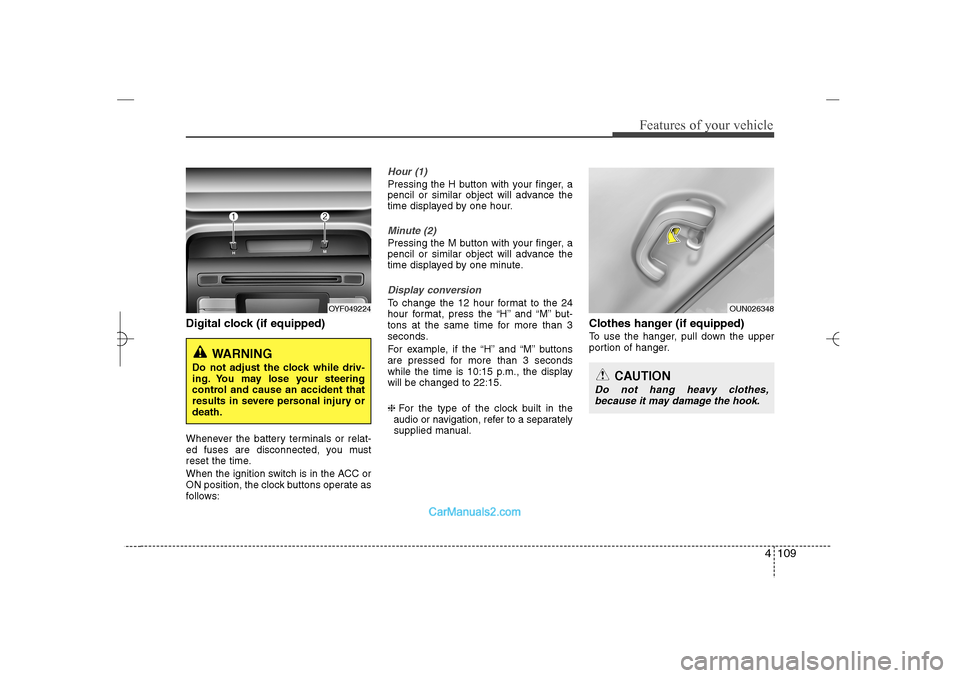
Digital clock (if equipped)Whenever the battery terminals or relat-
ed fuses are disconnected, you must
reset the time.
When the ignition switch is in the ACC or
ON position, the clock buttons operate as
follows:
Hour (1)Pressing the H button with your finger, a
pencil or similar object will advance the
time displayed by one hour.Minute (2)Pressing the M button with your finger, a
pencil or similar object will advance the
time displayed by one minute.Display conversionTo change the 12 hour format to the 24
hour format, press the “H” and “M” but-
tons at the same time for more than 3
seconds.
For example, if the “H” and “M” buttons
are pressed for more than 3 seconds
while the time is 10:15 p.m., the display
will be changed to 22:15.
❈For the type of the clock built in the
audio or navigation, refer to a separately
supplied manual.
Clothes hanger (if equipped)To use the hanger, pull down the upper
portion of hanger.
OYF049224
WARNING
Do not adjust the clock while driv-
ing. You may lose your steering
control and cause an accident that
results in severe personal injury or
death.
OUN026348
CAUTION
Do not hang heavy clothes,
because it may damage the hook.
YF HMA 4a-111.qxp 1/16/2012 6:35 PM Page 109
Page 194 of 410

4 113
Features of your vehicle
Steering wheel audio control
(if equipped) The steering wheel may incorporate
audio control buttons.
1. VOLUME (VOL+/-) Push the lever upward (+) to increase the
volume.
Push the lever downward (-) to decrease
the volume.2. PRESET/SEEK ( / )The SEEK/PRESET button has different
functions based on the system mode.
For the following functions the button
should be pressed for 0.8 second or
more.
RADIO mode
It will function as the AUTO SEEK select
button.
CD/USB/ iPod mode
It will function as the FF/REW button.
If the SEEK/PRESET button is pressed
for less than 0.8 second, it will work as
follows in each mode.RADIO mode
It will function as the PRESET STATION
buttons.
CD/USB/ iPod mode
It will function as TRACK UP/DOWN
button.
3. MODEPress the button to change audio source.
- FM(1~2)
➟AM
➟SAT(1~3)
➟CD
➟USB
AUX(iPod) FM...
Detailed information for audio control
buttons are described in the following
pages in this section.
CAUTION
Do not operate audio remote con-
trol buttons simultaneously.
1
32
YF_HANDLE
YF HMA 4b-112~(Audio).qxp 3/5/2012 4:24 PM Page 113
Page 227 of 410

Features of your vehicle146 4PhoneBefore using the
Bluetooth
®
Wireless
Technology enabled phone features
In order to use
Bluetooth
®
Wireless
Technology phone, you must first pair
and connect the
Bluetooth
®Wireless
Technology mobile phone.
If the mobile phone is not paired or
connected, it is not possible to enter
Phone mode. Once a phone is paired
or connected, the guidance screen will
be displayed.
If Priority is set upon vehicle ignition
(IGN/ACC ON), the
Bluetooth
®
Wireless Technology enabled phone
will be automatically connected. Even if
you are outside, the
Bluetooth
®
Wireless Technology enabled phone
will be automatically connected once
you are in the vicinity of the vehicle. If
you do not want automatic
Bluetooth
®
Wireless Technology enabled phone
connection, set the
Bluetooth
®
Wireless Technology power to OFF.
Making a call using the steering
wheel remote controller1. button : Activates voice recognition.
2. button : Places and transfers calls.
3. button : Ends calls or cancels
functions. Check call history and making call
➀
Shortly press (under 0.8 seconds) the
key on the steering remote con-
troller .
➁
The call history list will be displayed
on the screen.
➂
Press the key again to connect a
call to the selected number.
Redialing the most recently called
number
➀
Press and hold (over 0.8 seconds) the
key on the steering remote con-
troller.
➁
The most recently called number is
redialed.
❈ If call history does not exist, a screen
asking whether to download call histo-
ry is displayed. (The download feature
may not be supported in some mobile
phones)
YF HMA 4b-112~(Audio).qxp 3/5/2012 4:24 PM Page 146
Page 231 of 410
![Hyundai Sonata 2013 Owners Manual Features of your vehicle150 4VOICE COMMANDStarting Voice Command To start voice command, shortly press
the key on the steering wheel
remote controller.
If voice command is in [Normal Mode],
then](/manual-img/35/16808/w960_16808-230.png "Hyundai Sonata 2013 Owners Manual Features of your vehicle150 4VOICE COMMANDStarting Voice Command To start voice command, shortly press
the key on the steering wheel
remote controller.
If voice command is in [Normal Mode],
then")
Features of your vehicle150 4VOICE COMMANDStarting Voice Command To start voice command, shortly press
the key on the steering wheel
remote controller.
If voice command is in [Normal Mode],
then the system will say “Please say a
command. Beep”
❈If voice command is in [Expert Mode],
then the system will only say a “Beep-”
❈Setting Voice command [Normal
Mode]/[Expert Mode]:
Press the key Select [System]
through the TUNE knob or
key Select [Voice Command Mode]
through the TUNE knob Set [Normal
Mode]/[Expert Mode]
Say the voice command.
Skipping the Guidance MessageWhile the guidance message is being
stated, shortly press the key (under
0.8 seconds) to discontinue the guidance
message and sound the “beep”.
After the “beep”, say the voice command.
Ending Voice Command While using voice command, press and
hold the key (over 0.8 seconds) to
end voice command.
While using voice command, pressing
the steering wheel remote controller or
a different key will end voice command.
In a state where the system is waiting
for your voice command, say “cancel”
or “end” to end voice command.
In a state where the system is waiting
for your voice command, shortly press
the key (under 0.8 seconds) to
end voice command.
5
SETUP
CAUTION
For proper voice recognition, say the
voice command after the guidance
message and the “Beep” sound.
YF HMA 4b-112~(Audio).qxp 3/5/2012 4:24 PM Page 150
Page 232 of 410

4 151
Features of your vehicle
(Continued)
After downloading Bluetooth con-
tacts, the system requires some
times to convert the contacts into
voice information. During this
time, voice recognition may not
operate properly.
Upon inputting your contacts,
special symbols and numbers
cannot be recognized by voice.
For example, “# John Doe%&” will
be recognized as “John Doe”.
CAUTION IN USING
VOICE COMMAND
The voice recognition feature of
this product supports recognition
of the commands listed within
this user’s manual.
While using voice recognition,
operating the steering remote
control or the device will termi-
nate voice recognition and allow
you to manually operate desired
functions.
Position the microphone above
the head of the driver’s seat. For
superior performance, maintain
good posture when saying voice
commands.
Voice recognition may not func-
tion properly due to outside noise.
The following conditions can
affect the performance of Voice
Recognition:
- When the windows and sunroof
are open
- When the heating/cooling sys-
tem is on
- When passing a tunnel
- When driving on rugged and
uneven roads
(Continued)
YF HMA 4b-112~(Audio).qxp 3/5/2012 4:24 PM Page 151
Page 241 of 410

Features of your vehicle160 43. Route Preview
“Route Preview” VR command allows the
user to preview the route instructions
(upcoming maneuver instructions) at any
time during the route guidance.
4. Destinations List
“Destinations List” VR command allows
the user to preview and delete the stored
destinations with their associated voice
tags in the Turn by Turn destinations
directory.
5. Voice Guidance
“Voice Guidance” VR command allows
the user to mute/unmute the Turn by
Turn(TBT) direction announcements.
6. Suspend Route
“Suspend Route” VR command allows
the user to suspend and pause Turn by
Turn(TBT) route guidance while in the
guidance mode.
7. Resume Route
“Resume Route” VR command allows
the user to resume Turn by Turn(TBT)
route guidance.
➂
(Blue Link for SOS)
In the case of an emergency, requests for
help to the Blue Link center.
Call is connected to the Blue Link emer-
gency rescue center. Re-pressing the
key will end the call.
If already on a
Bluetooth
®
Wireless
Technology phone call, the call will end to
connect you to the Blue Link Emergency
Rescue Center.
CAUTION
You cannot talk simultaneously
on the Bluetooth
®
Wireless
Technology phone and Blue Link
phone.
While on a Bluetooth®Wireless
Technology call, pressing the
key or key will display
a message indicating that you are
currently on a call.
A message will be displayed if
you receive a Bluetooth®Wireless
Technology call while already on
a Blue Link call. At this time,
press the key on the steering
wheel remote controller to accept
the call. The phone bell will not
ring.
YF HMA 4b-112~(Audio).qxp 3/5/2012 4:24 PM Page 160