2013 Hyundai Sonata ECO mode
[x] Cancel search: ECO modePage 211 of 410
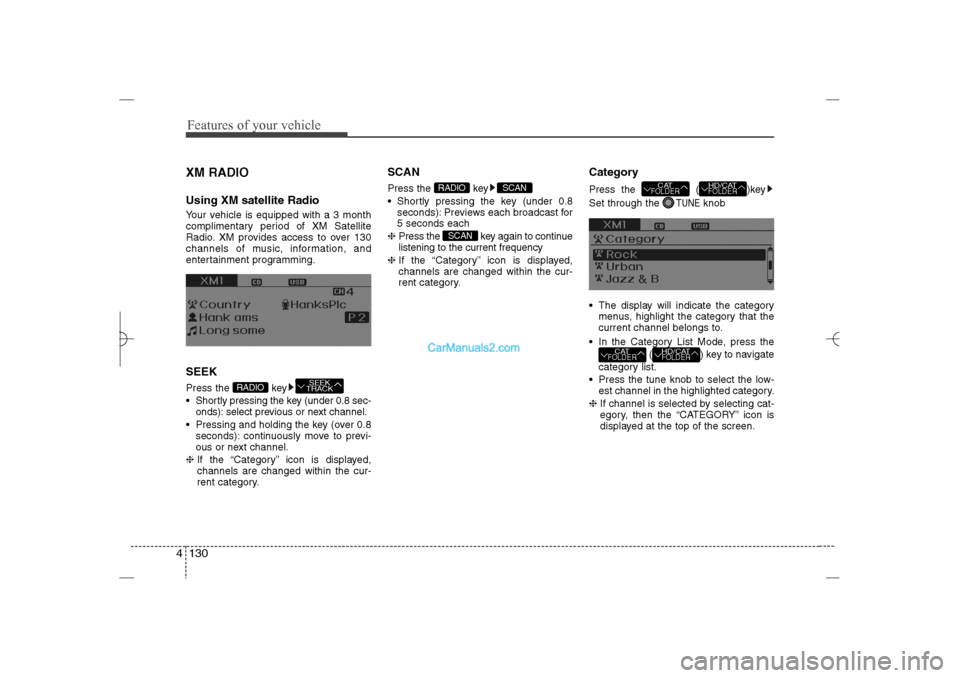
Features of your vehicle130 4XM RADIOUsing XM satellite RadioYour vehicle is equipped with a 3 month
complimentary period of XM Satellite
Radio. XM provides access to over 130
channels of music, information, and
entertainment programming.SEEKPress the key
Shortly pressing the key (under 0.8 sec-
onds): select previous or next channel.
Pressing and holding the key (over 0.8
seconds): continuously move to previ-
ous or next channel.
❈If the “Category” icon is displayed,
channels are changed within the cur-
rent category.
SCANPress the key
Shortly pressing the key (under 0.8
seconds): Previews each broadcast for
5 seconds each
❈Press the key again to continue
listening to the current frequency
❈If the “Category” icon is displayed,
channels are changed within the cur-
rent category.
CategoryPress the ( )key
Set through the
TUNE
knob
The display will indicate the category
menus, highlight the category that the
current channel belongs to.
In the Category List Mode, press the
( ) key to navigate
category list.
Press the tune knob to select the low-
est channel in the highlighted category.
❈If channel is selected by selecting cat-
egory, then the “CATEGORY” icon is
displayed at the top of the screen.
HD/CATFOLDER
CATFOLDER
HD/CATFOLDER
CATFOLDER
SCAN
SCAN
RADIO
SEEK
TRACK
RADIO
YF HMA 4b-112~(Audio).qxp 3/5/2012 4:24 PM Page 130
Page 216 of 410
4 135
Features of your vehicle
BASIC METHOD OF USE :
Audio CD / MP3 CD / USB /
iPod / My MusicPress the key to change the mod
mode in order of CD
➟USB(iPod)
➟AUX
➟My Music
➟BT Audio.
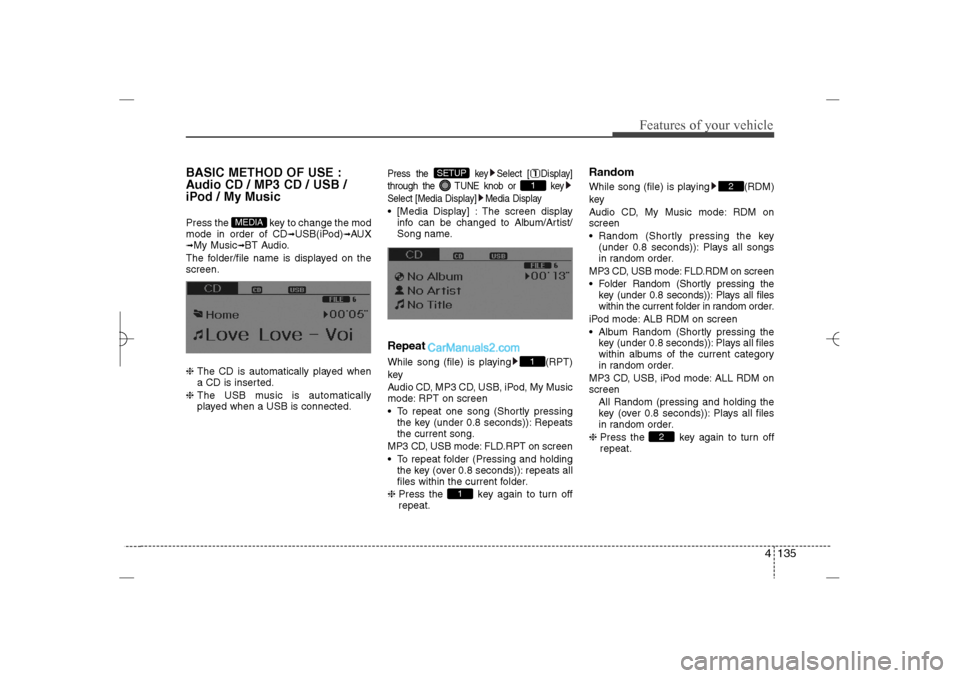
The folder/file name is displayed on the
screen.
❈ The CD is automatically played when
a CD is inserted.
❈ The USB music is automatically
played when a USB is connected.
Press the key Select [ Display]
through the TUNE knob or key
Select [Media Display] Media Display [Media Display] : The screen display
info can be changed to Album/Artist/
Song name.RepeatWhile song (file) is playing (RPT)
key
Audio CD, MP3 CD, USB, iPod, My Music
mode: RPT on screen
To repeat one song (Shortly pressing
the key (under 0.8 seconds)): Repeats
the current song.
MP3 CD, USB mode: FLD.RPT on screen
To repeat folder (Pressing and holding
the key (over 0.8 seconds)): repeats all
files within the current folder.
❈ Press the key again to turn off
repeat.
RandomWhile song (file) is playing (RDM)
key
Audio CD, My Music mode: RDM on
screen
Random (Shortly pressing the key
(under 0.8 seconds)): Plays all songs
in random order.
MP3 CD, USB mode: FLD.RDM on screen
Folder Random (Shortly pressing the
key (under 0.8 seconds)): Plays all files
within the current folder in random order.
iPod mode: ALB RDM on screen
Album Random (Shortly pressing the
key (under 0.8 seconds)): Plays all files
within albums of the current category
in random order.
MP3 CD, USB, iPod mode: ALL RDM on
screen
All Random (pressing and holding the
key (over 0.8 seconds)): Plays all files
in random order.
❈ Press the key again to turn off
repeat.
2
2
1
11
SETUP
MEDIA
YF HMA 4b-112~(Audio).qxp 3/5/2012 4:24 PM Page 135
Page 217 of 410
Features of your vehicle136 4Changing Song/FileWhile song (file) is playing key Shortly pressing the key (under 0.8
seconds): Plays the current song from
the beginning.
❈ If the key is pressed again
within 1 second, the previous song is
played.
Pressing and holding the key (over 0.8
seconds): Rewinds the song.While song (file) is playing key Shortly pressing the key (under 0.8
seconds): Plays the next song.
Pressing and holding the key (over 0.8
seconds): Fast forwards the song.
ScanWhile song (file) is playing keyScans all songs for 10 seconds starting
from the next song.
❈ Press the key again to turn off.
❈ The SCAN function is not supported in
iPod mode.Folder Search : MP3 CD, USB
ModeWhile file is playing
( ) (Folder Up) key Searches the next folder.While file is playing
( ) (Folder Down) key Searches the previous folder.
❈ If a folder is selected by pressing the
TUNE knob, the first file within the
selected folder will be played.
❈ In iPod mode, moves to the Parent
Folder.
Searching Songs (File) Turning TUNE knob : Searches for
songs (files)
Pressing TUNE knob : Plays select-
ed song (file).
HD/CAT
FOLDER
CAT
FOLDER
HD/CAT
FOLDER
CAT
FOLDER
SCAN
SCAN
SEEK
TRACK
SEEK
TRACK
SEEK
TRACK
YF HMA 4b-112~(Audio).qxp 3/5/2012 4:24 PM Page 136
Page 223 of 410
Features of your vehicle142 4
CAUTION IN USING
USB DEVICE
To use an external USB device,
make sure the device is not con-
nected when starting up the vehi-
cle. Connect the device after
starting up.
If you start the engine when the
USB device is connected, it may
damage the USB device. (USB
flashdrives are very sensitive to
electric shock.)
If the engine is started up or
turned off while the external USB
device is connected, the external
USB device may not work.
The System may not play inau-
thentic MP3 or WMA files.
1) It can only play MP3 files with
the compression rate between
8Kbps~320Kbps.
2) It can only play WMA music
files with the compression rate
between 8Kbps~320Kbps.
Take precautions for static elec-
tricity when connecting or discon-
necting the external USB device.
(Continued)
(Continued)
An encrypted MP3 PLAYER is not
recognizable.
Depending on the condition of
the external USB device, the con-
nected external USB device can
be unrecognizable.
When the formatted byte/sector
setting of External USB device is
not either 512BYTE or 2048BYTE,
then the device will not be recog-
nized.
Use only a USB device formatted
to FAT 12/16/32.
USB devices without USB I/F
authentication may not be recog-
nizable.
Make sure the USB connection
terminal does not come in con-
tact with the human body or other
objects.
If you repeatedly connect or dis-
connect the USB device in a short
period of time, it may break the
device.
You may hear a strange noise
when connecting or disconnect-
ing a USB device.
(Continued)
(Continued)
If you disconnect the external USB
device during playback in USB
mode, the external USB device can
be damaged or may malfunction.
Therefore, disconnect the external
USB device when the audio is
turned off or in another mode. (e.g,
Radio, XM or CD)
Depending on the type and
capacity of the external USB
device or the type of the files
stored in the device, there is a dif-
ference in the time taken for
recognition of the device.
Do not use the USB device for
purposes other than playing
music files.
Playing videos through the USB
is not supported.
Use of USB accessories such as
rechargers or heaters using USB
I/F may lower performance or
cause trouble.
(Continued)
YF HMA 4b-112~(Audio).qxp 3/5/2012 4:24 PM Page 142
Page 224 of 410
4 143
Features of your vehicle
✽ ✽
NOTICE FOR USING THE
iPod
®DEVICE
• Some iPod models may not support
communication protocol and files may
not properly play.
Supported iPod models:
- iPod Mini
- iPod 4th(Photo) ~ 6th(Classic)
generation
- iPod Nano 1st~4th generation
- iPod Touch 1st~2nd generation
• The order of search or playback of
songs in the iPod can be different
from the order searched in the audio
system.
• If the iPod disabled due to its own
malfunction, reset the iPod. (Reset:
Refer to iPod manual)
• An iPod may not operate normally on
low battery.
• Some iPod devices, such as the
iPhone, can be connected through the
Bluetooth
®Wireless Technology inter-
face. The device must have audio
Bluetooth®Wireless Technology capa-
bility (such as for stereo headphone
Bluetooth®Wireless Technology). The
device can play, but it will not be con-
trolled by the audio system.
(Continued)
(Continued)
Some USB flash memory readers
(such as CF, SD, micro SD, etc.) or
external-HDD type devices can be
unrecognizable.
Music files protected by DRM
(DIGITAL RIGHTS MANAGE-
MENT) are not recognizable.
The data in the USB memory may
be lost while using this audio.
Always back up important data on
a personal storage device.
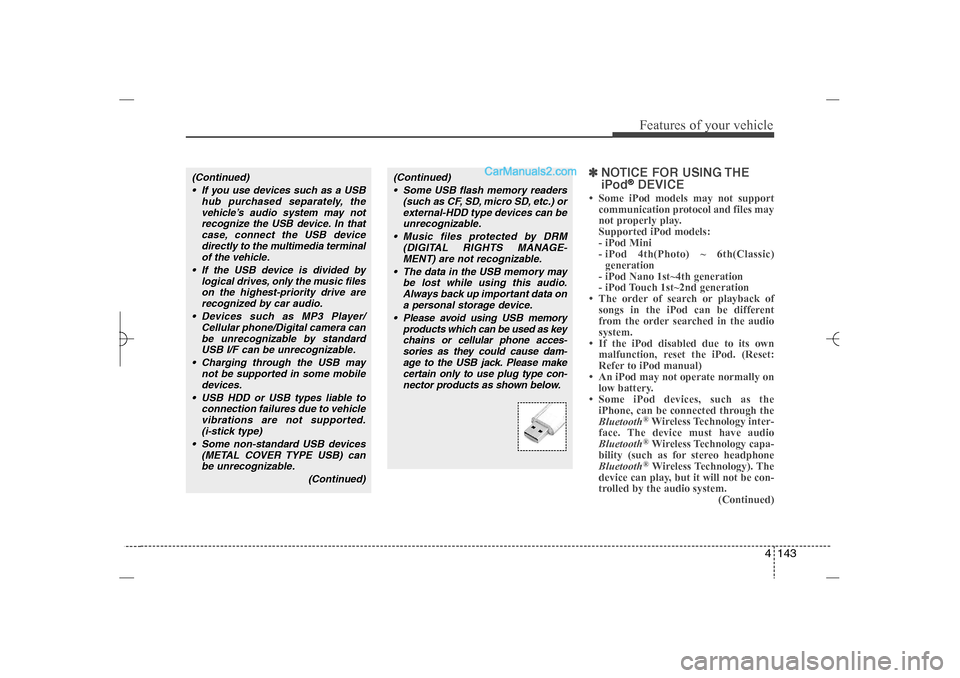
Please avoid using USB memory
products which can be used as key
chains or cellular phone acces-
sories as they could cause dam-
age to the USB jack. Please make
certain only to use plug type con-
nector products as shown below.
(Continued)
If you use devices such as a USB
hub purchased separately, the
vehicle’s audio system may not
recognize the USB device. In that
case, connect the USB device
directly to the multimedia terminal
of the vehicle.
If the USB device is divided by
logical drives, only the music files
on the highest-priority drive are
recognized by car audio.
Devices such as MP3 Player/
Cellular phone/Digital camera can
be unrecognizable by standard
USB I/F can be unrecognizable.
Charging through the USB may
not be supported in some mobile
devices.
USB HDD or USB types liable to
connection failures due to vehicle
vibrations are not supported.
(i-stick type)
Some non-standard USB devices
(METAL COVER TYPE USB) can
be unrecognizable.
(Continued)
YF HMA 4b-112~(Audio).qxp 3/5/2012 4:24 PM Page 143
Page 227 of 410

Features of your vehicle146 4PhoneBefore using the
Bluetooth
®
Wireless
Technology enabled phone features
In order to use
Bluetooth
®
Wireless
Technology phone, you must first pair
and connect the
Bluetooth
®Wireless
Technology mobile phone.
If the mobile phone is not paired or
connected, it is not possible to enter
Phone mode. Once a phone is paired
or connected, the guidance screen will
be displayed.
If Priority is set upon vehicle ignition
(IGN/ACC ON), the
Bluetooth
®
Wireless Technology enabled phone
will be automatically connected. Even if
you are outside, the
Bluetooth
®
Wireless Technology enabled phone
will be automatically connected once
you are in the vicinity of the vehicle. If
you do not want automatic
Bluetooth
®
Wireless Technology enabled phone
connection, set the
Bluetooth
®
Wireless Technology power to OFF.
Making a call using the steering
wheel remote controller1. button : Activates voice recognition.
2. button : Places and transfers calls.
3. button : Ends calls or cancels
functions. Check call history and making call
➀
Shortly press (under 0.8 seconds) the
key on the steering remote con-
troller .
➁
The call history list will be displayed
on the screen.
➂
Press the key again to connect a
call to the selected number.
Redialing the most recently called
number
➀
Press and hold (over 0.8 seconds) the
key on the steering remote con-
troller.
➁
The most recently called number is
redialed.
❈ If call history does not exist, a screen
asking whether to download call histo-
ry is displayed. (The download feature
may not be supported in some mobile
phones)
YF HMA 4b-112~(Audio).qxp 3/5/2012 4:24 PM Page 146
Page 231 of 410
![Hyundai Sonata 2013 Owners Manual Features of your vehicle150 4VOICE COMMANDStarting Voice Command To start voice command, shortly press
the key on the steering wheel
remote controller.
If voice command is in [Normal Mode],
then](/manual-img/35/16808/w960_16808-230.png "Hyundai Sonata 2013 Owners Manual Features of your vehicle150 4VOICE COMMANDStarting Voice Command To start voice command, shortly press
the key on the steering wheel
remote controller.
If voice command is in [Normal Mode],
then")
Features of your vehicle150 4VOICE COMMANDStarting Voice Command To start voice command, shortly press
the key on the steering wheel
remote controller.
If voice command is in [Normal Mode],
then the system will say “Please say a
command. Beep”
❈If voice command is in [Expert Mode],
then the system will only say a “Beep-”
❈Setting Voice command [Normal
Mode]/[Expert Mode]:
Press the key Select [System]
through the TUNE knob or
key Select [Voice Command Mode]
through the TUNE knob Set [Normal
Mode]/[Expert Mode]
Say the voice command.
Skipping the Guidance MessageWhile the guidance message is being
stated, shortly press the key (under
0.8 seconds) to discontinue the guidance
message and sound the “beep”.
After the “beep”, say the voice command.
Ending Voice Command While using voice command, press and
hold the key (over 0.8 seconds) to
end voice command.
While using voice command, pressing
the steering wheel remote controller or
a different key will end voice command.
In a state where the system is waiting
for your voice command, say “cancel”
or “end” to end voice command.
In a state where the system is waiting
for your voice command, shortly press
the key (under 0.8 seconds) to
end voice command.
5
SETUP
CAUTION
For proper voice recognition, say the
voice command after the guidance
message and the “Beep” sound.
YF HMA 4b-112~(Audio).qxp 3/5/2012 4:24 PM Page 150
Page 240 of 410
4 159
Features of your vehicle
Blue Link
®
Hyundai aims to offer differentiated cus-
tomer values through a ‘Connected Car
Life,’ which is to provide consumers with
fast and reliable IT technology. As con-
sumers’ lifestyles become more and
more mobile in thanks to remarkable
advances in smart phones, tablet PCs
and overall wireless telecommunication,
new lifestyle patterns demand seamless
connection between one’s office, home,
outdoors and automobiles.
Automobile companies are now faced with
the task of shifting their paradigm from
vehicle-centered services to customer
value-centered services, with the ultimate
goal of securing global leadership in the
field of vehicle IT and telematics.
Hyundai Motor plans to achieve this by
realizing a terminal platform flexible to
changes in IT technology, cooperating with
global IT companies, creating an eco-sys-
tem and providing the latest contents &
services based on an open environment.
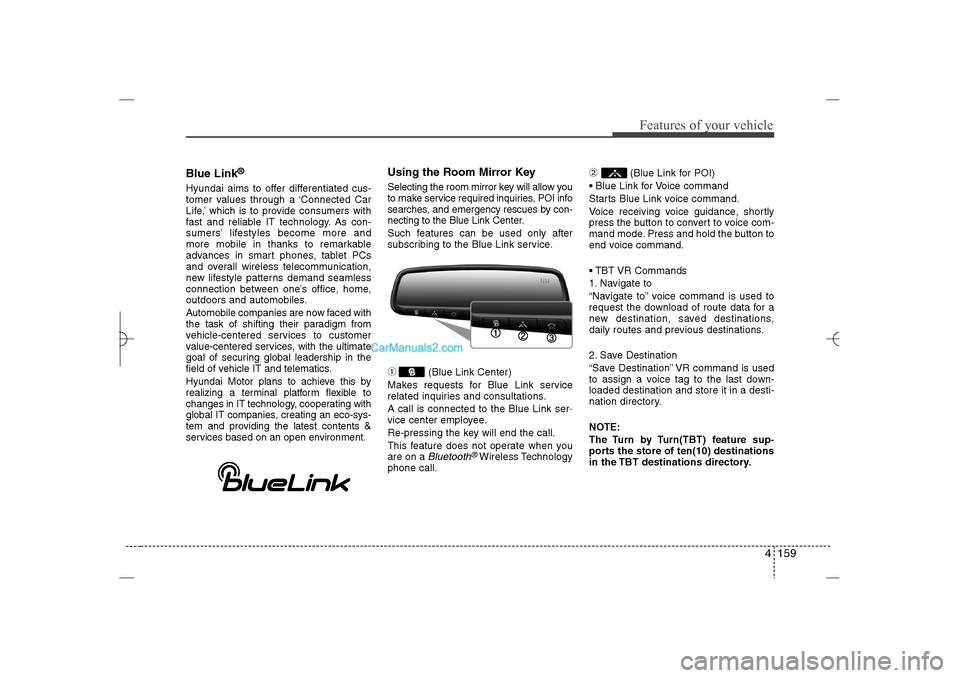
Using the Room Mirror KeySelecting the room mirror key will allow you
to make service required inquiries, POI info
searches, and emergency rescues by con-
necting to the Blue Link Center.
Such features can be used only after
subscribing to the Blue Link service.➀
(Blue Link Center)
Makes requests for Blue Link service
related inquiries and consultations.
A call is connected to the Blue Link ser-
vice center employee.
Re-pressing the key will end the call.
This feature does not operate when you
are on a Bluetooth
®Wireless Technology
phone call.
➁
(Blue Link for POI)
Blue Link for Voice command
Starts Blue Link voice command.
Voice receiving voice guidance, shortly
press the button to convert to voice com-
mand mode. Press and hold the button to
end voice command.
TBT VR Commands
1. Navigate to
“Navigate to” voice command is used to
request the download of route data for a
new destination, saved destinations,
daily routes and previous destinations.
2. Save Destination
“Save Destination” VR command is used
to assign a voice tag to the last down-
loaded destination and store it in a desti-
nation directory.
NOTE:
The Turn by Turn(TBT) feature sup-
ports the store of ten(10) destinations
in the TBT destinations directory.
YF HMA 4b-112~(Audio).qxp 3/5/2012 4:24 PM Page 159