Page 215 of 488
uuAudio System Basic OperationuPlaying Bluetooth® Audio
214
Features
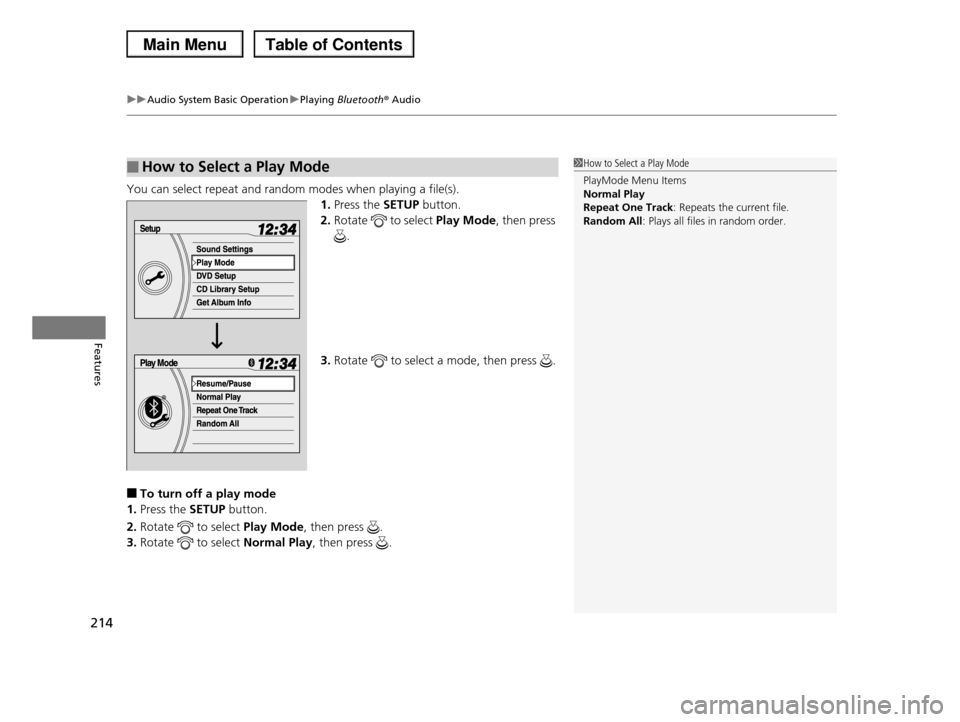
You can select repeat and random modes when playing a file(s).
1.Press the SETUP button.
2.Rotate to select Play Mode, then press
.
3.Rotate to select a mode, then press .
■To turn off a play mode
1.Press the SETUP button.
2.Rotate to select Play Mode, then press .
3.Rotate to select Normal Play, then press .
■How to Select a Play Mode1How to Select a Play Mode
PlayMode Menu Items Normal Play
Repeat One Track: Repeats the current file.
Random All: Plays all files in random order.
Page 216 of 488
215
uuAudio System Basic OperationuPlaying Bluetooth® Audio
Features
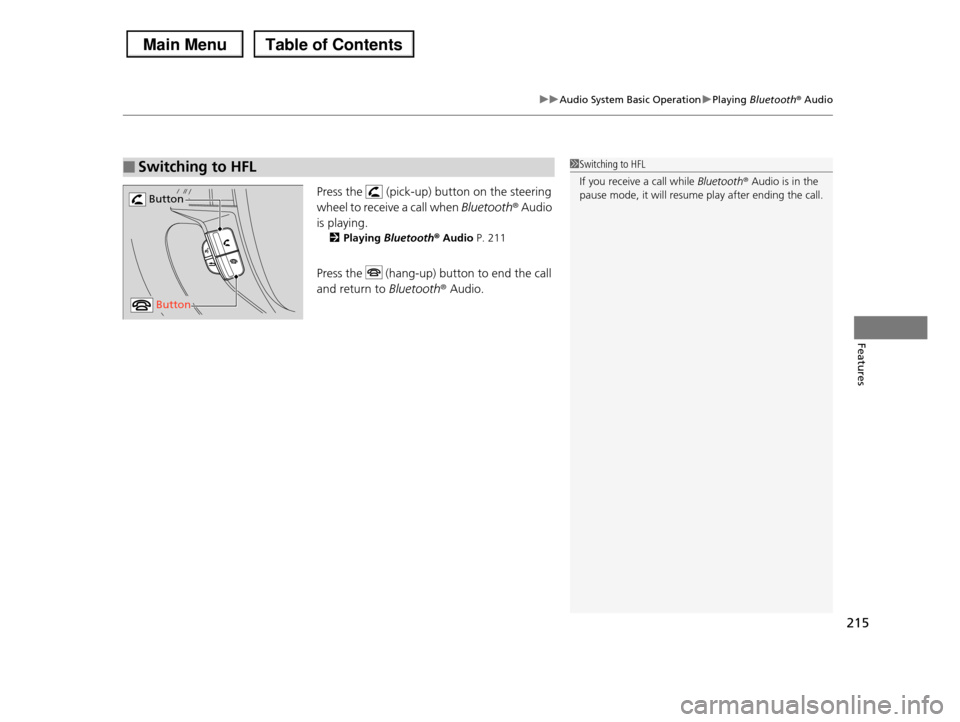
Press the (pick-up) button on the steering
wheel to receive a call when Bluetooth® Audio
is playing.
2Playing Bluetooth® Audio P. 211
Press the (hang-up) button to end the call
and return to Bluetooth® Audio.
■Switching to HFL1Switching to HFL
If you receive a call while Bluetooth® Audio is in the
pause mode, it will resume play after ending the call. Button
Button
Page 218 of 488
217
uuAudio System Basic OperationuAudio Remote Controls
Features
Audio Remote Controls
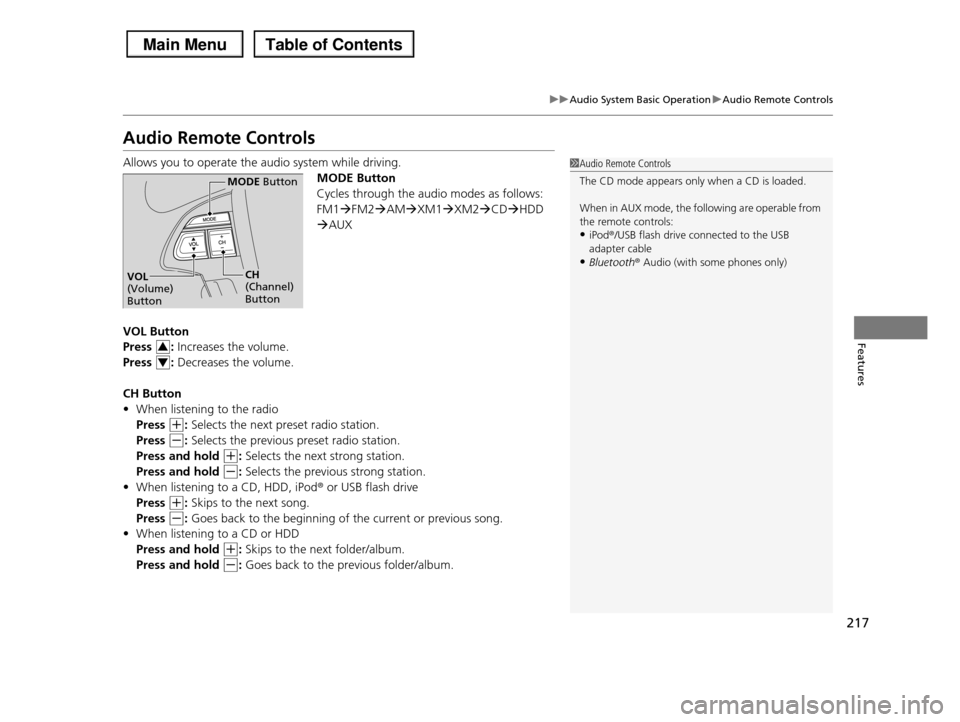
Allows you to operate the audio system while driving.
MODE Button
Cycles through the audio modes as follows:
FM1FM2AMXM1XM2CDHDD
AUX
VOL Button
Press : Increases the volume.
Press : Decreases the volume.
CH Button
•When listening to the radio
Press (+: Selects the next preset radio station.
Press (-: Selects the previous preset radio station.
Press and hold (+: Selects the next strong station.
Press and hold (-: Selects the previous strong station.
•When listening to a CD, HDD, iPod® or USB flash drive
Press (+: Skips to the next song.
Press (-: Goes back to the beginning of the current or previous song.
•When listening to a CD or HDD
Press and hold (+: Skips to the next folder/album.
Press and hold (-: Goes back to the previous folder/album.
1Audio Remote Controls
The CD mode appears only when a CD is loaded.
When in AUX mode, the following are operable from
the remote controls:•iPod®/USB flash drive connected to the USB
adapter cable
•Bluetooth® Audio (with some phones only)
MODE Button
CH (Channel) Button
VOL (Volume) Button
3
4
Page 219 of 488
218
uuAudio System Basic OperationuAdjusting the Sound
Features
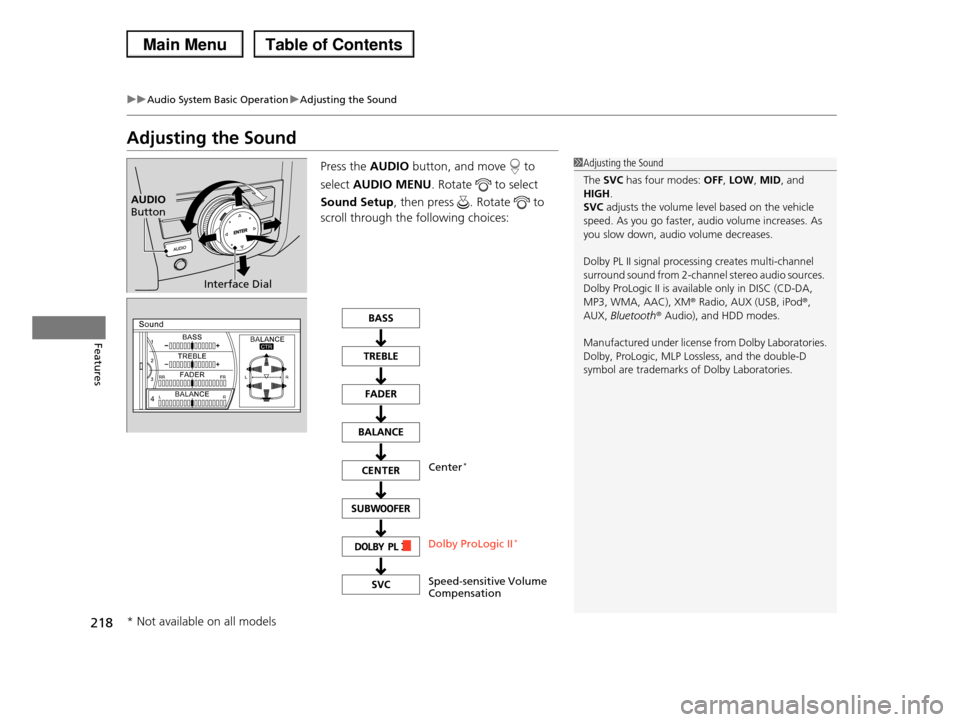
Adjusting the Sound
Press the AUDIO button, and move to
select AUDIO MENU. Rotate to select
Sound Setup, then press . Rotate to
scroll through the following choices:
1Adjusting the Sound
The SVC has four modes: OFF, LOW, MID, and HIGH.
SVC adjusts the volume level based on the vehicle
speed. As you go faster, audio volume increases. As you slow down, audio volume decreases.
Dolby PL II signal processing creates multi-channel surround sound from 2-channel stereo audio sources.
Dolby ProLogic II is available only in DISC (CD-DA,
MP3, WMA, AAC), XMr Radio, AUX (USB, iPodr, AUX, Bluetoothr Audio), and HDD modes.
Manufactured under license from Dolby Laboratories.Dolby, ProLogic, MLP Lossless, and the double-D
symbol are trademarks of Dolby Laboratories.
Interface Dial
AUDIO Button
Speed-sensitive Volume Compensation
Center*
Dolby ProLogic II*
* Not available on all models
Page 249 of 488

248
uuAudio System Basic OperationuPlaying Bluetooth® Audio
Features
Playing Bluetooth® Audio
Your audio system allows you to listen to music from your Bluetooth®-compatible
phone.
This function is available when the phone is paired and linked to the vehicle's
Bluetooth® HandsFreeLink® (HFL) system.
2Phone Setup P. 305
1Playing Bluetooth® Audio
Not all Bluetooth-enabled phones with streaming
audio capabilities are compatible with the system. For a list of compatible phones:
•U.S.: Visit www.handsfreelink.honda.com, or call
1-888-528-7876.•Canada: Visit www.handsfreelink.ca, or call 1-888-
528-7876.
In some states, it may be illegal to perform some data
device functions while driving.
If more than one phone is paired to the HFL system,
there will be a delay before the system begins to play.VOL/ (Volume/ Power) Knob
Press to turn the audio system on and off.
Turn to adjust the volume.
AUDIO Button
Press to display the audio system on the navigation screen.
USB/AUX Button
Press to select Bluetooth® Audio.
SKIP Bar
Press or to change files.
Models without rear entertainment system
Page 250 of 488
249
uuAudio System Basic OperationuPlaying Bluetooth® Audio
Continued
Features
VOL/ (Volume/ Power) Knob
Press to turn the audio system on and off.
Turn to adjust the volume.
AUDIO Button
Press to display the audio system on the navigation screen.
USB/AUX Button
Press to select Bluetooth® Audio.
SKIP Bar
Press or to change files.
Models with rear entertainment system
Page 251 of 488
uuAudio System Basic OperationuPlaying Bluetooth® Audio
250
Features
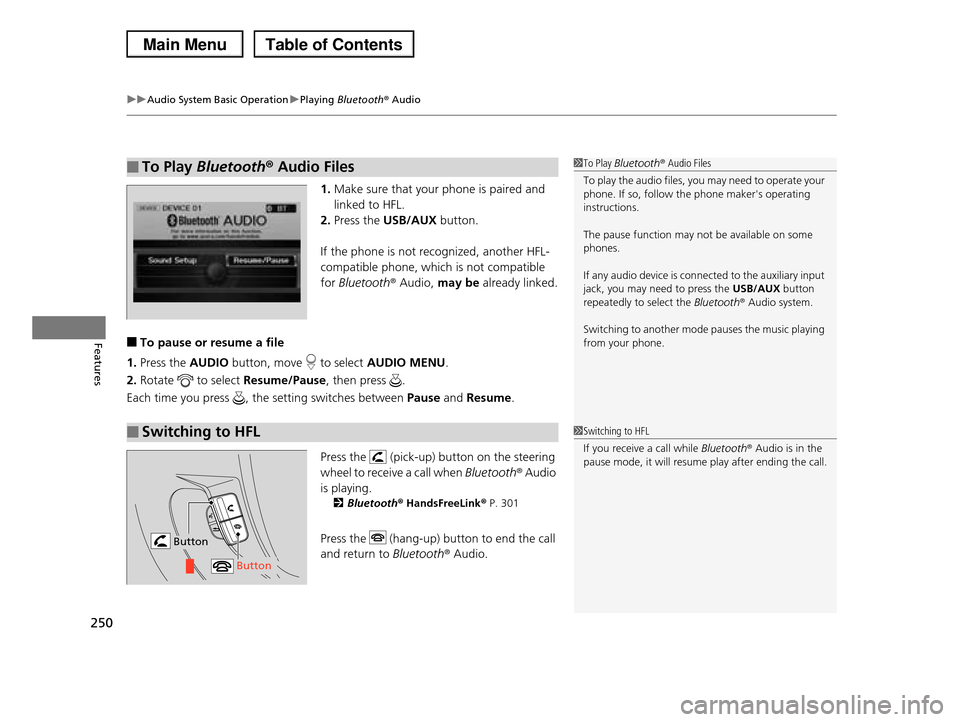
1.Make sure that your phone is paired and
linked to HFL.
2.Press the USB/AUX button.
If the phone is not recognized, another HFL-
compatible phone, which is not compatible
for Bluetooth® Audio, may be already linked.
■To pause or resume a file
1.Press the AUDIO button, move to select AUDIO MENU.
2.Rotate to select Resume/Pause, then press .
Each time you press , the setting switches between Pause and Resume.
Press the (pick-up) button on the steering
wheel to receive a call when Bluetooth® Audio
is playing.
2Bluetooth® HandsFreeLink® P. 301
Press the (hang-up) button to end the call
and return to Bluetooth® Audio.
■To Play Bluetooth® Audio Files1To Play Bluetooth® Audio Files
To play the audio files, you may need to operate your phone. If so, follow the phone maker's operating
instructions.
The pause function may not be available on some
phones.
If any audio device is connected to the auxiliary input
jack, you may need to press the USB/AUX button
repeatedly to select the Bluetooth® Audio system.
Switching to another mode pauses the music playing
from your phone.
■Switching to HFL1Switching to HFL
If you receive a call while Bluetooth® Audio is in the
pause mode, it will resume play after ending the call.
Button
Button
Page 279 of 488

278
Features
Bluetooth® HandsFreeLink®
Bluetooth® HandsFreeLink® (HFL) allows you to place and receive phone calls using your vehicle's audio system, without handling your cell phone.
Using HFL
(Pick-up) button: Press to go directly to the Phone screen or to answer an
incoming call.
(Hang-up) button: Press to end a call.
(Talk) button: Press to call a number with a stored voice tag.
(Back) button: Press to cancel a command.
PHONE button: Press to go directly to the Phone screen.
Selector knob: Rotate to select an item on the screen, then press .
■HFL Buttons
1Bluetooth® HandsFreeLink®
To use HFL, you need a Bluetooth-compatible cell phone. For a list of compatible phones, pairing
procedures, and special feature capabilities:
•U.S.: Visit www.handsfreelink.honda.com, or call 1-888-528-7876.
•Canada: Visit www.handsfreelink.ca, or call 1-888-
528-7876.
Voice control tips
•Aim the vents away from the ceiling and close the windows, as noise coming from them may interfere
with the microphone.
•Press and release the button when you want to
call a number using a stored voice tag. Speak clearly and naturally after a beep.
•If the microphone picks up voices other than yours,
the command may be misinterpreted.•To change the volume level, use the audio system's
volume knob or the remote audio controls on the
steering wheel.
State or local laws may prohibit the operation of
handheld electronic devices while operating a vehicle.
Models without navigation system
Talk Button
Volume up
Microphone
Hang-up Button
Pick-up ButtonVolume down
Selector Knob
PHONE Button
Back Button