Page 185 of 267
183
Bluetooth® HandsFreeLink®
Making a Call
Bluetooth® HandsFreeLink®
HPHONE button
Phonebook
1.Rotate i to select a name. Press
u .
Move w or y to select
alphabetical tabs to display the
entries in the group.
2. Rotate i to select a number.
Press u to begin dialing.
H PHONE button
Dial
1.Enter a phone number.
2. Move r to select DIAL to begin
dialing.
■ Using the Phonebook
1 Using the Phonebook
You must first import a phonebook before using
it to make calls.
2 Importing Phonebook Data P. 177
■Entering a Phone Number
1 Entering a Phone Number
A command that consists of several words can be
spoken together. For example, say d “123-456-
7890” at once.
Continued
Page 186 of 267
184
Bluetooth® HandsFreeLink®
Making a Call
Bluetooth ® HandsFreeLink®
HPHONE button
Call History
Rotate i to select a call. Press u to
begin dialing.
Move w or y to select All, Dial ,
Receive , Missed to view the call
history by category.
From the PHONE screen: Rotate i to select one of the four speed dial numbers.
Press u to begin dialing.
From the PHONE screen: Rotate i to select More Speed Dial . Press u. Rotate
i to select a number. Press u to begin dialing.
■Using Call History
1 Using Call History
The call history only show s the last 30 calls from
your phone.
■ Using Speed Dial
1 Using Speed Dial
To make a call using speed dial, you need to
create speed dial entries.
2 Setting Up Speed Dialing P. 178
If the other phone is PIN-protected, enter the PIN
when prompted. Select OK. PINs are optional.
2 Editing User Name and PIN P. 180
Page 187 of 267
185
Bluetooth® HandsFreeLink®
Receiving a Call
Bluetooth® HandsFreeLink®
Receiving a Call
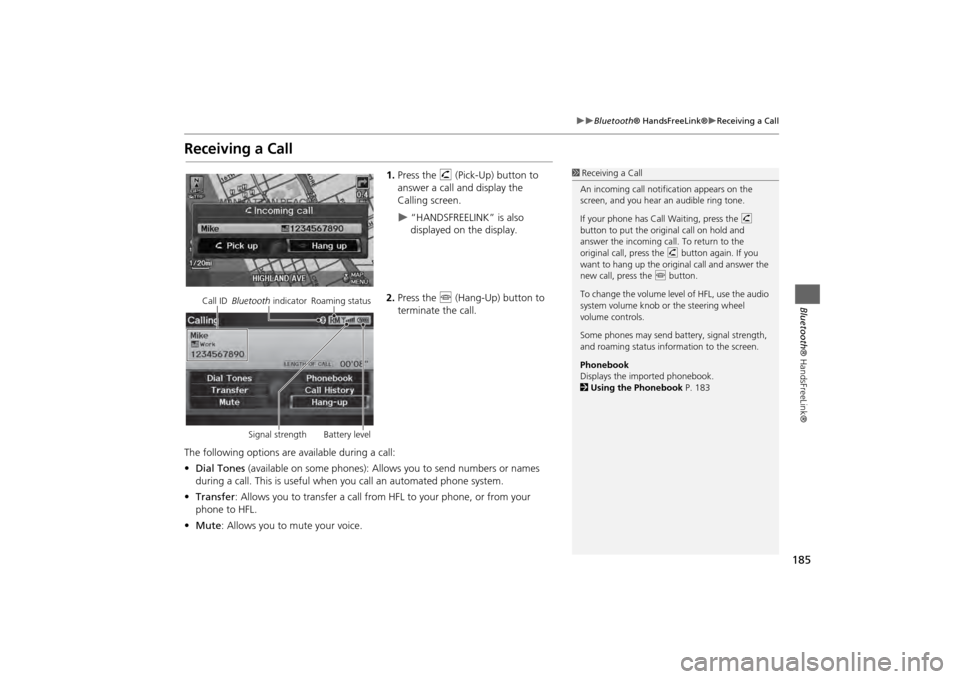
1.Press the h (Pick-Up) button to
answer a call and display the
Calling screen.
“HANDSFREELINK” is also
displayed on the display.
2. Press the j (Hang-Up) button to
terminate the call.
The following options are available during a call:
• Dial Tones (available on some phones): Allo ws you to send numbers or names
during a call. This is useful when you call an automated phone system.
• Transfer: Allows you to transfer a call from HF L to your phone, or from your
phone to HFL.
• Mute : Allows you to mute your voice.
1Receiving a Call
An incoming call notif ication appears on the
screen, and you hear an audible ring tone.
If your phone has Call Waiting, press the h
button to put the origin al call on hold and
answer the incoming call. To return to the
original call, press the h button again. If you
want to hang up the origin al call and answer the
new call, press the j button.
To change the volume leve l of HFL, use the audio
system volume knob or the steering wheel
volume controls.
Some phones may send battery, signal strength,
and roaming status information to the screen.
Phonebook
Displays the imported phonebook.
2 Using the Phonebook P. 183
Call ID Bluetooth indicator Roaming status
Signal strength Battery level
Page 188 of 267
186
Bluetooth® HandsFreeLink®
HFL Menus
Bluetooth ® HandsFreeLink®
HFL MenusUse HFL when the vehicle’s ig nition is in the ACCESSORY (I) or ON (II) position.
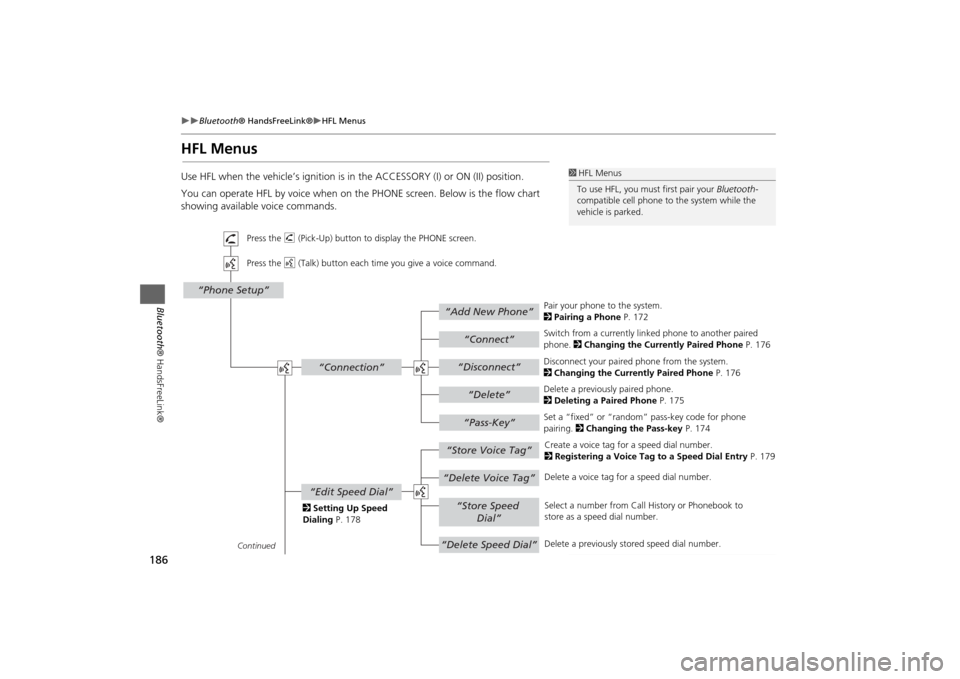
You can operate HFL by voice when on the PHONE screen. Below is the flow chart
showing available voice commands.
1 HFL Menus
To use HFL, you must first pair your Bluetooth-
compatible cell phone to the system while the
vehicle is parked.
“Add New Phone”
“Connect”“Pass-Key”
“Connection”
“Phone Setup”
“Disconnect”“Delete”
“Store Voice Tag”“Delete Voice Tag”
“Store Speed
Dial”
“Delete Speed Dial”
“Edit Speed Dial”
Continued Press the h (Pick-Up) button to display the PHONE screen.
Press the d (Talk) button each time you give a voice command.
Pair your phone to the system.
2Pairing a Phone P. 172
Set a “fixed” or “random” pass-key code for phone
pairing. 2Changing the Pass-key P. 174
Delete a previously paired phone.
2
Deleting a Paired Phone P. 175
Switch from a currently lin
ked phone to another paired
phone. 2 Changing the Currently Paired Phone P. 176
Disconnect your paired phone from the system.
2 Changing the Currently Paired Phone P. 176
Create a voice tag for a speed dial number.
2 Registering a Voice Tag to a Speed Dial Entry P. 179
Delete a voice tag fo r a speed dial number.
Select a number from Call History or Phonebook to
store as a speed dial number.
Delete a previously st ored speed dial number.
2
Setting Up Speed
Dialing P. 178
Page 189 of 267
187
Bluetooth® HandsFreeLink®
HFL Menus
Bluetooth ® HandsFreeLink®
“Clear Phone
Information”“Phonebook”“Call History”
“Name”“PIN”
“Phone Name/PIN”“Auto Answer”
“Auto Transfer”
Continued Press the h (Pick-Up) button to display the Cellular Phone screen.
Press the d (Talk) button each time you give a voice command.Delete all paired phones, phonebook entries, speed dials, and pass-keys.
2 Phone Setup P. 181
Display the paired phone’s previously imported phonebook (or import a new one).
2 Using the Phonebook P. 183
Display the last 30 incoming,
outgoing, or missed calls.
2 Using Call History P. 184
Turn the auto transfer on or off.
2
Phone Setup P. 181
Turn the auto answer on or off.
2 Phone Setup P. 181
2
Editing User Name
and PIN P. 180 Create a user name for a paired phone.
Create a PIN number for a paired phone.
Page 190 of 267
188
Bluetooth® HandsFreeLink®
HFL Menus
Bluetooth ® HandsFreeLink®
“Dial Tones”
“Dial”
“Mute”“Transfer”
“One”“Two”“Three”“Four”
“More Speed
Dial”Speed dial entries“Dial”
The first four on the Cellular Phone screen.
Display a list of all 20 speed dial entries.
2
Using Speed Dial P. 184
2 Using Speed Dial P. 184 Send numbers or na
mes during a call.
Say a phone number to dial.
2
Entering a Phone Number P. 183
Mute your voice during a call.
Transfer a call from HFL to your phone, or from your
phone to HFL.
Page 223 of 267
221
Troubleshooting
Map, Voice, Entering Destinations
Troubleshooting
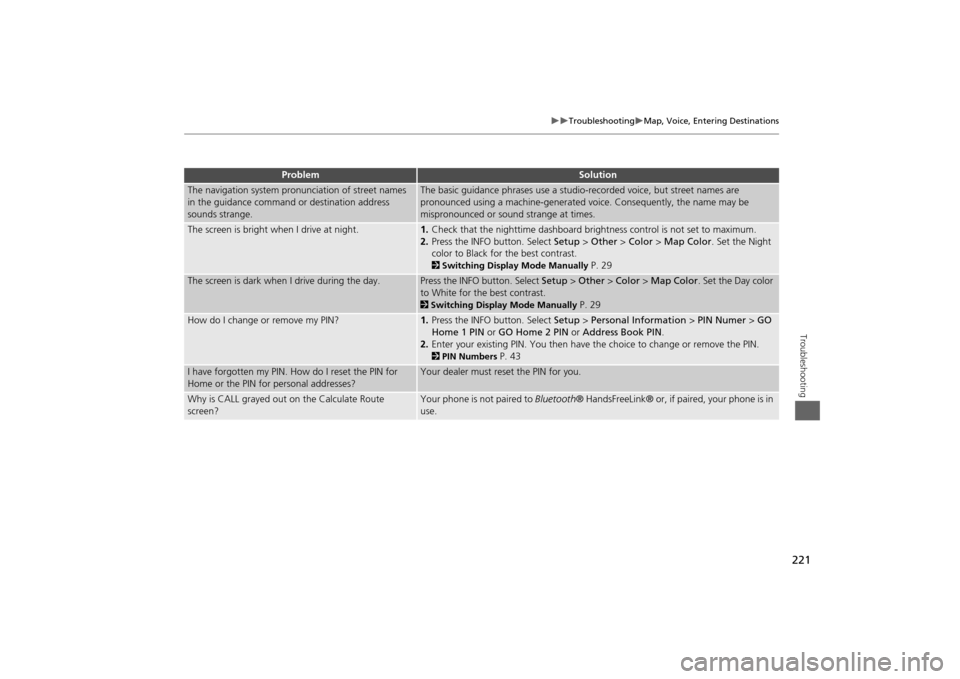
The navigation system pronunciation of street names
in the guidance command or destination address
sounds strange.
The basic guidance phrases use a studio- recorded voice, but street names are
pronounced using a machine-generated voice. Consequently, the name may be
mispronounced or sound strange at times.
The screen is bright when I drive at night.
1. Check that the nighttime dashboard brig htness control is not set to maximum.
2. Press the INFO button. Select Setup > Other > Color > Map Color . Set the Night
color to Black for the best contrast. 2 Switching Display Mode Manually
P. 29
The screen is dark when I drive during the day.
Press the INFO button. Select Setup > Other > Color > Map Color . Set the Day color
to White for the best contrast. 2 Switching Display Mode Manually
P. 29
How do I change or remove my PIN?
1. Press the INFO button. Select Setup > Personal Information > PIN Numer > GO
Home 1 PIN or GO Home 2 PIN or Address Book PIN .
2. Enter your existing PIN. Yo u then have the choice to change or remove the PIN. 2PIN Numbers
P. 43
I have forgotten my PIN. How do I reset the PIN for
Home or the PIN for personal addresses?
Your dealer must reset the PIN for you.
Why is CALL grayed out on the Calculate Route
screen?
Your phone is not paired to Bluetooth® HandsFreeLink® or, if paired, your phone is in
use.
Problem
Solution
Page 225 of 267
223
Troubleshooting
Guidance, Routing
Troubleshooting
Guidance, Routing
Problem
Solution
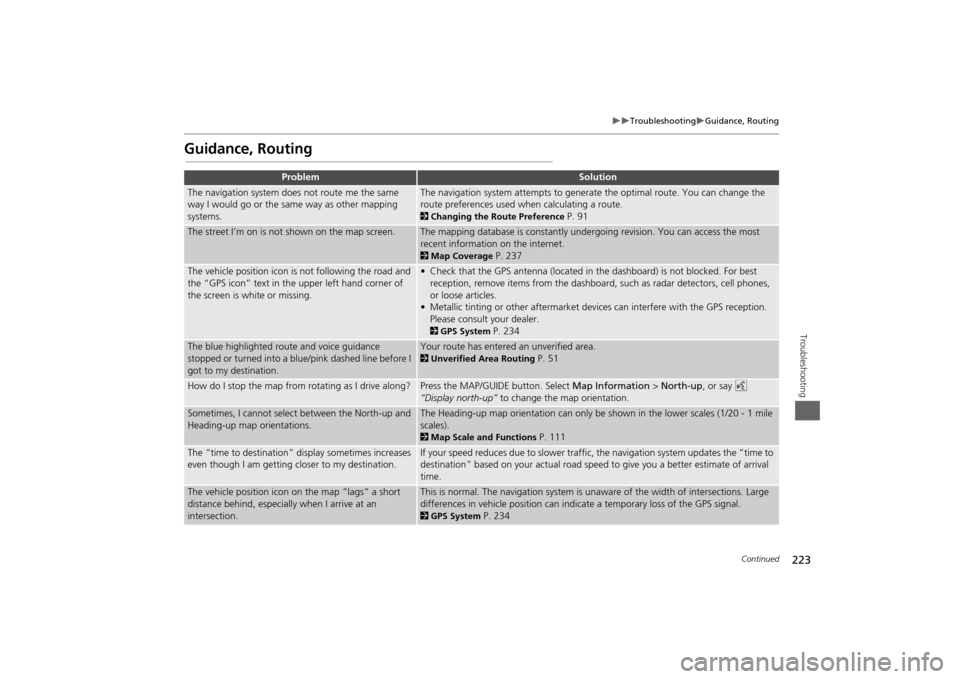
The navigation system does not route me the same
way I would go or the same way as other mapping
systems.
The navigation system attempts to generate the optimal route. You can change the
route preferences used when calculating a route. 2Changing the Route Preference
P. 91
The street I’m on is not shown on the map screen.
The mapping database is constantly undergoing revision. You can access the most
recent information on the internet. 2Map Coverage
P. 237
The vehicle position icon is not following the road and
the “GPS icon” text in th e upper left hand corner of
the screen is white or missing.
• Check that the GPS antenna (located in the dashboard) is not blocked. For best reception, remove items from the dashboard, such as radar detectors, cell phones,
or loose articles.
• Metallic tinting or other aftermarket devi ces can interfere with the GPS reception.
Please consult your dealer. 2 GPS System
P. 234
The blue highlighted route and voice guidance
stopped or turned into a blue/pink dashed line before I
got to my destination.
Your route has entered an unverified area. 2Unverified Area Routing
P. 51
How do I stop the map from rotating as I drive along?
Press the MAP/GUID E button. Select Map Information > North-up , or say d
“Display north-up” to change the map orientation.
Sometimes, I cannot select between the North-up and
Heading-up map orientations.
The Heading-up map orientation can only be shown in the lower scales (1/20 - 1 mile
scales). 2Map Scale and Functions
P. 111
The “time to destination” display sometimes increases
even though I am getting closer to my destination.
If your speed reduces due to slower traffic, the navigation system updates the “time to
destination” based on your actual road speed to give you a better estimate of arrival
time.
The vehicle position icon on the map “lags” a short
distance behind, especially when I arrive at an
intersection.
This is normal. The navigation system is un aware of the width of intersections. Large
differences in vehicle position can indicate a temporary loss of the GPS signal. 2 GPS System
P. 234
Continued


