Page 129 of 286
uuAudio System Basic OperationuPlaying the FM/AM Radio
128
Features
Provides text data information related to your selected RDS capable FM station. ■ RDS INFO ON
Press the TITLE button while listening to an RDS capable station. RDS INFO ON
appears, and the station name is displayed.
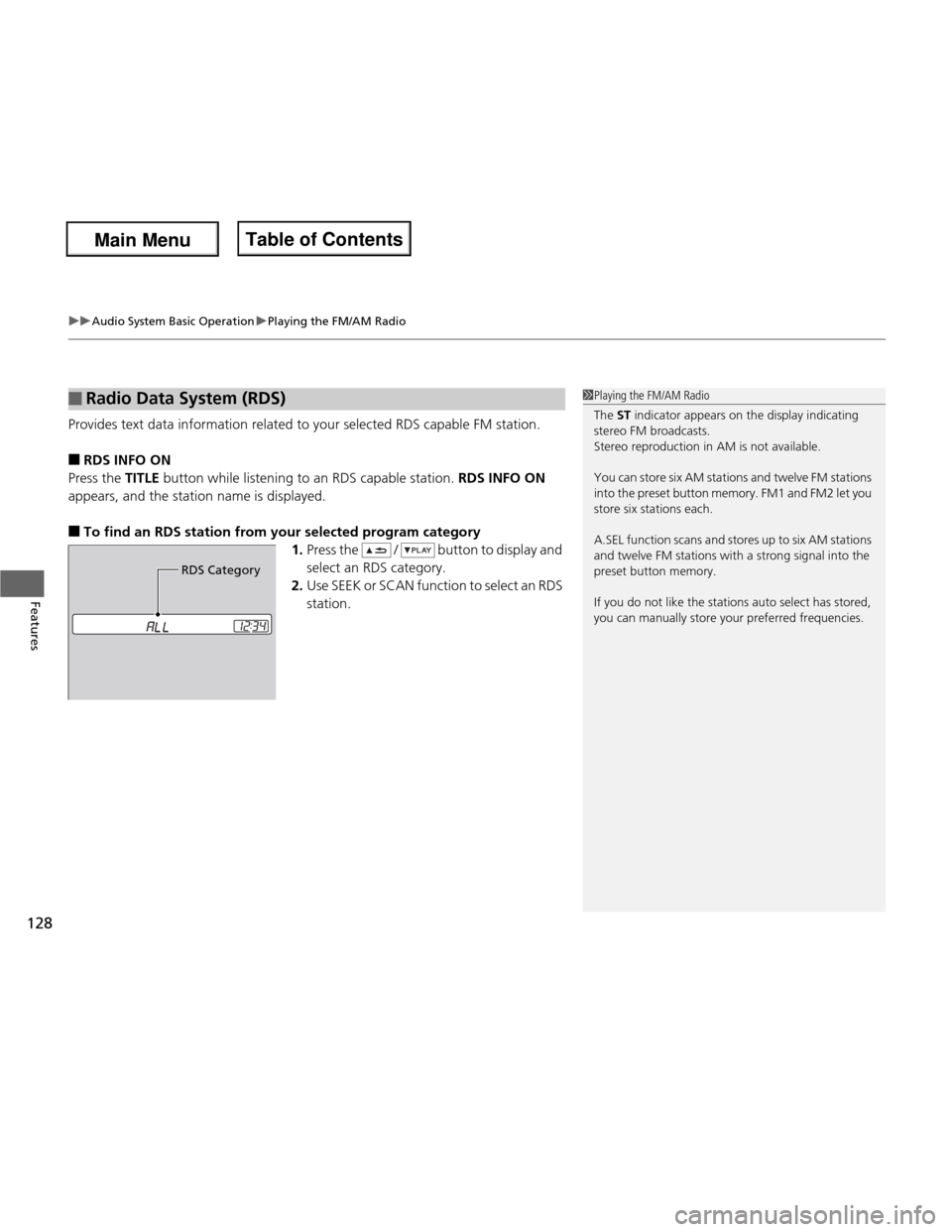
■ To find an RDS station from your selected program category
1.Press the / button to display and
select an RDS category.
2. Use SEEK or SCAN function to select an RDS station.
■Radio Data System (RDS)1Playing the FM/AM Radio
The ST indicator appears on the display indicating
stereo FM broadcasts.
Stereo reproduction in AM is not available.
You can store six AM stations and twelve FM stations
into the preset button memory. FM1 and FM2 let you store six stations each.
A.SEL function scans and stores up to six AM stations
and twelve FM stations with a strong signal into the preset button memory.
If you do not like the stations auto select has stored,
you can manually store your preferred frequencies.
RDS Category
Main Menu
Main MenuTable of Contents
Page 130 of 286

129
uuAudio System Basic OperationuPlaying a CD
Continued
Features
Playing a CD
Your audio system supports audio CDs, CD-Rs, and CD-RWs in either MP3 or WMA
format. With the CD loaded, press the CD button.
/ Buttons
Press to change folders
(MP3 or WMA).
SCAN Button
You will get a 10-se cond sampling of each
song. ● Press to sample all tracks on the CD (all
files in the current folder in MP3 or WMA).
● Press two times to sample the first file in
each of the main folders (MP3 or WMA).
● To turn off scan, press and hold the
button.
(Power) Button
Press to turn the audio
system on and off.
/ (Seek) Buttons
Press to change tracks
(files in MP3 or WMA).
RPT (Repeat) Button ● Press to replay a track/file continuously.
● Press two times to replay all files in the current folder.
● To turn off repeat, press and hold the
button.
Selector Knob
Turn to adjust the volume.
Press and turn to change tracks/files or select
an item, then press to set your selection. CD Button
Press to play a CD. (CD Eject) Button
Press to eject a CD.
TITLE Button
Press to display the CD’s text data
if it was recorded. Each time you press the button, the text data
information changes. RDM (Random) Button
● Press to play all tracks/files on a disc in
random order.
● Press two times to play all files in the current folder (MP3 or WMA) in random order.
● To turn off random, press and hold the
button.
CD Slot
Insert a CD about halfway
into the CD slot.
Main Menu
Main MenuTable of Contents
Page 131 of 286

uuAudio System Basic OperationuPlaying a CD
130
Features
1. Press to switch the display to a folder list.
2. Rotate to select a folder.
3. Press to change the display to a list of
files in that folder.
4. Rotate to select a file, then press .
■How to Select a File from a Folder with the Selector Knob (MP3/WMA)1Playing a CD
NOTICE
Do not use CDs with adhesive labels. The label can cause the CD to jam in the unit.
WMA files protected by digital rights management
(DRM) cannot be played.
The audio system displays UNSUPPORTED, then
skips to the next file.
Text data appears on the display under the following circumstances: • When you select a new folder, file, or track.
• When you change the audio mode to CD.
• When you insert a CD.
The display shows up to 31 characters of text data.
Press and hold the TITLE button to see additional
characters. indicates that the text data continues.
The display goes back to the previous screen if you
press and hold the button again.
If you eject the CD but do not remove it from the slot,
the system reloads the CD automatically after several
seconds.
Track Selection
Folder Selection
Main Menu
Main MenuTable of Contents
Page 132 of 286

131
uuAudio System Basic OperationuPlaying an iPod®*
Continued
Features
Playing an iPod
®*
Connect the iPod ® using your dock connector to the USB adapter cable, then press
the AUX button.
2 USB Adapter Cable *
P. 123
/ Buttons
Press to go back to the
previous display.
Press to set your
selection.
(Power) Button
Press to turn the audio
system on and off.
/ (Seek) Buttons
Press to change songs.RPT (Repeat) Button ● Press to replay a file continuously.
● To turn off repeat, press the
button again.
Selector Knob Turn to adjust the volume.
Press and turn to select an item,
then press to set your selection.
AUX Button
Press to select iPod
® (if connected).
USB Indicator
Comes on when an iPod ® is
connected. RDM (Random) Button
● Press to play all available files in a
selected list (playlists, artists, albums
or songs) in random order.
● Press two times to play all available
albums in a selected list (playlists,
artists, albums or songs) in random order.
● To turn off shuffle mode, press and
hold the button.
TITLE Button Press to display the text data.
* Not available on all models
Main Menu
Main MenuTable of Contents
Page 133 of 286
uuAudio System Basic OperationuPlaying an iPod®*
132
Features
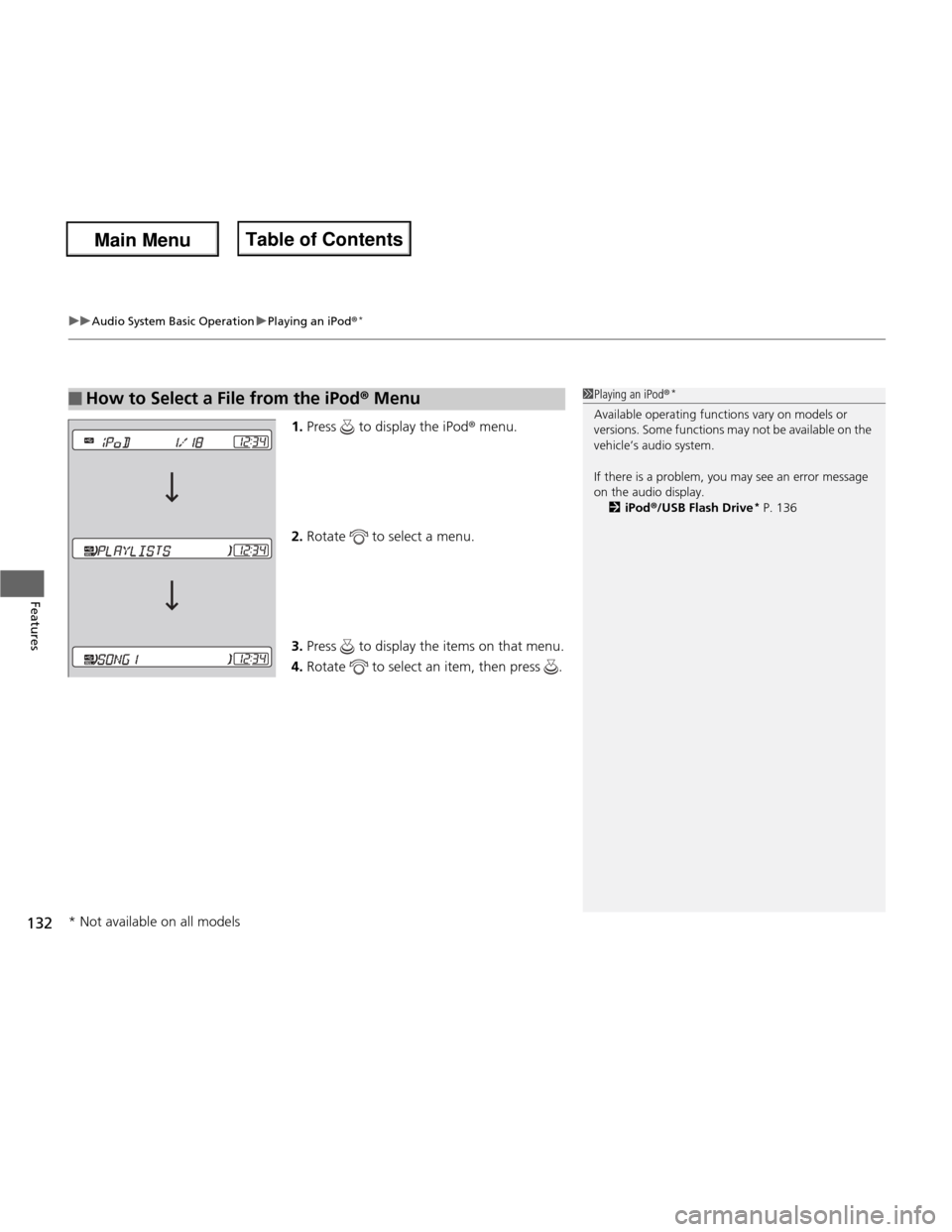
1. Press to display the iPod ® menu.
2. Rotate to select a menu.
3. Press to display the items on that menu.
4. Rotate to select an item, then press .
■How to Select a File from the iPod ® Menu1Playing an iPod ®*
Available operating functions vary on models or
versions. Some functions may not be available on the
vehicle’s audio system.
If there is a problem, you may see an error message
on the audio display. 2 iPod ®/USB Flash Drive *
P. 136
* Not available on all models
Main Menu
Main MenuTable of Contents
Page 135 of 286
uuAudio System Basic OperationuPlaying a USB Flash Drive*
134
Features
1. Press to switch the display to a folder list.
2. Rotate to select a folder.
3. Press to change the display to a list of
files in that folder.
4. Rotate to select a file, then press .
■How to Select a File from a Folder with the Selector Knob1Playing a USB Flash Drive *
Use the recommended USB flash drives. 2 General Information on the Audio System
P. 137
Files in WMA format protected by digital rights
management (DRM) are not played.
The audio system displays UNPLAYABLE FILE, and
then skips to the next file.
If there is a problem, you may see an error message
on the audio display.
2 iPod ®/USB Flash Drive *
P. 136
Track Selection
Folder Selection
* Not available on all models
Main Menu
Main MenuTable of Contents
Page 138 of 286
137
Continued
Features
General Information on the Audio System
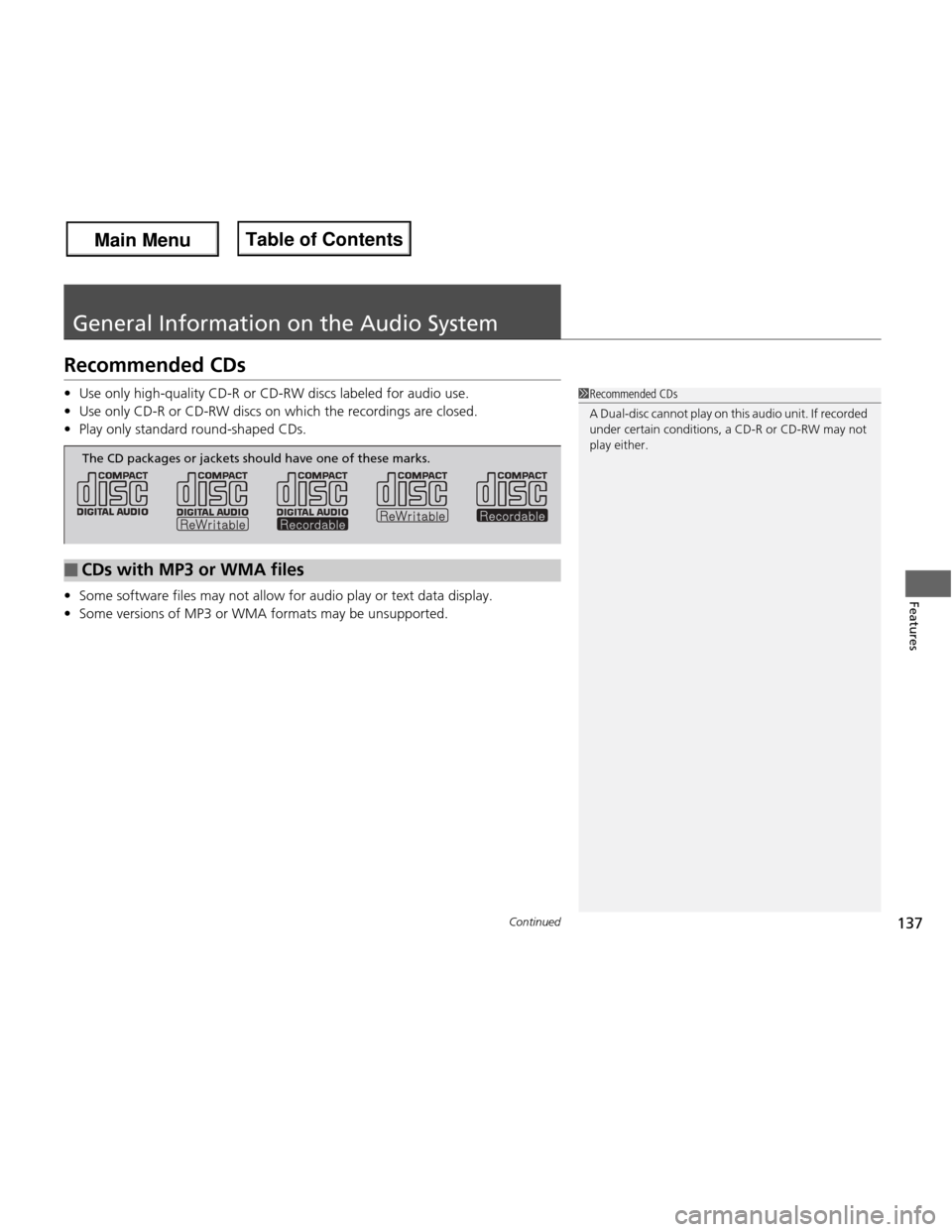
Recommended CDs •
Use only high-quality CD-R or CD-RW discs labeled for audio use.
• Use only CD-R or CD-RW discs on which the recordings are closed.
• Play only standard round-shaped CDs.
• Some software files may not allow for audio play or text data display.
• Some versions of MP3 or WMA formats may be unsupported.
1Recommended CDs
A Dual-disc cannot play on this audio unit. If recorded
under certain conditions, a CD-R or CD-RW may not
play either.
■CDs with MP3 or WMA files
The CD packages or jackets should have one of these marks.
Main Menu
Main MenuTable of Contents
Page 140 of 286
139
uuGeneral Information on the Audio SystemuCompatible iPod® and USB Flash Drives *
Features
Compatible iPod
® and USB Flash Drives *
• Use a recommended USB flash drive of 256 MB or higher.
• Some digital audio players may not be compatible.
• Some USB flash drives (e.g., a device with security lockout) may not work.
• Some software files may not allow for audio play or text data display.
• Some versions of MP3, WMA, or AAC formats may be unsupported.
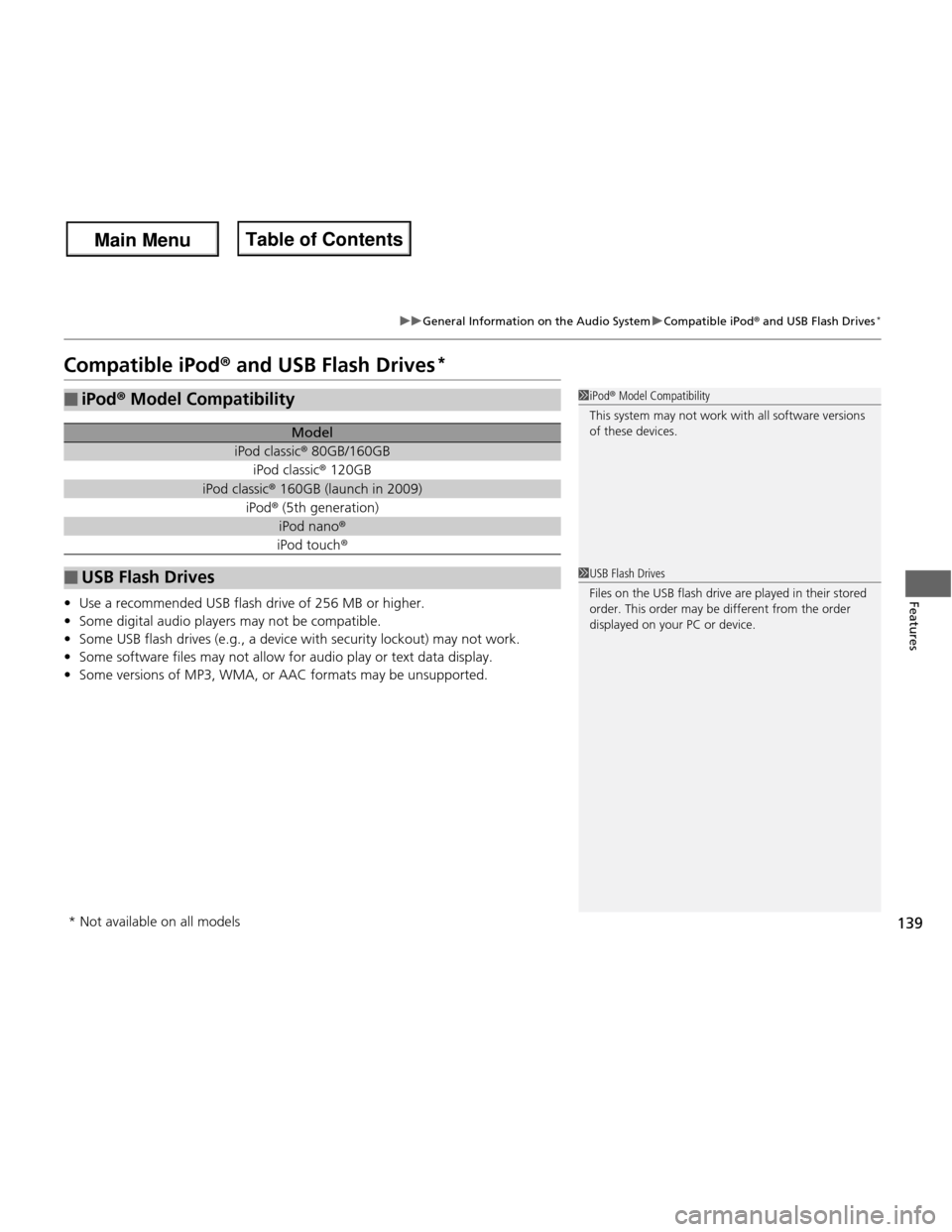
■iPod ® Model Compatibility
Model
iPod classic ® 80GB/160GB
iPod classic ® 120GB
iPod classic ® 160GB (launch in 2009)
iPod ® (5th generation)
iPod nano ®
iPod touch ®
■USB Flash Drives
1iPod® Model Compatibility
This system may not work with all software versions
of these devices.
1USB Flash Drives
Files on the USB flash drive are played in their stored
order. This order may be different from the order
displayed on your PC or device.
* Not available on all models
Main Menu
Main MenuTable of Contents