2013 HONDA CROSSTOUR change wheel
[x] Cancel search: change wheelPage 234 of 573
Continued233
uuAudio System Basic OperationuPlaying AM/FM Radio
Features
To store a station: 1.Tune to the selected station.
2. Press the MENU button.
3. Rotate to select Save Preset, then press .
4. Rotate to select the preset number you want to store that station, then press
and hold .
2. Select More.
3. Select Save Preset .
4. Select the preset number you want to store that station.
■Preset Memory1Playing AM/FM Radio
You can control the AM/FM radio using voice commands.
2 Voice Control Operation P. 224
The ST indicator appears on the display indicating
stereo FM broadcasts.
Stereo reproduction in AM is not available.
Switching the Audio Mode
Press the SOURCE button on the steering wheel.
2 Audio Remote Controls P. 168
You can also switch the mode by pressing the MENU
button and selecting Change Source on the Audio
menu screen.
You can store 6 AM stations and 12 FM stations into
the preset memory.
Interface Dial
Audio with Touch Screen
Main MenuTable of contents
Page 321 of 573
320
Features
Bluetooth® HandsFreeLink ®
Bluetooth® HandsFreeLink ® (HFL) allows you to place and receive phone calls using
your vehicle’s audio system, without handling your cell phone.
Using HFL
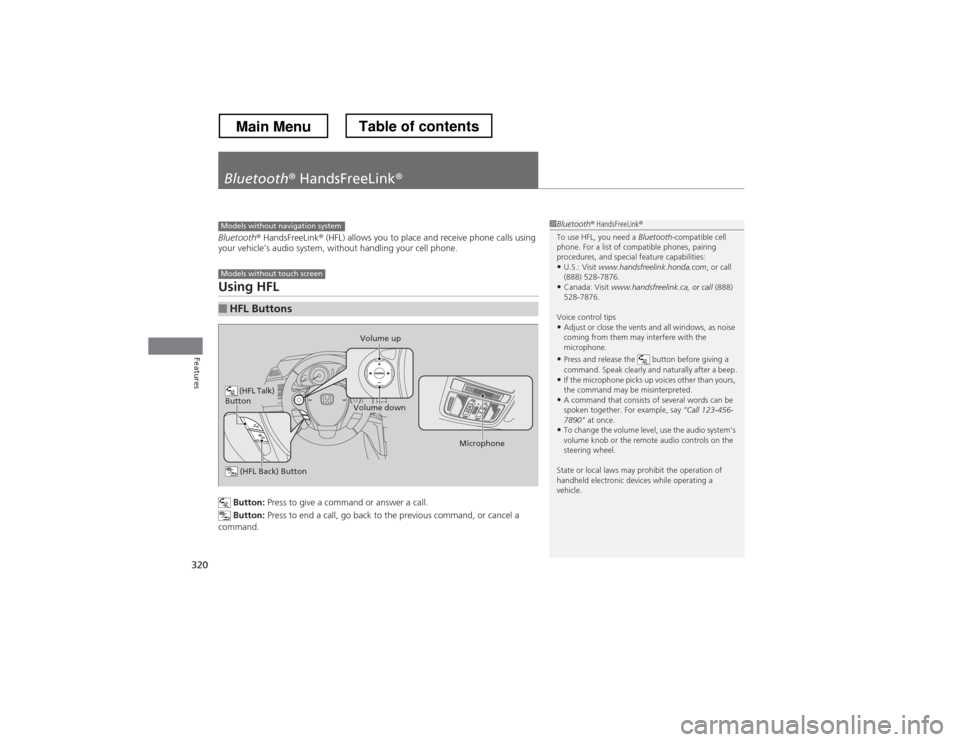
Button: Press to give a command or answer a call.
Button: Press to end a call, go back to the previous command, or cancel a
command.
■HFL Buttons
1Bluetooth ® HandsFreeLink ®
To use HFL, you need a Bluetooth-compatible cell
phone. For a list of compatible phones, pairing
procedures, and special feature capabilities:
• U.S.: Visit www.handsfreelink.honda.com , or call
(888) 528-7876.
• Canada: Visit www.handsfreelink.ca, or call (888)
528-7876.
Voice control tips • Adjust or close the vents and all windows, as noise
coming from them may interfere with the
microphone.
• Press and release the button before giving a
command. Speak clearly and naturally after a beep.
• If the microphone picks up voices other than yours,
the command may be misinterpreted.
• A command that consists of several words can be
spoken together. For example, say “Call 123-456-
7890” at once.
• To change the volume level, use the audio system’s
volume knob or the remote audio controls on the
steering wheel.
State or local laws may prohibit the operation of
handheld electronic devices while operating a
vehicle.Models without navigation system
Models without touch screen
(HFL Talk)
Button
Volume up
Microphone
(HFL Back) Button
Volume down
Main MenuTable of contents
Page 333 of 573
332
Features
Bluetooth® HandsFreeLink ®
Bluetooth® HandsFreeLink ® (HFL) allows you to place and receive phone calls using
your vehicle’s audio system, without handling your cell phone.
Using HFL
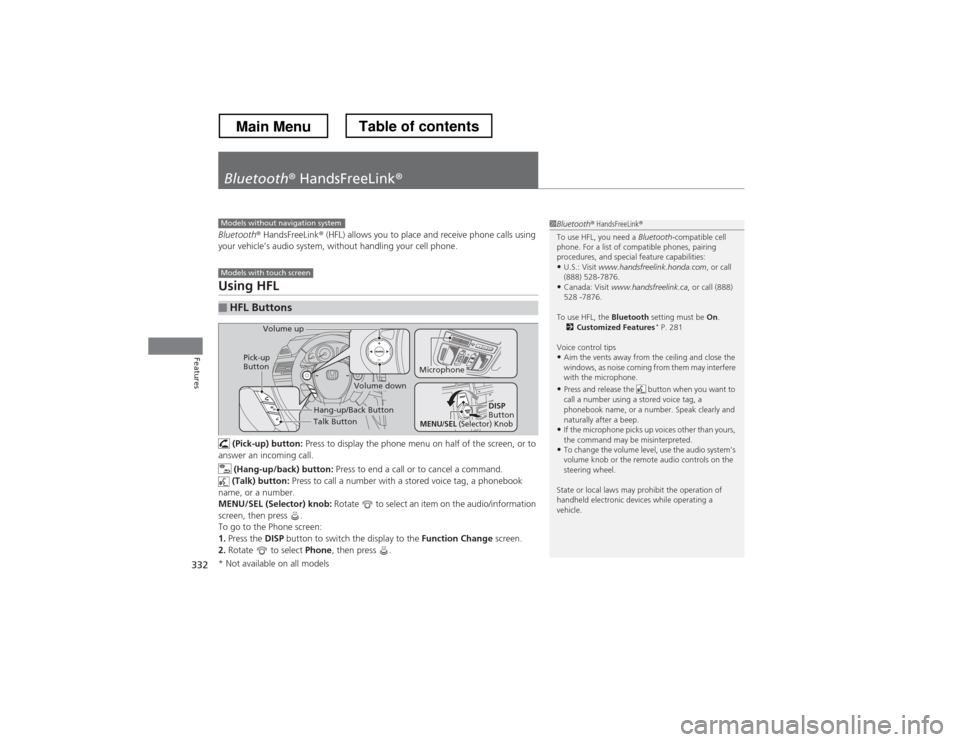
(Pick-up) button: Press to display the phone menu on half of the screen, or to
answer an incoming call.
(Hang-up/back) button: Press to end a call or to cancel a command.
(Talk) button: Press to call a number with a stored voice tag, a phonebook
name, or a number.
MENU/SEL (Selector) knob: Rotate to select an item on the audio/information
screen, then press .
To go to the Phone screen:1. Press the DISP button to switch the display to the Function Change screen.
2. Rotate to select Phone, then press .
■HFL Buttons
1Bluetooth ® HandsFreeLink ®
To use HFL, you need a Bluetooth-compatible cell
phone. For a list of compatible phones, pairing
procedures, and special feature capabilities:
• U.S.: Visit www.handsfreelink.honda.com , or call
(888) 528-7876.
• Canada: Visit www.handsfreelink.ca , or call (888)
528 -7876.
To use HFL, the Bluetooth setting must be On.
2 Customized Features *
P. 281
Voice control tips • Aim the vents away from the ceiling and close the
windows, as noise coming from them may interfere
with the microphone.
• Press and release the button when you want to
call a number using a stored voice tag, a
phonebook name, or a number. Speak clearly and
naturally after a beep.
• If the microphone picks up voices other than yours,
the command may be misinterpreted.
• To change the volume level, use the audio system’s
volume knob or the remote audio controls on the
steering wheel.
State or local laws may prohibit the operation of
handheld electronic devices while operating a
vehicle.Models without navigation system
Models with touch screen
Talk Button
Volume up
Microphone
Hang-up/Back Button
Pick-up
Button
Volume down
DISP
Button
MENU/SEL (Selector) Knob
* Not available on all models
Main MenuTable of contents
Page 368 of 573
367
Continued
Features
Bluetooth
® HandsFreeLink ®
Bluetooth® HandsFreeLink ® (HFL) allows you to place and receive phone calls using
your vehicle’s navigation system, without handling your cell phone.
Using HFL
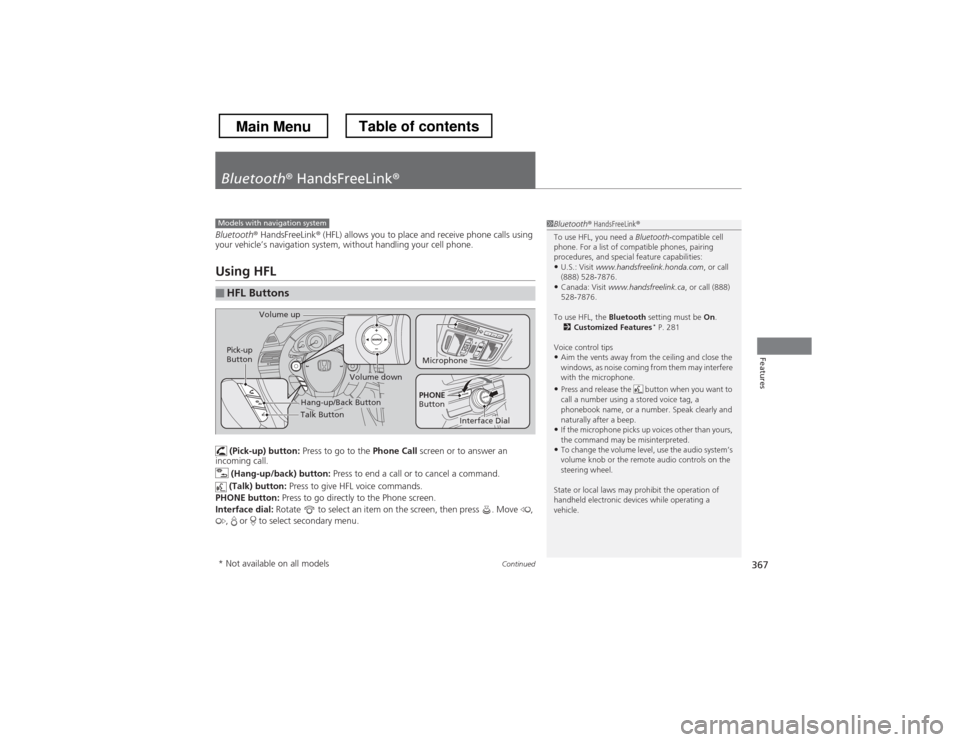
(Pick-up) button: Press to go to the Phone Call screen or to answer an
incoming call.
(Hang-up/back) button: Press to end a call or to cancel a command.
(Talk) button: Press to give HFL voice commands.
PHONE button: Press to go directly to the Phone screen.
Interface dial: Rotate to select an item on the screen, then press . Move ,
, or to select secondary menu.
■HFL Buttons
1Bluetooth ® HandsFreeLink ®
To use HFL, you need a Bluetooth-compatible cell
phone. For a list of compatible phones, pairing
procedures, and special feature capabilities:
• U.S.: Visit www.handsfreelink.honda.com , or call
(888) 528-7876.
• Canada: Visit www.handsfreelink.ca , or call (888)
528-7876.
To use HFL, the Bluetooth setting must be On.
2 Customized Features *
P. 281
Voice control tips • Aim the vents away from the ceiling and close the
windows, as noise coming from them may interfere
with the microphone.
• Press and release the button when you want to
call a number using a stored voice tag, a
phonebook name, or a number. Speak clearly and
naturally after a beep.
• If the microphone picks up voices other than yours,
the command may be misinterpreted.
• To change the volume level, use the audio system’s
volume knob or the remote audio controls on the
steering wheel.
State or local laws may prohibit the operation of
handheld electronic devices while operating a
vehicle.Models with navigation system
Talk Button
Volume up
Microphone
Hang-up/Back Button
Pick-up
Button
Volume down
Interface Dial
PHONE
Button
* Not available on all models
Main MenuTable of contents
Page 431 of 573
430
uuWhen DrivinguShifting
Driving
Use the paddle shifters to change between 1st and 6th gears without removing your
hands from the steering wheel. The transmission will switch to the sequential shift mode. ■When the shift lever is in
(D :
The vehicle will go into the sequential shift mode momentarily, and the gear position indicator will come on.
Once you start traveling at a constant speed, the sequential shift mode will
automatically switch off, and the gear position indicator will go off.
Hold the
(+ paddle shifter for two seconds to return to normal drive.
■ When the shift lever is in
(S :
The vehicle will go into the sequential shift mode, and the M (sequential shift mode)
indicator and gear position indicator will come on. At speeds of 6 mph (10 km/h) or
less, the vehicle automatically shifts down into 1st gear. It will not automatically shift
up, even if vehicle speed increases.
You can only pull away in 1st or 2nd gear.
When switching out of the sequential shift mode, move the shift lever from
(S to (D. When the sequential shift mode is canceled, the M indicator and gear position
indicator go off.
■Sequential Shift Mode
Main MenuTable of contents
Page 442 of 573
441
uuWhen DrivinguLane Departure Warning (LDW)*
Driving
LDW may not activate or may not recognize lanes, and may activate even when
keeping in the middle of a lane under the following conditions.
■LDW Limitations
Condition
●
When you drive in bad weather (rain, fog, etc.).
● A heavy load in the rear or modifications to the suspension tilts your vehicle.
● An abnormal tire condition is detected (wrong tire size, flat tire, etc.).
● When the windshield is blocked by dirt, mud, leaves, wet snow, etc.
● When the temperature inside the system is high.
● A sudden change between light and dark such as an entrance or exit of a tunnel.
● You drive into the sunlight (e.g. at dawn or dusk).
● When the windshield is dirty or cloudy.
● When you drive in the shadows of trees, buildings, etc.
● When your vehicle is towing a trailer.
● When you drive on a wet road surface following another vehicle.
uThe camera may perceive the tire tracks in the water as lane lines.
● When there is snow or wheel tracks on the side of the road.
● When the road has many repaired area or an erased lane line.
● When the vehicle is running over painted signs or crosswalk markings.
● When you drive in a lane with specific lane markups (e.g., Botts’ dots).
Main MenuTable of contents
Page 456 of 573
455
Driving
Multi-View Rear Camera
About Your Multi-View Rear Camera
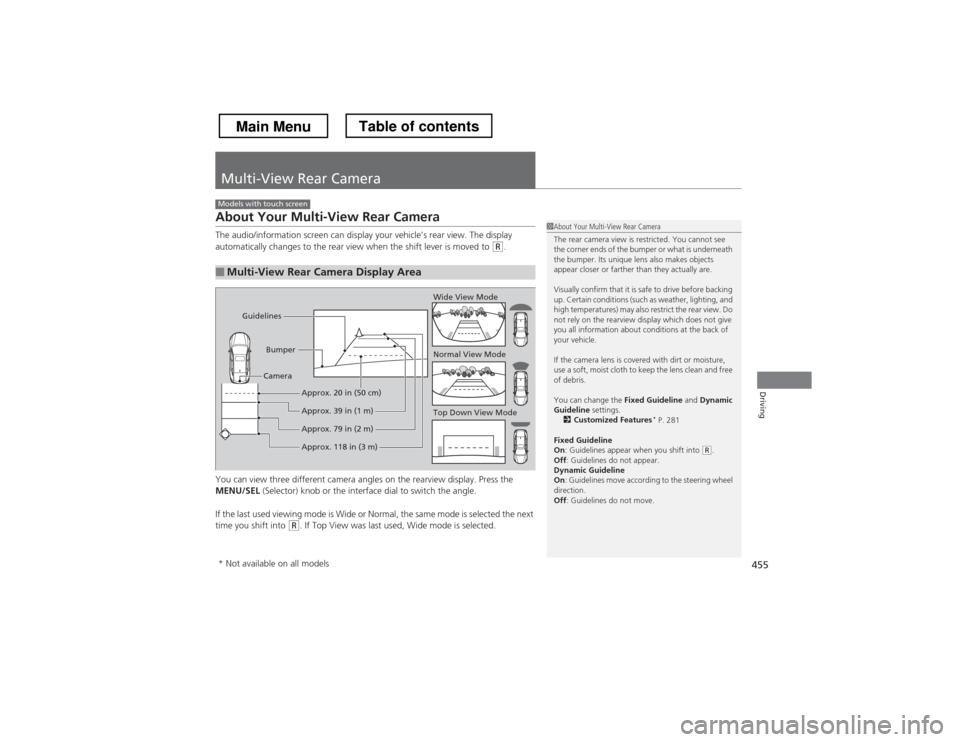
The audio/information screen can display your vehicle’s rear view. The display
automatically changes to the rear view when the shift lever is moved to
(R.
You can view three different camera angles on the rearview display. Press the
MENU/SEL (Selector) knob or the interface dial to switch the angle.
If the last used viewing mode is Wide or Normal, the same mode is selected the next
time you shift into
(R . If Top View was last used, Wide mode is selected.
■Multi-View Rear Camera Display Area
Models with touch screen
1About Your Multi-View Rear Camera
The rear camera view is restricted. You cannot see
the corner ends of the bumper or what is underneath
the bumper. Its unique lens also makes objects
appear closer or farther than they actually are.
Visually confirm that it is safe to drive before backing
up. Certain conditions (such as weather, lighting, and
high temperatures) may also restrict the rear view. Do
not rely on the rearview display which does not give
you all information about conditions at the back of your vehicle.
If the camera lens is covered with dirt or moisture,
use a soft, moist cloth to keep the lens clean and free
of debris.
You can change the Fixed Guideline and Dynamic
Guideline settings.
2 Customized Features *
P. 281
Fixed Guideline On : Guidelines appear when you shift into
(R.
Off : Guidelines do not appear.
Dynamic Guideline On : Guidelines move according to the steering wheel
direction. Off : Guidelines do not move.
Top Down View Mode
Normal View Mode
Wide View Mode
Guidelines
Bumper
Camera
Approx. 118 in (3 m)
Approx. 79 in (2 m)
Approx. 39 in (1 m)
Approx. 20 in (50 cm)
* Not available on all models
Main MenuTable of contents
Page 522 of 573

Continued521
uuIf a Tire Goes FlatuChanging a Flat Tire
Handling the Unexpected
1.Place the jack under the jacking point
closest to the tire to be changed.
2. Turn the end bracket (as shown in the
image) clockwise until the top of the jack
contacts the jacking point.
uMake sure that the jacking point tab is
resting in the jack notch.
3. Raise the vehicle, using the jack handle bar
and the jack handle, until the tire is off the
ground.
■How to Set Up the Jack1How to Set Up the Jack
Do not use the jack with people or luggage in the
vehicle.
Use the jack provided in your vehicle.
Other jacks may not support the weight (“load”) or
their shape may not match.
The following instructions must be followed to use
the jack safely.
• Do not use while the engine is running.
• Use only where the ground is firm and level.
• Use only at the jacking points.
• Do not get in the vehicle while using the jack.
• Do not put anything on top of or underneath the jack.
3WARNING
The vehicle can easily roll off the jack,
seriously injuring anyone underneath.
Follow the directions for changing a tire
exactly, and never get under the vehicle
when it is supported only by the jack.
Jack
Handle
Bar Wheel Nut
Wrench as Jack Handle
Main MenuTable of contents