Page 76 of 361
75
uuIndicatorsu
Continued
Instrument Panel
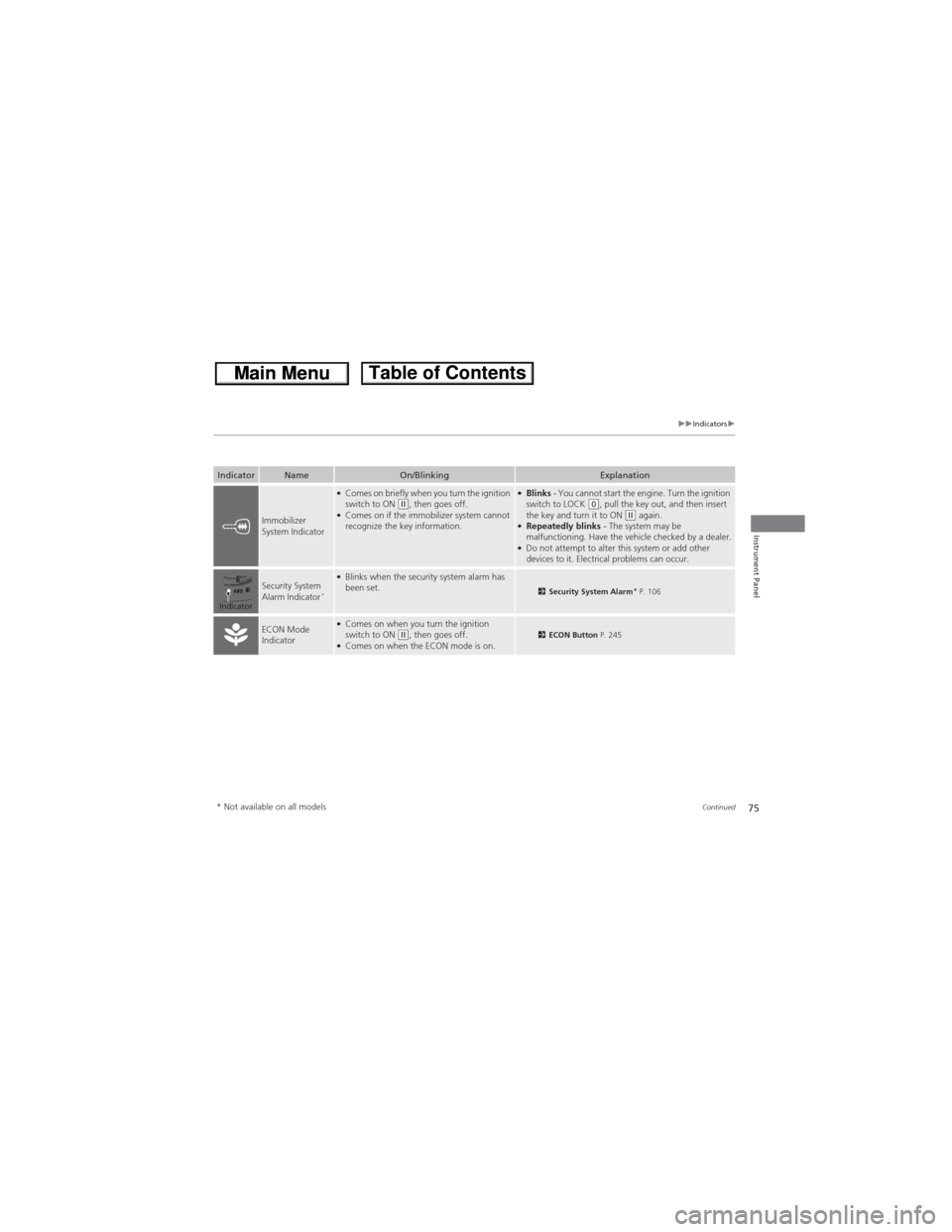
IndicatorNameOn/BlinkingExplanation
Immobilizer
System Indicator
●Comes on briefly when you turn the ignition
switch to ON (w, then goes off.●Comes on if the immobilizer system cannot
recognize the key information.
●Blinks - You cannot start the engine. Turn the ignition
switch to LOCK (0, pull the key out, and then insert
the key and turn it to ON (w again.●Repeatedly blinks - The system may be
malfunctioning. Have the vehicle checked by a dealer.
●Do not attempt to alter this system or add other
devices to it. Electrical problems can occur.
Security System
Alarm Indicator*
●Blinks when the security system alarm has
been set.2Security System Alarm* P. 106
ECON Mode
Indicator●Comes on when you turn the ignition
switch to ON (w, then goes off.●Comes on when the ECON mode is on.2ECON Button P. 245
Indicator
* Not available on all models
Page 77 of 361
76
uuIndicatorsu
Instrument Panel
IndicatorNameOn/BlinkingExplanation
CRUISE MAIN
Indicator●Comes on when you press the CRUISE
button.2Cruise Control P. 246
CRUISE
CONTROL
Indicator●Comes on when you have set a speed for
cruise control.2Cruise Control P. 246
Washer Level
Indicator*●Comes on when the washer fluid is low.●Refill washer fluid.2Refilling Window Washer Fluid P. 286
Maintenance
Minder Indicator●Comes on when you turn the ignition switch
to ON (w, then goes off.●Comes on when the scheduled maintenance
is due soon.2Maintenance Minder™ P. 269
* Not available on all models
Page 78 of 361
77
Instrument Panel
Gauges and Displays
Gauges
Gauges include the speedometer, tachometer, fuel gauge, and related indicators.
They are displayed when the ignition switch is in ON (w.
Displays your driving speed in mph (U.S.) or km/h (Canada).
Shows the number of engine revolutions per minute.
Displays the amount of fuel left in the fuel tank.
Displays the temperature of the engine coolant.
■Speedometer
■Tachometer
■Fuel Gauge
■Temperature Gauge
1Fuel GaugeNOTICEYou should refuel when the reading approaches .
Running out of fuel can cause the engine to misfire,
damaging the catalytic converter.
The actual amount of remaining fuel may differ from
the fuel gauge reading.E
1Temperature GaugeNOTICEDriving with the temperature gauge pointer in the
upper zone can cause serious engine damage. Pull
safely to the side of the road and allow engine
temperature to return to normal.
2Overheating P. 329
Page 85 of 361
uuGauges and DisplaysuMulti-Information Display
84
Instrument Panel
Use the multi-information display to customize certain features.
■How to customize
Select the Vehicle Menu screen by pressing the MENU button while the ignition
switch is in ON
(w, and the vehicle is at a complete stop. Select Customize
Settings, then press the SOURCE button.
■Customized Features1Customized Features
To customize other features, press the (+ / (-
button.
2List of customizable options P. 87
2Example of customizing wallpapers P. 90
When you customize settings, shift to
(P.
Button
Press to go to the next
display.
SOURCE Button
Press to set your selection.
MENU Button
Press to go to Vehicle Menu.(+ Button
Press to scroll upwards.
Button
Press to go back to the
previous display.
(- Button
Press to scroll downwards.
Page 88 of 361

87
uuGauges and DisplaysuMulti-Information Display
Continued
Instrument Panel
■List of customizable options
*1: Default Setting
*2: See the Navigation System ManualSetup Group Customizable Features Description Selectable settings
Vehicle
InformationMaintenance infoReset the Maintenance MinderTM.No/Yes
Adjust Clock*Selects the 12 hour or 24 hour clock display, and adjusts
the time.12 h*1/24 h
Customize
SettingsDisplay
Setup
Select
WallpaperSelects the full-size analogue clock or the wallpaper.Clock*1/Image 1/Image 2/
Image 3
Import
WallpaperImports an image file for a new wallpaper.Three images can be stored.2Importing wallpapers
from USB P. 90
Delete
WallpaperDeletes an image file for a wallpaper.Image 1/Image 2/Image 3
Trip Meter
Item to DisplaySelects an item to be displayed along with average
fuel economy.Range*1/Elapsed time/
Average speed
Welcome
ScreenSelects whether the welcome screen comes on or
not when you turn the ignition switch to ON (w.On*1/Off
Color ThemeChanges the color of the screen.Blue*1/Red/Amber/Gray
Turn by Turn
Display *, *2Select whether the turn-by-turn display comes on or
not during the route guidance.On*1/Off
Language
SelectionChanges the displayed language.English*1/Francais/Español
* Not available on all models
Page 90 of 361

89
uuGauges and DisplaysuMulti-Information Display
Continued
Instrument Panel
*1:Default SettingSetup Group Customizable Features Description Selectable settings
Customize
Settings
Door
Setup
Auto Door
LockChanges the setting for the automatic locking
feature.Off/With Vehicle Speed*1/
Shift from P
Door Lock
ModeSets up either the driver’s door or all doors to unlock
on the first operation of the remote or ignition key.Driver Door*1/All Doors
Auto Door
UnlockChanges the setting for when the doors unlock
automatically.Off/Driver Door with Shift to
P*1/All Doors with Shift to P/
Driver Door with IGN Off/All
Doors with IGN Off
Keyless Lock
AcknowledgmentTurns on or off the keyless lock acknowledgment of:
LOCK/UNLOCK- The exterior lights flash.
LOCK (2nd push)- The beeper sounds.On*1/Off
Security
Relock TimerChanges the time it takes for the doors to relock and
the security system to set after you unlock the
vehicle without opening any door.90sec/60sec/30sec*1
Default
AllCancels/Resets all the customized settings as
default.Cancel
Reset All Defaults
Page 96 of 361

95
Controls
This chapter explains how to operate the various controls necessary for driving.
Clock.................................................... 96
Locking and Unlocking the Doors
Key Types and Functions .................... 97
Locking/Unlocking the Doors from the
Outside ............................................ 99
Locking/Unlocking the Doors from the
Inside ............................................. 101
Childproof Door Locks ..................... 102
Auto Door Locking/Unlocking .......... 103
Opening and Closing the Tailgate... 104
Security System................................ 106
Immobilizer System .......................... 106
Security System Alarm
*.................... 106Opening and Closing the Windows..... 108
Opening and Closing the Moonroof*.. 110Operating the Switches Around the
Steering Wheel
Ignition Switch ................................. 111
Turn Signals ..................................... 112
Light Switches.................................. 112
Fog Lights
*...................................... 114
Daytime Running Lights ................... 114
Wipers and Washers ........................ 115
Brightness Control ........................... 117
Rear Defogger/Heated Door Mirror
*
Button ........................................... 118
Adjusting the Steering Wheel........... 119Adjusting the Mirrors....................... 120
Interior Rearview Mirror ................... 120
Power Door Mirrors ......................... 121
Adjusting the Seats.......................... 122
Adjusting the Seat Positions ............. 122
Interior Lights/Interior Convenience
Items................................................ 132
Interior Lights .................................. 132
Interior Convenience Items .............. 133
Heating and Cooling System*......... 142
Using Vents, Heating and A/C.......... 142
Climate Control System*.................. 145
Using Automatic Climate Control .... 145
Automatic Climate Control Sensors ... 148
* Not available on all models
Page 97 of 361

96
Controls
Clock
Adjusting the Clock
You can adjust the time in the clock display with the ignition switch in ON (w.
■Using the MENU button
1.Press the MENU button.
2.Select Adjust Clock with the
(+ / (- button, then press the SOURCE button.
3.Press the (+ / (- button to change the
setting between 12 h and 24 h.
4.Select hour or minute with the /
button.
5.Press the
(+ / (- button to adjust the
numbers up or down.
6.Select Set with the / button, then
press the SOURCE button to enter your
selection.
uThe display will return to the Adjust
Clock display.
■Using the SETUP button
1.Press the SETUP button.
2.Rotate to select Adjust Clock, then press .
3.Rotate to select the item you want to change (12/24 hour mode, hour,
minute). Then press .
4.Rotate to make the adjustment.
5.Press to enter your selection. The display returns to Adjust Clock. Repeat steps
4 to 6 to adjust other items.
6.To enter the selection, Rotate and select Set, then press .
7.Press the SETUP button to go back to the normal display.
1Adjusting the Clock
These indications are used to show how to operate
the selector knob.
Rotate to select.
Press to enter.
To set the time to the nearest hour:
Press and hold the CLOCK button until the clock
display begins to blink, then press the
(6 (Reset)
button.
Depending on the displayed time, the clock sets
forward or backward.
Example:
1:06 will reset to 1:00
1:53 will reset to 2:00
The clock is automatically updated through the
navigation system, so the time does not need to be
adjusted.
Models with navigation system