Page 5 of 346
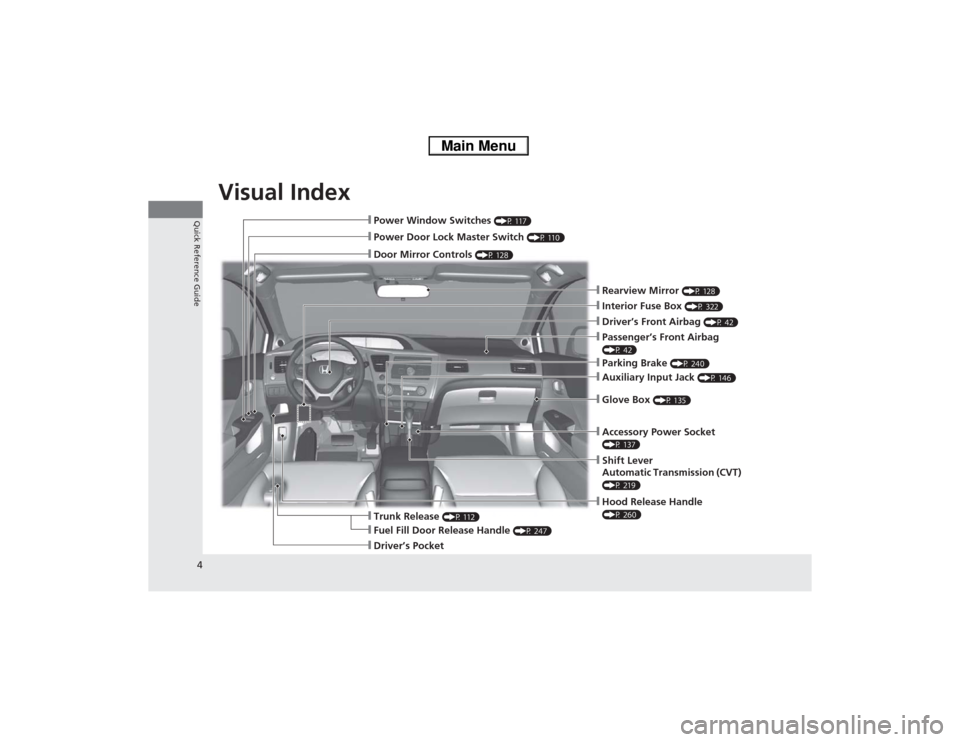
Visual Index
4Quick Reference Guide
❙Hood Release Handle (P 260)
❙Power Window Switches
(P 117)
❙Power Door Lock Master Switch
(P 110)
❙Door Mirror Controls
(P 128)
❙Parking Brake
(P 240)
❙Auxiliary Input Jack
(P 146)
❙Glove Box
(P 135)
❙Shift Lever
Automatic Transmission (CVT) (P 219)❙Interior Fuse Box
(P 322)
❙Trunk Release
(P 112)
❙Driver’s Front Airbag
(P 42)
❙Fuel Fill Door Release Handle
(P 247)
❙Driver’s Pocket
❙Rearview Mirror
(P 128)
❙Passenger’s Front Airbag (P 42)❙Accessory Power Socket (P 137)
Page 18 of 346
17Quick Reference Guide
Features
(P143)
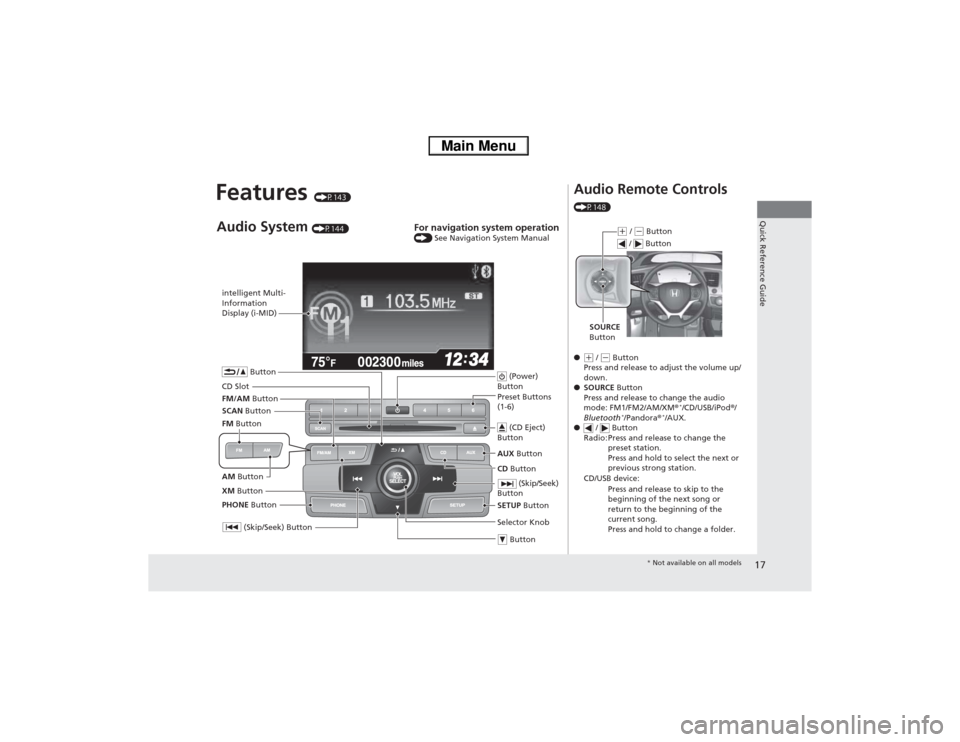
intelligent Multi-
Information
Display (i-MID)
SCAN Button
(Skip/Seek) Button
Selector Knob Button (Power)
ButtonCD Button AUX Button (CD Eject)
ButtonPreset Buttons
(1-6)
ButtonSETUP Button (Skip/Seek)
Button
PHONE ButtonAudio System
(P144)
For navigation system operation () See Navigation System Manual
CD SlotXM Button FM/AM ButtonAM Button FM Button
Audio Remote Controls (P148)
●(+ / (- Button
Press and release to adjust the volume up/
down.
●SOURCE Button
Press and release to change the audio
mode: FM1/FM2/AM/XM®
*/CD/USB/iPod®/
Bluetooth
*/Pandora®
*/AUX.
● / Button
Radio: Press and release to change the
preset station.
Press and hold to select the next or
previous strong station.
CD/USB device:
Press and release to skip to the
beginning of the next song or
return to the beginning of the
current song.
Press and hold to change a folder.
(+ / (- Button
SOURCE
Button / Button* Not available on all models
Page 144 of 346
143
Features
This chapter describes how to operate technology features.
Audio System
About Your Audio System ................ 144
USB Adapter Cable .......................... 145
Audio Antenna ................................ 145
Auxiliary Input Jack .......................... 146
Audio System Theft Protection ......... 146
Audio System Basic Operation
Audio Remote Controls .................... 148
Adjusting the Sound ........................ 149
Playing the AM/FM Radio ................. 150
Playing the XM® Radio
*................... 153
Playing a CD .................................... 155Playing an iPod®............................... 158
Playing Internet Radio ...................... 161
Playing a USB Flash Drive ................. 163
Playing Bluetooth® Audio................. 166
Audio Error Messages
CD Player ......................................... 168
iPod®/USB Flash Drive....................... 169
Pandora®......................................... 170
General Information on the Audio
System............................................. 171
Recommended CDs ......................... 172Compatible iPod®, iPhone® and USB Flash
Drives .............................................. 174
Bluetooth® HandsFreeLink®
Using HFL ........................................ 175
HFL Menus ...................................... 177
* Not available on all models
Page 147 of 346
146
uuAudio SystemuAuxiliary Input Jack
Features
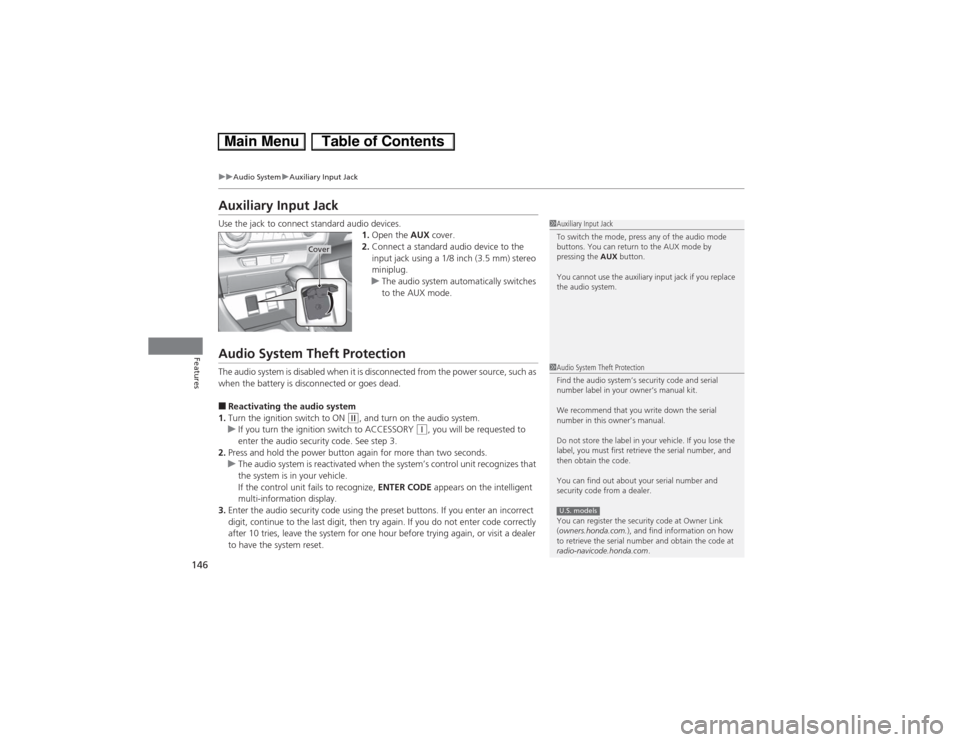
Auxiliary Input JackUse the jack to connect standard audio devices.
1.Open the AUX cover.
2.Connect a standard audio device to the
input jack using a 1/8 inch (3.5 mm) stereo
miniplug.
uThe audio system automatically switches
to the AUX mode.Audio System Theft ProtectionThe audio system is disabled when it is disconnected from the power source, such as
when the battery is disconnected or goes dead.■Reactivating the audio system
1.Turn the ignition switch to ON
(w, and turn on the audio system.
uIf you turn the ignition switch to ACCESSORY
(q, you will be requested to
enter the audio security code. See step 3.
2.Press and hold the power button again for more than two seconds.
uThe audio system is reactivated when the system’s control unit recognizes that
the system is in your vehicle.
If the control unit fails to recognize, ENTER CODE appears on the intelligent
multi-information display.
3.Enter the audio security code using the preset buttons. If you enter an incorrect
digit, continue to the last digit, then try again. If you do not enter code correctly
after 10 tries, leave the system for one hour before trying again, or visit a dealer
to have the system reset.
1Auxiliary Input Jack
To switch the mode, press any of the audio mode
buttons. You can return to the AUX mode by
pressing the AUX button.
You cannot use the auxiliary input jack if you replace
the audio system.
Cover
1Audio System Theft Protection
Find the audio system’s security code and serial
number label in your owner’s manual kit.
We recommend that you write down the serial
number in this owner’s manual.
Do not store the label in your vehicle. If you lose the
label, you must first retrieve the serial number, and
then obtain the code.
You can find out about your serial number and
security code from a dealer.
You can register the security code at Owner Link
(owners.honda.com.), and find information on how
to retrieve the serial number and obtain the code at
radio-navicode.honda.com.U.S. models
Page 149 of 346
148
uuAudio System Basic OperationuAudio Remote Controls
Features
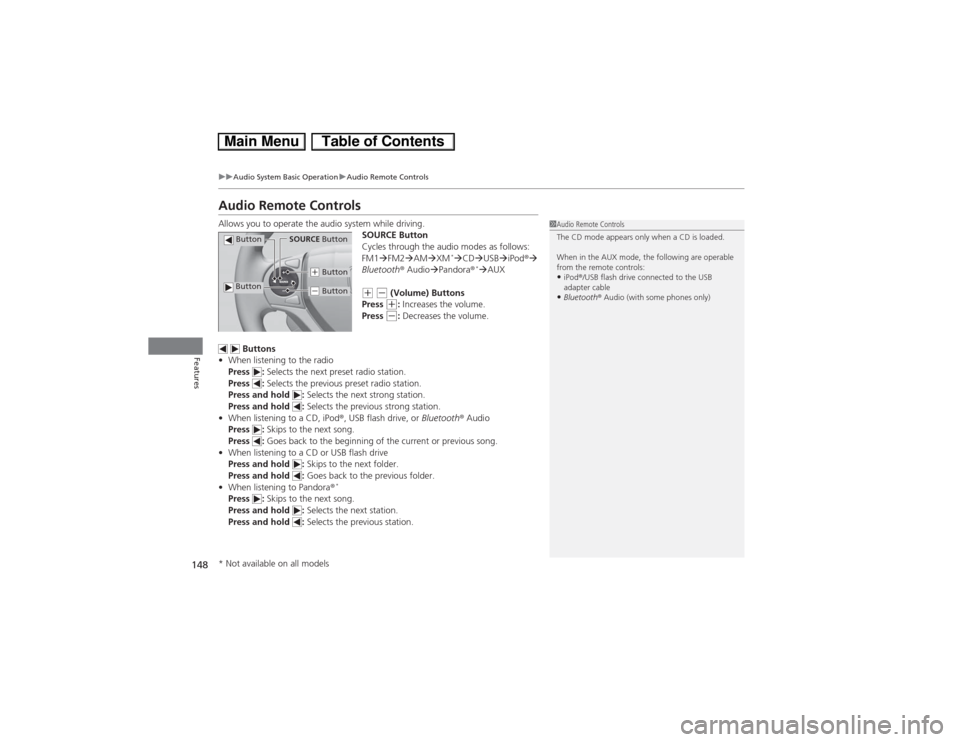
Audio Remote ControlsAllows you to operate the audio system while driving.
SOURCE Button
Cycles through the audio modes as follows:
FM1�FM2�AM�XM
*�CD�USB�iPod®�
Bluetooth® Audio�Pandora®
*�AUX
(+ (- (Volume) Buttons
Press (+: Increases the volume.
Press (-: Decreases the volume.
Buttons
•When listening to the radio
Press : Selects the next preset radio station.
Press : Selects the previous preset radio station.
Press and hold : Selects the next strong station.
Press and hold : Selects the previous strong station.
•When listening to a CD, iPod®, USB flash drive, or Bluetooth® Audio
Press : Skips to the next song.
Press : Goes back to the beginning of the current or previous song.
•When listening to a CD or USB flash drive
Press and hold : Skips to the next folder.
Press and hold : Goes back to the previous folder.
•When listening to Pandora®
*
Press : Skips to the next song.
Press and hold : Selects the next station.
Press and hold : Selects the previous station.
1Audio Remote Controls
The CD mode appears only when a CD is loaded.
When in the AUX mode, the following are operable
from the remote controls:•iPod®/USB flash drive connected to the USB
adapter cable•Bluetooth® Audio (with some phones only)
Button
SOURCE Button
Button
(+ Button(- Button
* Not available on all models
Page 159 of 346
158
uuAudio System Basic OperationuPlaying an iPod®
Features
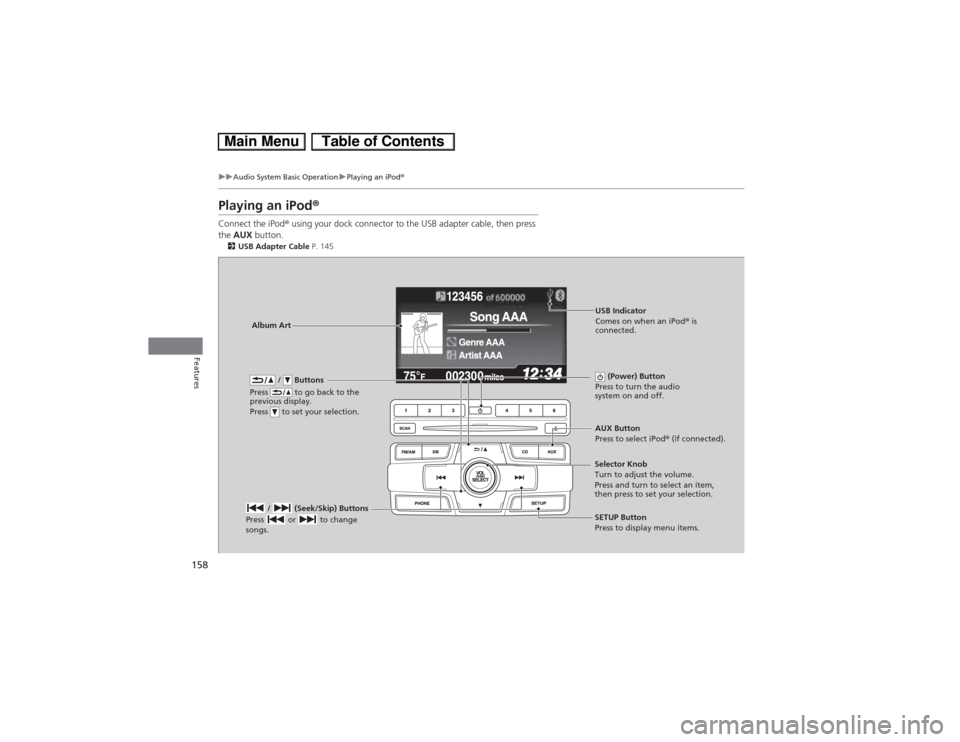
Playing an iPod®Connect the iPod® using your dock connector to the USB adapter cable, then press
the AUX button.2USB Adapter Cable P. 145
/ Buttons
Press to go back to the
previous display.
Press to set your selection.
(Power) Button
Press to turn the audio
system on and off.
/ (Seek/Skip) Buttons
Press or to change
songs.
SETUP Button
Press to display menu items. Selector Knob
Turn to adjust the volume.
Press and turn to select an item,
then press to set your selection.AUX Button
Press to select iPod® (if connected).
Album ArtUSB Indicator
Comes on when an iPod® is
connected.
Page 162 of 346
161
uuAudio System Basic OperationuPlaying Internet Radio
Continued
Features
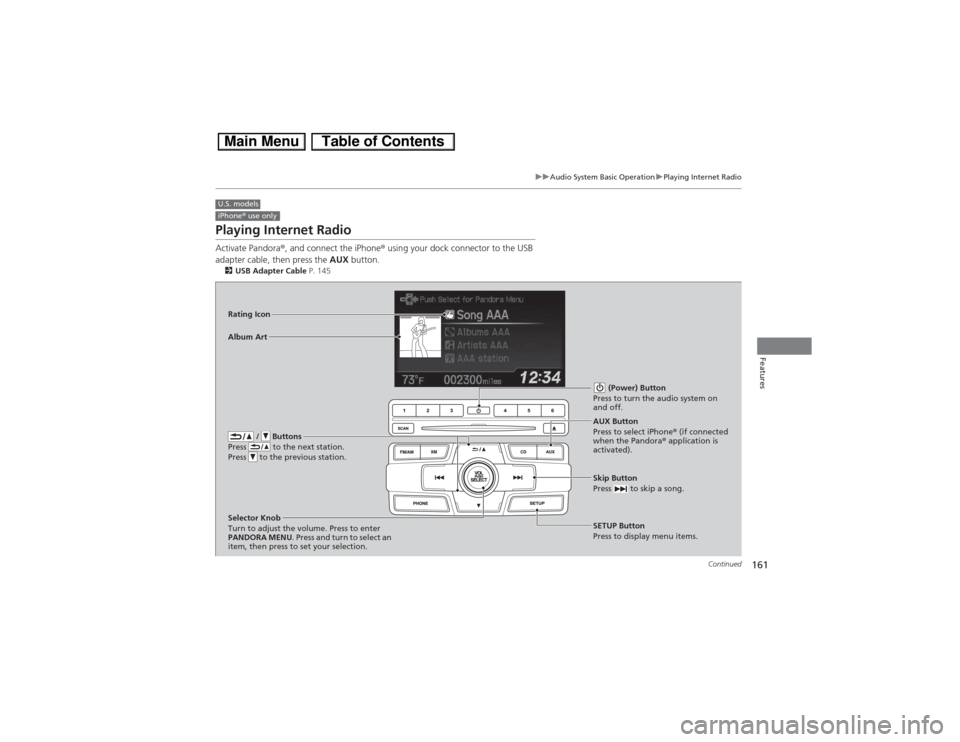
Playing Internet RadioActivate Pandora®, and connect the iPhone® using your dock connector to the USB
adapter cable, then press the AUX button.2USB Adapter Cable P. 145U.S. modelsiPhone® use only
/ Buttons
Press to the next station.
Press to the previous station.
(Power) Button
Press to turn the audio system on
and off.
Skip Button
Press to skip a song.SETUP Button
Press to display menu items. Selector Knob
Turn to adjust the volume. Press to enter
PANDORA MENU. Press and turn to select an
item, then press to set your selection.AUX Button
Press to select iPhone® (if connected
when the Pandora® application is
activated). Album Art Rating Icon
Page 164 of 346
163
uuAudio System Basic OperationuPlaying a USB Flash Drive
Continued
Features
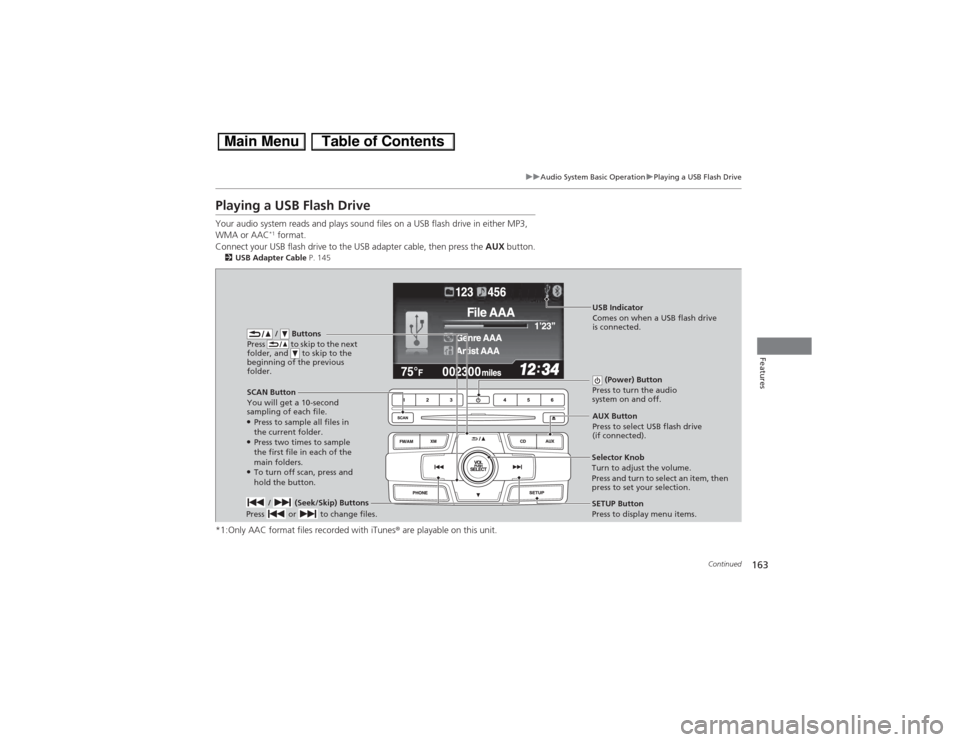
Playing a USB Flash DriveYour audio system reads and plays sound files on a USB flash drive in either MP3,
WMA or AAC
*1 format.
Connect your USB flash drive to the USB adapter cable, then press the AUX button.
2USB Adapter Cable P. 145*1:Only AAC format files recorded with iTunes® are playable on this unit.
/ Buttons
Press to skip to the next
folder, and to skip to the
beginning of the previous
folder.
SCAN Button
You will get a 10-second
sampling of each file.●Press to sample all files in
the current folder.●Press two times to sample
the first file in each of the
main folders.●To turn off scan, press and
hold the button. (Power) Button
Press to turn the audio
system on and off. / (Seek/Skip) Buttons
Press or to change files.
SETUP Button
Press to display menu items. Selector Knob
Turn to adjust the volume.
Press and turn to select an item, then
press to set your selection.AUX Button
Press to select USB flash drive
(if connected).USB Indicator
Comes on when a USB flash drive
is connected.