Page 188 of 595
187
uuAudio System Basic Operation uPlaying AM/FM Radio
Continued
Features
Playing AM/FM Radio
Audio/Information Screen
FM/AM Button
Press to select a band.
Preset Buttons (1-6)
To store a station:
Tune to the selected station.
Pick a preset button and hold it until you hear a beep.
To listen to a stored station, select a band, then press the preset button. Seek/Skip Buttons
Press and to search up and
down the selected band for a
station with a strong signal.
MENU Button
Press to display the menu items.
Selector Knob
Turn to tune the radio frequency.
Press and turn to select an item,
then press to set your selection.
VOL/ (Power/volume)
Knob
Press to turn the audio system
on and off.
Turn to adjust the volume.BACK Button
Press to go back to the
previous display or cancel a
setting.
Page 191 of 595
190
uuAudio System Basic Operation uPlaying a CD
Features
Playing a CDYour audio system supports audio CDs, CD-Rs and CD-RWs in either MP3, WMA, or
AAC
*1 format. With the CD loaded, press the CD button.
*1:Only AAC format files recorded with iTunes ® are playable on this unit.
Audio/Information Screen
CD Button
Press to play a CD. Seek/Skip Buttons
Press or to change tracks
(files in MP3, WMA, or AAC).
Press and hold to move rapidly
within a track/file.
MENU Button
Press to display the menu items.
Selector Knob
Turn to change tracks/folders.
Press and turn to select an item,
then press to set your selection.
VOL/ (Power/volume)
Knob
Press to turn the audio system
on and off.
Turn to adjust the volume.BACK Button
Press to go back to the
previous display or cancel a
setting.
CD Slot
Insert a CD about halfway into the
CD slot. (CD Eject) Button
Press to eject a CD.
Page 194 of 595
193
uuAudio System Basic Operation uPlaying an iPod ®
Continued
Features
Playing an iPod ®Connect the iPod ® using your dock connector to the USB Port, then press the AUX
button.2 USB Port P. 175Audio/Information Screen
AUX Button
Press to select iPod ® (if connected).
Seek/Skip Buttons
Press or to change songs.
Press and hold to move rapidly
within a song.
MENU Button
Press to display the menu items.
Selector Knob
Turn to change songs.
Press and turn to select an item,
then press to set your selection.
VOL/ (Power/volume)
Knob
Press to turn the audio system
on and off.
Turn to adjust the volume.BACK Button
Press to go back to the
previous display or cancel a
setting.Album Art
USB Indicator
Appears when an iPod® is
connected.
Page 197 of 595

196
uuAudio System Basic Operation uPlaying Internet Radio
Features
Playing Internet RadioConnect a compatible phone through Bluetooth®.
You can also connect the phone using your dock connector to the USB port.
Make sure the audio setting is correct for the connection type.2 USB/Bluetooth Connection Priority
* P. 318
Press the AUX button to select Pandora mode.U.S. modelsCompatible phones only
1Playing Internet Radio
Pandora ®, the Pandora logo, and the Pandora trade
dress are trademarks or registered trademarks of
Pandora Media, Inc., used with permission. Pandora
is currently available exclusively in the United States.
iPhoneAudio/Information Screen
AUX Button
Press to select Pandora®.
Skip Button
Press to skip a song.
MENU Button
Press to display the menu items.
Selector Knob
Turn to switch to another station.
VOL/ (Volume/Power) Knob
Press to turn the audio system on
and off.
Turn to adjust the volume.BACK Button
Press to go back to the previous display.Album Art
USB Indicator
Appears when a phone is
connected.Rating Icon
Preset Button (1)
Press to switch the mode between
pause and resume.
Preset Button (2)
Press to select
Like. Preset Button (3)
Press to select
Dislike.
Preset Button (4)
Press to select
Bookmark Track .
Preset Button (5)
Press to select
Bookmark Artist .* Not available on all models
Page 199 of 595
198
uuAudio System Basic Operation uPlaying a USB Flash Drive
Features
Playing a USB Flash DriveYour audio system reads and plays sound files on a USB flash drive in either MP3,
WMA or AAC
*1 format.
Connect your USB flash drive to the USB port, then press the AUX button.
2USB Port P. 175*1:Only AAC format files recorded with iTunes ® are playable on this unit.
Audio/Information Screen
AUX Button
Press to select USB flash drive
(if connected). Seek/Skip Buttons
Press or to change files.
Press and hold to move rapidly
within a file.
MENU Button
Press to display the menu items.
Selector Knob
Turn to change folders.
Press and turn to select an item,
then press to set your selection.
VOL/ (Power/volume)
Knob
Press to turn the audio system
on and off.
Turn to adjust the volume.BACK Button
Press to go back to the
previous display.
USB Indicator
Appears when a USB flash drive is
connected.
Page 202 of 595
201
uuAudio System Basic Operation uPlaying Bluetooth ® Audio
Continued
Features
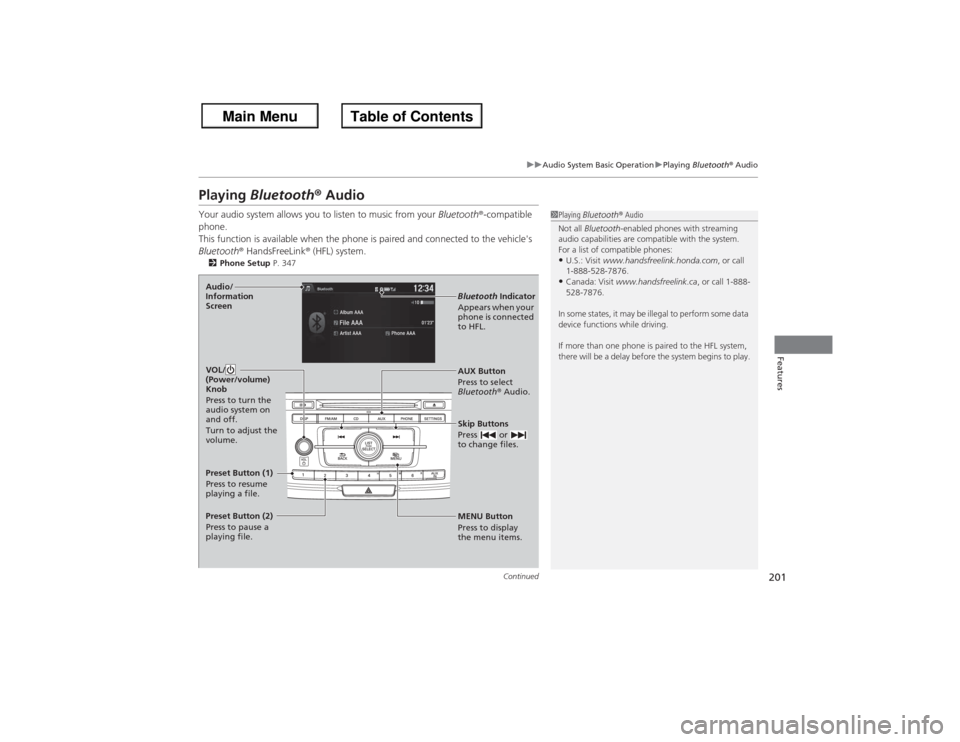
Playing Bluetooth® AudioYour audio system allows you to listen to music from your Bluetooth®-compatible
phone.
This function is available when the phone is paired and connected to the vehicle's
Bluetooth ® HandsFreeLink ® (HFL) system.2 Phone Setup P. 347
1Playing Bluetooth ® Audio
Not all Bluetooth -enabled phones with streaming
audio capabilities are compatible with the system.
For a list of compatible phones:•U.S.: Visit www.handsfreelink.honda.com , or call
1-888-528-7876.•Canada: Visit www.handsfreelink.ca , or call 1-888-
528-7876.
In some states, it may be illegal to perform some data
device functions while driving.
If more than one phone is paired to the HFL system,
there will be a delay before the system begins to play.
MENU Button
Press to display
the menu items. AUX Button
Press to select
Bluetooth ® Audio.
Skip Buttons
Press or
to change files.Bluetooth Indicator
Appears when your
phone is connected
to HFL.
VOL/
(Power/volume)
Knob
Press to turn the
audio system on
and off.
Turn to adjust the
volume.
Audio/
Information
ScreenPreset Button (1)
Press to resume
playing a file.
Preset Button (2)
Press to pause a
playing file.
Page 204 of 595

203Features
Audio System Basic OperationTo use the audio system function, the power mode must be in ACCESSORY or ON.Use the selector knob, DISP and BACK
buttons to access some audio functions.
Press to switch between the normal and
extended display for some functions.
Selector knob: Rotate left or right to scroll
through the available choices. Press to set
your selection.
Also press to select any mode. The available
mode includes Change Source, Station List,
Save Preset, Radio Text, Music Search , and
play modes. Play modes can be also selected
from Scan, Random/Repeat , and so on.
BACK button: Press to go back to the
previous display.
button: Press to change the audio/
information screen brightness.
Press once and make an adjustment. uEach time you press , the mode
switches between the daytime mode,
nighttime mode and OFF mode.Models with two displays
1Audio System Basic Operation
These indications are used to show how to operate
the selector knob.
Rotate to select.
Press to enter.
Audio Menu Items
2 Station List P. 216
2 Save Preset P. 215, 220
2 Radio text P. 217
2 Music Search P. 222, 226, 232
2 Scan P. 223, 233
2 Random/Repeat P. 223, 227, 233
Button
Selector Knob
DISP (SETTINGS) Button
BACK Button
Page 215 of 595
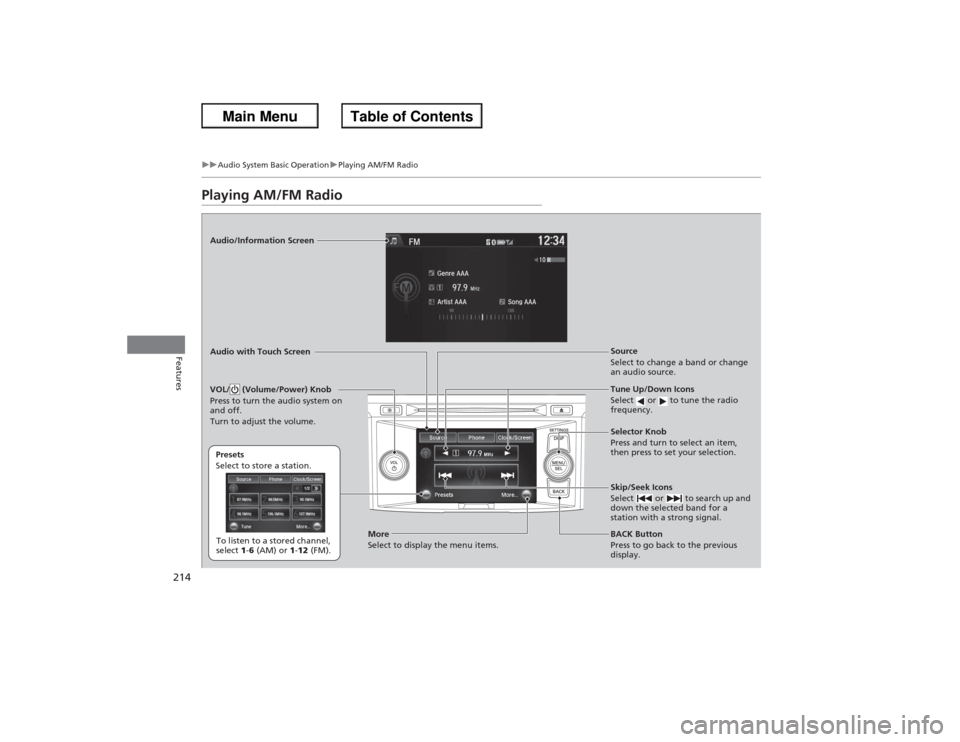
214
uuAudio System Basic Operation uPlaying AM/FM Radio
Features
Playing AM/FM RadioAudio/Information Screen
Audio with Touch Screen
Tune Up/Down Icons
Select or to tune the radio
frequency.
BACK Button
Press to go back to the previous
display. Selector Knob
Press and turn to select an item,
then press to set your selection.
VOL/ (Volume/Power) Knob
Press to turn the audio system on
and off.
Turn to adjust the volume.
Source
Select to change a band or change
an audio source.
To listen to a stored channel,
select 1-6 (AM) or 1-12 (FM).
Presets
Select to store a station.
Skip/Seek Icons
Select or to search up and
down the selected band for a
station with a strong signal.
More
Select to display the menu items.