2013 GMC SIERRA rear seat
[x] Cancel search: rear seatPage 198 of 534
Black plate (8,1)GMC Sierra Owner Manual - 2013 - crc - 8/14/12
6-8 Lighting
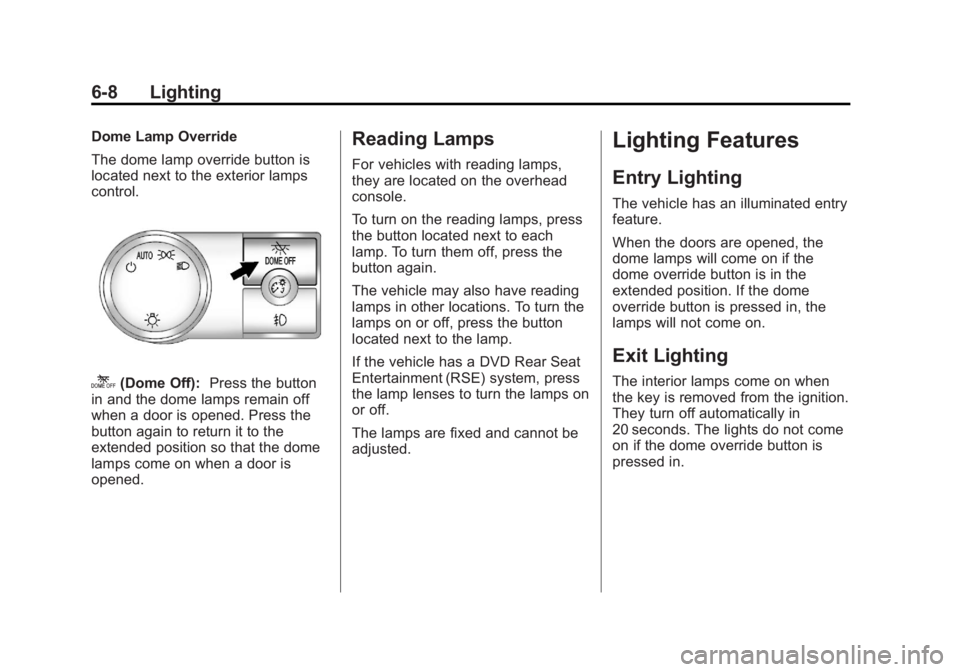
Dome Lamp Override
The dome lamp override button is
located next to the exterior lamps
control.
k(Dome Off):Press the button
in and the dome lamps remain off
when a door is opened. Press the
button again to return it to the
extended position so that the dome
lamps come on when a door is
opened.
Reading Lamps
For vehicles with reading lamps,
they are located on the overhead
console.
To turn on the reading lamps, press
the button located next to each
lamp. To turn them off, press the
button again.
The vehicle may also have reading
lamps in other locations. To turn the
lamps on or off, press the button
located next to the lamp.
If the vehicle has a DVD Rear Seat
Entertainment (RSE) system, press
the lamp lenses to turn the lamps on
or off.
The lamps are fixed and cannot be
adjusted.
Lighting Features
Entry Lighting
The vehicle has an illuminated entry
feature.
When the doors are opened, the
dome lamps will come on if the
dome override button is in the
extended position. If the dome
override button is pressed in, the
lamps will not come on.
Exit Lighting
The interior lamps come on when
the key is removed from the ignition.
They turn off automatically in
20 seconds. The lights do not come
on if the dome override button is
pressed in.
Page 199 of 534

Black plate (9,1)GMC Sierra Owner Manual - 2013 - crc - 8/14/12
Lighting 6-9
Battery Load
Management
The vehicle has Electric Power
Management (EPM) that estimates
the battery's temperature and state
of charge. It then adjusts the voltage
for best performance and extended
life of the battery.
When the battery's state of charge
is low, the voltage is raised slightly
to quickly bring the charge back up.
When the state of charge is high,
the voltage is lowered slightly to
prevent overcharging. If the vehicle
has a voltmeter gauge or a voltage
display on the Driver Information
Center (DIC), you may see the
voltage move up or down. This is
normal. If there is a problem, an
alert will be displayed.
The battery can be discharged at
idle if the electrical loads are very
high. This is true for all vehicles.This is because the generator
(alternator) may not be spinning fast
enough at idle to produce all of the
power needed for very high
electrical loads.
A high electrical load occurs when
several of the following are on, such
as: headlamps, high beams, fog
lamps, rear window defogger,
climate control fan at high speed,
heated seats, engine cooling fans,
trailer loads, and loads plugged into
accessory power outlets.
EPM works to prevent excessive
discharge of the battery. It does this
by balancing the generator's output
and the vehicle's electrical needs.
It can increase engine idle speed to
generate more power whenever
needed. It can temporarily reduce
the power demands of some
accessories.
Normally, these actions occur in
steps or levels, without being
noticeable. In rare cases at the
highest levels of corrective action,
this action may be noticeable to the
driver. If so, a DIC message might
be displayed, such as BATTERY
SAVER ACTIVE, BATTERY
VOLTAGE LOW, or LOW BATTERY.
If one of these messages displays, it
is recommended that the driver
reduce the electrical loads as much
as possible. See
Driver Information
Center (DIC) on page 5‑28.
Battery Power Protection
This feature shuts off the dome and
reading lamps, if they are left on for
more than 10 minutes after the
ignition is turned off. The cargo
lamp shuts off after 20 minutes. This
prevents the battery from
running down.
Page 201 of 534

Black plate (1,1)GMC Sierra Owner Manual - 2013 - crc - 8/14/12
Infotainment System 7-1
Infotainment
System
Introduction
Infotainment . . . . . . . . . . . . . . . . . . . 7-1
Theft-Deterrent Feature . . . . . . . 7-2
Overview (AM-FM Radio) . . . . . 7-3
Overview (Radio withCD (MP3)) . . . . . . . . . . . . . . . . . . . 7-4
Overview (Radio with USB, CD, and DVD (MP3)) . . . . . . . . . . . . . 7-6
Operation . . . . . . . . . . . . . . . . . . . . . 7-7
Radio
AM-FM Radio . . . . . . . . . . . . . . . . 7-10
Satellite Radio . . . . . . . . . . . . . . . 7-12
Radio Reception . . . . . . . . . . . . . 7-15
Fixed Mast Antenna . . . . . . . . . 7-16
Satellite Radio Antenna . . . . . . 7-16
Audio Players
CD Player . . . . . . . . . . . . . . . . . . . 7-17
CD/DVD Player . . . . . . . . . . . . . . 7-23
Auxiliary Devices . . . . . . . . . . . . 7-33
Rear Seat Infotainment
Rear Seat Entertainment (RSE) System . . . . . . . . . . . . . . 7-38
Rear Seat Audio (RSA) System . . . . . . . . . . . . . . . . . . . . . 7-47
Phone
Bluetooth . . . . . . . . . . . . . . . . . . . . 7-49
Trademarks and License
Agreements
Trademarks and LicenseAgreements . . . . . . . . . . . . . . . . 7-56
Introduction
Infotainment
Determine which radio the vehicle
has and read the following pages to
become familiar with its features.
{WARNING
Taking your eyes off the road for
extended periods could cause a
crash resulting in injury or death
to you or others. Do not give
extended attention to infotainment
tasks while driving.
This system provides access to
many audio and non-audio listings.
Page 207 of 534

Black plate (7,1)GMC Sierra Owner Manual - 2013 - crc - 8/14/12
Infotainment System 7-7
I. CAT (Category)
.Press to display a list of
XM categories.
J.
H(Clock)
.Press to set the clock.
K. BAND
.Press to scroll through the
available bands AM, FM,
or XM if equipped.
L.
©SEEK
.Seeks the previous station.
M.
¨SEEK
.Seeks the next station.
N.
P(Power/Volume)
.Press to turn the
infotainment system on
or off.
.Turn to adjust the volume.
O. CD Slot P.
sREV (Reverse)
.Press to and hold to go
backward fast through a
track.
Q.
\FWD (Forward)
.Press to and hold to fast
forward through a track.
R.
ZCD
.Press to eject the
loaded CD.
S. DVD/CD/AUX
.Press to scroll through
selecting the DVD, CD,
or an auxiliary device.
Operation
Radios with CD and DVD
Vehicles with a USB, CD, and DVD
radio have a Bose®Surround
Sound System. Some of its features
are explained later in this section,
“Adjusting the Speakers
(Balance/Fade).” Vehicles with a USB, CD, and DVD
radio may have a Rear Seat
Entertainment (RSE) system. See
Rear Seat Entertainment (RSE)
System on page 7‑38
for more
information on the vehicle's RSE
system.
The DVD player is the top slot on
the radio faceplate. The player is
capable of reading the
DTS-programmed DVD Audio or
DVD Video media. (DTS and DTS
Digital Surround are registered
trademarks of Digital Theater
Systems, Inc.)
Dolby and the double-D symbol are
trademarks of Dolby Laboratories.
Manufactured under license from
Dolby Laboratories.
Using the Radio
O(Power/Volume): Press to turn
the system on and off.
Turn clockwise or counterclockwise
to increase or decrease the volume.
Page 210 of 534

Black plate (10,1)GMC Sierra Owner Manual - 2013 - crc - 8/14/12
7-10 Infotainment System
2. Highlight the desired speakercontrol tab by doing one of the
following:
.Press thefknob.
.Press the softkey under the
desired tab.
3. Adjust the setting by doing one of the following:
.Turn thefknob clockwise
or counterclockwise.
.Press the¨SEEK,
or
©SEEK.
.Press the\FWD,
or
sREV.
To quickly adjust all speaker and
tone controls to the middle position,
press the
fknob for more than
two seconds.
If the Rear Seat Audio (RSA) is
turned on, the radio disables FADE
and mutes the rear speakers.
Radio Messages
Calibration Error: The audio
system has been calibrated for the
vehicle from the factory.
If Calibration Error displays, it
means that the radio has not been
configured properly for the vehicle
and it must be returned to your
dealer for service.
Locked or Loc: One of these
messages will display when the
THEFTLOCK
®system has locked
up the radio. Take the vehicle to
your dealer for service.
If any error occurs repeatedly or if
an error cannot be corrected,
contact your dealer.
Radio
AM-FM Radio
Radio Data System (RDS)
For radios with the Radio Data
System (RDS) feature, it only works
with FM stations that broadcast
RDS information. This system relies
upon receiving specific information
from these stations and only works
when the information is available.
While the radio is tuned to an
FM-RDS station, the station name
or call letters will display. In rare
cases, a radio station could
broadcast incorrect information that
causes the radio features to work
improperly. If this happens, contact
the radio station.
4(Information) (RDS Features):
For vehicles with RDS features,
press
4to display additional text
information related to the current
FM-RDS station. If information is
available, the song title information
displays on the top line of the
Page 218 of 534
Black plate (18,1)GMC Sierra Owner Manual - 2013 - crc - 8/14/12
7-18 Infotainment System
3. Load a CD. Insert the CDpartway into the slot, label side
up. The player pulls the CD in.
To insert multiple CDs:
1. Press and hold the LOAD button for two seconds. A beep sounds
and Load All Discs displays.
2. Wait for the message on when to insert the discs. The CD player
takes up to six CDs.
3. Press the LOAD button again to cancel loading more CDs.
Ejecting a CD (Single CD
Player)
ZEJECT: Press and release to
eject the disc. Remove the CD
when Remove Disc displays. If the
disc is not removed, after several
seconds the disc is automatically
pulled back into the player.
Ejecting a CD (Six-Disc CD
Player)
ZEJECT: Press and release to
eject the disc that is currently
playing. Remove the CD when
Remove Disc displays. If the disc is
not removed, after several seconds
the disc is automatically pulled back
into the player.
To eject all CDs, press and hold the
ZEJECT button for two seconds.
Playing a CD
If the ignition or radio is turned off
with a CD in the player, it stays in
the player. When the ignition or
radio is turned on, the CD starts
playing where it stopped, if it was
the last selected audio source. The
CD is controlled by the buttons on
the radio faceplate or by the RSA
unit. See Rear Seat Audio (RSA)
System on page 7‑47 for more
information. When a CD is inserted, the CD
symbol displays on the left side of
the radio display. As each new track
starts to play, the track number
displays.
The CD player can play the smaller
8 cm (3 in) single CDs with an
adapter ring. Full-size CDs and the
smaller CDs are loaded in the same
manner.
CD/AUX (CD/Auxiliary):
Press to
cycle between CD or Auxiliary when
listening to the radio. The CD icon
and a message showing the disc
and/or track number will display
when a CD is in the player. Press
again and the system automatically
searches for an auxiliary input
device; see Auxiliary Devices on
page 7‑33 for more information. If a
portable audio player is not
connected, “No Input Device Found”
displays.
4(Information): Press to display
additional text information related to
the current song. If information is
available, the song title information
Page 224 of 534
Black plate (24,1)GMC Sierra Owner Manual - 2013 - crc - 8/14/12
7-24 Infotainment System
surface. Pick up discs by grasping
the outer edges or the edge of the
hole and the outer edge.
If the surface of a disc is soiled,
clean it with a soft, lint‐free cloth or
dampen a clean, soft cloth in a mild,
neutral detergent solution mixed
with water. Make sure the wiping
process starts from the center to
the edge.
Audio Output
Only one audio source can be heard
through the speakers at one time.
An audio source is defined as DVD
slot, CD slot, XM, FM‐AM, front
auxiliary jack, USB port, or rear
auxiliary jack.
Press the
Obutton to turn the radio
on. The radio can be heard through
all of the vehicle speakers.
Front seat passengers can listen to
the radio (AM, FM, or XM if
equipped) by pressing the BAND
button or the DVD/CD AUX button to select CD slot, DVD slot, front
auxiliary input, USB port, or rear
auxiliary input (if available).
If a playback device is plugged into
the radio’s front auxiliary input jack,
USB port, or the rear auxiliary jack,
the front seat passengers are able
to listen to playback from this
source through the vehicle
speakers. See
“Using the Auxiliary
Input Jack” inAuxiliary Devices on
page 7‑33, or “Audio/Video (A/V)
Jacks” underRear Seat
Entertainment (RSE) System on
page 7‑38 for more information.
In some vehicles, depending on
audio options, the rear speakers
can be muted when the RSA power
is turned on. See Rear Seat Audio
(RSA) System on page 7‑47 for
more information.
Inserting a Disc
Insert a disc partway into either slot,
label side up. The player pulls it in
and the disc should begin playing.
(Loading a disc into the system,
depending on media type and format, ranges from 5 to 20 seconds
for a CD, and up to 30 seconds for a
DVD to begin playing.)
Ejecting a Disc
ZCD (Eject):
Press and release
to eject the disc that is currently
playing. The CD ejects from the
bottom slot. A beep sounds and
Ejecting Disc displays. Once the
disc is ejected, Remove Disc
displays. The disc can be removed.
If the disc is not removed, after
several seconds the disc
automatically pulls back into the
player.
ZDVD (Eject): Press and
release to eject the disc that is
currently playing in the top slot.
A beep sounds and Ejecting Disc
displays.
If loading and reading of a disc
cannot be completed, due to
unknown format, etc., and the disc
fails to eject, press and hold for
more than five seconds to force the
disc to eject.
Page 225 of 534

Black plate (25,1)GMC Sierra Owner Manual - 2013 - crc - 8/14/12
Infotainment System 7-25
Playing a CD (in Either the
DVD or CD Slot)
If the ignition or radio is turned off
with a CD in the player, it stays in
the player. When the ignition or
radio is turned on, the CD starts
playing where it stopped, if it was
the last selected audio source. The
CD is controlled by the buttons on
the radio faceplate or by the RSA
unit. SeeRear Seat Audio (RSA)
System on page 7‑47 for more
information. The DVD/CD decks
(the upper slot is the DVD deck and
the lower slot is the CD deck) of the
radio are compatible with most
audio CDs, CD-Rs, CD-RWs,
and MP3s.
When a CD is inserted, the text tab
DVD or CD symbol displays on the
left side of the radio display. As
each new track starts to play, the
track number displays. The CD player can play the smaller
8 cm (3 in) single CDs with an
adapter ring. Full-size CDs and the
smaller CDs are loaded in the same
manner.
DVD/CD AUX (Auxiliary):
Press to
cycle through DVD, CD, or Auxiliary
when listening to the radio. The
DVD/CD text tab and a message
showing the track or chapter
number will display when a disc is in
either slot. Press the DVD/CD AUX
button again and the system
automatically searches for an
auxiliary input device; see Auxiliary
Devices on page 7‑33 for more
information. If a portable audio
player is not connected, “No Aux
Input Device” displays. If a disc is in
both the DVD slot and the CD slot,
the DVD/CD AUX button cycles
between the two sources and does
not indicate “No Aux Input Device.”
If a front auxiliary device is
connected, the DVD/CD AUX button
cycles through all available options,
such as: DVD slot, CD slot, Front
Auxiliary, and Rear Auxiliary (if available). See
“Using the Auxiliary
Input Jack” inAuxiliary Devices on
page 7‑33 or“Audio/Video (A/V)
Jacks” underRear Seat
Entertainment (RSE) System on
page 7‑38 for more information.
If a disc is inserted into the top DVD
slot, the rear seat operator can turn
on the video screen and use the
remote control to navigate the CD
(tracks only) through the remote
control.
4(Information): Press to display
additional text information related to
the current song. If information is
available, the song title information
displays on the top line of the
display and artist information
displays on the bottom line. When
information is not available, “NO
INFO” displays.
f(Tune): Turn to select tracks on
the disc that is currently playing.
©SEEK: Press to go to the start of
the current track, if more than
five seconds on the CD have
played.