Page 339 of 458
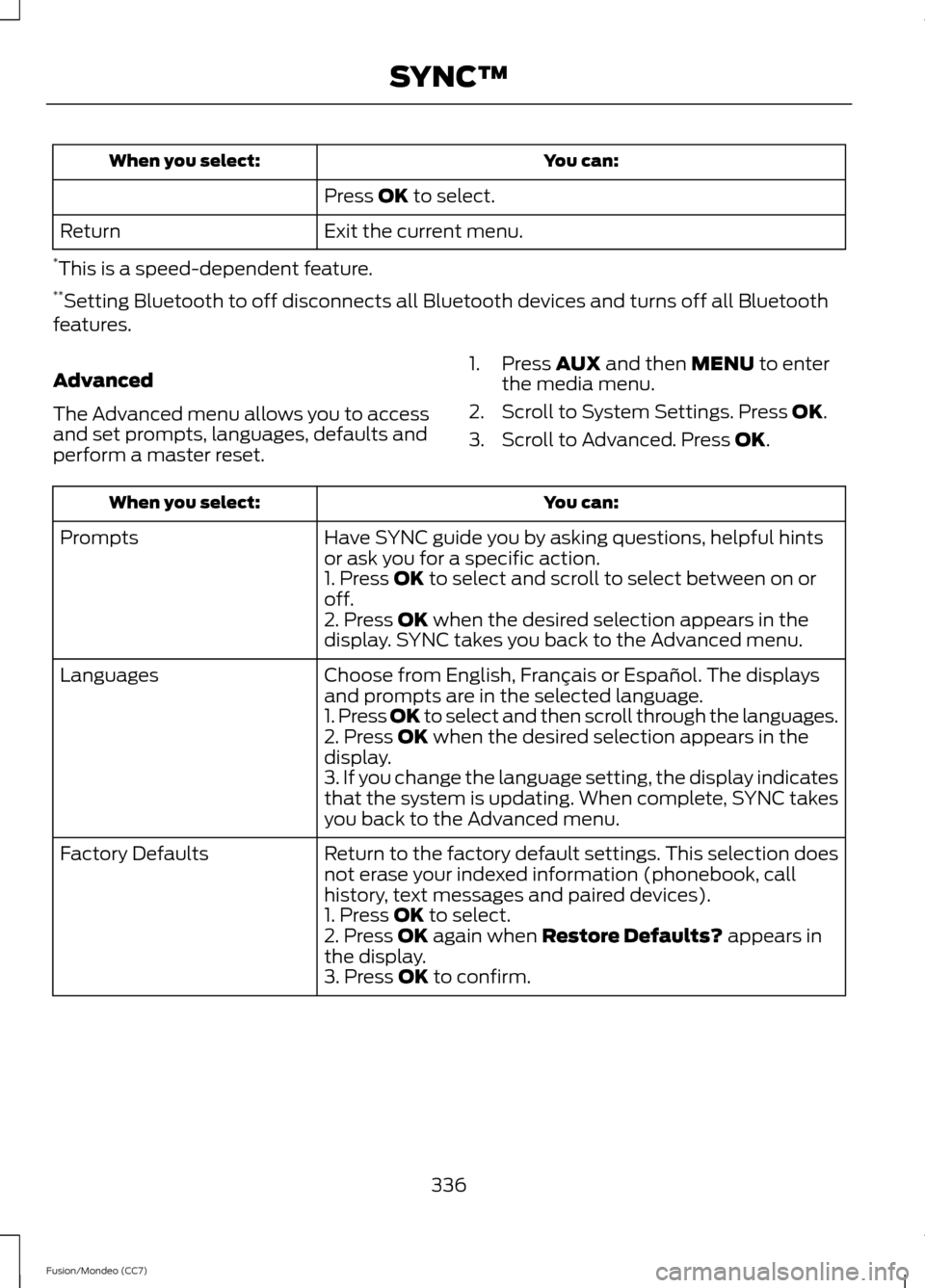
You can:
When you select:
Press OK to select.
Exit the current menu.
Return
* This is a speed-dependent feature.
** Setting Bluetooth to off disconnects all Bluetooth devices and turns off all Bluetooth
features.
Advanced
The Advanced menu allows you to access
and set prompts, languages, defaults and
perform a master reset. 1. Press
AUX and then MENU to enter
the media menu.
2. Scroll to System Settings. Press
OK.
3. Scroll to Advanced. Press
OK. You can:
When you select:
Have SYNC guide you by asking questions, helpful hints
or ask you for a specific action.
Prompts
1. Press
OK to select and scroll to select between on or
off.
2. Press
OK when the desired selection appears in the
display. SYNC takes you back to the Advanced menu.
Choose from English, Français or Español. The displays
and prompts are in the selected language.
Languages
1. Press OK to select and then scroll through the languages.
2. Press
OK when the desired selection appears in the
display.
3. If you change the language setting, the display indicates
that the system is updating. When complete, SYNC takes
you back to the Advanced menu.
Return to the factory default settings. This selection does
not erase your indexed information (phonebook, call
history, text messages and paired devices).
Factory Defaults
1. Press
OK to select.
2. Press OK again when Restore Defaults? appears in
the display.
3. Press
OK to confirm.
336
Fusion/Mondeo (CC7) SYNC™
Page 361 of 458
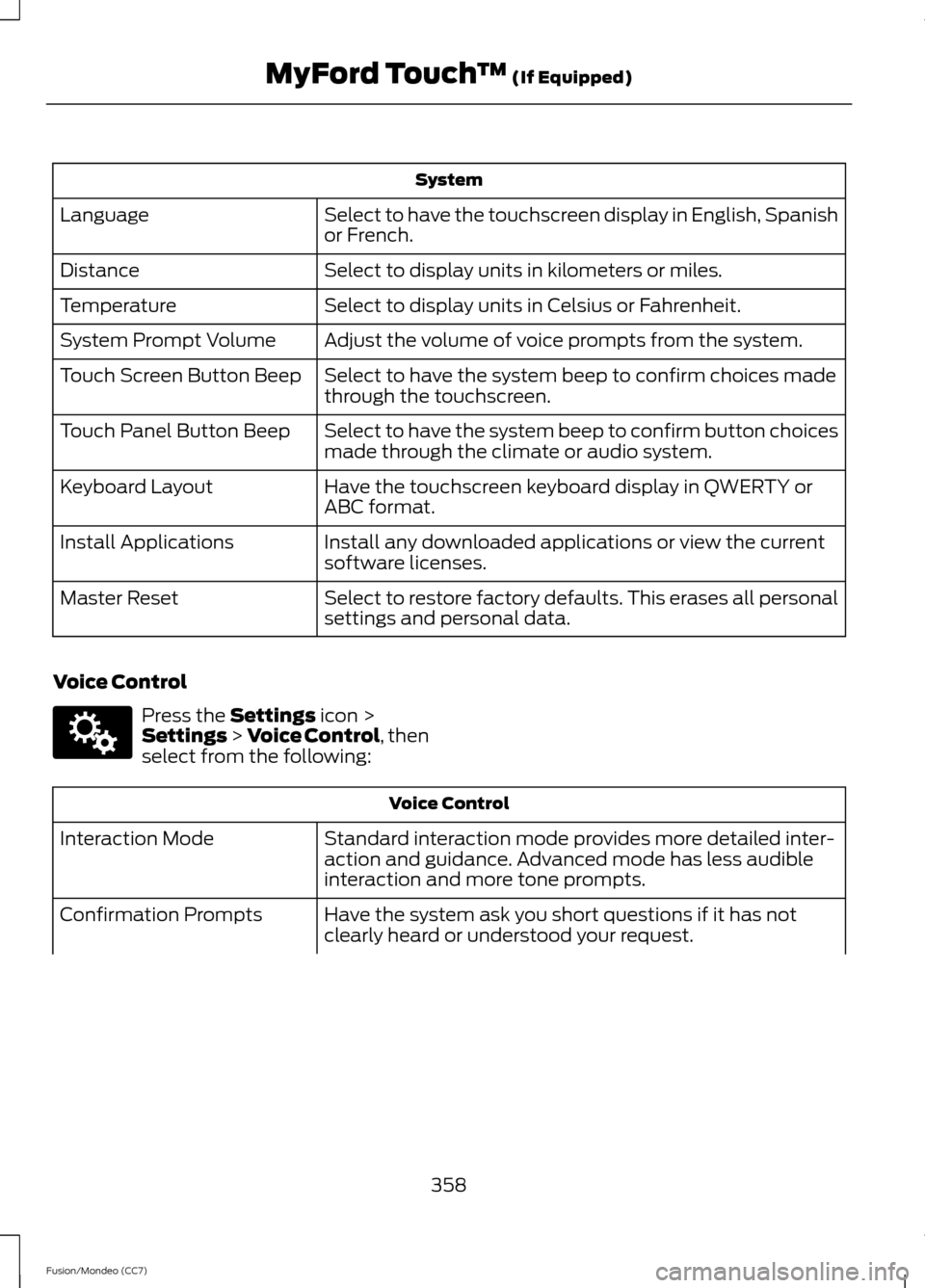
System
Select to have the touchscreen display in English, Spanish
or French.
Language
Select to display units in kilometers or miles.
Distance
Select to display units in Celsius or Fahrenheit.
Temperature
Adjust the volume of voice prompts from the system.
System Prompt Volume
Select to have the system beep to confirm choices made
through the touchscreen.
Touch Screen Button Beep
Select to have the system beep to confirm button choices
made through the climate or audio system.
Touch Panel Button Beep
Have the touchscreen keyboard display in QWERTY or
ABC format.
Keyboard Layout
Install any downloaded applications or view the current
software licenses.
Install Applications
Select to restore factory defaults. This erases all personal
settings and personal data.
Master Reset
Voice Control Press the Settings icon >
Settings > Voice Control, then
select from the following: Voice Control
Standard interaction mode provides more detailed inter-
action and guidance. Advanced mode has less audible
interaction and more tone prompts.
Interaction Mode
Have the system ask you short questions if it has not
clearly heard or understood your request.
Confirmation Prompts
358
Fusion/Mondeo (CC7) MyFord Touch
™
(If Equipped)E142607
Page 369 of 458
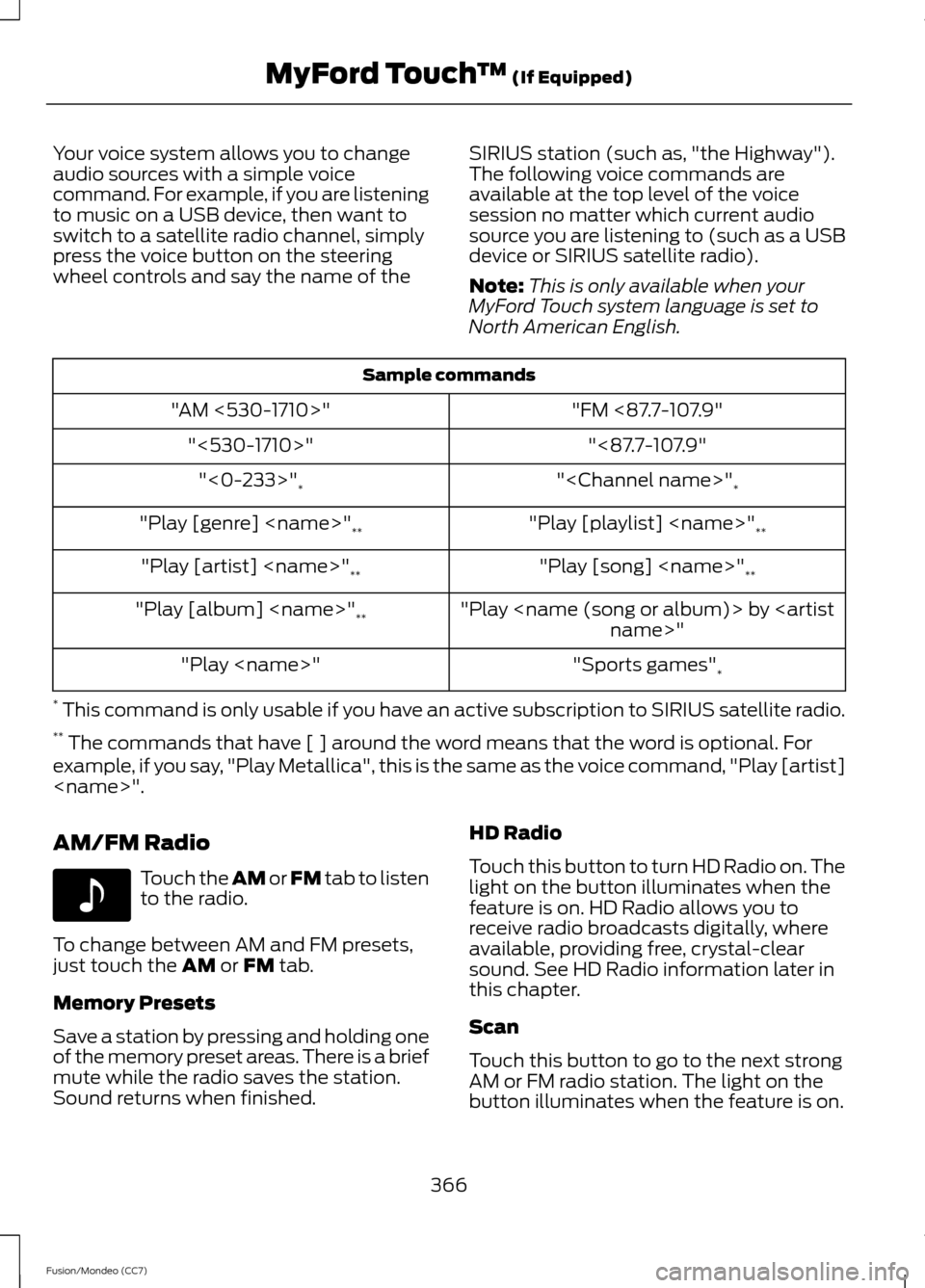
Your voice system allows you to change
audio sources with a simple voice
command. For example, if you are listening
to music on a USB device, then want to
switch to a satellite radio channel, simply
press the voice button on the steering
wheel controls and say the name of the
SIRIUS station (such as, "the Highway").
The following voice commands are
available at the top level of the voice
session no matter which current audio
source you are listening to (such as a USB
device or SIRIUS satellite radio).
Note:
This is only available when your
MyFord Touch system language is set to
North American English. Sample commands
"FM <87.7-107.9"
"AM <530-1710>"
"<87.7-107.9"
"<530-1710>"
""*
"<0-233>"
*
"Play [playlist] "**
"Play [genre] "
**
"Play [song] " **
"Play [artist] "
**
"Play by "
"Play [album] "
**
"Sports games"*
"Play "
* This command is only usable if you have an active subscription to SIRIUS satellite radio.
** The commands that have [ ] around the word means that the word is optional. For
example, if you say, "Play Metallica", this is the same as the voice command, "Play [artist]
".
AM/FM Radio Touch the AM or FM tab to listen
to the radio.
To change between AM and FM presets,
just touch the AM or FM tab.
Memory Presets
Save a station by pressing and holding one
of the memory preset areas. There is a brief
mute while the radio saves the station.
Sound returns when finished. HD Radio
Touch this button to turn HD Radio on. The
light on the button illuminates when the
feature is on. HD Radio allows you to
receive radio broadcasts digitally, where
available, providing free, crystal-clear
sound. See HD Radio information later in
this chapter.
Scan
Touch this button to go to the next strong
AM or FM radio station. The light on the
button illuminates when the feature is on.
366
Fusion/Mondeo (CC7) MyFord Touch
™
(If Equipped)E142611