Page 373 of 475
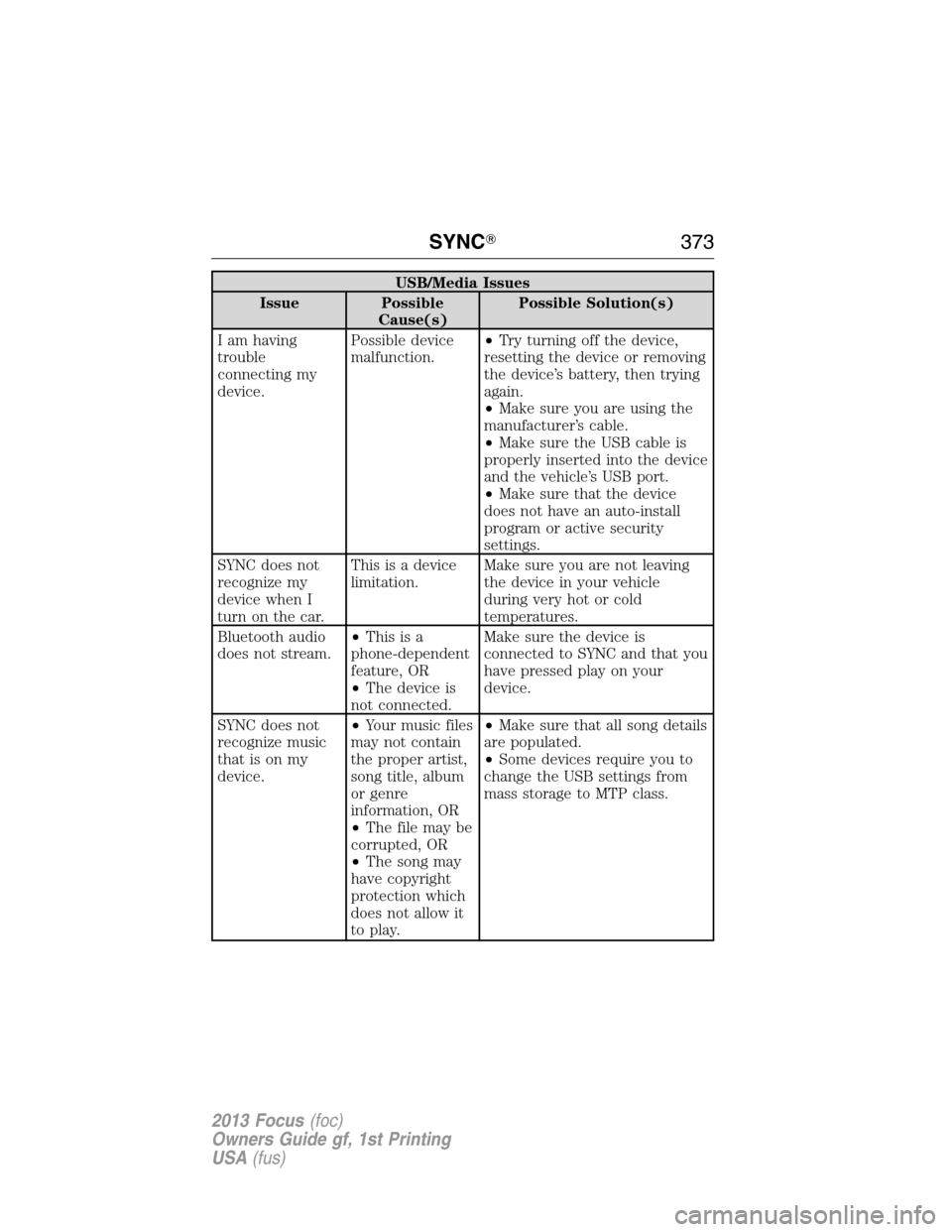
USB/Media Issues
Issue Possible
Cause(s)Possible Solution(s)
I am having
trouble
connecting my
device.Possible device
malfunction.•Try turning off the device,
resetting the device or removing
the device’s battery, then trying
again.
•Make sure you are using the
manufacturer’s cable.
•Make sure the USB cable is
properly inserted into the device
and the vehicle’s USB port.
•Make sure that the device
does not have an auto-install
program or active security
settings.
SYNC does not
recognize my
device when I
turn on the car.This is a device
limitation.Make sure you are not leaving
the device in your vehicle
during very hot or cold
temperatures.
Bluetooth audio
does not stream.•Thisisa
phone-dependent
feature, OR
•The device is
not connected.Make sure the device is
connected to SYNC and that you
have pressed play on your
device.
SYNC does not
recognize music
that is on my
device.•Your music files
may not contain
the proper artist,
song title, album
or genre
information, OR
•The file may be
corrupted, OR
•The song may
have copyright
protection which
does not allow it
to play.•Make sure that all song details
are populated.
•Some devices require you to
change the USB settings from
mass storage to MTP class.
SYNC�373
2013 Focus(foc)
Owners Guide gf, 1st Printing
USA(fus)
Page 378 of 475
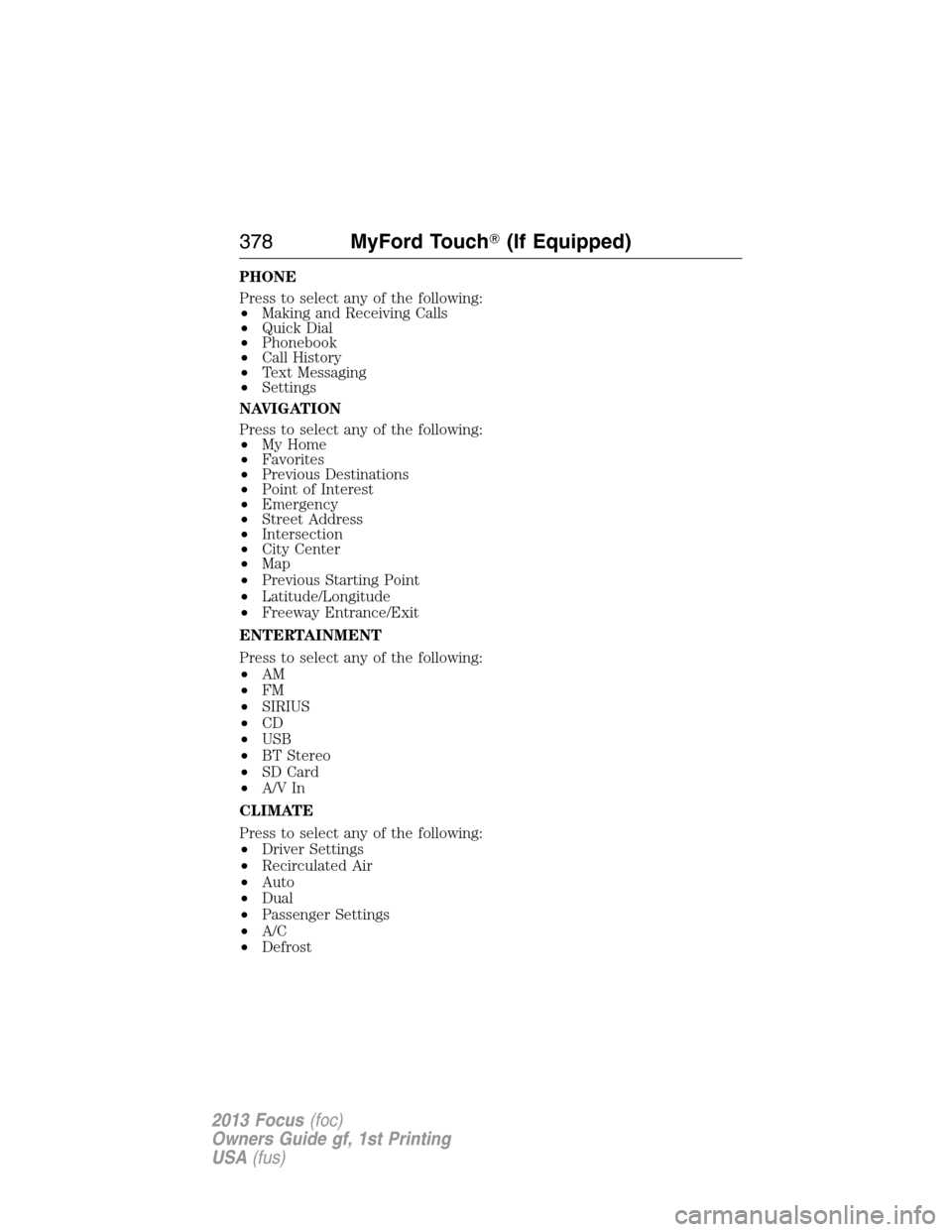
PHONE
Press to select any of the following:
•Making and Receiving Calls
•Quick Dial
•Phonebook
•Call History
•Text Messaging
•Settings
NAVIGATION
Press to select any of the following:
•My Home
•Favorites
•Previous Destinations
•Point of Interest
•Emergency
•Street Address
•Intersection
•City Center
•Map
•Previous Starting Point
•Latitude/Longitude
•Freeway Entrance/Exit
ENTERTAINMENT
Press to select any of the following:
•AM
•FM
•SIRIUS
•CD
•USB
•BT Stereo
•SD Card
•A/V In
CLIMATE
Press to select any of the following:
•Driver Settings
•Recirculated Air
•Auto
•Dual
•Passenger Settings
•A/C
•Defrost
378MyFord Touch�(If Equipped)
2013 Focus(foc)
Owners Guide gf, 1st Printing
USA(fus)
Page 381 of 475

Listed below are more specific features that can only be modified while
the vehicle is not moving:
Restricted Features
Cellular Phone Pairing a Bluetooth phone
Adding phonebook contacts or uploading
phonebook contacts (from a USB)
List entries are limited for phone contacts and
recent phone call entries
System Functionality Editing the keypad code
Enabling Valet Mode
Editing settings while the rear view camera or
Active Park Assist are active
Wi-Fi and Wireless Editing wireless settings
Editing the list of wireless networks
Videos, Photos and
GraphicsPlaying video
Editing the screen’s wallpaper or adding new
wallpaper
Text Messages Composing text messages
Viewing received text messages
Editing preset text messages
Navigation Using the keyboard to enter a destination
Demo navigation route
Adding or Editing Address Book entries or
Avoid Areas
Privacy Information
When a cellular phone is connected to SYNC, the system creates a profile
within your vehicle that is linked to that cellular phone. This profile is
created in order to offer you more cellular features and to operate more
efficiently. Among other things, this profile may contain data about your
cellular phone book, text messages (read and unread), and call history,
including history of calls when your cell phone was not connected to the
system. In addition, if you connect a media device, the system creates and
retains an index of supported media content. The system also records a
short development log of approximately 10 minutes of all recent system
activity. The log profile and other system data may be used to improve the
system and help diagnose any problems that may occur.
MyFord Touch�(If Equipped)381
2013 Focus(foc)
Owners Guide gf, 1st Printing
USA(fus)
Page 383 of 475
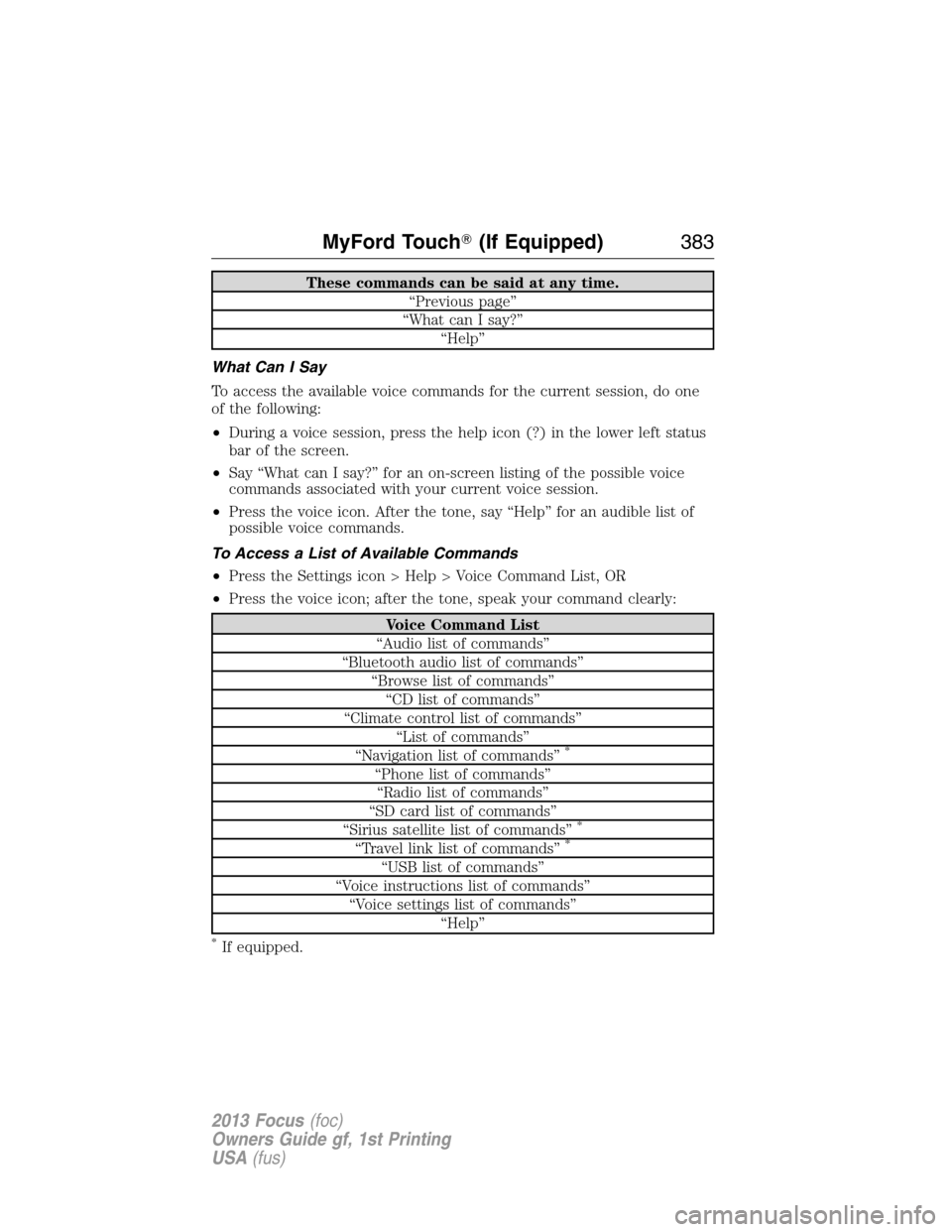
These commands can be said at any time.
“Previous page”
“What can I say?”
“Help”
What Can I Say
To access the available voice commands for the current session, do one
of the following:
•During a voice session, press the help icon (?) in the lower left status
bar of the screen.
•Say “What can I say?” for an on-screen listing of the possible voice
commands associated with your current voice session.
•Press the voice icon. After the tone, say “Help” for an audible list of
possible voice commands.
To Access a List of Available Commands
•Press the Settings icon > Help > Voice Command List, OR
•Press the voice icon; after the tone, speak your command clearly:
Voice Command List
“Audio list of commands”
“Bluetooth audio list of commands”
“Browse list of commands”
“CD list of commands”
“Climate control list of commands”
“List of commands”
“Navigation list of commands”
*
“Phone list of commands”
“Radio list of commands”
“SD card list of commands”
“Sirius satellite list of commands”
*
“Travel link list of commands”*
“USB list of commands”
“Voice instructions list of commands”
“Voice settings list of commands”
“Help”
*If equipped.
MyFord Touch�(If Equipped)383
2013 Focus(foc)
Owners Guide gf, 1st Printing
USA(fus)
Page 387 of 475

If you choose Intersection from the navigation screen, you can choose
from the following:
•1st Street
•2nd Street
•City
•State/Prov.
Some of the voice commands that are available while viewing this screen are:
“INTERSECTION”
“Enter first street name”
“Change first street name”
“Enter second street name”
“Change second street name”
“Enter city”
“Change city”
“Enter state”
“Change state”
The dual mode feature is also available when the voice system displays a
list of items to pick from during a voice session, where you would be able
to touch the line item or say “Line 2”. If a command is not understood or
there are multiple options, the system returns a list for you to choose from.
ENTERTAINMENT
Your system offers many media options. You can access these options
using the touchscreen or voice commands.
Browsing Device Content
When listening to any type of audio, you can browse through other
devices without having to change sources. For example, if you are
currently listening to the radio, you can browse all the artists that are
stored on your USB device.
Press the voice icon on the steering wheel. When prompted,
you can say:
“BROWSE” within Devices
“Browse”*
“Browse games”**
“Browse channels”**
“Browse CD track list”
MyFord Touch�(If Equipped)387
2013 Focus(foc)
Owners Guide gf, 1st Printing
USA(fus)
Page 388 of 475
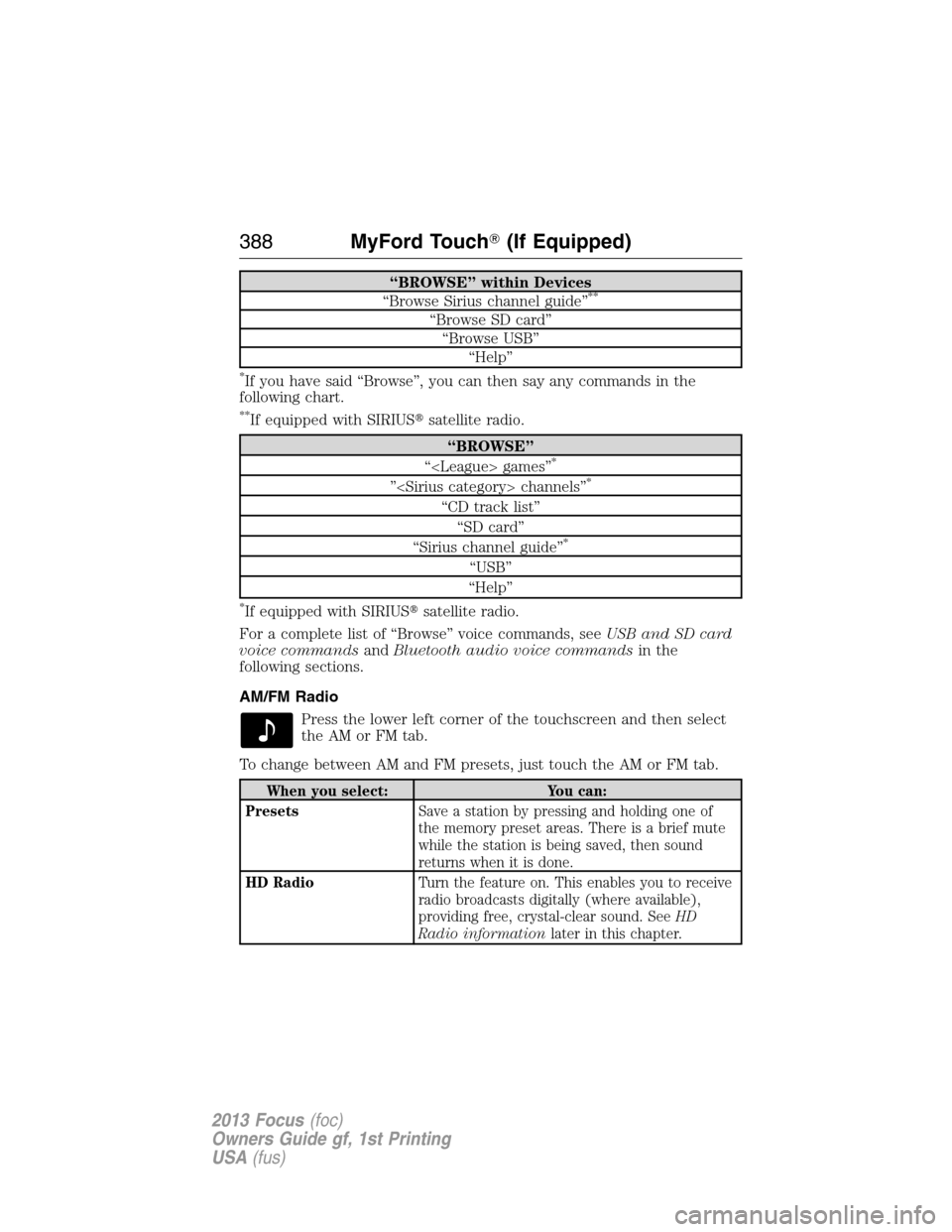
“BROWSE” within Devices
“Browse Sirius channel guide”**
“Browse SD card”
“Browse USB”
“Help”
*If you have said “Browse”, you can then say any commands in the
following chart.
**If equipped with SIRIUS�satellite radio.
“BROWSE”
“ games”*
” channels”*
“CD track list”
“SD card”
“Sirius channel guide”
*
“USB”
“Help”
*If equipped with SIRIUS�satellite radio.
For a complete list of “Browse” voice commands, seeUSB and SD card
voice commandsandBluetooth audio voice commandsin the
following sections.
AM/FM Radio
Press the lower left corner of the touchscreen and then select
theAMorFMtab.
To change between AM and FM presets, just touch the AM or FM tab.
When you select: You can:
PresetsSave a station by pressing and holding one of
the memory preset areas. There is a brief mute
while the station is being saved, then sound
returns when it is done.
HD RadioTurn the feature on. This enables you to receive
radio broadcasts digitally (where available),
providing free, crystal-clear sound. SeeHD
Radio informationlater in this chapter.
388MyFord Touch�(If Equipped)
2013 Focus(foc)
Owners Guide gf, 1st Printing
USA(fus)
Page 401 of 475

CD Voice Commands
If you are listening to a CD, press the voice button on the
steering wheel control. When prompted, say any of the
commands in the following chart.
If you are not listening to a CD, press the voice button and, after the
tone, say “CD”, then any of the commands in the following chart.
“CD”
“Pause” “Repeat off”
“Play” “Repeat track”
“Play next track” “Shuffle”
“Play previous track” “Shuffle CD”
*
“Play track <1–512>” “Shuffle folder”*
“Repeat” “Shuffle off”
“Repeat folder”*“Help”
*WMA or MP3 only.
SD Card Slot and USB Port
SD Card Slot
Note:Your SD card slot is spring-loaded. To remove the SD card, press
the card in and the system ejects it. Do not attempt to pull the card to
remove it as this could cause damage.
The card slot can be used for your navigation card (if equipped). See
Navigation systemlater in this chapter for more information.
The slot is located either in the center console
or behind a small access door in the
instrument panel. To access and play music
from your SD card slot, press the lower left
corner of the touchscreen.
SD logo is a trademark of SD-3C,
LLC.
MyFord Touch�(If Equipped)401
2013 Focus(foc)
Owners Guide gf, 1st Printing
USA(fus)
Page 402 of 475
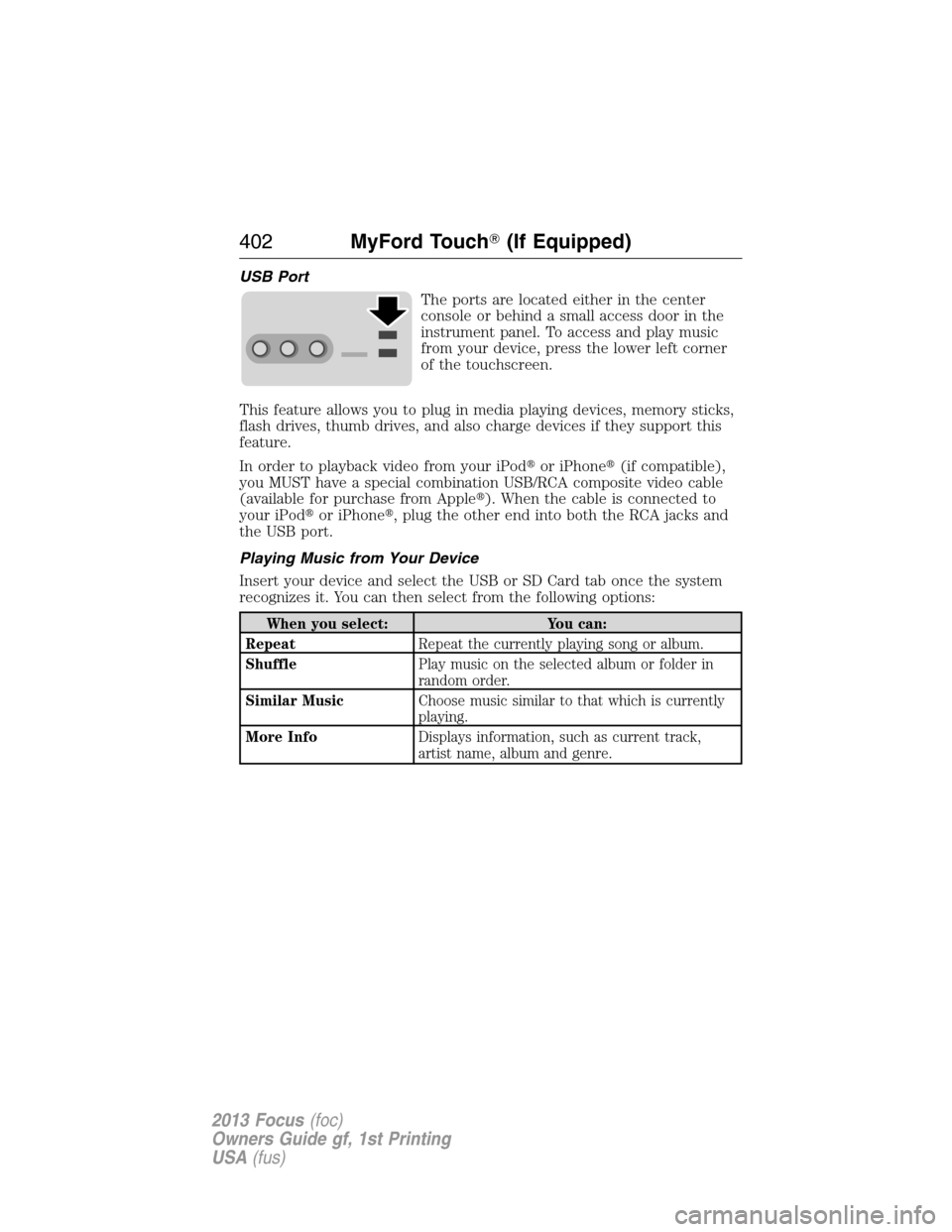
USB Port
The ports are located either in the center
console or behind a small access door in the
instrument panel. To access and play music
from your device, press the lower left corner
of the touchscreen.
This feature allows you to plug in media playing devices, memory sticks,
flash drives, thumb drives, and also charge devices if they support this
feature.
In order to playback video from your iPod�or iPhone�(if compatible),
you MUST have a special combination USB/RCA composite video cable
(available for purchase from Apple�). When the cable is connected to
your iPod�or iPhone�, plug the other end into both the RCA jacks and
the USB port.
Playing Music from Your Device
Insert your device and select the USB or SD Card tab once the system
recognizes it. You can then select from the following options:
When you select: You can:
RepeatRepeat the currently playing song or album.
ShufflePlay music on the selected album or folder in
random order.
Similar MusicChoose music similar to that which is currently
playing.
More InfoDisplays information, such as current track,
artist name, album and genre.
402MyFord Touch�(If Equipped)
2013 Focus(foc)
Owners Guide gf, 1st Printing
USA(fus)