Page 162 of 475
CENTER CONSOLE
WARNING:Use only soft cups in the cupholder. Hard objects
can injure you in a collision.
Your vehicle has a variety of console features. These may include:
•Cupholders
•Utility compartment
•Auxiliary AV connections, USB port, SD slot
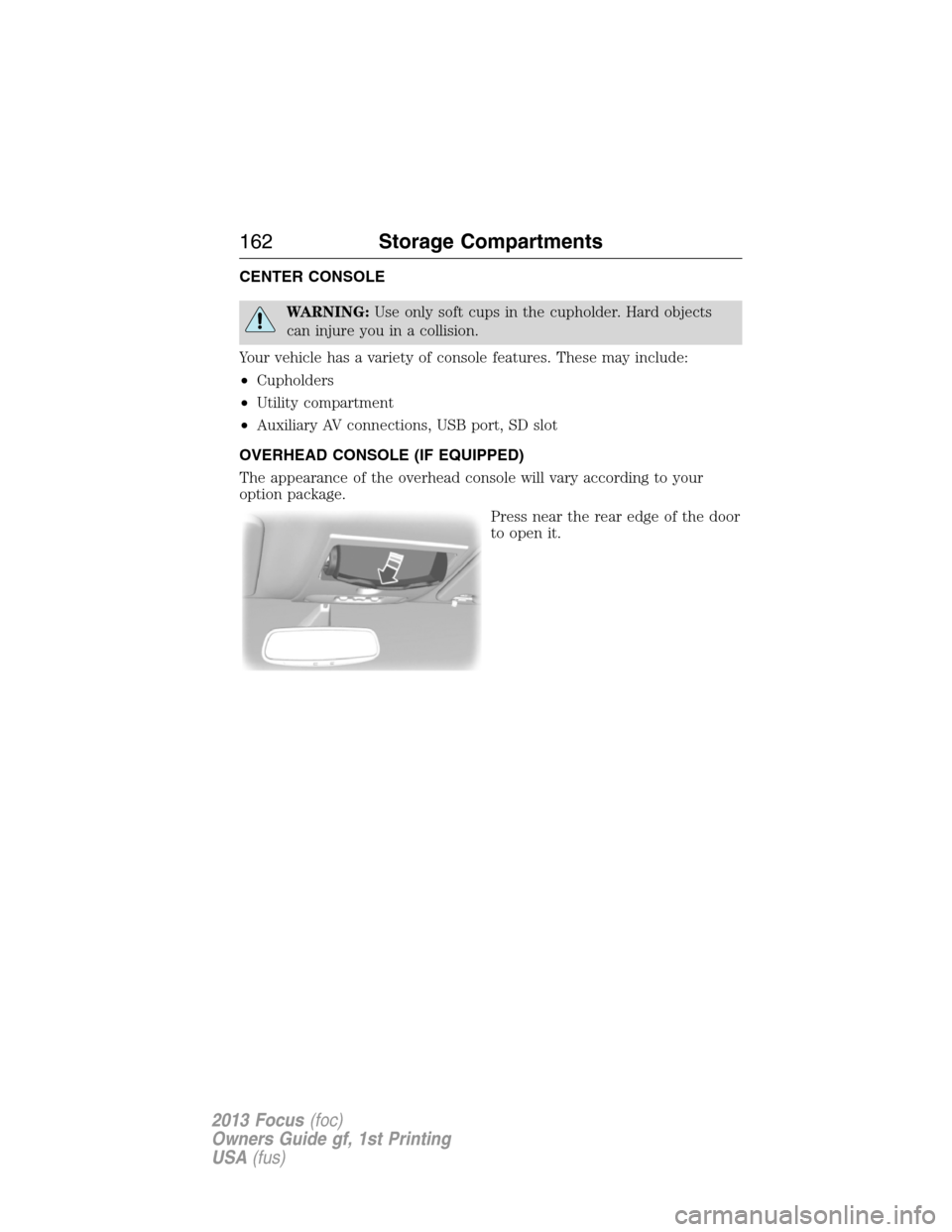
OVERHEAD CONSOLE (IF EQUIPPED)
The appearance of the overhead console will vary according to your
option package.
Press near the rear edge of the door
to open it.
162Storage Compartments
2013 Focus(foc)
Owners Guide gf, 1st Printing
USA(fus)
Page 247 of 475
Working with the Engine On
WARNING:To reduce the risk of vehicle damage and/or personal
burn injuries, do not start your engine with the air cleaner
removed and do not remove it while the engine is running.
1. For vehicles equipped with an automatic transmission, set the parking
brake and shift to P (Park). For vehicles equipped with a manual
transmission, set the parking brake, press and hold the clutch pedal, shift
in N (Neutral), and release the clutch pedal.
2. Block the wheels.
OPENING AND CLOSING THE HOOD
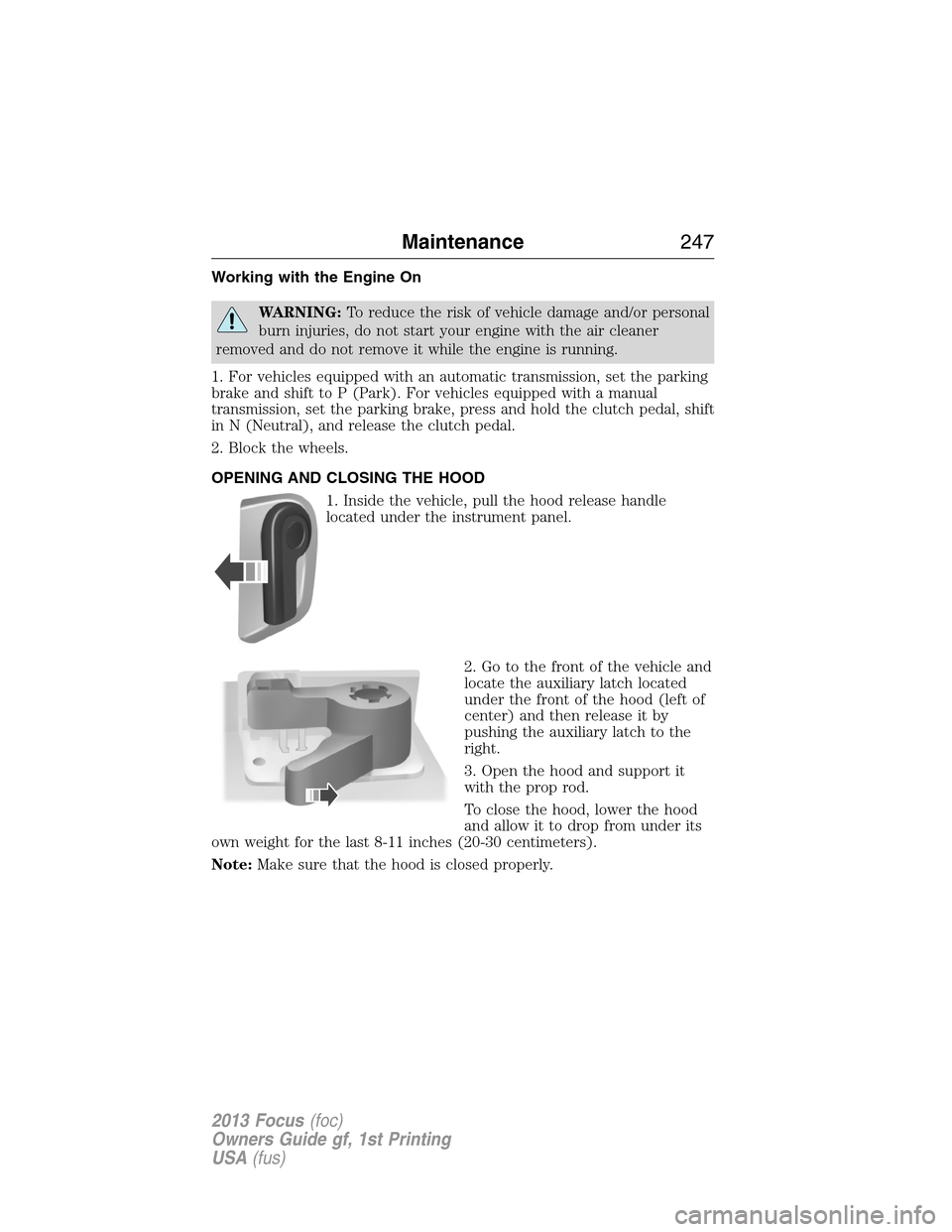
1. Inside the vehicle, pull the hood release handle
located under the instrument panel.
2. Go to the front of the vehicle and
locate the auxiliary latch located
under the front of the hood (left of
center) and then release it by
pushing the auxiliary latch to the
right.
3. Open the hood and support it
with the prop rod.
To close the hood, lower the hood
and allow it to drop from under its
own weight for the last 8-11 inches (20-30 centimeters).
Note:Make sure that the hood is closed properly.
Maintenance247
2013 Focus(foc)
Owners Guide gf, 1st Printing
USA(fus)
Page 304 of 475
TECHNICAL SPECIFICATIONS
Item CapacityFord Part Name or
EquivalentFord Part Number / Ford
Specification
Brake fluid (and clutch
fluid–if equipped)
1
Between MIN
and MAX on
reservoirMotorcraft�High
Performance DOT 4
Motor Vehicle Brake
FluidPM-1-C /
WSS-M6C65-A2
Door latch, hood latch,
auxiliary hood latch,
trunk latch, seat
tracks.—Multi-Purpose Grease
(Lithium grease)XG-4 or XL-5 or equivalent
/
ESB-M1C93-B
Lock cylinder —Motorcraft�Penetrating
and Lock LubricantXL-1 /
None
Automatic transmission
fluid
2,3
1.9 quarts (1.8L)Motorcraft�Dual Clutch
Transmission FluidXT-11-QDC
Manual transmission
fluid
2
1.9 quarts (1.8L)Motorcraft�Full
Synthetic Manual
Transmission FluidBOT350-M3 /
WSS-M2C200-D2
304Capacities and Specifications
2013 Focus(foc)
Owners Guide gf, 1st Printing
USA(fus)
Page 335 of 475

USING VOICE RECOGNITION
This system helps you control many features using voice commands. This
allows you to keep your hands on the wheel and focus on what is in
front of you.
Initiating a Voice Session
Push the voice icon; a tone sounds and Listening appears in the
display. Say any of the following:
Say: If you want to:
“Phone” Make calls.
“USB” Access the device connected to your USB
port.
“Bluetooth Audio” Stream audio from your phone.
“Line in” Access the device connected to the auxiliary
input jack.
“Cancel” Cancel the requested action.
“SYNC” Return to the main menu.
“Voice settings” Adjust the level of voice interaction and
feedback.
“Vehicle Health Report” Run a vehicle health report.
*
“Services” Access the SYNC Services portal.*
“Mobile apps” Access mobile applications.*
“Help” Hear a list of voice commands available in the
current mode.
*If equipped, U.S. only.
System Interaction and Feedback
The system provides feedback through audible tones, prompts, questions
and spoken confirmations depending on the situation and the chosen
level of interaction (voice settings). You can customize the voice
recognition system to provide more or less instruction and feedback.
The default setting is to a higher level of interaction in order to help you
learn to use the system. You can change these settings at any time.
SYNC�335
2013 Focus(foc)
Owners Guide gf, 1st Printing
USA(fus)
Page 359 of 475

Depending on your display type, you can access AppLink from the media
menu, the phone menu, or by using voice commands. Once an app is
running through AppLink, you can control main features of the app
through voice commands and steering wheel controls.
To Access Using the Phone Menu
1. Press the phone button to access the SYNC phone menu on-screen.
2. Scroll to Mobile Apps and press OK to access a list of available
applications.
3. Scroll through the list of available applications and press OK to select
a particular app.
4. Once an app is running through SYNC, you can access an app’s menu
by pressing the MENU button to first access the SYNC menu.
5. Select “SYNC-Media” by pressing OK.
6. Scroll until “ Menu” is displayed (i.e., Pandora Menu),
then press OK. From here, you can access an application’s features,
such as Thumbs up, Thumbs down, etc. For more information, please
visit www.SYNCMyRide.com.
To Access Using the Media Menu
1. Press AUX button on the center console.
2. Press MENU to access the SYNC menu.
3. Select “SYNC-Media” by pressing OK.
4. Then scroll to Mobile Apps and press OK to access a list of available
applications.
5. Scroll through the list of available applications and press OK to select
a particular app.
6. Once an app is running through SYNC, you can access an app’s menu
by pressing the MENU button to first access the SYNC menu.
7. Select “SYNC-Media” by pressing OK.
8. Scroll until “ Menu” is displayed (i.e., Pandora Menu),
then press OK. From here, you can access an application’s features,
such as Thumbs up, Thumbs down, etc. For more information, please
visit www.SYNCMyRide.com.
To Access Using Voice Commands
1. Press the voice icon.
2. When prompted, say “Mobile Apps”.
3. Say the name of the application after the tone.
4. The app should start. While an app is running through SYNC, you can
press the voice button and speak commands specific to the app, such
as “Play Station Quickmix”. Say “Help” to discover available voice
commands.
SYNC�359
2013 Focus(foc)
Owners Guide gf, 1st Printing
USA(fus)
Page 360 of 475
USING SYNC WITH YOUR MEDIA PLAYER
You can access and play music from your digital music player over the
vehicle’s speaker system using the system’s media menu or voice
commands. You can also sort and play your music by specific categories,
such as artists, albums, etc.
SYNC is capable of hosting nearly any digital media player including:
iPod�, Zune™, Plays from device players, and most USB drives. SYNC
also supports audio formats such as MP3, WMA, WAV and ACC.
Connecting Your Digital Media Player via the USB Port
Note:If your digital media player has a power switch, ensure that the
device is turned on.
To connect using voice commands:
1. Plug the device into the vehicle’s USB port.
2. Press the voice icon and when prompted, say “USB”.
3. You can now play music by saying any of the appropriate voice
commands. See the media voice commands.
To connect using the system menu:
1. Plug the device into the vehicle’s USB port.
2. Press AUX and then MENU to enter the Media Menu.
3. Scroll until Select Source appears and press OK.
4. Scroll to select USB and press OK.
5. Depending on how many digital media files are on your connected
device, Indexing may appear in the radio display. When indexing is
complete, the screen returns to the Play Menu.
6. Press OK and scroll through selections of:
•Play All
•Artists
•Albums
•Genres
•Playlists
•Tracks
•Explore USB
•Similar Music
•Return
When the desired selection appears in the display, press OK to build
your desired music selection.
360SYNC�
2013 Focus(foc)
Owners Guide gf, 1st Printing
USA(fus)
Page 364 of 475
Media Menu Features
The media menu allows you to select your media source, how to play
your music (by artist, genre, shuffle, repeat, etc.), and also to add,
connect or delete devices.
1. Press AUX and then MENU to enter the Media Menu.
2. Scroll to cycle through:
When you select: You can:
Play MenuPlay your music by artist, album, genre, playlists,
tracks, similar music or to simply, play all. You can
also choose to Explore USB to view the supported
digital music files on your playing device.
See Play Menu later in this section for more
information.
Select SourceSYNC USB:Press OK to access music plugged
into your USB port. You can also plug in devices
to charge them (if supported by your device).
Once connected, the system indexes any readable
media files. (The time required to complete this
depends on the size of the media content being
indexed.) If Autoplay is on, you can access media
files randomly as they are indexed. If turned off,
indexed media is not available until the indexing
process is complete. SYNC is capable of indexing
thousands of average size media and notifies you if
the maximum indexing file size is reached.
Bluetooth Audio
: This is a phone-dependent
feature which allows you to stream music
playing on your Bluetooth-enabled phone. If
supported by your device, you can press SEEK
to play the previous or next track.
SYNC Line In:Press OK to select and play music
from your portable music player over the vehicle’s
speakers.
Note:If you have already connected a device to
the USB port, you cannot access the line in
feature. Some digital media players require both
USB and line in ports to stream data and music
separately.
364SYNC�
2013 Focus(foc)
Owners Guide gf, 1st Printing
USA(fus)
Page 366 of 475
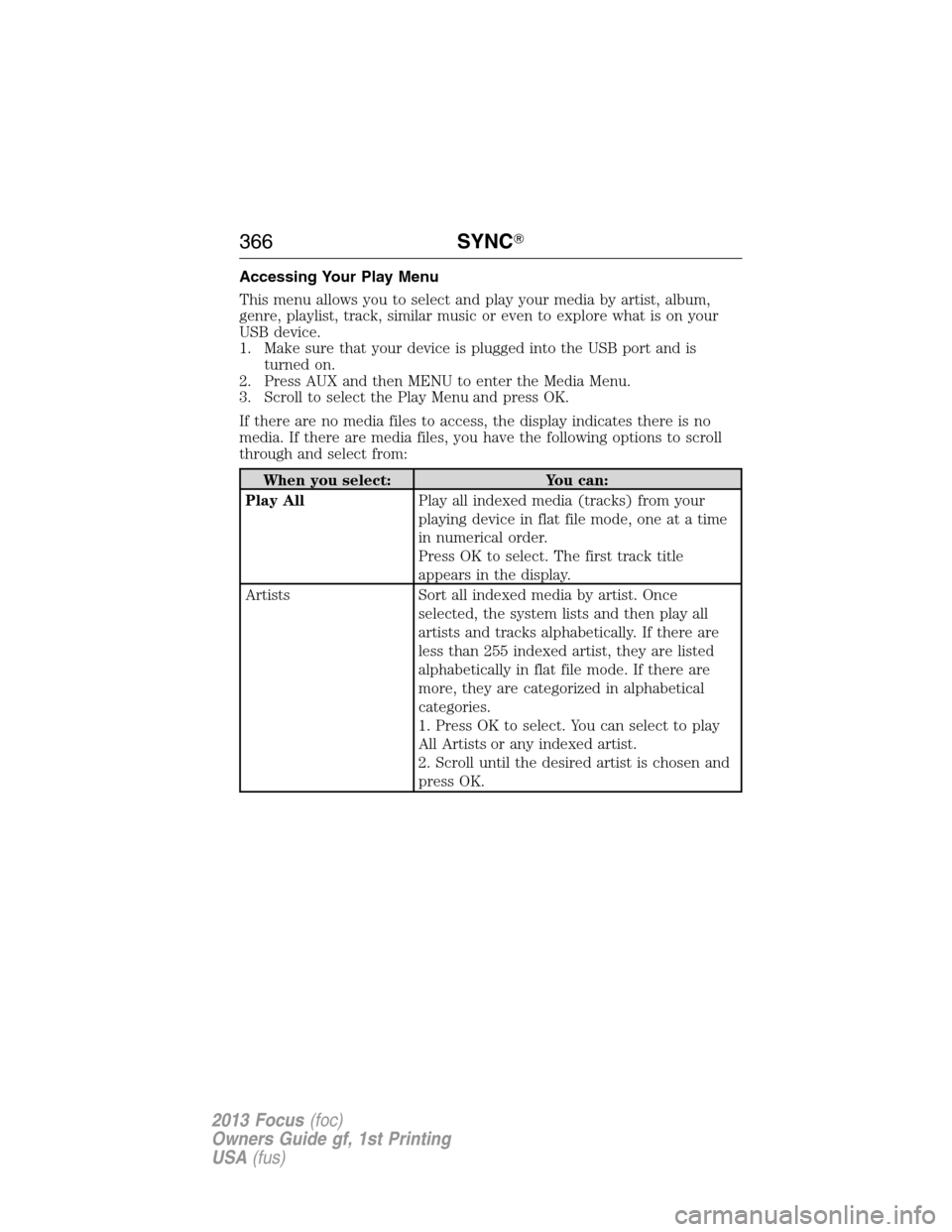
Accessing Your Play Menu
This menu allows you to select and play your media by artist, album,
genre, playlist, track, similar music or even to explore what is on your
USB device.
1. Make sure that your device is plugged into the USB port and is
turned on.
2. Press AUX and then MENU to enter the Media Menu.
3. Scroll to select the Play Menu and press OK.
If there are no media files to access, the display indicates there is no
media. If there are media files, you have the following options to scroll
through and select from:
When you select: You can:
Play AllPlay all indexed media (tracks) from your
playing device in flat file mode, one at a time
in numerical order.
Press OK to select. The first track title
appears in the display.
Artists Sort all indexed media by artist. Once
selected, the system lists and then play all
artists and tracks alphabetically. If there are
less than 255 indexed artist, they are listed
alphabetically in flat file mode. If there are
more, they are categorized in alphabetical
categories.
1. Press OK to select. You can select to play
All Artists or any indexed artist.
2. Scroll until the desired artist is chosen and
press OK.
366SYNC�
2013 Focus(foc)
Owners Guide gf, 1st Printing
USA(fus)