Page 466 of 577
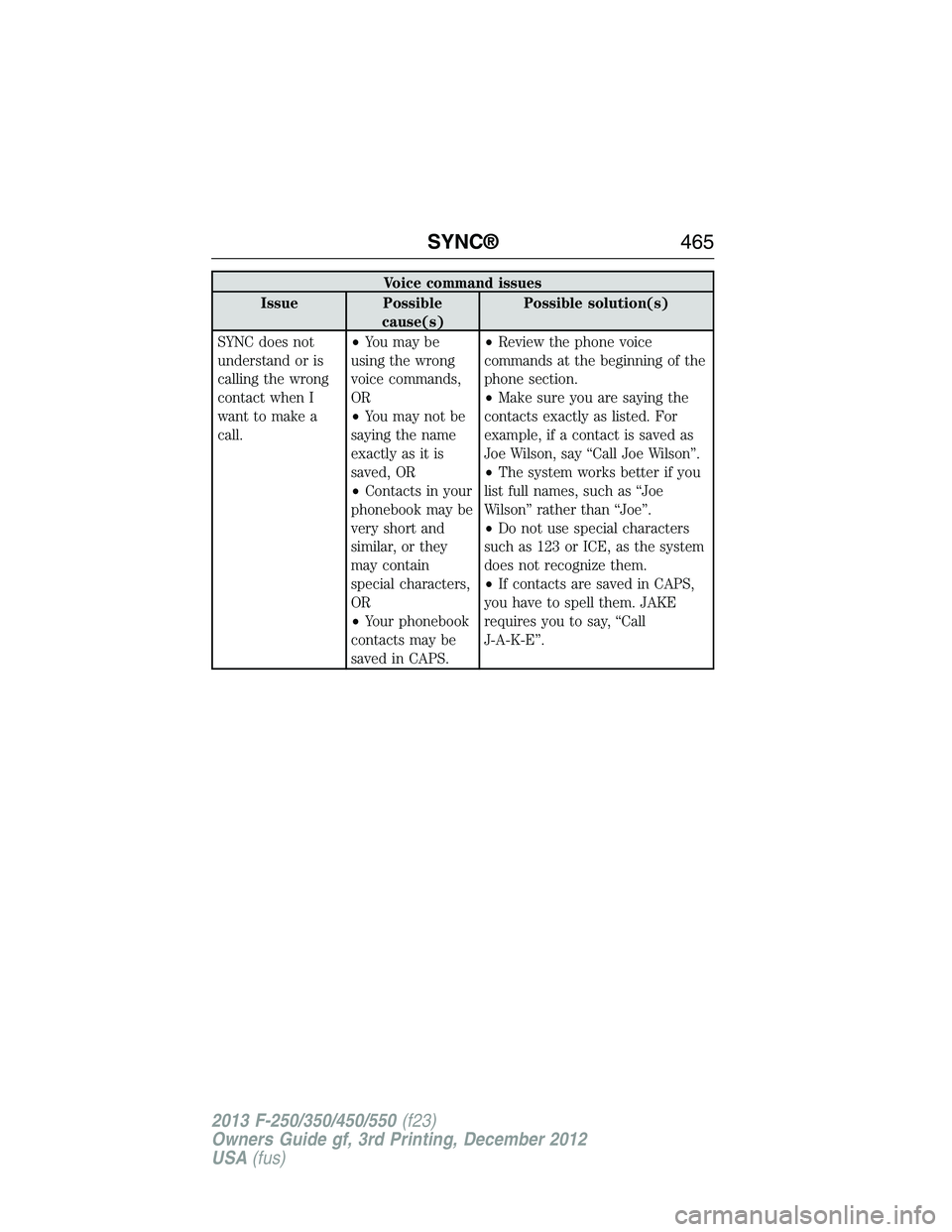
Voice command issues
Issue Possible
cause(s)Possible solution(s)
SYNC does not
understand or is
calling the wrong
contact when I
want to make a
call.•You may be
using the wrong
voice commands,
OR
•You may not be
saying the name
exactly as it is
saved, OR
•Contacts in your
phonebook may be
very short and
similar, or they
may contain
special characters,
OR
•Your phonebook
contacts may be
saved in CAPS.•Review the phone voice
commands at the beginning of the
phone section.
•Make sure you are saying the
contacts exactly as listed. For
example, if a contact is saved as
Joe Wilson, say “Call Joe Wilson”.
•The system works better if you
list full names, such as “Joe
Wilson” rather than “Joe”.
•Do not use special characters
such as 123 or ICE, as the system
does not recognize them.
•If contacts are saved in CAPS,
you have to spell them. JAKE
requires you to say, “Call
J-A-K-E”.
SYNC®465
2013 F-250/350/450/550(f23)
Owners Guide gf, 3rd Printing, December 2012
USA(fus)
Page 467 of 577
INTRODUCTION
WARNING:Driving while distracted can result in loss of vehicle
control, crash and injury. We strongly recommend that you use
extreme caution when using any device that may take your focus off
the road. Your primary responsibility is the safe operation of your
vehicle. We recommend against the use of any hand-held device while
driving and encourage the use of voice-operated systems when possible.
Make sure you are aware of all applicable local laws that may affect the
use of electronic devices while driving.
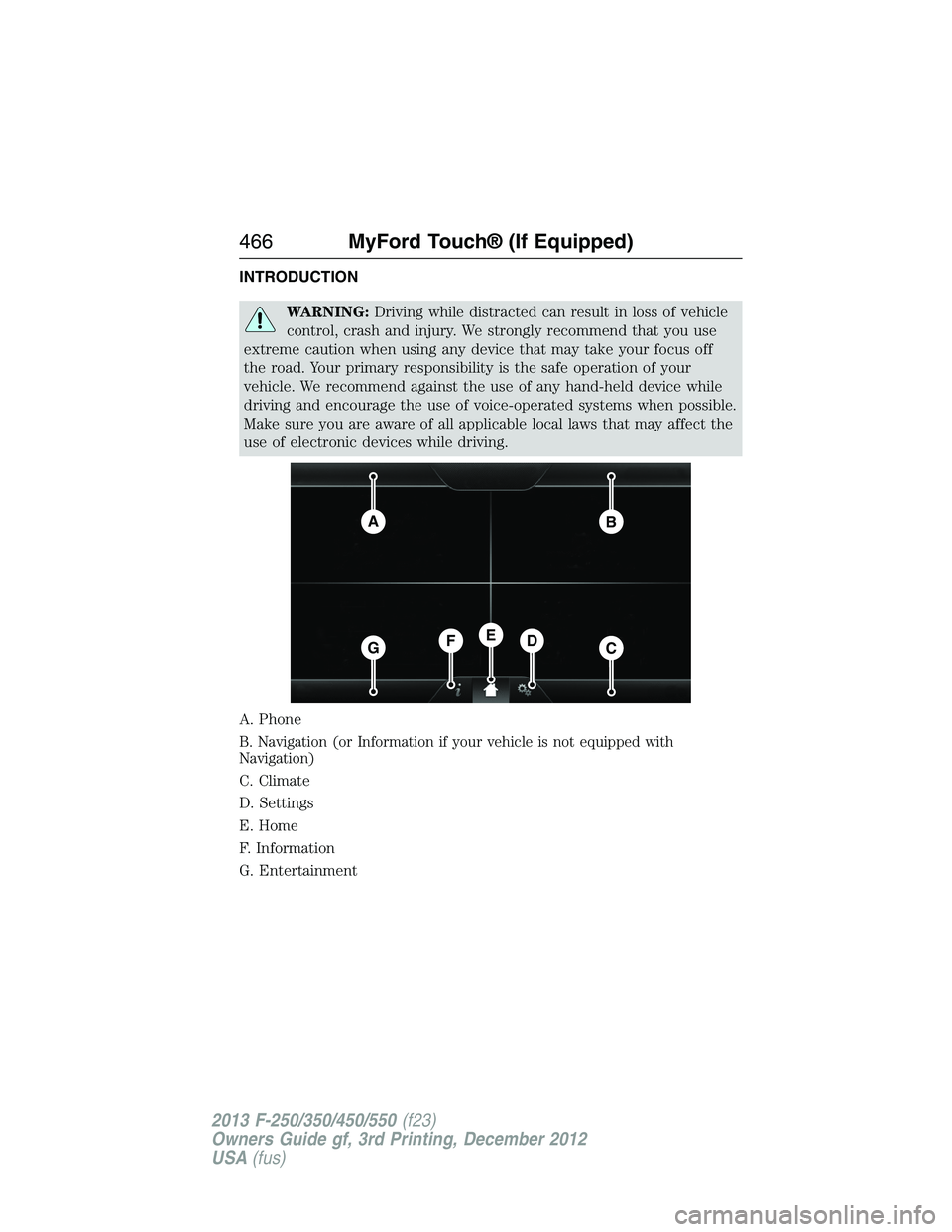
A. Phone
B. Navigation (or Information if your vehicle is not equipped with
Navigation)
C. Climate
D. Settings
E. Home
F. Information
G. Entertainment
AB
GCDFE
466MyFord Touch® (If Equipped)
2013 F-250/350/450/550(f23)
Owners Guide gf, 3rd Printing, December 2012
USA(fus)
Page 468 of 577
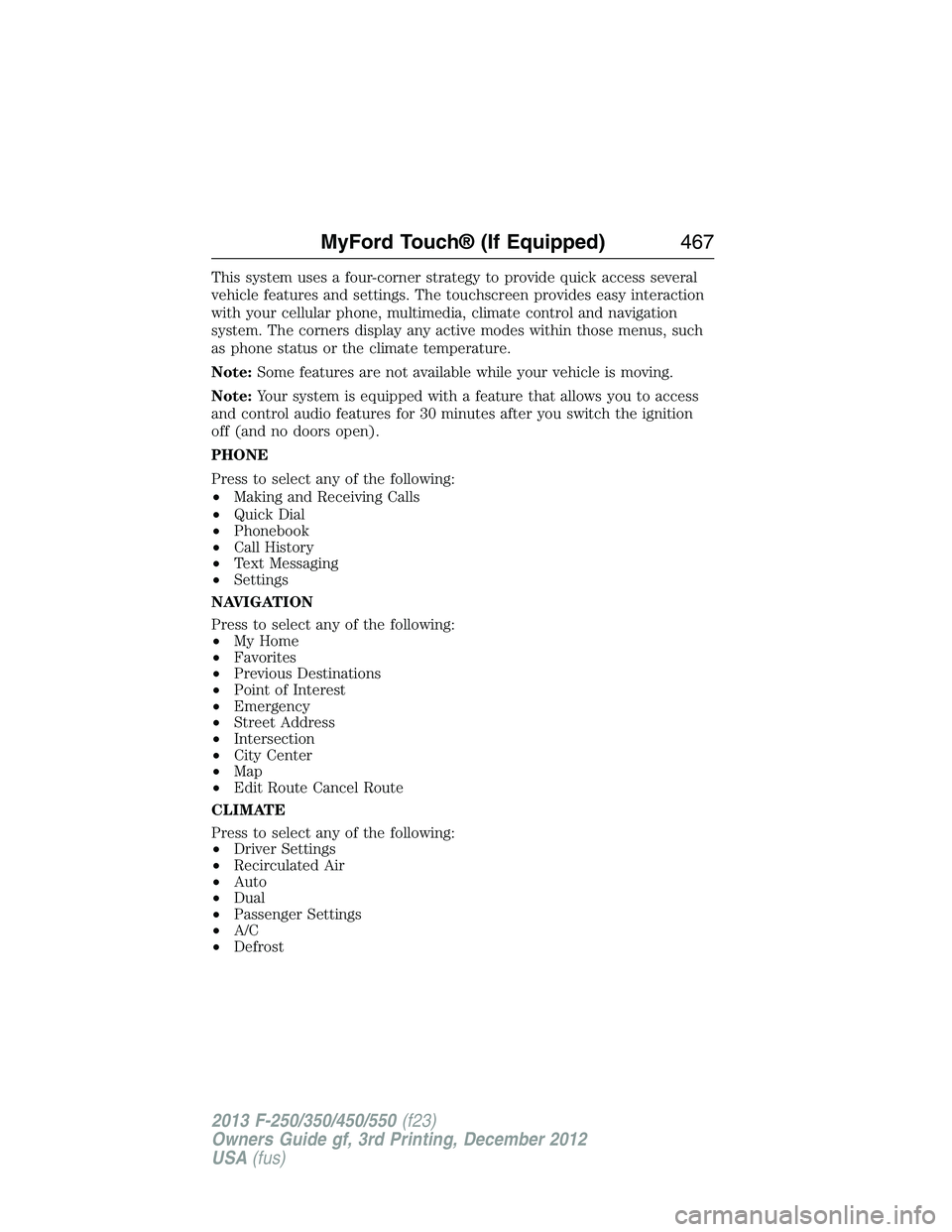
This system uses a four-corner strategy to provide quick access several
vehicle features and settings. The touchscreen provides easy interaction
with your cellular phone, multimedia, climate control and navigation
system. The corners display any active modes within those menus, such
as phone status or the climate temperature.
Note:Some features are not available while your vehicle is moving.
Note:Your system is equipped with a feature that allows you to access
and control audio features for 30 minutes after you switch the ignition
off (and no doors open).
PHONE
Press to select any of the following:
•Making and Receiving Calls
•Quick Dial
•Phonebook
•Call History
•Text Messaging
•Settings
NAVIGATION
Press to select any of the following:
•My Home
•Favorites
•Previous Destinations
•Point of Interest
•Emergency
•Street Address
•Intersection
•City Center
•Map
•Edit Route Cancel Route
CLIMATE
Press to select any of the following:
•Driver Settings
•Recirculated Air
•Auto
•Dual
•Passenger Settings
•A/C
•Defrost
MyFord Touch® (If Equipped)467
2013 F-250/350/450/550(f23)
Owners Guide gf, 3rd Printing, December 2012
USA(fus)
Page 471 of 577
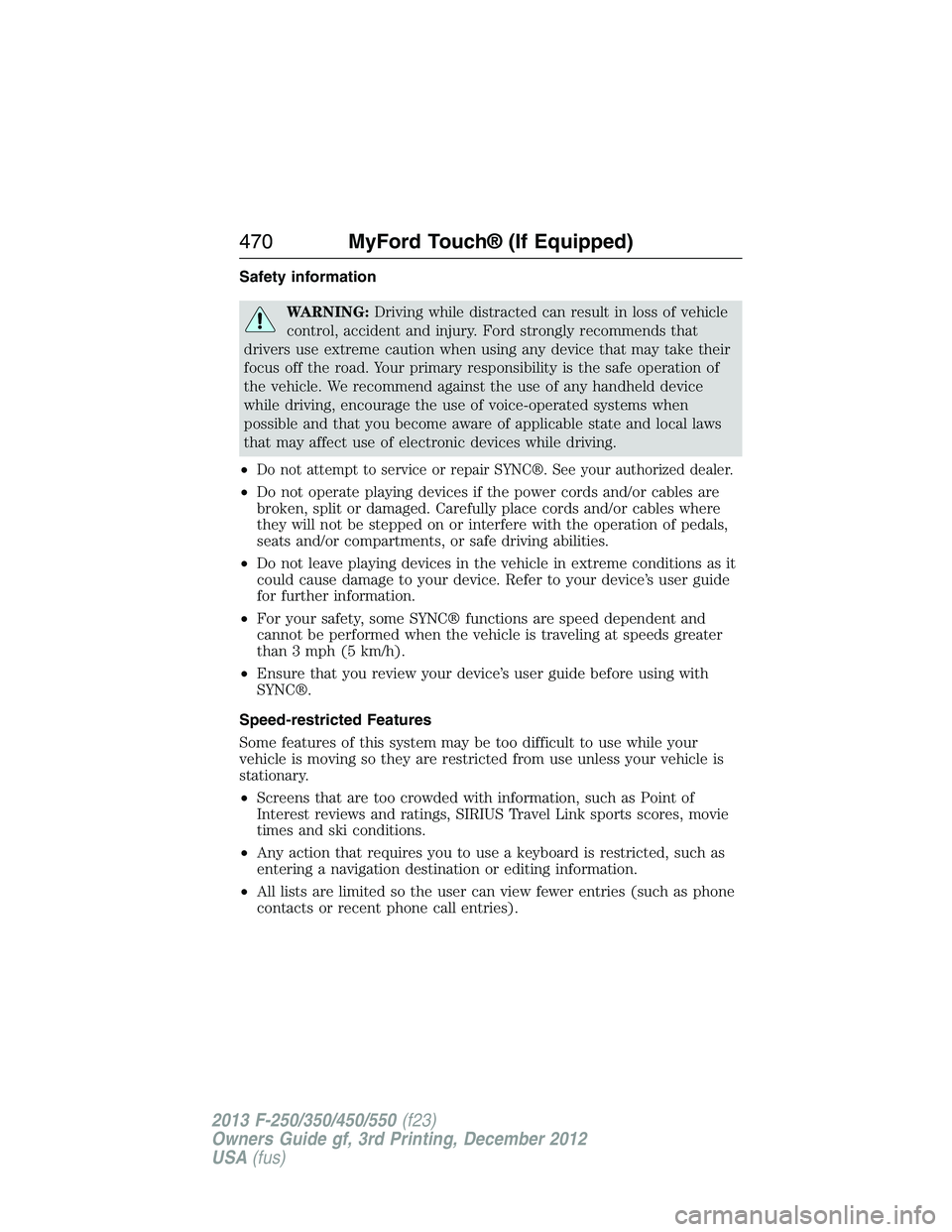
Safety information
WARNING:Driving while distracted can result in loss of vehicle
control, accident and injury. Ford strongly recommends that
drivers use extreme caution when using any device that may take their
focus off the road. Your primary responsibility is the safe operation of
the vehicle. We recommend against the use of any handheld device
while driving, encourage the use of voice-operated systems when
possible and that you become aware of applicable state and local laws
that may affect use of electronic devices while driving.
•
Do not attempt to service or repair SYNC®. See your authorized dealer.
•Do not operate playing devices if the power cords and/or cables are
broken, split or damaged. Carefully place cords and/or cables where
they will not be stepped on or interfere with the operation of pedals,
seats and/or compartments, or safe driving abilities.
•Do not leave playing devices in the vehicle in extreme conditions as it
could cause damage to your device. Refer to your device’s user guide
for further information.
•For your safety, some SYNC® functions are speed dependent and
cannot be performed when the vehicle is traveling at speeds greater
than 3 mph (5 km/h).
•Ensure that you review your device’s user guide before using with
SYNC®.
Speed-restricted Features
Some features of this system may be too difficult to use while your
vehicle is moving so they are restricted from use unless your vehicle is
stationary.
•Screens that are too crowded with information, such as Point of
Interest reviews and ratings, SIRIUS Travel Link sports scores, movie
times and ski conditions.
•Any action that requires you to use a keyboard is restricted, such as
entering a navigation destination or editing information.
•All lists are limited so the user can view fewer entries (such as phone
contacts or recent phone call entries).
470MyFord Touch® (If Equipped)
2013 F-250/350/450/550(f23)
Owners Guide gf, 3rd Printing, December 2012
USA(fus)
Page 472 of 577
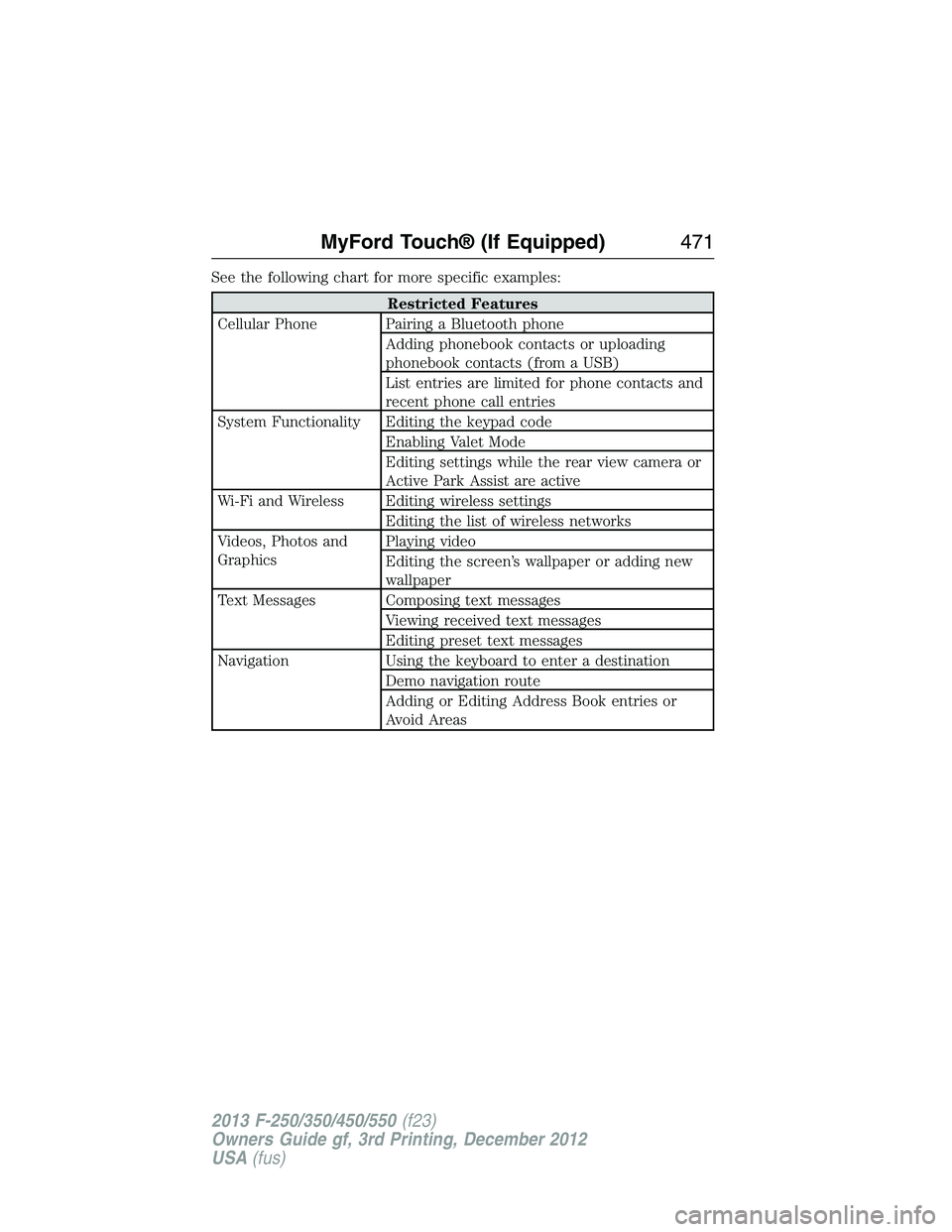
See the following chart for more specific examples:
Restricted Features
Cellular Phone Pairing a Bluetooth phone
Adding phonebook contacts or uploading
phonebook contacts (from a USB)
List entries are limited for phone contacts and
recent phone call entries
System Functionality Editing the keypad code
Enabling Valet Mode
Editing settings while the rear view camera or
Active Park Assist are active
Wi-Fi and Wireless Editing wireless settings
Editing the list of wireless networks
Videos, Photos and
GraphicsPlaying video
Editing the screen’s wallpaper or adding new
wallpaper
Text Messages Composing text messages
Viewing received text messages
Editing preset text messages
Navigation Using the keyboard to enter a destination
Demo navigation route
Adding or Editing Address Book entries or
Avoid Areas
MyFord Touch® (If Equipped)471
2013 F-250/350/450/550(f23)
Owners Guide gf, 3rd Printing, December 2012
USA(fus)
Page 473 of 577
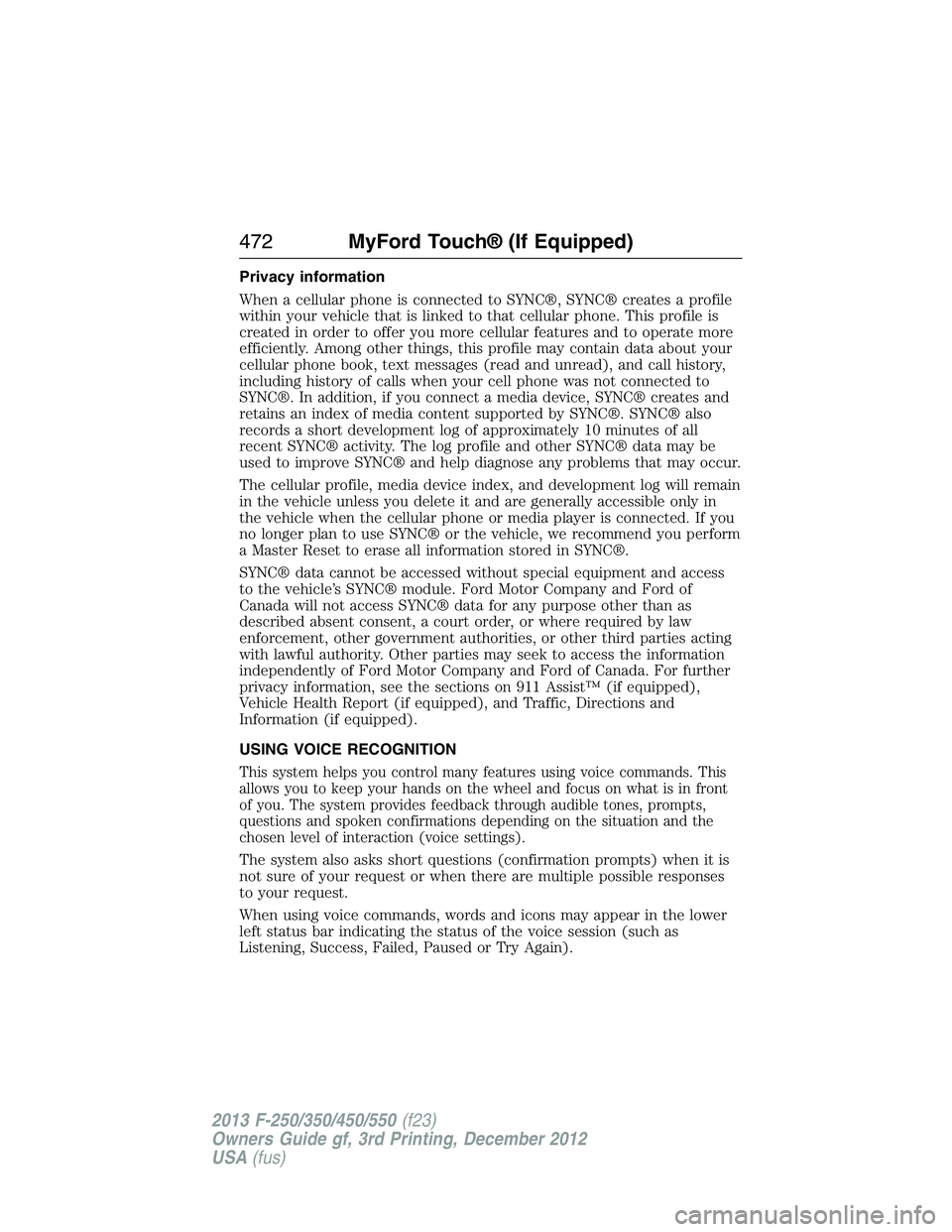
Privacy information
When a cellular phone is connected to SYNC®, SYNC® creates a profile
within your vehicle that is linked to that cellular phone. This profile is
created in order to offer you more cellular features and to operate more
efficiently. Among other things, this profile may contain data about your
cellular phone book, text messages (read and unread), and call history,
including history of calls when your cell phone was not connected to
SYNC®. In addition, if you connect a media device, SYNC® creates and
retains an index of media content supported by SYNC®. SYNC® also
records a short development log of approximately 10 minutes of all
recent SYNC® activity. The log profile and other SYNC® data may be
used to improve SYNC® and help diagnose any problems that may occur.
The cellular profile, media device index, and development log will remain
in the vehicle unless you delete it and are generally accessible only in
the vehicle when the cellular phone or media player is connected. If you
no longer plan to use SYNC® or the vehicle, we recommend you perform
a Master Reset to erase all information stored in SYNC®.
SYNC® data cannot be accessed without special equipment and access
to the vehicle’s SYNC® module. Ford Motor Company and Ford of
Canada will not access SYNC® data for any purpose other than as
described absent consent, a court order, or where required by law
enforcement, other government authorities, or other third parties acting
with lawful authority. Other parties may seek to access the information
independently of Ford Motor Company and Ford of Canada. For further
privacy information, see the sections on 911 Assist™ (if equipped),
Vehicle Health Report (if equipped), and Traffic, Directions and
Information (if equipped).
USING VOICE RECOGNITION
This system helps you control many features using voice commands. This
allows you to keep your hands on the wheel and focus on what is in front
of you. The system provides feedback through audible tones, prompts,
questions and spoken confirmations depending on the situation and the
chosen level of interaction (voice settings).
The system also asks short questions (confirmation prompts) when it is
not sure of your request or when there are multiple possible responses
to your request.
When using voice commands, words and icons may appear in the lower
left status bar indicating the status of the voice session (such as
Listening, Success, Failed, Paused or Try Again).
472MyFord Touch® (If Equipped)
2013 F-250/350/450/550(f23)
Owners Guide gf, 3rd Printing, December 2012
USA(fus)
Page 475 of 577
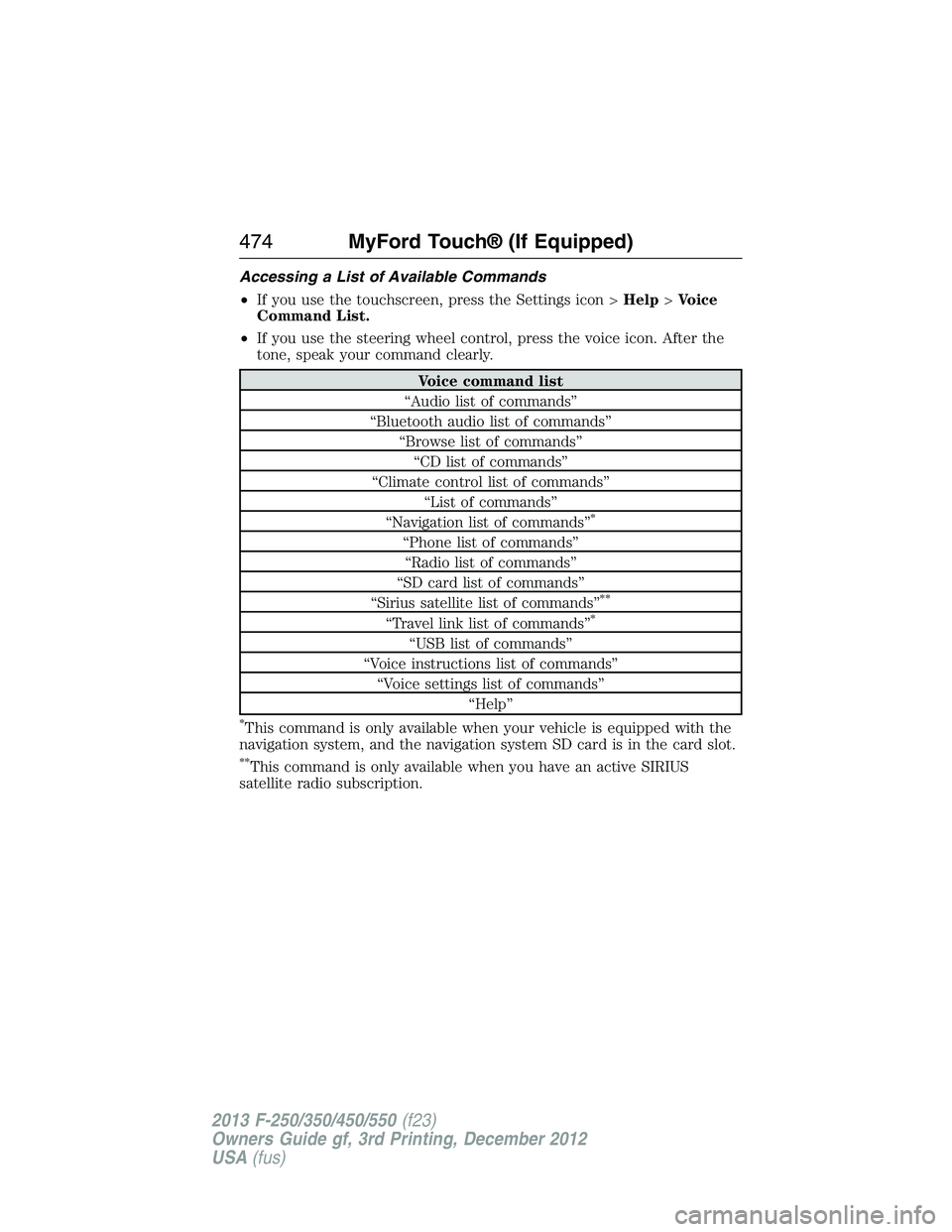
Accessing a List of Available Commands
•If you use the touchscreen, press the Settings icon >Help>Voice
Command List.
•If you use the steering wheel control, press the voice icon. After the
tone, speak your command clearly.
Voice command list
“Audio list of commands”
“Bluetooth audio list of commands”
“Browse list of commands”
“CD list of commands”
“Climate control list of commands”
“List of commands”
“Navigation list of commands”
*
“Phone list of commands”
“Radio list of commands”
“SD card list of commands”
“Sirius satellite list of commands”
**
“Travel link list of commands”*
“USB list of commands”
“Voice instructions list of commands”
“Voice settings list of commands”
“Help”
*This command is only available when your vehicle is equipped with the
navigation system, and the navigation system SD card is in the card slot.
**This command is only available when you have an active SIRIUS
satellite radio subscription.
474MyFord Touch® (If Equipped)
2013 F-250/350/450/550(f23)
Owners Guide gf, 3rd Printing, December 2012
USA(fus)
Page 476 of 577
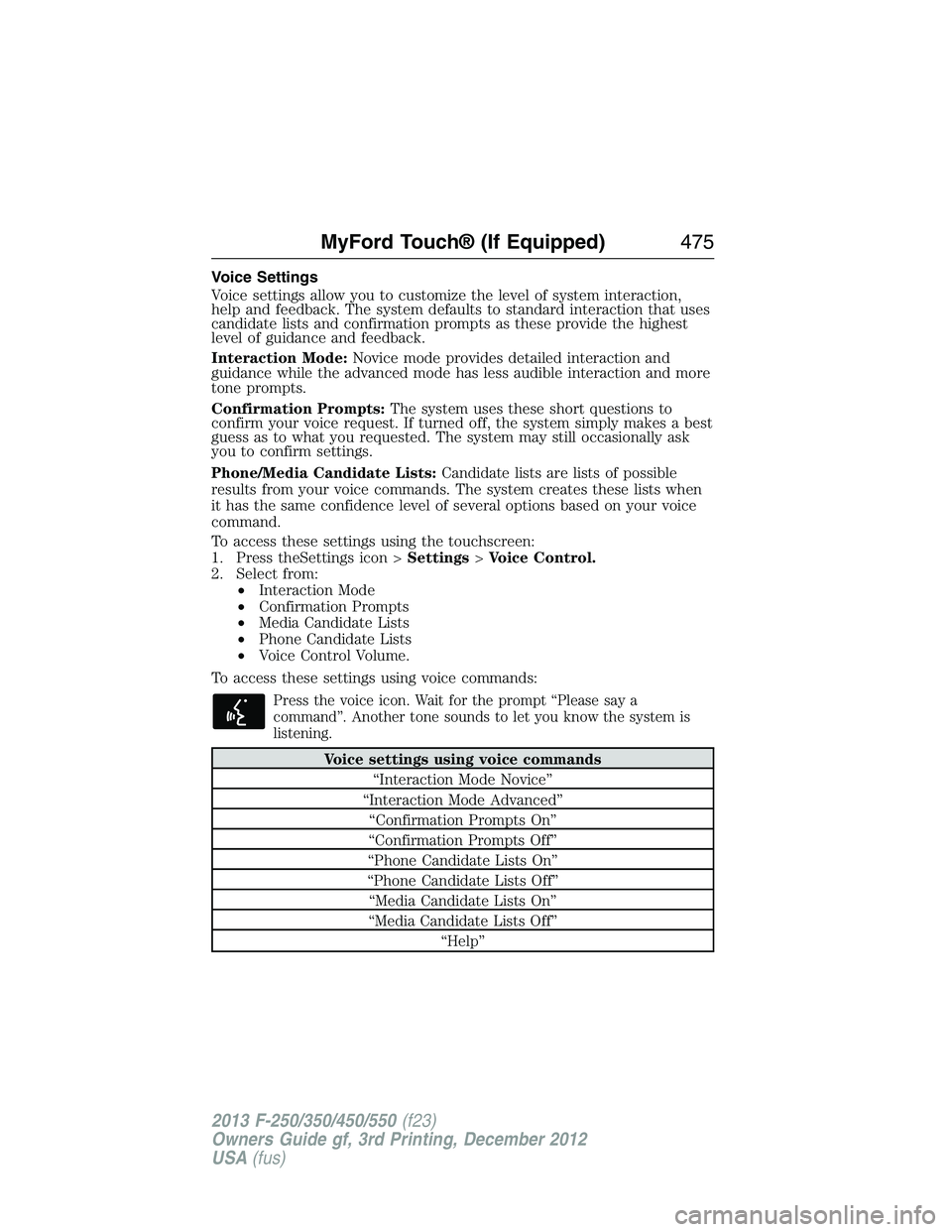
Voice Settings
Voice settings allow you to customize the level of system interaction,
help and feedback. The system defaults to standard interaction that uses
candidate lists and confirmation prompts as these provide the highest
level of guidance and feedback.
Interaction Mode:Novice mode provides detailed interaction and
guidance while the advanced mode has less audible interaction and more
tone prompts.
Confirmation Prompts:The system uses these short questions to
confirm your voice request. If turned off, the system simply makes a best
guess as to what you requested. The system may still occasionally ask
you to confirm settings.
Phone/Media Candidate Lists:Candidate lists are lists of possible
results from your voice commands. The system creates these lists when
it has the same confidence level of several options based on your voice
command.
To access these settings using the touchscreen:
1. Press theSettings icon >Settings>Voice Control.
2. Select from:
•Interaction Mode
•Confirmation Prompts
•Media Candidate Lists
•Phone Candidate Lists
•Voice Control Volume.
To access these settings using voice commands:
Press the voice icon. Wait for the prompt “Please say a
command”. Another tone sounds to let you know the system is
listening.
Voice settings using voice commands
“Interaction Mode Novice”
“Interaction Mode Advanced”
“Confirmation Prompts On”
“Confirmation Prompts Off”
“Phone Candidate Lists On”
“Phone Candidate Lists Off”
“Media Candidate Lists On”
“Media Candidate Lists Off”
“Help”
MyFord Touch® (If Equipped)475
2013 F-250/350/450/550(f23)
Owners Guide gf, 3rd Printing, December 2012
USA(fus)