Page 251 of 576

Guidelines and the Centerline
Note:Active guidelines and fixed guidelines are only available when the
transmission is in R (Reverse).
Note:The centerline is only available if Active or Fixed guidelines are
on.
A. Active guidelines
B. Centerline
C. Fixed guideline: Green zone
D. Fixed guideline: Yellow zone
E. Fixed guideline: Red zone
F. Rear bumper
Active guidelines are only shown with fixed guidelines. To use active
guidelines, turn the steering wheel to point the guidelines toward an
intended path. If the steering wheel position is changed while reversing,
the vehicle might deviate from the original intended path.
The fixed and active guidelines fade in and out depending on the
steering wheel position. When the steering wheel position is straight, the
active guidelines are not shown.
Always use caution while reversing. Objects in the red zone are closest to
your vehicle and objects in the green zone are further away. Objects are
getting closer to your vehicle as they move from the green zone to the
yellow or red zones. Use the side view mirrors and rear view mirror to
get better coverage on both sides and rear of the vehicle.
Selectable settings for this feature are ACTIVE + FIXED, FIXED and
OFF.
ABCD
F
E
Parking Aids251
2013 Explorer(exp)
Owners Guide gf, 1st Printing
USA(fus)
Page 260 of 576

Blocked Sensor
WARNING:Do not use ACC when towing a trailer with brake
controls. Aftermarket trailer brakes will not function properly
when ACC is activated because the brakes are electronically controlled.
Failing to do so may result in loss of vehicle control, which could result
in serious injury.
WARNING:Do not use tires sizes other than those
recommended because this can affect the normal operation of
ACC. Failing to do so may result in a loss of vehicle control, which
could result in serious injury.
A message regarding a blocked
sensor is displayed if the radar
signals from the sensor have been
obstructed. The sensor is located
behind a fascia cover near the driver
side of the lower grille. A vehicle
ahead cannot be detected and the
system will not function when the
radar signals are obstructed. The
following table lists possible causes
and actions for this message being
displayed.
Cause Action
The surface of the radar in the
grille is dirty or obstructed in
some wayClean the grille surface in front of
the radar or remove the object
causing the obstruction
The surface of the radar in the
grille is clean but the message
remains in the displayWait a short time. It may take
several minutes for the radar to
detect that it is no longer
obstructed
Heavy rain or snow is interfering
with the radar signalsDo not use ACC in these condition
because it may not detect, warn,
or respond to potential collisions.
260Cruise Control
2013 Explorer(exp)
Owners Guide gf, 1st Printing
USA(fus)
Page 264 of 576

LANE KEEPING SYSTEM (IF EQUIPPED)
WARNING:The system is designed to aid the driver. It is not
intended to replace the driver’s attention and judgment. The
driver is still responsible to drive with due care and attention.
The system detects unintentional drifting toward the outside of the lane
and alerts and/or aids the driver to stay in the lane through the steering
system and instrument cluster display. The system automatically detects
and tracks the road lane markings using a camera that is mounted behind
the interior rear view mirror.
Note:The system needs to be activated by the driver at each key cycle.
Note:The system works above 40 mph (64 km/h).
Note:The system works as long as one lane marking can be detected by
the camera.
Note:If the camera is blocked or if the windshield is damaged, the
system may not function.
Note:When Aid mode is on and the driver’s hands are off the steering
wheel for a short continuous period of time, the system alerts the driver
to put their hands on the steering wheel. The system may detect a light
grip/touch on the steering wheel as hands off driving. SeeSystem
settings.
Switching the System On and Off
To turn the system on, the button
must be pressed each time the
vehicle is started. The system can
be turned off by pressing the button
again.
Note:The system is defaulted to off
each time the vehicle is started,
unless a MyKey�is detected. If a
MyKey�is detected, the system is
defaulted to on.
Note:If a MyKey�is detected, pressing the button will not affect the
on/off status of the system. Only the Mode, Sensitivity and Intensity
settings can be changed when a MyKey�is present.
264Driving Aids
2013 Explorer(exp)
Owners Guide gf, 1st Printing
USA(fus)
Page 265 of 576
System Settings
The system has three optional setting menus available. To view or adjust
them, select Settings > Vehicle Settings > Driver Assist > Lane Keeping
Sys in the left-hand instrument cluster display using the OK button on
the steering wheel. The last-known selection for each of these settings is
stored by the system. You do not need to readjust your settings each
time you turn on the system.
Mode:This setting allows the driver to select which of the system
features will be enabled and turned on when the button is pressed.
•Alert only – Provides a steering wheel vibration when an unintended
lane departure is detected.
•Aid only – Provides a steering input toward the lane center when an
unintended lane departure is detected.
•Alert + Aid
Sensitivity:This setting affects where in the lane a warning is provided
(e.g. the increased sensitivity setting will move the warning zones in
closer). This setting does not impact the aid mode.
•Normal
•Increased
Intensity:This setting affects the intensity of the steering wheel vibration
used for the alert mode. This setting does not impact the aid mode.
•Low
•Medium
•High
System Display
When the system is turned on, an overhead graphic of a vehicle
with lane markings will be displayed in the left-hand instrument
cluster display. If the aid mode is selected when the system is
turned on, a separate white icon will also appear in the instrument cluster.
When the system is turned off, the lane marking graphics will not be
displayed.
Note:The overhead vehicle graphic may still be displayed if adaptive
cruise control is enabled.
Driving Aids265
2013 Explorer(exp)
Owners Guide gf, 1st Printing
USA(fus)
Page 272 of 576
Reasons for messages being displayed
The radar surface is
dirty or obstructedClean the fascia area in front of the radar or
remove the obstruction.
The radar surface is
not dirty or obstructedDrive normally in traffic for a few minutes to
allow the radar to detect passing vehicles so it
can clear the blocked state.
Heavy rainfall/snowfall
interferes with the
radar signalsNo action required. The system automatically
resets to an unblocked state once the
rainfall/snowfall rate decreases or stops. Do
not use BLIS�and/or CTA in these conditions.
System Limitations
The BLIS�and CTA systems do have their limitations; situations such as
severe weather conditions or debris build-up on the sensor area may
limit vehicle detection.
The following are other situations that may limit the BLIS�:
•Certain maneuvering of vehicles entering and exiting the blind zone.
•Vehicles passing through the blind zone at very fast rates.
•When several vehicles forming a convoy pass through the blind zone.
The following are other situations that may limit the CTA system:
•Adjacently parked vehicles or objects obstructing the sensors.
•Approaching vehicles passing at speeds greater than 15 mph
(24 km/h).
•Driving in reverse faster than 3 mph (5 km/h).
•Backing out of an angled parking spot.
False Alerts
Note:When towing a trailer, the sensors detect may detect the trailer,
causing a false alert. You may want to turn the BLIS�off if the false
alerts become annoying.
There may be certain instances when either the BLIS�or CTA systems
illuminate the alert indicator with no vehicle in the coverage zone; this is
known as a false alert. Some amount of false alerts are normal; they are
temporary and self-correct.
272Driving Aids
2013 Explorer(exp)
Owners Guide gf, 1st Printing
USA(fus)
Page 282 of 576
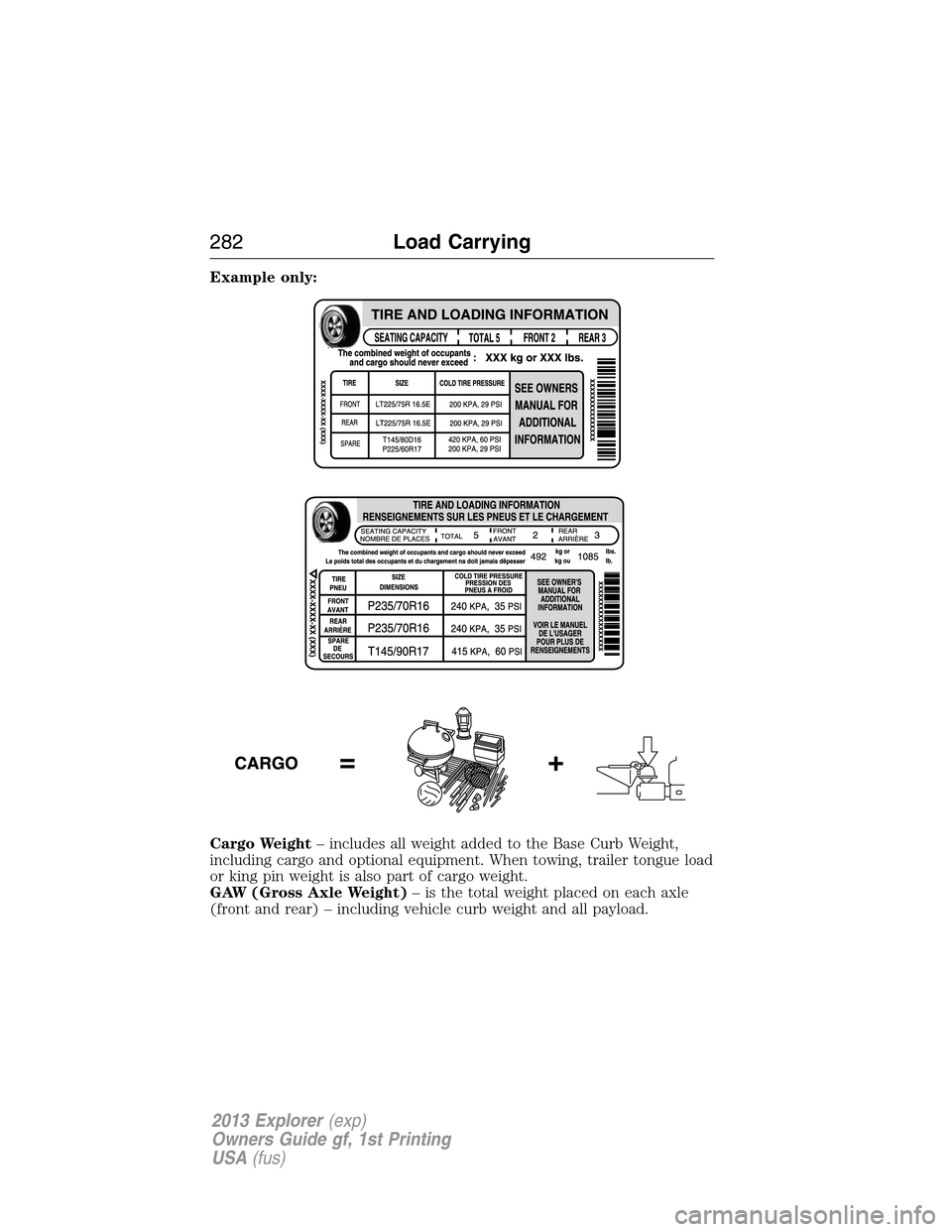
Example only:
Cargo Weight– includes all weight added to the Base Curb Weight,
including cargo and optional equipment. When towing, trailer tongue load
or king pin weight is also part of cargo weight.
GAW (Gross Axle Weight)– is the total weight placed on each axle
(front and rear) – including vehicle curb weight and all payload.
282Load Carrying
2013 Explorer(exp)
Owners Guide gf, 1st Printing
USA(fus)
Page 283 of 576
GAWR (Gross Axle Weight Rating)– is the maximum allowable
weight that can be carried by a single axle (front or rear).These
numbers are shown on the Safety Compliance Certification Label.
The label shall be affixed to either the door hinge pillar,
door-latch post, or the door edge that meets the door-latch post,
next to the driver’s seating position. The total load on each axle
must never exceed its GAWR.
Note:For trailer towing information refer to theRV and Trailer Towing
Guideprovided by your authorized dealer.
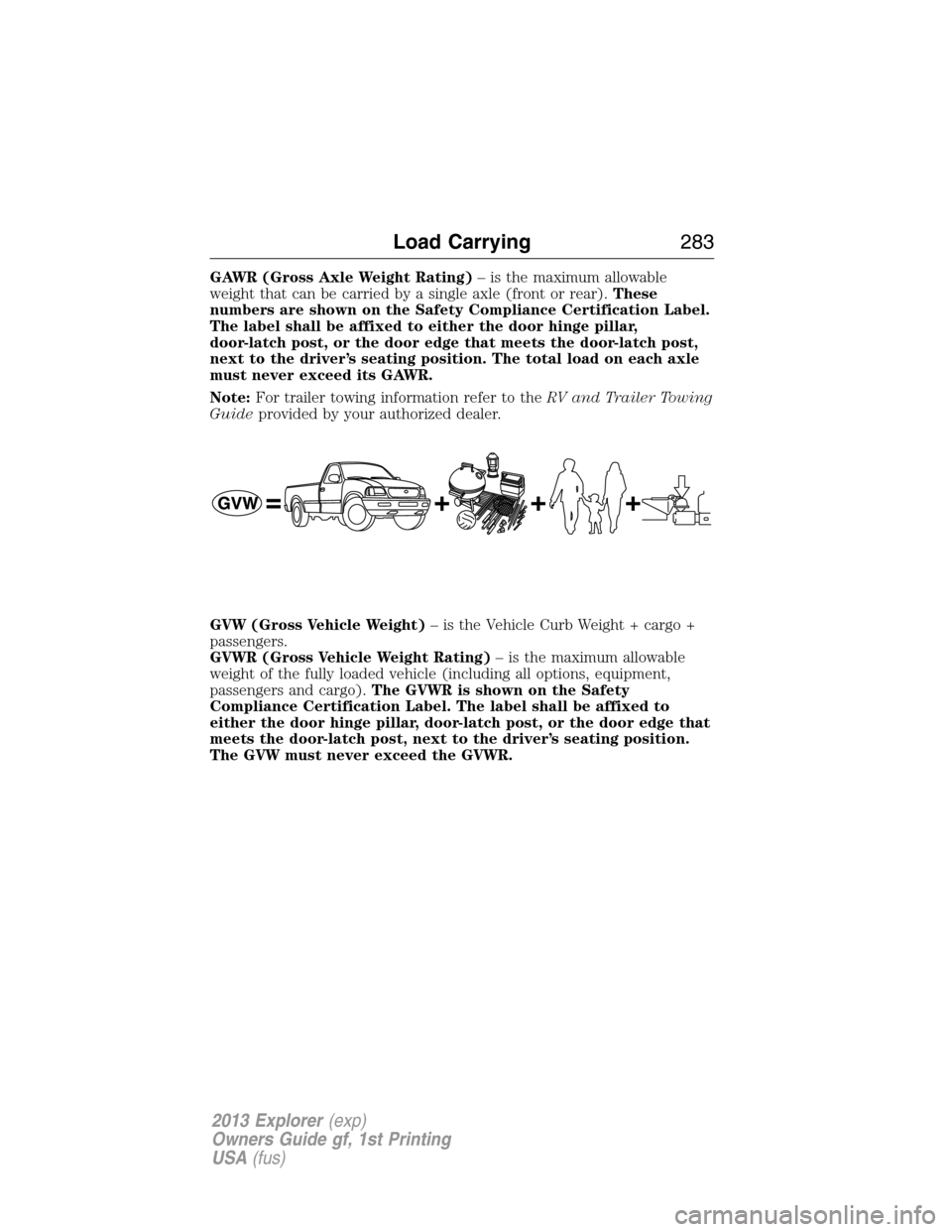
GVW (Gross Vehicle Weight)– is the Vehicle Curb Weight + cargo +
passengers.
GVWR (Gross Vehicle Weight Rating)– is the maximum allowable
weight of the fully loaded vehicle (including all options, equipment,
passengers and cargo).The GVWR is shown on the Safety
Compliance Certification Label. The label shall be affixed to
either the door hinge pillar, door-latch post, or the door edge that
meets the door-latch post, next to the driver’s seating position.
The GVW must never exceed the GVWR.
Load Carrying283
2013 Explorer(exp)
Owners Guide gf, 1st Printing
USA(fus)
Page 285 of 576
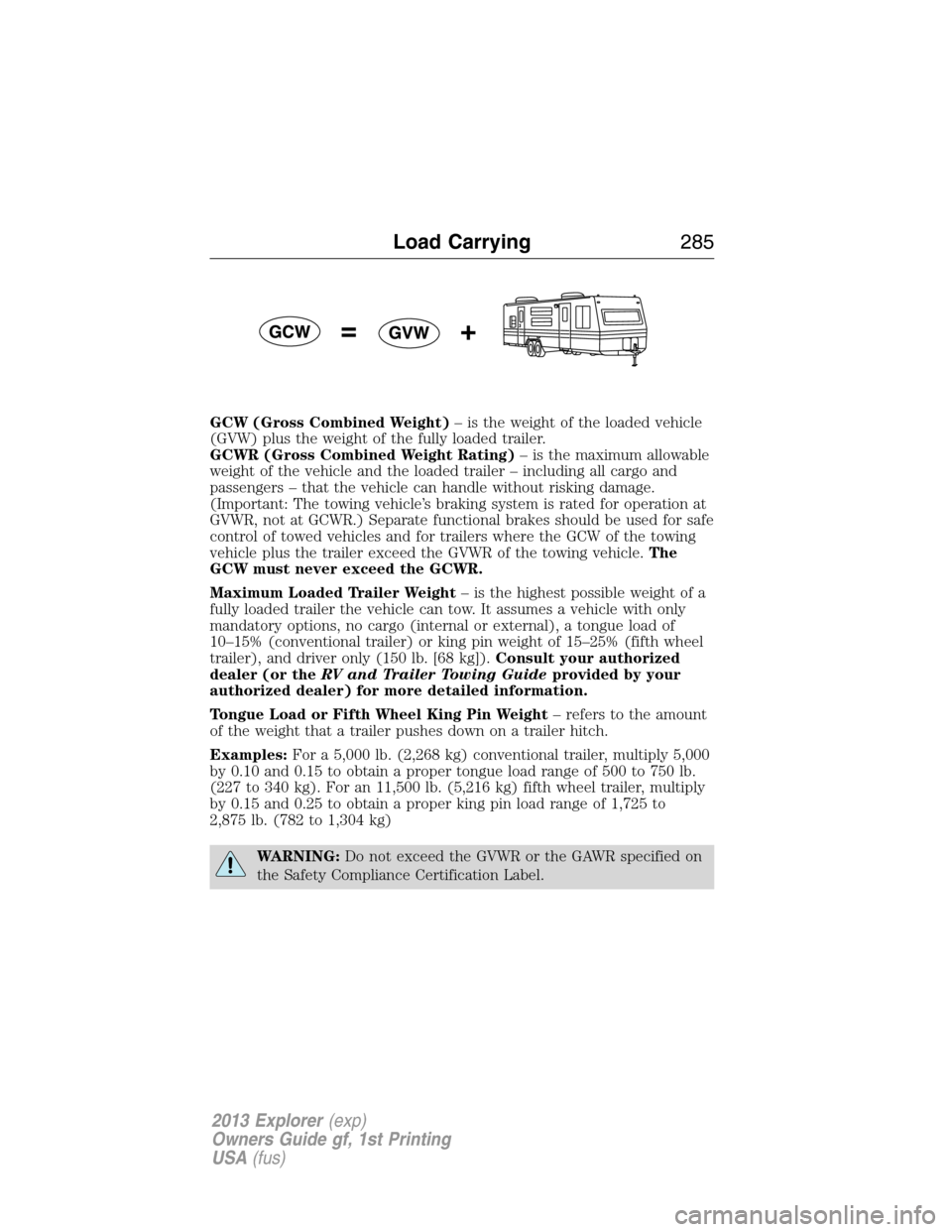
GCW (Gross Combined Weight)– is the weight of the loaded vehicle
(GVW) plus the weight of the fully loaded trailer.
GCWR (Gross Combined Weight Rating)– is the maximum allowable
weight of the vehicle and the loaded trailer – including all cargo and
passengers – that the vehicle can handle without risking damage.
(Important: The towing vehicle’s braking system is rated for operation at
GVWR, not at GCWR.) Separate functional brakes should be used for safe
control of towed vehicles and for trailers where the GCW of the towing
vehicle plus the trailer exceed the GVWR of the towing vehicle.The
GCW must never exceed the GCWR.
Maximum Loaded Trailer Weight– is the highest possible weight of a
fully loaded trailer the vehicle can tow. It assumes a vehicle with only
mandatory options, no cargo (internal or external), a tongue load of
10–15% (conventional trailer) or king pin weight of 15–25% (fifth wheel
trailer), and driver only (150 lb. [68 kg]).Consult your authorized
dealer (or theRV and Trailer Towing Guideprovided by your
authorized dealer) for more detailed information.
Tongue Load or Fifth Wheel King Pin Weight– refers to the amount
of the weight that a trailer pushes down on a trailer hitch.
Examples:For a 5,000 lb. (2,268 kg) conventional trailer, multiply 5,000
by 0.10 and 0.15 to obtain a proper tongue load range of 500 to 750 lb.
(227 to 340 kg). For an 11,500 lb. (5,216 kg) fifth wheel trailer, multiply
by 0.15 and 0.25 to obtain a proper king pin load range of 1,725 to
2,875 lb. (782 to 1,304 kg)
WARNING:Do not exceed the GVWR or the GAWR specified on
the Safety Compliance Certification Label.
Load Carrying285
2013 Explorer(exp)
Owners Guide gf, 1st Printing
USA(fus)