2013 FORD ESCAPE ECU
[x] Cancel search: ECUPage 264 of 423
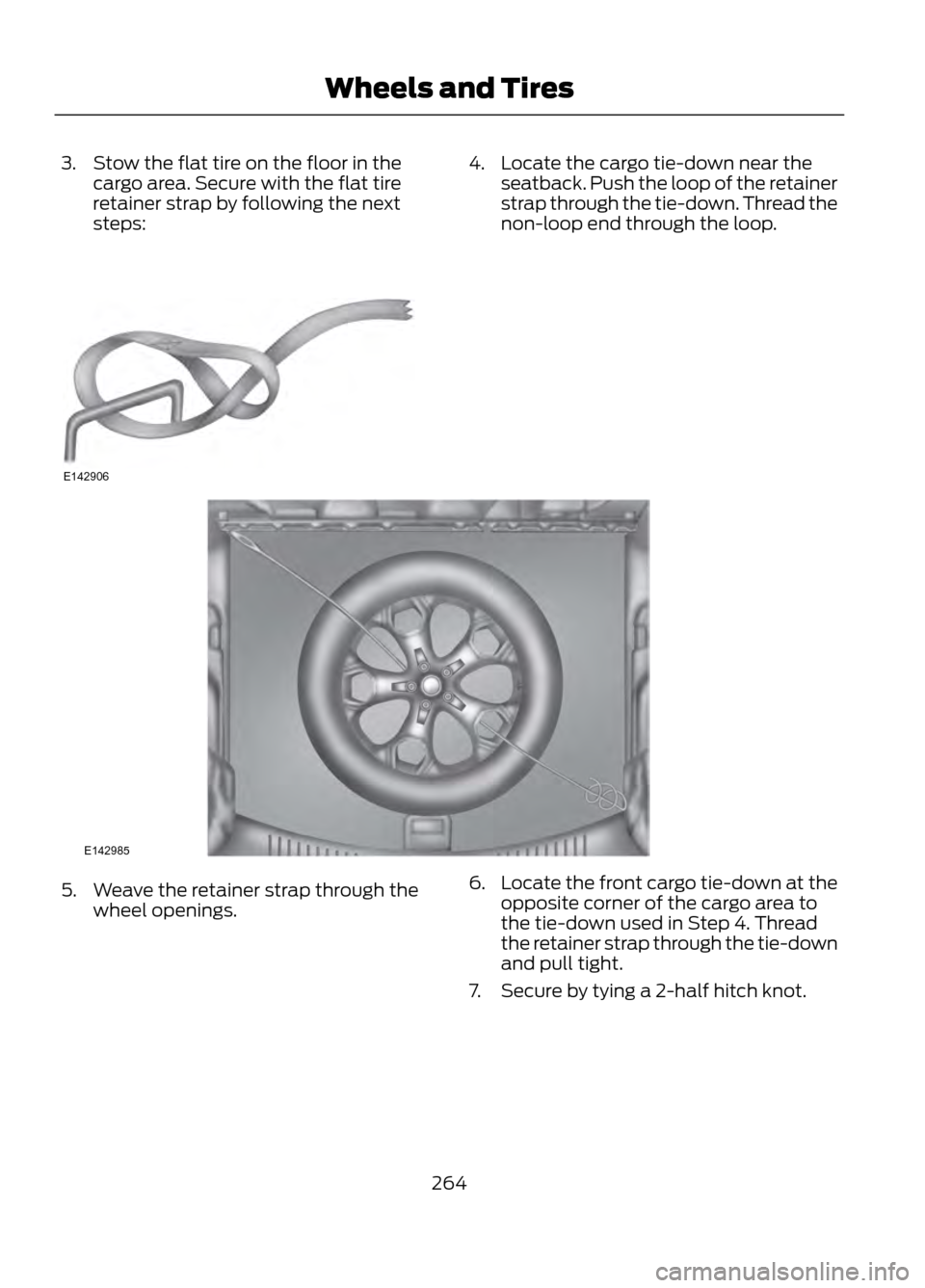
3. Stow the flat tire on the floor in thecargo area. Secure with the flat tire
retainer strap by following the next
steps:4. Locate the cargo tie-down near theseatback. Push the loop of the retainer
strap through the tie-down. Thread the
non-loop end through the loop.
5. Weave the retainer strap through thewheel openings. 6.
Locate the front cargo tie-down at the
opposite corner of the cargo area to
the tie-down used in Step 4. Thread
the retainer strap through the tie-down
and pull tight.
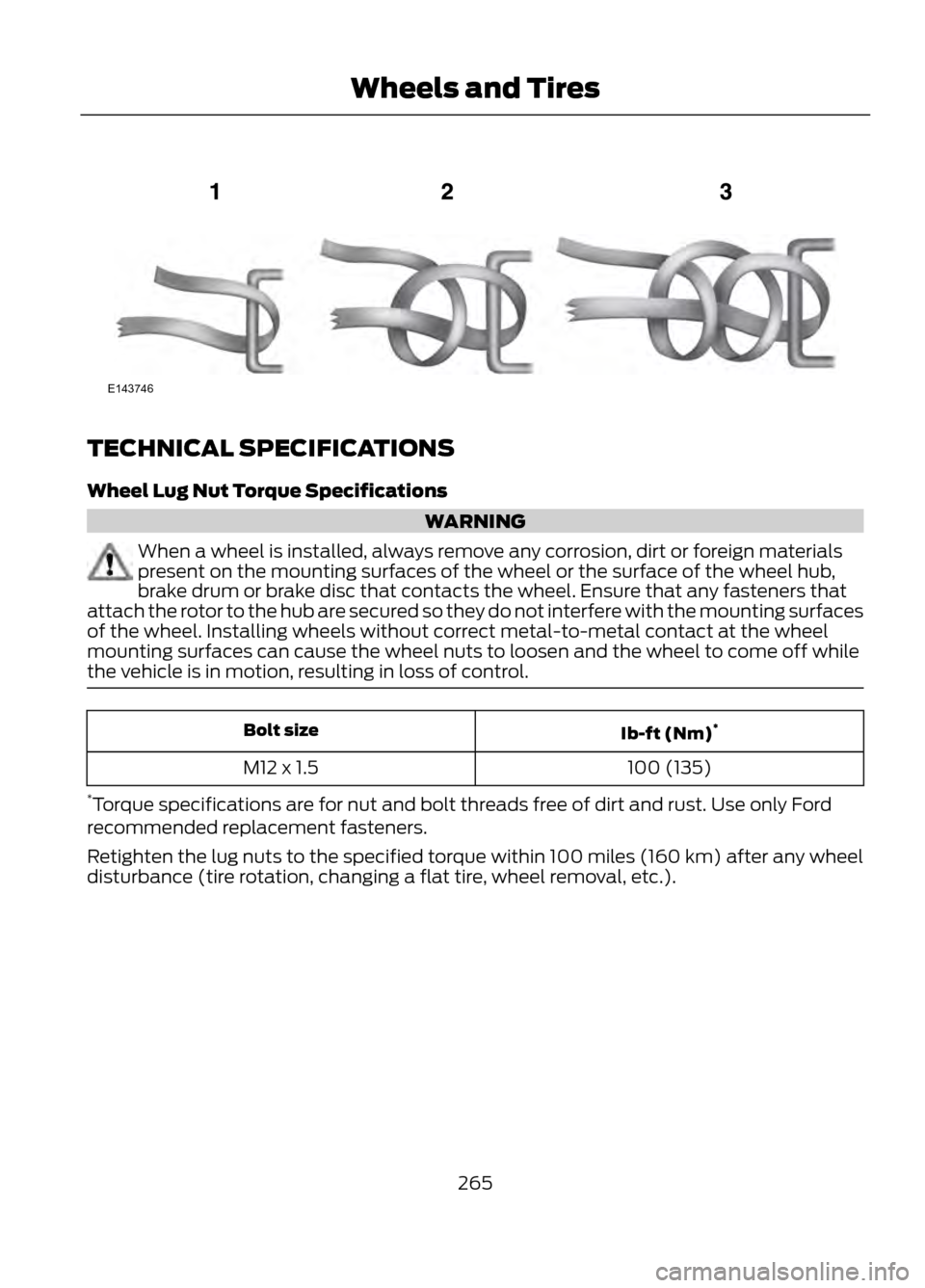
7. Secure by tying a 2-half hitch knot.
264
Wheels and Tires
E142906
E142985
Page 265 of 423
TECHNICAL SPECIFICATIONS
Wheel Lug Nut Torque Specifications
WARNING
When a wheel is installed, always remove any corrosion, dirt or foreign materials
present on the mounting surfaces of the wheel or the surface of the wheel hub,
brake drum or brake disc that contacts the wheel. Ensure that any fasteners that
attach the rotor to the hub are secured so they do not interfere with the mounting surfaces
of the wheel. Installing wheels without correct metal-to-metal contact at the wheel
mounting surfaces can cause the wheel nuts to loosen and the wheel to come off while
the vehicle is in motion, resulting in loss of control.
Ib-ft (Nm) *
Bolt size
100 (135)
M12 x 1.5
* Torque specifications are for nut and bolt threads free of dirt and rust. Use only Ford
recommended replacement fasteners.
Retighten the lug nuts to the specified torque within 100 miles (160 km) after any wheel
disturbance (tire rotation, changing a flat tire, wheel removal, etc.).
265
Wheels and Tires
E143746
Page 274 of 423

For a complete listing of the accessories
that are available for your vehicle, please
contact your dealer or visit our online store
at: Accessories.Ford.com (U.S. only).
Ford Custom Accessories are available for
your vehicle through your local Ford or Ford
of Canada dealer. Ford Motor Company
will repair or replace any properly
dealer-installed Ford Custom Accessories
found to be defective in factory-supplied
materials or workmanship during the
warranty period, as well as any component
damaged by the defective accessories. The
accessories will be warranted for
whichever provides you the greatest
benefit:
•12 months or 12,000 miles (20,000
km) (whichever occurs first), or
• the remainder of your new vehicle
limited warranty.
Contact your dealer for details and a copy
of the warranty.
Exterior style
• Asterisk hood deflectors
• Side window deflectors
• Splash guards
• Custom graphics*
Interior style
• Floor mats
Lifestyle
• Ash cup / smoker's packages
• Soft cargo organizers
• Cargo net*
• Roof racks and carriers*
Peace of mind
• Keyless entry keypad
• Remote start •
Vehicle security systems
• Wheel locks
• Bumper mounted parking assist
system*
*Ford Licensed Accessories (FLA) are
warranted by the accessory
manufacturer's warranty. Ford Licensed
Accessories are fully designed and
developed by the accessory manufacturer
and have not been designed or tested to
Ford Motor Company engineering
requirements. Contact your Ford dealer for
details regarding the manufacturer's
limited warranty and a copy of the FLA
product limited warranty offered by the
accessory manufacturer.
For maximum vehicle performance, keep
the following information in mind when
adding accessories or equipment to your
vehicle:
• When adding accessories, equipment,
passengers and luggage to your
vehicle, do not exceed the total weight
capacity of the vehicle or of the front
or rear axle (GVWR or GAWR as
indicated on the Safety Compliance
Certification label). Consult your
authorized dealer for specific weight
information.
• The Federal Communications
Commission (FCC) and Canadian
Radio Telecommunications
Commission (CRTC) regulate the use
of mobile communications systems —
such as two-way radios, telephones
and theft alarms - that are equipped
with radio transmitters. Any such
equipment installed in your vehicle
should comply with FCC or CRTC
regulations and should be installed
only by a qualified service technician.
• Mobile communications systems may
harm the operation of your vehicle,
particularly if they are not properly
designed for automotive use.
274
Accessories
Page 277 of 423
•Brake pads and linings
• Shock absorbers
• Belts and hoses
Contact your selling Ford or Lincoln
dealership today so they can customize a
Ford Extended Service Plan that fits your
driving lifestyle and budget.
Interest Free Finance Options
Available
Take advantage of our installment
payment plan, just a 10% down payment
will provide you with an affordable no
interest, no-fee payment opportunity. For More Information
PROTECT YOURSELF FROM THE RISING
COST OF VEHICLE REPAIRS WITH A FORD
EXTENDED SERVICE PLAN.
To learn more, call our Ford ESP specialists
at 800-367-3377, and don't forget to ask
about our interest free payment program,
allowing you all the security and benefits
Ford ESP has to offer while paying over
time. your pre-approved with no credit
checks, no hassles!
Or, complete the information below and
mail to:
Ford ESP
P.O. Box 8072
Royal Oak, MI 48068-0039
Name (PLEASE PRINT)
APT.#
ADDRESS
ZIP
STATE
CITY
E-MAIL
SERVICE PLANS (CANADA ONLY)
You can get more protection for your
vehicle by purchasing a Ford Extended
Service Plan. Ford Extended Service Plan
is the only service contract backed by Ford
Motor Company of Canada, Limited.
Depending on the plan you purchase, Ford
Extended Service Plan provides benefits
such as:
• Rental reimbursement
• Coverage for certain maintenance and
wear items •
Protection against repair costs after
your New Vehicle Limited Warranty
Coverage expires
• Roadside Assistance benefits
There are several Ford Extended Service
Plans available in various time, distance
and deductible combinations. Each plan
is tailored to fit your own driving needs,
including reimbursement for towing and
rental.
277
Ford Extended Service Plan (ESP)
Page 295 of 423

You Can
If You Select
Press OK to select.
This is a Bluetooth component which can further help your
phone with the exchange of text messages.
MAP Profile
Exit the current menu.
Return
SYNC® APPLICATIONS AND
SERVICES
In order for the following features to work,
your mobile phone must be compatible
with SYNC. To check your phone's
compatibility, visit www.SYNCMyRide.com
or www.syncmaroute.ca.
• SYNC Services (if equipped, U.S. only):
Provides access to traffic, directions
and information such as travel,
horoscopes, stock prices and more.
• 911 Assist™: Can alert 911 in the event
of an emergency.
• Vehicle Health Report (if equipped,
U.S. only): Provides a diagnostic and
maintenance report card of your
vehicle.
911 Assist
WARNINGS
Unless the 911 Assist setting is set on
prior to a crash, the system will not
dial for help which could delay
response time, potentially increasing the
risk of serious injury or death after a crash.
Do not wait for 911 Assist to make an
emergency call if you can do it
yourself. Dial emergency services
immediately to avoid delayed response
time which could increase the risk of
serious injury or death after a crash. If you
do not hear 911 Assist within five seconds
of the crash, the system or phone may be
damaged or non-functional.
WARNINGS
Always place your phone in a secure
location in the vehicle so it does not
become a projectile or get damaged
in a collision. Failure to do so may cause
serious injury to someone or damage the
phone which could prevent 911 Assist from
working properly.
Note: The SYNC 911 Assist feature must be
set on prior to the incident.
Note: Before setting this feature on, ensure
that you read the 911 Assist privacy notice
later in this section for important
information.
Note: If 911 Assist is turned on or off by any
user, that setting applies for all paired
phones. If 911 Assist is turned off, either a
voice message plays or a display
message/icon comes on (or both) when the
vehicle is started after a previously paired
phone connects.
Note: Every phone operates differently.
While SYNC 911 Assist works with most
mobile phones, some may have trouble
using this feature.
If a crash deploys an airbag or activates
the fuel pump shut-off, your
SYNC-equipped vehicle may be able to
contact emergency services by dialing 911
through a paired and connected
Bluetooth-enabled phone. For more
information about 911 Assist visit
www.SYNCMyRide.com or
www.syncmaroute.ca.
295
SYNC®
Page 310 of 423

Phone IssuesPossible Solution(s)
Possible Cause(s)
Issue
· Try deleting your device
from SYNC, deleting SYNC
from your device and trying
again.
· Check the security and
"auto accept/prompt
always" settings relative to
the SYNC Bluetooth
connection on your phone.
· Update your device's firm-
ware.
· Turn off the Auto phone-
book download setting.
· Go to the website to review
your phone's compatibility.
· This is a phone-dependent
feature.
Text messaging is not
working on SYNC.
· Try turning off the device,
resetting the device or
removing the device's, then
trying again.
· Possible phone malfunc-
tion.
USB/Media Issues
Possible Solution(s)
Possible Cause(s)
Issue
· Try turning off the device,
resetting the device,
removing the device's
battery, then trying again.
Possible device malfunction.
I'm having trouble
connecting my device.
· Make sure you are using the
manufacturer's cable.
· Make sure the USB cable is
properly inserted into the
device and the vehicle's USB
port.
310
SYNC®
Page 311 of 423

USB/Media IssuesPossible Solution(s)
Possible Cause(s)
Issue
· Make sure that the device
does not have an auto-
install program or active
security settings.
Make sure you are not
leaving the device in your
vehicle during very hot or
cold temperatures.
This is a device limitation.
SYNC does not recognize
my device when I turn on the
car.
Make sure the device is
connected to SYNC and that
you have pressed play on
your device.
This is a phone-dependent
feature.
The device is not connected.
Bluetooth audio does not
stream.
· Make sure that all song
details are populated.
· Your music files may not
contain the proper artist,
song title, album or genre
information.
SYNC does not recognize
music that is on my device.
· Some devices require you
to change the USB settings
from mass storage to MTP
class.
· The file may be corrupted.
· The song may have copy-
right protection which does
not allow it to play.
Vehicle Health Report/Services (Traffic, Directions and Information) Issues
Possible Solution(s)
Possible Cause(s)
Issue
· This is a free feature, but
you must first register online
to use it.
· Your account may not be
activated on the website.
· You may have the wrong
VIN (vehicle identification
number) listed.
I received a text that the
Vehicle Health Report is not
activated.
311
SYNC®
Page 351 of 423

A/V Inputs
Note:For safety reasons, connecting or
adjusting the settings on your portable
music player should not be attempted while
the vehicle is moving. Also, the portable
music player should be stored in a secure
location, such as the center console or the
glove box, when the vehicle is in motion. The
audio extension cable must be long enough
to allow the portable music player to be
safely stored while the vehicle is in motion.
Your A/V inputs allow you to connect an
auxiliary audio/video source (e.g. game
systems or personal camcorders) by
connecting RCA cords (not included) to
these input jacks. The jacks are yellow, red
and white and are located either in the
center console or behind a small access
door in the instrument panel.
You can also use the A/V inputs as an
auxiliary input jack (AIJ) to play music from
your portable music player over your
vehicle's speakers. Plug in your one-eighth
inch (3.5 millimeter) RCA adapter into the
two left A/V input jacks (red and white).
Press the lower left corner of the
touchscreen, then select the A/V Inputs
tab. To use the auxiliary input jack feature,
make sure that your portable music player
is designed to be used with headphones
and that it is fully charged. You also need
an audio extension cable with stereo male
one-eighth inch (3.5 millimeter)
connectors at one end and a RCA jack at
the other.
1. Begin with the vehicle parked and the
radio and portable device are turned
off.
2. Attach one end of the audio extension
cable to the headphone output of your
player and the other end into the
adaptor in one of the two left A/V input
jacks (white or red) inside the center
console.
3. Press the lower left corner on the touchscreen. Select either a tuned
station from the FM tab or the CD tab
(if there is a CD already loaded into the
system.) Adjust the volume to a
comfortable listening level.
4. Turn the portable music player on and adjust the volume to one-half.
5. Press the lower left corner on the touchscreen. Select the A/V Input tab.
(You should hear audio from your
portable music player although it may
be low.)
6. Adjust the sound on your portable music player until it reaches the level
of the FM station or CD by switching
back and forth between the controls.
In order to playback video from your iPod®
or iPhone®, (if compatible), you MUST
have a special combination USB/RCA
composite video cable (available for
purchase from Apple® ). When the cable
is connected to your iPod® or iPhone®,
plug the other end into both the RCA jacks
and the USB port.
351
MyFord Touch®
E142622