Page 394 of 526

•A connected Bluetooth-enabled phone must have adequate network
coverage, battery power and signal strength.
•The vehicle must have battery power and be located in the U.S.,
Canada or in a territory in which 911 is the emergency number.
In the Event of a Crash
Not all crashes deploy an airbag or activate the fuel pump shut-off
(which would activate 911 Assist™); however, if 911 Assist™ is
triggered, SYNC�tries to contact emergency services. If a connected
phone is damaged or loses connection to SYNC�, SYNC�searches for,
and tries to connect to, any available previously paired phone and tries to
make the call to 911.
Before making the call:
•
SYNC�provides a short window of time (about 10 seconds) to cancel the
call. Failure to cancel the call results in SYNC�attempting to dial 911.
•SYNC�says the following, or a similar message: “SYNC�will attempt to
call 911, to cancel the call, press Cancel on your screen or press and hold
the phone button on your steering wheel.”
If the call is not cancelled and a successful call is made, a pre-recorded
message is played for the 911 operator, then the occupant(s) in the
vehicle is able to talk with the operator. Be prepared to provide your
name, phone number and location immediately, because not all 911
systems are capable of receiving this information electronically.
911 Assist™ May Not Work If
•Your cellular phone or 911 Assist™ hardware was damaged in a crash.
•The vehicle’s battery or SYNC system has no power.
•The phone(s) paired and connected to the system was thrown from
the vehicle.
911 Assist™ Privacy Notice
Once 911 Assist™ is set on, it may disclose to emergency services that
the vehicle has been in a crash involving the deployment of an airbag or
activation of the fuel pump shut-off. Certain versions or updates to 911
Assist™ may also be capable of electronically or verbally disclosing to
911 operators the vehicle location, and/or other details about the vehicle
or crash to assist 911 operators to provide the most appropriate
emergency services. If you do not want to disclose this information, do
not turn the feature on.
394SYNC�
2013 Edge(edg)
Owners Guide gf, 1st Printing
USA(fus)
Page 399 of 526

3. While on an active route, you can select or say “Route Summary” or
“Route Status” to view the Route Summary turn list or the Route
Status ETA. You can also turn voice guidance on or off, cancel the
route or update the route.
If you miss a turn, SYNC automatically asks if you want the route
updated. Just say, “Yes” when prompted and a new route will be
delivered to your vehicle.
Disconnecting from SYNC�Services
1. Press and hold the phone button on the steering wheel.
2. Say “Goodbye” from the SYNC Services main menu.
SYNC Services Quick Tips
PersonalizingYou can personalize your services feature to
provide quicker access to your most used or
favorite information. You can save address
points such as, work or home. You can also
save favorite information like sports teams,
such as Detroit Lions, or a news category. To
learn more, log onto www.SYNCMyRide.com.
Push to interruptPress the voice button at any time (while you
are connected to SYNC TDI Services) to
interrupt a voice prompt or an audio clip
(such as a sports report), wait for the
listening tone, and say your voice command.
PortableYour subscription is associated with your
Bluetooth-enabled cellular phone number, not
your VIN (Vehicle Identification Number). You
can pair and connect your phone to any
vehicle equipped with Traffic, Directions and
Information and continue enjoying your
personalized services.
You can even access your account outside the
vehicle. Just use the number on your phone’s
call history. Traffic and Directions features do
not function properly but information services
and the 411 connect and text message
features are available.
SYNC�399
2013 Edge(edg)
Owners Guide gf, 1st Printing
USA(fus)
Page 426 of 526
ACCESSING AND ADJUSTING MODES THROUGH YOUR
INFOTAINMENT DISPLAY (IF EQUIPPED)
The infotainment display is located on the right side of your instrument
cluster. It allows you to view and make minor adjustments to active
modes without taking your hands off the wheel. For example:
•In entertainment mode, you can view what is now playing, change the
audio source, select presets and make some adjustments.
•In phone mode, you can accept or reject an incoming call.
•In navigation mode (if equipped), you can view the current route or
activate a route.
•In climate mode, the driver side temperature can bet set as well as fan
speed.
Use the OK and arrow buttons on
the right side of your steering wheel
to scroll through the available
modes:
Entertainment
Phone
km/h
80
60
40
20
0
20
0 40 60 80
100120140160180
200
220
100120140
MPH
426MyFord Touch™ (If Equipped)
2013 Edge(edg)
Owners Guide gf, 1st Printing
USA(fus)
Page 434 of 526
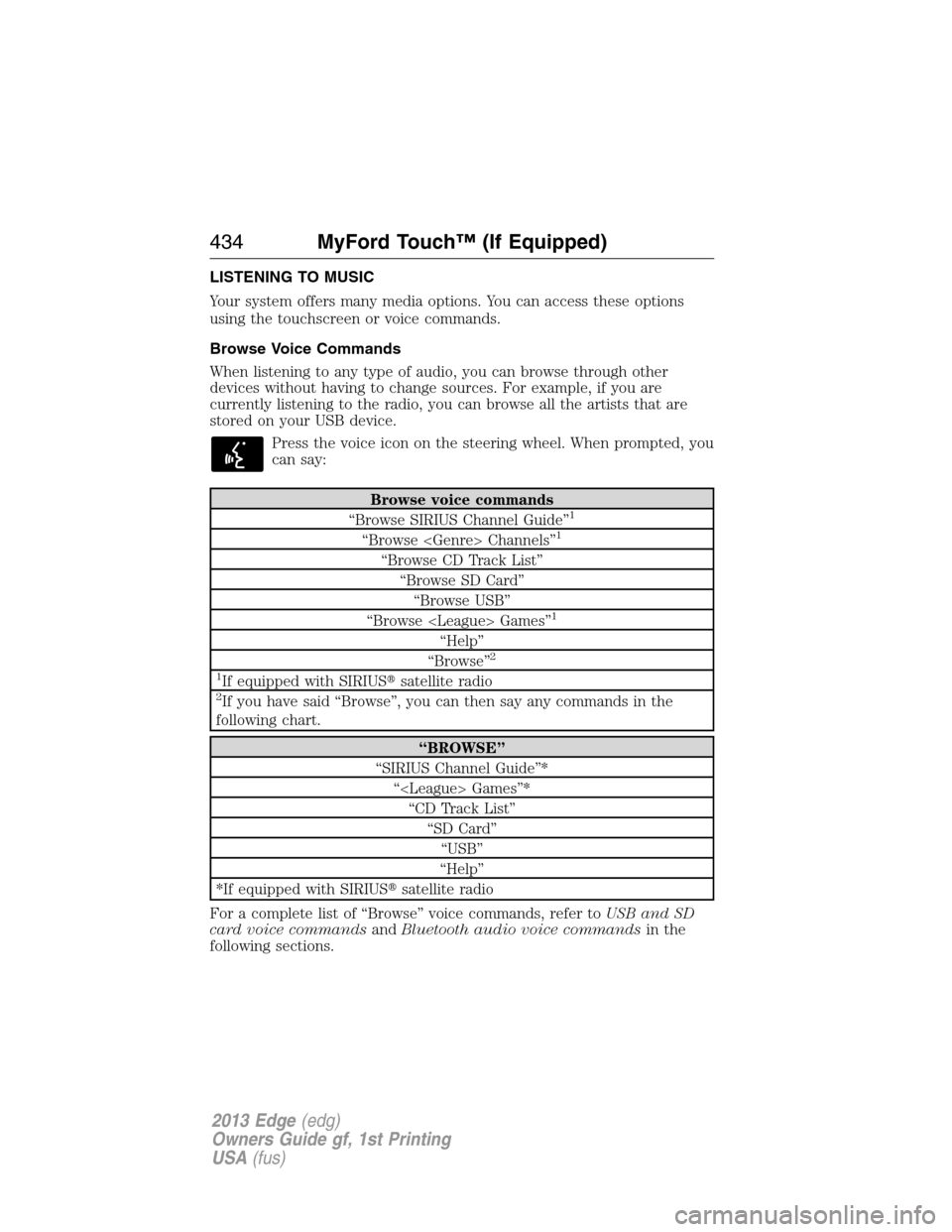
LISTENING TO MUSIC
Your system offers many media options. You can access these options
using the touchscreen or voice commands.
Browse Voice Commands
When listening to any type of audio, you can browse through other
devices without having to change sources. For example, if you are
currently listening to the radio, you can browse all the artists that are
stored on your USB device.
Press the voice icon on the steering wheel. When prompted, you
can say:
Browse voice commands
“Browse SIRIUS Channel Guide”1
“Browse Channels”1
“Browse CD Track List”
“Browse SD Card”
“Browse USB”
“Browse Games”
1
“Help”
“Browse”2
1
If equipped with SIRIUS�satellite radio2If you have said “Browse”, you can then say any commands in the
following chart.
“BROWSE”
“SIRIUS Channel Guide”*
“ Games”*
“CD Track List”
“SD Card”
“USB”
“Help”
*If equipped with SIRIUS�satellite radio
For a complete list of “Browse” voice commands, refer toUSB and SD
card voice commandsandBluetooth audio voice commandsin the
following sections.
434MyFord Touch™ (If Equipped)
2013 Edge(edg)
Owners Guide gf, 1st Printing
USA(fus)
Page 437 of 526
Radio Voice Commands
If you are listening to the radio, press the voice button on the
steering wheel controls. When prompted, say any of the
commands in the following chart.
If you are not listening to the radio, press the voice button and, after the
tone, say “Radio”, then any of the commands in the following chart.
“RADIO”
“Radio On”
“Radio Off”
“Set PTY”
“AM”
“AM <530–1710>”
“AM Preset <#>”
“AM Autoset”
“AM Autoset Preset <#>”
“FM”
“FM1”
“FM2”
“FM <87.9–107.9>”
“FM Preset <#>”
“FM 1 Preset <#>”
“FM 2 Preset <#>”
“FM Autoset”
“FM Autoset Preset <#>”
“Preset <#>”
“FM <87.9-107.9> HD <#>”
1
“HD <#>”1
“Tune”2
“Browse”3
“Help”1If available2If you have said, “Tune”, refer to the following “Tune” chart.3If you have said, “Browse”, refer to theBrowse voice commands
earlier in this section.
MyFord Touch™ (If Equipped)437
2013 Edge(edg)
Owners Guide gf, 1st Printing
USA(fus)
Page 445 of 526
SIRIUS�Satellite Radio Voice Commands
If you are listening to SIRIUS�satellite radio, press the voice
button on the steering wheel controls. When prompted, say any
of the commands in the following chart.
If you are not listening to SIRIUS�satellite radio, press the voice button
and, after the tone, say “SIRIUS”, then any of the commands in the
following chart.
“SIRIUS”
“Sirius On”
“Sirius Off”
“<0–233>”
“”
“Sports Game”
1
“SAT”
“SAT 1”
“SAT 2”
“SAT 3”
“Preset <#>”
“SAT Preset <#>”
“ SAT 1 Preset <#>”
“SAT 2 Preset <#>”
“SAT 3 Preset <#>”
“Tune”
2
“Help”1Late availability:If you have said, “Sports Game”, refer to the
following “Sports Game” chart.
2If you have said, “Tune”, refer to the following “Tune” chart.
“SPORTS GAME”
“Tune to the game”
“Tune to the game”
“Tune to the game”
“Tune to the game”
“Help”
MyFord Touch™ (If Equipped)445
2013 Edge(edg)
Owners Guide gf, 1st Printing
USA(fus)
Page 449 of 526

CD
Press the lower left corner of the touchscreen, then select the
CD tab. You can choose from Repeat, Shuffle, Scan and Options.
Options allows you to select additional sound settings:
When you select: You can:
Sound SettingsAdjust Bass, Treble, Midrange, Balance and
Fade, THX Deep Note Demo (if equipped),
DSP (if equipped), Occupancy Mode (if
equipped), and Speed Compensated Volume
settings.
Text Display settingsChoose how you would like the information to
display on-screen.
Compression settingsAccess compression settings.
You can also advance and reverse the current track or current folder (if
applicable).
CD Voice Commands
If you are listening to a CD, press the voice button on the
steering wheel controls. When prompted, say any of the
commands in the following chart.
If you are not listening to a CD, press the voice button and, after the
tone, say “CD”, then any of the commands in the following chart.
CD voice commands
“Play”
“Play next track”
“Play previous track”
“Play track <1–512>”
“Pause”
“Repeat”
“Repeat Track”
“Repeat Folder”*
“Repeat Off”
“Shuffle”
“Shuffle CD”*
MyFord Touch™ (If Equipped)449
2013 Edge(edg)
Owners Guide gf, 1st Printing
USA(fus)
Page 454 of 526

To view song information such as Title, Artist, File, Folder, Album, and
Genre, touch the on-screen album art.
You can also pressWhat’s Playingto hear how the system pronounces
the current band and song. This can be helpful when using voice
commands to make sure the system correctly plays your request.
In order to playback video from your iPod�/iPhone�(if compatible), you
MUST have a special combination USB/RCA composite video cable (available
for purchase from Apple�). When the cable is connected to your
iPod�/iPhone�, plug the other end into both the RCA jacks and the USB port.
USB and SD Card Voice Commands
If you are listening to a USB device or an SD card, press the
voice button on the steering wheel controls. When prompted,
say any of the commands in the following chart.
If you are not listening to a USB device or an SD card, press the voice
button and, after the tone, say “USB” or “SD Card”, then any of the
commands in the following chart.
USB and SD card voice commands
“Browse”1
“Next”
“Pause”
“Play”
“Play Album ”
“Play All”
“Play Artist ”
“Play Audiobook ”
“Play Author ”
“Play Composer ”
“Play Folder ”
“Play Genre ”
“Play Movie ”
2
“Play Playlist ”
“Play Podcast ”
“Play Podcast Episode ”
“Play Similar Music”
“Play song ”
“Play TV Show Episode ”
2
“Play Video ”2
454MyFord Touch™ (If Equipped)
2013 Edge(edg)
Owners Guide gf, 1st Printing
USA(fus)


