Page 426 of 526
ACCESSING AND ADJUSTING MODES THROUGH YOUR
INFOTAINMENT DISPLAY (IF EQUIPPED)
The infotainment display is located on the right side of your instrument
cluster. It allows you to view and make minor adjustments to active
modes without taking your hands off the wheel. For example:
•In entertainment mode, you can view what is now playing, change the
audio source, select presets and make some adjustments.
•In phone mode, you can accept or reject an incoming call.
•In navigation mode (if equipped), you can view the current route or
activate a route.
•In climate mode, the driver side temperature can bet set as well as fan
speed.
Use the OK and arrow buttons on
the right side of your steering wheel
to scroll through the available
modes:
Entertainment
Phone
km/h
80
60
40
20
0
20
0 40 60 80
100120140160180
200
220
100120140
MPH
426MyFord Touch™ (If Equipped)
2013 Edge(edg)
Owners Guide gf, 1st Printing
USA(fus)
Page 434 of 526
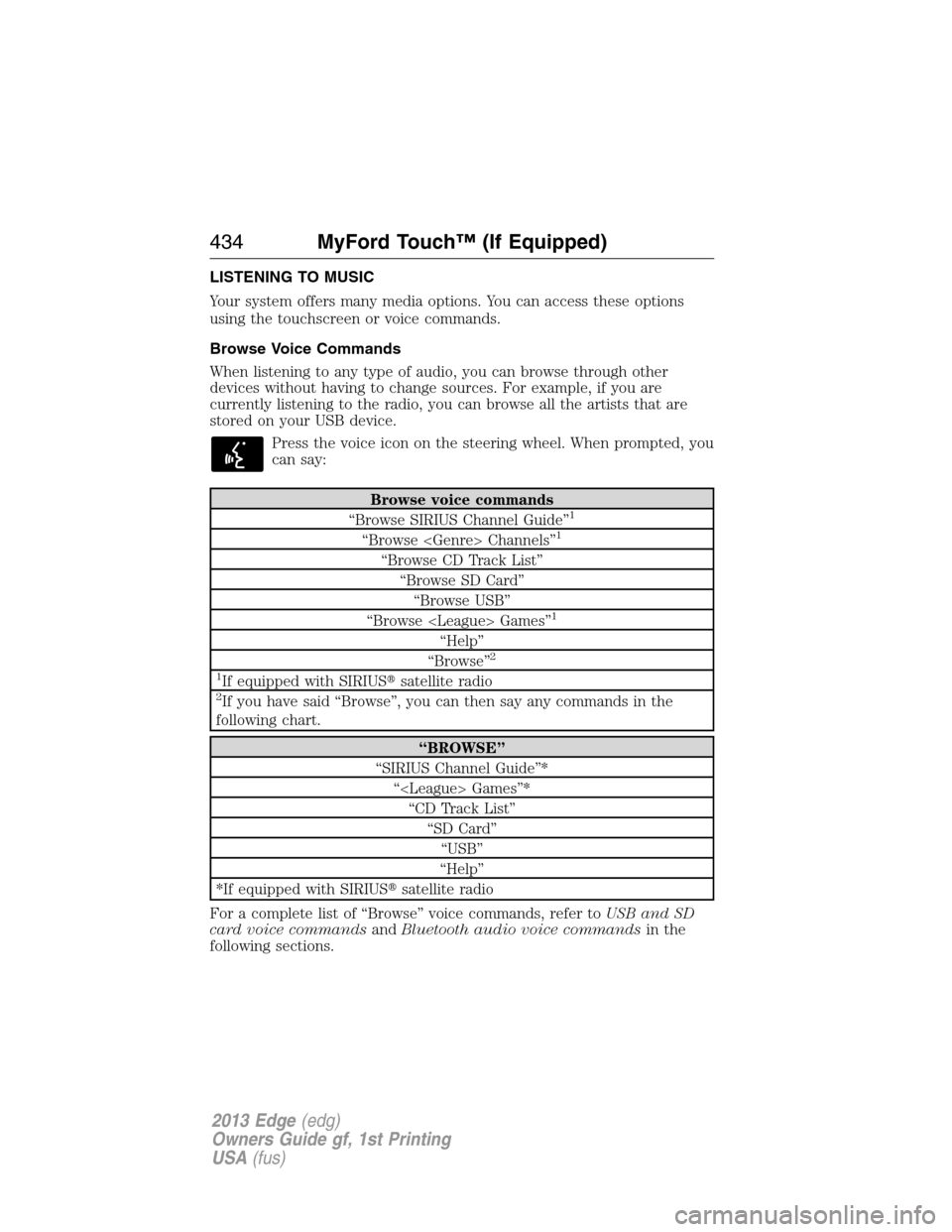
LISTENING TO MUSIC
Your system offers many media options. You can access these options
using the touchscreen or voice commands.
Browse Voice Commands
When listening to any type of audio, you can browse through other
devices without having to change sources. For example, if you are
currently listening to the radio, you can browse all the artists that are
stored on your USB device.
Press the voice icon on the steering wheel. When prompted, you
can say:
Browse voice commands
“Browse SIRIUS Channel Guide”1
“Browse Channels”1
“Browse CD Track List”
“Browse SD Card”
“Browse USB”
“Browse Games”
1
“Help”
“Browse”2
1
If equipped with SIRIUS�satellite radio2If you have said “Browse”, you can then say any commands in the
following chart.
“BROWSE”
“SIRIUS Channel Guide”*
“ Games”*
“CD Track List”
“SD Card”
“USB”
“Help”
*If equipped with SIRIUS�satellite radio
For a complete list of “Browse” voice commands, refer toUSB and SD
card voice commandsandBluetooth audio voice commandsin the
following sections.
434MyFord Touch™ (If Equipped)
2013 Edge(edg)
Owners Guide gf, 1st Printing
USA(fus)
Page 506 of 526

End user notice
Microsoft�Windows�Mobile for Automotive Important Safety
Information
This system Ford SYNC™ contains software that is licensed to
Manufacturer FORD MOTOR COMPANY by an affiliate of Microsoft
Corporation pursuant to a license agreement. Any removal, reproduction,
reverse engineering or other unauthorized use of the software from this
system in violation of the license agreement is strictly prohibited and
may subject you to legal action.
Read and follow instructions
Before using your Windows Automotive-based system, read and follow all
instructions and safety information provided in this end user manual
(“User’s Guide”). Not following precautions found in this User’s Guide can
lead to an accident or other serious consequences.
Keep User’s Guide in Vehicle
When kept in the vehicle, the User’s Guide will be a ready reference for
you and other users unfamiliar with the Windows Automotive-based
system. Please make certain that before using the system for the first
time, all persons have access to the User’s Guide and read its instructions
and safety information carefully.
WARNING:Operating certain parts of this system while driving
can distract your attention away from the road, and possibly
cause an accident or other serious consequences. Do not change system
settings or enter data non-verbally (using your hands) while driving.
Stop the vehicle in a safe and legal manner before attempting these
operations. This is important since while setting up or changing some
functions you might be required to distract your attention away from
the road and remove your hands from the wheel.
General operation
Voice Command Control
Functions within the Windows Automotive-based system may be
accomplished using only voice commands. Using voice commands while
driving allows you to operate the system without removing your hands
from the wheel.
Prolonged Views of Screen
Do not access any function requiring a prolonged view of the screen while
you are driving. Pull over in a safe and legal manner before attempting to
506Appendices
2013 Edge(edg)
Owners Guide gf, 1st Printing
USA(fus)
Page:
< prev 1-8 9-16 17-24
