Page 327 of 604
•Outside Temp
•Time
•Range To Empty (RTE)
•Average MPG
•Current MPG
•Trip A
•Trip B
Lower Left
•None (default setting)
•Compass
•Outside Temp
•Time Lower Right
•None (default setting)
•Compass
•Outside Temp
•Time
Restore To Defaults (Restores All Settings To Default
Settings)
•Cancel
•Okay
Uconnect� SETTINGS
The Uconnect� system uses a combination of soft and
hard keys located on the center of the instrument panel
that allows you to access and change the customer
programmable features.
4
UNDERSTANDING YOUR INSTRUMENT PANEL 325
Page 328 of 604
Hard-Keys
Hard-Keys are located below the Uconnect�system in
the center of the instrument panel. In addition, there is a
Scroll/Enter control knob located on the right side of the
Climate Controls in the center of the instrument panel.
Turn the control knob to scroll through menus and
change settings (i.e., 30, 60, 90), press the center of the
control knob one or more times to select or change a
setting (i.e., ON, OFF).
Soft-Keys
Soft-Keys are accessible on the Uconnect� display.
Customer Programmable Features — Uconnect �
System 8.4 Settings
Press the More soft-key, then press the Settings soft-key
to display the menu setting screen. In this mode the
Uconnect� system allows you to access programmable
features that may be equipped such as Display, Clock,
Safety/Assistance, Lights, Doors & Locks, Auto-On Comfort & Remote Start, Engine Off Operation, Compass
Settings, Audio, Phone/Bluetooth and SIRIUS Setup.
NOTE:
Only one touchscreen area may be selected at a
time.
When making a selection, press the soft-key to enter the
desired mode. Once in the desired mode press and
release the preferred setting until a check-mark appears
next to the setting, showing that setting has been se-
lected.
Once the setting is complete press the Back Arrow
soft-key to return to the previous menu or press the X
soft-key to close out of the settings screen. Pressing the
Up or Down Arrow soft-keys on the right side of the
screen will allow you to toggle up or down through the
available settings.
326 UNDERSTANDING YOUR INSTRUMENT PANEL
Page 337 of 604
Engine Off Options
After pressing the Engine Off Options soft-key the fol-
lowing settings will be available.
•Engine Off Power Delay
When this feature is selected, the power window
switches, radio, Uconnect� phone system (if equipped),
power sunroof (if equipped), and power outlets will
remain active for up to 10 minutes after the ignition is
cycled to OFF. Opening either front door will cancel this
feature. To change the Engine Off Power Delay status
touch the 0 seconds, 45 seconds, 5 minutes or 10 minutes
soft-key. Then touch the arrow back soft-key.
•Headlight Off Delay
When this feature is selected, the driver can choose to
have the headlights remain on for 0, 30, 60, or 90 seconds
when exiting the vehicle. To change the Headlight Off
Delay status touch the + or - soft-key to select your
desired time interval. Touch the back arrow soft-key to
return to the previous menu.
Compass Settings
After pressing the Compass Settings soft-key the follow-
ing settings will be available.
•Variance
Compass Variance is the difference between Magnetic
North and Geographic North. To compensate for the
differences the variance should be set for the zone where
the vehicle is driven, per the zone map. Once properly
set, the compass will automatically compensate for the
differences, and provide the most accurate compass
heading.
4
UNDERSTANDING YOUR INSTRUMENT PANEL 335
Page 339 of 604
•Equalizer
When in this display you may adjust the Bass, Mid and
Treble settings. Adjust the settings with the + and –
setting soft-keys or by selecting any point on the scale
between the + and – soft-keys. Then touch the arrow back
soft-key.
NOTE: Bass/Mid/Treble allow you to simply slide your
finger up or down to change the setting as well as touch
directly on the desired setting.
•Speed Adjusted Volume
This feature increases or decreases volume relative to
vehicle speed. To change the Speed Adjusted Volume
touch the Off, 1, 2 or 3 soft-key. Then touch the arrow
back soft-key.
•Music Info Cleanup
This feature helps organize music files for optimized
music navigation. To make your selection, touch the
Music Info Cleanup soft-key, select On or Off followed by
pressing the arrow back soft-key.
•Surround Sound
This feature provides simulated surround sound mode.
To make your selection, touch the Surround Sound
soft-key, select On or Off followed by pressing the arrow
back soft-key.
Phone/Bluetooth
After pressing the Phone/Bluetooth soft-key the follow-
ing settings will be available.
•Paired Devices
This feature shows which phones are paired to the
Phone/Bluetooth system. For further information, refer
to the Uconnect� Supplement.
4
UNDERSTANDING YOUR INSTRUMENT PANEL 337
Page 341 of 604
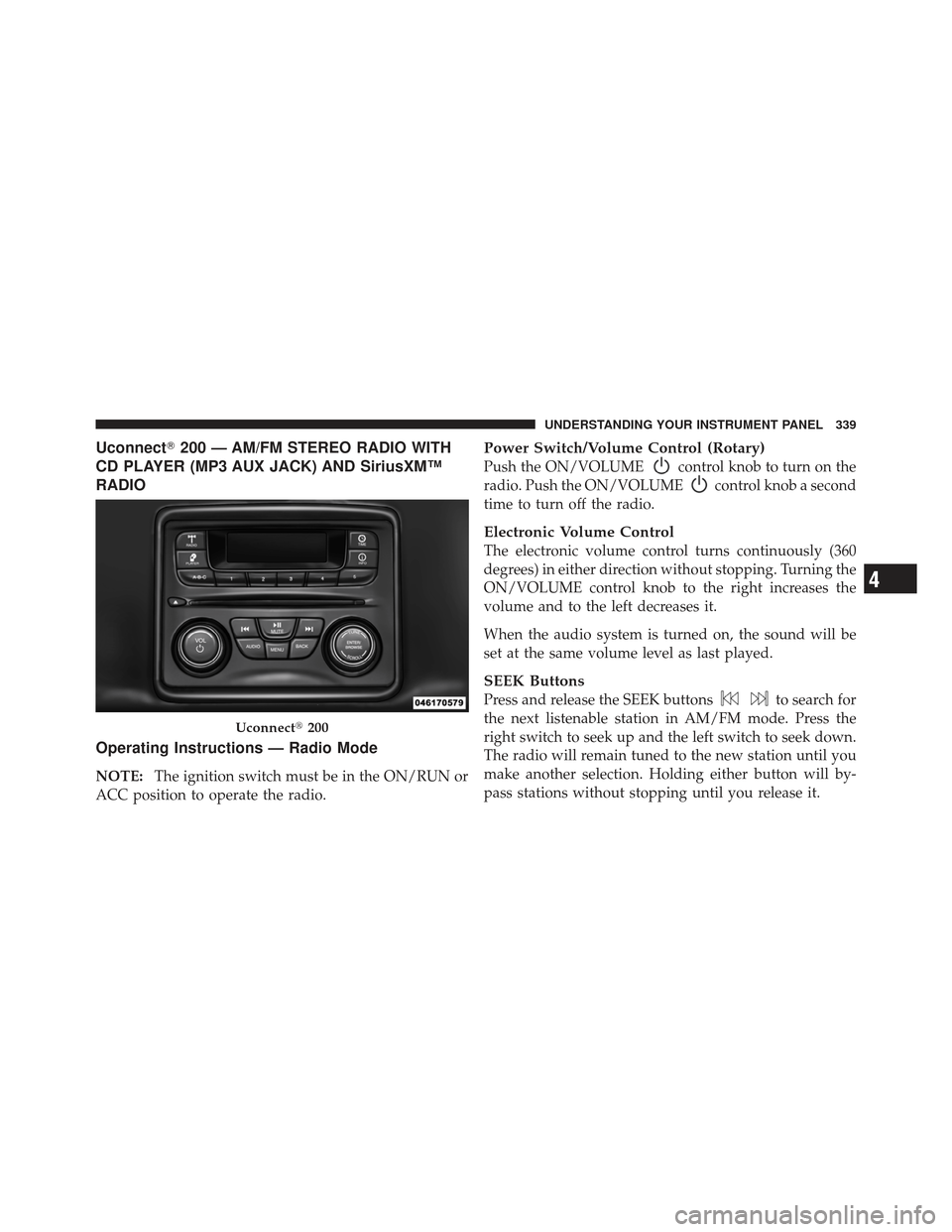
Uconnect�200 — AM/FM STEREO RADIO WITH
CD PLAYER (MP3 AUX JACK) AND SiriusXM™
RADIO
Operating Instructions — Radio Mode
NOTE: The ignition switch must be in the ON/RUN or
ACC position to operate the radio.
Power Switch/Volume Control (Rotary)
Push the ON/VOLUMEcontrol knob to turn on the
radio. Push the ON/VOLUME
control knob a second
time to turn off the radio.
Electronic Volume Control
The electronic volume control turns continuously (360
degrees) in either direction without stopping. Turning the
ON/VOLUME control knob to the right increases the
volume and to the left decreases it.
When the audio system is turned on, the sound will be
set at the same volume level as last played.
SEEK Buttons
Press and release the SEEK buttonsto search for
the next listenable station in AM/FM mode. Press the
right switch to seek up and the left switch to seek down.
The radio will remain tuned to the new station until you
make another selection. Holding either button will by-
pass stations without stopping until you release it.
Uconnect� 200
4
UNDERSTANDING YOUR INSTRUMENT PANEL 339
Page 347 of 604
If you insert a disc with the ignition ON/RUN and the
radio ON, the unit will switch from radio to CD mode
and begin to play when you insert the disc. The display
will show the track number, and index time in minutes
and seconds. Play will begin at the start of track 1.
CAUTION!
•This CD player will accept 4–3/4 in (12 cm) discs
only. The use of other sized discs may damage the
CD player mechanism.
•Do not use adhesive labels. These labels can peel
away and jam the player mechanism.
•Uconnect�200 is a single CD player. Do not
attempt to insert a second CD if one is already
loaded.
EJECT Button — Ejecting A CD
Press the EJECT button to eject the CD.
If you have ejected a disc and have not removed it within
10 seconds, it will be reloaded. If the CD is not removed,
the radio will reinsert the CD but will not play it.
A disc can be ejected with the radio and ignition OFF.
SEEK Button
Press the right SEEK button for the next selection on the
CD. Press the left SEEK button to return to the beginning
of the current selection, or return to the beginning of the
previous selection if the CD is within the first second of
the current selection. Pressing and holding the SEEK
button will allow faster scrolling through the tracks in
CD and MP3/WMA modes.
4
UNDERSTANDING YOUR INSTRUMENT PANEL 345
Page 353 of 604
NOTE:
•The ignition switch must be in the ON or ACC
position before the CD player will operate.
•The CD Player is part of the radio for the Media Center
200 (Sales Code RAE).
CD Player Operating Instructions
Loading
To insert disc into the player, follow the instructions
shown:
1. Gently insert the disc with the label facing the rear of
the vehicle while the light below the loading slot is
illuminated. The disc will automatically be pulled into
the CD player.
2. Upon insertion, the disc will begin to play, and the
light below the loading slot will turn off.
EJECT (EJT) Button
If there is a disc in the CD player, press the EJT button
and the disc will eject. If you do not remove the disc
within 10 seconds, it will be reloaded.
Uconnect�— If Equipped
If equipped with Uconnect� 8.4, refer to the Uconnect�
8.4 manual for further information.CD Player
4
UNDERSTANDING YOUR INSTRUMENT PANEL 351
Page 354 of 604
iPod�/USB/MP3 CONTROL WITH Uconnect�
VOICE COMMAND — IF EQUIPPED
This feature allows an iPod� or external USB device to be
plugged into the USB port.
iPod� control supports Mini, 4G, Photo, Nano, 5G iPod�
and iPhone� devices. Some iPod� software versions may
not fully support the iPod� control features. Please visit
Apple’s website for software updates.
If equipped with Uconnect� 8.4, refer to the Uconnect�
User ’s Manual for further details on iPod�, USB, and
MP3 usage.
Connecting The iPod� Or External USB Device
Use the connection cable to connect an iPod� or external
USB device to the vehicle’s USB/AUX connector port
which is located in the center console.
Center Console USB/AUX Connector Port
352 UNDERSTANDING YOUR INSTRUMENT PANEL


