Page 242 of 631

NOTE:For vehicles equipped with Driver Memory Seat,
you can use your Remote Keyless Entry (RKE) transmit-
ter or the memory switch on the driver ’s door trim panel
to return the adjustable pedals to pre-programmed posi-
tions. Refer to “Driver Memory Seat” in “Understanding
The Features Of Your Vehicle” for further information.
CAUTION!
Do not place any article under the adjustable pedals
or impede its ability to move as it may cause damage
to the pedal controls. Pedal travel may become lim-
ited if movement is stopped by an obstruction in the
adjustable pedal’s path.
WARNING!
Do not adjust the pedals while the vehicle is moving.
You could lose control and have an accident. Always
adjust the pedals while the vehicle is parked.
ELECTRONIC SPEED CONTROL — IF EQUIPPED
When engaged, the Electronic Speed Control takes over
accelerator operations at speeds greater than 25 mph
(40 km/h).
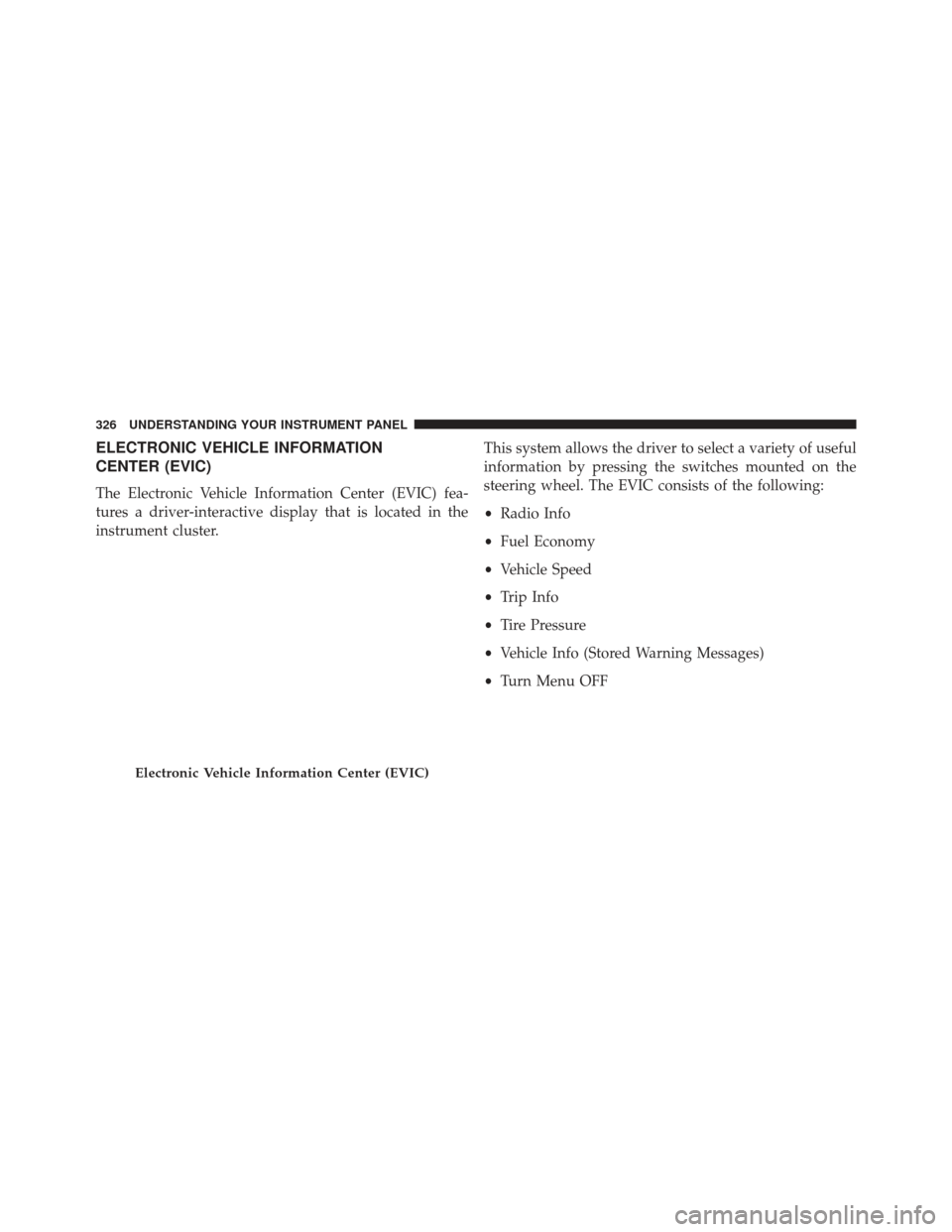
The Electronic Speed Control buttons are located on the
right side of the steering wheel.
240 UNDERSTANDING THE FEATURES OF YOUR VEHICLE
Page 248 of 631
WARNING!
You should switch off the ACC system:
•When driving in fog, heavy rain, heavy snow, sleet,
heavy traffic, and complex driving situations
(e.g., in highway construction zones).
• When entering a turn lane or highway off ramp;
when driving on roads that are winding, icy, snow-
covered, slippery, or have steep uphill or downhill
slopes.
• When towing a trailer up or down steep slopes.
• When circumstances do not allow safe driving at a
constant speed.
Failure to follow these warnings can result in a
collision and death or serious personal injury. The Cruise Control system has two control modes:
•
Adaptive Cruise Control mode for maintaining an
appropriate distance between vehicles.
• Normal (fixed speed) cruise control mode is for cruis-
ing at a constant preset speed. For additional informa-
tion, refer to “Normal (Fixed Speed) Cruise Control
Mode” in this section.
NOTE: The system will not react to preceding vehicles.
Always be aware of the mode selected.
You can change the mode by using the Cruise Control
buttons. The two control modes function differently.
Always confirm which mode is selected.
Adaptive Cruise Control (ACC) Operation
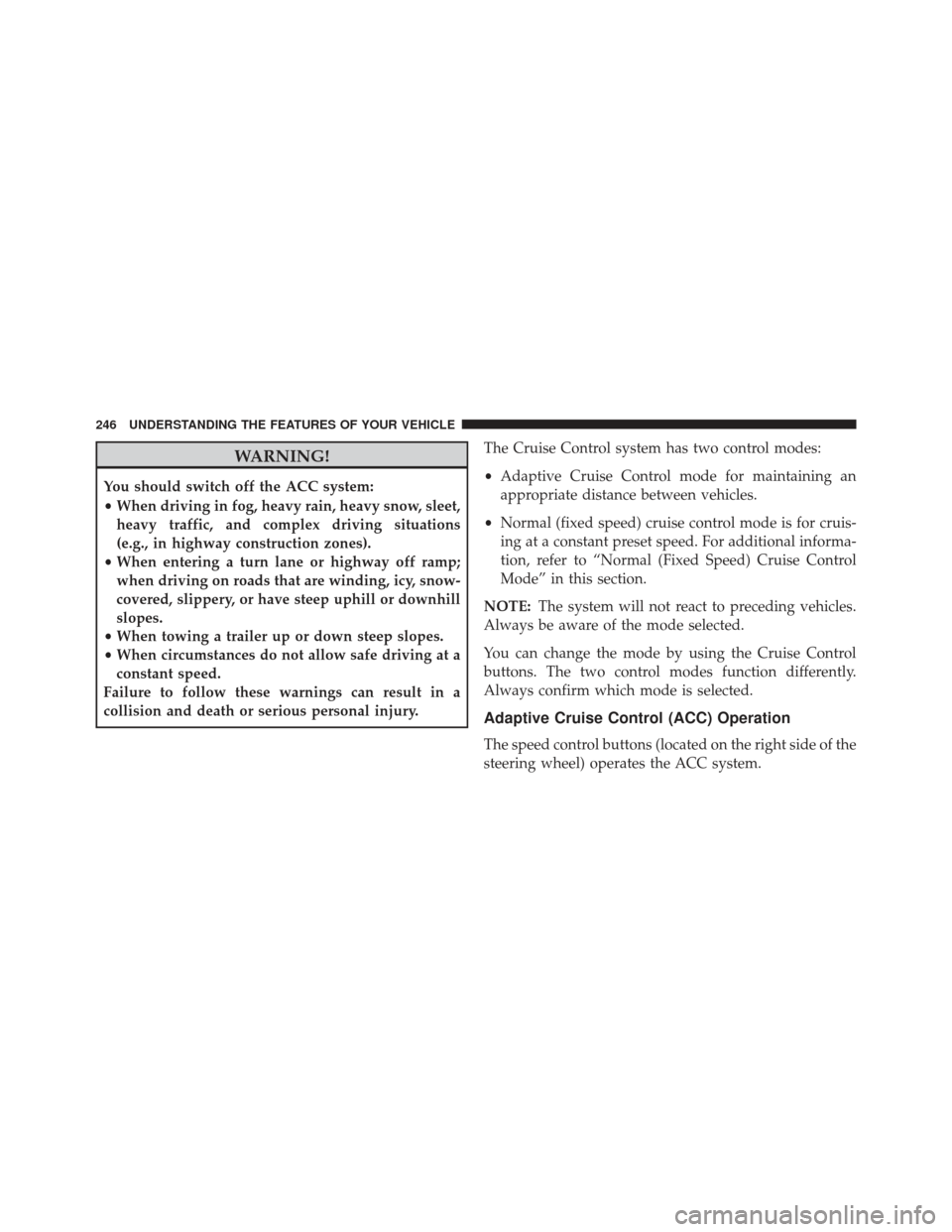
The speed control buttons (located on the right side of the
steering wheel) operates the ACC system.
246 UNDERSTANDING THE FEATURES OF YOUR VEHICLE
Page 271 of 631
NOTE:The minimum speed for FCW activation is 10 mph
(16 km/h).
WARNING!
Forward Collision Warning (FCW) is not intended to
avoid a collision on its own, nor can FCW detect
every type of potential collision. The driver has the
responsibility to avoid a collision by controlling the
vehicle via braking and steering. Failure to follow
this warning could lead to serious injury or death.
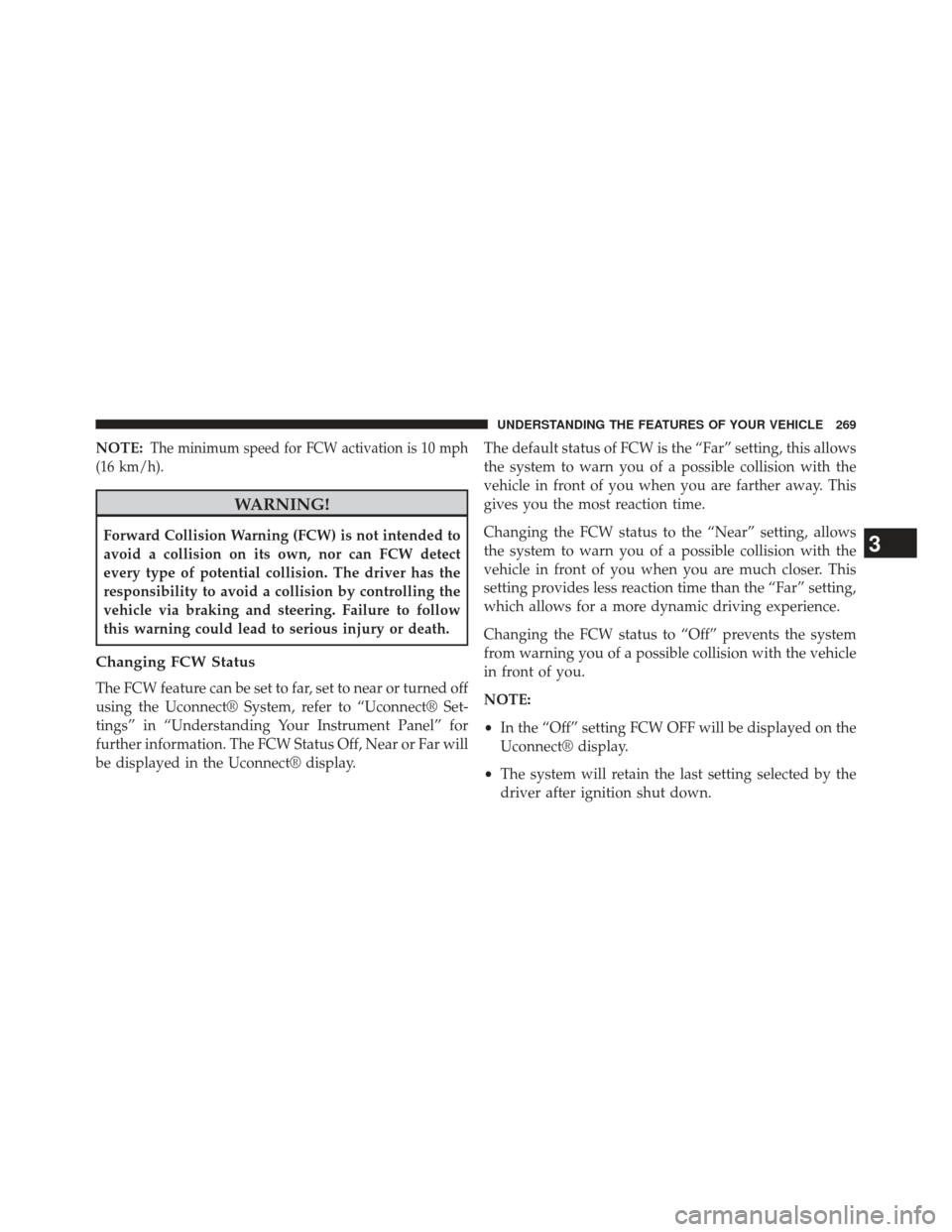
Changing FCW Status
The FCW feature can be set to far, set to near or turned off
using the Uconnect® System, refer to “Uconnect® Set-
tings” in “Understanding Your Instrument Panel” for
further information. The FCW Status Off, Near or Far will
be displayed in the Uconnect® display. The default status of FCW is the “Far” setting, this allows
the system to warn you of a possible collision with the
vehicle in front of you when you are farther away. This
gives you the most reaction time.
Changing the FCW status to the “Near” setting, allows
the system to warn you of a possible collision with the
vehicle in front of you when you are much closer. This
setting provides less reaction time than the “Far” setting,
which allows for a more dynamic driving experience.
Changing the FCW status to “Off” prevents the system
from warning you of a possible collision with the vehicle
in front of you.
NOTE:
•
In the “Off” setting FCW OFF will be displayed on the
Uconnect® display.
• The system will retain the last setting selected by the
driver after ignition shut down.
3
UNDERSTANDING THE FEATURES OF YOUR VEHICLE 269
Page 314 of 631
�Uconnect® SETTINGS ...................340
▫ Hard-Keys ......................... .340
▫ Soft-Keys .......................... .340
▫ Customer Programmable Features —
Uconnect® 4.3 Settings ..................340
▫ Customer Programmable Features —
Uconnect® 8.4 Settings ..................355
� iPod®/USB/MP3 CONTROL ..............371
� HARMAN KARDON® Logic7® HIGH
PERFORMANCE MULTICHANNEL SURROUND
SOUND SYSTEM WITH DRIVER-SELECTABLE
SURROUND (DSS) — IF EQUIPPED .........371�
STEERING WHEEL AUDIO CONTROLS — IF
EQUIPPED .......................... .372
▫ Radio Operation ..................... .373
▫ CD Player .......................... .374
� CD/DVD DISC MAINTENANCE ...........374
� RADIO OPERATION AND MOBILE PHONES . .375
� CLIMATE CONTROLS ...................375
▫ General Overview .....................376
▫ Hard-Keys ......................... .376
▫ Soft-Keys .......................... .377
▫ Climate Control Functions ...............382
▫ Automatic Temperature Control (ATC) ......384
▫ Operating Tips ...................... .386
312 UNDERSTANDING YOUR INSTRUMENT PANEL
Page 328 of 631
ELECTRONIC VEHICLE INFORMATION
CENTER (EVIC)
The Electronic Vehicle Information Center (EVIC) fea-
tures a driver-interactive display that is located in the
instrument cluster.This system allows the driver to select a variety of useful
information by pressing the switches mounted on the
steering wheel. The EVIC consists of the following:
•
Radio Info
• Fuel Economy
• Vehicle Speed
• Trip Info
• Tire Pressure
• Vehicle Info (Stored Warning Messages)
• Turn Menu OFF
Electronic Vehicle Information Center (EVIC)
326 UNDERSTANDING YOUR INSTRUMENT PANEL
Page 329 of 631
The system allows the driver to select information by
pressing the following buttons mounted on the steering
wheel:UP Button
Press and release the UP button to scroll up-
ward through the main menu and Vehicle Info
and Trip Info sub-menus (Fuel Economy, Ve-
hicle Info, Tire PSI, Cruise, Messages, Trip Info,
Vehicle Speed, and Turn Menu OFF) and sub-menus.
DOWN Button
Press and release the DOWN button to scroll
downward through the main menu and Vehicle
Info and Trip Info sub-menus (Fuel Economy,
Vehicle Info, Tire PSI, Cruise, Messages, Trip
Info, Vehicle Speed, and Turn Menu OFF) and sub-menus.
EVIC Steering Wheel Buttons
4
UNDERSTANDING YOUR INSTRUMENT PANEL 327
Page 341 of 631

Vehicle Info (Customer Information Features)
Press and release the UP or DOWN button until “Vehicle
Info” displays in the EVIC and press the SELECT button.
Press the UP and DOWN button to scroll through the
available information displays, then press SELECT to
display any one of the following choices.
•Coolant Temp
Displays the actual coolant temperature.
• Oil Temperature
Displays the actual oil temperature.
• Oil Pressure
Displays the actual oil pressure.
• Trans Temperature
Displays the actual transmission temperature. •
Engine Hours
Displays the number of hours of engine operation.
• Tire Pressure
Shows the actual tire pressure for each tire (EXCLUDING
THE SPARE TIRE).
Messages #
Select from Main Menu using the UP or DOWN buttons.
This feature shows the number of stored warning messages
(in the # place holder). Pressing the SELECT button will
allow you to see what the stored messages are. Pressing the
BACK button takes you back to the Main Menu.
Turn Menu OFF
Select from Main Menu using the DOWN button. Press-
ing the SELECT button blanks the menu display. Pressing
any one of the four steering wheel buttons brings the
menu back.
4
UNDERSTANDING YOUR INSTRUMENT PANEL 339
Page 349 of 631
•Auto High Beams “SmartBeams™”
Touch the Auto High Beams soft-key to change this
display. When this feature is selected, the high beam
headlights will deactivate automatically under certain
conditions. To make your selection, touch the Auto High
Beams soft-key and select ON or OFF. Then touch the
arrow back soft-key. Refer to “Lights/SmartBeam™ — If
Equipped” in “Understanding The Features Of Your
Vehicle” for further information.
• Daytime Running Lights – If Available
Touch the Daytime Running Lights soft-key to change
this display. When this feature is selected, the headlights
will turn on whenever the engine is running. To make
your selection, touch the Daytime Running Lights soft-
key and select ON or OFF. Then touch the arrow back
soft-key. •
Steering Directed Lights – If Equipped
Touch the Steering Directed Lights soft-key to change this
display. When this feature is selected, the headlights turn
relative to a change in direction of the steering wheel. To
make your selection, touch the Steering Directed Lights
soft-key and select ON or OFF. Then touch the arrow
back soft-key.
• Flash Lights With Lock
Touch the Flash Headlights With Lock soft-key to change
this display. When this feature is selected, the headlights
will flash when the doors are locked or unlocked with the
Remote Keyless Entry (RKE) transmitter. This feature
may be selected with or without the sound horn on lock
feature selected. To make your selection, touch the Flash
Headlights With Lock soft-key and select ON or OFF.
Then touch the arrow back soft-key.
4
UNDERSTANDING YOUR INSTRUMENT PANEL 347