Page 120 of 543

•The system will prompt you to say the name of the
person you want to call.
• After the “Ready” prompt and the following beep, say
the name of the person you want to call. For example,
you can say “John Doe”, where John Doe is a previ-
ously stored name entry in the Uconnect® phonebook
or downloaded phonebook. To learn how to store a
name in the phonebook, refer to “Add Names to Your
Uconnect® Phonebook”, in the phonebook.
• The Uconnect® system will confirm the name and then
dial the corresponding phone number, which may
appear in the display of certain radios.Phonebook Download – Automatic Phonebook
Transfer From Mobile Phone
If equipped and specifically supported by your phone,
Uconnect® Phone automatically downloads names (text
names) and number entries from your mobile phone’s
phonebook. Specific Bluetooth® Phones with Phone
Book Access Profile may support this feature. See
Uconnect® website for supported phones.
• To call a name from the Uconnect® Phonebook or
downloaded Phonebook, follow the procedure in “Call
by Saying a Name” section.
• Automatic download and update, if supported, begins
as soon as the Bluetooth® wireless phone connection is
made to the Uconnect® Phone, for example, after you
start the vehicle.
118 UNDERSTANDING THE FEATURES OF YOUR VEHICLE
Page 128 of 543
Uconnect® Phone Features
Language Selection
To change the language that the Uconnect® Phone is
using:
•Press the
button to begin.
• After the “Ready” prompt and the following beep, say
the name of the language you wish to switch to
English, Espanol, or Francais.
• Continue to follow the system prompts to complete the
language selection.
After selecting one of the languages, all prompts and
voice commands will be in that language.
NOTE: After every Uconnect® Phone language change
operation, only the language-specific 32-name phone-
book is usable. The paired phone name is not language-
specific and is usable across all languages.
Emergency Assistance
If you are in an emergency and the mobile phone is
reachable:
• Pick up the phone and manually dial the emergency
number for your area.
If the phone is not reachable and the Uconnect® Phone is
operational, you may reach the emergency number as
follows:
• Press the
button to begin.
• After the “Ready” prompt and the following beep, say
“Emergency” and the Uconnect® Phone will instruct
the paired mobile phone to call the emergency number.
This feature is supported in the U.S., Canada, and
Mexico.
126 UNDERSTANDING THE FEATURES OF YOUR VEHICLE
Page 130 of 543
NOTE:You should program the desired Towing Assis-
tance phone number using the Voice Command system.
To do this, press the button and say “Setup”, followed by
“Towing Assistance”. When prompted say 1-800-528-
2069 for the U.S., say 1-800-363-4869 for Canada, say
55-14- 3454 for Mexico City and 1-800-712-3040 for out-
side Mexico City in Mexico.
Paging
To learn how to page, refer to “Working with Automated
Systems”. Paging works properly except for pagers of
certain companies, which time out a little too soon to
work properly with the Uconnect® Phone.
Voice Mail Calling
To learn how to access your voice mail, refer to “Working
with Automated Systems”.
Working With Automated Systems
This method is used in instances where one generally has
to press numbers on the mobile phone keypad while
navigating through an automated telephone system.
You can use your Uconnect® Phone to access a voice mail
system or an automated service, such as a paging service
or automated customer service line. Some services re-
quire immediate response selection. In some instances,
that may be too quick for use of the Uconnect® Phone.
When calling a number with your Uconnect® Phone that
normally requires you to enter in a touch-tone sequence
on your mobile phone keypad, you can press the
button and say the sequence you wish to enter,
followed by the word “Send”. For example, if required to
enter your PIN followed with a pound, (3746#),you
can press the
button and say, “3746#Send”.
128 UNDERSTANDING THE FEATURES OF YOUR VEHICLE
Page 131 of 543
Saying a number, or sequence of numbers, followed by
“Send”, is also to be used for navigating through an
automated customer service center menu structure, and
to leave a number on a pager.
You can also send stored Uconnect® phonebook entries
as tones for fast and easy access to voice mail and pager
entries. To use this feature, dial the number you wish to
call and then press the
button and say, “Send.” The
system will prompt you to enter the name or number and
say the name of the phonebook entry you wish to send.
The Uconnect® Phone will then send the corresponding
phone number associated with the phonebook entry, as
tones over the phone. NOTE:
•
You may not hear all of the tones due to mobile phone
network configurations. This is normal.
• Some paging and voice mail systems have system time
out settings that are too short and may not allow the
use of this feature.Barge In — Overriding Prompts
The “Voice Command” button can be used when you
wish to skip part of a prompt and issue your voice
command immediately. For example, if a prompt is
asking “Would you like to pair a phone, clear a...,” you
could press the
button and say, “Pair a Phone” to
select that option without having to listen to the rest of
the voice prompt.
3
UNDERSTANDING THE FEATURES OF YOUR VEHICLE 129
Page 144 of 543
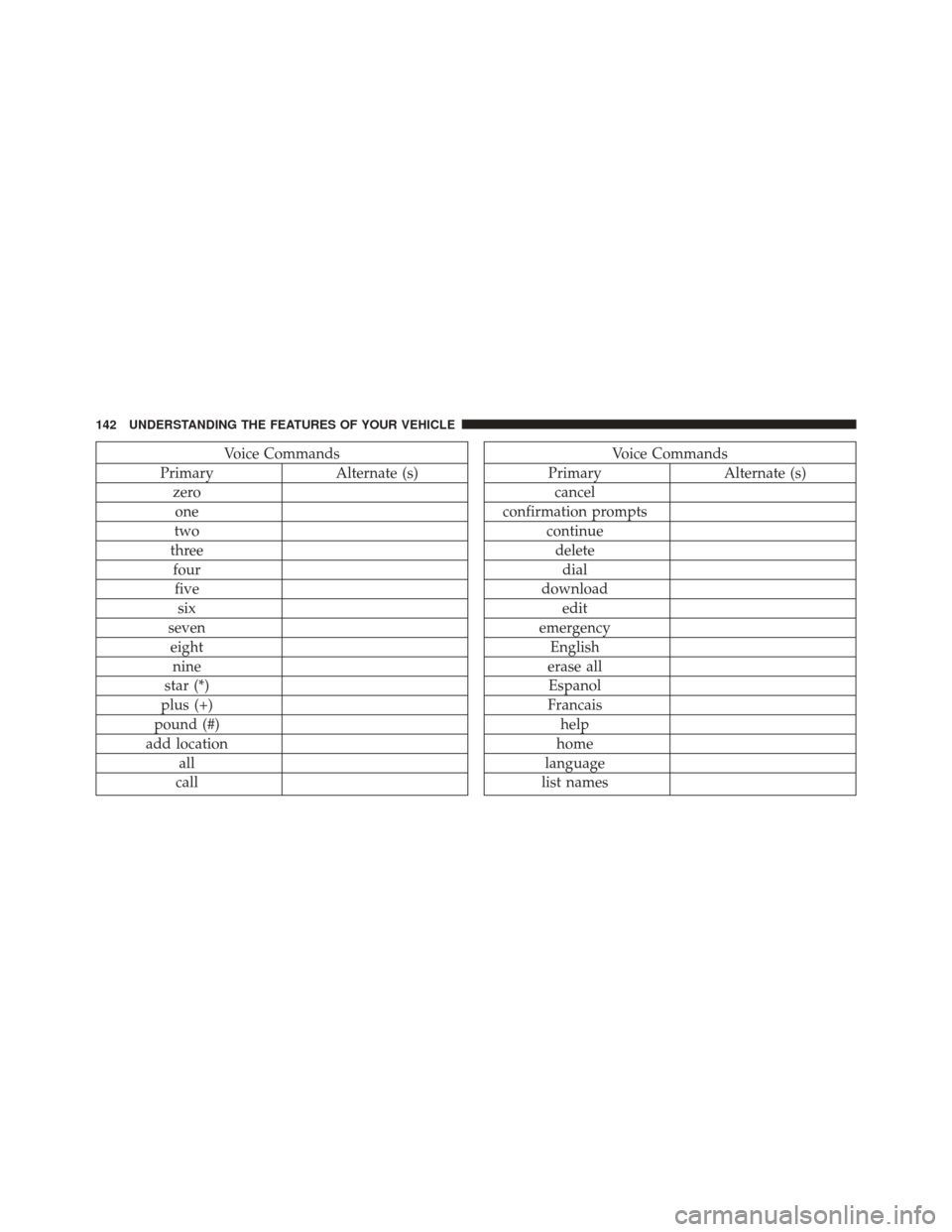
Voice Commands
Primary Alternate (s)
zero one
two
three fourfive six
seven eight nine
star (*)
plus (+)
pound (#)
add location all
callVoice Commands
Primary Alternate (s)
cancel
confirmation prompts continuedeletedial
download edit
emergency English
erase all Espanol
Francais help
home
language
list names
142 UNDERSTANDING THE FEATURES OF YOUR VEHICLE
Page 146 of 543

General Information
This device complies with Part 15 of the FCC rules and
RSS 210 of Industry Canada. Operation is subject to the
following conditions:
•Changes or modifications not expressly approved by
the party responsible for compliance could void the
user’s authority to operate the equipment.
• This device may not cause harmful interference.
• This device must accept any interference received,
including interference that may cause undesired op-
eration.
VOICE COMMAND — IF EQUIPPED
Voice Command System Operation
The Uconnect® Voice Command system allows
you to control your AM, FM radio, disc player,
USB Mass Storage Class device, iPod® family
of devices, Bluetooth® Streaming Audio de-
vice, and a memo recorder.
NOTE: Take care to speak into the Voice Interface Sys-
tem as calmly and normally as possible. The ability of the
Voice Interface System to recognize user voice commands
may be negatively affected by rapid speaking or a raised
voice level.
144 UNDERSTANDING THE FEATURES OF YOUR VEHICLE
Page 156 of 543
You can choose from HIGH, LOW or OFF heat settings.
Amber indicator lights in each switch indicate the level of
heat in use. Two indicator lights will illuminate for
HIGH, one for LOW and none for OFF.Press the switch once to select HIGH-level
heating. Press the switch a second time to select
LOW-level heating. Press the switch a third
time to shut the heating elements OFF.
If HIGH-level heating is selected, the system will auto-
matically switch to the LOW-level after a maximum of
60 minutes of continuous operation. At that time, the
number of indicators illuminated changes from two to
one, indicating the change. Operation on the LOW-level
setting also turns OFF automatically after a maximum of
45 minutes.
NOTE: Once a heat setting is selected, heat will be felt
within two to five minutes.WARNING!
• Persons who are unable to feel pain to the skin
because of advanced age, chronic illness, diabetes,
spinal cord injury, medication, alcohol use, exhaus-
tion or other physical condition must exercise care
when using the seat heater. It may cause burns
even at low temperatures, especially if used for
long periods of time.
• Do not place anything on the seat or seatback that
insulates against heat, such as a blanket or cushion.
This may cause the seat heater to overheat. Sitting
in a seat that has been overheated could cause
serious burns due to the increased surface tempera-
ture of the seat.
154 UNDERSTANDING THE FEATURES OF YOUR VEHICLE
Page 185 of 543

•Obstacles such as bicycle carriers, trailer hitches, etc.,
must not be placed within 12 in (30 cm) from the rear
fascia/bumper while driving the vehicle. Failure to do
so can result in the system misinterpreting a close
obstacle as a sensor problem, causing the “SERVICE
PARK ASSIST” message to be displayed in the EVIC.
CAUTION!
• ParkSense® is only a parking aid and it is unable to
recognize every obstacle, including small obstacles.
Parking curbs might be temporarily detected or not
detected at all. Obstacles located above or below
the sensors will not be detected when they are in
close proximity.
(Continued)
CAUTION! (Continued)
•The vehicle must be driven slowly when using
ParkSense® in order to be able to stop in time
when an obstacle is detected. It is recommended
that the driver looks over his/her shoulder when
using ParkSense®.
WARNING!
Drivers must be careful when backing up even when
using the Rear Park Assist system. Always check
carefully behind your vehicle, and be sure to check
for pedestrians, animals, other vehicles, obstructions,
or blind spots before backing up. You are responsible
for the safety of your surroundings and must con-
tinue to pay attention while backing up. Failure to do
so can result in serious injury or death.
3
UNDERSTANDING THE FEATURES OF YOUR VEHICLE 183