2013 DODGE AVENGER service
[x] Cancel search: servicePage 74 of 519
If you do have a collision, which deploys the air bags, any
or all of the following may occur:
•The nylon air bag material may sometimes cause
abrasions and/or skin reddening to the driver and
front passenger as the air bags deploy and unfold. The
abrasions are similar to friction rope burns or those
you might get sliding along a carpet or gymnasium
floor. They are not caused by contact with chemicals.
They are not permanent and normally heal quickly.
However, if you haven’t healed significantly within a
few days, or if you have any blistering, see your doctor
immediately.
• As the air bags deflate, you may see some smoke-like
particles. The particles are a normal by-product of the
process that generates the non-toxic gas used for air
bag inflation. These airborne particles may irritate the
skin, eyes, nose, or throat. If you have skin or eye irritation, rinse the area with cool water. For nose or
throat irritation, move to fresh air. If the irritation
continues, see your doctor. If these particles settle on
your clothing, follow the garment manufacturer’s in-
structions for cleaning.
Do not drive your vehicle after the air bags have de-
ployed. If you are involved in another collision, the air
bags will not be in place to protect you.
WARNING!
Deployed air bags and seat belt pretensioners cannot
protect you in another collision. Have the air bags,
seat belt pretensioners, and the front seat belt retrac-
tor assemblies replaced by an authorized dealer im-
mediately. Also, have the Occupant Restraint Con-
troller System serviced as well.
72 THINGS TO KNOW BEFORE STARTING YOUR VEHICLE
Page 75 of 519
Maintaining Your Air Bag System
WARNING!
•Modifications to any part of the air bag system
could cause it to fail when you need it. You could
be injured if the air bag system is not there to
protect you. Do not modify the components or
wiring, including adding any kind of badges or
stickers to the steering wheel hub trim cover or the
upper right side of the instrument panel. Do not
modify the front bumper, vehicle body structure, or
add aftermarket side steps or running boards.
• It is dangerous to try to repair any part of the air
bag system yourself. Be sure to tell anyone who
works on your vehicle that it has an air bag system.
(Continued)
WARNING! (Continued)
•Do not attempt to modify any part of your air bag
system. The air bag may inflate accidentally or may
not function properly if modifications are made.
Take your vehicle to an authorized dealer for any
air bag system service. If your seat, including your
trim cover and cushion, needs to be serviced in any
way (including removal or loosening/tightening of
seat attachment bolts), take the vehicle to your
authorized dealer. Only manufacturer approved
seat accessories may be used. If it is necessary to
modify the air bag system for persons with dis-
abilities, contact your authorized dealer.
2
THINGS TO KNOW BEFORE STARTING YOUR VEHICLE 73
Page 76 of 519
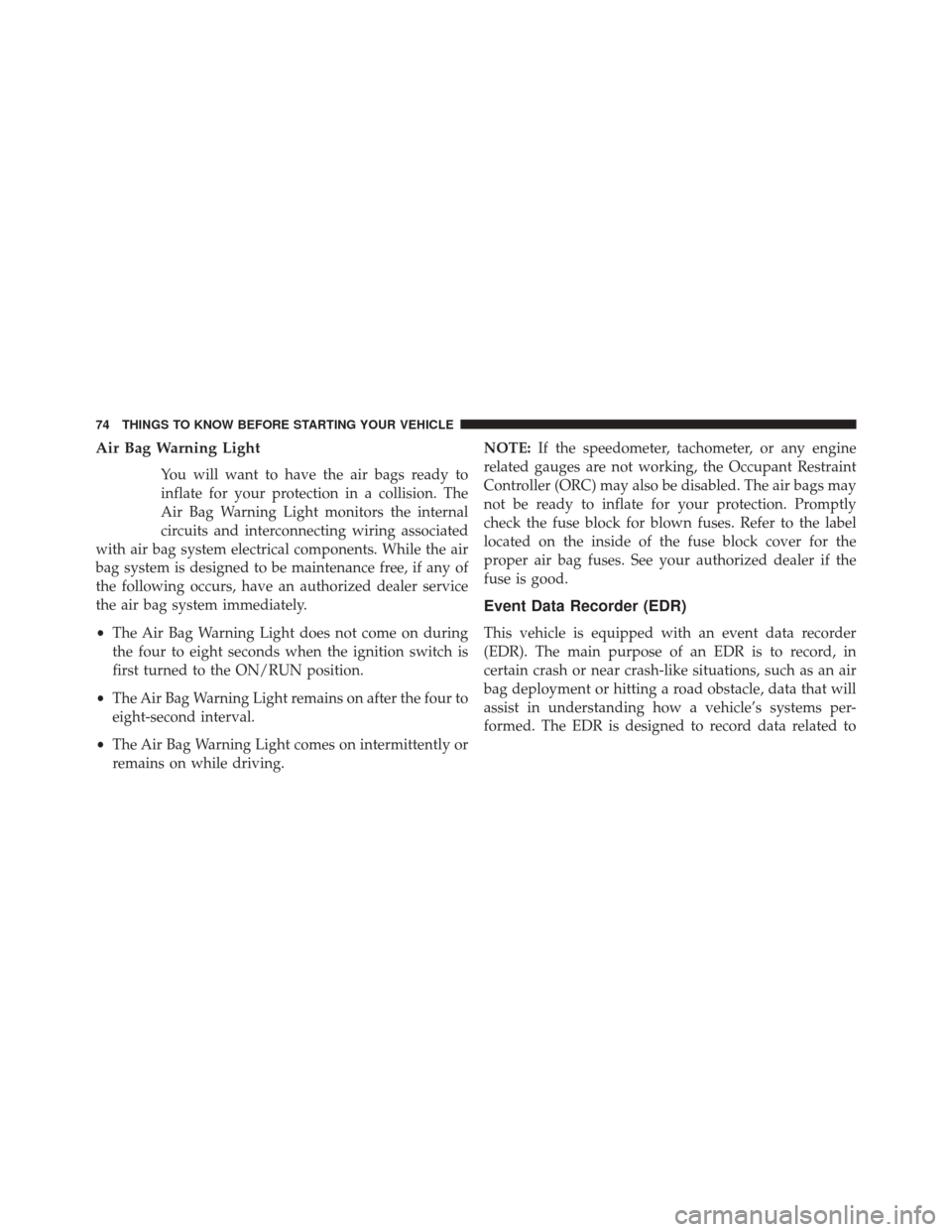
Air Bag Warning Light
You will want to have the air bags ready to
inflate for your protection in a collision. The
Air Bag Warning Light monitors the internal
circuits and interconnecting wiring associated
with air bag system electrical components. While the air
bag system is designed to be maintenance free, if any of
the following occurs, have an authorized dealer service
the air bag system immediately.
• The Air Bag Warning Light does not come on during
the four to eight seconds when the ignition switch is
first turned to the ON/RUN position.
• The Air Bag Warning Light remains on after the four to
eight-second interval.
• The Air Bag Warning Light comes on intermittently or
remains on while driving. NOTE:
If the speedometer, tachometer, or any engine
related gauges are not working, the Occupant Restraint
Controller (ORC) may also be disabled. The air bags may
not be ready to inflate for your protection. Promptly
check the fuse block for blown fuses. Refer to the label
located on the inside of the fuse block cover for the
proper air bag fuses. See your authorized dealer if the
fuse is good.
Event Data Recorder (EDR)
This vehicle is equipped with an event data recorder
(EDR). The main purpose of an EDR is to record, in
certain crash or near crash-like situations, such as an air
bag deployment or hitting a road obstacle, data that will
assist in understanding how a vehicle’s systems per-
formed. The EDR is designed to record data related to
74 THINGS TO KNOW BEFORE STARTING YOUR VEHICLE
Page 101 of 519
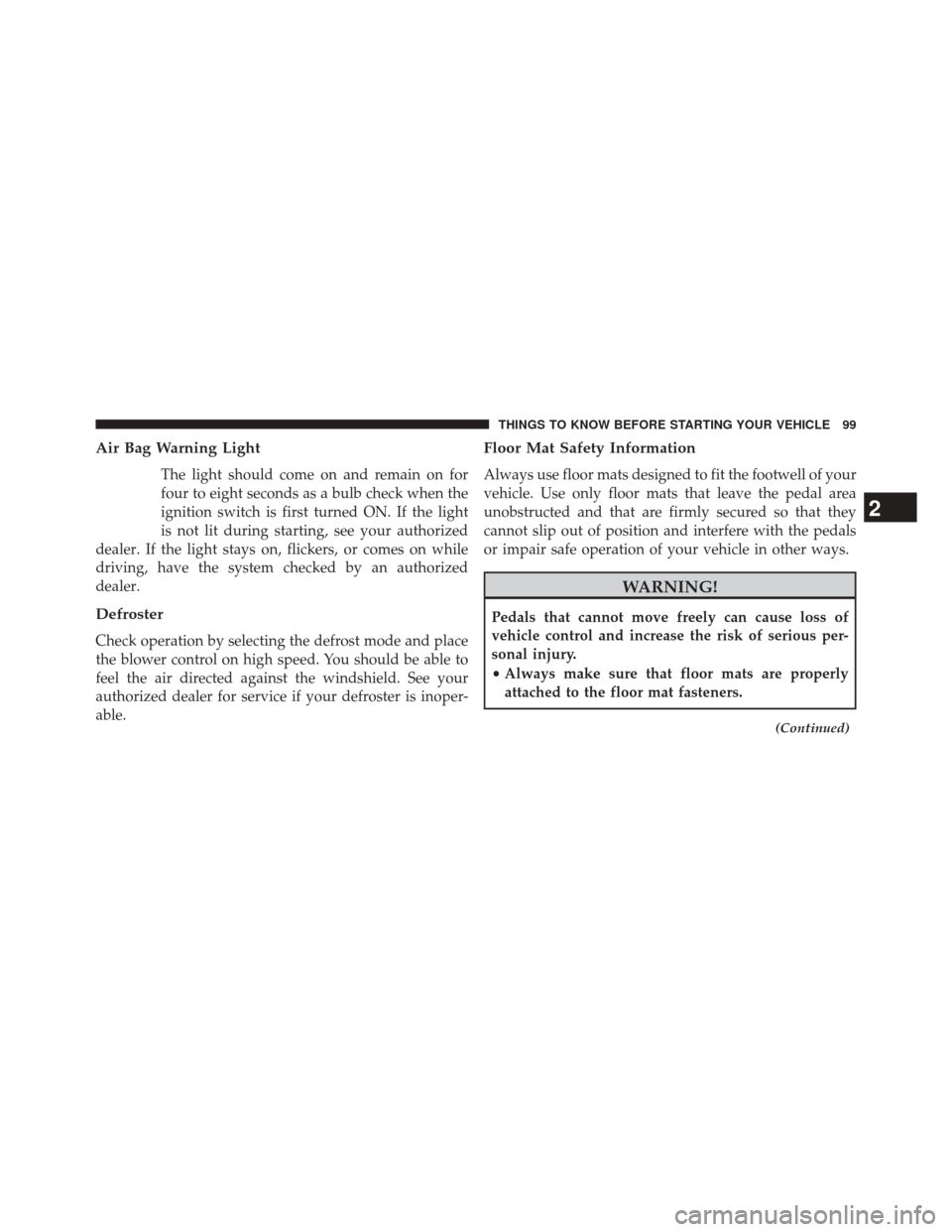
Air Bag Warning Light
The light should come on and remain on for
four to eight seconds as a bulb check when the
ignition switch is first turned ON. If the light
is not lit during starting, see your authorized
dealer. If the light stays on, flickers, or comes on while
driving, have the system checked by an authorized
dealer.
Defroster
Check operation by selecting the defrost mode and place
the blower control on high speed. You should be able to
feel the air directed against the windshield. See your
authorized dealer for service if your defroster is inoper-
able.
Floor Mat Safety Information
Always use floor mats designed to fit the footwell of your
vehicle. Use only floor mats that leave the pedal area
unobstructed and that are firmly secured so that they
cannot slip out of position and interfere with the pedals
or impair safe operation of your vehicle in other ways.
WARNING!
Pedals that cannot move freely can cause loss of
vehicle control and increase the risk of serious per-
sonal injury.
• Always make sure that floor mats are properly
attached to the floor mat fasteners.
(Continued)
2
THINGS TO KNOW BEFORE STARTING YOUR VEHICLE 99
Page 115 of 519

WARNING!
Any voice commanded system should be used only
in safe driving conditions following all applicable
laws, including laws regarding phone use. Your at-
tention should be focused on safely operating the
vehicle. Failure to do so may result in a collision
causing serious injury or death.
Uconnect® Phone Button The radio or steering wheel controls (if
equipped) will contain the two control buttons
(Uconnect® Phone
button and Voice Com-
mand
button) that will enable you to
access the system. When you press the button you will
hear the word Uconnect® followed by a BEEP. The beep
is your signal to give a command. Voice Command Button
Actual button location may vary with the radio.
The individual buttons are described in the
“Operation” section.
The Uconnect® Phone can be used with any Hands-Free
Profile certified Bluetooth® mobile phone. See the
Uconnect® website for supported phones. Refer to your
mobile service provider or the phone manufacturer for
details.
The Uconnect® Phone is fully integrated with the vehi-
cle’s audio system. The volume of the Uconnect® Phone
can be adjusted either from the radio volume control
knob or from the steering wheel radio control (right
switch), if so equipped.
The radio display will be used for visual prompts from
the Uconnect® Phone such as “CELL” or caller ID on
certain radios.3
UNDERSTANDING THE FEATURES OF YOUR VEHICLE 113
Page 123 of 519
List All Names In The Uconnect® Phonebook
•Press thebutton to begin.
• After the “Ready” prompt and the following beep, say
“Phonebook List Names”.
• The Uconnect® Phone will play the names of all the
phonebook entries, including the downloaded phone-
book entries, if available.
• To call one of the names in the list, press the
but-
ton during the playing of the desired name, and say
“Call”.
NOTE: The user can also exercise “Edit” or “Delete”
operations at this point.
• The Uconnect® Phone will then prompt you as to the
number designation you wish to call.
• The selected number will be dialed.
Phone Call Features
The following features can be accessed through the
Uconnect® Phone if the feature(s) are available on your
mobile service plan. For example, if your mobile service
plan provides three-way calling, this feature can be
accessed through the Uconnect® Phone. Check with your
mobile service provider for the features that you have.
Answer Or Reject An Incoming Call —
No Call Currently In Progress
When you receive a call on your mobile phone, the
Uconnect® Phone will interrupt the vehicle audio sys-
tem, if on, and will ask if you would like to answer the
call. Press the
button to accept the call. To reject the
call, press and hold the
button until you hear a single
beep, indicating that the incoming call was rejected.
3
UNDERSTANDING THE FEATURES OF YOUR VEHICLE 121
Page 127 of 519
Emergency Assistance
If you are in an emergency and the mobile phone is
reachable:
•Pick up the phone and manually dial the emergency
number for your area.
If the phone is not reachable and the Uconnect® Phone is
operational, you may reach the emergency number as
follows:
• Press the
button to begin.
• After the “Ready” prompt and the following beep, say
“Emergency” and the Uconnect® Phone will instruct
the paired mobile phone to call the emergency number.
This feature is supported in the U.S., Canada, and
Mexico. NOTE:
•
The emergency number dialed is based on the country
where the vehicle is purchased (911 for the U.S. and
Canada and 060 for Mexico). The number dialed may
not be applicable with the available mobile service and
area.
• If supported, this number may be programmable on
some systems. To do this, press the
button and say
“Setup”, followed by “Emergency”.
• The Uconnect® Phone does slightly lower your
chances of successfully making a phone call as to that
for the mobile phone directly.
3
UNDERSTANDING THE FEATURES OF YOUR VEHICLE 125
Page 129 of 519

You can use your Uconnect® Phone to access a voice mail
system or an automated service, such as a paging service
or automated customer service line. Some services re-
quire immediate response selection. In some instances,
that may be too quick for use of the Uconnect® Phone.
When calling a number with your Uconnect® Phone that
normally requires you to enter in a touch-tone sequence
on your mobile phone keypad, you can press the
button and say the sequence you wish to enter,
followed by the word “Send”. For example, if required to
enter your PIN followed with a pound, (3746#),you
can press the
button and say, “3746#Send”.
Saying a number, or sequence of numbers, followed by
“Send”, is also to be used for navigating through an
automated customer service center menu structure, and
to leave a number on a pager. You can also send stored Uconnect® phonebook entries
as tones for fast and easy access to voice mail and pager
entries. To use this feature, dial the number you wish to
call and then press the
button and say, “Send.” The
system will prompt you to enter the name or number and
say the name of the phonebook entry you wish to send.
The Uconnect® Phone will then send the corresponding
phone number associated with the phonebook entry, as
tones over the phone.
NOTE:
• You may not hear all of the tones due to mobile phone
network configurations. This is normal.
• Some paging and voice mail systems have system time
out settings that are too short and may not allow the
use of this feature.
3
UNDERSTANDING THE FEATURES OF YOUR VEHICLE 127