Page 366 of 421
3
01
Select:
- the next lower / hi
gher radiofrequency automatically.
- the previous
/ next CD track, MP3
track or media.
- the le
ft / right of the screen when a menu is displayed.
Move left / ri
ght in "Move the map
" mode.
Abandon the current
operation, up one level in
t
he menu.
Long press: return to the permanent display.
Continuous
press:
reinitialisation of the system.
Open the" Telephone" menu
and display the list of recent calls or accept
an incoming call.
Open the
"Confi guration
" menu.
Lon
g press: access
to the GPS coverageand the navigation demonstration mode.
Open the "Traffi c information " menuand display thecurrent traffi c alerts.
Select:
- the previous
/next line in a list or menu.
- the previous
/ next media folder.
- step b
y step selection of the previous/next radio frequency.
- the previous / next MP3 folder.
Move up/down, in "
Move the map " mode.
FIRST STEPS
Page 367 of 421
4
02STEERING MOUNTED CONTROLS (according to vehicle)
RADIO: select the previous/next preset station.
Select the next entry in the address book.
Chan
ge the audio source.
Start a call from the address book.
Call/End call on the telephone.
Pr
ess for more than 2 seconds: access to the address book.
RADI
O: change to the previous radio station in the list.
Lon
g press: automatic search for a
lower frequency.
CD: select the previous track.
CD: continuous press: fast reverse.
RADI
O: change to the next radio station
in the list.
Lon
g press: automatic search for ahigher frequency.
CD: select the next track.
CD: continuous press: fast forward play.
V
olume increase.
V
olume decrease.
Mute: press the volume increase and decrease buttons simultaneously.
Restore the sound by
pressing one of the two
volume buttons.
Page 368 of 421
5
02
32
15
4
132
15
4
2
3
STEERING MOUNTED CONTROLS (according to vehicle)
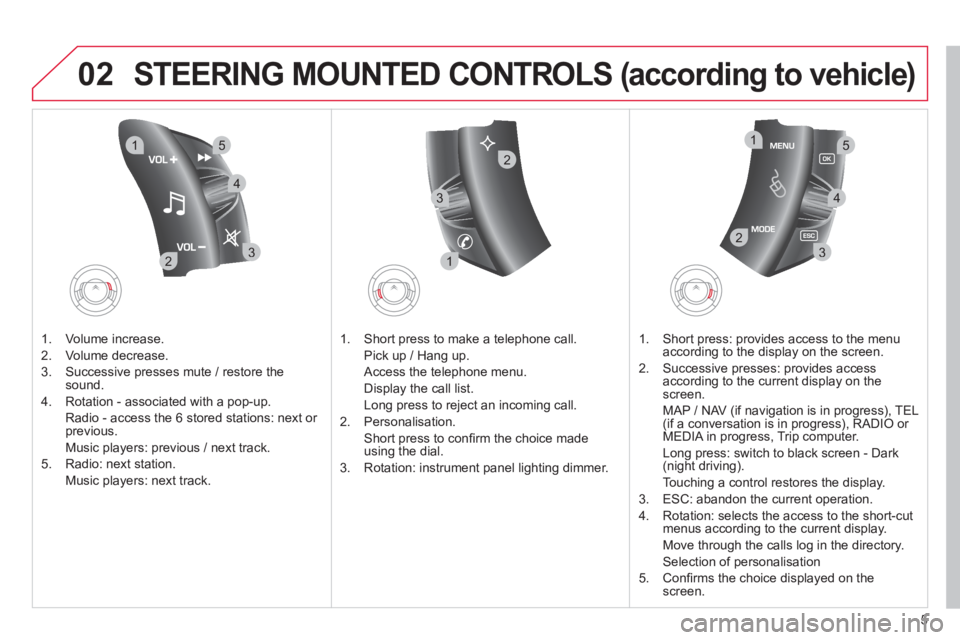
1. Volume increase.
2. V
olume decrease.
3.
Successive presses mute / restore thesound.
4. Rotation - associated with a pop-up.
Radio - access the
6 stored stations: next or previous.
Music pla
yers: previous / next track.
5. Radio: next station.
Music players: next track.
1. Short press to make a telephone call.
Pick up
/ Hang up.
Access the telephone menu.
Displa
y the call list.
Lon
g press to reject an incoming call.
2. P
ersonalisation.
Short
press to confi rm the choice made using the dial.
3. Rotation: instrument panel li
ghting dimmer.
1. Short press: provides access to the menu
accor
ding to the display on the screen.
2.
Successive presses: provides access
according to the current display on the
screen.
MAP
/ NAV (if navigation is in progress), TEL (if a conversation is in progress), RADIO or MEDIA in progress, Trip computer.
Lon
g press: switch to black screen - Dark (night driving).
Touching a control restores the display.
3. E
SC: abandon the current operation.
4. R
otation: selects the access to the short-cutmenus according to the current display.
Move throu
gh the calls log in the directory.
Selection of personalisation
5. Confi rms the choice displa
yed on thescreen.
Page 369 of 421
6
03
For a detailed global view of the menus available, refer to the
"Screen menu map" section.
For cleaning the screen, the use of a soft, non-abrasive cloth (spectacles cloth) is recommended, with no additional product. "RADIO
"
"
TELEPHONE"
(If conversation in progress)
SETUP
: PARAMETERS
date and time, displayconfi guration, sound.
Changing the audio source:
RADIO:RADIO broadcasts.
MUSIC:playing MUSIC. Pr
ess the MODE button several times in succession for access to the following displays:
GENERAL OPERATION
"FULL SCREEN MAP"
"MAP IN WINDOW"
(If navigation guidance in progress)
Page 370 of 421
7
03
A press on the dial gives access to short-cut menus according to thedisplay in the screen.
GENERAL OPERATION
DISPLAY ACCORDING TO CONTEXT
RADIO:
Activate / Deactivate TA
Activate / Deactivate RDS
MUSIC MEDIA PLAYERS,
CD or USB
(according to
media):
Play modes:
Normal
Random
Random on all media
Repetition
TELEPHONE (call in
pro
gress):
Private mode
FULL SCREEN MAP OR IN A
NEW WINDOW:
Stop / Restore guidance Select destination
Enter an address
Directory
GPS coordinates
Divert route
Move the map
Info. on location
Select as destination
Select as sta
ge
Save this place (contacts)
Quit map mode
Guidance criteria
Put call on hold
DTMF ring tones
Hang up
1
1
1
1
1
1
1
1
2
2
2
2
2
1
2
2
2
1
1
1
1
1
1
Change waveband
F
M
AM
2
2
1
TA 1
Page 373 of 421
10
04
SELECTING A DESTINATION
NAVIGATION - GUIDANCE
TO ONE OF THE RECENT DESTINATIONS
Press NAV
to display the"Navigation - guidance" menu.
Select the desired destination and confi rm to start guidance. TOWARDS A CONTACT IN THE CONTACTS DIRECTORY
Select " Select destination" andconfi rm, then select " Directory " and confi rm.
Selection the desired destination from your contacts and confi rm " OK
" to start
the guidance.
Pr
ess NAVto display the"Navigation - guidance
" menu. Navi
gation towards a contact imported from your telephone is only
possible if the address is compatible with the system.
Page 387 of 421
24
06 USING THE TELEPHONE
Access to the "TELEPHONE" menu
"""""""ppppeepoeTelephoneTelephoneTelephoneTelephoneTelephoneTelephoneTelephoneTelephoneTelephoneTelephoneTelephoneTelephoneTelephoneTelephoneTl hTl hTl hTl h"""""""
Go from the list to the menu (left/right).
or
Press PHONE .
To make a call, select a number in the list and confi rm "OK"to start the call.
Connecting a different telephone deletes the list of recent calls.
No telephone connected.
Telephone connected.
Incoming call.
Outgoing call.
Synchronisation of address book in progress.
Telephone call in progress.
In the top bar of the permanentdisplay
Page 388 of 421
25
06
PAIRING A BLUETOOTH TELEPHONE
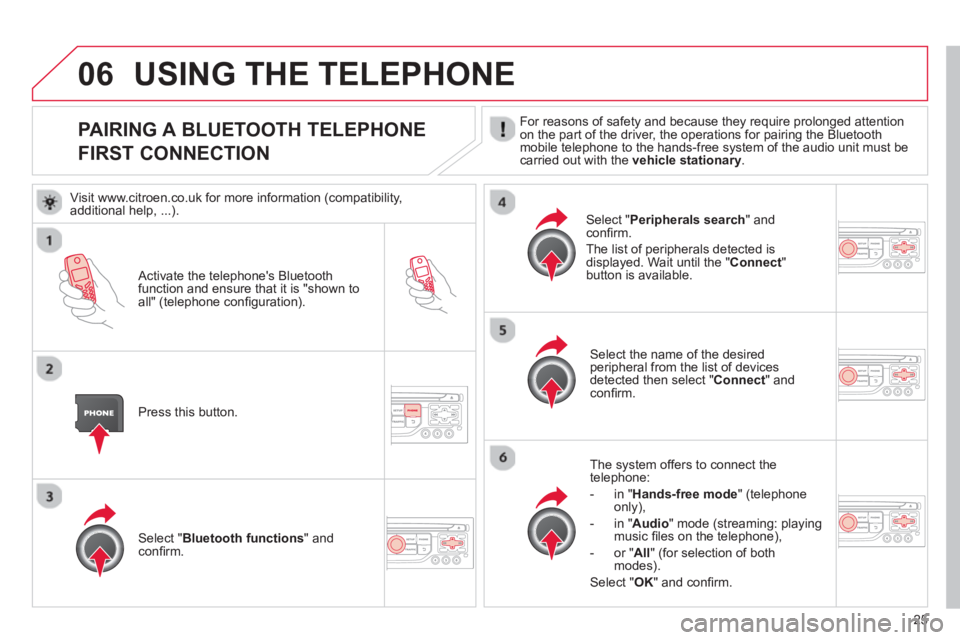
FIRST CONNECTION For reasons of safety and because they require prolonged attention
on the part of the driver, the operations for pairing the Bluetoothmobile telephone to the hands-free system of the audio unit must be carried out with the vehicle stationary.
Activate the telephone's Bluetoothfunction and ensure that it is "shown to all" (telephone confi guration).
Pr
ess this button.
Select the name of the desired
peripheral from the list of devices detected then select "Connect
" and confi rm.
The s
ystem offers to connect the
telephone:
-
in"Hands-free mode" (telephoneonly),
-
in "Audio" mode (streaming: playingmusic fi les on the telephone),
-
or "All
" (for selection of both
modes).
Select " OK
" and confi rm.
Select " Bluetooth functions " and confi rm.
Select "Peripherals search" andconfi rm.
The list of peripherals detected is
displayed. Wait until the " Connect"button is available.
USING THE TELEPHONE
Visit www.citroen.co.uk for more information (compatibility,
additional help, ...).


