Page 329 of 592

change settings (i.e., 30, 60, 90), press the center of the
control knob one or more times to select or change a
setting (i.e., ON, OFF).
Soft-Keys
Soft-Keys are accessible on the Uconnect® Touch-Screen.
Customer Programmable Features — Uconnect®
8.4 Settings
Press the More soft-key, then press the Settings soft-key
to display the menu setting screen. In this mode the
Uconnect® system allows you to access programmable
features that may be equipped such as Display, Clock,
Safety/Assistance, Lights, Doors & Locks, Auto-On
Comfort & Remote Start, Engine Off Operation, Compass
Settings, Audio, Phone/Bluetooth® and SIRIUS Setup.
NOTE:Only one touchscreen area may be selected at a
time. When making a selection, press the soft-key to enter the
desired mode. Once in the desired mode press and
release the preferred setting until a check-mark appears
next to the setting, showing that setting has been se-
lected.
Once the setting is complete press the Back Arrow
soft-key to return to the previous menu or press the X
soft-key to close out of the settings screen. Pressing the
Up or Down Arrow soft-keys on the right side of the
screen will allow you to toggle up or down through the
available settings.
4
UNDERSTANDING YOUR INSTRUMENT PANEL 327
Page 343 of 592

•Music Info Cleanup
This feature helps organize music files for optimized
music navigation. To make your selection, touch the
Music Info Cleanup soft-key, select On or Off followed by
pressing the arrow back soft-key.
• Surround Sound
This feature provides simulated surround sound mode.
To make your selection, touch the Surround Sound
soft-key, select On or Off followed by pressing the arrow
back soft-key.
Phone/Bluetooth®
After pressing the Phone/Bluetooth® soft-key the fol-
lowing settings will be available. •
Paired Devices
This feature shows which phones are paired to the
Phone/Bluetooth® system. For further information, refer
to the Uconnect® Supplement.
SiriusXM Setup
After pressing the SIRIUS Setup soft-key the following
settings will be available.
• Channel Skip
SiriusXM can be programmed to designate a group of
channels that are the most desirable to listen to or to
exclude undesirable channels while scanning. To make
your selection, touch the Channel Skip soft-key, select the
channels you would like to skip followed by pressing the
arrow back soft-key.4
UNDERSTANDING YOUR INSTRUMENT PANEL 341
Page 535 of 592
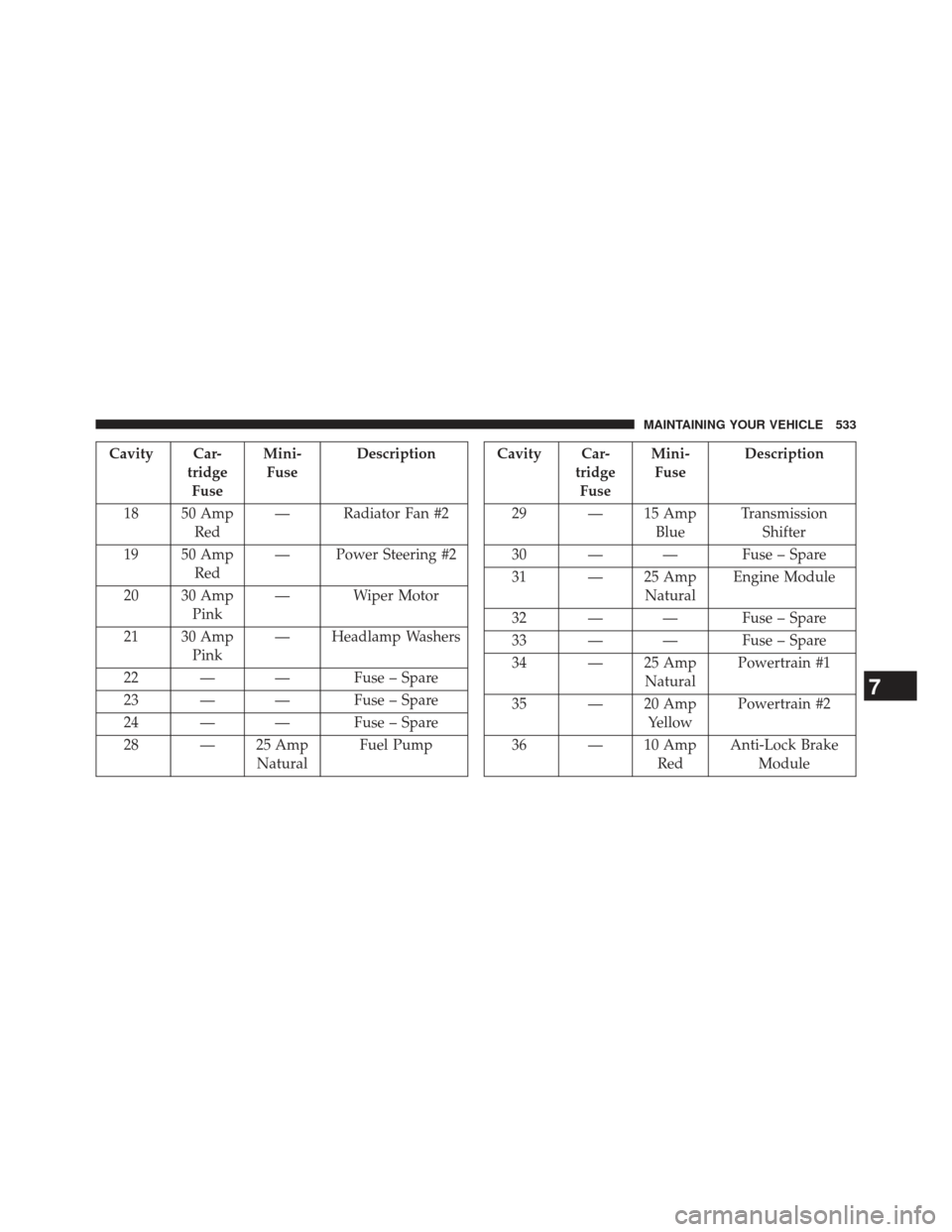
Cavity Car-tridgeFuse Mini-
Fuse Description
18 50 Amp Red — Radiator Fan #2
19 50 Amp Red — Power Steering #2
20 30 Amp Pink — Wiper Motor
21 30 Amp Pink — Headlamp Washers
22 — — Fuse – Spare
23 — — Fuse – Spare
24 — — Fuse – Spare
28 — 25 Amp NaturalFuel PumpCavity Car-
tridgeFuse Mini-
Fuse Description
29 — 15 Amp BlueTransmission
Shifter
30 — — Fuse – Spare
31 — 25 Amp NaturalEngine Module
32 — — Fuse – Spare
33 — — Fuse – Spare
34 — 25 Amp NaturalPowertrain #1
35 — 20 Amp YellowPowertrain #2
36 — 10 Amp RedAnti-Lock Brake
Module
7
MAINTAINING YOUR VEHICLE 533
Page 540 of 592
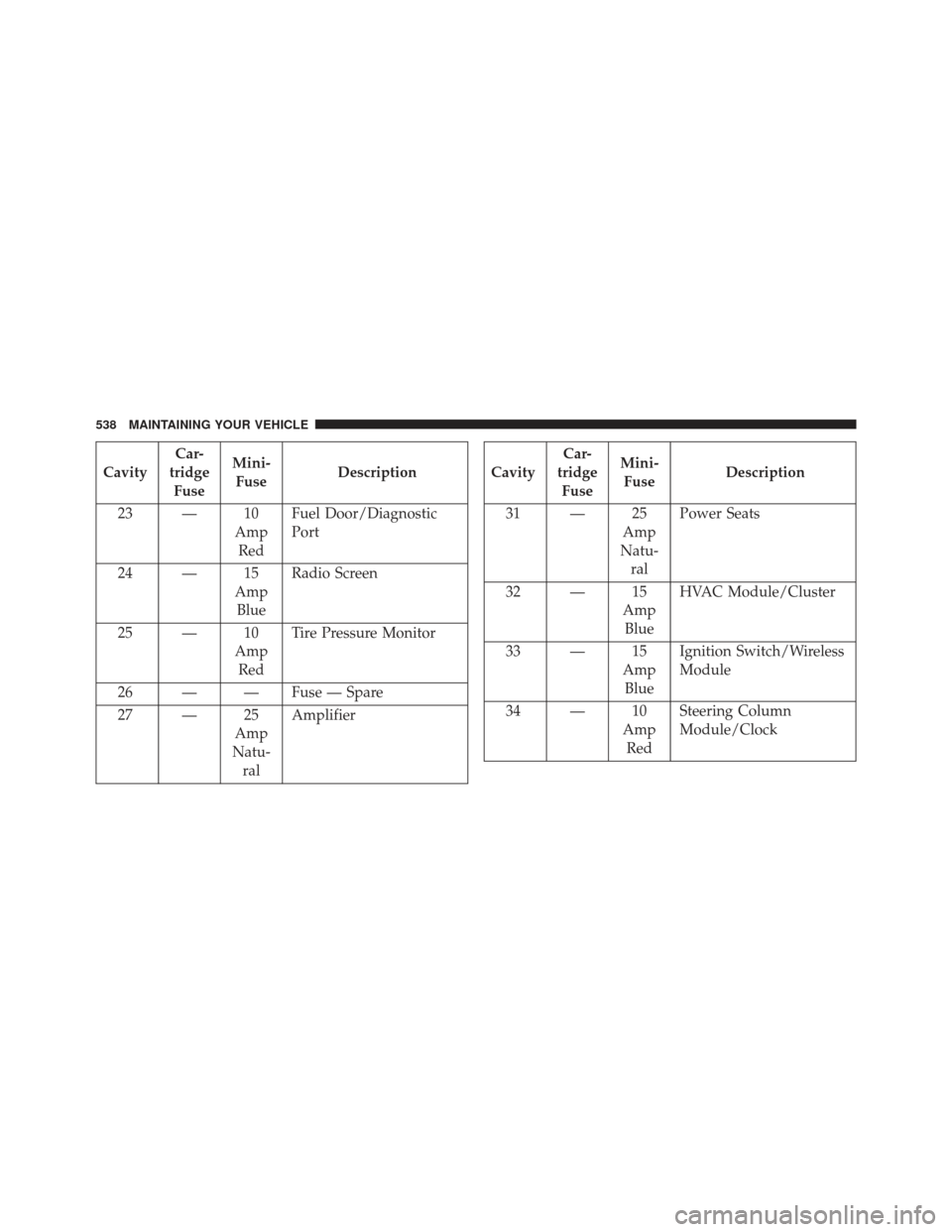
CavityCar-
tridge Fuse Mini-
Fuse Description
23 — 10 AmpRed Fuel Door/Diagnostic
Port
24 — 15 AmpBlue Radio Screen
25 — 10 AmpRed Tire Pressure Monitor
26 — — Fuse — Spare
27 — 25 Amp
Natu- ral AmplifierCavity
Car-
tridge Fuse Mini-
Fuse Description
31 — 25 Amp
Natu- ral Power Seats
32 — 15 AmpBlue HVAC Module/Cluster
33 — 15 AmpBlue Ignition Switch/Wireless
Module
34 — 10 AmpRed Steering Column
Module/Clock
538 MAINTAINING YOUR VEHICLE
Page 541 of 592
CavityCar-
tridge Fuse Mini-
Fuse Description
35 — 10 AmpRed Battery Sensor
36 — — Fuse — Spare
37 — 15 AmpBlue Radio
38 — 20 AmpYel-low Power Outlet Inside Arm
Rest
40 — — Fuse — Spare
41 — — Fuse — SpareCavity Car-
tridge Fuse Mini-
Fuse Description
42 30 AmpPink — Rear Defrost
43 — 25 Amp
Natu- ral Rear Heated Seats/
Steering Wheel
44 — 10 AmpRed Park Assist/Blind Spot/
Camera
45 — 15 AmpBlue Cluster/Rearview
Mirror/Compass
7
MAINTAINING YOUR VEHICLE 539
Page 543 of 592
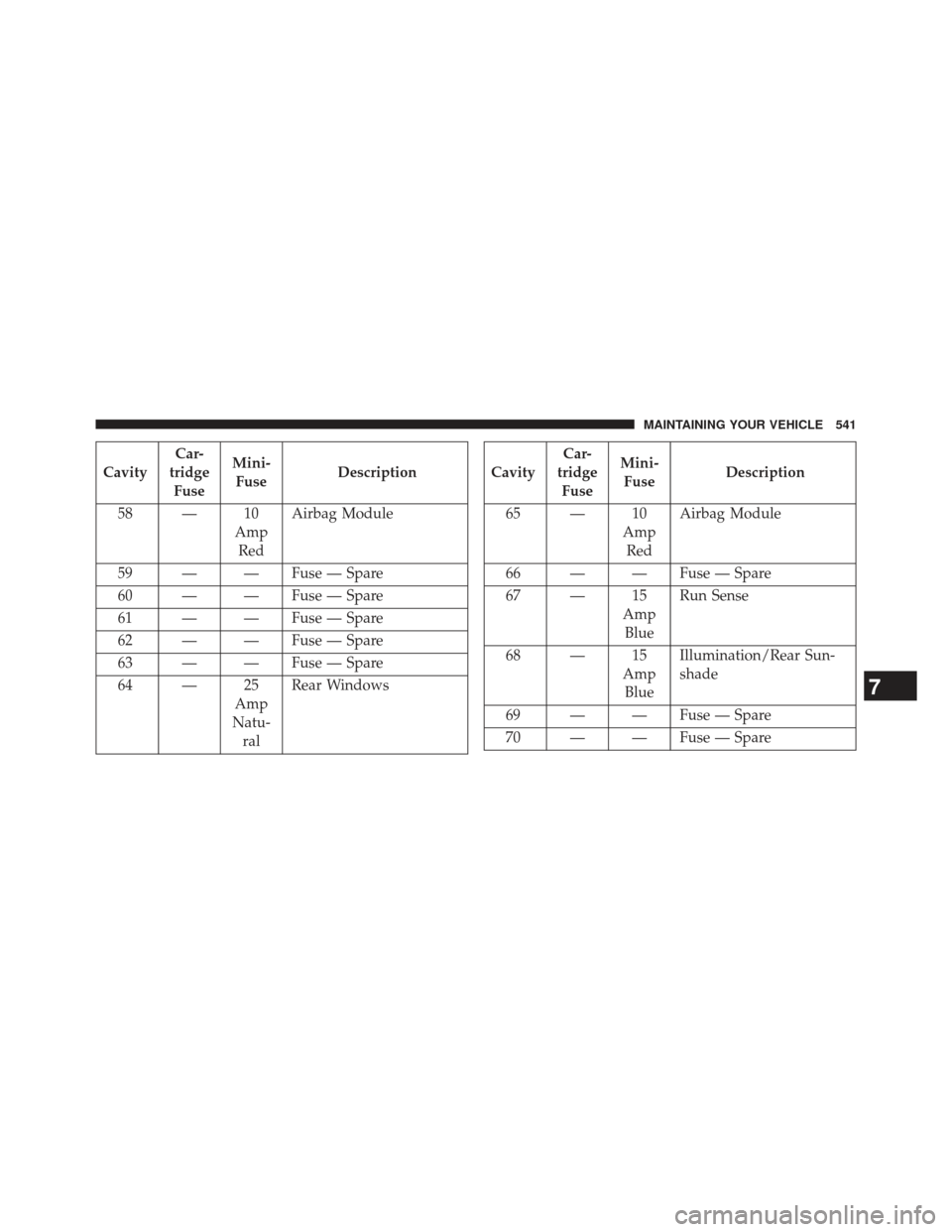
CavityCar-
tridge Fuse Mini-
Fuse Description
58 — 10 AmpRed Airbag Module
59 — — Fuse — Spare
60 — — Fuse — Spare
61 — — Fuse — Spare
62 — — Fuse — Spare
63 — — Fuse — Spare
64 — 25 Amp
Natu- ral Rear WindowsCavity
Car-
tridge Fuse Mini-
Fuse Description
65 — 10 AmpRed Airbag Module
66 — — Fuse — Spare
67 — 15 AmpBlue Run Sense
68 — 15 AmpBlue Illumination/Rear Sun-
shade
69 — — Fuse — Spare
70 — — Fuse — Spare
7
MAINTAINING YOUR VEHICLE 541
Page 546 of 592
this, you should not attempt to service a headlamp bulb
yourself. If a headlamp bulb fails, take your vehicle to
an authorized dealer for service.
WARNING!
A transient high voltage occurs at the bulb sockets of
HID headlamps when the headlamp switch is turned
ON. It may cause serious electrical shock or electro-
cution if not serviced properly. See your authorized
dealer for service.
NOTE: On vehicles equipped with HID headlamps,
when the headlamps are turned on, there is a blue hue to
the lights. This diminishes and becomes more white after
approximately 10 seconds, as the system charges.
Standard Low Beam And High Beam Headlamp
1. Open the hood.
NOTE: Removal of the air cleaner filter housing may be
necessary prior to replacing bulbs in the headlamp
assembly on the driver side of the vehicle.
2. Twist the appropriate bulb and socket assembly coun- terclockwise, and then pull it out of the headlamp
assembly.
3. Disconnect the bulb from the socket assembly and install the replacement bulb.
4. Reinstall the bulb and socket assembly into the head- lamp assembly, and then turn it clockwise.
544 MAINTAINING YOUR VEHICLE
Page:
< prev 1-8 9-16 17-24