2013 CHEVROLET TRAVERSE light
[x] Cancel search: lightPage 179 of 444

Black plate (9,1)Chevrolet Traverse Owner Manual - 2013 - CRC 2nd Edition - 11/13/12
Lighting 6-9
A high electrical load occurs when
several of the following are on, such
as: headlamps, high beams, fog
lamps, rear window defogger,
climate control fan at high speed,
heated seats, engine cooling fans,
trailer loads, and loads plugged into
accessory power outlets.
EPM works to prevent excessive
discharge of the battery. It does this
by balancing the generator's output
and the vehicle's electrical needs.
It can increase engine idle speed to
generate more power whenever
needed. It can temporarily reduce
the power demands of some
accessories.Normally, these actions occur in
steps or levels, without being
noticeable. In rare cases at the
highest levels of corrective action,
this action may be noticeable to the
driver. If so, a DIC message might
be displayed, such as BATTERY
SAVER ACTIVE, BATTERY
VOLTAGE LOW, or LOW BATTERY.
If one of these messages displays, it
is recommended that the driver
reduce the electrical loads as much
as possible. See
Driver Information
Center (DIC) (Without DIC Buttons)
on page 5‑29 orDriver Information
Center (DIC) (With DIC Buttons) on
page 5‑24.Battery Power Protection
This feature helps prevent the
battery from being drained, if the
interior courtesy lamps or reading
lamps are accidentally left on. If any
of these lamps are left on, they
automatically turn off after
10 minutes, if the ignition is off. The
lamps will not come back on again
until one of the following occurs:
.The ignition is turned on.
.The exterior lamps control is
turned off, then on again.
The headlamps will time out after
10 minutes, if they are manually
turned on while the ignition is on
or off.
Page 180 of 444

Black plate (10,1)Chevrolet Traverse Owner Manual - 2013 - CRC 2nd Edition - 11/13/12
6-10 Lighting
2NOTES
Page 187 of 444

Black plate (7,1)Chevrolet Traverse Owner Manual - 2013 - CRC 2nd Edition - 11/13/12
Infotainment System 7-7
after approximately 10 seconds.
Each higher setting allows for
more radio volume
compensation at faster vehicle
speeds.
Setting the Tone (Bass/
Midrange/Treble)
BASS/MID/TREB (Bass, Midrange,
or Treble):To adjust bass,
midrange, or treble:
1. Press
funtil the tone control
tabs display.
2. Continue pressing
fto highlight
the tab, or press the softkey
under the tab.
3. To adjust the highlighted setting, do one of the following until the
levels are obtained:
.Turnfclockwise or
counterclockwise.
.Press\FWD, orsREV.
If a station's frequency is weak or if
there is static, decrease the treble. To quickly adjust bass, midrange,
or treble to the middle position,
press the softkey under the BASS,
MID, or TREB tab for more than
two seconds. A beep sounds and
the level adjusts to the middle
position.
To quickly adjust all tone and
speaker controls to the middle
position, press
ffor more than
two seconds until a beep sounds.
EQ (Equalization): Press to
choose bass and treble equalization
settings designed for different types
of music. The choices are pop, rock,
country, talk, jazz, and classical.
Selecting MANUAL or changing
bass or treble, returns the EQ to the
manual bass and treble settings.
Unique EQ settings can be saved
for each source.
If the radio has a Bose
®audio
system, the EQ settings are either
MANUAL or TALK.
Adjusting the Speakers
(Balance/Fade)
BAL/FADE (Balance/Fade): To
adjust the balance or fade:
1. Press
funtil the speaker control
tabs display.
2. Continue pressing
fto highlight
the tab, or press the softkey
under the tab.
3. To adjust the highlighted setting, do one of the following until the
levels are obtained:
.Turnfclockwise or
counterclockwise.
.Press\FWD, orsREV.
To quickly adjust balance or fade to
the middle position, press the
softkey under the BAL or FADE tab
for more than two seconds. A beep
sounds and the level adjusts to the
middle position.
Page 188 of 444

Black plate (8,1)Chevrolet Traverse Owner Manual - 2013 - CRC 2nd Edition - 11/13/12
7-8 Infotainment System
To quickly adjust all speaker and
tone controls to the middle position,
press
ffor more than two seconds
until a beep sounds.
Radio Messages
Calibration Error: The audio
system has been calibrated for the
vehicle from the factory.
If Calibration Error displays, it
means that the radio has not been
configured properly for the vehicle
and it must be returned to your
dealer for service.
Locked: This message displays
when the TheftLock
®system has
locked up the radio. Take the
vehicle to your dealer for service.
If any error occurs repeatedly or if
an error cannot be corrected,
contact your dealer.
Operation (Radio with
Touchscreen)
Infotainment Controls
PUSH/O(Volume/Power):
.Press to turn the system on
and off.
.Turn to adjust the volume.
Z(Eject): Press to eject a disc
from the CD player. See CD Player
(Radio without Touchscreen) on
page 7‑21 orCD Player (Radio with
Touchscreen) on page 7‑23.
AUX Port: 3.5 mm (1/8 in)
connection for external audio
devices.
PUSH/SEL (Select):
.Turn to manually find a station or
highlight a menu selection.
.Press to select a highlighted
selection.
D(Home Page): Press to go to
the Home Page. See “Home Page”
in this section. SRCE (Source):
Press to change
the audio source to AM, FM,
SiriusXM
®(if equipped), CD, USB,
iPod®, or AUX.
FAV (Favorites Menu): In AM, FM,
or SiriusXM, press to display or
change the current favorite page
number above the preset buttons.
Keep pressing to scroll through the
favorites pages. The stored stations
for each list display on the bottom of
the screen. The number of preset
Favorite Pages can be changed by
pressing the Settings button on a
Home Page, then pressing
Favorites Pages, and then selecting
the number of Favorite Pages.
©SEEK (Previous/Reverse):
1. AM, FM, SiriusXM (if equipped): Press to seek to the previous
strong station. Press and hold
for Scan. Press
©again to stop
the scan.
2. CD, USB: Press to seek to the beginning of the current or
previous track.
Page 189 of 444

Black plate (9,1)Chevrolet Traverse Owner Manual - 2013 - CRC 2nd Edition - 11/13/12
Infotainment System 7-9
3. CD, USB: Press and hold toquickly reverse through a track.
Release the button to return to
playing speed. See CD Player
(Radio without Touchscreen) on
page 7‑21 orCD Player (Radio
with Touchscreen) on page 7‑23
and Auxiliary Devices on
page 7‑35.
SEEK
¨(Next/Forward):
1. AM, FM, SiriusXM (if equipped): Press to seek to the next strong
station. Press and hold for Scan.
Press
¨again to stop the scan.
2. CD, USB: Press to seek or skip the next track or program.
3. CD, USB: Press and hold to fast forward through a track. Release
the button to return to playing
speed. See CD Player (Radio
without Touchscreen) on
page 7‑21 orCD Player (Radio
with Touchscreen) on page 7‑23
and Auxiliary Devices on
page 7‑35.
/BACK: Press to return to the
previous screen in a menu.
Touchscreen Buttons
Touchscreen buttons show visibly
on the screen when available. When
a function is unavailable, the button
may gray-out. When a function is
selected, the button may highlight,
or animate.
Home Page
The infotainment system displays a
Home Page to access all of the
applications. The current selected
source is framed with a red box
outline. Back:
Press to go back to the
previous page or menu.
Home: From any page, press to
cycle through the Home Pages to
start a different application. The
Home Page can have up to three
pages with eight icons per page .
Each of these three pages can be
customized to contain your choice
of up to eight per screen. They may
also be re-ordered on each screen
to taste.
FAV (Favorites): Press to display
the favorite list or add a favorite.
g(Voice Recognition): Press to
begin voice recognition. See
Bluetooth on page 7‑46.
Menu: Press to enter the Home
Page menu.
More
r: Press to go to the next
Home Page.
Home Page Features
Some features are disabled when
the vehicle is moving and some
icons may not be active.
Page 202 of 444

Black plate (22,1)Chevrolet Traverse Owner Manual - 2013 - CRC 2nd Edition - 11/13/12
7-22 Infotainment System
10 seconds on the CD have played.
Press
¨SEEK to go to the next
track.
If either arrow is held, or pressed
multiple times, the player continues
moving backward or forward
through the tracks on the CD.
sREV (Fast Reverse): Press
and hold to reverse playback quickly
within a track. Sound will be heard
at a reduced volume. Release to
resume playing the track. The
elapsed time of the track displays.
\FWD (Fast Forward): Press
and hold to advance playback
quickly within a track. Sound will be
heard at a reduced volume. Release
to resume playing the track. The
elapsed time of the track displays.
RDM (Random): CD tracks can be
listened to in random, rather than
sequential order with the random
setting. To use random, press the
softkey under the RDM label until
Random Current Disc displays.
Press the softkey again to turn off
random play. BAND:
Press to listen to the radio
when a CD is playing. The CD
remains inside the radio for future
listening.
CD/AUX (CD/Auxiliary): Press to
select between CD, or Auxiliary.
.When a CD is in the player, the
CD icon and a message
showing the disc and/or track
number display.
.If an auxiliary input device is not
connected, “No Input Device
Found” displays.
Care of CDs
If playing a CD-R, the sound quality
can be reduced due to CD-R or
CD-RW quality, the method of
recording, the quality of the music
that has been recorded, and the
way the CD-R or CD-RW has been
handled. Handle them carefully.
Store CD-R(s) or CD-RW(s) in their
original cases or other protective
cases and away from direct sunlight
and dust. The CD player scans the
bottom surface of the disc. If the surface of a CD is damaged, such
as cracked, broken, or scratched,
the CD does not play properly or not
at all. Do not touch the bottom side
of a CD while handling it; this could
damage the surface. Pick up CDs
by grasping the outer edges or the
edge of the hole and the outer edge.
If the surface of a CD is soiled, take
a soft, lint‐free cloth or dampen a
clean, soft cloth in a mild, neutral
detergent solution mixed with water,
and clean it. Make sure the wiping
process starts from the center to
the edge.
Care of the CD Player
Do not add any label to a CD; it
could get caught in the CD player.
If a CD is recorded on a personal
computer and a description label is
needed, try labeling the top of the
recorded CD with a marking pen.
The use of CD lens cleaners for
CDs is not advised.
Page 217 of 444
Black plate (37,1)Chevrolet Traverse Owner Manual - 2013 - CRC 2nd Edition - 11/13/12
Infotainment System 7-37
Headphones
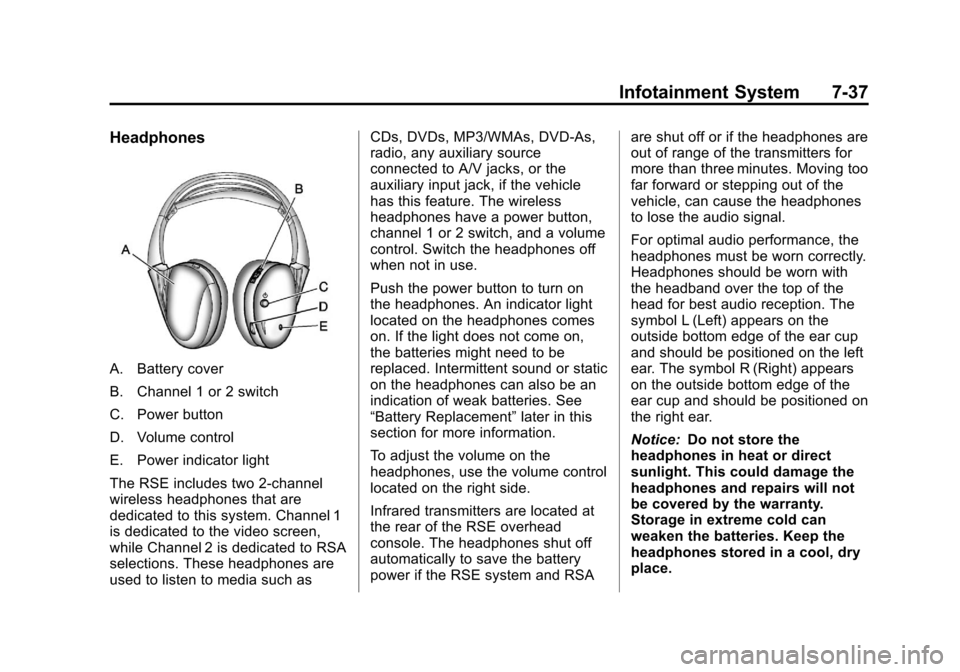
A. Battery cover
B. Channel 1 or 2 switch
C. Power button
D. Volume control
E. Power indicator light
The RSE includes two 2-channel
wireless headphones that are
dedicated to this system. Channel 1
is dedicated to the video screen,
while Channel 2 is dedicated to RSA
selections. These headphones are
used to listen to media such asCDs, DVDs, MP3/WMAs, DVD-As,
radio, any auxiliary source
connected to A/V jacks, or the
auxiliary input jack, if the vehicle
has this feature. The wireless
headphones have a power button,
channel 1 or 2 switch, and a volume
control. Switch the headphones off
when not in use.
Push the power button to turn on
the headphones. An indicator light
located on the headphones comes
on. If the light does not come on,
the batteries might need to be
replaced. Intermittent sound or static
on the headphones can also be an
indication of weak batteries. See
“Battery Replacement”
later in this
section for more information.
To adjust the volume on the
headphones, use the volume control
located on the right side.
Infrared transmitters are located at
the rear of the RSE overhead
console. The headphones shut off
automatically to save the battery
power if the RSE system and RSA are shut off or if the headphones are
out of range of the transmitters for
more than three minutes. Moving too
far forward or stepping out of the
vehicle, can cause the headphones
to lose the audio signal.
For optimal audio performance, the
headphones must be worn correctly.
Headphones should be worn with
the headband over the top of the
head for best audio reception. The
symbol L (Left) appears on the
outside bottom edge of the ear cup
and should be positioned on the left
ear. The symbol R (Right) appears
on the outside bottom edge of the
ear cup and should be positioned on
the right ear.
Notice:
Do not store the
headphones in heat or direct
sunlight. This could damage the
headphones and repairs will not
be covered by the warranty.
Storage in extreme cold can
weaken the batteries. Keep the
headphones stored in a cool, dry
place.
Page 220 of 444

Black plate (40,1)Chevrolet Traverse Owner Manual - 2013 - CRC 2nd Edition - 11/13/12
7-40 Infotainment System
Notice:Avoid directly touching
the video screen, as damage may
occur. See “Cleaning the Video
Screens” later in this section for
more information.
Remote Control
To use the remote control, aim it at
the transmitter window at the rear of
the overhead console and press the
desired button. Direct sunlight or
very bright light could affect the
ability of the RSE transmitter to
receive signals from the remote
control. If the remote control does not seem to be working, the
batteries might need to be replaced.
See
“Battery Replacement” later in
this section. Objects blocking the
line of sight could also affect the
function of the remote control.
If a CD or DVD is in the Radio DVD
slot, the remote control
Obutton
can be used to turn on the video
screen display and start the disc.
The radio can also turn on the video
screen display. See Operation
(Radio without Touchscreen) on
page 7‑6 orOperation (Radio with
Touchscreen) on page 7‑8 for more
information.
Notice: Storing the remote
control in a hot area or in direct
sunlight can damage it, and the
repairs will not be covered by the
warranty. Storage in extreme cold
can weaken the batteries. Keep
the remote control stored in a
cool, dry place. Remote Control Buttons
O(Power):
Press to turn the video
screen on and off.
P(Illumination): Press to turn the
remote control backlight on. The
backlight automatically times out
after seven to 10 seconds if no
other button is pressed while the
backlight is on.
v(Title): Press to return the DVD
to the main menu of the DVD. This
function could vary for each disc.
y(Main Menu): Press to access
the DVD menu. The DVD menu is
different on every DVD. Use the
navigation arrows to move the
cursor around the DVD menu. After
making a selection press the enter
button. This button only operates
when using a DVD.
n,q,p,o(Menu Navigation
Arrows): Use the arrow buttons to
navigate through a menu.
r(Enter): Press to select the
choice that is highlighted in
any menu.