2013 CHEVROLET SONIC lock
[x] Cancel search: lockPage 124 of 382
Black plate (30,1)Chevrolet Sonic Owner Manual - 2013 - 2nd PrintReady - 10/11/12
5-30 Instruments and Controls
Radio Factory Settings
Select to restore the radio to the
factory settings. Press
4.
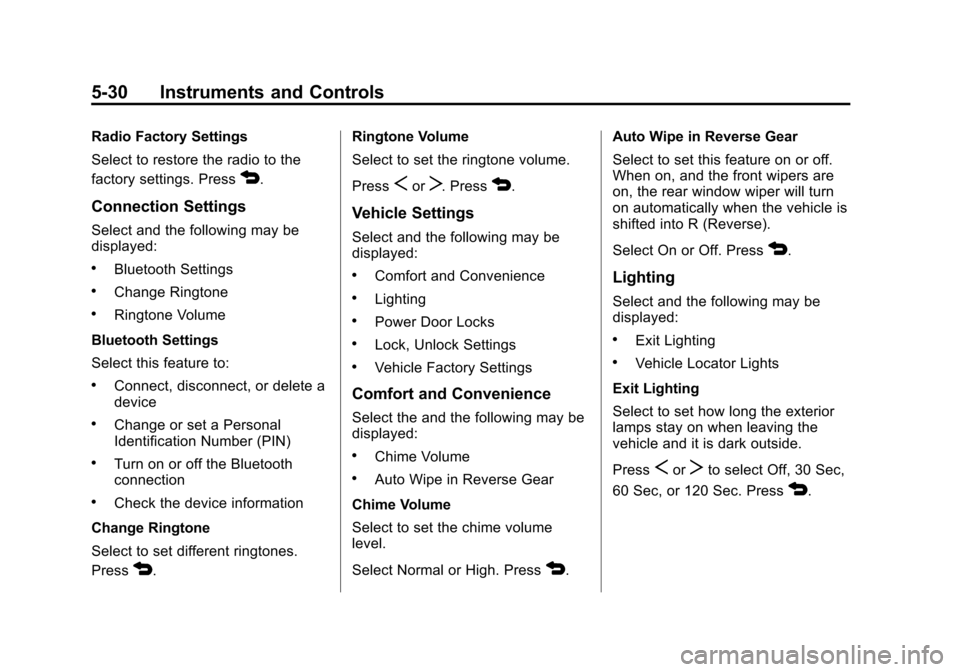
Connection Settings
Select and the following may be
displayed:
.Bluetooth Settings
.Change Ringtone
.Ringtone Volume
Bluetooth Settings
Select this feature to:
.Connect, disconnect, or delete a
device
.Change or set a Personal
Identification Number (PIN)
.Turn on or off the Bluetooth
connection
.Check the device information
Change Ringtone
Select to set different ringtones.
Press
4. Ringtone Volume
Select to set the ringtone volume.
Press
SorT. Press4.
Vehicle Settings
Select and the following may be
displayed:
.Comfort and Convenience
.Lighting
.Power Door Locks
.Lock, Unlock Settings
.Vehicle Factory Settings
Comfort and Convenience
Select the and the following may be
displayed:
.Chime Volume
.Auto Wipe in Reverse Gear
Chime Volume
Select to set the chime volume
level.
Select Normal or High. Press
4. Auto Wipe in Reverse Gear
Select to set this feature on or off.
When on, and the front wipers are
on, the rear window wiper will turn
on automatically when the vehicle is
shifted into R (Reverse).
Select On or Off. Press
4.
Lighting
Select and the following may be
displayed:
.Exit Lighting
.Vehicle Locator Lights
Exit Lighting
Select to set how long the exterior
lamps stay on when leaving the
vehicle and it is dark outside.
Press
SorTto select Off, 30 Sec,
60 Sec, or 120 Sec. Press
4.
Page 125 of 382
Black plate (31,1)Chevrolet Sonic Owner Manual - 2013 - 2nd PrintReady - 10/11/12
Instruments and Controls 5-31
Vehicle Locator Lights
This allows selection of how long
the exterior lamps stay on when
leaving the vehicle and it is dark
outside.
Select On or Off. Press
4.
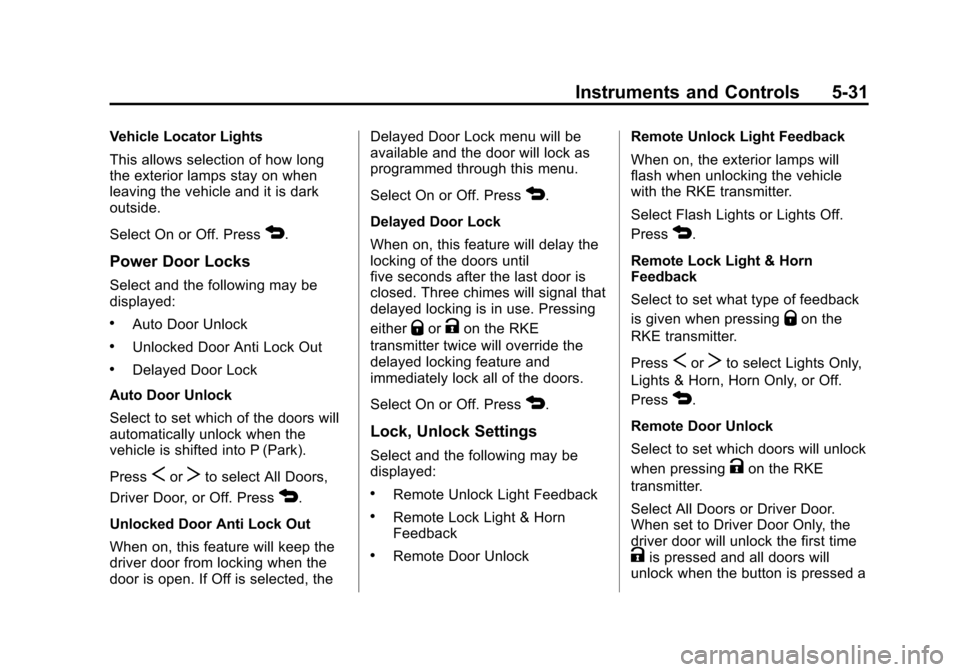
Power Door Locks
Select and the following may be
displayed:
.Auto Door Unlock
.Unlocked Door Anti Lock Out
.Delayed Door Lock
Auto Door Unlock
Select to set which of the doors will
automatically unlock when the
vehicle is shifted into P (Park).
Press
SorTto select All Doors,
Driver Door, or Off. Press
4.
Unlocked Door Anti Lock Out
When on, this feature will keep the
driver door from locking when the
door is open. If Off is selected, the Delayed Door Lock menu will be
available and the door will lock as
programmed through this menu.
Select On or Off. Press
4.
Delayed Door Lock
When on, this feature will delay the
locking of the doors until
five seconds after the last door is
closed. Three chimes will signal that
delayed locking is in use. Pressing
either
QorKon the RKE
transmitter twice will override the
delayed locking feature and
immediately lock all of the doors.
Select On or Off. Press
4.
Lock, Unlock Settings
Select and the following may be
displayed:
.Remote Unlock Light Feedback
.Remote Lock Light & Horn
Feedback
.Remote Door Unlock Remote Unlock Light Feedback
When on, the exterior lamps will
flash when unlocking the vehicle
with the RKE transmitter.
Select Flash Lights or Lights Off.
Press
4.
Remote Lock Light & Horn
Feedback
Select to set what type of feedback
is given when pressing
Qon the
RKE transmitter.
Press
SorTto select Lights Only,
Lights & Horn, Horn Only, or Off.
Press
4.
Remote Door Unlock
Select to set which doors will unlock
when pressing
Kon the RKE
transmitter.
Select All Doors or Driver Door.
When set to Driver Door Only, the
driver door will unlock the first time
Kis pressed and all doors will
unlock when the button is pressed a
Page 126 of 382

Black plate (32,1)Chevrolet Sonic Owner Manual - 2013 - 2nd PrintReady - 10/11/12
5-32 Instruments and Controls
second time. When set to All Doors,
all of the doors will unlock at the first
press of
K. Press4.
Vehicle Factory Settings
Select to return all of the vehicle
personalization to the default
settings. Select Yes or No.
Press
4.
Language
Select and the following may be
displayed:
.English
.French
.Spanish
Select the language desired.
Press
4.
Text Scroll
When on, if there is long text
displayed on the audio screen, the
text is scrolled. When off, the text is
scrolled once and displayed in
truncated form. Select On or Off. Press
4.
Touch Beep Volume
When on, a beep will be heard
when pressing the screen. When
off, the beep is canceled.
Select On or Off. Press
4.
Max Startup Volume
This allows the startup volume of
the infotainment system to be set.
Press
SorTto select the desired
volume between 9-21. Press
4.
System Version
Press to view the version of the
infotainment system. Press
4.
DivX VOD
Press DivX VOD.
.DIVX VIDEO: DivX is a digital
video format created by DivX,
LLC, a subsidiary of Rovi
Corporation. This is an official
DivX Certified
®device that plays DivX video. See divx.com for
more information and software
tools on how to convert files into
DivX videos.
.DIVX VIDEO-ON DEMAND: This
DivX Certified device must be
registered in order to play
purchased DivX
Video-on-Demand (VOD)
movies. To obtain a registration
code, locate the DivX VOD
section in the device setup
menu. See vod.divx.com for
more information on how to
complete the registration.
Press
4.
Page 136 of 382

Black plate (4,1)Chevrolet Sonic Owner Manual - 2013 - 2nd PrintReady - 10/11/12
7-4 Infotainment System
6. MENU/TUNE
.Radio: Manually selects
radio stations.
.CD: Selects tracks.
7. RADIO/BAND
.Changes the band while
listening to the radio.
.Selects the radio when
listening to a different audio
source.
8.
/BACK
.Menu: Moves one
level back.
.Character Input: Deletes
the last character.
9. AUX
.Selects external audio
source.
10.
H(Clock Menu)
.Opens the Clock menu.
11.
5/>(Phone Mute)
.Mutes the audio system. 12. TONE
.Opens the Tone menu.
13. INFO (Information)
.Radio: Shows available
information about the
current station.
.CD: Shows available
information about the
current track.
14. CONFIG (Configuration)
.Opens the
Configuration menu.
15. AUX Port
.3.5 mm (1/8 in)
connection for external
devices.
Page 138 of 382

Black plate (6,1)Chevrolet Sonic Owner Manual - 2013 - 2nd PrintReady - 10/11/12
7-6 Infotainment System
7. INFO (Information)
.Radio: Shows available
information about the
current station.
.CD: Shows available
information about the
current track.
8. CD Slot
9. SEEK
¨
.Radio: Seeks the next
station.
.CD: Selects the next track
or fast forwards within a
track.
10.
©SEEK
.Radio: Seeks the previous
station.
.CD: Selects the previous
track or rewinds within a
track.
11. CD/AUX
.Selects the CD player or
an external audio source. 12. RADIO/BAND
.Changes the band while
listening to the radio.
.Selects the radio when
listening to a different
audio source.
13.
H(Clock Menu)
.Opens the Clock menu.
14. TONE
.Opens the Tone menu.
15. CONFIG (Configuration)
.Opens the
Configuration menu.
16.
/BACK
.Menu: Moves one
level back.
.Character Input: Deletes
the last character.
17.
5/>(Phone/Mute)
.Opens the Phone menu.
.Mutes the audio system.
Page 149 of 382

Black plate (17,1)Chevrolet Sonic Owner Manual - 2013 - 2nd PrintReady - 10/11/12
Infotainment System 7-17
programming favorites for the
chosen number of numbered
pages.
SiriusXM Radio Messages
UPDATING:The encryption code
in the receiver is being updated, and
no action is required. This process
should take no longer than
30 seconds.
NO SIGNAL: The system is
functioning correctly, but the vehicle
is in a location that is blocking the
SiriusXM signal. When the vehicle is
moved into an open area, the signal
should return.
LOADING: The audio system is
acquiring and processing audio and
text data. No action is needed. This
message should disappear shortly.
OFF AIR: This channel is not
currently in service. Tune in to
another channel.
CH UNAVAILABLE: This
previously assigned channel is no
longer assigned. Tune to another station. If this station was one of the
presets, choose another station for
that preset button.
RADIO ID:
If tuned to channel 0,
this message alternates with the
SiriusXM Radio eight-digit radio ID
label. This label is needed to
activate the service.
CHECK XM TUNER: If this
message does not clear within a
short period of time, the receiver
could have a fault. Consult with your
dealer.
Radio Reception
Frequency interference and static
can occur during normal radio
reception if items such as cell phone
chargers, vehicle convenience
accessories, and external electronic
devices are plugged into the
accessory power outlet. If there is
interference or static, unplug the
item from the accessory power
outlet.
AM
The range for most AM stations is
greater than for FM, especially at
night. The longer range can cause
station frequencies to interfere with
each other. For better radio
reception, most AM radio stations
boost the power levels during the
day, and then reduce these levels
during the night. Static can also
occur when things like storms and
power lines interfere with radio
reception. When this happens, try
reducing the treble on the radio.
FM Stereo
FM signals only reach about 16 to
65 km (10 to 40 mi). Although the
radio has a built-in electronic circuit
that automatically works to reduce
interference, some static can occur,
especially around tall buildings or
hills, causing the sound to fade in
and out.
Page 157 of 382
Black plate (25,1)Chevrolet Sonic Owner Manual - 2013 - 2nd PrintReady - 10/11/12
Infotainment System 7-25
Playing Music
To play the music from the device,
if the device is already connected:
1. Press
D.
2. Press audio.
3. Press Source
R.
4. Press AUX/USB.
To adjust the tone settings, see
“Tone Settings” under“Radio
Controls with Touchscreen” in
Operation on page 7‑8.
Playing Movies
Movies are not available while
driving. If the USB storage device is already
connected:
1. Press
D.
2. Press picture and movie.
3. Press Source
R.
4. Press USB (Movie).
For iPod/iPhone, connect the iPod/
iPhone to the AUX input terminal by
using the AUX cable for iPod/
iPhone to play movie files.
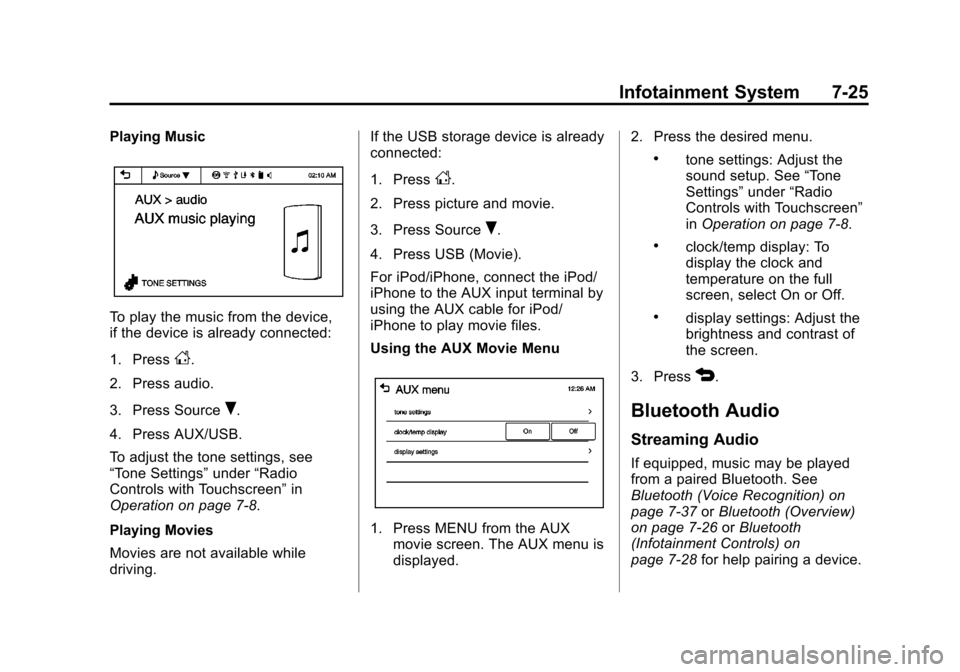
Using the AUX Movie Menu
1. Press MENU from the AUX movie screen. The AUX menu is
displayed. 2. Press the desired menu.
.tone settings: Adjust the
sound setup. See
“Tone
Settings” under“Radio
Controls with Touchscreen”
in Operation on page 7‑8.
.clock/temp display: To
display the clock and
temperature on the full
screen, select On or Off.
.display settings: Adjust the
brightness and contrast of
the screen.
3. Press
4.
Bluetooth Audio
Streaming Audio
If equipped, music may be played
from a paired Bluetooth. See
Bluetooth (Voice Recognition) on
page 7‑37 orBluetooth (Overview)
on page 7‑26 orBluetooth
(Infotainment Controls) on
page 7‑28 for help pairing a device.
Page 178 of 382

Black plate (46,1)Chevrolet Sonic Owner Manual - 2013 - 2nd PrintReady - 10/11/12
7-46 Infotainment System
.BlackBerry®phone, through
Bluetooth wireless.
Stitcher
.iPod/iPhone, through the USB
connection.
.Android phone, through
Bluetooth wireless.
iPod/iPhone Error Messages and
Solution
If the infotainment system fails to
activate the application on your
iPod/iPhone connected through the
USB port, the error message is
displayed as, “Unable to start
application, possible reasons.”
.Your iPhone is locked. To
resolve, unlock the iPhone.
.You have another active
application open. To resolve,
close the other active
application.
.You have not installed the
application on your iPhone. To
resolve, install the application on
the iPhone. iOS Version Error
If the iOS version of the iPhone is
less than 4.0, the error message is
displayed as,
“Your iPhone does
not allow this application to be
opened on a USB connection.
Please refer to owner ’s manual.”
.Activate the application on your
iPhone, then press the desired
application menu on the
infotainment system.
Connecting Application Error
If the infotainment system fails to
activate the application on the
smartphone connected through
Bluetooth wireless technology, the
error message is displayed as,
“Connecting application error.”
.Reset all settings related to the
phone, then press the desired
application menu on the
infotainment system.
.Reconnect the smartphone and
Infotainment system through
Bluetooth wireless technology, then press the desired
application menu on the
Infotainment system.
.When the application is stopped
on the smartphone, it usually
takes time to return to normal
operation. Try to activate the
application after 10–20 seconds.
To switch between Stitcher or
Pandora while playing the other on
the iPod/iPhone connected through
the USB port, press the
Dbutton
on the iPod/iPhone, then press
Stitcher or Pandora on the
smartphone link menu of the
infotainment system.
Switching Between a USB
Connected Device and a
Bluetooth Device
When the iPhone is connected to
the infotainment system through the
USB port, and the infotainment
system is connected to another
phone through Bluetooth wireless
technology, it is possible to switch
between the two applications, using
the smartphone list menu.