2013 CHEVROLET SONIC radio controls
[x] Cancel search: radio controlsPage 144 of 382
Black plate (12,1)Chevrolet Sonic Owner Manual - 2013 - 2nd PrintReady - 10/11/12
7-12 Infotainment System
Radio
AM-FM Radio
Radio Controls Without
Touchscreen
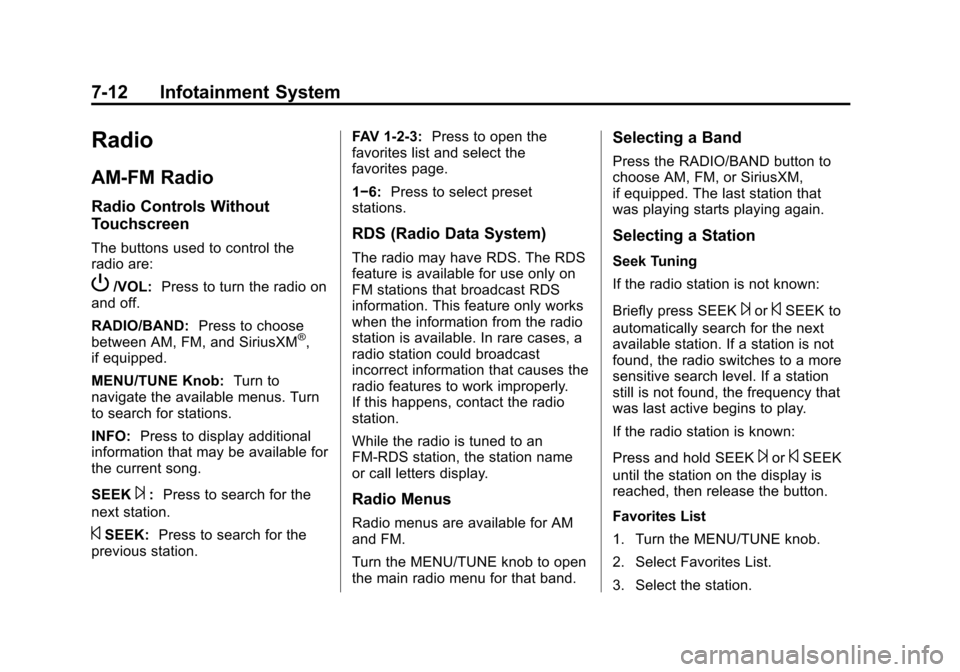
The buttons used to control the
radio are:
P/VOL:Press to turn the radio on
and off.
RADIO/BAND: Press to choose
between AM, FM, and SiriusXM
®,
if equipped.
MENU/TUNE Knob: Turn to
navigate the available menus. Turn
to search for stations.
INFO: Press to display additional
information that may be available for
the current song.
SEEK
¨: Press to search for the
next station.
©SEEK: Press to search for the
previous station. FAV 1-2-3:
Press to open the
favorites list and select the
favorites page.
1−6: Press to select preset
stations.
RDS (Radio Data System)
The radio may have RDS. The RDS
feature is available for use only on
FM stations that broadcast RDS
information. This feature only works
when the information from the radio
station is available. In rare cases, a
radio station could broadcast
incorrect information that causes the
radio features to work improperly.
If this happens, contact the radio
station.
While the radio is tuned to an
FM-RDS station, the station name
or call letters display.
Radio Menus
Radio menus are available for AM
and FM.
Turn the MENU/TUNE knob to open
the main radio menu for that band.
Selecting a Band
Press the RADIO/BAND button to
choose AM, FM, or SiriusXM,
if equipped. The last station that
was playing starts playing again.
Selecting a Station
Seek Tuning
If the radio station is not known:
Briefly press SEEK
¨or©SEEK to
automatically search for the next
available station. If a station is not
found, the radio switches to a more
sensitive search level. If a station
still is not found, the frequency that
was last active begins to play.
If the radio station is known:
Press and hold SEEK
¨or©SEEK
until the station on the display is
reached, then release the button.
Favorites List
1. Turn the MENU/TUNE knob.
2. Select Favorites List.
3. Select the station.
Page 145 of 382

Black plate (13,1)Chevrolet Sonic Owner Manual - 2013 - 2nd PrintReady - 10/11/12
Infotainment System 7-13
Station Lists
1. Turn the MENU/TUNE knob.
2. Select AM or FM Station List. Allreceivable stations in the current
reception area are displayed. If a
station list has not been created,
an automatic station search
is done.
3. The first station in the list will play.
Category Lists
Most stations that broadcast an
RDS program type code specify the
type of programming transmitted.
Some stations change the program
type code depending on the
content. The system stores the RDS
stations sorted by program type in
the FM category list.
To search for a programming type
determined by station:
1. Turn the MENU/TUNE knob.
2. Select FM category list. A list of all available programming types
displays. 3. Select the programming type.
A list of stations that transmit
programming of the selected
type displays.
4. Select the station. The category lists are updated
when the station lists are
updated.
Updating Station and Category
Lists
If stations stored in the station list
can no longer be received:
1. Turn the MENU/TUNE knob.
2. Select Update AM or FM Station List, if the stations stored in the
station list are no longer
received. A station search will be
completed and the first station in
the updated list will play.
To cancel the station search, press
the MENU/TUNE button.Storing a Station as a Favorite
Stations from all bands can be
stored in any order in the favorite
pages.
Up to six stations can be stored in
each favorite page and the number
of available favorite pages can
be set.
Storing Stations
To store the station to a position in
the list, press the corresponding
button 1 to 6 until a beep is heard.
Retrieving Stations
Press the FAV 1-2-3 button to open
a favorite page or to switch to
another favorite page. Briefly press
one of the 1 to 6 buttons to retrieve
the station.
Radio Controls With
Touchscreen
Audio Source Menu
zVOLy(Volume): Press to
increase or decrease the volume.
Page 148 of 382
Black plate (16,1)Chevrolet Sonic Owner Manual - 2013 - 2nd PrintReady - 10/11/12
7-16 Infotainment System
Satellite Radio
SiriusXM®Satelite Radio
Service
SiriusXM is a satellite radio service
based in the 48 contiguous United
States and 10 Canadian provinces.
SiriusXM Satellite Radio has a wide
variety of programming and
commercial-free music, coast to
coast, and in digital-quality sound.
A service fee is required to receive
the SiriusXM service. For more
information, contact SiriusXM at
www.siriusxm.com or
1-866-635-2349 (U.S.), and
www.xmradio.ca or 1-877-209-0079
(Canada).
Finding a Channel
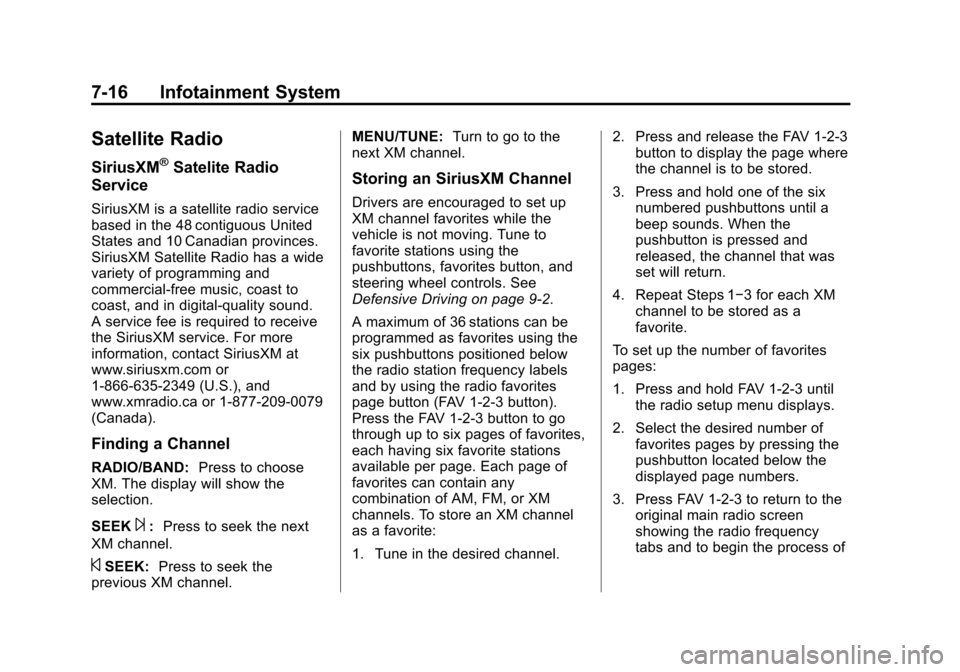
RADIO/BAND: Press to choose
XM. The display will show the
selection.
SEEK
¨: Press to seek the next
XM channel.
©SEEK: Press to seek the
previous XM channel. MENU/TUNE:
Turn to go to the
next XM channel.
Storing an SiriusXM Channel
Drivers are encouraged to set up
XM channel favorites while the
vehicle is not moving. Tune to
favorite stations using the
pushbuttons, favorites button, and
steering wheel controls. See
Defensive Driving on page 9‑2.
A maximum of 36 stations can be
programmed as favorites using the
six pushbuttons positioned below
the radio station frequency labels
and by using the radio favorites
page button (FAV 1-2-3 button).
Press the FAV 1-2-3 button to go
through up to six pages of favorites,
each having six favorite stations
available per page. Each page of
favorites can contain any
combination of AM, FM, or XM
channels. To store an XM channel
as a favorite:
1. Tune in the desired channel. 2. Press and release the FAV 1-2-3
button to display the page where
the channel is to be stored.
3. Press and hold one of the six numbered pushbuttons until a
beep sounds. When the
pushbutton is pressed and
released, the channel that was
set will return.
4. Repeat Steps 1−3 for each XM channel to be stored as a
favorite.
To set up the number of favorites
pages:
1. Press and hold FAV 1-2-3 until the radio setup menu displays.
2. Select the desired number of favorites pages by pressing the
pushbutton located below the
displayed page numbers.
3. Press FAV 1-2-3 to return to the original main radio screen
showing the radio frequency
tabs and to begin the process of
Page 156 of 382
Black plate (24,1)Chevrolet Sonic Owner Manual - 2013 - 2nd PrintReady - 10/11/12
7-24 Infotainment System
The iPod/iPhone charges while it is
connected to the vehicle if the
vehicle is in the ACC/ACCESSORY
or ON/RUN position. When the
vehicle is turned off, the iPod/
iPhone automatically powers off and
will not charge or draw power from
the vehicle's battery.
For more information on USB
usage, see“Audio System” in
Pictures and Movies (Audio System)
on page 7‑50 orPictures and
Movies (Picture System) on
page 7‑55 orPictures and Movies
(Movie System) on page 7‑56.
Auxiliary Devices
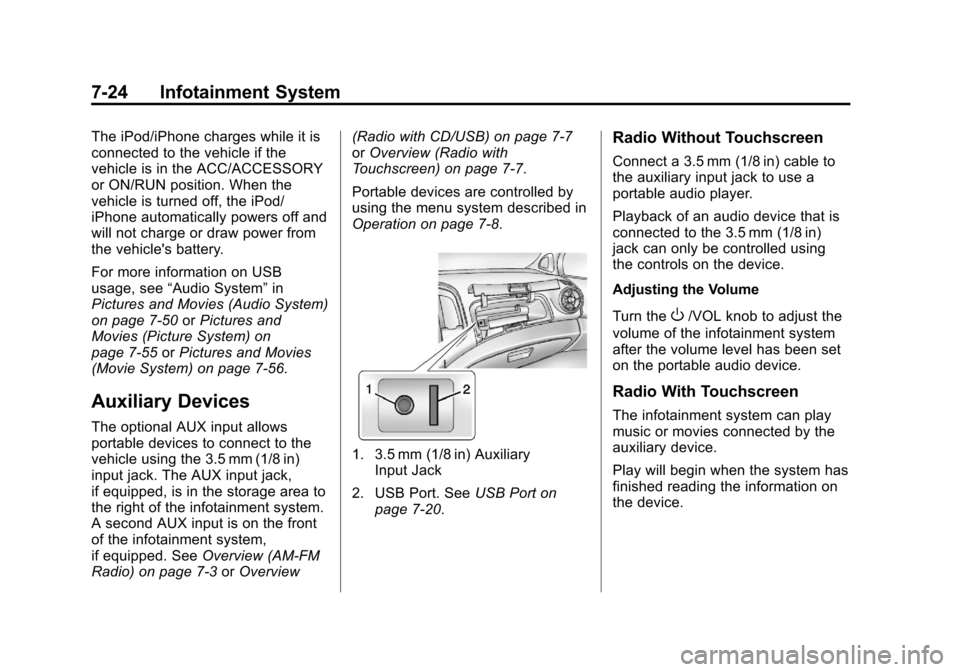
The optional AUX input allows
portable devices to connect to the
vehicle using the 3.5 mm (1/8 in)
input jack. The AUX input jack,
if equipped, is in the storage area to
the right of the infotainment system.
A second AUX input is on the front
of the infotainment system,
if equipped. See Overview (AM-FM
Radio) on page 7‑3 orOverview (Radio with CD/USB) on page 7‑7
or
Overview (Radio with
Touchscreen) on page 7‑7.
Portable devices are controlled by
using the menu system described in
Operation on page 7‑8.
1. 3.5 mm (1/8 in) Auxiliary Input Jack
2. USB Port. See USB Port on
page 7‑20.
Radio Without Touchscreen
Connect a 3.5 mm (1/8 in) cable to
the auxiliary input jack to use a
portable audio player.
Playback of an audio device that is
connected to the 3.5 mm (1/8 in)
jack can only be controlled using
the controls on the device.
Adjusting the Volume
Turn the
O/VOL knob to adjust the
volume of the infotainment system
after the volume level has been set
on the portable audio device.
Radio With Touchscreen
The infotainment system can play
music or movies connected by the
auxiliary device.
Play will begin when the system has
finished reading the information on
the device.
Page 157 of 382
Black plate (25,1)Chevrolet Sonic Owner Manual - 2013 - 2nd PrintReady - 10/11/12
Infotainment System 7-25
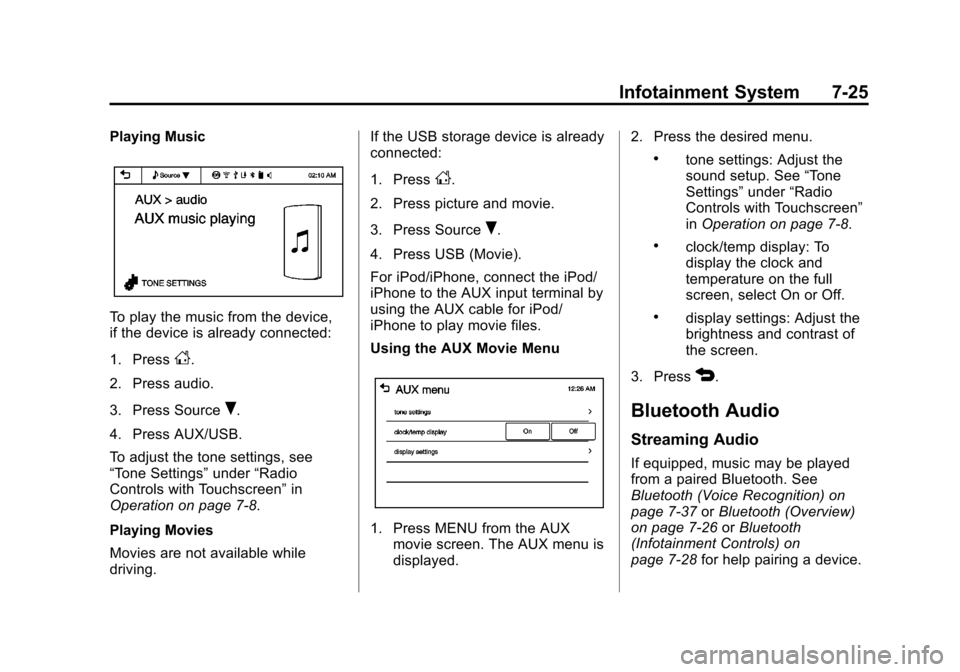
Playing Music
To play the music from the device,
if the device is already connected:
1. Press
D.
2. Press audio.
3. Press Source
R.
4. Press AUX/USB.
To adjust the tone settings, see
“Tone Settings” under“Radio
Controls with Touchscreen” in
Operation on page 7‑8.
Playing Movies
Movies are not available while
driving. If the USB storage device is already
connected:
1. Press
D.
2. Press picture and movie.
3. Press Source
R.
4. Press USB (Movie).
For iPod/iPhone, connect the iPod/
iPhone to the AUX input terminal by
using the AUX cable for iPod/
iPhone to play movie files.
Using the AUX Movie Menu
1. Press MENU from the AUX movie screen. The AUX menu is
displayed. 2. Press the desired menu.
.tone settings: Adjust the
sound setup. See
“Tone
Settings” under“Radio
Controls with Touchscreen”
in Operation on page 7‑8.
.clock/temp display: To
display the clock and
temperature on the full
screen, select On or Off.
.display settings: Adjust the
brightness and contrast of
the screen.
3. Press
4.
Bluetooth Audio
Streaming Audio
If equipped, music may be played
from a paired Bluetooth. See
Bluetooth (Voice Recognition) on
page 7‑37 orBluetooth (Overview)
on page 7‑26 orBluetooth
(Infotainment Controls) on
page 7‑28 for help pairing a device.
Page 158 of 382
Black plate (26,1)Chevrolet Sonic Owner Manual - 2013 - 2nd PrintReady - 10/11/12
7-26 Infotainment System
The music can be controlled by
controls on the device.
To play music via Bluetooth:
1. Power on the device, pair, andconnect the device. The device
will displayed “GM Audio
Source.”
2. Once paired, press CD/AUX to select Bluetooth Audio.
3. Press the play button on the device to begin playback.
When selecting Bluetooth audio, the
radio may not be able to launch the
audio player on the connected
device to start playing. When the
vehicle is not moving, choose the
phone to begin playback. All devices launch audio differently.
When selecting Bluetooth audio as
a source, the radio may show as
paused on the screen. Press play
on the device to begin playback.
Some phones support sending
Bluetooth music information to
display on the radio. When the radio
receives this information, it will
check to see if any album art is
available and display it. For more
information about your phone and
supported Bluetooth features, see
www.gm.com/bluetooth.Phone
Bluetooth (Overview)
For vehicles equipped with
Bluetooth capability, the system can
interact with many cell phones,
allowing:
.Placement and receipt of calls in
a hands-free mode.
.Sharing of the cell phone’s
address book or contact list with
the vehicle.
To minimize driver distraction,
before driving, and with the vehicle
parked:
.Become familiar with the
features of the cell phone.
Organize the phone book and
contact lists clearly and delete
duplicate or rarely used entries.
If possible, program speed dial
or other shortcuts.
.Review the controls and
operation of the infotainment
system.
Page 160 of 382
Black plate (28,1)Chevrolet Sonic Owner Manual - 2013 - 2nd PrintReady - 10/11/12
7-28 Infotainment System
When to Speak:A tone sounds to
indicate that the system is ready for
a voice command. Wait for the tone
and then speak.
How to Speak: Speak clearly in a
calm and natural voice.
Audio System
When using the Bluetooth system,
sound comes through the vehicle's
front audio system speakers and
overrides the audio system. Use the
O/VOL knob during a call to
change the volume level. The
adjusted volume level remains in
memory for later calls. The system
maintains a minimum volume level.
Other Information
The Bluetooth®word mark and
logos are owned by the Bluetooth®
SIG, Inc. and any use of such marks
by General Motors is under license.
Other trademarks and trade names
are those of their respective owners.
See Radio Frequency Statement on
page 13‑15 for information
regarding Part 15 of the Federal Communications Commission (FCC)
rules and Industry Canada
Standards RSS-GEN/210/220/310.
Bluetooth (Infotainment
Controls)
For information about how to
navigate the menu system using the
infotainment controls, see
Operation
on page 7‑8.
Pairing Without Touchscreen
A Bluetooth-enabled cell phone
must be paired to the Bluetooth
system and then connected to the
vehicle before it can be used. See
your cell phone manufacturer's user
guide for Bluetooth functions before
pairing the cell phone. If a Bluetooth
phone is not connected, calls will be
made using OnStar Hands-Free
Calling, if available. See OnStar
Overview on page 14‑1.
Pairing Information
.A Bluetooth phone with MP3
capability can be paired
separately to the vehicle as a phone and an MP3 player at the
same time. This requires the
device to be paired two times;
once as a
“hands-free” device
and once as an MP3 device.
.Up to five cell phones can be
paired to the Bluetooth system.
.The pairing process is disabled
when the vehicle is moving.
.Pairing only needs to be
completed once, unless the
pairing information on the cell
phone changes or the cell phone
is deleted from the system.
.Only one paired cell phone can
be connected to the Bluetooth
system at a time.
.If multiple paired cell phones are
within range of the system, the
system connects to the first
available paired cell phone in the
order that they were first paired
to the system. To link to a
different paired phone, see
“Linking to a Different Phone”
later in this section.
Page 180 of 382
Black plate (48,1)Chevrolet Sonic Owner Manual - 2013 - 2nd PrintReady - 10/11/12
7-48 Infotainment System
Changing Tracks
Press
lto change to the next
track.
Bookmark
To bookmark a favorite artist or
track:
1. Press
Son the screen.
2. Press Artist or Track.
Pandora Menus
Creating Stations from Currently
Playing Music
1. Press MENU. The Pandora menu is displayed.
2. Press create station.
3. Press from currently playing.
4. Press Artist or Track.
5. Press the desired station. The station is added into the
Pandora menu automatically. Creating Stations by Searching
by Artist or Track
1. Press MENU. The Pandora
menu is displayed.
2. Press create station.
3. Press enter artist/track. The keypad is displayed.
4. Enter the artist or track name using the keypad, then press
Create.
5. Press the desired station. The station is added into the
Pandora menu automatically.
Listening to Stations
1. Press MENU. The Pandora menu is displayed.
2. Press
QorRto scroll through
the list. Select the desired
station.
QuickMix
1. Press MENU. The Pandora menu is displayed. 2. Press QuickMix
Zto listen to a
selection of tracks from your
stations.
Tone Settings
1. Press MENU. The Pandora menu is displayed.
2. Press tone settings. The tone settings menu is displayed. See
“Tone Settings” under“Radio
Controls with Touchscreen” in
Operation on page 7‑8.
Smartphone Link
(Stitcher)
Some images and explanations may
vary by phone operating systems,
versions, and/or application (App)
versions.
Using Stitcher™
1. Install the Stitcher application on the smartphone.