2013 CHEVROLET SONIC phone
[x] Cancel search: phonePage 160 of 382
Black plate (28,1)Chevrolet Sonic Owner Manual - 2013 - 2nd PrintReady - 10/11/12
7-28 Infotainment System
When to Speak:A tone sounds to
indicate that the system is ready for
a voice command. Wait for the tone
and then speak.
How to Speak: Speak clearly in a
calm and natural voice.
Audio System
When using the Bluetooth system,
sound comes through the vehicle's
front audio system speakers and
overrides the audio system. Use the
O/VOL knob during a call to
change the volume level. The
adjusted volume level remains in
memory for later calls. The system
maintains a minimum volume level.
Other Information
The Bluetooth®word mark and
logos are owned by the Bluetooth®
SIG, Inc. and any use of such marks
by General Motors is under license.
Other trademarks and trade names
are those of their respective owners.
See Radio Frequency Statement on
page 13‑15 for information
regarding Part 15 of the Federal Communications Commission (FCC)
rules and Industry Canada
Standards RSS-GEN/210/220/310.
Bluetooth (Infotainment
Controls)
For information about how to
navigate the menu system using the
infotainment controls, see
Operation
on page 7‑8.
Pairing Without Touchscreen
A Bluetooth-enabled cell phone
must be paired to the Bluetooth
system and then connected to the
vehicle before it can be used. See
your cell phone manufacturer's user
guide for Bluetooth functions before
pairing the cell phone. If a Bluetooth
phone is not connected, calls will be
made using OnStar Hands-Free
Calling, if available. See OnStar
Overview on page 14‑1.
Pairing Information
.A Bluetooth phone with MP3
capability can be paired
separately to the vehicle as a phone and an MP3 player at the
same time. This requires the
device to be paired two times;
once as a
“hands-free” device
and once as an MP3 device.
.Up to five cell phones can be
paired to the Bluetooth system.
.The pairing process is disabled
when the vehicle is moving.
.Pairing only needs to be
completed once, unless the
pairing information on the cell
phone changes or the cell phone
is deleted from the system.
.Only one paired cell phone can
be connected to the Bluetooth
system at a time.
.If multiple paired cell phones are
within range of the system, the
system connects to the first
available paired cell phone in the
order that they were first paired
to the system. To link to a
different paired phone, see
“Linking to a Different Phone”
later in this section.
Page 161 of 382
Black plate (29,1)Chevrolet Sonic Owner Manual - 2013 - 2nd PrintReady - 10/11/12
Infotainment System 7-29
Pairing a Phone as a Hands-Free
Device
1. Press the CONFIG button.
2. Select Phone Settings orBluetooth Settings.
3. Select Bluetooth.
4. Select Pair Device (Hands-Free). A four-digit
Personal Identification Number
(PIN) appears on the display.
The PIN is used is Step 6.
5. Start the pairing process on the cell phone to be paired to the
vehicle. See the cell phone
manufacturer's user guide for
information on this process.
6. Locate the device named “Your
Vehicle” in the list on the cell
phone. Follow the instructions
on the cell phone to enter the
PIN provided in Step 4. After the
PIN is successfully entered, the
system prompts you to provide a
name for the paired cell phone.
This name will be used to
indicate which phones are paired and connected to the
vehicle. The system responds
with
“
successfully paired” after the
pairing process is complete.
7. Repeat Steps 1−6 to pair additional phones.
Listing All Paired and Connected
Phones
1. Press the CONFIG button.
2. Select Phone Settings or Bluetooth Settings.
3. Select Bluetooth.
4. Select Device List.
Deleting a Paired Phone
1. Press the CONFIG button.
2. Select Phone Settings or Bluetooth Settings.
3. Select Bluetooth.
4. Select Device List.
5. Select the phone to delete and follow the on-screen prompts. Linking to a Different Phone
To link to a different phone, the new
phone must be in the vehicle and
available to be connected to the
Bluetooth system before the
process is started.
1. Press the CONFIG button.
2. Select Phone Settings or
Bluetooth Settings.
3. Select Bluetooth.
4. Select Device List.
5. Select the new phone to link to and follow the on-screen
prompts.
If delete is selected, the
highlighted phone will be
deleted.
Making a Call Using
Phone Book
For cell phones that support the
phone book feature, the Bluetooth
system can use the contacts stored
on your cell phone to make calls.
Page 162 of 382
Black plate (30,1)Chevrolet Sonic Owner Manual - 2013 - 2nd PrintReady - 10/11/12
7-30 Infotainment System
See your cell phone's owner's guide
or contact your wireless provider to
find out if this feature is supported
by your phone.
When a cell phone supports the
phone book feature, the Phone
Book and Call Lists menus are
automatically available.
The Phone Book menu allows you
to access the phone book stored in
the cell phone to make a call.
The Call Lists menu allows you to
access the phone numbers from the
Incoming Calls, Outgoing Calls, and
Missed Calls menus on your cell
phone to make a call.
To make a call using the Phone
Book menu:
1. Press
5/>once or twice
(depending on the radio).
2. Select Phone Book.
3. Search through the list by selecting the letter group the
phone book entry begins with,
or press the MENU/TUNE button to scroll through the entire list of
names/numbers in the
phone book.
4. Select the name or number you want to call.
To make a call using the Call
Lists menu:
1. Press
5/>once or twice
(depending on the radio).
2. Select Call Lists.
3. Select the Incoming Calls, Outgoing Calls, or Missed
Calls list.
4. Select the name or number you want to call.
Making a Call
To make a call:
1. Press
5/>once or twice
(depending on the radio).
2. Enter the character sequence. See “Entering a Character
Sequence” inOperation on
page 7‑8. 3. Select Call to start dialing the
number.
Accepting or Declining a Call
When an incoming call is received,
the infotainment system mutes and
a ring tone is heard in the vehicle.
Accepting a Call
Turn the MENU/TUNE knob to
“Answer” and press the MENU/
TUNE knob to accept the call.
Declining a Call
Turn the MENU/TUNE knob to
“Decline” and press the MENU/
TUNE knob to decline the call.
Call Waiting
Call waiting must be supported on
the Bluetooth phone and enabled by
the wireless service carrier to work.
Accepting a Call
Turn the MENU/TUNE knob to
“Answer” and press the MENU/
TUNE knob to accept the call.
Page 163 of 382
Black plate (31,1)Chevrolet Sonic Owner Manual - 2013 - 2nd PrintReady - 10/11/12
Infotainment System 7-31
Declining a Call
Turn the MENU/TUNE knob to
“Decline”and press the MENU/
TUNE knob to decline the call.
Switching Between Calls (Call
Waiting Calls Only)
To switch between calls:
1. Turn or press the MENU/ TUNE knob.
2. Select Switch Call from the menu.
Conference Calling
Conference calling and three-way
calling must be supported on the
Bluetooth phone and enabled by the
wireless service carrier to work.
To start a conference while in a
current call:
1. Turn or press the MENU/TUNE knob.
2. Select Enter Number. 3. Enter the character sequence
then select Call. See “Entering a
Character Sequence” in
Operation on page 7‑8.
4. After the call has been placed, turn or press the MENU/TUNE
knob and choose Merge Calls.
5. To add more callers to the conference call, repeat
Steps 1−4. The number of
callers that can be added is
limited by your wireless service
carrier.Ending a Call
Turn or press the MENU/TUNE
knob and select Hang Up.
Muting a Call
To Mute a Call
Turn or press the MENU/TUNE
knob and select Mute Call.
To Cancel Mute
Turn or press the MENU/TUNE
knob and select Mute Call.
Dual Tone Multi-Frequency
(DTMF) Tones
The in-vehicle Bluetooth system can
send numbers during a call. This is
used when calling a menu-driven
phone system.
1. Turn or press the MENU/TUNE
knob and select Enter Number.
2. Enter the character sequence. See “Entering a Character
Sequence” inOperation on
page 7‑8.
Pairing With Touchscreen
A Bluetooth-enabled cell phone
must be paired to the Bluetooth
system and then connected to the
vehicle before it can be used. See
your cell phone manufacturer's user
guide for Bluetooth functions before
pairing the cell phone. If a Bluetooth
phone is not connected, calls will be
made using OnStar Hands-Free
Calling, if available. See OnStar
Overview on page 14‑1.
Page 164 of 382
Black plate (32,1)Chevrolet Sonic Owner Manual - 2013 - 2nd PrintReady - 10/11/12
7-32 Infotainment System
Pairing Information
.A Bluetooth phone with MP3
capability cannot be paired to
the vehicle as a phone and an
MP3 player at the same time.
.Up to five cell phones can be
paired to the Bluetooth system.
.The pairing process is disabled
when the vehicle is moving.
.Pairing only needs to be
completed once, unless the
pairing information on the cell
phone changes or the cell phone
is deleted from the system.
.Only one paired cell phone can
be connected to the Bluetooth
system at a time.
.If multiple paired cell phones are
within range of the system, the
system connects to the first
available paired cell phone in the
order that they were first paired
to the system. To link to a
different paired phone, see
“Linking to a Different Phone”
later in this section.When the Bluetooth device and
infotainment system are
successfully paired, the phone book
is downloaded automatically.
However, the phone book may not
be downloaded automatically
according to the type of the phone.
In this case, proceed with the
phonebook download on phone.
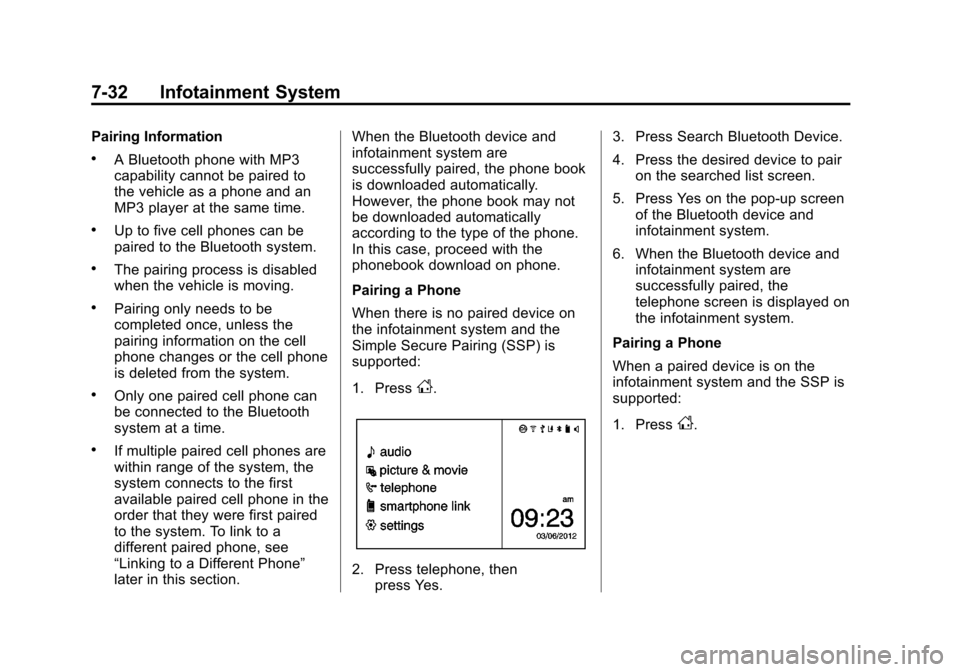
Pairing a Phone
When there is no paired device on
the infotainment system and the
Simple Secure Pairing (SSP) is
supported:
1. Press
D.
2. Press telephone, then
press Yes. 3. Press Search Bluetooth Device.
4. Press the desired device to pair
on the searched list screen.
5. Press Yes on the pop-up screen of the Bluetooth device and
infotainment system.
6. When the Bluetooth device and infotainment system are
successfully paired, the
telephone screen is displayed on
the infotainment system.
Pairing a Phone
When a paired device is on the
infotainment system and the SSP is
supported:
1. Press
D.
Page 165 of 382

Black plate (33,1)Chevrolet Sonic Owner Manual - 2013 - 2nd PrintReady - 10/11/12
Infotainment System 7-33
2. Press settings.
3. Press connection settings.
4. Press bluetooth settings.
5. Press pair device.
6. Press Search Bluetooth Device.
7. Press the desired device to pairon the searched list screen.
8. Press Yes on the pop-up screen of the Bluetooth device and
infotainment system.
9. When the Bluetooth device and infotainment system are
successfully paired, the
5 7
is displayed on the "pair device"
screen.
.The connected phone is
highlighted by
5.
.The5 7indicates the
hands-free and phone music
function are enabled.
.The7indicates only
hands-free function is enabled.
.The5indicates only Bluetooth
music is enabled.
Pairing a Phone
When there is no paired device on
the infotainment system and the
SSP is not supported:
1. Press
D.
2. Press telephone, then press Yes.
3. Press Search Bluetooth Device.
4. Press the desired device to pair on the searched list screen.
5. Input the PIN code (default: 1234) to the Bluetooth
device. When the Bluetooth
device and infotainment system
are successfully paired, the
telephone screen is displayed on
the infotainment system.
When the connection fails, a failure
message is displayed on the
infotainment system.
If a Bluetooth device was previously
connected, the infotainment system
executes the auto connection.
However, if the Bluetooth setting on
the Bluetooth device is turned off, a
failure message is displayed on the
infotainment system.
Page 166 of 382

Black plate (34,1)Chevrolet Sonic Owner Manual - 2013 - 2nd PrintReady - 10/11/12
7-34 Infotainment System
Pairing a Phone
When a paired device is on the
infotainment system and the SSP is
not supported:
1. Press
D.
2. Press settings.
3. Press connection settings.
4. Press bluetooth settings.
5. Press pair device.
6. Press Search Bluetooth Device.
7. Press the desired device to pairon the searched list screen.
8. Input the PIN code (default: 1234) to the Bluetooth
device. When the Bluetooth device and infotainment system
are successfully paired,
5 7
is displayed on the pair device
screen.
.The connected phone is
highlighted by
5.
.The5 7indicates the
hands-free and phone music
function are enabled.
.The7indicates only
hands-free function is enabled.
.The5indicates only Bluetooth
music is enabled.
Connecting a Bluetooth Device
1. Press
D.
2. Select settings.
3. Press connection settings.
4. Press bluetooth settings.
5. Press pair device.
6. Press the device to be paired.
7. Press OK. Checking the Bluetooth
Connection
1. Press
D.
2. Select settings.
3. Press connection settings.
4. Press bluetooth settings.
5. Press pair device.
6. The paired device will show with
5 7when connected.
Disconnecting the Bluetooth
Device
1. Press
D.
2. Select settings.
3. Press connection settings.
4. Press bluetooth settings.
5. Press pair device.
6. Press the name of the device to be disconnected.
7. Press OK.
Deleting a Paired Phone
1. Press
D.
Page 167 of 382

Black plate (35,1)Chevrolet Sonic Owner Manual - 2013 - 2nd PrintReady - 10/11/12
Infotainment System 7-35
2. Select settings.
3. Press connection settings.
4. Press bluetooth settings.
5. Press pair device.
6. Press Delete.
7. Press Yes.
Bluetooth Music
Before playing Bluetooth music,
read the follow information.
.A cell phone or Bluetooth device
that supports Advanced Audio
Distribution Profile (A2DP)
versions over 1.2 must be
registered and connected to the
product.
.From the cell phone or Bluetooth
device, find the Bluetooth device
type to set/connect the item as a
stereo headset.
.5will appear on the screen if
the stereo headset is
successfully connected.
.The sound played by the
Bluetooth device is delivered
through the infotainment system.
.Bluetooth music can be played
only when a Bluetooth device
has been connected. To play
Bluetooth music, connect the
Bluetooth phone to the
infotainment system.
.If the Bluetooth device is
disconnected while playing
phone music, the music is
discontinued. The audio
streaming function may not be
supported in some Bluetooth
phones. Only one function can
be used at a time between the
Bluetooth hands-free or Phone
music function. For example,
if you convert to the Bluetooth
hands-free while playing Phone
music, the music is
discontinued. Playing music from
the car is not possible when
there are no music files stored in
the cell phone.
.For Bluetooth music to play, the
music must be played at least
once from the music player
mode of the cell phone or
Bluetooth device after
connecting as a stereo headset.
After being played at least once,
the music player will
automatically play upon entering
play mode, and it will
automatically stop when the
music player mode ends. If the
cell phone or Bluetooth device is
not in the waiting screen mode,
some devices may not
automatically play in Bluetooth
music play mode.