2013 CHEVROLET SONIC manual radio set
[x] Cancel search: manual radio setPage 123 of 382
Black plate (29,1)Chevrolet Sonic Owner Manual - 2013 - 2nd PrintReady - 10/11/12
Instruments and Controls 5-29
4:Press to exit, or return to the
previous screen or menu.
To access the menu:
1. Press
D.
2. Press Settings.
The following list of menu items may
be available:
.Time & Date Settings
.Radio Settings
.Connection Settings
.Vehicle Settings
.Language
.Text Scroll
.Touch Beep Sound
.Max Startup Volume
.System Version
.DivX®VOD
Press the menu item to select it.
Each of the menus is detailed in the
following information. Settings menus and functions may
vary depending on vehicle option.
Time & Date Settings
Select to change the settings:
.Set Time Format: Select 12h
or 24h.
.Set Date Format: PressSorT
to select the date display.
.Set Time & Date: Select, then
press
yorzto adjust the
value.
.Automatic Clock Sync: Select to
display the real or user time on
the radio. Select On or Off.
Radio Settings
Select and the following may be
displayed:
.Auto Volume
.Radio Tune Bar
.Radio Text
.XM Categories
.Radio Factory Settings Auto Volume
This feature adjusts the radio
volume to compensate for road and
wind noise as the vehicle speeds up
or slows down, so that the volume
level is consistent.
Press
SorTto select Off, Low,
Medium, or High. Press
4.
Radio Tune Bar
Select to display the radio station
tune bar.
Select On or Off. Press
4.
Radio Text
Select to display the radio broadcast
information.
Select On or Off. Press
4.
XM Categories
Select to set the selection of XM
categories. Press
4.
Page 124 of 382
Black plate (30,1)Chevrolet Sonic Owner Manual - 2013 - 2nd PrintReady - 10/11/12
5-30 Instruments and Controls
Radio Factory Settings
Select to restore the radio to the
factory settings. Press
4.
Connection Settings
Select and the following may be
displayed:
.Bluetooth Settings
.Change Ringtone
.Ringtone Volume
Bluetooth Settings
Select this feature to:
.Connect, disconnect, or delete a
device
.Change or set a Personal
Identification Number (PIN)
.Turn on or off the Bluetooth
connection
.Check the device information
Change Ringtone
Select to set different ringtones.
Press
4. Ringtone Volume
Select to set the ringtone volume.
Press
SorT. Press4.
Vehicle Settings
Select and the following may be
displayed:
.Comfort and Convenience
.Lighting
.Power Door Locks
.Lock, Unlock Settings
.Vehicle Factory Settings
Comfort and Convenience
Select the and the following may be
displayed:
.Chime Volume
.Auto Wipe in Reverse Gear
Chime Volume
Select to set the chime volume
level.
Select Normal or High. Press
4. Auto Wipe in Reverse Gear
Select to set this feature on or off.
When on, and the front wipers are
on, the rear window wiper will turn
on automatically when the vehicle is
shifted into R (Reverse).
Select On or Off. Press
4.
Lighting
Select and the following may be
displayed:
.Exit Lighting
.Vehicle Locator Lights
Exit Lighting
Select to set how long the exterior
lamps stay on when leaving the
vehicle and it is dark outside.
Press
SorTto select Off, 30 Sec,
60 Sec, or 120 Sec. Press
4.
Page 134 of 382
Black plate (2,1)Chevrolet Sonic Owner Manual - 2013 - 2nd PrintReady - 10/11/12
7-2 Infotainment System
.Set up the tone, speaker
adjustments, and preset radio
stations.
See Defensive Driving on page 9‑2.
Notice: Contact your dealer
before adding any equipment.
Adding audio or communication
equipment could interfere with
the operation of the engine, radio,
or other systems, and could
damage them. Follow federal
rules covering mobile radio and
telephone equipment.
Customer Assistance
Assistance is available to help with
Bluetooth pairing, application
downloading and installation, other
mobile device interface, and
operation support of the
infotainment system. Specialists are
available when calling this
Customer Assistance number: U.S.
(855) 4 SUPPORT (478-7767).
Theft-Deterrent Feature
The theft-deterrent feature works by
learning a portion of the Vehicle
Identification Number (VIN) to the
infotainment system. The
infotainment system does not
operate if it is stolen or moved to a
different vehicle.
Page 140 of 382
Black plate (8,1)Chevrolet Sonic Owner Manual - 2013 - 2nd PrintReady - 10/11/12
7-8 Infotainment System
7telephone:Press to activate
the phone features (if equipped).
See Bluetooth (Voice Recognition)
on page 7‑37 orBluetooth
(Overview) on page 7‑26 or
Bluetooth (Infotainment Controls) on
page 7‑28.
^smartphone link: Press to listen
to Pandora or Stitcher. See
Smartphone Link (Overview) on
page 7‑45 orSmartphone Link
(Pandora) on page 7‑47 or
Smartphone Link (Stitcher) on
page 7‑48.
8settings: Press to access the
Personalization menu. See Vehicle
Personalization on page 5‑26.
Operation
Radio Controls Without
Touchscreen
The infotainment system is operated
by using the pushbuttons,
multifunction knobs, menus shown
on the display, and steering wheel
controls, if equipped.
Turning the System On or Off
O/VOL (Power/Volume): Press to
turn the system on and off.
Automatic Switch-Off
If the infotainment system is on after
the ignition is turned off, the system
will turn off automatically after
10 minutes.
Volume Control
O/VOL (Power/Volume): Turn to
adjust the volume.
5/>(Phone/Mute): For vehicles
with OnStar, press and hold
5/>
to mute the infotainment system.
Press and hold
5/>again, or turn
the
O/VOL knob to cancel mute.
For vehicles without OnStar, press
5/>to mute the infotainment
system. Press
5/>again, or turn
the
O/VOL knob to cancel mute.
Menu System
Controls
The MENU/TUNE knob, MENU/
TUNE button, and
/BACK button
are used to navigate the menu
system.
MENU/TUNE Knob:
Turn to:
.Enter the menu system.
.Highlight a menu option.
.Select a value.
MENU/TUNE Button:
Press to:
.Select or activate the highlighted
menu option.
.Confirm a set value.
.Turn a system setting on or off.
/BACK:
Press to:
.Exit a menu.
Page 141 of 382
Black plate (9,1)Chevrolet Sonic Owner Manual - 2013 - 2nd PrintReady - 10/11/12
Infotainment System 7-9
.Return from a submenu screen
to the previous menu screen.
.Delete the last character in a
sequence.
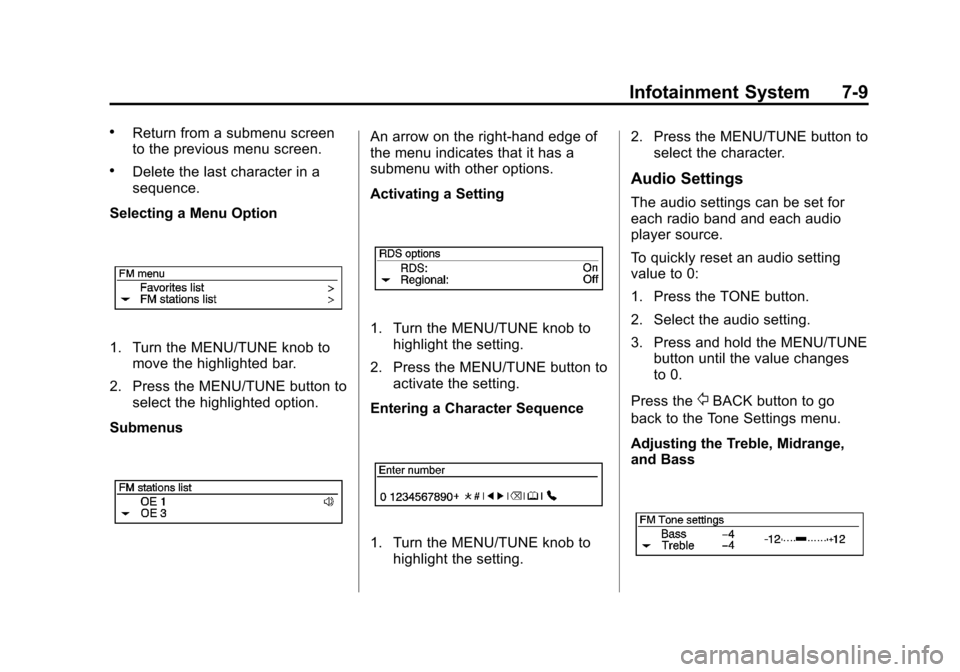
Selecting a Menu Option
1. Turn the MENU/TUNE knob to move the highlighted bar.
2. Press the MENU/TUNE button to select the highlighted option.
Submenus
An arrow on the right-hand edge of
the menu indicates that it has a
submenu with other options.
Activating a Setting
1. Turn the MENU/TUNE knob to highlight the setting.
2. Press the MENU/TUNE button to activate the setting.
Entering a Character Sequence
1. Turn the MENU/TUNE knob to highlight the setting. 2. Press the MENU/TUNE button to
select the character.
Audio Settings
The audio settings can be set for
each radio band and each audio
player source.
To quickly reset an audio setting
value to 0:
1. Press the TONE button.
2. Select the audio setting.
3. Press and hold the MENU/TUNE
button until the value changes
to 0.
Press the
/BACK button to go
back to the Tone Settings menu.
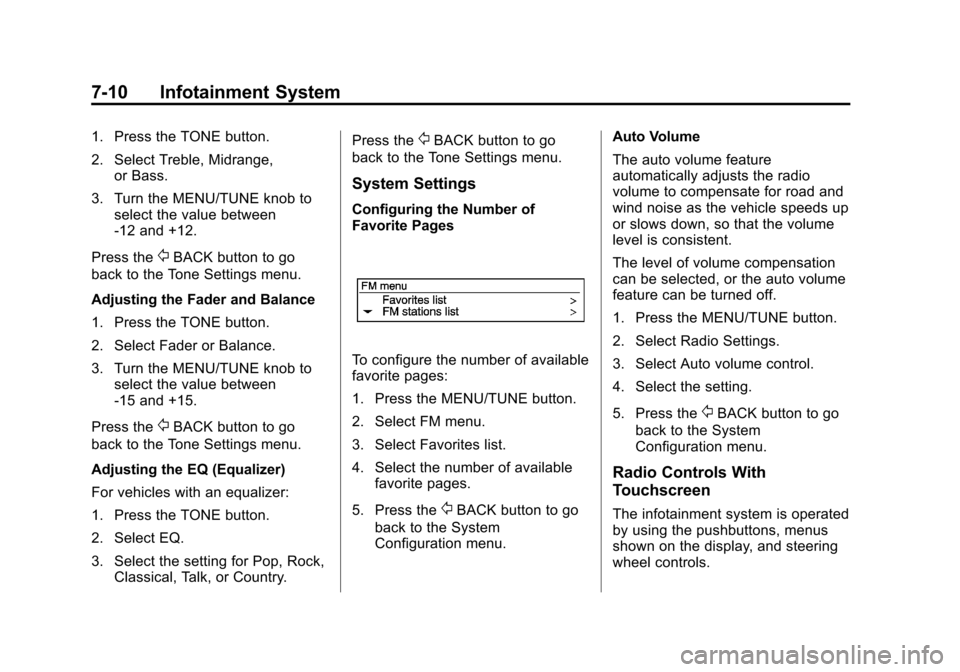
Adjusting the Treble, Midrange,
and Bass
Page 142 of 382
Black plate (10,1)Chevrolet Sonic Owner Manual - 2013 - 2nd PrintReady - 10/11/12
7-10 Infotainment System
1. Press the TONE button.
2. Select Treble, Midrange,or Bass.
3. Turn the MENU/TUNE knob to select the value between
-12 and +12.
Press the
/BACK button to go
back to the Tone Settings menu.
Adjusting the Fader and Balance
1. Press the TONE button.
2. Select Fader or Balance.
3. Turn the MENU/TUNE knob to select the value between
-15 and +15.
Press the
/BACK button to go
back to the Tone Settings menu.
Adjusting the EQ (Equalizer)
For vehicles with an equalizer:
1. Press the TONE button.
2. Select EQ.
3. Select the setting for Pop, Rock, Classical, Talk, or Country. Press the
/BACK button to go
back to the Tone Settings menu.
System Settings
Configuring the Number of
Favorite Pages
To configure the number of available
favorite pages:
1. Press the MENU/TUNE button.
2. Select FM menu.
3. Select Favorites list.
4. Select the number of available favorite pages.
5. Press the
/BACK button to go
back to the System
Configuration menu. Auto Volume
The auto volume feature
automatically adjusts the radio
volume to compensate for road and
wind noise as the vehicle speeds up
or slows down, so that the volume
level is consistent.
The level of volume compensation
can be selected, or the auto volume
feature can be turned off.
1. Press the MENU/TUNE button.
2. Select Radio Settings.
3. Select Auto volume control.
4. Select the setting.
5. Press the
/BACK button to go
back to the System
Configuration menu.
Radio Controls With
Touchscreen
The infotainment system is operated
by using the pushbuttons, menus
shown on the display, and steering
wheel controls.
Page 143 of 382
Black plate (11,1)Chevrolet Sonic Owner Manual - 2013 - 2nd PrintReady - 10/11/12
Infotainment System 7-11
Turning the System On or Off
O(Power):Press and hold to turn
the radio on and off.
Automatic Switch-Off
If the infotainment system has been
turned on after the ignition is turned
off, the system will turn off
automatically after 10 minutes.
Volume Control
zVOLy(Volume): Press to
increase or decrease the volume or
press the volume bar.
>(Mute): PresszVOLy, then
press
>to mute and unmute the
system.
System Settings
Auto Volume
This feature automatically adjusts
the radio volume to compensate for
road and wind noise.
The level of volume compensation
can be selected, or the feature can
be turned off. 1. Press
D.
2. Select Settings.
3. Select Radio Settings.
4. Select the setting by pressing
S
orT.
5. Press the
4.
Audio Settings
The audio settings can be set for
each radio band and each audio
player source.
Tone Settings: Press menu, then
tone settings from the AM or
FM menu.
.EQ (Equalizer): PressSorTto
select a sound style or turn off
the sound style.
.Bass, Mid (Midrange), or Treble:
Press −or + to change the
desired sound style from −12
to +12.
.Fader or Balance: Adjust the
front/rear or left/right speakers.
.Reset: Restore the settings back
to default settings.
Press OK to exit Tone Settings.
Page 144 of 382
Black plate (12,1)Chevrolet Sonic Owner Manual - 2013 - 2nd PrintReady - 10/11/12
7-12 Infotainment System
Radio
AM-FM Radio
Radio Controls Without
Touchscreen
The buttons used to control the
radio are:
P/VOL:Press to turn the radio on
and off.
RADIO/BAND: Press to choose
between AM, FM, and SiriusXM
®,
if equipped.
MENU/TUNE Knob: Turn to
navigate the available menus. Turn
to search for stations.
INFO: Press to display additional
information that may be available for
the current song.
SEEK
¨: Press to search for the
next station.
©SEEK: Press to search for the
previous station. FAV 1-2-3:
Press to open the
favorites list and select the
favorites page.
1−6: Press to select preset
stations.
RDS (Radio Data System)
The radio may have RDS. The RDS
feature is available for use only on
FM stations that broadcast RDS
information. This feature only works
when the information from the radio
station is available. In rare cases, a
radio station could broadcast
incorrect information that causes the
radio features to work improperly.
If this happens, contact the radio
station.
While the radio is tuned to an
FM-RDS station, the station name
or call letters display.
Radio Menus
Radio menus are available for AM
and FM.
Turn the MENU/TUNE knob to open
the main radio menu for that band.
Selecting a Band
Press the RADIO/BAND button to
choose AM, FM, or SiriusXM,
if equipped. The last station that
was playing starts playing again.
Selecting a Station
Seek Tuning
If the radio station is not known:
Briefly press SEEK
¨or©SEEK to
automatically search for the next
available station. If a station is not
found, the radio switches to a more
sensitive search level. If a station
still is not found, the frequency that
was last active begins to play.
If the radio station is known:
Press and hold SEEK
¨or©SEEK
until the station on the display is
reached, then release the button.
Favorites List
1. Turn the MENU/TUNE knob.
2. Select Favorites List.
3. Select the station.