2013 CHEVROLET SONIC buttons
[x] Cancel search: buttonsPage 137 of 382
Black plate (5,1)Chevrolet Sonic Owner Manual - 2013 - 2nd PrintReady - 10/11/12
Infotainment System 7-5
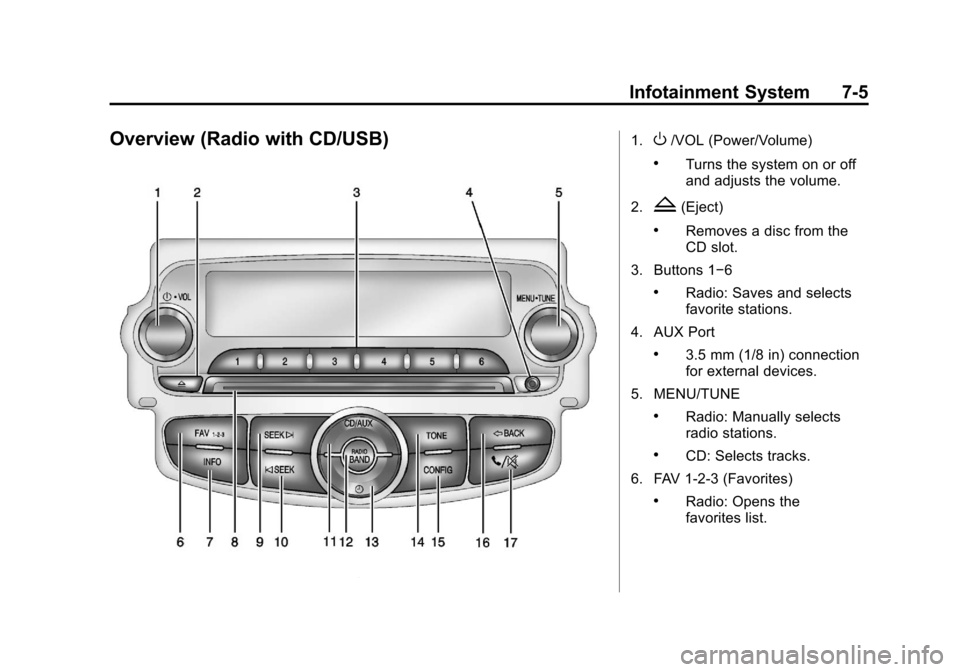
Overview (Radio with CD/USB)1.O/VOL (Power/Volume)
.Turns the system on or off
and adjusts the volume.
2.
Z(Eject)
.Removes a disc from the
CD slot.
3. Buttons 1−6
.Radio: Saves and selects
favorite stations.
4. AUX Port
.3.5 mm (1/8 in) connection
for external devices.
5. MENU/TUNE
.Radio: Manually selects
radio stations.
.CD: Selects tracks.
6. FAV 1-2-3 (Favorites)
.Radio: Opens the
favorites list.
Page 139 of 382

Black plate (7,1)Chevrolet Sonic Owner Manual - 2013 - 2nd PrintReady - 10/11/12
Infotainment System 7-7
Overview (Radio with Touchscreen)
1.zVOLy(Volume)
.Press to decrease or
increase the volume.
2.
O(Power)
.Press and hold to turn the
power on or off. 3.
D(Home Page)
.Press to go to the Home
Page. See
Home Page
(Radio with Touchscreen)
on page 7‑7.
Home Page (Radio with
Touchscreen)
Touchscreen Buttons
Touchscreen buttons show on the
screen when available. When a
function is unavailable, the button
may gray out. When a function is
selected, the button may highlight.
Home Page Features
PressFto go to the Home Page.
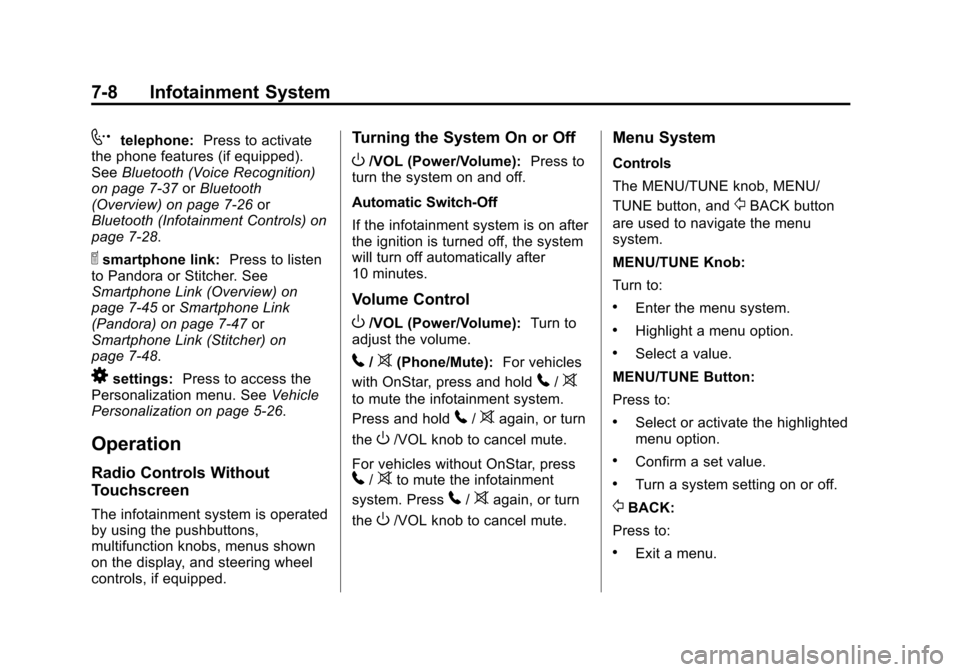
eaudio: Press to select AM, FM,
SiriusXM (if equipped), USB/iPod/
Bluetooth Audio, or AUX.
Gpicture & movie: Press to view
a picture, movie, or auxiliary video.
Page 140 of 382
Black plate (8,1)Chevrolet Sonic Owner Manual - 2013 - 2nd PrintReady - 10/11/12
7-8 Infotainment System
7telephone:Press to activate
the phone features (if equipped).
See Bluetooth (Voice Recognition)
on page 7‑37 orBluetooth
(Overview) on page 7‑26 or
Bluetooth (Infotainment Controls) on
page 7‑28.
^smartphone link: Press to listen
to Pandora or Stitcher. See
Smartphone Link (Overview) on
page 7‑45 orSmartphone Link
(Pandora) on page 7‑47 or
Smartphone Link (Stitcher) on
page 7‑48.
8settings: Press to access the
Personalization menu. See Vehicle
Personalization on page 5‑26.
Operation
Radio Controls Without
Touchscreen
The infotainment system is operated
by using the pushbuttons,
multifunction knobs, menus shown
on the display, and steering wheel
controls, if equipped.
Turning the System On or Off
O/VOL (Power/Volume): Press to
turn the system on and off.
Automatic Switch-Off
If the infotainment system is on after
the ignition is turned off, the system
will turn off automatically after
10 minutes.
Volume Control
O/VOL (Power/Volume): Turn to
adjust the volume.
5/>(Phone/Mute): For vehicles
with OnStar, press and hold
5/>
to mute the infotainment system.
Press and hold
5/>again, or turn
the
O/VOL knob to cancel mute.
For vehicles without OnStar, press
5/>to mute the infotainment
system. Press
5/>again, or turn
the
O/VOL knob to cancel mute.
Menu System
Controls
The MENU/TUNE knob, MENU/
TUNE button, and
/BACK button
are used to navigate the menu
system.
MENU/TUNE Knob:
Turn to:
.Enter the menu system.
.Highlight a menu option.
.Select a value.
MENU/TUNE Button:
Press to:
.Select or activate the highlighted
menu option.
.Confirm a set value.
.Turn a system setting on or off.
/BACK:
Press to:
.Exit a menu.
Page 142 of 382
Black plate (10,1)Chevrolet Sonic Owner Manual - 2013 - 2nd PrintReady - 10/11/12
7-10 Infotainment System
1. Press the TONE button.
2. Select Treble, Midrange,or Bass.
3. Turn the MENU/TUNE knob to select the value between
-12 and +12.
Press the
/BACK button to go
back to the Tone Settings menu.
Adjusting the Fader and Balance
1. Press the TONE button.
2. Select Fader or Balance.
3. Turn the MENU/TUNE knob to select the value between
-15 and +15.
Press the
/BACK button to go
back to the Tone Settings menu.
Adjusting the EQ (Equalizer)
For vehicles with an equalizer:
1. Press the TONE button.
2. Select EQ.
3. Select the setting for Pop, Rock, Classical, Talk, or Country. Press the
/BACK button to go
back to the Tone Settings menu.
System Settings
Configuring the Number of
Favorite Pages
To configure the number of available
favorite pages:
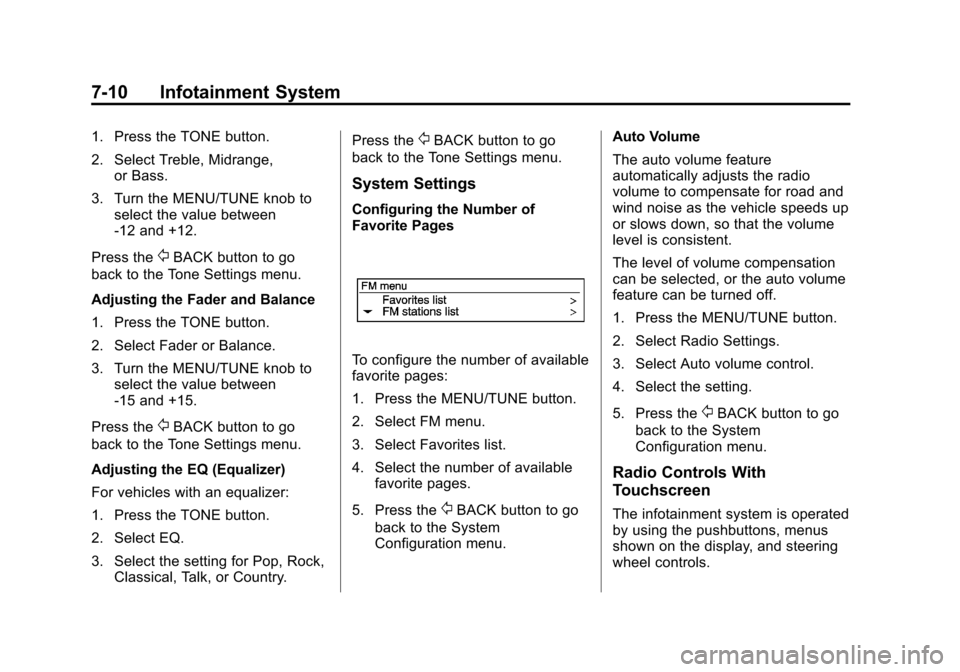
1. Press the MENU/TUNE button.
2. Select FM menu.
3. Select Favorites list.
4. Select the number of available favorite pages.
5. Press the
/BACK button to go
back to the System
Configuration menu. Auto Volume
The auto volume feature
automatically adjusts the radio
volume to compensate for road and
wind noise as the vehicle speeds up
or slows down, so that the volume
level is consistent.
The level of volume compensation
can be selected, or the auto volume
feature can be turned off.
1. Press the MENU/TUNE button.
2. Select Radio Settings.
3. Select Auto volume control.
4. Select the setting.
5. Press the
/BACK button to go
back to the System
Configuration menu.
Radio Controls With
Touchscreen
The infotainment system is operated
by using the pushbuttons, menus
shown on the display, and steering
wheel controls.
Page 144 of 382
Black plate (12,1)Chevrolet Sonic Owner Manual - 2013 - 2nd PrintReady - 10/11/12
7-12 Infotainment System
Radio
AM-FM Radio
Radio Controls Without
Touchscreen
The buttons used to control the
radio are:
P/VOL:Press to turn the radio on
and off.
RADIO/BAND: Press to choose
between AM, FM, and SiriusXM
®,
if equipped.
MENU/TUNE Knob: Turn to
navigate the available menus. Turn
to search for stations.
INFO: Press to display additional
information that may be available for
the current song.
SEEK
¨: Press to search for the
next station.
©SEEK: Press to search for the
previous station. FAV 1-2-3:
Press to open the
favorites list and select the
favorites page.
1−6: Press to select preset
stations.
RDS (Radio Data System)
The radio may have RDS. The RDS
feature is available for use only on
FM stations that broadcast RDS
information. This feature only works
when the information from the radio
station is available. In rare cases, a
radio station could broadcast
incorrect information that causes the
radio features to work improperly.
If this happens, contact the radio
station.
While the radio is tuned to an
FM-RDS station, the station name
or call letters display.
Radio Menus
Radio menus are available for AM
and FM.
Turn the MENU/TUNE knob to open
the main radio menu for that band.
Selecting a Band
Press the RADIO/BAND button to
choose AM, FM, or SiriusXM,
if equipped. The last station that
was playing starts playing again.
Selecting a Station
Seek Tuning
If the radio station is not known:
Briefly press SEEK
¨or©SEEK to
automatically search for the next
available station. If a station is not
found, the radio switches to a more
sensitive search level. If a station
still is not found, the frequency that
was last active begins to play.
If the radio station is known:
Press and hold SEEK
¨or©SEEK
until the station on the display is
reached, then release the button.
Favorites List
1. Turn the MENU/TUNE knob.
2. Select Favorites List.
3. Select the station.
Page 145 of 382

Black plate (13,1)Chevrolet Sonic Owner Manual - 2013 - 2nd PrintReady - 10/11/12
Infotainment System 7-13
Station Lists
1. Turn the MENU/TUNE knob.
2. Select AM or FM Station List. Allreceivable stations in the current
reception area are displayed. If a
station list has not been created,
an automatic station search
is done.
3. The first station in the list will play.
Category Lists
Most stations that broadcast an
RDS program type code specify the
type of programming transmitted.
Some stations change the program
type code depending on the
content. The system stores the RDS
stations sorted by program type in
the FM category list.
To search for a programming type
determined by station:
1. Turn the MENU/TUNE knob.
2. Select FM category list. A list of all available programming types
displays. 3. Select the programming type.
A list of stations that transmit
programming of the selected
type displays.
4. Select the station. The category lists are updated
when the station lists are
updated.
Updating Station and Category
Lists
If stations stored in the station list
can no longer be received:
1. Turn the MENU/TUNE knob.
2. Select Update AM or FM Station List, if the stations stored in the
station list are no longer
received. A station search will be
completed and the first station in
the updated list will play.
To cancel the station search, press
the MENU/TUNE button.Storing a Station as a Favorite
Stations from all bands can be
stored in any order in the favorite
pages.
Up to six stations can be stored in
each favorite page and the number
of available favorite pages can
be set.
Storing Stations
To store the station to a position in
the list, press the corresponding
button 1 to 6 until a beep is heard.
Retrieving Stations
Press the FAV 1-2-3 button to open
a favorite page or to switch to
another favorite page. Briefly press
one of the 1 to 6 buttons to retrieve
the station.
Radio Controls With
Touchscreen
Audio Source Menu
zVOLy(Volume): Press to
increase or decrease the volume.
Page 147 of 382
Black plate (15,1)Chevrolet Sonic Owner Manual - 2013 - 2nd PrintReady - 10/11/12
Infotainment System 7-15
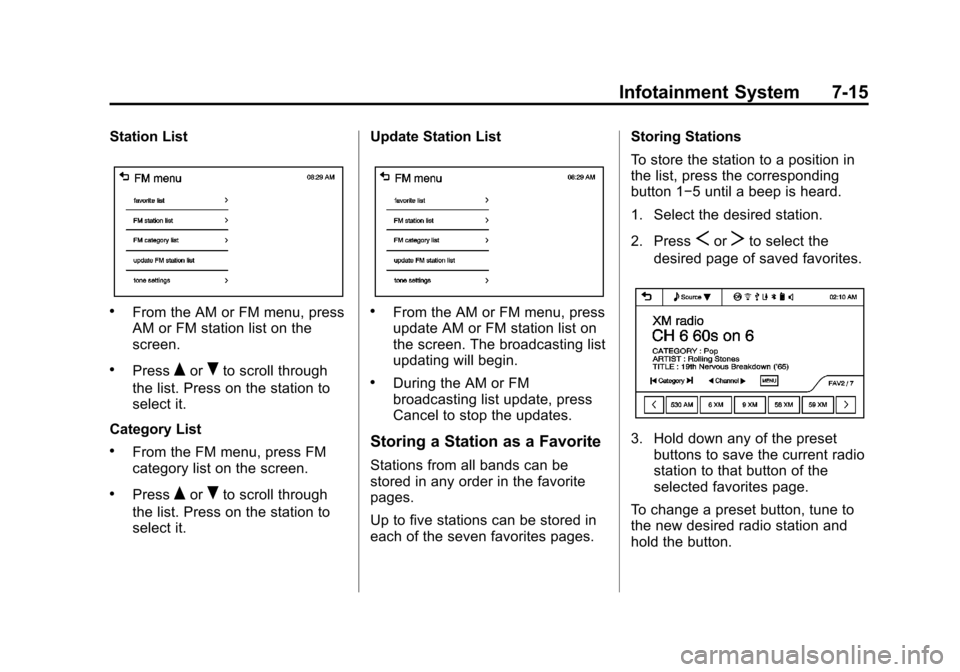
Station List
.From the AM or FM menu, press
AM or FM station list on the
screen.
.PressQorRto scroll through
the list. Press on the station to
select it.
Category List
.From the FM menu, press FM
category list on the screen.
.PressQorRto scroll through
the list. Press on the station to
select it. Update Station List
.From the AM or FM menu, press
update AM or FM station list on
the screen. The broadcasting list
updating will begin.
.During the AM or FM
broadcasting list update, press
Cancel to stop the updates.
Storing a Station as a Favorite
Stations from all bands can be
stored in any order in the favorite
pages.
Up to five stations can be stored in
each of the seven favorites pages. Storing Stations
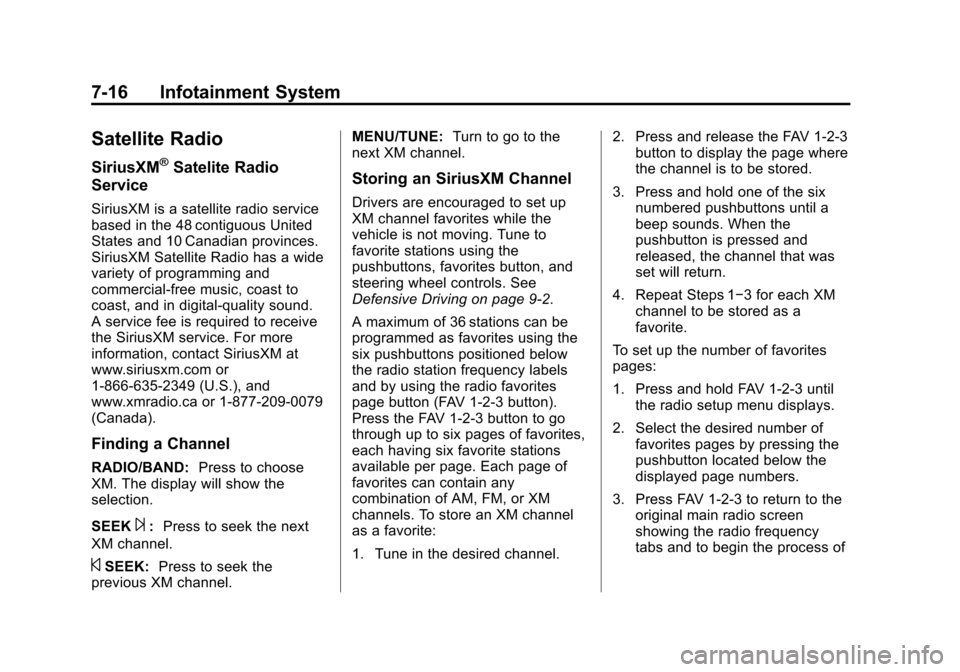
To store the station to a position in
the list, press the corresponding
button 1−5 until a beep is heard.
1. Select the desired station.
2. Press
SorTto select the
desired page of saved favorites.
3. Hold down any of the preset buttons to save the current radio
station to that button of the
selected favorites page.
To change a preset button, tune to
the new desired radio station and
hold the button.
Page 148 of 382
Black plate (16,1)Chevrolet Sonic Owner Manual - 2013 - 2nd PrintReady - 10/11/12
7-16 Infotainment System
Satellite Radio
SiriusXM®Satelite Radio
Service
SiriusXM is a satellite radio service
based in the 48 contiguous United
States and 10 Canadian provinces.
SiriusXM Satellite Radio has a wide
variety of programming and
commercial-free music, coast to
coast, and in digital-quality sound.
A service fee is required to receive
the SiriusXM service. For more
information, contact SiriusXM at
www.siriusxm.com or
1-866-635-2349 (U.S.), and
www.xmradio.ca or 1-877-209-0079
(Canada).
Finding a Channel
RADIO/BAND: Press to choose
XM. The display will show the
selection.
SEEK
¨: Press to seek the next
XM channel.
©SEEK: Press to seek the
previous XM channel. MENU/TUNE:
Turn to go to the
next XM channel.
Storing an SiriusXM Channel
Drivers are encouraged to set up
XM channel favorites while the
vehicle is not moving. Tune to
favorite stations using the
pushbuttons, favorites button, and
steering wheel controls. See
Defensive Driving on page 9‑2.
A maximum of 36 stations can be
programmed as favorites using the
six pushbuttons positioned below
the radio station frequency labels
and by using the radio favorites
page button (FAV 1-2-3 button).
Press the FAV 1-2-3 button to go
through up to six pages of favorites,
each having six favorite stations
available per page. Each page of
favorites can contain any
combination of AM, FM, or XM
channels. To store an XM channel
as a favorite:
1. Tune in the desired channel. 2. Press and release the FAV 1-2-3
button to display the page where
the channel is to be stored.
3. Press and hold one of the six numbered pushbuttons until a
beep sounds. When the
pushbutton is pressed and
released, the channel that was
set will return.
4. Repeat Steps 1−3 for each XM channel to be stored as a
favorite.
To set up the number of favorites
pages:
1. Press and hold FAV 1-2-3 until the radio setup menu displays.
2. Select the desired number of favorites pages by pressing the
pushbutton located below the
displayed page numbers.
3. Press FAV 1-2-3 to return to the original main radio screen
showing the radio frequency
tabs and to begin the process of