Page 126 of 382

Black plate (32,1)Chevrolet Sonic Owner Manual - 2013 - 2nd PrintReady - 10/11/12
5-32 Instruments and Controls
second time. When set to All Doors,
all of the doors will unlock at the first
press of
K. Press4.
Vehicle Factory Settings
Select to return all of the vehicle
personalization to the default
settings. Select Yes or No.
Press
4.
Language
Select and the following may be
displayed:
.English
.French
.Spanish
Select the language desired.
Press
4.
Text Scroll
When on, if there is long text
displayed on the audio screen, the
text is scrolled. When off, the text is
scrolled once and displayed in
truncated form. Select On or Off. Press
4.
Touch Beep Volume
When on, a beep will be heard
when pressing the screen. When
off, the beep is canceled.
Select On or Off. Press
4.
Max Startup Volume
This allows the startup volume of
the infotainment system to be set.
Press
SorTto select the desired
volume between 9-21. Press
4.
System Version
Press to view the version of the
infotainment system. Press
4.
DivX VOD
Press DivX VOD.
.DIVX VIDEO: DivX is a digital
video format created by DivX,
LLC, a subsidiary of Rovi
Corporation. This is an official
DivX Certified
®device that plays DivX video. See divx.com for
more information and software
tools on how to convert files into
DivX videos.
.DIVX VIDEO-ON DEMAND: This
DivX Certified device must be
registered in order to play
purchased DivX
Video-on-Demand (VOD)
movies. To obtain a registration
code, locate the DivX VOD
section in the device setup
menu. See vod.divx.com for
more information on how to
complete the registration.
Press
4.
Page 133 of 382
Black plate (1,1)Chevrolet Sonic Owner Manual - 2013 - 2nd PrintReady - 10/11/12
Infotainment System 7-1
Infotainment
System
Introduction
Infotainment . . . . . . . . . . . . . . . . . . . 7-1
Theft-Deterrent Feature . . . . . . . 7-2
Overview (AM-FM Radio) . . . . . 7-3
Overview (Radio withCD/USB) . . . . . . . . . . . . . . . . . . . . 7-5
Overview (Radio with Touchscreen) . . . . . . . . . . . . . . . . 7-7
Home Page (Radio with Touchscreen) . . . . . . . . . . . . . . . . 7-7
Operation . . . . . . . . . . . . . . . . . . . . . 7-8
Radio
AM-FM Radio . . . . . . . . . . . . . . . . 7-12
Satellite Radio . . . . . . . . . . . . . . . 7-16
Radio Reception . . . . . . . . . . . . . 7-17
Satellite Radio Antenna . . . . . . 7-18
Multi-Band Antenna . . . . . . . . . . 7-18
Audio Players
CD Player . . . . . . . . . . . . . . . . . . . 7-18
USB Port . . . . . . . . . . . . . . . . . . . . 7-20
Auxiliary Devices . . . . . . . . . . . . 7-24
Bluetooth Audio . . . . . . . . . . . . . . 7-25
Phone
Bluetooth (Overview) . . . . . . . . 7-26
Bluetooth (Infotainment Controls) . . . . . . . . . . . . . . . . . . . 7-28
Bluetooth (Voice Recognition) . . . . . . . . . . . . . . . 7-37
Hands-Free Phone . . . . . . . . . . 7-42
Downloadable Applications
Smartphone Link (Overview) . . . . . . . . . . . . . . . . . 7-45
Smartphone Link (Pandora) . . . . . . . . . . . . . . . . . . 7-47
Smartphone Link (Stitcher) . . . . . . . . . . . . . . . . . . . 7-48
Bluetooth Phone/Devices
Pictures and Movies (AudioSystem) . . . . . . . . . . . . . . . . . . . . 7-50
Pictures and Movies (Picture System) . . . . . . . . . . . . . . . . . . . . 7-55
Pictures and Movies (Movie System) . . . . . . . . . . . . . . . . . . . . 7-56
Trademarks and License
Agreements
Trademarks and LicenseAgreements . . . . . . . . . . . . . . . . 7-58
Introduction
Infotainment
Determine which radio the vehicle
has and read the following pages to
become familiar with its features.
{WARNING
Taking your eyes off the road for
extended periods could cause a
crash resulting in injury or death
to you or others. Do not give
extended attention to infotainment
tasks while driving.
This system provides access to
many audio and non-audio listings.
To minimize taking your eyes off the
road while driving, do the following
while the vehicle is parked:
.Become familiar with the
operation and controls of the
audio system.
Page 134 of 382
Black plate (2,1)Chevrolet Sonic Owner Manual - 2013 - 2nd PrintReady - 10/11/12
7-2 Infotainment System
.Set up the tone, speaker
adjustments, and preset radio
stations.
See Defensive Driving on page 9‑2.
Notice: Contact your dealer
before adding any equipment.
Adding audio or communication
equipment could interfere with
the operation of the engine, radio,
or other systems, and could
damage them. Follow federal
rules covering mobile radio and
telephone equipment.
Customer Assistance
Assistance is available to help with
Bluetooth pairing, application
downloading and installation, other
mobile device interface, and
operation support of the
infotainment system. Specialists are
available when calling this
Customer Assistance number: U.S.
(855) 4 SUPPORT (478-7767).
Theft-Deterrent Feature
The theft-deterrent feature works by
learning a portion of the Vehicle
Identification Number (VIN) to the
infotainment system. The
infotainment system does not
operate if it is stolen or moved to a
different vehicle.
Page 136 of 382
Black plate (4,1)Chevrolet Sonic Owner Manual - 2013 - 2nd PrintReady - 10/11/12
7-4 Infotainment System
6. MENU/TUNE
.Radio: Manually selects
radio stations.
.CD: Selects tracks.
7. RADIO/BAND
.Changes the band while
listening to the radio.
.Selects the radio when
listening to a different audio
source.
8.
/BACK
.Menu: Moves one
level back.
.Character Input: Deletes
the last character.
9. AUX
.Selects external audio
source.
10.
H(Clock Menu)
.Opens the Clock menu.
11.
5/>(Phone Mute)
.Mutes the audio system. 12. TONE
.Opens the Tone menu.
13. INFO (Information)
.Radio: Shows available
information about the
current station.
.CD: Shows available
information about the
current track.
14. CONFIG (Configuration)
.Opens the
Configuration menu.
15. AUX Port
.3.5 mm (1/8 in)
connection for external
devices.
Page 138 of 382
Black plate (6,1)Chevrolet Sonic Owner Manual - 2013 - 2nd PrintReady - 10/11/12
7-6 Infotainment System
7. INFO (Information)
.Radio: Shows available
information about the
current station.
.CD: Shows available
information about the
current track.
8. CD Slot
9. SEEK
¨
.Radio: Seeks the next
station.
.CD: Selects the next track
or fast forwards within a
track.
10.
©SEEK
.Radio: Seeks the previous
station.
.CD: Selects the previous
track or rewinds within a
track.
11. CD/AUX
.Selects the CD player or
an external audio source. 12. RADIO/BAND
.Changes the band while
listening to the radio.
.Selects the radio when
listening to a different
audio source.
13.
H(Clock Menu)
.Opens the Clock menu.
14. TONE
.Opens the Tone menu.
15. CONFIG (Configuration)
.Opens the
Configuration menu.
16.
/BACK
.Menu: Moves one
level back.
.Character Input: Deletes
the last character.
17.
5/>(Phone/Mute)
.Opens the Phone menu.
.Mutes the audio system.
Page 139 of 382
Black plate (7,1)Chevrolet Sonic Owner Manual - 2013 - 2nd PrintReady - 10/11/12
Infotainment System 7-7
Overview (Radio with Touchscreen)
1.zVOLy(Volume)
.Press to decrease or
increase the volume.
2.
O(Power)
.Press and hold to turn the
power on or off. 3.
D(Home Page)
.Press to go to the Home
Page. See
Home Page
(Radio with Touchscreen)
on page 7‑7.
Home Page (Radio with
Touchscreen)
Touchscreen Buttons
Touchscreen buttons show on the
screen when available. When a
function is unavailable, the button
may gray out. When a function is
selected, the button may highlight.
Home Page Features
PressFto go to the Home Page.
eaudio: Press to select AM, FM,
SiriusXM (if equipped), USB/iPod/
Bluetooth Audio, or AUX.
Gpicture & movie: Press to view
a picture, movie, or auxiliary video.
Page 141 of 382
Black plate (9,1)Chevrolet Sonic Owner Manual - 2013 - 2nd PrintReady - 10/11/12
Infotainment System 7-9
.Return from a submenu screen
to the previous menu screen.
.Delete the last character in a
sequence.
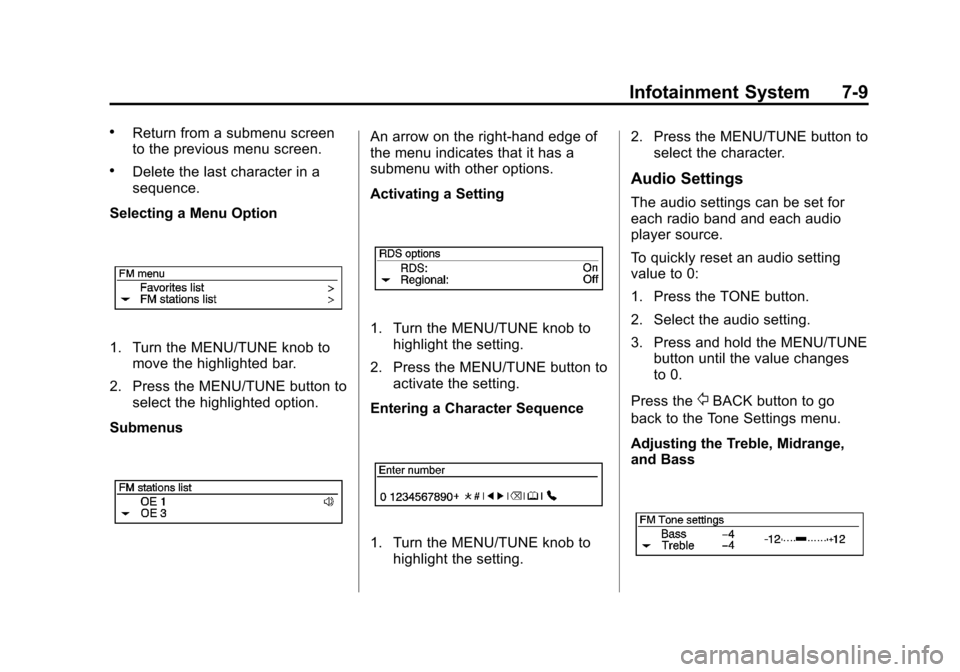
Selecting a Menu Option
1. Turn the MENU/TUNE knob to move the highlighted bar.
2. Press the MENU/TUNE button to select the highlighted option.
Submenus
An arrow on the right-hand edge of
the menu indicates that it has a
submenu with other options.
Activating a Setting
1. Turn the MENU/TUNE knob to highlight the setting.
2. Press the MENU/TUNE button to activate the setting.
Entering a Character Sequence
1. Turn the MENU/TUNE knob to highlight the setting. 2. Press the MENU/TUNE button to
select the character.
Audio Settings
The audio settings can be set for
each radio band and each audio
player source.
To quickly reset an audio setting
value to 0:
1. Press the TONE button.
2. Select the audio setting.
3. Press and hold the MENU/TUNE
button until the value changes
to 0.
Press the
/BACK button to go
back to the Tone Settings menu.
Adjusting the Treble, Midrange,
and Bass
Page 143 of 382
Black plate (11,1)Chevrolet Sonic Owner Manual - 2013 - 2nd PrintReady - 10/11/12
Infotainment System 7-11
Turning the System On or Off
O(Power):Press and hold to turn
the radio on and off.
Automatic Switch-Off
If the infotainment system has been
turned on after the ignition is turned
off, the system will turn off
automatically after 10 minutes.
Volume Control
zVOLy(Volume): Press to
increase or decrease the volume or
press the volume bar.
>(Mute): PresszVOLy, then
press
>to mute and unmute the
system.
System Settings
Auto Volume
This feature automatically adjusts
the radio volume to compensate for
road and wind noise.
The level of volume compensation
can be selected, or the feature can
be turned off. 1. Press
D.
2. Select Settings.
3. Select Radio Settings.
4. Select the setting by pressing
S
orT.
5. Press the
4.
Audio Settings
The audio settings can be set for
each radio band and each audio
player source.
Tone Settings: Press menu, then
tone settings from the AM or
FM menu.
.EQ (Equalizer): PressSorTto
select a sound style or turn off
the sound style.
.Bass, Mid (Midrange), or Treble:
Press −or + to change the
desired sound style from −12
to +12.
.Fader or Balance: Adjust the
front/rear or left/right speakers.
.Reset: Restore the settings back
to default settings.
Press OK to exit Tone Settings.