2013 CHEVROLET MALIBU radio controls
[x] Cancel search: radio controlsPage 166 of 436

Black plate (6,1)Chevrolet Malibu Owner Manual - 2013 - CRC - 6/6/12
7-6 Infotainment System
3.F(Home)
.See“Home Page” following
in this section.
4. SOURCE
.Press to change the audio
sources such as AM-FM
Radio, CD, and AUX.
5.
v/>(Phone/Mute)
.Press to access the Phone
menu. See Bluetooth
(Overview) on page 7‑35 or
Bluetooth (Voice
Recognition) on page 7‑40
or Bluetooth (Infotainment
Controls) on page 7‑36.
Press to mute the audio
system.
6. BACK
/
.Press to return to the
previous screen in a menu.
.If on a page accessed
directly by a faceplate
button or Home Page screen button, pressing
/BACK will go to the
previous menu.
7. TUNE/MENU
.Turn to highlight a feature.
Press to activate the
highlighted feature.
.Turn to manually select a
radio station.
8.
Z(Eject)
.Press to eject a disc from
the CD player. See CD
Player on page 7‑22.
9.
H(Clock)
.Press to set the time.
10.
p/j(Play/Pause)
.Press to start, pause, and
resume playback. See CD
Player on page 7‑22 and
MP3 on page 7‑24.
11. CD Slot 12.
©SEEK¨
.Press©to seek to the
beginning of the current or
previous track. If the track
has been playing for less
than five seconds, it
seeks the previous
track. If longer than
five seconds, the current
track starts from the
beginning.
.Press and hold©to
quickly reverse through a
track. Release the button
to return to playing speed.
See CD Player on
page 7‑22 andMP3 on
page 7‑24.
.For AM or FM, press©to
seek to the previous
strong station.
.Press¨to seek the next
track.
.Press and hold¨to fast
forward through a track.
Page 167 of 436
Black plate (7,1)Chevrolet Malibu Owner Manual - 2013 - CRC - 6/6/12
Infotainment System 7-7
.Release¨to return to
playing speed. See CD
Player on page 7‑22 and
MP3 on page 7‑24.
.For AM or FM, press¨to
seek to the next strong
station.
13. CONFIG (Configuration)
.Press to adjust features
for radio, display, phone,
vehicle, and time.
14. TONE
.Press to access the sound
menu screen to adjust
bass, midrange, and
treble. See AM-FM Radio
on page 7‑14.
15. INFO (Information)
.Press to scroll through
station, song, artist, and
album information when
available.
Touchscreen Buttons
Touchscreen buttons are on the
screen and highlighted when a
feature is available. Some toggle
screen buttons highlight when active
and gray out when inactive.
Home Page
The infotainment system displays a
Home Page that makes it easy to
access many of the features.
Back: If on page 2 of the Home
Page, press Back to return to page
1 of the Home Page. If on page 1,
Back serves no function.
Home: While navigating through
other menus, press to go back to
the Home Page to start a different
feature.
Fav: Press to display a page of
stored (favorite) AM or FM stations.
Keep pressing Fav to scroll through
the favorite pages.
The Home Page Menu lists the
options Customize Home Page and
Restore Home Page Defaults. Out of all available Home Page
icons, up to eight icons can be
selected and sorted for the first
Home Page screen.
Home Page Features
Various functions are disabled when
the vehicle is moving.
Press the Now Playing screen
button to display the active source
page. The sources available are
AM, FM, CD, USB/iPod, and AUX.
See
AM-FM Radio on page 7‑14,
CD Player on page 7‑22, and
Auxiliary Devices on page 7‑25.
Press the Phone screen button to
display the Phone main page. See
Bluetooth (Overview) on page 7‑35
or Bluetooth (Voice Recognition) on
page 7‑40 orBluetooth
(Infotainment Controls) on
page 7‑36.
Page 169 of 436
Black plate (9,1)Chevrolet Malibu Owner Manual - 2013 - CRC - 6/6/12
Infotainment System 7-9
Radio Settings
Press the Config button on the
Home Page or the CONFIG button
on the faceplate to enter the menu
options. Turn the TUNE/MENU knob
or press the scroll bar to scroll
through the available options. Press
the TUNE/MENU knob or press
Radio Settings to display the radio
settings menu. Press this feature to
make changes for radio information
displayed, preset pages, and Auto
Volume Control.
The Radio Settings are:
Speed Dependent Volume:Select
OFF, Low, Medium, or High
sensitivity to automatically adjust
the volume to minimize the effects
of unwanted background noise that
can result from changing road
surfaces, driving speeds, or open
windows. This feature works best at
lower volume settings where
background noise is typically louder
than the sound system volume. Startup Volume:
Press to set the
maximum volume level for startup
that will be used even if a higher
volume had been set when the radio
was turned off.
Radio Favorites: Press to select
the number of favorite pages to be
used in the system.
Phone Settings
See Bluetooth (Overview) on
page 7‑35 orBluetooth (Voice
Recognition) on page 7‑40 or
Bluetooth (Infotainment Controls) on
page 7‑36 in the“Phone” section.
Vehicle Settings
SeeVehicle Personalization on
page 5‑35.
Display Settings
Press the Config button on the
Home Page or the CONFIG button
on the faceplate, then select Display
Settings from the list. The following options may display:
Dimming Mode:
Press to change
the screen background. The
Automatic setting adjusts the screen
background automatically
depending on the exterior lighting
conditions.
To change the overall brightness
setting for the display, use the
vehicle interior lighting instrument
panel illumination control.
Operation
Controls (Radio with CD)
The infotainment system is operated
by using the pushbuttons,
multifunction knobs, menus shown
on the display, and steering wheel
controls, if equipped.
Turning the System On or Off
VOL/O(Volume/Power): Press to
turn the system on and off.
Page 170 of 436
Black plate (10,1)Chevrolet Malibu Owner Manual - 2013 - CRC - 6/6/12
7-10 Infotainment System
Automatic Switch-Off
If the infotainment system has been
turned on after the ignition is turned
off, the system will turn off
automatically after 10 minutes.
Volume Control (Uplevel
Radio)
VOL/O(Volume/Power):Turn to
adjust the volume.
v/>(Phone): For vehicles with
OnStar, press and hold
v/>to
mute the infotainment system. Press
and hold
v/>again, or turn the
VOL/
Oknob to cancel mute.
For vehicles without OnStar®, press
v/>to mute the infotainment
system. Press
v/>again, or turn
the VOL/
Oknob to cancel mute.
Menu System
Controls
The TUNE/MENU knob and the
BACK
/button are used to
navigate the menu system.
TUNE/MENU: Press to:
.Select or activate the highlighted
menu option.
.Confirm a set value.
.Turn a system setting on or off.
Turn to:
.Enter the menu system.
.Highlight a menu option.
.Select a value.
BACK
/: Press to:
.Exit a menu.
.Return from a submenu screen
to the previous menu screen.
.Delete the last character in a
sequence. Selecting a Menu Option
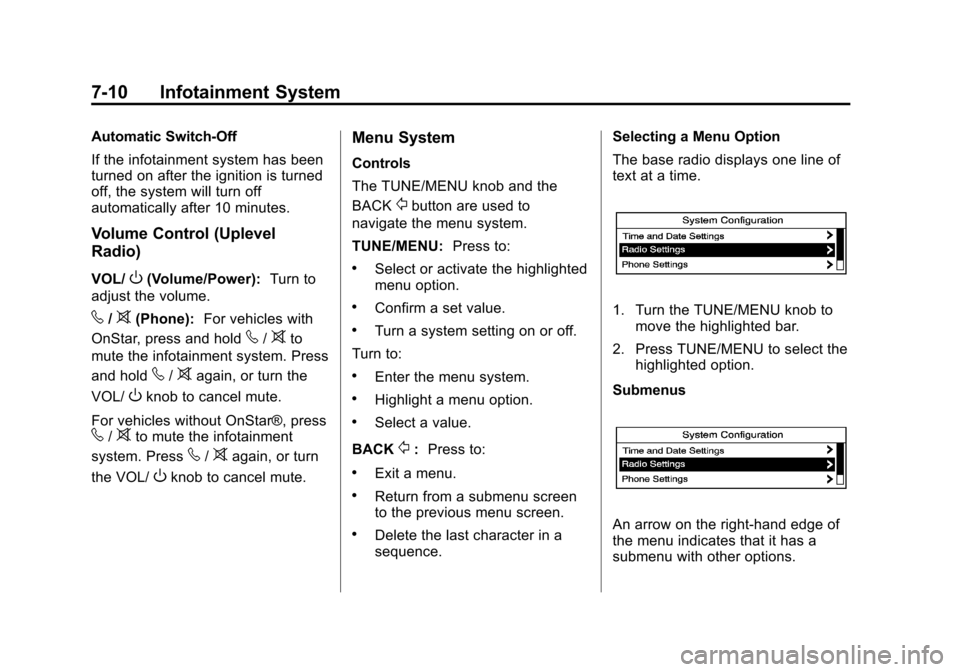
The base radio displays one line of
text at a time.
1. Turn the TUNE/MENU knob to
move the highlighted bar.
2. Press TUNE/MENU to select the highlighted option.
Submenus
An arrow on the right-hand edge of
the menu indicates that it has a
submenu with other options.
Page 176 of 436
Black plate (16,1)Chevrolet Malibu Owner Manual - 2013 - CRC - 6/6/12
7-16 Infotainment System
To cancel the station search, press
TUNE/MENU.
Storing a Station as a Favorite
Stations from all bands can be
stored in any order in the favorite
pages.
Up to six stations can be stored in
each favorite page and the number
of available favorite pages can
be set.
Storing Stations
To store the station to a position in
the list, press the corresponding
button 1 to 6 until a beep is heard.
Retrieving Stations
Press the FAV button to open a
favorite page or to switch to another
favorite page. Briefly press one of
the 1 to 6 buttons to retrieve the
station.
Playing the Radio (Radio with
CD and Touchscreen)
Audio Source
VOL/
O(Power/Volume):
.Press to turn the radio on or off.
.Turn to increase or decrease the
volume of the active source (i.e.,
current audio source, active
navigation voice guidance,
or traffic prompts).
The steering wheel controls can
also be used to adjust the volume.
See Steering Wheel Controls on
page 5‑2.
To access the radio main page,
press the SOURCE button on the
faceplate, the Now Playing screen
button, or one of the audio screen
buttons on the Home Page.
While on the audio main page,
press the SOURCE button
repeatedly to display and cycle through the available sources (AM,
FM, SiriusXM if equipped, CD, USB/
iPod, and AUX).
Infotainment System Menus
Tone Settings
To access the tone settings, press
the Home Page Tone button or the
TONE button on the faceplate.
Use the tone settings to adjust the
following features:
.Setting the tone
.Adjusting the speakers
Setting the Tone
To adjust the tone:
.Treble: Press Treble, then press
+ or −to change the level.
.Middle (Midrange): Press
Middle, then press + or −to
change the level.
.Bass: Press Bass, then press +
or −to change the level.
Page 183 of 436
Black plate (23,1)Chevrolet Malibu Owner Manual - 2013 - CRC - 6/6/12
Infotainment System 7-23
.Press and hold¨to fast forward
through a track.
.Release¨to return to playing
speed.
TUNE/MENU: Turn to the right or
left to select the next or previous
track. Press this knob to select the
menu. If a track is selected from the
list, the system plays the track and
returns to the CD screen.
Playing an Audio CD (Radio
with CD and Touchscreen)
1. Press the CD screen button on the Home Page or select CD
from the source pop-up to
display the CD main page.
2. From the CD screen, press the Menu screen button to display
the menu options.
3. Press to select the desired option.
On the CD main page a track
number displays at the beginning of
each track. Song, Artist, and Album
information displays when available. Use the following controls to play
the disc:
w j(Play/Pause):
Use to start,
pause, or resume play.
©SEEK¨:
.Press©to seek to the beginning
of the current or previous track.
If the track has been playing for
less than five seconds, it seeks
the previous track. If longer than
five seconds, the current track
starts from the beginning.
.Press and hold©to quickly
reverse through a track. Release
the button to return to playing
speed.
.For AM or FM, press©to seek
to the previous strong station.
.Press¨to seek the next track.
.Press and hold¨to fast forward
through a track.
.Release¨to return to playing
speed. TUNE/MENU:
Turn to the right or
left to select the next or previous
track. Press this knob to select the
menu. If a track is selected from the
list, the system plays the track and
returns to the CD screen.
Error Messages
If Disc Read Error displays and/or
the disc comes out, it could be for
one of the following reasons:
.The disc has an invalid or
unknown format.
.The disc is not from a correct
region.
.The disc is very hot. Try the disc
again when the temperature
returns to normal.
.The road is very rough. Try the
disc again when the road is
smoother.
.The disc is dirty, scratched, wet,
or upside down.
.The air is very humid. Try the
disc again later.
Page 196 of 436
Black plate (36,1)Chevrolet Malibu Owner Manual - 2013 - CRC - 6/6/12
7-36 Infotainment System
$/i(Mute/End Call):Press to
end a call, reject a call, or cancel an
operation.
Infotainment System Controls
To navigate the menu system using
the infotainment controls, see
Overview (Radio with CD and
Touchscreen) on page 7‑5 or
Overview (Radio with CD) on
page 7‑2.
v/>(Phone/Mute): Press to
enter the Phone main menu.
Voice Recognition
The voice recognition system uses
commands to control the system
and dial phone numbers.
Noise: The system may not
recognize voice commands if there
is too much background noise.
When to Speak: A tone sounds to
indicate that the system is ready for
a voice command. Wait for the tone
and then speak.
How to Speak: Speak clearly in a
calm and natural voice.
Audio System
When using the Bluetooth system,
sound comes through the vehicle's
front audio system speakers and
overrides the audio system. Use the
VOL/
Oknob during a call to
change the volume level. The
adjusted volume level remains in
memory for later calls. The system
maintains a minimum volume level.
Other Information
The Bluetooth® word mark and
logos are owned by the Bluetooth®
SIG, Inc. and any use of such marks
by General Motors is under license.
Other trademarks and trade names
are those of their respective owners.
See Radio Frequency Statement on
page 13‑21 for information
regarding Part 15 of the Federal
Communications Commission (FCC)
rules and Industry Canada
Standards RSS-GEN/210/220/310.
Bluetooth (Infotainment
Controls)
To navigate the menu system using
the infotainment controls, see
Overview (Radio with CD and
Touchscreen) on page 7‑5 or
Overview (Radio with CD) on
page 7‑2.
Pairing
A Bluetooth-enabled cell phone
must be paired to the Bluetooth
system and then connected to the
vehicle before it can be used. See
your cell phone manufacturer's user
guide for Bluetooth functions before
pairing the cell phone. If a Bluetooth
phone is not connected, calls will be
made using OnStar Hands-Free
Calling, if available. See OnStar
Overview on page 14‑1.
Pairing Information
.A Bluetooth phone with MP3
capability cannot be paired to
the vehicle as a phone and an
MP3 player at the same time.
Page 434 of 436

Black plate (10,1)Chevrolet Malibu Owner Manual - 2013 - CRC - 6/6/12
i-10 INDEX
Safety Defects ReportingCanadian Government . . . . . . 13-19
General Motors . . . . . . . . . . . . . 13-19
U.S. Government . . . . . . . . . . . 13-18
Safety Locks . . . . . . . . . . . . . . . . . . . 2-10
Safety System Check . . . . . . . . . . 3-17
Satellite Radio . . . . . . . . . . . . . . . . . 7-19
Scheduling Appointments . . . . . 13-13
Sealant Kit, Tire . . . . . . .10-68, 10-75
Seats Adjustment, Front . . . . . . . . . . . . . . 3-3
Head Restraints . . . . . . . . . . . . . . . 3-2
Heated Front . . . . . . . . . . . . . . . . . . 3-8
Lumbar Adjustment, Front . . . . . 3-4
Memory . . . . . . . . . . . . . . . . . . . . . . . . 3-6
Power Adjustment, Front . . . . . . 3-4
Rear . . . . . . . . . . . . . . . . . . . . . . . . . . . 3-9
Reclining Seatbacks . . . . . . . . . . . 3-4
Securing Child Restraints . . . . . . . . . . . . . . 3-47, 3-50
Security
Light . . . . . . . . . . . . . . . . . . . . . . . . . . 5-22
Messages . . . . . . . . . . . . . . . . . . . . 5-32
OnStar
®. . . . . . . . . . . . . . . . . . . . . . 14-2
Vehicle . . . . . . . . . . . . . . . . . . . . . . . 2-13
Vehicle Alarm . . . . . . . . . . . . . . . . . 2-13 Service . . . . . . . . . . . . . . . . . . . . . . . . . 8-9
Accessories and
Modifications . . . . . . . . . . . . . . . . 10-3
Doing Your Own Work . . . . . . . . 10-4
Engine Soon Light . . . . . . . . . . . . 5-14
Maintenance Records . . . . . . .11-15
Maintenance, General Information . . . . . . . . . . . . . . . . . . 11-1
Parts Identification Label . . . . . 12-1
Publications Ordering Information . . . . . . . . . . . . . . . . 13-17
Scheduling Appointments . . . 13-13
Vehicle Messages . . . . . . . . . . . . 5-32
Service Electric Parking Brake Light . . . . . . . . . . . . . . . . . . . 5-17
Servicing the Airbag . . . . . . . . . . . 3-30
Shift Lock Control Function
Check, Automatic
Transmission . . . . . . . . . . . . . . . . 10-26
Shifting Into Park . . . . . . . . . . . . . . . . . . . . . . 9-22
Out of Park . . . . . . . . . . . . . . . . . . . 9-23
Signals, Turn and Lane-Change . . . . . . . . . . . . . . . . . 6-4
Spare Tire
Compact . . . . . . . . . . . . . . . . . . . . 10-89 Specifications and
Capacities . . . . . . . . . . . . . . . . . . . . 12-2
Speedometer . . . . . . . . . . . . . . . . . . 5-10
StabiliTrak OFF Light . . . . . . . . . . . . . . . . . . . . . 5-19
System . . . . . . . . . . . . . . . . . . . . . . . 9-33
Start Assist, Hills . . . . . . . . . . . . . . 9-31
Start Vehicle, Remote . . . . . . . . . . 2-7
Starter Switch Check . . . . . . . . . 10-26
Starting the Engine . . . . . . . . . . . . 9-18
Starting the Vehicle
Messsages . . . . . . . . . . . . . . . . . . . 5-33
Steering . . . . . . . . . . . . . . . . . . . . . . . . 9-3 Wheel Adjustment . . . . . . . . . . . . . 5-2
Wheel Controls . . . . . . . . . . . . . . . . 5-2
Stoplamps and Back-up Lamps
Bulb Replacement . . . 10-33, 10-34
Storage Areas Center Console . . . . . . . . . . . . . . . . 4-3
Convenience Net . . . . . . . . . . . . . . 4-3
Glove Box . . . . . . . . . . . . . . . . . . . . . 4-1
Instrument Panel . . . . . . . . . . . . . . 4-1
Sunglasses . . . . . . . . . . . . . . . . . . . . 4-2
Storing the Tire Sealant and Compressor Kit . . . . . . . . . 10-83
Stuck Vehicle . . . . . . . . . . . . . . . . . . . 9-9