2013 CHEVROLET IMPALA steering
[x] Cancel search: steeringPage 127 of 350
Black plate (31,1)Chevrolet Impala Owner Manual - 2013 - crc - 8/27/12
Instruments and Controls 5-31
Any of the following conditions may
cause the TCS to turn off:
.The TCS is turned off by
pressing the traction control
button. SeeTraction Control
System (TCS) on page 9‑25 for
more information.
.The battery is low.
TRACTION CONTROL ON
If your vehicle has the Traction
Control System (TCS), this message
displays when the TCS is turned on.
See Traction Control System (TCS)
on page 9‑25 for more information.
Airbag System Messages
SERVICE AIR BAG
This message displays when there
is a problem with the airbag system.
Have your vehicle serviced by your
dealer immediately. See Airbag
Readiness Light on page 5‑12 for
more information.
Security Messages
SERVICE THEFT SYSTEM
This message displays when there
is a problem with the theft-deterrent
system programmed in the key.
A fault has been detected in the
system which means that the
system is disabled and it is not
protecting the vehicle. The vehicle
usually restarts; however, you may
want to take the vehicle to your
dealer before turning off the engine.
See Immobilizer Operation on
page 2‑11 for more information.
THEFT ATTEMPTED
This message displays if the
theft-deterrent system has detected
a break-in attempt while you were
away from your vehicle. See Vehicle
Alarm System on page 2‑10 for
more information.
Service Vehicle Messages
ERROR
This message displays while
viewing the odometer or trip
odometers if there is a problem with
the instrument panel cluster. See
your dealer for service.
SERVICE POWER STEERING
This message displays when a
problem is detected with the power
steering system. When this
message is displayed, you may
notice that the effort required to
steer the vehicle increases or feels
heavier, but you will still be able to
steer the vehicle. Have your vehicle
serviced by your dealer immediately.
SERVICE VEHICLE SOON
This message displays when a
non-emissions related malfunction
occurs. Have the vehicle serviced
by your dealer as soon as possible.
Page 141 of 350
Black plate (1,1)Chevrolet Impala Owner Manual - 2013 - crc - 8/27/12
Lighting 6-1
Lighting
Exterior Lighting
Exterior Lamp Controls . . . . . . . . 6-1
Headlamp High/Low-BeamChanger . . . . . . . . . . . . . . . . . . . . . 6-2
Flash-to-Pass . . . . . . . . . . . . . . . . . 6-2
Daytime Running Lamps (DRL)/Automatic Headlamp
System . . . . . . . . . . . . . . . . . . . . . . 6-2
Hazard Warning Flashers . . . . . 6-3
Turn and Lane-Change Signals . . . . . . . . . . . . . . . . . . . . . . 6-4
Fog Lamps . . . . . . . . . . . . . . . . . . . . 6-4
Interior Lighting
Instrument Panel Illumination Control . . . . . . . . . . . . . . . . . . . . . . 6-5
Courtesy Lamps . . . . . . . . . . . . . . 6-5
Dome Lamps . . . . . . . . . . . . . . . . . 6-5
Reading Lamps . . . . . . . . . . . . . . . 6-6
Lighting Features
Entry Lighting . . . . . . . . . . . . . . . . . 6-6
Delayed Entry Lighting . . . . . . . . 6-6
Delayed Exit Lighting . . . . . . . . . 6-7
Parade Dimming . . . . . . . . . . . . . . 6-7
Battery Load Management . . . . 6-7
Battery Power Protection . . . . . . 6-8
Exterior Lighting
Exterior Lamp Controls
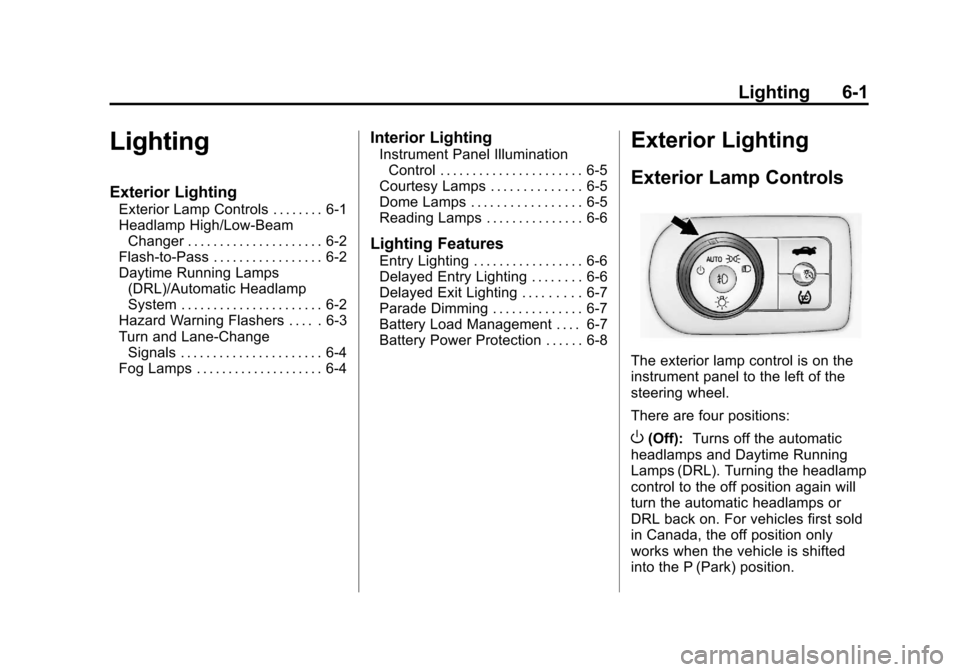
The exterior lamp control is on the
instrument panel to the left of the
steering wheel.
There are four positions:
O(Off): Turns off the automatic
headlamps and Daytime Running
Lamps (DRL). Turning the headlamp
control to the off position again will
turn the automatic headlamps or
DRL back on. For vehicles first sold
in Canada, the off position only
works when the vehicle is shifted
into the P (Park) position.
Page 143 of 350

Black plate (3,1)Chevrolet Impala Owner Manual - 2013 - crc - 8/27/12
Lighting 6-3
The DRL system makes the
low-beam headlamps come on at a
reduced brightness when the
following conditions are met:
.The ignition is in the ON/RUN
position.
.The exterior lamps control is
in AUTO.
.The engine is running.
When the DRL are on, the regular
headlamps, taillamps, sidemarker,
and other lamps are not on. The
instrument panel and cluster are
also not on.
The headlamps automatically
change from DRL to the regular
headlamps depending on the
darkness of the surroundings. The
other lamps that come on with the
headlamps will also come on.
When it is bright enough outside,
the headlamps go off and the DRL
come on.
The regular headlamp system
should be turned on when needed.Do not cover the light sensor on top
of the instrument panel because it
works with the DRL.
Lights On with Wipers
If the windshield wipers are
activated in daylight with the engine
on, and the exterior lamp control is
in AUTO, the headlamps, parking
lamps, and other exterior lamps
come on. The transition time for the
lamps coming on varies based on
wiper speed. When the wipers are
not operating, these lamps turn off.
Move the exterior lamp control to
P
or;to disable this feature.
Hazard Warning Flashers
The hazard warning flashers let you
warn others that you have a
problem.
The hazard warning flasher button
is located on top of the steering
column.
|: Press to make the front and
rear turn signal lamps flash on and
off. Press the button again to turn
the flashers off.
Page 144 of 350
Black plate (4,1)Chevrolet Impala Owner Manual - 2013 - crc - 8/27/12
6-4 Lighting
When the hazard warning flashers
are on, the turn signals will
not work.
Turn and Lane-Change
Signals
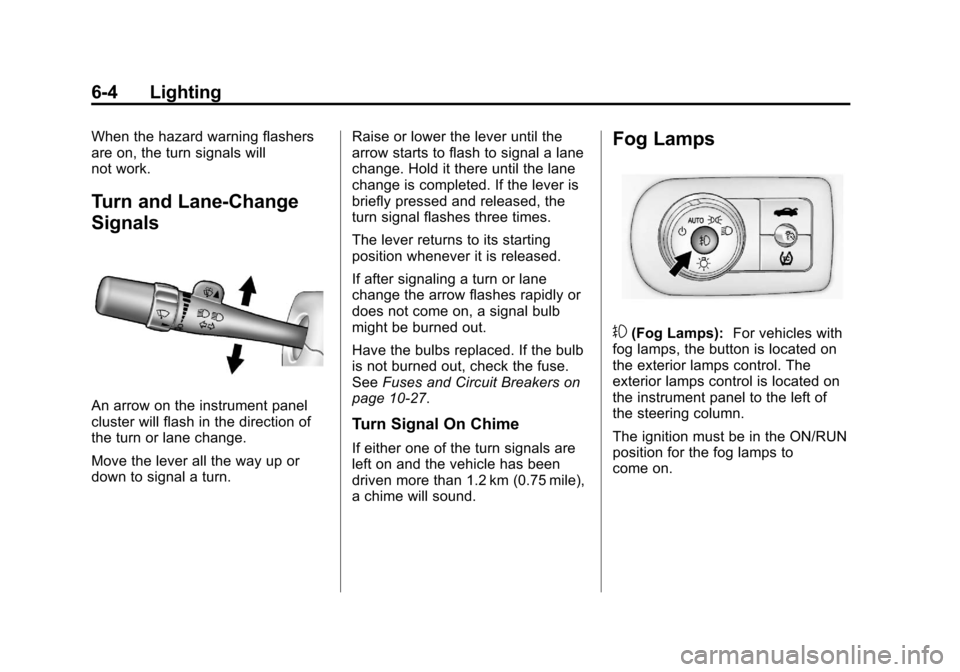
An arrow on the instrument panel
cluster will flash in the direction of
the turn or lane change.
Move the lever all the way up or
down to signal a turn.Raise or lower the lever until the
arrow starts to flash to signal a lane
change. Hold it there until the lane
change is completed. If the lever is
briefly pressed and released, the
turn signal flashes three times.
The lever returns to its starting
position whenever it is released.
If after signaling a turn or lane
change the arrow flashes rapidly or
does not come on, a signal bulb
might be burned out.
Have the bulbs replaced. If the bulb
is not burned out, check the fuse.
See
Fuses and Circuit Breakers on
page 10‑27.
Turn Signal On Chime
If either one of the turn signals are
left on and the vehicle has been
driven more than 1.2 km (0.75 mile),
a chime will sound.
Fog Lamps
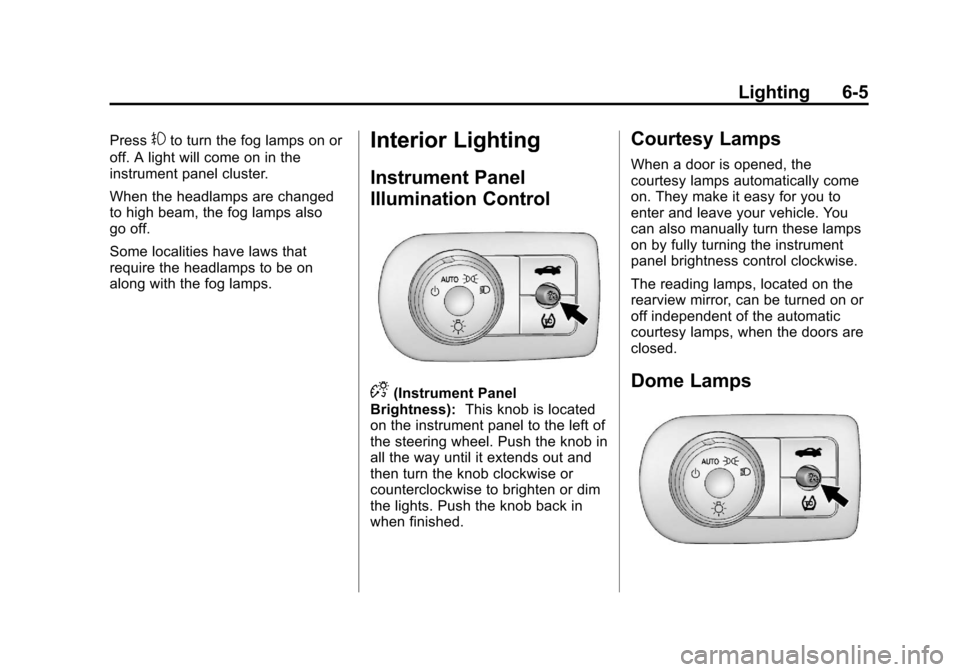
#(Fog Lamps): For vehicles with
fog lamps, the button is located on
the exterior lamps control. The
exterior lamps control is located on
the instrument panel to the left of
the steering column.
The ignition must be in the ON/RUN
position for the fog lamps to
come on.
Page 145 of 350
Black plate (5,1)Chevrolet Impala Owner Manual - 2013 - crc - 8/27/12
Lighting 6-5
Press#to turn the fog lamps on or
off. A light will come on in the
instrument panel cluster.
When the headlamps are changed
to high beam, the fog lamps also
go off.
Some localities have laws that
require the headlamps to be on
along with the fog lamps.Interior Lighting
Instrument Panel
Illumination Control
D(Instrument Panel
Brightness): This knob is located
on the instrument panel to the left of
the steering wheel. Push the knob in
all the way until it extends out and
then turn the knob clockwise or
counterclockwise to brighten or dim
the lights. Push the knob back in
when finished.
Courtesy Lamps
When a door is opened, the
courtesy lamps automatically come
on. They make it easy for you to
enter and leave your vehicle. You
can also manually turn these lamps
on by fully turning the instrument
panel brightness control clockwise.
The reading lamps, located on the
rearview mirror, can be turned on or
off independent of the automatic
courtesy lamps, when the doors are
closed.
Dome Lamps
Page 155 of 350
Black plate (7,1)Chevrolet Impala Owner Manual - 2013 - crc - 8/27/12
Infotainment System 7-7
double beep sounds. The radio
goes to a stored preset, plays for
a few seconds, then goes to the
next stored preset. Press
©
SEEK again to stop scanning
preset stations.
¨SEEK:Press to seek or scan
stations with a strong signal in the
selected band.
.To seek stations, press and
release
¨SEEK to go to the
next station and stay there.
.To scan stations, press and hold¨SEEK for a few seconds until
the radio beeps once. The radio
goes to a station, plays for a few
seconds, then goes to the next
station. Press
¨SEEK again to
stop scanning.
.To scan preset stations in the
selected band, press and hold
¨
SEEK for four seconds until a
double beep sounds. The radio
goes to a stored preset, plays for
a few seconds, then goes to the next stored preset. Press
¨
SEEK again to stop scanning
preset stations.
Storing Radio Stations
Drivers are encouraged to store
radio station while the vehicle is
parked. See
Defensive Driving on
page 9‑2. Tune to stored radio
stations using the presets, favorites
button, and steering wheel controls,
if the vehicle has this feature.
Radios that have a FAV button store
radio stations as favorites, up to
36 stations can be programmed as
favorites using the 6 softkeys below
the radio station frequency tabs and
by using the FAV button. Press the
FAV button to go through up to
6 pages of favorites, each having
6 favorite stations available per
page. Each page of favorites can
contain any combination of AM, FM,
or XM, if equipped, stations.
Radios that do not have a FAV
button store radio stations as
presets, up to 18 stations (6 FM1, 6 FM2, and 6 AM), can be
programmed on the 6 numbered
pushbuttons.
Storing a Radio Station as a
Preset, Radio with CD (Base)
Radios that have numbered
pushbuttons store radio stations as
presets.
Up to 18 stations (6 FM1, 6 FM2,
and 6 AM), can be programmed on
the six numbered buttons.
To store preset stations:
1. Tune to a radio station.
2. Press and hold one of the
6 numbered pushbuttons for
3 seconds until a beep sounds.
3. Repeat Steps 1 and 2 to store additional radio stations.
Storing a Radio Station as a
Favorite, Radio with CD (MP3)
Radios that have a FAV button store
radio stations as favorites.
To store a station as a favorite:
1. Tune to a radio station.
Page 158 of 350
Black plate (10,1)Chevrolet Impala Owner Manual - 2013 - crc - 8/27/12
7-10 Infotainment System
5. Repeat the steps to removemore categories.
Storing SiriusXM Channels
Drivers are encouraged to store
radio station while the vehicle is
parked. See Defensive Driving on
page 9‑2. Tune to stored radio
stations using the presets, favorites
button, and steering wheel controls,
if the vehicle has this feature.
Up to 36 stations can be
programmed as favorites using the
6 softkeys below the radio station
frequency tabs and by using the
FAV button. Press the FAV button to
go through up to 6 pages of
favorites, each having 6 favorite
stations available per page. Each
page of favorites can contain any
combination of AM, FM,
or SiriusXM, if equipped, stations.
Storing an SiriusXM Channel as a
Favorite
To store a station as a favorite:
1. Tune to an SiriusXM channel. 2. Press the FAV button to display
the page where the station will
be stored.
3. Press and hold one of the 6 softkeys until a beep sounds.
4. Repeat Steps 1 through 3 to store additional radio stations.
The number of favorites pages can
be set up using the MENU button.
To set up the number of favorites
pages:
1. Press the MENU button.
2. Press the softkey located below the FAV 1-6 tab.
3. Select the number of favorites pages by pressing the softkey
located below the displayed
page numbers.
4. Press the FAV button, or let the menu time out, to return to the
original main radio screen
showing the radio station
frequency tabs and to begin the
process of programming
favorites.
SiriusXM Radio Messages
XL (Explicit Language
Channels): These channels, or any
others, can be blocked at a
customer's request, by calling
1-866-635-2349 (U.S.) and
1-877-209-0079 (Canada).
XM Updating: The encryption code
in the receiver is being updated, and
no action is required. This process
should take no longer than
30 seconds.
No XM Signal: The system is
functioning correctly, but the vehicle
is in a location that is blocking the
SiriusXM signal. When the vehicle is
moved into an open area, the signal
should return.
Loading XM: The audio system is
acquiring and processing audio and
text data. No action is needed. This
message should disappear shortly.
Channel Off Air: This channel is
not currently in service. Tune in to
another channel.
Page 168 of 350
Black plate (20,1)Chevrolet Impala Owner Manual - 2013 - crc - 8/27/12
7-20 Infotainment System
When to Speak:A short tone
sounds after the system responds
indicating when it is waiting for a
voice command. Wait until the tone
and then speak.
How to Speak: Speak clearly in a
calm and natural voice.
Audio System
When using the in-vehicle Bluetooth
system, sound comes through the
vehicle's front audio system
speakers and overrides the audio
system. Use the audio system
volume knob, during a call, to
change the volume level. The
adjusted volume level remains in
memory for later calls. To prevent
missed calls, a minimum volume
level is used if the volume is turned
down too low.
Bluetooth Controls
Use the buttons located on the
steering wheel to operate the
in-vehicle Bluetooth system. See
Steering Wheel Controls on
page 5‑2.
b/g(Push To Talk): Press to
answer incoming calls, confirm
system information, and start
speech recognition.
c/x(End): Press to end a call,
reject a call, or cancel an operation.
Pairing
A Bluetooth enabled cell phone
must be paired to the Bluetooth
system and then connected to the
vehicle before it can be used. See
the cell phone manufacturer's user
guide for Bluetooth functions before
pairing the cell phone. If a Bluetooth
phone is not connected, calls will be
made using OnStar Hands-Free
Calling, if equipped. See OnStar
Overview on page 14‑1.
Pairing Information
.A Bluetooth phone with MP3
capability cannot be paired to
the vehicle as a phone and an
MP3 player at the same time.
.Up to five cell phones can be
paired to the Bluetooth system.
.The pairing process is disabled
when the vehicle is moving.
.Pairing only needs to be
completed once, unless the
pairing information on the cell
phone changes or the cell phone
is deleted from the system.
.Only one paired cell phone can
be connected to the Bluetooth
system at a time.
.If multiple paired cell phones are
within range of the system, the
system connects to the first
available paired cell phone in the
order that they were first paired
to the system. To connect to a
different paired phone, see
“Connecting to a Different
Phone” later in this section.
Pairing a Phone
1. Press and hold
b/gfor
two seconds.
2. Say “Bluetooth.” This command
can be skipped.