2013 CHEVROLET EQUINOX manual radio set
[x] Cancel search: manual radio setPage 156 of 388
Black plate (4,1)Chevrolet Equinox Owner Manual - 2013 - CRC - 5/21/12
7-4 Infotainment System
Operation
Controls
The infotainment system is operated
by using the pushbuttons,
multifunction knobs, display menus,
and steering wheel controls,
if equipped.
Turning the System On or Off
VOL/O(Volume/Power):Press to
turn the system on and off.
Automatic Switch-Off
If the infotainment system has been
turned on after the ignition is turned
off, the system will turn off
automatically after 10 minutes.
Volume Control
VOL/O(Volume/Power): Turn to
adjust the volume.
5/?(Mute): For vehicles with
OnStar, press and hold
5/?to
mute the infotainment system. Press
and hold
5/?again, or turn the
VOL/
Oknob to cancel mute.
For vehicles without OnStar, press
5/?to mute the infotainment
system. Press
5/?again, or turn
the VOL/
Oknob to cancel mute.
Menu System
Controls
The MENU/SEL knob and the
E
BACK button are used to navigate
the menu system.
MENU/SEL (Menu/Select):
Press to:
.Enter the menu system.
.Select or activate the highlighted
menu option.
.Confirm a set value.
.Turn a system setting on or off. Turn to:
.Highlight a menu option.
.Select a value.
EBACK:
Press to:
.Exit a menu.
.Return from a submenu screen
to the previous menu screen.
.Delete the last character in a
sequence.
RADIO/BAND: Press to:
.Displays menu of AM, FM, XM,
CD, or AUX.
.Press to toggle through menu.
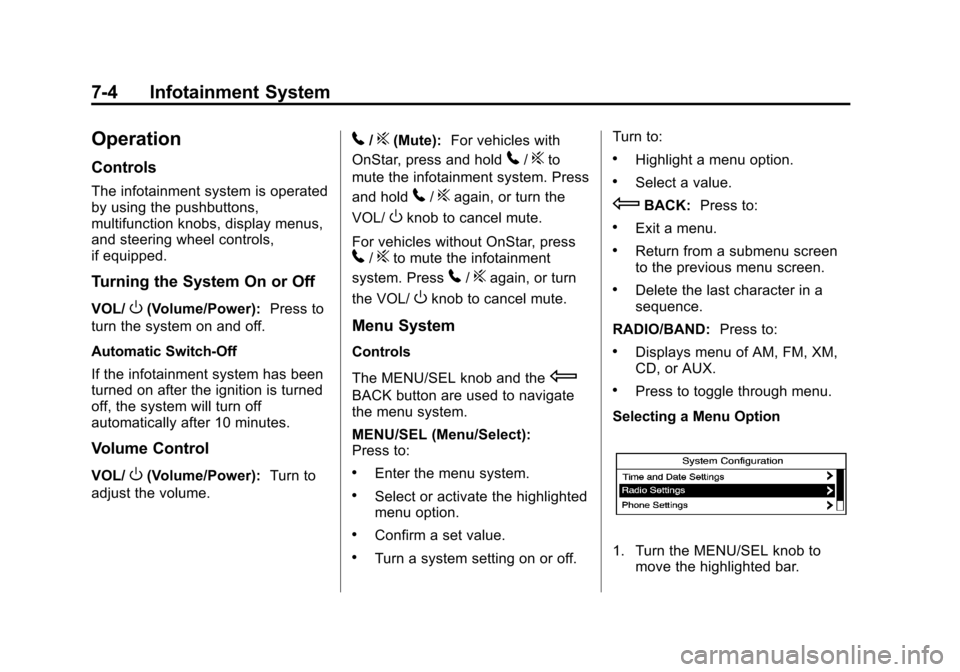
Selecting a Menu Option
1. Turn the MENU/SEL knob to move the highlighted bar.
Page 157 of 388
Black plate (5,1)Chevrolet Equinox Owner Manual - 2013 - CRC - 5/21/12
Infotainment System 7-5
2. Press the MENU/SEL button toselect the highlighted option.
Submenus
An arrow on the right-hand edge of
the menu indicates that it has a
submenu with other options.
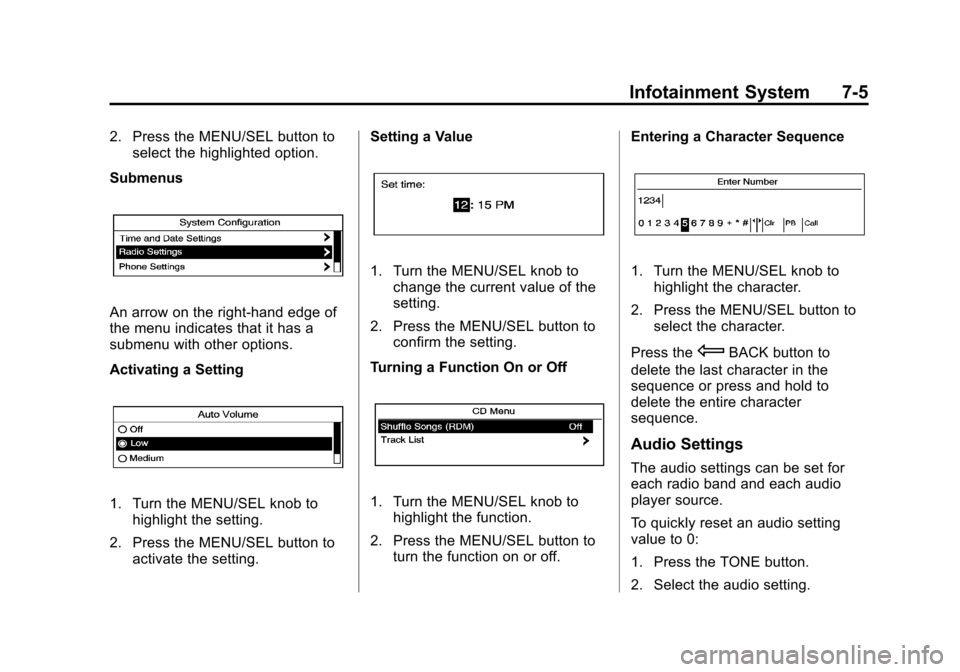
Activating a Setting
1. Turn the MENU/SEL knob to highlight the setting.
2. Press the MENU/SEL button to activate the setting. Setting a Value
1. Turn the MENU/SEL knob to
change the current value of the
setting.
2. Press the MENU/SEL button to confirm the setting.
Turning a Function On or Off
1. Turn the MENU/SEL knob to highlight the function.
2. Press the MENU/SEL button to turn the function on or off. Entering a Character Sequence
1. Turn the MENU/SEL knob to
highlight the character.
2. Press the MENU/SEL button to select the character.
Press the
EBACK button to
delete the last character in the
sequence or press and hold to
delete the entire character
sequence.
Audio Settings
The audio settings can be set for
each radio band and each audio
player source.
To quickly reset an audio setting
value to 0:
1. Press the TONE button.
2. Select the audio setting.
Page 158 of 388
Black plate (6,1)Chevrolet Equinox Owner Manual - 2013 - CRC - 5/21/12
7-6 Infotainment System
3. Press and hold the MENU/SELbutton until the value changes
to 0.
Press the
EBACK button to go
back to the Tone Settings menu.
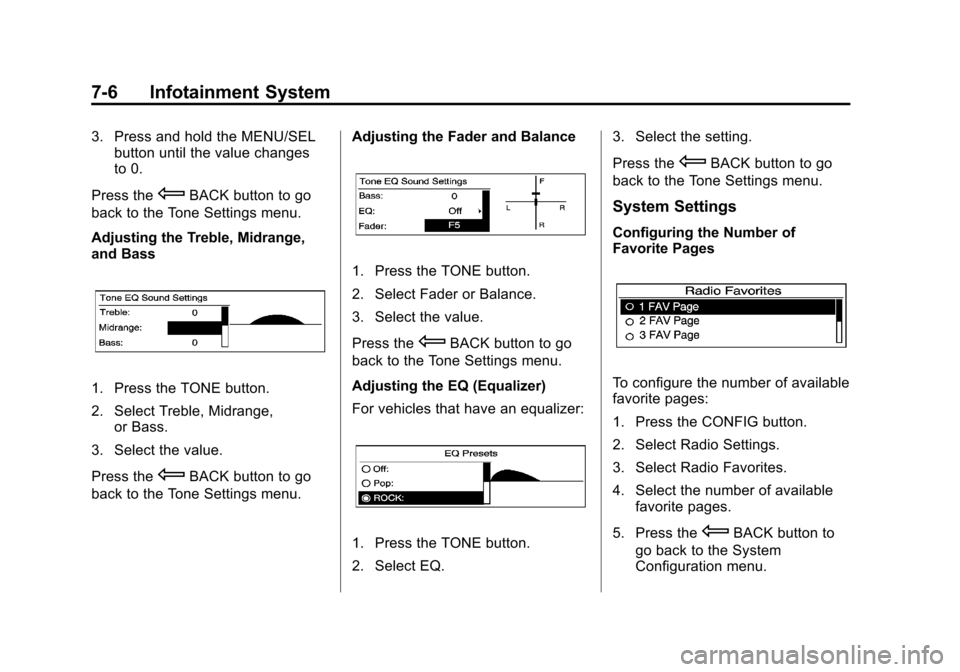
Adjusting the Treble, Midrange,
and Bass
1. Press the TONE button.
2. Select Treble, Midrange, or Bass.
3. Select the value.
Press the
EBACK button to go
back to the Tone Settings menu. Adjusting the Fader and Balance
1. Press the TONE button.
2. Select Fader or Balance.
3. Select the value.
Press the
EBACK button to go
back to the Tone Settings menu.
Adjusting the EQ (Equalizer)
For vehicles that have an equalizer:
1. Press the TONE button.
2. Select EQ. 3. Select the setting.
Press the
EBACK button to go
back to the Tone Settings menu.
System Settings
Configuring the Number of
Favorite Pages
To configure the number of available
favorite pages:
1. Press the CONFIG button.
2. Select Radio Settings.
3. Select Radio Favorites.
4. Select the number of available favorite pages.
5. Press the
EBACK button to
go back to the System
Configuration menu.
Page 159 of 388
Black plate (7,1)Chevrolet Equinox Owner Manual - 2013 - CRC - 5/21/12
Infotainment System 7-7
Auto Volume
The auto volume feature
automatically adjusts the radio
volume to compensate for road and
wind noise as the vehicle speeds up
or slows down, so that the volume
level is consistent.
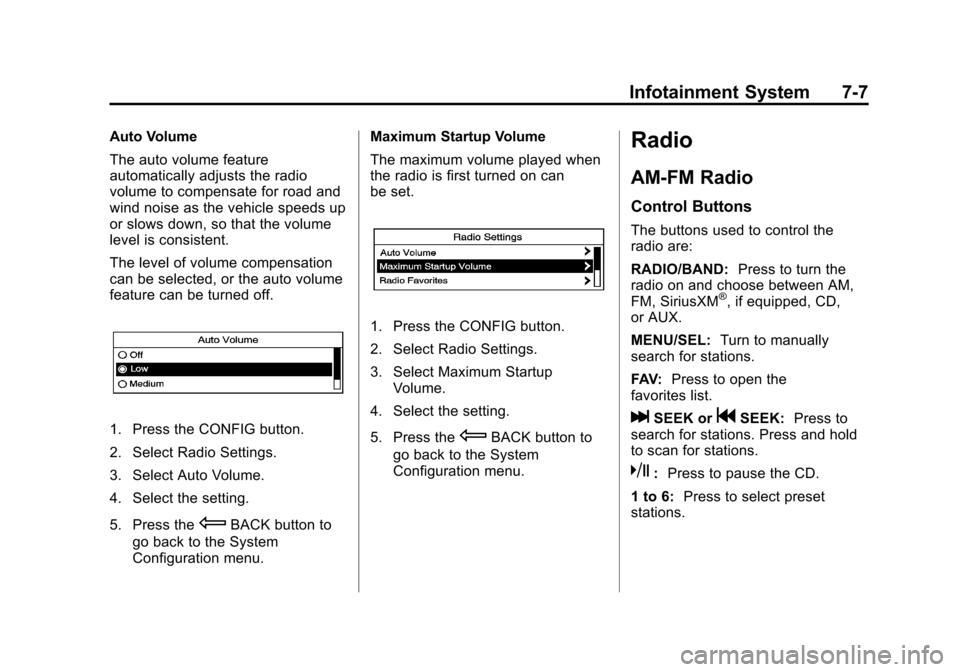
The level of volume compensation
can be selected, or the auto volume
feature can be turned off.
1. Press the CONFIG button.
2. Select Radio Settings.
3. Select Auto Volume.
4. Select the setting.
5. Press the
EBACK button to
go back to the System
Configuration menu. Maximum Startup Volume
The maximum volume played when
the radio is first turned on can
be set.
1. Press the CONFIG button.
2. Select Radio Settings.
3. Select Maximum Startup
Volume.
4. Select the setting.
5. Press the
EBACK button to
go back to the System
Configuration menu.
Radio
AM-FM Radio
Control Buttons
The buttons used to control the
radio are:
RADIO/BAND: Press to turn the
radio on and choose between AM,
FM, SiriusXM
®, if equipped, CD,
or AUX.
MENU/SEL: Turn to manually
search for stations.
FAV: Press to open the
favorites list.
lSEEK orgSEEK: Press to
search for stations. Press and hold
to scan for stations.
k: Press to pause the CD.
1 to 6: Press to select preset
stations.
Page 161 of 388

Black plate (9,1)Chevrolet Equinox Owner Manual - 2013 - CRC - 5/21/12
Infotainment System 7-9
3. Select the programming type.A list of stations that transmit
programming of the selected
type displays.
4. Select the station. The category lists are updated
when the station lists are
updated.
Updating Station & Category Lists
If stations stored in the station list
can no longer be received:
1. Press the MENU/SEL knob.
2. Select Update AM or FM Station List, if the stations stored in the
station list are no longer
received. A station search will be
completed and the first station in
the updated list will play.
To cancel the station search, press
the MENU/SEL knob.
Storing a Station as a Favorite
Stations from all bands can be
stored in any order in the favorite
pages. Up to six stations can be stored in
each favorite page and the number
of available favorite pages can
be set.
Storing a Station as a Favorite
To store the station to a position in
the list, press the corresponding
button 1 to 6 until a beep is heard.
Retrieving Stations
Press the FAV button to open a
favorite page or to switch to another
favorite page. Briefly press one of
the 1 to 6 buttons to retrieve the
station.
Satellite Radio
Vehicles with an SiriusXM®Satellite
Radio tuner and a valid SiriusXM
Satellite Radio subscription can
receive SiriusXM programming.
SiriusXM Satellite Radio
Service
SiriusXM is a satellite radio service
based in the 48 contiguous United
States and 10 Canadian provinces. SiriusXM Satellite Radio has a wide
variety of programming and
commercial-free music, coast to
coast, and in digital-quality sound.
If SiriusXM service needs to be
reactivated, the radio will display
“No Subscription Please Renew on
channel XM1.”
A service fee is
required to receive the SiriusXM
service. For more information,
contact SiriusXM at
www.siriusxm.com or
1-866-635-2349 (U.S.), and
www.xmradio.ca or 1-877-209-0079
(Canada).
Control Buttons
The buttons used to control the
SiriusXM radio are:
RADIO/BAND: Press to turn the
radio on and choose between AM,
FM, and SiriusXM, if equipped.
gSEEK orlSEEK: Press to go
to the previous or next station.
FAV: Press to open the
favorites list.
Page 162 of 388
Black plate (10,1)Chevrolet Equinox Owner Manual - 2013 - CRC - 5/21/12
7-10 Infotainment System
1 to 6:Press to select preset
stations.
MENU/SEL: Turn to select stations.
Press to open the SiriusXM Satellite
Radio menu.
Selecting the SiriusXM Band
Press the RADIO/BAND button to
choose between the AM, FM, and
SiriusXM bands. The last channel
played in that band begins to play
when that band is selected.
Removing or Adding
Categories
SiriusXM channels are organized in
categories.
Channels in a category that have
been removed can still be accessed
by using the
gSEEK orlSEEK
buttons, or the MENU/SEL knob.
To add or remove categories:
1. Press the CONFIG button.
2. Select Radio Settings.
3. Select XM Categories. 4. Turn the MENU/SEL knob to
highlight the category.
5. Press the MENU/SEL knob to remove or add the category.
Selecting a SiriusXM Channel
SiriusXM channels can be selected
by using
gSEEK,lSEEK, the
MENU/SEL knob, or the menu
system.
Selecting a Channel Using
g
SEEK orlSEEK
.Press and releasegSEEK or
lSEEK to go to the previous
or next channel.
.Press and holdgSEEK orl
SEEK to scroll through the
previous or next channel until
the channel is reached. Selecting a Channel Using the
MENU/SEL Knob
To select an XM channel using the
MENU/SEL knob:
Turn the MENU/SEL knob to
highlight an XM channel. The
channel is selected after a short
delay.
To select a channel using the menu:
1. Turn the MENU/SEL knob and
select Channel List.
2. Select the desired channel.
Selecting a Channel Using the
Menu System
1. Turn the MENU/SEL knob.
2. Select XM Category List.
3. Select the category.
4. Select the channel.
Storing a SiriusXM Channel as a
Favorite
Channels from all bands can be
stored in any order in the favorite
pages.
Page 163 of 388
Black plate (11,1)Chevrolet Equinox Owner Manual - 2013 - CRC - 5/21/12
Infotainment System 7-11
Up to six channels can be stored in
each favorite page and the number
of available favorite pages can
be set.
Storing a Channel as a Favorite
To store the channel to a position in
the list, press and hold the
corresponding 1 to 6 button until the
channel can be heard again.
Retrieving Channels
Press the FAV button to open a
favorite page or to change to
another favorite page. Briefly press
one of the 1 to 6 buttons to retrieve
the channel.
Turning SiriusXM Channel
Graphics On or Off
1. From the Home Page press theConfig screen button or the
CONFIG button on the faceplate.
2. Select Radio Settings from the Config Menu list.
3. Select XM Channel Graphics to turn on or off.SiriusXM Messages
XL (Explicit Language
Channels): These channels, or any
others, can be blocked by request,
by calling 1-866-635-2349 (U.S.) or
1-877-209-0079 (Canada).
XM Updating: The encryption code
in the receiver is being updated, no
action is required. This process
should take no longer than
30 seconds.
Loading XM: The audio system is
acquiring and processing audio and
text data; no action is needed. This
message should disappear shortly.
Channel Off Air: This channel is
not currently in service. Tune in to
another channel.
Channel Unauth: This channel is
blocked or cannot be received with
your SiriusXM subscription package.
Channel Unavailable: This
previously assigned channel is no
longer assigned. Tune to another
station. No Artist Info:
The system is
working properly. No artist
information is available at this time
on this channel.
No Title Info: The system is
working properly. No song title
information is available at this time
on this channel.
No CAT Info: The system is
working properly. No category
information is available at this time
on this channel.
No Information: The system is
working properly. No text or
informational messages are
available at this time on this
channel.
No Subscription Please Renew:
The SiriusXM subscription needs to
be reactivated. contact SiriusXM at
www.siriusxm.com or
1-866-635-2349 (U.S.), and
www.xmradio.ca or 1-877-209-0079
(Canada).
Page 169 of 388
Black plate (17,1)Chevrolet Equinox Owner Manual - 2013 - CRC - 5/21/12
Infotainment System 7-17
present in the ID3 tag, the radio
displays the file name as the
track name.
Preprogrammed Playlists
The radio recognizes
preprogrammed playlists; however,
there is no editing capability. These
playlists are treated as special
folders containing compressed
audio song files.
Auxiliary Devices
See the infotainment manual for
more information.
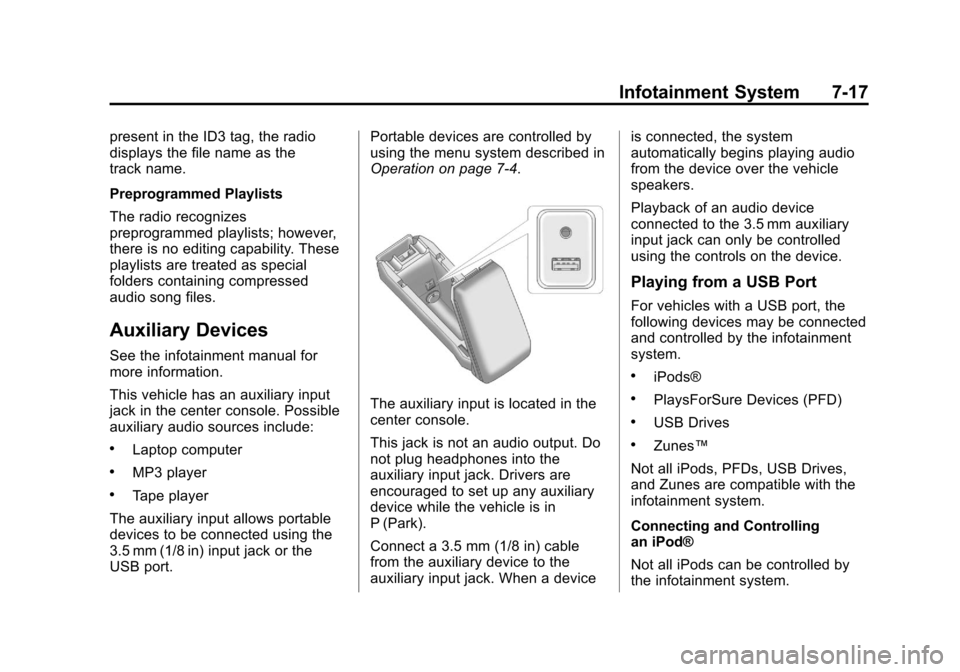
This vehicle has an auxiliary input
jack in the center console. Possible
auxiliary audio sources include:
.Laptop computer
.MP3 player
.Tape player
The auxiliary input allows portable
devices to be connected using the
3.5 mm (1/8 in) input jack or the
USB port. Portable devices are controlled by
using the menu system described in
Operation on page 7‑4.
The auxiliary input is located in the
center console.
This jack is not an audio output. Do
not plug headphones into the
auxiliary input jack. Drivers are
encouraged to set up any auxiliary
device while the vehicle is in
P (Park).
Connect a 3.5 mm (1/8 in) cable
from the auxiliary device to the
auxiliary input jack. When a deviceis connected, the system
automatically begins playing audio
from the device over the vehicle
speakers.
Playback of an audio device
connected to the 3.5 mm auxiliary
input jack can only be controlled
using the controls on the device.
Playing from a USB Port
For vehicles with a USB port, the
following devices may be connected
and controlled by the infotainment
system.
.iPods®
.PlaysForSure Devices (PFD)
.USB Drives
.Zunes™
Not all iPods, PFDs, USB Drives,
and Zunes are compatible with the
infotainment system.
Connecting and Controlling
an iPod®
Not all iPods can be controlled by
the infotainment system.