2013 CHEVROLET AVALANCHE lock
[x] Cancel search: lockPage 196 of 494

Black plate (4,1)Chevrolet Avalanche Owner Manual - 2013 - CRC - 8/27/12
7-4 Infotainment System
H.H(Clock)
.Press to set the clock.
I. BAND
.Press to scroll through the
available bands AM, FM,
or XM if equipped.
J.
©SEEK
.Seeks the previous station.
K.
¨SEEK
.Seeks the next station. L.
P(Power/Volume)
.Press to turn the
infotainment system on
or off.
.Turn to adjust the volume.
M.
sREV (Reverse)
.Press to and hold to go
backward fast through a
track.
N.
\FWD (Forward)
.Press to and hold to fast
forward through a track. O. CD/AUX
.Press to scroll through
selecting the CD or a
auxiliary device.
P.
ZEject
.Press to eject the
loaded CD.
Page 198 of 494
Black plate (6,1)Chevrolet Avalanche Owner Manual - 2013 - CRC - 8/27/12
7-6 Infotainment System
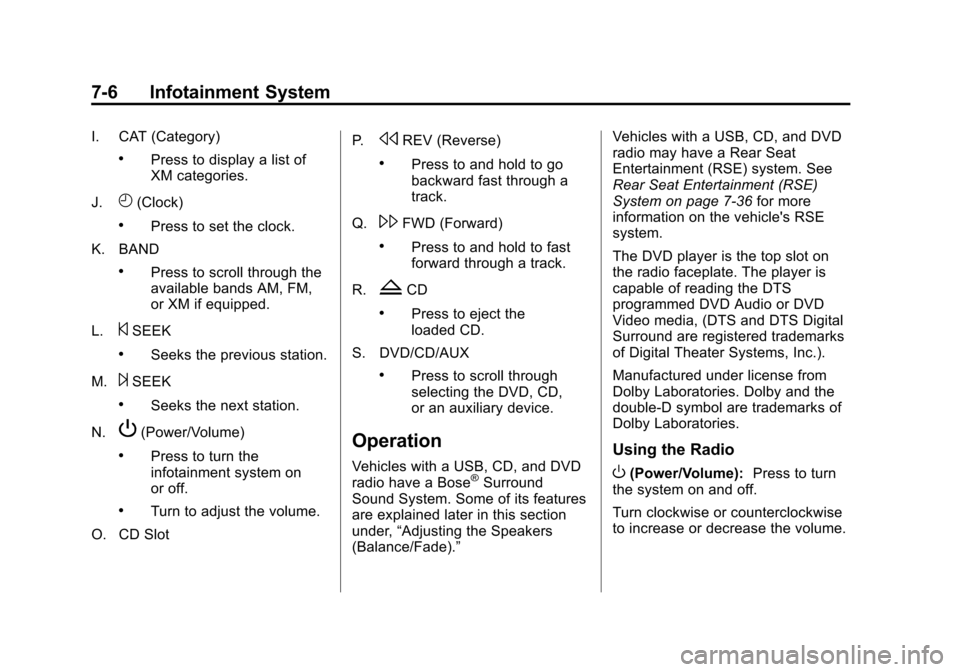
I. CAT (Category)
.Press to display a list of
XM categories.
J.
H(Clock)
.Press to set the clock.
K. BAND
.Press to scroll through the
available bands AM, FM,
or XM if equipped.
L.
©SEEK
.Seeks the previous station.
M.
¨SEEK
.Seeks the next station.
N.
P(Power/Volume)
.Press to turn the
infotainment system on
or off.
.Turn to adjust the volume.
O. CD Slot P.
sREV (Reverse)
.Press to and hold to go
backward fast through a
track.
Q.
\FWD (Forward)
.Press to and hold to fast
forward through a track.
R.
ZCD
.Press to eject the
loaded CD.
S. DVD/CD/AUX
.Press to scroll through
selecting the DVD, CD,
or an auxiliary device.
Operation
Vehicles with a USB, CD, and DVD
radio have a Bose®Surround
Sound System. Some of its features
are explained later in this section
under, “Adjusting the Speakers
(Balance/Fade).” Vehicles with a USB, CD, and DVD
radio may have a Rear Seat
Entertainment (RSE) system. See
Rear Seat Entertainment (RSE)
System on page 7‑36
for more
information on the vehicle's RSE
system.
The DVD player is the top slot on
the radio faceplate. The player is
capable of reading the DTS
programmed DVD Audio or DVD
Video media, (DTS and DTS Digital
Surround are registered trademarks
of Digital Theater Systems, Inc.).
Manufactured under license from
Dolby Laboratories. Dolby and the
double-D symbol are trademarks of
Dolby Laboratories.
Using the Radio
O(Power/Volume): Press to turn
the system on and off.
Turn clockwise or counterclockwise
to increase or decrease the volume.
Page 200 of 494
Black plate (8,1)Chevrolet Avalanche Owner Manual - 2013 - CRC - 8/27/12
7-8 Infotainment System
Setting the Tone (Bass/
Midrange/Treble)
BASS/MID/TREB (Bass, Midrange,
or Treble):To adjust the bass,
midrange, or treble:
1. Press the
fknob until the tone
control tabs display.
2. Highlight the desired tone control tab by doing one of the
following:
.Pressing thefknob.
.Press the softkey under the
desired tab.
3. Adjust the setting by doing one of the following:
.Turn thefknob clockwise
or counterclockwise.
.Press the¨SEEK,
or
©SEEK button.
.Press the\FWD,
or
sREV button. If a station's frequency is weak or if
there is static, decrease the treble.
To quickly adjust bass, midrange,
or treble to the middle position,
press the softkey positioned under
the BASS, MID, or TREB tab for
more than two seconds. A beep
sounds and the level adjusts to the
middle position.
To quickly adjust all tone and
speaker controls to the middle
position, press the
fknob for more
than two seconds until a beep
sounds.
EQ (Equalization): Press this
button to choose bass and treble
equalization settings designed for
different types of music. Selecting
MANUAL or changing bass or
treble, returns the EQ to the manual
bass and treble settings.
Unique EQ settings can be saved
for each source. If the radio has a Bose audio
system, the EQ settings are either
MANUAL or TALK.
Digital Signal Processing (DSP):
Press the EQ button to change the
DSP settings (only available on
Bose systems with the LTZ option
package). DSP settings provide
a choice of different listening
experiences.
The following DSP settings are
available:.Normal
—Select this setting to
adjust the audio for normal
mode. This provides the best
sound quality for all seating
positions.
.Driver —Select this setting to
adjust the audio for the driver to
receive the best possible sound
quality.
.Rear —Select this setting to
adjust the audio for the rear seat
passengers to receive the best
possible sound quality.
Page 201 of 494
Black plate (9,1)Chevrolet Avalanche Owner Manual - 2013 - CRC - 8/27/12
Infotainment System 7-9
.Surround (Centerpoint®)—
Select this setting to enable
Bose Centerpoint. Centerpoint
signal processing produces a
surround sound listening
experience from a CD or XM
stereo digital audio source.
Centerpoint delivers five
independent audio channels
from conventional two channel
stereo recordings. (Not available
for AM or FM.)
Adjusting the Speakers
(Balance/Fade)
BAL/FADE (Balance/Fade): To
adjust the balance or fade:
1. Press the
fknob until the
speaker control tabs display.
2. Highlight the desired speaker control tab by doing one of the
following:
.Pressing thefknob.
.Press the softkey under the
desired tab. 3. Adjust the setting by doing one
of the following:
.Turn thefknob clockwise
or counterclockwise.
.Press the¨SEEK,
or
©SEEK button.
.Press the\FWD,
or
sREV button.
To quickly adjust all speaker and
tone controls to the middle position,
press the
fknob for more than
two seconds.
If the Rear Seat Audio (RSA) is
turned on, the radio disables FADE
and mutes the rear speakers.
Radio Messages
Calibration Error: The audio
system has been calibrated
for the vehicle from the factory. If Calibration Error displays, it
means that the radio has not been
configured properly for the vehicle
and it must be returned to your
dealer for service.
Locked or Loc:
One of these
messages will display when the
TheftLock
®system has locked up
the radio. Take the vehicle to your
dealer for service.
If any error occurs repeatedly or if
an error cannot be corrected,
contact your dealer.
Page 205 of 494

Black plate (13,1)Chevrolet Avalanche Owner Manual - 2013 - CRC - 8/27/12
Infotainment System 7-13
of favorites, each having six favorite
stations available per page. Each
page of favorites can contain
any combination of AM, FM,
or SiriusXM, if equipped, stations.
Storing an SiriusXM Channel as a
Favorite
To store a station as a favorite:
1. Tune to an SiriusXM channel.
2. Press the FAV button to displaythe page where the station will
be stored.
3. Press and hold one of the six softkeys until a beep sounds.
4. Repeat Steps 1 through 3 to store additional radio stations.
The number of favorites pages can
be set up using the MENU button.
To set up the number of favorites
pages:
1. Press the MENU button.
2. Press the softkey located below the FAV 1-6 tab. 3. Select the number of favorites
pages by pressing the softkey
located below the displayed
page numbers.
4. Press the FAV button, or let the menu time out, to return to the
original main radio screen
showing the radio station
frequency tabs and to begin
the process of programming
favorites.
SiriusXM Radio Messages
XL (Explicit Language
Channels): These channels, or
any others, can be blocked at a
customer's request, by calling
1-866-635-2349 (US) or
1-877-209-0079 (Canada).
XM Updating: The encryption code
in the receiver is being updated, and
no action is required. This process
should take no longer than
30 seconds. No XM Signal:
The system is
functioning correctly, but the vehicle
is in a location that is blocking the
SiriusXM signal. When the vehicle is
moved into an open area, the signal
should return.
Loading XM: The audio system is
acquiring and processing audio and
text data. No action is needed. This
message should disappear shortly.
Channel Off Air: This channel is
not currently in service. Tune in to
another channel.
Channel Unauth: This channel is
blocked or cannot be received with
your SiriusXM subscription package.
Channel Unavail: This previously
assigned channel is no longer
assigned. Tune to another station.
If this station was one of the
presets, choose another station for
that preset button.
No Artist Info: No artist
information is available at this time
on this channel. The system is
working properly.
Page 206 of 494
Black plate (14,1)Chevrolet Avalanche Owner Manual - 2013 - CRC - 8/27/12
7-14 Infotainment System
No Title Info:No song title
information is available at this time
on this channel. The system is
working properly.
No CAT Info: No category
information is available at this time
on this channel. The system is
working properly.
No Information: No text or
informational messages are
available at this time on this
channel. The system is working
properly.
No Subscription Please Renew:
The SiriusXM subscription needs to
be reactivated. Contact SiriusXM
at www.siriusxm.com or call
1-866-635-2349 (U.S) and
www.xmradio.ca or call
1-877-209-0079 (Canada).
CAT Not Found: There are no
channels available for the selected
category. The system is working
properly. XM Theftlocked:
The SiriusXM
receiver in the vehicle could have
previously been in another vehicle.
For security purposes, SiriusXM
receivers cannot be swapped
between vehicles. If this message is
received after having the vehicle
serviced, check with your dealer.
XM Radio ID: If tuned to channel 0,
this message alternates with the
SiriusXM Radio eight-digit radio ID
label. This label is needed to
activate the service.
Unknown: If this message is
received when tuned to channel 0,
there could be a receiver fault.
Consult with your dealer.
Check Antenna: If this message
does not clear within a short period
of time, the receiver or antenna
could have a fault. Consult with your
dealer.
Check XM Receiver: If this
message does not clear within a
short period of time, the receiver
could have a fault. Consult with your
dealer. XM Not Available:
If this message
does not clear within a short period
of time, the receiver could have a
fault. Consult with your dealer.
Radio Reception
Frequency interference and static
can occur during normal radio
reception if items such as cell phone
chargers, vehicle convenience
accessories, and external electronic
devices are plugged into the
accessory power outlet. If there is
interference or static, unplug the
item from the accessory power
outlet.
AM
The range for most AM stations is
greater than for FM, especially at
night. The longer range can cause
station frequencies to interfere
with each other. For better radio
reception, most AM radio stations
boost the power levels during the
day, and then reduce these levels
during the night. Static can also
occur when things like storms and
Page 220 of 494

Black plate (28,1)Chevrolet Avalanche Owner Manual - 2013 - CRC - 8/27/12
7-28 Infotainment System
O(Power):Press to turn the radio
on or off. Turn clockwise or
counterclockwise to increase or
decrease the volume. Press and
hold for more than two seconds to
turn off the entire radio and Rear
Seat Entertainment (RSE) system
and to start the Parental Control
feature. Parental Control prevents
the rear seat occupant from
operating the Rear Seat Audio
(RSA) system or remote control.
A lock symbol displays next to the
clock display. The Parental Control
feature remains on until the knob is
pressed and held for more than
two seconds again, or until the
driver turns the ignition off and exits
the vehicle.
f(Tune): Turn to select tracks on
a CD or DVD.
©SEEK: Press to return to the start
of the current track or chapter.
Press again to go to the previous
track or chapter. This button might not work when the DVD is playing
the copyright information or the
previews.
¨SEEK:
Press to go to the next
track or chapter. This button might
not work when the DVD is playing
the copyright information or the
previews.
sREV (Fast Reverse): Press to
quickly reverse the CD or DVD at
five times the normal speed. To stop
fast reversing, press again. This
button might not work when the
DVD is playing the copyright
information or the previews.
\FWD (Fast Forward): Press to
fast forward the CD or DVD at
five times the normal speed. To stop
fast forwarding, press again. This
button might not work when the
DVD is playing the copyright
information or the previews. Using Softkeys to Play a DVD-V
(Video)
Once a DVD-V is inserted, the radio
display menu shows several tab
options for playback. Press the
softkey located under any tab option
during DVD-V playback.
r/j(Play/Pause):
Press either
the Play or Pause tab displayed on
the radio, to toggle between pausing
or restarting playback of a DVD.
If the forward arrow is showing on
the display, the system is in pause
mode. If the Pause tab is showing
on the display, the system is in
playback mode. If the DVD screen
is off, press the play button to turn
the screen on.
Some DVDs begin playing after the
previews have finished, although
there could be a delay of up to
30 seconds. If the DVD does
not begin playing the movie
automatically, press the softkey
located under the play/pause
symbol tag displayed on the radio.
Page 223 of 494
Black plate (31,1)Chevrolet Avalanche Owner Manual - 2013 - CRC - 8/27/12
Infotainment System 7-31
displays an error message, write it
down and provide it to your dealer
when reporting the problem.
Auxiliary Devices
Using the Auxiliary Input Jack
Radios with an auxiliary input jack
located on the lower right side of the
faceplate can connect to an external
audio device such as an iPod
®,
MP3 player, CD player, for use as
another source for audio listening.
This input jack is not an audio
output; do not plug headphones into
the front auxiliary input jack.
Drivers are encouraged to set up
any auxiliary device while the
vehicle is in P (Park). See
Defensive Driving on page 9‑3
for more information on driver
distraction. To use a portable audio player,
connect a 3.5 mm (1/8 in) cable to
the radio's front auxiliary input jack.
When a device is connected, press
the radio CD/AUX button to begin
playing audio from the device over
the vehicle speakers.
For optimal sound quality, increase
the portable audio device's volume
to the loudest level.
It is always best to power the
portable audio device through its
own battery while playing.
O(Power/Volume):
Turn clockwise
or counterclockwise to increase
or decrease the volume of the
portable player. Additional volume
adjustments might have to be made
from the portable device if the
volume is not loud or soft enough.
BAND: Press to listen to the radio
when a portable audio device is
playing. The portable audio device
continues playing. CD/AUX (CD/Auxiliary):
Press to
play a CD when a portable audio
device is playing. Press again and
the system begins playing audio
from the connected portable audio
player. If a portable audio player is
not connected, “No Input Device
Found” displays.
DVD/CD AUX (CD/Auxiliary):
Press to cycle through DVD,
CD, or Auxiliary when listening to
the radio. The DVD/CD text tab and
a message showing track or chapter
number displays when a disc is in
either slot. Press again and the
system automatically searches for
an auxiliary input device, such as a
portable audio player. If a portable
audio player is not connected, “No
Aux Input Device” displays. If a disc
is in both the DVD slot and the CD
slot the DVD/CD AUX button cycles
between the two sources and not
indicate “No Aux Input Device”.