2013 CADILLAC ESCALADE EXT phone
[x] Cancel search: phonePage 230 of 476

Black plate (58,1)Cadillac Escalade EXT Owner Manual - 2013 - CRC - 4/5/12
7-58 Infotainment System
.Press Map, the navigation
system displays the Destination
Map Screen.
.Press Call, the navigation
system initiates a call to your
destination with your Bluetooth
phone (if available) or OnStar
Hands-Free Calling (if minutes
are available).
.Press Add to Address Book, the
navigation system copies the
downloaded destination to the
address book and displays the
new address book entry.
.Press Back, the navigation
system cancels your OnStar
Destination Download and
returns to the previous screen.
The downloaded address will not
be added to the previous
destinationsRoute Guidance Not Active
If an OnStar destination is
downloaded while route guidance is
not active, the navigation system
displays an OnStar Destination
Download Screen and operations
will continue as outlined in the
Using OnStar Destination Download
section:
Route Guidance Active
If OnStar downloads a destination
while route guidance is already
active, the navigation system adds
the downloaded destination as the
next waypoint in the existing route.
All features such as Call and Add to
Address Book will be available for
the waypoint. Refer to the section
on Waypoints for more information.
Previous Destinations
Previous OnStar Destination
Downloads are saved under
Previous Destinations in the
navigation system where they can
be accessed or saved to the
address book. Important Notes regarding OnStar
Destination Download:
.If the navigation system is
turned off when the destination
download is attempted, the
navigation system will
automatically turn on and display
the OnStar Destination
Download Screen. The radio will
remain on after the download
occurs.
.If OnStar downloads a
destination and the address is
not found in the mapping disc’s
database and routing by
coordinates is not available, the
GO and Map buttons gray out
and routing will not be available.
Press the blue OnStar button for
further assistance.
.The Call button grays out when
there is no phone number
available for your destination
and while connected to OnStar.
Page 236 of 476

Black plate (64,1)Cadillac Escalade EXT Owner Manual - 2013 - CRC - 4/5/12
7-64 Infotainment System
5. Press the Name screen buttonand use the alpha keyboard to
edit or add the name.
6. Press OK to save your changes, then press Back to return to the
Address Book information
screen.
To add or change the phone number
of an address book entry:
1. Press CONFIG.
2. Press the Nav screen button.
3. Press Edit/View Address Book.
4. Select the address book entry to change. 5. Press the Phone # screen button
and use the numeric keyboard to
input or change the phone
number.
6. Press OK to save your changes, then press Back to return to the
Address Book information
screen.
To change the map icon of an
address book entry:
1. Press CONFIG.
2. Press the Nav screen button.
3. Press Edit/View Address Book.
4. Select the address book entry to change.
5. Press the Icon screen button.
6. Select an icon from the list.
To add a voice tag to an address
book entry:
1. Press CONFIG.
2. Press the Nav screen button.
3. Press Edit/View Address Book.
4. Press Add Voice Tag. 5. The system will ask for you to
state the name. You will have
four seconds to state the name.
The system will respond back
with the name and prompt you to
repeat the name for
confirmation.
To delete an address book entry:
1. Press CONFIG.
2. Press the Nav screen button.
3. Press Edit/View Address Book.
4. Select the address book entry to delete.
5. Press Delete to delete the address book entry.
6. A confirmation pop-up will display. Press OK to delete;
press Cancel to cancel the
operation.
To delete the entire address book:
1. Press CONFIG.
2. Press the Nav screen button.
3. Press Edit/View Address Book.
Page 248 of 476

Black plate (76,1)Cadillac Escalade EXT Owner Manual - 2013 - CRC - 4/5/12
7-76 Infotainment System
Problems with Route
Guidance
Inappropriate route guidance may
occur under one or more of the
following conditions:
.You have not turned onto the
road indicated.
.Route guidance may not be
available when using automatic
rerouting for the next right or
left turn.
.The route may not be changed
when using automatic rerouting.
.There is no route guidance when
turning at an intersection.
.Plural names of places may be
announced occasionally.
.It may take a long time to
operate automatic rerouting
during high-speed driving.
.Automatic rerouting may display
a route returning to the set
stopover if you are heading for a
destination without passing
through a set stopover.
.The route prohibits the entry of a
vehicle due to a regulation by
time or season or any other
regulation which may be given.
.Some routes may not be
searched.
.The route to the destination may
not be shown if there are new
roads, if roads have recently
changed, or if certain roads are
not listed on the map DVD. See
Database Coverage
Explanations on page 7‑77
To recalibrate the vehicle's position
on the map, see your dealer.
If the System Needs
Service
If the navigation system needs
service and the steps listed here
have been followed but there are
still problems, see your dealer for
assistance.
Map Data Updates
The navigation map database is
stored on a compact flash card. It is
usable only in this type of navigation
system, and will not function in other
electronic devices.
The map in the vehicle was installed
by the factory and is the most
up-to-date information available as
the vehicle was produced. This map
may have to be updated
periodically, provided that the map
information has changed. See your
dealer for service.
Ordering Map Data Updates
The map database in the vehicle is
the most up-to-date information
available when the vehicle was
produced. The map database is
updated periodically, provided that
the map information has changed.
United States and Canada
For any questions about the system
or the update process, contact the
GM Nav Disc Center toll-free phone
Page 249 of 476
Black plate (77,1)Cadillac Escalade EXT Owner Manual - 2013 - CRC - 4/5/12
Infotainment System 7-77
number, 1-877-NAV-DISC
(1-877-628-3472) or go to the
center's website,
www.gmnavdisc.com. For any
updates or replacements, call the
GM Nav Disc Center or order the
new database online. Have the
Vehicle Identification Number (VIN)
available when ordering to ensure
the correct and most up-to-date map
database for the vehicle is sent. See
“Vehicle Identification Number
(VIN)”in the index of the vehicle
owner manual for more information.
Mexico
For any questions about the
operation of the navigation system
or the update process, contact
General Motors of Mexico,
Customer Care Center Cadillac
toll-free phone number,
01-800-466-0805 or write to
[email protected]. Have the
Vehicle Identification Number (VIN)
available when ordering to ensure
the correct and most up-to-date
DVD map disc for the vehicle is
sent. See “Vehicle Identification Number (VIN)”
in the Index of the
vehicle owner manual for more
information.
After receiving the updated map
database, see your dealer for
replacement.
Database Coverage
Explanations
Coverage area depends upon the
map detail available. Some areas
have greater map detail than others.
The navigation system works only
as well as the information provided
on the stored map data. See Map
Data Updates on page 7‑76 on how
to obtain updated map information.
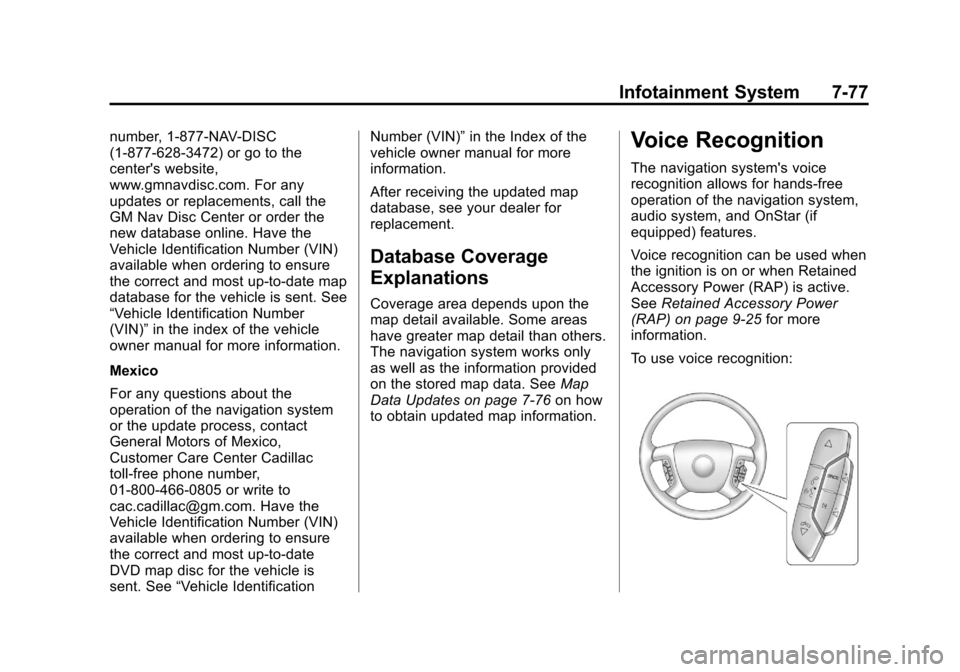
Voice Recognition
The navigation system's voice
recognition allows for hands-free
operation of the navigation system,
audio system, and OnStar (if
equipped) features.
Voice recognition can be used when
the ignition is on or when Retained
Accessory Power (RAP) is active.
See Retained Accessory Power
(RAP) on page 9‑25 for more
information.
To use voice recognition:
Page 252 of 476

Black plate (80,1)Cadillac Escalade EXT Owner Manual - 2013 - CRC - 4/5/12
7-80 Infotainment System
CD, DVD, Disc select previous
folder:Use this command to select
the previous folder on the MP3 or
audio DVD.
CD help, DVD help, Disc help:
Instructs the system to assist with
CD and DVD commands.
Auxiliary Commands
The following auxiliary commands
can be accessed by clearly stating
the commands exactly as they are
written. The commands are
available when the auxiliary source
is available.
Aux, Auxiliary: Use this command
to select the auxiliary device, when
a device is connected.
Voice Help
Provides a description of help
commands that can be used.Phone
Bluetooth
For vehicles equipped with
Bluetooth capability, the system can
interact with many cell phones,
allowing:
.Placement and receipt of calls in
a hands-free mode.
.Sharing of the cell phone’s
address book or contact list with
the vehicle.
To minimize driver distraction,
before driving, and with the vehicle
parked:
.Become familiar with the
features of the cell phone.
Organize the phone book and
contact lists clearly and delete
duplicate or rarely used entries.
If possible, program speed dial
or other shortcuts.
.Review the controls and
operation of the infotainment
system.
.Pair cell phone(s) to the vehicle.
The system may not work with
all cell phones. See “Pairing”in
this section for more information.
.If the cell phone has voice
dialing capability, learn to use
that feature to access the
address book or contact list. See
“Voice Pass-Thru” in this section
for more information.
.See “Storing and Deleting Phone
Numbers” in this section for
more information.
{WARNING
When using a cell phone, it can
be distracting to look too long or
too often at the screen of the
phone or the infotainment
(navigation) system. Taking your
eyes off the road too long or too
often could cause a crash
resulting in injury or death. Focus
your attention on driving.
Page 253 of 476

Black plate (81,1)Cadillac Escalade EXT Owner Manual - 2013 - CRC - 4/5/12
Infotainment System 7-81
A Bluetooth system can use a
Bluetooth-capable cell phone with a
Hands-Free Profile to make and
receive phone calls. The system
can be used while the key is in the
ON/RUN or ACC/ACCESSORY
position. The range of the Bluetooth
system can be up to 9.1 m (30 ft).
Not all phones support all functions,
and not all phones work with the
in-vehicle Bluetooth system. See
www.gm.com/bluetooth for more
information on compatible phones.
Voice Recognition
The Bluetooth system uses voice
recognition to interpret voice
commands to dial phone numbers
and name tags.
For additional information, say
“Help”while you are in a voice
recognition menu.
Noise: Keep interior noise levels to
a minimum. The system may not
recognize voice commands if there
is too much background noise. When to Speak:
A short tone
sounds after the system responds
indicating when it is waiting for a
voice command. Wait until the tone
and then speak.
How to Speak: Speak clearly in a
calm and natural voice.
Audio System
When using the in-vehicle Bluetooth
system, sound comes through the
vehicle's front audio system
speakers and overrides the audio
system. Use the audio system
volume knob, during a call, to
change the volume level. The
adjusted volume level remains in
memory for later calls. To prevent
missed calls, a minimum volume
level is used if the volume is turned
down too low.
Bluetooth Controls
Use the buttons located on the
steering wheel to operate the
in-vehicle Bluetooth system. See
Steering Wheel Controls on
page 5‑2 for more information.
b/g(Push To Talk): Press to
answer incoming calls, confirm
system information, and start
speech recognition.
c/x(End): Press to end a call,
reject a call, or cancel an operation.
Pairing
A Bluetooth enabled cell phone
must be paired to the Bluetooth
system and then connected to the
vehicle before it can be used. See
the cell phone manufacturer's user
guide for Bluetooth functions before
pairing the cell phone. If a Bluetooth
phone is not connected, calls will be
made using OnStar Hands-Free
Calling, if equipped. See OnStar
Overview on page 14‑1 for more
information.
Pairing Information
.A Bluetooth phone with MP3
capability cannot be paired to
the vehicle as a phone and an
MP3 player at the same time.
Page 254 of 476

Black plate (82,1)Cadillac Escalade EXT Owner Manual - 2013 - CRC - 4/5/12
7-82 Infotainment System
.Up to five cell phones can be
paired to the Bluetooth system.
.The pairing process is disabled
when the vehicle is moving.
.Pairing only needs to be
completed once, unless the
pairing information on the cell
phone changes or the cell phone
is deleted from the system.
.Only one paired cell phone can
be connected to the Bluetooth
system at a time.
.If multiple paired cell phones are
within range of the system, the
system connects to the first
available paired cell phone in the
order that they were first paired
to the system. To connect to a
different paired phone, see
“Connecting to a Different
Phone”later in this section.
Pairing a Phone
1. Press and hold
b/gfor
two seconds. 2. Say
“Bluetooth.” This command
can be skipped.
3. Say “Pair.”The system responds
with instructions and a four-digit
Personal Identification Number
(PIN). The PIN is used in Step 5.
4. Start the pairing process on the cell phone that you want to pair.
For help with this process, see
the cell phone manufacturer's
user guide.
5. Locate the device named “Your
Vehicle” in the list on the cell
phone. Follow the instructions
on the cell phone to enter the
PIN provided in Step 3. After the
PIN is successfully entered, the
system prompts you to provide a
name for the paired cell phone.
This name will be used to
indicate which phones are
paired and connected to the
vehicle. The system responds
with “
successfully paired” after the
pairing process is complete. 6. Repeat Steps 1 through 5 to pair
additional phones.
Listing All Paired and Connected
Phones
The system can list all cell phones
paired to it. If a paired cell phone is
also connected to the vehicle, the
system responds with “is connected”
after that phone name.
1. Press and hold
b/gfor
two seconds.
2. Say “Bluetooth.”
3. Say “List.”
Deleting a Paired Phone
If the phone name you want to
delete is unknown, see “Listing All
Paired and Connected Phones.”
1. Press and hold
b/gfor
two seconds.
2. Say “Bluetooth.”
3. Say “Delete.” The system asks
which phone to delete.
Page 255 of 476

Black plate (83,1)Cadillac Escalade EXT Owner Manual - 2013 - CRC - 4/5/12
Infotainment System 7-83
4. Say the name of the phone youwant to delete.
Connecting to a Different Phone
To connect to a different cell phone,
the Bluetooth system looks for the
next available cell phone in the
order in which all the available cell
phones were paired. Depending on
which cell phone you want to
connect to, you may have to use
this command several times.
1. Press and hold
b/gfor
two seconds.
2. Say “Bluetooth.”
3. Say “Change phone.”
.If another cell phone is
found, the response will be
“
connected.”
.If another cell phone is not
found, the original phone
remains connected.
Storing and Deleting Phone
Numbers
The system can store up to 30
phone numbers as name tags in the
Hands-Free Directory that is shared
between the Bluetooth and OnStar
systems, if equipped.
The following commands are used
to delete and store phone numbers.
Store:This command will store a
phone number, or a group of
numbers as a name tag.
Digit Store: This command allows
a phone number to be stored as a
name tag by entering the digits one
at a time.
Delete: This command is used to
delete individual name tags.
Delete All Name Tags: This
command deletes all stored name
tags in the Hands-Free Calling
Directory and the OnStar
Turn-by-Turn Destinations Directory,
if equipped. Using the
“Store”Command
1. Press and holdb/gfor
two seconds.
2. Say “Store.”
3. Say the phone number or group of numbers you want to store all
at once with no pauses, then
follow the directions given by the
system to save a name tag for
this number.
Using the “Digit Store” Command
If an unwanted number is
recognized by the system, say
“Clear” at any time to clear the last
number.
To hear all of the numbers
recognized by the system, say
“Verify” at any time.
1. Press and hold
b/gfor
two seconds.
2. Say “Digit Store.”
3. Say each digit, one at a time, that you want to store. After
each digit is entered, the system