2013 BUICK REGAL buttons
[x] Cancel search: buttonsPage 168 of 412

Black plate (16,1)Buick Regal Owner Manual - 2013 - crc - 11/5/12
7-16 Infotainment System
Control Buttons
The buttons used to control the CD
player are:
SRCE (Source):Press to use the
CD player.
s ©or¨\:Press to select
tracks or to fast rewind or forward
within a track.
INFO: Press to display additional
information about the current track
that may be available.
Multifunction Knob: Turn to select
tracks. Press to enter the CD menu
and select items.
Z(Eject): Press to eject the disc.
Playing an Audio CD
1. Press the CD screen button on
the Home Page or select CD
from the source pop-up to
display the CD main page.
2. From the CD screen, press the Menu screen button to display
the menu options. 3. Press to select the desired
option.
On the CD main page a track
number displays at the beginning of
each track. Song, Artist, and Album
information displays when available.
Use the following controls to play
the disc:
w/j(Play/Pause): Use to start,
pause, or resume play.
s ©(Seek/Previous):
.Press to seek to the beginning of
the current or previous track.
If the track has been playing for
less than five seconds, it seeks
to the previous track. If longer
than five seconds, the current
track starts from the beginning.
.Press and hold to fast reverse
through a track. Release the
button to return to playing
speed. Elapsed time displays.
\¨(Seek/Next):
.Press to seek to the next track.
.Press and hold to fast forward
through a track. Release the
button to return to playing
speed. Elapsed time displays.
Multifunction Knob: Turn to the
right or left to select the next or
previous track. Press this knob to
select the menu. If a track is
selected from the list, the system
plays the track and returns to the
CD screen.
MP3
Playing an MP3 CD
To play an MP3 CD, follow the same
instructions as “Playing an
Audio CD.”
The following guidelines must be
met when creating an MP3 disc,
otherwise the CD might not play:
.Sampling rate: 16 kHz,
22.05 kHz, 24 kHz, 32 kHz,
44.1 kHz, and 48 kHz.
Page 169 of 412

Black plate (17,1)Buick Regal Owner Manual - 2013 - crc - 11/5/12
Infotainment System 7-17
.Bit rates supported: 8, 16, 24,
32, 40, 48, 56, 64, 80, 96, 112,
128, 144, 160, 192, 224, 256,
and 320 kbps.
.Maximum number of folders:
eight folders with 255 files per
folder.
.Maximum of 1,000 files on
a disc.
.Recorded on a CD-R or CD-RW
with a maximum capacity of
700 MB.
.The Artist/Album/Song Titles/
Genre information requires a CD
to be fully scanned before the
music navigator works with
these menus.
MP3 Music Menu
Press the Menu screen button while
that source is active to access
the menu. Press any of the following buttons
on the MP3 Menu:
Shuffle Songs:
Press to play the
tracks randomly. Press again to stop
shuffle.
Playlists: Press to view the
playlists stored on the disc. Select a
playlist to view the list of all songs in
that playlist. There might be a delay
before the list displays. Select a
song from the list to begin playback.
Artists: Press to view the list of
artists stored on the disc. Select an
artist name to view a list of all songs
by the artist. There might be a delay
before the list displays. Select a
song from the list to begin playback.
Albums: Press to view the albums
on the disc. Select the album to
view a list of all songs on the album.
There might be a delay before the
list displays. Select a song from the
list to begin playback.
Song Titles: Press to display a list
of all songs on the disc. Songs are
displayed as stored on the disc. There might be a delay before the
list displays. To begin playback,
select a song from the list.
Genres:
Press to view the genres.
Select a genre to view a list of all
songs of that genre. Select a song
from the list to begin playback.
Folders: Press to open a folder list
to access the files within the folder
structure.
Root Directory
The root directory is treated as a
folder. All files contained directly
under the root directory are
accessed prior to any root directory
folders.
Empty Folders
If a root directory or folder is empty
or contains only folders, the player
advances to the next folder in the
file structure that contains a
compressed audio file. The empty
folder(s) are not displayed or
numbered.
Page 172 of 412

Black plate (20,1)Buick Regal Owner Manual - 2013 - crc - 11/5/12
7-20 Infotainment System
While the USB source is active, use
the following to operate USB
function:
w/j(Play/Pause):Press to start,
pause, or resume play of the current
media source.
s ©(Seek/Previous):
1. Press to seek to the beginning of the current or previous track.
If the track has been playing for
less than five seconds, the
previous track plays. If playing
longer than five seconds, the
current track restarts.
2. Press and hold to reverse quickly through playback.
3. Release to return to playing speed. Elapsed time displays.
\¨(Seek/Next):
1. Press to seek to the next track.
2. Press and hold to advance quickly through playback.
Release to return to playing
speed. Elapsed time displays. USB Menu
Press any of the following buttons
on the USB Menu:
Shuffle Songs:
Press to play the
tracks randomly. Press again to stop
shuffle.
Playlists: Press to view the
playlists stored on the USB. Select
a playlist to view the list of all songs
in that playlist. There might be a
delay before the list displays. Select
a song from the list to begin
playback.
Artists: Press to view the list of
artists stored on the USB. Select an
artist name to view a list of all
albums by the artist. There might be
a delay before the list displays. To
select a song, touch All Songs then
select a song or touch an album
then select a song from the list to
begin playback.
Albums: Press to view the albums
on the USB. Select the album to
view a list of all songs on the album. There might be a delay before the
list displays. Select a song from the
list to begin playback.
Song Titles:
Press to display a list
of all songs on the USB. Songs are
displayed as stored on the disc.
There might be a delay before the
list displays. To begin playback,
select a song from the list.
Genres: Press to view the genres
on the USB. Select a genre to view
a list of all songs of that genre.
Select a song from the list to begin
playback.
Folders: Press to open a folder list
to access the files within the folder
structure.
File System and Naming
The song titles, artists, albums, and
genres are taken from the file's ID3
tag and are only displayed if present
in the tag. If a song title is not
present in the ID3 tag, the radio
displays the file name as the
track name.
Page 173 of 412

Black plate (21,1)Buick Regal Owner Manual - 2013 - crc - 11/5/12
Infotainment System 7-21
Playing from an iPod®
This feature supports the following
iPod models:
.iPod nano®(1st, 2nd, 3rd, and
4th generation)
.iPod®with video (5.0 and 5.5
generation). Video is not shown;
only audio is supported.
.iPod classic®(6th generation)
.iPod touch®(1st and 2nd
generation)
There may be problems with
operation and function in the
following situations:
.When connecting an iPod on
which a more recent version of
the firmware is installed than is
supported by the infotainment
system.
.When connecting an iPod on
which firmware from other
providers is installed. To connect and control an iPod,
connect one end of the standard
iPod USB cable to the iPod's dock
connector. Connect the other end to
the USB port in the center console.
iPod music information displays on
the radio’s display and begins
playing through the vehicle’s audio
system.
The iPod battery recharges
automatically while the vehicle is on.
When the vehicle is off while an
iPod is connected using the iPod
USB cable, the iPod battery stops
charging and the iPod automatically
turns off.
If the iPod is an unsupported model,
it can still be listened to in the
vehicle by connecting to the
auxiliary input jack using a standard
3.5 mm (1/8 in) stereo cable.
iPod Menu
Shuffle Songs:
Press to play the
tracks randomly. Press again to stop
shuffle. Press any of the following buttons
on the iPod Menu:
Playlists:
1. Press to view the playlists stored
on the iPod.
2. Select a playlist name to view a list of all songs in the playlist.
3. Select the desired song from the list to begin playback.
Artists:
1. Press to view the artists stored on the iPod.
2. Select an artist name to view a list of all songs by the artist.
3. Select the desired song from the list to begin playback.
Albums:
1. Press to view the albums stored on the iPod.
2. Select an album name to view a list of all songs on the album or
select All Songs to view all
songs by the artist.
Page 175 of 412

Black plate (23,1)Buick Regal Owner Manual - 2013 - crc - 11/5/12
Infotainment System 7-23
.Pair cell phone(s) to the vehicle.
The system may not work with
all cell phones. See“Pairing”in
this section for more information.
.If the cell phone has voice
dialing capability, learn to use
that feature to access the
address book or contact list. See
“Voice Pass-Thru” in this section
for more information.
.See “Storing and Deleting Phone
Numbers” in this section for
more information.
{WARNING
When using a cell phone, it can
be distracting to look too long or
too often at the screen of the
phone or the infotainment
(navigation) system. Taking your
eyes off the road too long or too
often could cause a crash
resulting in injury or death. Focus
your attention on driving. Vehicles with a Bluetooth system
can use a Bluetooth-capable cell
phone with a Hands-Free Profile to
make and receive phone calls. The
infotainment system and voice
recognition are used to control the
system. The system can be used
while in ON/RUN or ACC/
ACCESSORY. The range of the
Bluetooth system can be up to 9.1 m
(30 ft). Not all phones support all
functions and not all phones work
with the Bluetooth system. See
www.gm.com/bluetooth for more
information about compatible
phones.Bluetooth Controls
Use the buttons located on the
infotainment system and the
steering wheel to operate the
Bluetooth system.
Steering Wheel Controls
b/g(Push To Talk):
Press to
answer incoming calls, confirm
system information, and start voice
recognition.
$/i(End Call/Mute): Press to
end a call, reject a call, or cancel an
operation.
Infotainment System Controls
If equipped, the infotainment system
allows certain controls to be
selected on the infotainment display.
For information about how to
navigate the menu system using the
infotainment controls, see Overview
on page 7‑2.
V/$(Phone/Mute): Press to
enter the Phone main menu. Press
to mute audio.
Voice Recognition
The voice recognition system uses
commands to control the system
and dial phone numbers.
Noise: The system may not
recognize voice commands if there
is too much background noise.
When to Speak: A tone sounds to
indicate that the system is ready for
a voice command. Wait for the tone
and then speak.
Page 333 of 412
Black plate (85,1)Buick Regal Owner Manual - 2013 - crc - 11/5/12
Vehicle Care 10-85
If this vehicle has a compact spare
tire, it was fully inflated when new;
however, it can lose air over time.
Check the inflation pressure
regularly. It should be 420 kPa
(60 psi).
Stop as soon as possible and check
that the spare tire is correctly
inflated after being installed on the
vehicle. The compact spare tire is
designed for temporary use only.
The vehicle will perform differently
with the spare tire installed and it is
recommended that the vehicle
speed be limited to 80 km/h
(50 mph). To conserve the tread of
the spare tire, have the standard tire
repaired or replaced as soon as
convenient and return the spare tire
to the storage area.Notice:
When the compact spare
is installed, do not take the
vehicle through an automatic car
wash with guide rails. The
compact spare can get caught on
the rails which can damage the
tire, wheel, and other parts of the
vehicle.
Do not use the compact spare on
other vehicles.
Do not mix the compact spare tire or
wheel with other wheels or tires.
They will not fit. Keep the spare tire
and its wheel together.
Notice: Tire chains will not fit the
compact spare. Using them can
damage the vehicle and the
chains. Do not use tire chains on
the compact spare.Jump Starting
Jump Starting (On-board
with eAssist Only)
If the vehicle fails to crank, it may
be jump started by using the eAssist
battery to charge the 12-volt battery.
Use the following procedure to
activate the on-board jump start
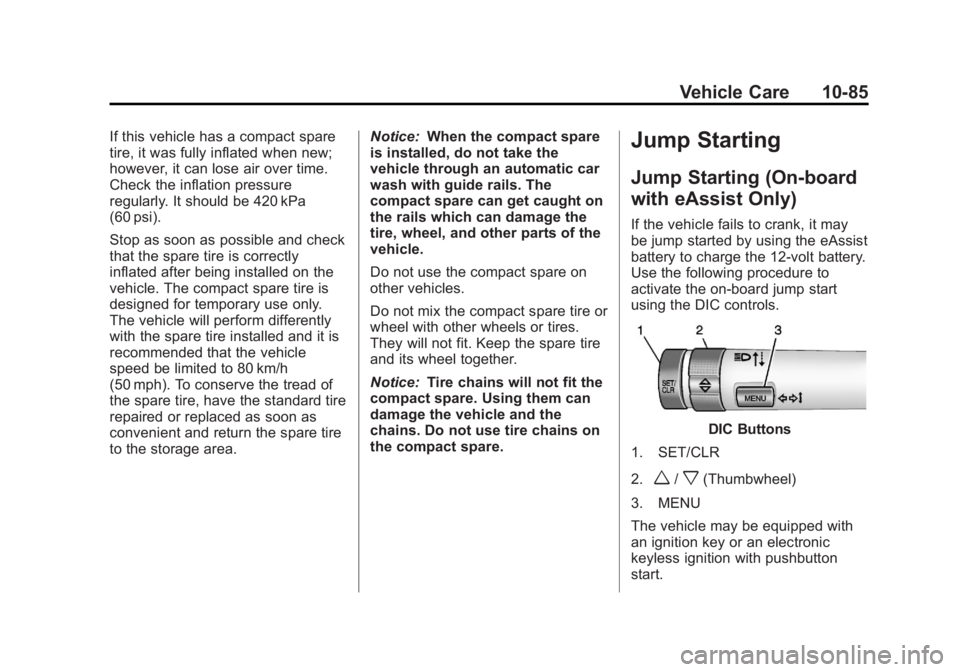
using the DIC controls.
DIC Buttons
1. SET/CLR
2.
w/x(Thumbwheel)
3. MENU
The vehicle may be equipped with
an ignition key or an electronic
keyless ignition with pushbutton
start.
Page 391 of 412

Black plate (1,1)Buick Regal Owner Manual - 2013 - crc - 11/5/12
OnStar 14-1
OnStar
OnStar Overview
OnStar Overview . . . . . . . . . . . . 14-1
OnStar Services
Emergency . . . . . . . . . . . . . . . . . . 14-2
Security . . . . . . . . . . . . . . . . . . . . . . 14-2
Navigation . . . . . . . . . . . . . . . . . . . 14-2
Connections . . . . . . . . . . . . . . . . . 14-3
Diagnostics . . . . . . . . . . . . . . . . . . 14-5
OnStar Additional Information
OnStar AdditionalInformation . . . . . . . . . . . . . . . . . 14-5
OnStar Overview
If equipped, this vehicle has a
comprehensive, in-vehicle system
that can connect to a live Advisor
for Emergency, Security, Navigation,
Connection, and Diagnostic
Services.
The OnStar system status light is
next to the OnStar buttons. If the
status light is:
.Solid Green: System is ready.
.Flashing Green: On a call.
.Red: Indicates a problem.
Press
Qor call 1-888-4ONSTAR
(1-888-466-7827) to speak to an
Advisor. Press
=to:
.Make a call, end a call,
or answer an incoming call.
.Give OnStar Hands-Free Calling
voice commands.
.Give OnStar Turn-by-Turn
Navigation voice commands.
Requires the available Directions
and Connections service plan.
Press
Qto connect to a live
Advisor to:
.Verify account information or
update contact information.
.Get driving directions. Requires
the available Directions and
Connections service plan.
.Receive On-Demand
Diagnostics for a check of the
vehicle’s key operating systems.
.Receive Roadside Assistance.