2013 BMW X6 Content
[x] Cancel search: ContentPage 1 of 345

Owner's Manual for
Vehicle
The Ultimate Driving Machine
THE BMW X5.
OWNER'S MANUAL.
ContentsA-Z
Online Edition for Part no. 01 40 2 918 395 - III/13
Page 5 of 345

ContentsThe fastest way to find information on a partic‐
ular topic or item is by using the index, refer to
page 330.6Notes
At a glance
12Cockpit18iDrive25Voice activation system
Controls
30Opening and closing49Adjusting61Transporting children safely67Driving79Displays90Lamps95Safety105Driving stability control systems111Driving comfort130Climate139Interior equipment147Storage compartments
Driving tips
156Things to remember when driving160Loading164Saving fuel
Navigation
168Navigation system170Destination entry179Destination guidance187What to do if...Entertainment190Tone192Radio200CD/multimedia220DVD system in rear
Communication
236Telephone249Office258Contacts261ConnectedDrive
Mobility
268Refueling270Fuel275Wheels and tires288Engine compartment293Maintenance295Replacing components307Breakdown assistance312Care
Reference
318Technical data322Short commands for voice activation
system330Everything from A to Z
Online Edition for Part no. 01 40 2 918 395 - III/13
Page 23 of 345
Switching the split screen on and off1. Press the button.2."Split screen"
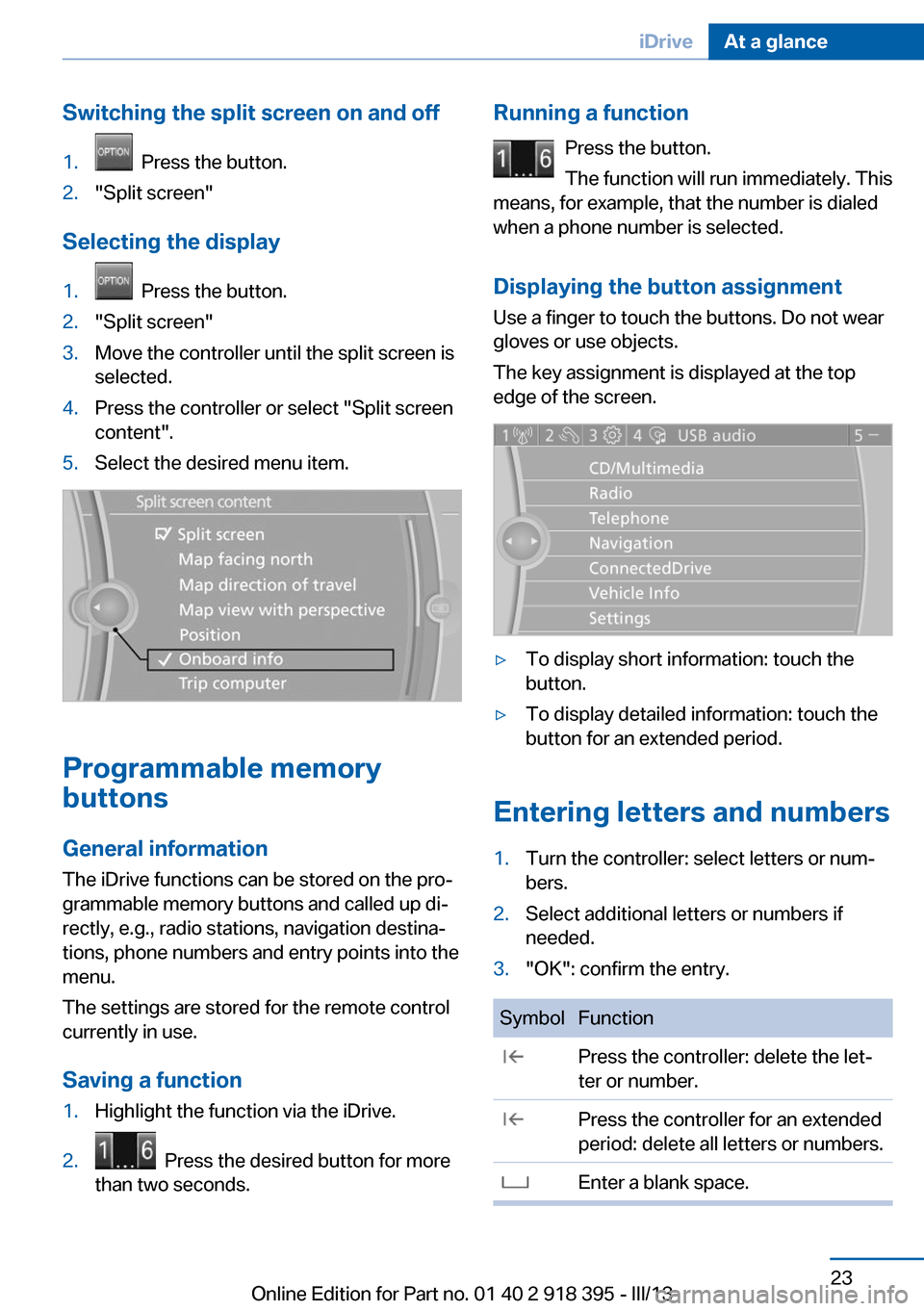
Selecting the display
1. Press the button.2."Split screen"3.Move the controller until the split screen is
selected.4.Press the controller or select "Split screen
content".5.Select the desired menu item.
Programmable memory
buttons
General information
The iDrive functions can be stored on the pro‐
grammable memory buttons and called up di‐
rectly, e.g., radio stations, navigation destina‐
tions, phone numbers and entry points into the
menu.
The settings are stored for the remote control
currently in use.
Saving a function
1.Highlight the function via the iDrive.2. Press the desired button for more
than two seconds.Running a function
Press the button.
The function will run immediately. This
means, for example, that the number is dialed
when a phone number is selected.
Displaying the button assignment Use a finger to touch the buttons. Do not wear
gloves or use objects.
The key assignment is displayed at the top
edge of the screen.▷To display short information: touch the
button.▷To display detailed information: touch the
button for an extended period.
Entering letters and numbers
1.Turn the controller: select letters or num‐
bers.2.Select additional letters or numbers if
needed.3."OK": confirm the entry.SymbolFunction Press the controller: delete the let‐
ter or number. Press the controller for an extended
period: delete all letters or numbers. Enter a blank space.Seite 23iDriveAt a glance23
Online Edition for Part no. 01 40 2 918 395 - III/13
Page 183 of 345

Automatically scaled map scaleIn the map view facing north, turn the control‐
ler in any direction until the AUTO scale is dis‐
played. The entire route between the current
location and the destination is displayed on the
map.
Settings for the map view
The settings are stored for the remote control
currently in use.1."Navigation"2."Map"3.Open "Options".4."Settings"5.To set the map view:▷"Day/night mode"
Select and create the necessary settings
depending on the light conditions.
"Traffic conditions/gray map" active: the
setting is disregarded.▷"Satellite images"
Depending on availability and resolution,
satellite images are displayed at scales of
approx. 1 mile to 600 miles/2 km to
1,000 km.▷"Perspective view in 3D"
Prominent areas that are contained in the
navigation data are displayed on the map in
3D.▷"Traffic conditions/gray map"
The map is optimized for displaying traffic
bulletins, refer to page 184.
Symbols for the special destinations are no
longer displayed.
Map view for splitscreen
The map view can be selected for the split
screen independently from the main screen.
1.Open "Options".2."Split screen"3.Move the controller to the right repeatedly
until the split screen is selected.4.Select "Split screen content" or the scale.5.Select the map view.▷"Arrow display"▷"Map facing north"▷"Map direction of travel"▷"Map view with perspective"▷"Position"▷"Exit ramp view": selected blind drive‐
ways are displayed three dimension‐
ally.▷"Traffic conditions/gray map"6.To change the scale: select the split
screen and turn the controller.
Traffic bulletins
At a glance
▷Display the traffic bulletins from radio sta‐
tions that broadcast the TI Traffic Informa‐
tion of a traffic information service. Infor‐
mation on traffic obstructions and hazards
is updated continuously.
Certain BMW models equipped with navi‐
gation have the capability to display real-
time traffic information. If your system has
this capability the following additional
terms and conditions apply:
An End-User shall no longer have the right
to use the Traffic Data in the event that the
End-User is in material breach of the terms
and conditions contained herein.
A. Total Traffic Network, a division of Clear
Channel Broadcasting, Inc. (“Total Traffic
Network”) holds the rights to the traffic in‐
cident data and RDS-TMC network
through which it is delivered. You may not
modify, copy, scan or use any other
method to reproduce, duplicate, republish,
transmit or distribute in any way any por‐Seite 183Destination guidanceNavigation183
Online Edition for Part no. 01 40 2 918 395 - III/13
Page 184 of 345

tion of traffic incident data. You agree to in‐
demnify, defend and hold harmless BMW
of North America, LLC. (“BMW NA”) and
Total Traffic Network, Inrix, Inc (and their
affiliates) against any and all claims, dam‐
ages, costs or other expenses that arise di‐
rectly or indirectly out of (a) your unauthor‐
ized use of the traffic incident data or the
RDS-TMC network, (b) your violation of
this directive and/or (c) any unauthorized or
unlawful activities by you in connection
herewith.
B. Total Traffic Network traffic data is infor‐
mational only. User assumes all risk of use.
Total Traffic Network, BMW NA, and their
suppliers make no representations about
content, traffic and road conditions, route
usability, or speed.
C. The licensed material is provided to li‐
censee “as is,” and “where is”. Total Traf‐
fic Network, including, but not limited to,
any and all third party providers of any of
the licensed material, expressly disclaims,
to the fullest extent permitted by law, all
warranties or representations with respect
to the licensed material (including, without
limitation, that the licensed material will be
error-free, will operate without interruption
or that the traffic data will be accurate), ex‐
press, implied or statutory, including, with‐
out limitation, the implied warranties of
merchantability, non-infringement fitness
for a particular purpose, or those arising
from a course of dealing or usage of trade.
D. Neither Total Traffic Network, Inrix, Inc.
or BMW NA will be liable to you for any in‐
direct, special, consequential, exemplary,
or incidental damages (including, without
limitation, lost revenues, anticipated reve‐
nues, or profits relating to the same) arising
from any claim relating directly or indirectly
to use of the traffic data, and even if Total
Traffic Network, Inrix, Inc., or BMW NA are
aware of the possibility of such damages.
These limitations apply to all claims, in‐
cluding, without limitation, claims in con‐tract and tort (such as negligence, product
liability and strict liability). Some states do
not allow the exclusion or limitation of inci‐
dental or consequential damages, so those
particular limitations may not apply to you.▷The traffic bulletins are indicated on the
map by symbols.▷The traffic bulletins for the surrounding
area are stored in a list.
The symbol in the function bar of the
map view turns red if there are traffic bulle‐
tins that affect the calculated route.
Switching the reception on/off
1."Navigation"2.Open "Options".3."Receive Traffic Info"
Opening the list of traffic bulletins
1."Navigation"2."Map"3. "Traffic Info"
First, traffic bulletins for the calculated
route are displayed.
The traffic bulletins are sorted by their dis‐
tance from the current position of the vehi‐
cle.4.Select a traffic bulletin.
"More information": display additional
information.
5.Scroll to the next or previous traffic bulletin
if required.
Traffic bulletins on the map
"Traffic conditions/gray map" active:
The Control Display changes to a black and
white display. This enables a better view of the
traffic bulletins. The day/night mode is disre‐
Seite 184NavigationDestination guidance184
Online Edition for Part no. 01 40 2 918 395 - III/13
Page 202 of 345

4.Open "Options".5."Random"
CDs/DVDs with compressed audio files: all
tracks within the selected directory are played
in random order.
Random mode is switched off when the audio
source is changed and the ignition is switched
off.
Fast forward/reverse Press and hold the button.
Video playback
Country codes
Only DVDs with the code of the home region
can be played back; also refer to the informa‐
tion on the DVD.
CodeRegion1USA, Canada2Japan, Europe, Middle East, South Af‐
rica3Southeast Asia4Australia, Central and South America,
New Zealand5Northwest Asia, North Africa6China0All regionsPlayback
The video image is displayed on the Control
Display up to a speed of approx. 2 mph/3 km/h;
in some countries, it is only displayed while the
parking brake is set or the automatic transmis‐
sion is in position P.
DVD video1."CD/Multimedia"2."CD/DVD"3.Select a DVD with video content.4. "DVD menu"5.Start the DVD via the DVD menu.
Video menu
To open the video menu: turn the controller
during playback.
Press the controller when "Back" is displayed.
SymbolFunction Open DVD menu Starting playback Pause Stop Next chapter Previous chapter Fast forward ReverseSeite 202EntertainmentCD/multimedia202
Online Edition for Part no. 01 40 2 918 395 - III/13
Page 203 of 345

In fast forward/reverse: the speed increases
every time the controller is pressed. To stop,
start playback.
DVD menu1.If necessary, turn the controller to open the
video menu.2. "DVD menu"
The DVD menu is displayed. The display
depends on the contents of the DVD.3.To select menu items: move the controller
and press it.
To change to the video menu: turn the control‐
ler and press it.
DVD settingsFor some DVDs, settings can only be made via
the DVD menu; refer also to the information on
the DVD.
Selecting the language
The languages that are available depend on
the DVD.
1.Turn the controller during playback.2.Open "Options".3."Audio/language"4.Select the desired language.Selecting the subtitles
The subtitles that are available depend on the
DVD.1.Turn the controller during playback.2.Open "Options".3."Subtitles"4.Select the desired language or "Do not
display subtitles".
Setting the brightness, contrast and color
1.Turn the controller during playback.2.Open "Options".3."Display settings"4."Brightness", "Contrast" or "Color"5.Turn the controller until the desired setting
is reached and press the controller.
Selecting the zoom
Display the video image on the entire screen.
1.Turn the controller during playback.2.Open "Options".Seite 203CD/multimediaEntertainment203
Online Edition for Part no. 01 40 2 918 395 - III/13
Page 207 of 345

MACROVISION
This product contains copyrighted technology
that is based on multiple registered US patents
and the intellectual property of the Macrovision
Corporation and other manufacturers. The use
of this copy protection must be approved by
Macrovision. Media protected by this product -
unless otherwise agreed with Macrovision -
may only be used for private purposes. Copy‐
ing of this technology is prohibited.
DTS Digital Surround™
Manufactured under license under
U.S. Patent Numbers: 5,451,942; 5,956,674;
5,974,380; 5,978,762; 6,487,535 & and other
patents granted and registered in the USA and
worldwide. DTS and the logo are registered
trademarks & DTS Digital Surround and the
DTS logos are trademarks of DTS Inc. © DTS,
Inc. All rights reserved.
Music collection
Storing music
General information
Music tracks from CDs/DVDs and USB devices
can be stored in the music collection on a hard
disc in the vehicle and played from there.
▷Audio CD: tracks are converted into a com‐
pressed audio format. If available, informa‐
tion on the album, such as the artist, is
stored as well.▷CD/DVD or USB device with compressed
audio files: the entire content of the
CD/DVD or the USB device is stored in the
vehicle as an album. The WMA, MP3, M4A,
and AAC formats are stored. Individual
tracks and directories can be deleted later,
Deleting a track and directory, refer to
page 211.
Tracks with DRM copy protection can be
stored but cannot be played back.Backing up music data
Regularly back up the music data; other‐
wise, it could be lost if there is a fault on the
hard disc.◀
Music recognition technology and re‐
lated data are provided by Grace‐
note®. Gracenote is the industry standard in
music recognition technology and related con‐
tent delivery. For more information, please visit
www.gracenote.com.
CD and music-related data from Gracenote,
Inc., copyright © 2000, Gracenote up to now.
Gracenote-Software Copyright 2000, Grace‐
note up to now. This product and service may
practice one or more of the following U.S. Pat‐
ents: #5,987,525; #6,061,680; #6,154,773,
#6,161,132, #6,230,192, #6,230,207,
#6,240,459, #6,330,593, and other patents is‐
sued or pending. Some services supplied un‐
der license from Open Globe, Inc. for U.S. Pat‐
ent: #6,304,523.
Storing from a CD/DVD1.Insert a CD or DVD into the CD/DVD
player.2."CD/Multimedia"3."CD/DVD"4. Select the symbol for the CD/DVD
player.5."Store in vehicle"
The music collection is displayed and the first
track of the CD/DVD is played back. During the
storage process, the tracks are played in se‐
quence.
Seite 207CD/multimediaEntertainment207
Online Edition for Part no. 01 40 2 918 395 - III/13