2013 BMW M3 COUPE idrive
[x] Cancel search: idrivePage 199 of 311

194
EntertainmentExternal devices
Prerequisite
If necessary, activate the audio connection of
the desired device from the list of paired
devices.
1."CD/Multimedia"
2. "Bluetooth® (audio)"
3. "Bluetooth® audio" if applicable
4. Select the desired device from the list of
paired devices.
5. Open "Options".
6. "Configure phone"
7. Activate "Audio".
8. "OK"
Connecting a device
1."CD/Multimedia"
2. "Bluetooth® (audio)"
3. "Bluetooth® audio" if applicable
4. Select the desired device from the list of
paired devices.
symbol displayed in whit e: device is active
as an audio source.
Playback
General information
> The display of track information depends on
the device.
> Operation via the device or iDrive are both
possible.
> Playback is interrupted if a data exchange is
taking place with a mobile phone that is
connected via Bluetooth.
Starting playback
1. Connect device.
2. "CD/Multimedia"
3. "External devices"
4. Select the symbol.
5. Select the desired title from the list.
Playback menu
Depending on the device, all functions may not
be available.
SymbolFunction
Next track
Fast forward: press and hold the
symbol.
Previous track
Reverse: press and hold the symbol.
00320051004F004C00510048000300280047004C0057004C005200510003
Page 200 of 311

195
External devices
Entertainment
Disconnecting an audio connection
1.
"CD/Multimedia"
2. "Bluetooth® (audio)"
3. Select the desired device from the list of
connected devices.
4. Open "Options".
5. "Configure phone"
6. "Audio"
7. "OK"
With a mobile phone, on ly the audio connection
is disconnected. All ot her connections remain
active.
Unpairing device
1. "CD/Multimedia"
2. "Bluetooth® (audio)"
3. "Bluetooth® audio" if applicable
4. Highlight the device to be unpaired.
5. Open "Options".
6. "Remove phone from list"
What to do if…
Information about suitable devices is available
at www.bmwusa.com/bluetooth.
Suitable mobile phones, refer to page 200.
> Device not supported by vehicle.
If necessary, perform a software update,
refer to page 196.
> Device could not be paired or connected.
Do the Bluetooth passk eys on the device
and vehicle match? Enter the same passkey
on the device and via iDrive. Is the passkey input taking longer than
30 seconds? Repeat the pairing procedure.
Are too many Bluetooth devices connected
to the device or to th
e vehicle? If necessary,
delete the connections with other devices.
Is the mobile phone in power economy
mode or does it only have a small amount of
battery charge remaining? Charge the
mobile phone in the snap-in adapter or via a
charging cable.
Depending on the mobile phone, it may only
be possible to connect one device to the
vehicle. Unpair the connected device from
the vehicle and only pair and connect one
device.
Is the device no longer responding? Switch
the device off and back on again.
Repeat the pairing procedure.
> No music can be played.
Start the program for pl aying music files on
the device and if necessary, select a track
via the device.
Activate and deactivate the radio mute on
the radio control panel.
> Music files only play quietly.
Adjust volume settings on the device.
> Playback is interrupted by the press of a
button or other messages on the device.
Switch off key tones and other acoustic
signal on the device.
> Playback is interrupted by a phone call or
traffic report and does not automatically
continue.
Activate and deactivate the radio mute on
the radio control panel.
> Playback is not possible when the mobile
phone is connected via Bluetooth audio and
at the same time via the extended connec-
tivity of the music player in the mobile
phone.
00320051004F004C00510048000300280047004C0057004C005200510003
Page 205 of 311

200
CommunicationsTe l e p h o n e
Telephone
Vehicle equipment
In this chapter, all production, country, and
optional equipment that is offered in the model
range is described. Equipment is also described
that is not available because of, for example,
selected options or country version. This also
applies to safety related functions and systems.
Overview
The concept
Mobile phones or other external devices, e.g.
audio players, can be connected to the vehicle
via Bluetooth.
Bluetooth® is a registered trademark of
Bluetooth® SIG, Inc.
After being paired once, when the ignition is
switched on, these devices are automatically
detected as soon as they are present in the
vehicle and can be controlled via iDrive, by the
buttons on the steering wheel, and by voice.
Depending on whether they are functioning as a
telephone and/or as an audio source, external
devices can be used via the vehicle. The tele-
phone functions will be described below. Oper-
ation of audio functions, refer to page 192.
Up to four external devices can be paired.
It may be necessary for some functions to be
activated by the mobile phone provider or ser-
vice provider. Only make entries when traffic conditions
permit. Do not hold the mobile phone in
your hand while you are driving; use the hands-
free system instead. Otherwise, you may
endanger vehicle occupants and other road
users. <
Snap-in adapter
The snap-in adapter makes it possible:
>Accommodate the mobile phone.
> Recharge its battery.
> Connect it to an external antenna of the
vehicle.
This assures a better network connection
and constant sound quality.
Suitable mobile phones
For precise information about which mobile
phones and external devices with a Bluetooth
interface are supported by the mobile phone
preparation, go to www.bmwusa.com/
bluetooth.
Displaying vehicl e identification
number and software part number
Checking which mobile phones are supported
by the mobile phone pr eparation requires the
vehicle identification number and software part
number. The software ve rsion of the mobile
phone may also be required.
1. "Telephone"
2. Open "Options".
3. "Bluetooth® info"
4. "Display system information"
With a certain software version, these suitable
mobile phones support the vehicle functions
described below.
With other mobile phones or software versions,
malfunctions may occur.
A mobile phone that is connected to the vehicle
should not be operated via the mobile phone
keypad; otherwise, ma lfunctions may occur.
It is possible to perform a software update, refer
to page 196.
00320051004F004C00510048000300280047004C0057004C005200510003
Page 207 of 311

202
CommunicationsTe l e p h o n e
4."Configure Bluetooth®"
5. Select the desired additional function:
>"Additional telephone"
> "Office"
> "Bluetooth® audio"
If an additional function is deactivated, it cannot
be assigned to a phone.
Pairing and connecting a device
Only pair the device when the vehicle is
stopped; otherwise, inattention may lead
to endangerment of passengers or other road
users. <
1. "Telephone"
2. "Bluetooth® (phone)"
3. "Add new phone"
The Bluetooth name of the vehicle is
displayed.
4. To perform other operations on the mobile
phone, refer to the owner's manual for the
device: e.g. search for and connect
Bluetooth device or a new device.
The Bluetooth name of the vehicle appears
on the mobile phone display.
5. Select the Bluetooth name of the vehicle on
the mobile phone display.
6. You will be prompted by iDrive or the mobile
phone to enter the same Bluetooth
passkey. Enter the passkey and confirm.
or
Compare the control number in the vehi-
cle's display to the co
ntrol number of the
mobile phone. Confirm the control number
in the mobile phone and in the vehicle.
"OK"
7. Select the functions for which the mobile
phone is to be used.
8. "OK"
If pairing was successful, the mobile phone
appears at the top of the list of devices.
Functions supported by the mobile phone and
audio device are displayed as symbols during
the pairing.
White symbol: function active.
Gray symbol: function inactive.
Four devices can be paired with the vehicle
simultaneously. Three devices can be con-
nected to the vehicle simultaneously.
If the pairing was not succ essful: what to do if…,
refer to page 204.
SymbolFunction
Telephone
Auxiliary phone
Audio source
00320051004F004C00510048000300280047004C0057004C005200510003
Page 209 of 311

204
CommunicationsTe l e p h o n e
5."Remove phone from list"
What to do if…
For information on suitable mobile phones,
refer to page 200.
The mobile phone coul d not be paired or
connected.
> Is Bluetooth activated in the vehicle and in
the mobile phone? Acti vate Bluetooth in the
vehicle and in the mobile phone.
> Do the Bluetooth passkeys on the mobile
phone and the vehicl e match? Enter the
same passkey on the mobile phone and via
iDrive.
> Is the passkey input taking longer than
30 seconds? Repeat the pairing procedure.
> Are too many Bluetooth devices connected
to the mobile phone? If so, delete the
connections with other devices on the
mobile phone.
> Is the audio connection activated? Deacti-
vate the audio connection.
> Is the mobile phone in power economy
mode or does it only have a small amount of
battery charge remaining? Charge the
mobile phone in the snap-in adapter or via a
charging cable.
> Depending on the mobile phone, it may only
be possible to connect one device to the
vehicle. Unpair the connected device from
the vehicle and only pair and connect one
device.
Is the mobile phone no longer responding?
> Switch the mobile phone off and back on
again. Repeat the pairing procedure. >
Is the ambient temperature too high or too
low? Do not subject yo ur mobile phone to
extreme ambient temperatures.
Telephone functions not possible.
> Is the mobile phone pa ired as an auxiliary
phone and is the aux iliary phone function
deactivated? Activa te the function.
> Outgoing call not po ssible? Connect the
mobile phone as a telephone.
Phone book entries are not displayed, not all of
them are displayed, or they are displayed
incompletely.
> The transfer of phone book entries has not
yet completed.
> In some cases, only the phone book entries
of the mobile phone or the SIM card will be
transferred.
> It may not be possible to display phone
book entries with special characters.
> The number of phone book entries to be
stored is too high.
> The data volume of th e phone book entry is
too great, e.g. due to additionally stored
information such as no tes? Reduce the data
volume.
> Is the mobile phone connected as an audio
source or auxiliary phone? The mobile
phone must be connected as a telephone.
The telephone connecti on quality is low.
> Depending on the mob ile phone, it is
possible to adjust the strength of the
Bluetooth signal.
> Insert the mo bile ph
one into the snap-in
adapter or place it in the vicinity of the
center console.
> Adjust the volume of the microphone and
speaker separately.
If you have gone through all items in the list and
still cannot activate the de sired function, please
check the website www.bmw.com/bluetooth
for further notes or contact Customer Relations
or a BMW center.
00320051004F004C00510048000300280047004C0057004C005200510003
Page 213 of 311
208
CommunicationsTe l e p h o n e
Editing a contact
Changing entries in the "Contacts" menu. If a
contact is changed, the changes are not stored
in the mobile phone. A copy of the entry is
stored in the vehicle.
1. Highlight the contact.
2. Open "Options".
3. "Edit entry"
The contact can be edited.
Redialing
General information
The list of dialed numbers in the mobile phone
are transferred to the vehicle, depending on the
mobile phone. In some cases, only numbers
that were dialed from the vehicle are displayed.
The last 20 phone numbers dialed are dis-
played. The sorting of the phone numbers
depends on the mobile phone.
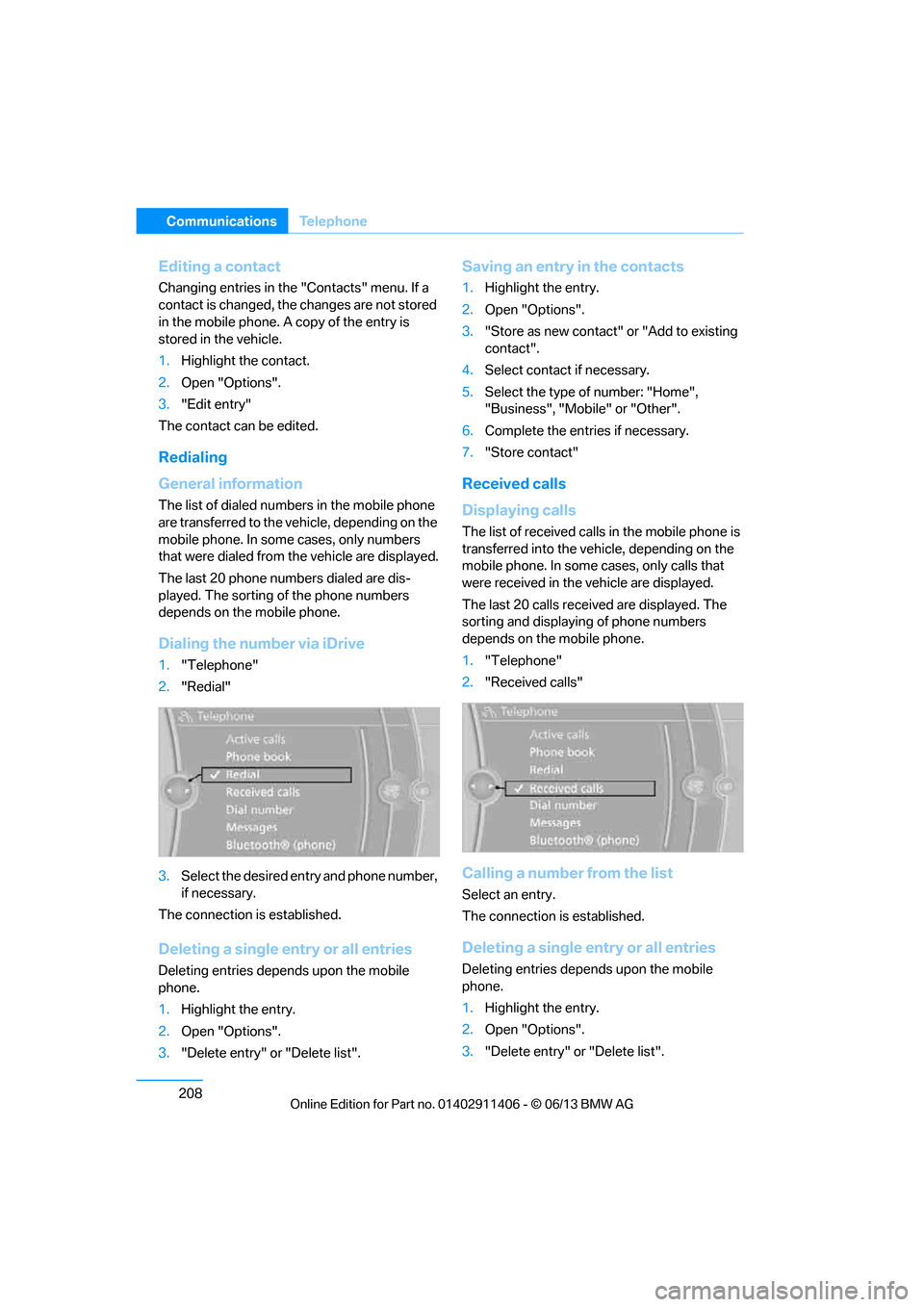
Dialing the number via iDrive
1. "Telephone"
2. "Redial"
3. Select the desired entry and phone number,
if necessary.
The connection is established.
Deleting a single entry or all entries
Deleting entries depends upon the mobile
phone.
1. Highlight the entry.
2. Open "Options".
3. "Delete entry" or "Delete list".
Saving an entry in the contacts
1.Highlight the entry.
2. Open "Options".
3. "Store as new contact" or "Add to existing
contact".
4. Select contact if necessary.
5. Select the type of number: "Home",
"Business", "Mobile" or "Other".
6. Complete the entries if necessary.
7. "Store contact"
Received calls
Displaying calls
The list of received calls in the mobile phone is
transferred into the vehi cle, depending on the
mobile phone. In some cases, only calls that
were received in the vehicle are displayed.
The last 20 calls received are displayed. The
sorting and displaying of phone numbers
depends on the mobile phone.
1. "Telephone"
2. "Received calls"
Calling a number from the list
Select an entry.
The connection is established.
Deleting a single entry or all entries
Deleting entries depends upon the mobile
phone.
1.Highlight the entry.
2. Open "Options".
3. "Delete entry" or "Delete list".
00320051004F004C00510048000300280047004C0057004C005200510003
Page 233 of 311
228
CommunicationsConnectedDrive
1."Vehicle Info"
2. "Vehicle status"
3. Open "Options".
4. "Last Service Request"
Service status
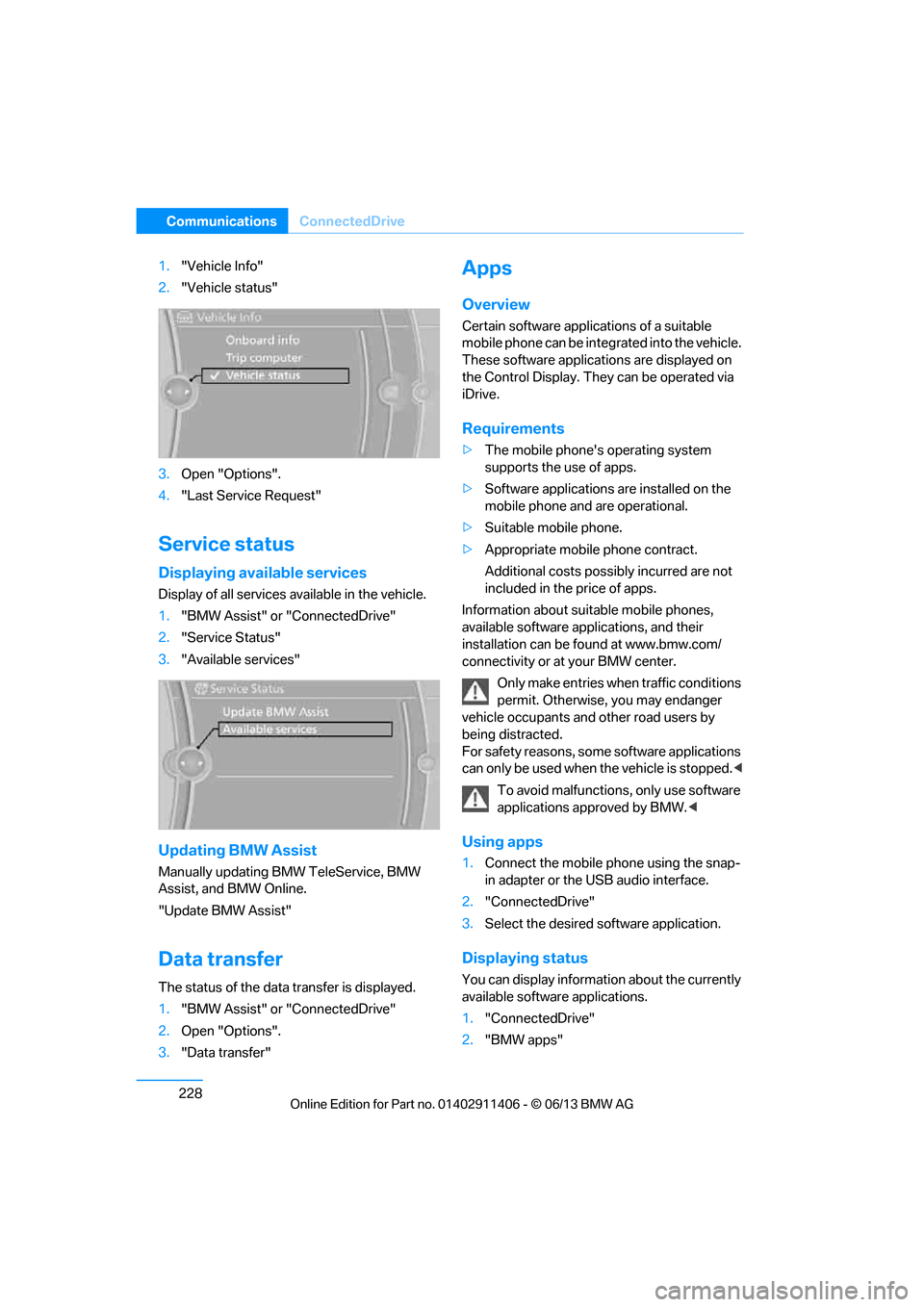
Displaying available services
Display of all services available in the vehicle.
1. "BMW Assist" or "ConnectedDrive"
2. "Service Status"
3. "Available services"
Updating BMW Assist
Manually updating BM W TeleService, BMW
Assist, and BMW Online.
"Update BMW Assist"
Data transfer
The status of the data transfer is displayed.
1. "BMW Assist" or "ConnectedDrive"
2. Open "Options".
3. "Data transfer"
Apps
Overview
Certain software applications of a suitable
mobile phone can be integrated into the vehicle.
These software applicat ions are displayed on
the Control Display. They can be operated via
iDrive.
Requirements
> The mobile phone's operating system
supports the use of apps.
> Software applications are installed on the
mobile phone and are operational.
> Suitable mobile phone.
> Appropriate mobile phone contract.
Additional costs possibly incurred are not
included in the price of apps.
Information about suit able mobile phones,
available software applications, and their
installation can be found at www.bmw.com/
connectivity or at your BMW center.
Only make entries when traffic conditions
permit. Otherwise, you may endanger
vehicle occupants and other road users by
being distracted.
For safety reasons, some software applications
can only be used when the vehicle is stopped. <
To avoid malfunctions, only use software
applications approved by BMW. <
Using apps
1.Connect the mobile phone using the snap-
in adapter or the USB audio interface.
2. "ConnectedDrive"
3. Select the desired software application.
Displaying status
You can display information about the currently
available software applications.
1."ConnectedDrive"
2. "BMW apps"
00320051004F004C00510048000300280047004C0057004C005200510003
Page 234 of 311

229
ConnectedDrive
Communications
Plugin
Selected functions of the mobile phone are
displayed on the Control
Display. They can be
operated via iDrive.
1. Connect the mobile phone using the snap-
in adapter.
2. "ConnectedDrive"
3. "PlugIn"
4. "Activate PlugIn"
5. Use the controller to navigate in the dis-
played functions and select the desired
category or track, for example.
Press the button to move one level up or
back within the func tions of the mobile
phone.
Press the button twice to return back to
the main menu.
Notes
>The range of apps that are displayed in the
Control Display depends on the range of
software applications installed on the
mobile phone.
> The data transfer of the software applica-
tions from the mobile phone to the vehicle
may take some time. Some software appli-
cations are dependent on the speed of the
available Internet connection of the mobile
phone.
> Certain versions of the mobile phone used
and the software they use may not permit
apps to be used at the same time as the
Bluetooth hands-free system.
If necessary, restart the software applica-
tion on the mobile phone after completing a
call.
00320051004F004C00510048000300280047004C0057004C005200510003