2013 BMW 640I GRAN COUPE stop start
[x] Cancel search: stop startPage 168 of 305
Intermediate destination options1."Map"2. "Guidance"3."Display all trip destinations"4.Select an intermediate destination.▷"Edit destination"▷"Reposition dest. in the trip": move an
intermediate destination to another po‐
sition in the list.▷"Delete dest. in the trip"▷"Go to next dest. in the trip"
Some options are not available for certain trips.
With the Professional navigation
system: deleting a stored trip
1."Stored trips"2.Highlight the desired trip.3.Open "Options".4."Delete all trips" or "Delete trip"
With the Professional navigation
system: calling up the last trip
1."Navigation"2."Stored trips"3."Last trip"4."Start guidance"
Destination guidance
Starting destination guidance
1."Navigation"2.Enter the destination, refer to page 160.3."Accept destination"4."Start guidance"▷The route is shown on the Control Display.▷The distance to the destination/intermedi‐
ate destination and the estimated time of ar‐
rival are displayed in the map view.▷The arrow view is shown in the instrument
cluster, in the Head-up Display, and on the
Control Display where appropriate.
Terminating destination guidance
1."Navigation"2."Map"3. "Guidance"4."Stop guidance"
Continuing destination guidance
If the destination was not reached during the last
trip, destination guidance can be resumed.
"Resume guidance"
Route criteria
General information
▷The route calculated can be influenced by
selecting certain criteria.▷The route criteria can be changed when the
destination is entered and during destina‐
tion guidance.▷Road types are part of the navigation data
and are taken into consideration when plan‐
ning a route, such as when avoiding high‐
ways.▷The recommended route may differ from the
route you would take based on personal ex‐
perience.▷The settings are stored for the remote con‐
trol currently in use.▷Destination guidance with traffic bulletins,
refer to page 174.
Changing the route criteria
1."Navigation"2."Map"3. "Route preference"4.Select the criterion:Seite 168NavigationNavigation system168
Online Edition for Part no. 01 40 2 900 405 - 03 12 490
Page 193 of 305
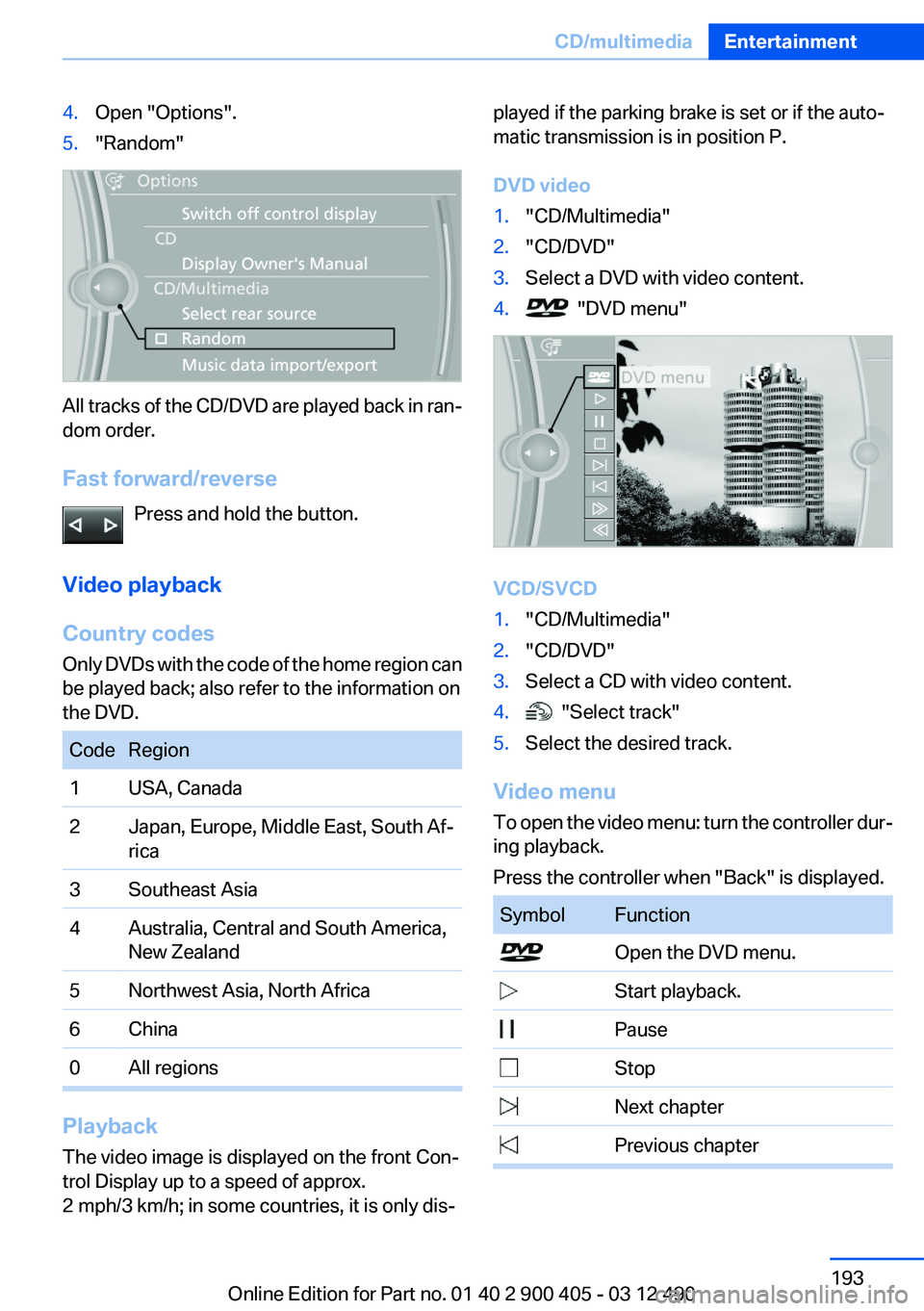
4.Open "Options".5."Random"
All tracks of the CD/DVD are played back in ran‐
dom order.
Fast forward/reverse Press and hold the button.
Video playback
Country codes
Only DVDs with the code of the home region can
be played back; also refer to the information on
the DVD.
CodeRegion1USA, Canada2Japan, Europe, Middle East, South Af‐
rica3Southeast Asia4Australia, Central and South America,
New Zealand5Northwest Asia, North Africa6China0All regions
Playback
The video image is displayed on the front Con‐
trol Display up to a speed of approx.
2 mph/3 km/h; in some countries, it is only dis‐
played if the parking brake is set or if the auto‐
matic transmission is in position P.
DVD video1."CD/Multimedia"2."CD/DVD"3.Select a DVD with video content.4. "DVD menu"
VCD/SVCD
1."CD/Multimedia"2."CD/DVD"3.Select a CD with video content.4. "Select track"5.Select the desired track.
Video menu
To open the video menu: turn the controller dur‐
ing playback.
Press the controller when "Back" is displayed.
SymbolFunction Open the DVD menu. Start playback. Pause Stop Next chapter Previous chapterSeite 193CD/multimediaEntertainment193
Online Edition for Part no. 01 40 2 900 405 - 03 12 490
Page 194 of 305
SymbolFunction Fast forward Reverse
In fast forward/reverse: the speed increases ev‐
ery time the controller is pressed. To stop, start
playback.
DVD menu
1.If necessary, turn the controller to open the
video menu.2. "DVD menu"
The DVD menu is displayed. The display de‐
pends on the contents of the DVD.3.To select menu items: move the controller
and press it.
To change to the video menu: turn the controller
and press it.
DVD/VCD settings
For some DVDs, settings can only be made via
the DVD menu; refer also to the information on
the DVD.
Selecting the language
The languages that are available depend on the
DVD.
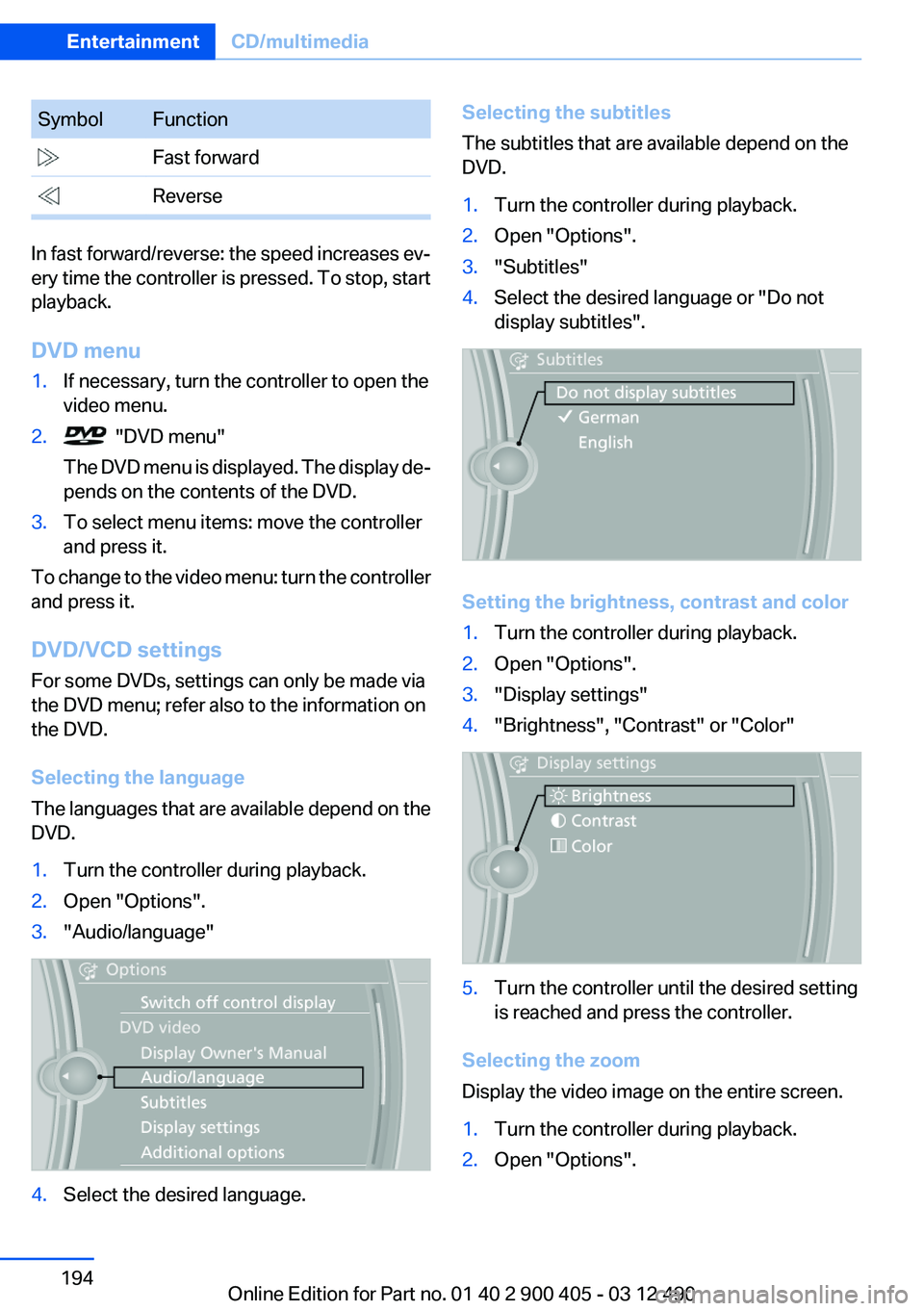
1.Turn the controller during playback.2.Open "Options".3."Audio/language"4.Select the desired language.Selecting the subtitles
The subtitles that are available depend on the
DVD.1.Turn the controller during playback.2.Open "Options".3."Subtitles"4.Select the desired language or "Do not
display subtitles".
Setting the brightness, contrast and color
1.Turn the controller during playback.2.Open "Options".3."Display settings"4."Brightness", "Contrast" or "Color"5.Turn the controller until the desired setting
is reached and press the controller.
Selecting the zoom
Display the video image on the entire screen.
1.Turn the controller during playback.2.Open "Options".Seite 194EntertainmentCD/multimedia194
Online Edition for Part no. 01 40 2 900 405 - 03 12 490
Page 196 of 305
Sliding in CDs/DVDs
Do not insert the CD/DVD until the LEDs
on the DVD slot are flashing; otherwise, the CD/
DVD or the DVD changer could be damaged.
Do not continue to push on the CD/DVD; this
may cause it to jam and prevent it from being
able to eject again.◀
Loading all empty DVD compartments1. Press the button once and hold it
down.
The LEDs on the empty CD compartments
flash.2.Wait for the LEDs on the DVD slot to begin
flashing and then insert each CD or DVD into
the center of the slot.
The CDs/DVDs are drawn in automatically
and placed into the empty compartments.
Sliding in CDs/DVDs
Do not insert the CD/DVD until the LEDs
on the DVD slot are flashing; otherwise, the CD/
DVD or the DVD changer could be damaged.
Do not continue to push on the CD/DVD; this
may cause it to jam and prevent it from being
able to eject again.◀
After they are inserted, it may take several mi‐
nutes for the CDs/DVDs to be read in.
Removing a single CD/DVD
1. Press the button once.2.Select the DVD compartment.
The CD/DVD is partially ejected.3.Remove the CD/DVD.
Removing all CDs/DVDs
1. Press the button once and hold it down.2.Remove the CDs/DVDs.Cancelling a function
Filling the DVD compartments or removing CDs/
DVDs can be canceled.
Press the corresponding button.▷▷
Malfunctions
If the LEDs on the DVD slot and on the com‐
partments are flashing rapidly, a malfunction has
occurred.
To eliminate the malfunction:
1.Press one of the following buttons:▷▷
The CD/DVD last inserted is ejected.
2.Remove the CD/DVD.
The DVD changer is functional again after the
LEDs stop flashing rapidly.
Audio playback
The audio track of a DVD can be played back
even if video playback is not possible in the ve‐
hicle.
Only the main film without the previews or extras
can be played back.
Starting playback
A DVD is located in the DVD changer.
1."CD/Multimedia"2."CD/DVD"3.Select the desired DVD.
Selecting a chapter using the button
Press the button repeatedly until the
desired chapter is played.
Seite 196EntertainmentCD/multimedia196
Online Edition for Part no. 01 40 2 900 405 - 03 12 490
Page 287 of 305
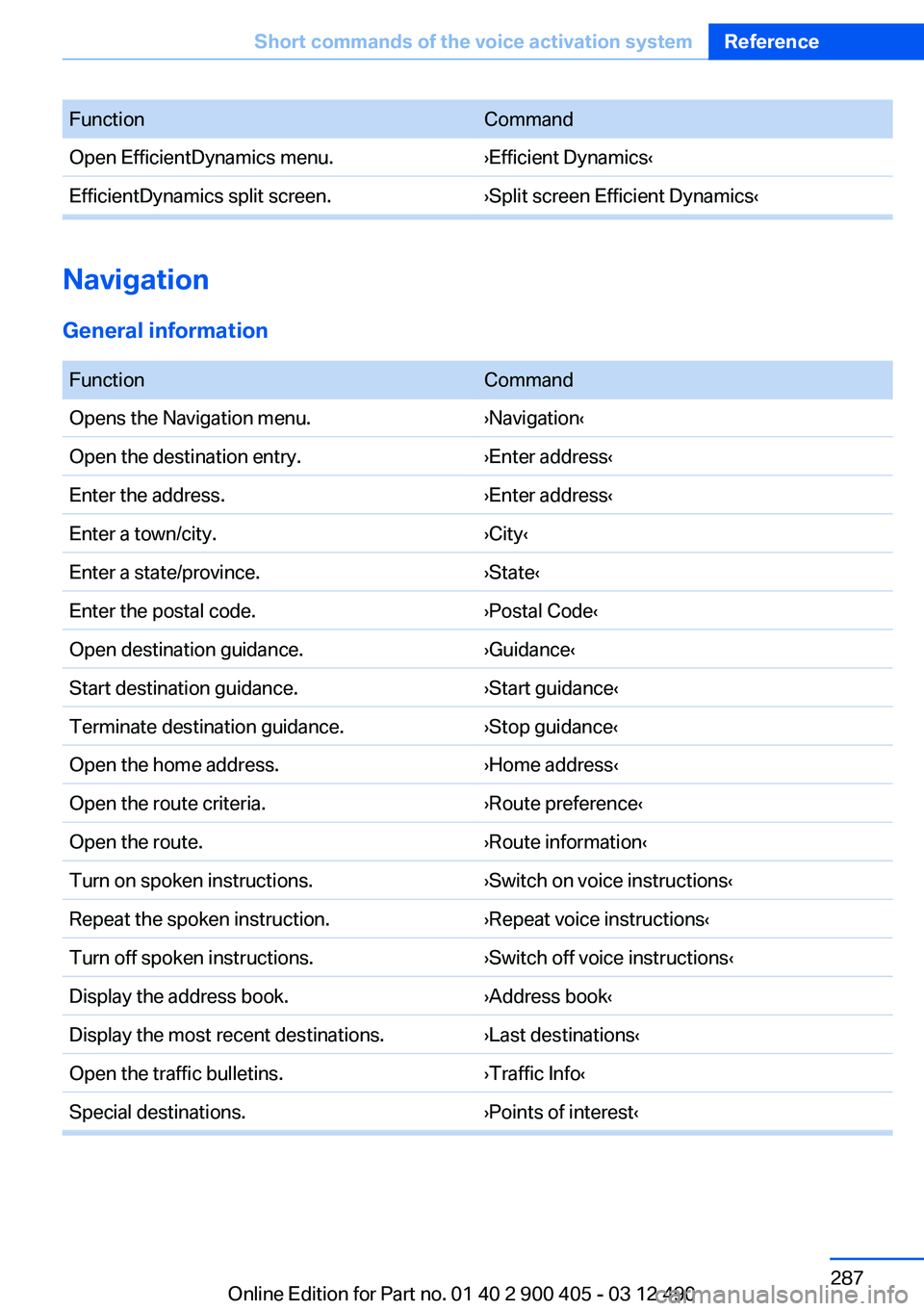
FunctionCommandOpen EfficientDynamics menu.›Efficient Dynamics‹EfficientDynamics split screen.›Split screen Efficient Dynamics‹
Navigation
General information
FunctionCommandOpens the Navigation menu.›Navigation‹Open the destination entry.›Enter address‹Enter the address.›Enter address‹Enter a town/city.›City‹Enter a state/province.›State‹Enter the postal code.›Postal Code‹Open destination guidance.›Guidance‹Start destination guidance.›Start guidance‹Terminate destination guidance.›Stop guidance‹Open the home address.›Home address‹Open the route criteria.›Route preference‹Open the route.›Route information‹Turn on spoken instructions.›Switch on voice instructions‹Repeat the spoken instruction.›Repeat voice instructions‹Turn off spoken instructions.›Switch off voice instructions‹Display the address book.›Address book‹Display the most recent destinations.›Last destinations‹Open the traffic bulletins.›Traffic Info‹Special destinations.›Points of interest‹Seite 287Short commands of the voice activation systemReference287
Online Edition for Part no. 01 40 2 900 405 - 03 12 490
Page 294 of 305
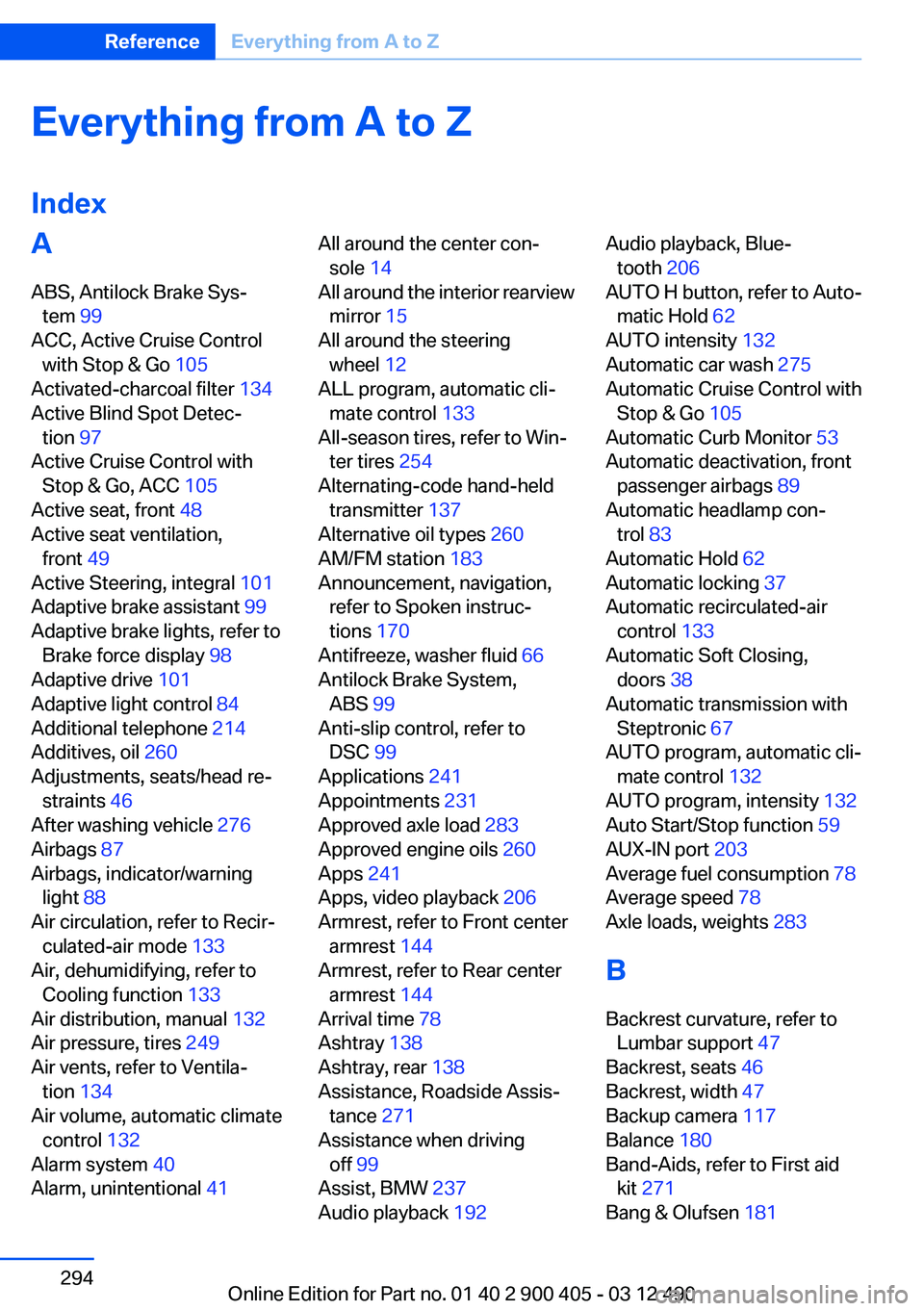
Everything from A to Z
IndexA
ABS, Antilock Brake Sys‐ tem 99
ACC, Active Cruise Control with Stop & Go 105
Activated-charcoal filter 134
Active Blind Spot Detec‐ tion 97
Active Cruise Control with Stop & Go, ACC 105
Active seat, front 48
Active seat ventilation, front 49
Active Steering, integral 101
Adaptive brake assistant 99
Adaptive brake lights, refer to Brake force display 98
Adaptive drive 101
Adaptive light control 84
Additional telephone 214
Additives, oil 260
Adjustments, seats/head re‐ straints 46
After washing vehicle 276
Airbags 87
Airbags, indicator/warning light 88
Air circulation, refer to Recir‐ culated-air mode 133
Air, dehumidifying, refer to Cooling function 133
Air distribution, manual 132
Air pressure, tires 249
Air vents, refer to Ventila‐ tion 134
Air volume, automatic climate control 132
Alarm system 40
Alarm, unintentional 41 All around the center con‐
sole 14
All around the interior rearview mirror 15
All around the steering wheel 12
ALL program, automatic cli‐ mate control 133
All-season tires, refer to Win‐ ter tires 254
Alternating-code hand-held transmitter 137
Alternative oil types 260
AM/FM station 183
Announcement, navigation, refer to Spoken instruc‐
tions 170
Antifreeze, washer fluid 66
Antilock Brake System, ABS 99
Anti-slip control, refer to DSC 99
Applications 241
Appointments 231
Approved axle load 283
Approved engine oils 260
Apps 241
Apps, video playback 206
Armrest, refer to Front center armrest 144
Armrest, refer to Rear center armrest 144
Arrival time 78
Ashtray 138
Ashtray, rear 138
Assistance, Roadside Assis‐ tance 271
Assistance when driving off 99
Assist, BMW 237
Audio playback 192 Audio playback, Blue‐
tooth 206
AUTO H button, refer to Auto‐ matic Hold 62
AUTO intensity 132
Automatic car wash 275
Automatic Cruise Control with Stop & Go 105
Automatic Curb Monitor 53
Automatic deactivation, front passenger airbags 89
Automatic headlamp con‐ trol 83
Automatic Hold 62
Automatic locking 37
Automatic recirculated-air control 133
Automatic Soft Closing, doors 38
Automatic transmission with Steptronic 67
AUTO program, automatic cli‐ mate control 132
AUTO program, intensity 132
Auto Start/Stop function 59
AUX-IN port 203
Average fuel consumption 78
Average speed 78
Axle loads, weights 283
B
Backrest curvature, refer to Lumbar support 47
Backrest, seats 46
Backrest, width 47
Backup camera 117
Balance 180
Band-Aids, refer to First aid kit 271
Bang & Olufsen 181 Seite 294ReferenceEverything from A to Z294
Online Edition for Part no. 01 40 2 900 405 - 03 12 490
Page 295 of 305
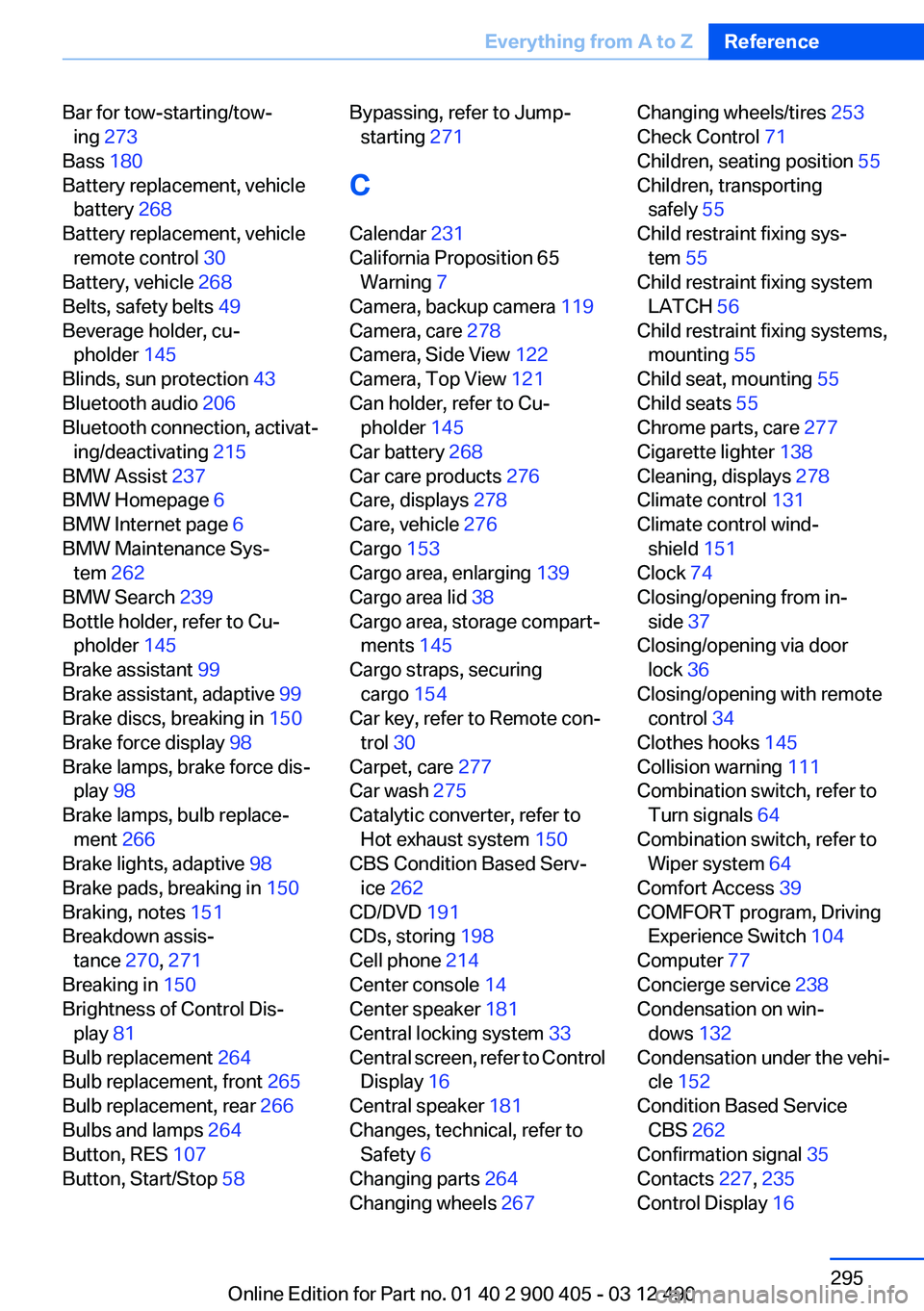
Bar for tow-starting/tow‐ing 273
Bass 180
Battery replacement, vehicle battery 268
Battery replacement, vehicle remote control 30
Battery, vehicle 268
Belts, safety belts 49
Beverage holder, cu‐ pholder 145
Blinds, sun protection 43
Bluetooth audio 206
Bluetooth connection, activat‐ ing/deactivating 215
BMW Assist 237
BMW Homepage 6
BMW Internet page 6
BMW Maintenance Sys‐ tem 262
BMW Search 239
Bottle holder, refer to Cu‐ pholder 145
Brake assistant 99
Brake assistant, adaptive 99
Brake discs, breaking in 150
Brake force display 98
Brake lamps, brake force dis‐ play 98
Brake lamps, bulb replace‐ ment 266
Brake lights, adaptive 98
Brake pads, breaking in 150
Braking, notes 151
Breakdown assis‐ tance 270, 271
Breaking in 150
Brightness of Control Dis‐ play 81
Bulb replacement 264
Bulb replacement, front 265
Bulb replacement, rear 266
Bulbs and lamps 264
Button, RES 107
Button, Start/Stop 58 Bypassing, refer to Jump-
starting 271
C
Calendar 231
California Proposition 65 Warning 7
Camera, backup camera 119
Camera, care 278
Camera, Side View 122
Camera, Top View 121
Can holder, refer to Cu‐ pholder 145
Car battery 268
Car care products 276
Care, displays 278
Care, vehicle 276
Cargo 153
Cargo area, enlarging 139
Cargo area lid 38
Cargo area, storage compart‐ ments 145
Cargo straps, securing cargo 154
Car key, refer to Remote con‐ trol 30
Carpet, care 277
Car wash 275
Catalytic converter, refer to Hot exhaust system 150
CBS Condition Based Serv‐ ice 262
CD/DVD 191
CDs, storing 198
Cell phone 214
Center console 14
Center speaker 181
Central locking system 33
Central screen, refer to Control Display 16
Central speaker 181
Changes, technical, refer to Safety 6
Changing parts 264
Changing wheels 267 Changing wheels/tires 253
Check Control 71
Children, seating position 55
Children, transporting safely 55
Child restraint fixing sys‐ tem 55
Child restraint fixing system LATCH 56
Child restraint fixing systems, mounting 55
Child seat, mounting 55
Child seats 55
Chrome parts, care 277
Cigarette lighter 138
Cleaning, displays 278
Climate control 131
Climate control wind‐ shield 151
Clock 74
Closing/opening from in‐ side 37
Closing/opening via door lock 36
Closing/opening with remote control 34
Clothes hooks 145
Collision warning 111
Combination switch, refer to Turn signals 64
Combination switch, refer to Wiper system 64
Comfort Access 39
COMFORT program, Driving Experience Switch 104
Computer 77
Concierge service 238
Condensation on win‐ dows 132
Condensation under the vehi‐ cle 152
Condition Based Service CBS 262
Confirmation signal 35
Contacts 227, 235
Control Display 16 Seite 295Everything from A to ZReference295
Online Edition for Part no. 01 40 2 900 405 - 03 12 490
Page 296 of 305

Control Display, settings 79
Controller 16
Control systems, driving sta‐ bility 99
Convenient opening 35
Coolant 261
Coolant temperature 74
Cooling function 133
Cooling, maximum 132
Cooling system 261
Corrosion on brake discs 152
Cruise control 113
Cruise control, active with Stop & Go 105
Cruising range 75
Cupholder 145
Current fuel consumption 75
Current location, storing 162
Customer Relations 240
D
Damage, tires 253
Damping control, dy‐ namic 101
Data, technical 282
Date 75
Daytime running lights 83
Defrosting, refer to Windows, defrosting 132
Dehumidifying, air 133
Destination distance 78
Destination guidance 168
Destination guidance with in‐ termediate destinations 167
Destination input, naviga‐ tion 160
Digital clock 74
Digital radio 184
Dimensions 282
Dimmable exterior mirrors 53
Dimmable interior rearview mirror 54
Direction indicator, refer to Turn signals 64
Display, ECO PRO 156 Display in windshield 129
Display lighting, refer to Instru‐ ment lighting 85
Displays 70
Displays, cleaning 278
Disposal, coolant 261
Disposal, vehicle battery 268
Distance control, refer to PDC 115
Distance, selecting for ACC 107
Distance to destination 78
Divided screen view, split screen 20
Door lock, refer to Remote control 30
Doors, Automatic Soft Clos‐ ing 38
Drive-off assistant 99
Drive-off assistant, refer to DSC 99
Driving Experience Switch 102
Driving instructions, breaking in 150
Driving notes, general 150
Driving stability control sys‐ tems 99
Driving tips 150
DSC Dynamic Stability Con‐ trol 99
DTC driving dynamics 100
DTC Dynamic Traction Con‐ trol 100
DVD/CD 191
DVD/CD notes 197
DVD changer 195
DVD settings 194
DVDs, storing 198
DVD, video 193
Dynamic Damping Con‐ trol 101
Dynamic destination guid‐ ance 175
Dynamic Drive 101 Dynamic Stability Control
DSC 99
Dynamic Traction Control DTC 100
E
ECO PRO 156
EfficientDynamics 157
EfficientDynamics menu, refer to ECO PRO 156
Electronic displays, instru‐ ment cluster 71
Electronic Stability Program ESP, refer to DSC 99
Emergency detection, remote control 31
Emergency release, door lock 37
Emergency release, fuel filler flap 246
Emergency Request 270
Emergency service, refer to Roadside Assistance 271
Emergency start function, en‐ gine start 31
Emergency unlocking, trunk lid 39
Energy Control 75
Energy recovery 75
Engine, automatic Start/Stop function 59
Engine, automatic switch- off 59
Engine compartment 257
Engine compartment, working in 257
Engine coolant 261
Engine oil 259
Engine oil, adding 259
Engine oil additives 260
Engine oil change 260
Engine oil filler neck 259
Engine oil temperature 74
Engine oil types, alterna‐ tive 260 Seite 296ReferenceEverything from A to Z296
Online Edition for Part no. 01 40 2 900 405 - 03 12 490