2013 BMW 128I Service light
[x] Cancel search: Service lightPage 8 of 284

7
Notes
If the vehicle is not maintained according to
these specifications, this
could result in serious
damage to the vehicle. Such damage is not
covered by the BMW New Vehicle Limited
Warranty.
Data memory
A variety of electronic components in your vehi-
cle include data storag e devices, which store
technical information on the condition of your
vehicle, events and errors, either temporarily or
permanently. In general, this technical informa-
tion documents the condition of a component, a
module, a system or the surroundings:
> Operating conditions of system compo-
nents, e.g., fill levels.
> Status messages regarding the vehicle and
of its individual components, such as wheel
rpm/vehicle speed, resp onse delay, lateral
acceleration.
> Malfunctions and defects in the major sys-
tem components, such as the lights and
brakes.
> Responses of the vehicle in special driving
situations, such as the deployment of an
airbag, the utilization of stability control
systems.
> Environmental conditions, such as
temperature.
These data are exclusively of a technical nature
and are used for the detection and correction of
errors, as well as the optimization of vehicle
functions. Motion profiles of traveled routes can
not be deduced from these data. If services are
required, such as repair services, service pro-
cesses, warranty claims and quality assurance,
then this technical information can be read out
by employees of service departments, includ-
ing the manufacturer, from the event and error
data storage devices by using special diagnos-
tic equipment. There, if necessary, you will receive further informatio
n. After remedying an
error, the information in the error memory is
deleted or progressively overwritten.
When using the vehicle, situations are conceiv-
able in which this techni cal data, in conjunction
with other information, such as accident
reports, vehicle damage, witness statements,
etc. - possibly with the assistance of an expert -
could be traced to pa rticular individuals.
Additional functions that are agreed upon
contractually with the cu stomer, such as vehi-
cle tracking in case of emergency, permit the
transmission of certain vehicle data from the
vehicle.
Reporting safety defects
For US customers
The following only app lies to vehicles owned
and operated in the US.
If you believe that your vehicle has a defect
which could cause a crash or could cause injury
or death, you should immediately inform the
National Highway Traffic Safety Administration,
NHTSA, in addition to notifying BMW of North
America, LLC, P.O. Box 1227, Westwood, New
Jersey 07675-1227, Telephone 1-800-831-
1117.
If NHTSA receives sim ilar complaints, it may
open an investigation, and if it finds that a safety
defect exists in a group of vehicles, it may order
a recall and remedy campaign. However,
NHTSA cannot become involved in individual
problems between you, yo ur center, or BMW of
North America, LLC.
To contact NHTSA, you may call the Vehicle
Safety Hotline toll-free at 1-888-327-4236
(TTY: 1-800-424-9153); go to
http://www.safercar.gov; or write to: Adminis-
trator, NHTSA, 400 Seventh Street, SW.,
Washington, DC 20590. You can also obtain
other information about motor vehicle safety
from http://www.safercar.gov
00320051004F004C00510048000300280047004C0057004C005200510003
Page 80 of 284
79
Controls overview
Controls
Settings and information
Operating principle
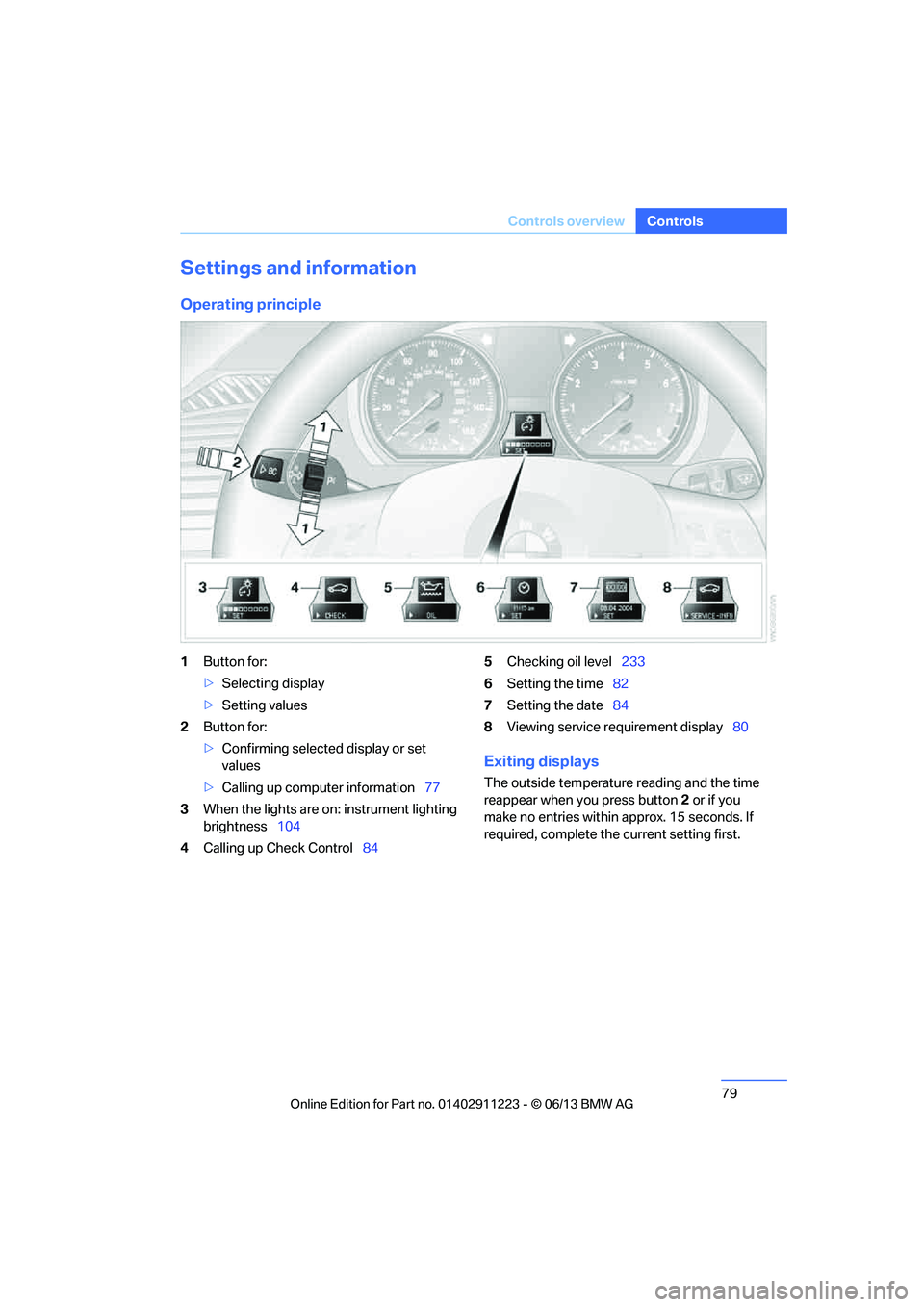
1
Button for:
>Selecting display
> Setting values
2 Button for:
>Confirming selected display or set
values
> Calling up computer information 77
3 When the lights are on: instrument lighting
brightness 104
4 Calling up Check Control 845
Checking oil level 233
6 Setting the time 82
7 Setting the date 84
8 Viewing service re quirement display 80
Exiting displays
The outside temperature reading and the time
reappear when you press button 2 or if you
make no entries within approx. 15 seconds. If
required, complete the current setting first.
00320051004F004C00510048000300280047004C0057004C005200510003
Page 83 of 284

82
ControlsControls overview
Entering deadlines for legally required
inspections
Make sure the date on the Control Display is
always set correctly, refer to page 84; other-
wise, the effectiveness of Condition Based
Service CBS is not ensured.
1. "Vehicle Info"
2. "Vehicle status"
3. "Service required"
4. "§ Vehicle inspection"
5. Open the menu for entering the deadline.
6. "Date:"
7. Create the settings.
8. Press the controller to apply the setting.
The year is highlighted.
9. Turn the controller to make the adjustment.
10. Press the controller to apply the setting.
The date entry is stored.
To exit from the menu:
Move the controller to the left.
More information on the BMW Maintenance
System can be found on page 237.
Automatic Service Request
Data regarding the ma intenance status or
legally mandated inspecti ons of the vehicle are
automatically transmitted to your BMW center
prior to a service due date.
You can check when your BMW center was
notified.
1. "Vehicle Info"
2. "Vehicle status"
3. "Options"
4. "Last Service Request"
Clock
The settings are stored for the remote control
currently in use, refer also to Personal Profile on
page 32.
Setting the time
In the instrument cluster
To set the 12h/24h format , refer to Setting the
time format on page 83.
00320051004F004C00510048000300280047004C0057004C005200510003
Page 126 of 284
125
Things to remember when driving
Driving tips
Check tire inflation pressure regularly
Check the tire inflation pr
essure at least twice a
month and before embarking on a long journey,
and correct it if necessary.
Low tire inflation pressure causes higher rolling
resistance and thus increases fuel consumption
and tire wear.
Set off immediately
Do not let the engine wa rm up while the car is
still standing, but set off immediately at moder-
ate engine speed. This is the fastest way for the
cold engine to reach its operating temperature.
Drive defensively
Avoid unnecessary acceleration and braking
maneuvers. To do so, keep an adequate dis-
tance between you and th e vehicle in front of
you. A defensive and smooth driving style
keeps fuel consumption down.
Avoid high engine speeds
Use first gear only for dr iving off. In second and
higher gears, accelerate without hesitation or
pauses. When accelerati ng, shift up before
reaching high engine speeds.
When you reach the desi red speed, shift into
the highest applicable ge ar and drive with the
engine speed as low as possible and at a con-
stant speed.
As a rule: driving at low engine speeds lowers
fuel consumption and reduces wear.
Coasting
When approaching a red lig ht, take your foot off
the accelerator and coast to a stop in the high-
est applicable gear.
On a downhill slope, take your foot off the accel-
erator and coast in a suitable gear.
The fuel supply is interrupted when coasting.
Switch off the engine during lengthy
stops
Switch off the engine when stopping for lengthy
periods, e.g. at traffic lights, railroad crossings
or in traffic congestions.
Switch off functions you do not need at
the moment
Functions such as the air conditioner, seat
heating or rear window defroster draw large
amounts of power and consume additional fuel.
Especially in city traffic and in stop-and-go driv-
ing they have a considerable impact. Therefore,
switch these functions off when they are not
really needed.
Have the vehicle serviced
Have the vehicle serviced regularly to achieve
good economy and a long vehicle life. BMW
recommends having the vehicle serviced at
your BMW center. Also note the BMW Mainte-
nance System, refer to page 237.
General driving notes
Close the trunk lid
Only drive with the trunk closed. Failure to
do so may endanger passengers or other
road users or may damage the vehicle in the
event of an accident or a braking and evasive
maneuver. In addition, exhaust gas may flow
into the passenger compartment. <
If special circumstance s make it absolutely
necessary to drive wi th the trunk open:
1. Close all windows and the glass roof.
2. Greatly increase the air volume of the
automatic climate cont rol system, refer to
page 108.
3. Drive cautiously.
00320051004F004C00510048000300280047004C0057004C005200510003
Page 148 of 284
147
Destination guidance
Navigation
>
"Day/night mode"
Select and adjust depending on light
conditions.
"Traffic conditions/gray map" active:
Settings are not taken into account.
> "Satellite images"
Depending on the ava ilability and resolu-
tion, satellite images ar e displayed in scales
of approx. 1 mile to 600 miles/2 km to
1,000 km.
> "Perspective view in 3D"
Displays a three-dimensional view. Promi-
nent areas that are contained in the naviga-
tion data are displayed on the map in 3D.
> "Traffic conditions/gray map"
The map is optimized for displaying traffic
bulletins. Symbols for the special destina-
tions are no longer displayed.
Map view for the sp lit screen display
The map view for the split screen can be
selected separately fr om the main screen.
1. Open "Options".
2. "Split screen"
3. Move the controller to the right repeatedly
until the split screen content is selected.
4. Select "Split screen content" or scale.
5. Select the map view:
>"Arrow display"
> "Map facing north"
> "Map direction of travel"
> "Map view with perspective"
> "Position"
> "Exit ramp view"
> "Traffic conditions/gray map"
6. To change the scale: switch to the split
screen and turn the controller.
Traffic bulletins
Overview
>You can display the tr affic bulletins from
radio stations that broadcast the TMC
(Traffic Message Channel) of a traffic infor-
mation service. Bulletins about traffic
obstructions and hazards are continuously
updated.
> Traffic bulletins are in dicated by symbols on
the map.
> Traffic bulletins for th e surrounding area are
stored in a list.
The symbol in the toolbar of the map view
turns red if a traffic bulletin relates to the
calculated route.
Real Time Traffic Information End-User
Provisions
Certain BMW models equi pped with navigation
have the capability to display real-time traffic
information. If your sy stem has this capability
the following additional terms and conditions
apply:
An End-User shall no longer have the right to
use the Traffic Data in the event that the End-
User is in material breach of the terms and
conditions contained herein.
A. Total Traffic Network, a division of Clear
Channel Broadcasting, Inc. ("Total Traffic Net-
work") holds the rights to the traffic incident
data and RDS-TMC network through which it is
delivered. You may not modify, copy, scan or
use any other method to reproduce, duplicate,
republish, transmit or distribute in any way any
portion of traffic incident data. You agree to
indemnify, defend and hold harmless BMW of
North America, LLC. ("BMW NA") and Total
Traffic Network, Inrix, Inc (and their affiliates)
against any and all claims, damages, costs or
other expenses that arise directly or indirectly
out of (a) your unauthor ized use of the traffic
00320051004F004C00510048000300280047004C0057004C005200510003
Page 195 of 284
194
CommunicationsTe l e p h o n e
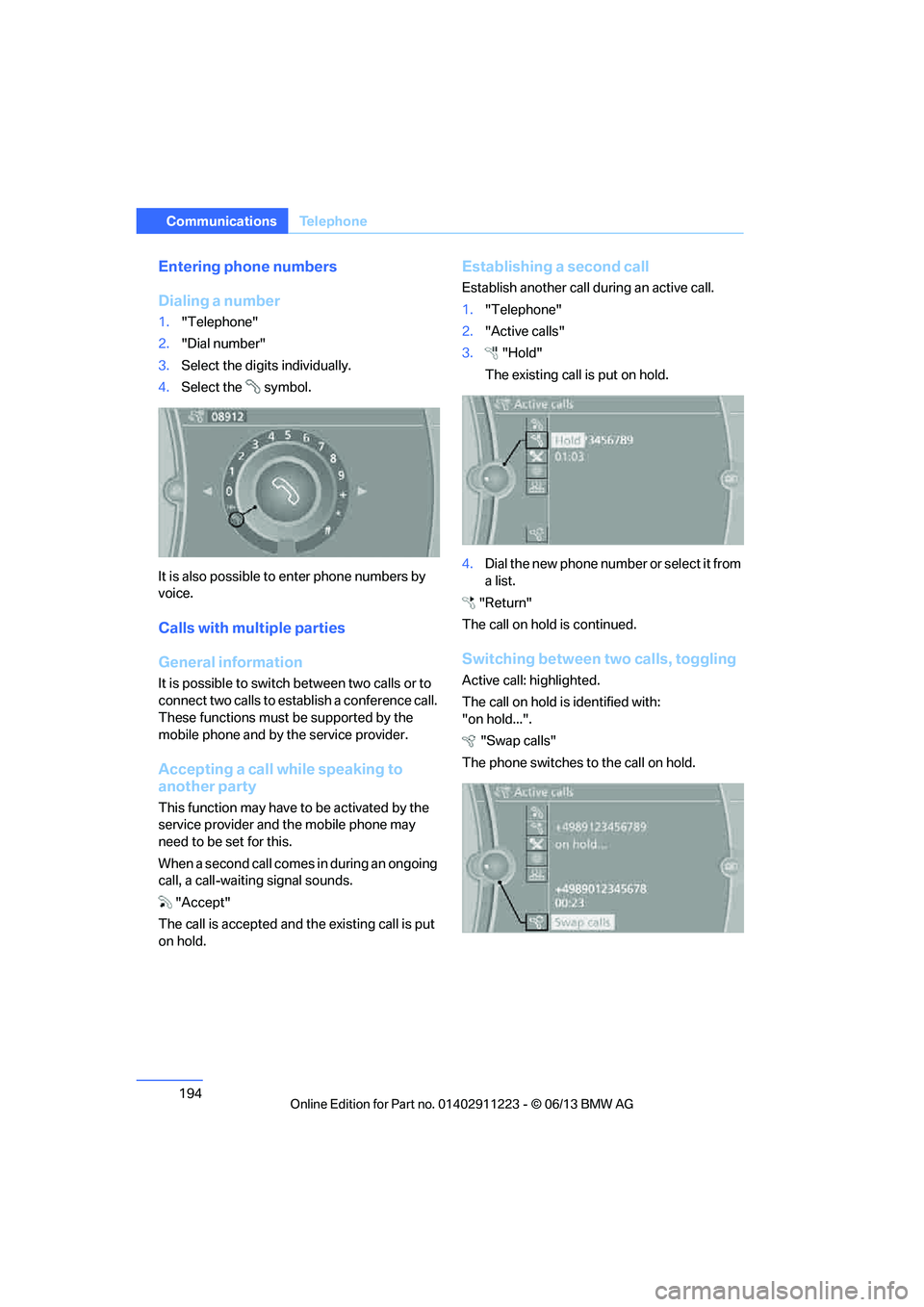
Entering phone numbers
Dialing a number
1."Telephone"
2. "Dial number"
3. Select the digits individually.
4. Select the symbol.
It is also possible to enter phone numbers by
voice.
Calls with multiple parties
General information
It is possible to switch between two calls or to
connect two calls to establish a conference call.
These functions must be supported by the
mobile phone and by the service provider.
Accepting a call while speaking to
another party
This function may have to be activated by the
service provider and the mobile phone may
need to be set for this.
When a second call comes in during an ongoing
call, a call-waiting signal sounds.
"Accept"
The call is accepted and the existing call is put
on hold.
Establishing a second call
Establish another call during an active call.
1. "Telephone"
2. "Active calls"
3. "Hold"
The existing call is put on hold.
4. Dia l the ne w pho ne numbe r o r sele ct it from
a list.
"Return"
The call on hold is continued.
Switching between two calls, toggling
Active call: highlighted.
The call on hold is identified with:
"on hold...". "Swap calls"
The phone switches to the call on hold.
00320051004F004C00510048000300280047004C0057004C005200510003
Page 205 of 284
204
CommunicationsOffice
4."Configure Bluetooth®"
5. "Show images"
The display of all contact pictures is activated or
deactivated.
Deleting contacts
Only contacts that are stored in the vehicle are
deleted. The contacts on the mobile phone
cannot be deleted.
1. "Office"
2. "Contacts"
3. Highlight the contact.
4. "Options"
5. "Delete contact" or "Delete all contacts".
Messages
General information
The displaying of text messages and emails
from the mobile phone depends on whether the
mobile phone supports transmission into the
vehicle from the mobile phone. Text messages
and e-mails may not be supported by the ser-
vice provider or the fu nction may have to be
separately activated. Af ter a mobile phone is
paired for the first time, the transmission may
take several minutes. Messages are only dis-
played completely when the vehicle is stopped.
Messages from the auxiliary phone are not
transmitted.
To display various messages:
> Text messages.
> Messages from My info.
> Messages from the BMW Concierge
service.
> Messages from BMW Info.
> Emails from the mobile phone.
Displaying messages
1."Office"
2. "Messages"
Message type
A symbol indicates the type of message.
Read message.
Unread message.
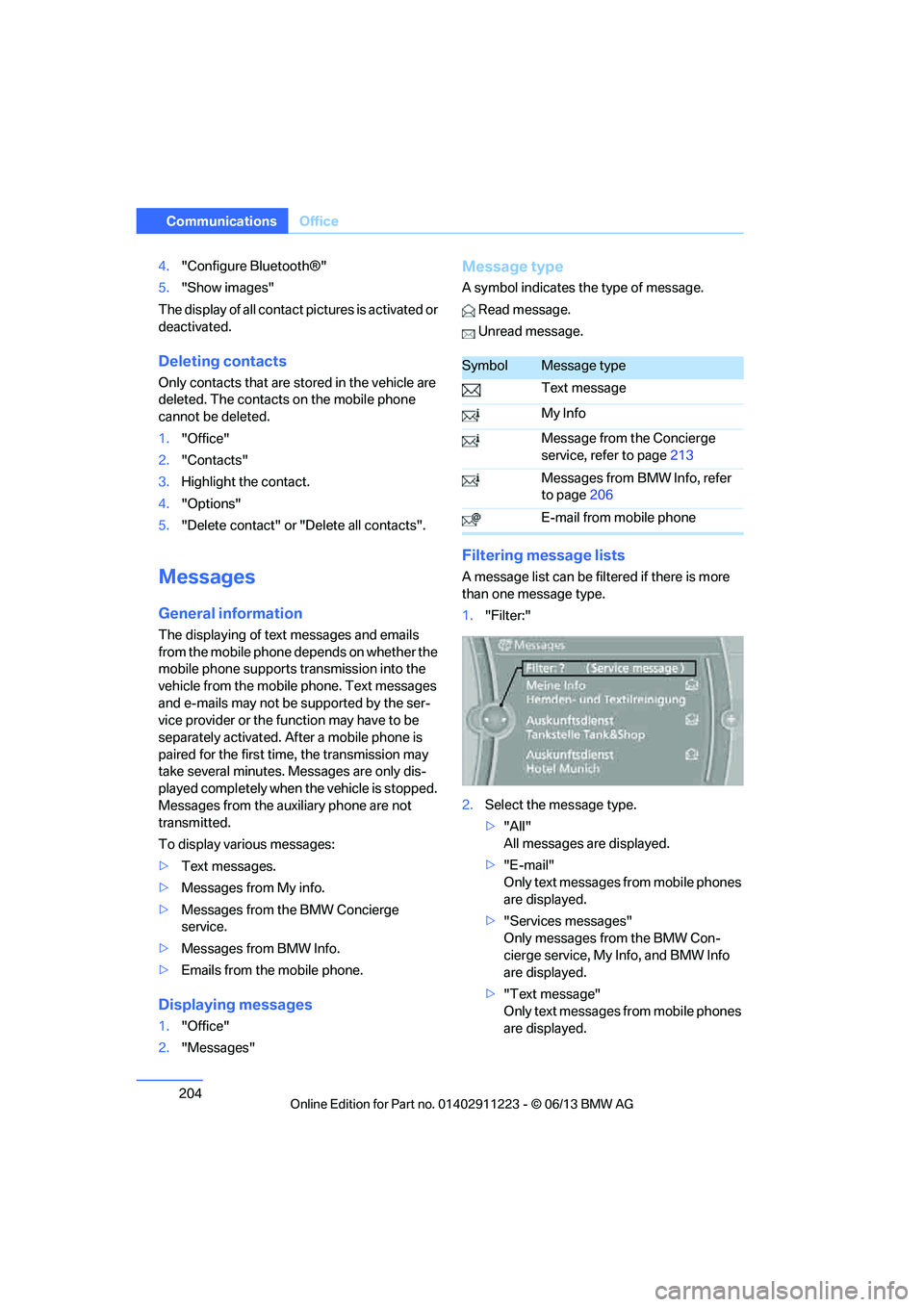
Filtering me ssage lists
A message list can be filtered if there is more
than one message type.
1."Filter:"
2. Select the message type.
>"All"
All messages are displayed.
> "E-mail"
Only text messages from mobile phones
are displayed.
> "Services messages"
Only messages from the BMW Con-
cierge service, My Info, and BMW Info
are displayed.
> "Text message"
Only text messages from mobile phones
are displayed.
SymbolMessage type
Text message
My Info
Message from the Concierge
service, refer to page 213
Messages from BMW Info, refer
to page 206
E-mail from mobile phone
00320051004F004C00510048000300280047004C0057004C005200510003
Page 206 of 284
205
Office
Communications
Deleting messages
Messages from the Concierge service, My Info,
BMW Info, and BMW Online can be deleted.
To delete a message:
1.
"Office"
2. "Messages"
3. Select the desired message.
4. Open "Options".
5. Open "Delete message".
To delete all messages:
1. "Office"
2. "Messages"
3. Open "Options".
4. "Delete all messages"
Text message
Calling a text message sender
1.Select the desired message.
2. Select the symbol.
Saving sender in the contacts
1.Highlight the desired message.
2. Open "Options".
3. "Store as new contact" or "Add to existing
contact"
Using contact data
Contact data from dead lines, tasks, text mes-
sages, e-mails and notes can be stored or
selected, see page 208.
Reading text messages aloud
Having text messages read aloud, refer to
page209.
My Info
Selecting additional functions
Additional functions are available when a
message is selected.
Messages from the Concierge service
Saving an address
1. Select the desired message.
2. Open "Options".
3. "Store contact in vehicle"
Selecting additional functions
Additional functions are available when a
message is selected.
SymbolFunction
"Start guidance" or "Add as another
destination"
"Call"
If the message contains a number, a
telephone connection is estab-
lished.
"Select phone number"
If the message contains more than
one number, select the desired
number from the list. A telephone
connection is established.
SymbolFunction
"Start guidance" or "Add as another
destination"
"Call"
If the message contains a number, a
telephone connection is estab-
lished.
00320051004F004C00510048000300280047004C0057004C005200510003