2013 BMW 1 SERIES Voice activation
[x] Cancel search: Voice activationPage 159 of 288

154
EntertainmentOn/off and tone
On/off and tone
Vehicle equipment
In this chapter, all pr oduction, country, and
optional equipment that is offered in the model
range is described. Equipment is also described
that is not available because of, for example,
selected options or country version. This also
applies to safety related functions and systems.
General information
The following audio and video sources share
the same control elements and adjustments:
> Radio
> CD/DVD player
> Video
> External devices, e.g. MP3 player
Controls
The audio and video sources can be controlled
using the:
>Buttons near th e CD/DVD player
> iDrive
> Buttons on the steering wheel, refer to
page 13
> Programmable memory keys, refer to
page 25
> Voice activation system
Buttons near the CD/DVD player
1Sound output for entertainment on/off,
volume
>Press: switch on/off
When you switch on the unit, the last set
radio station or track is played.
> Turn: adjusting the volume
2 Eject the CD/DVD
3 CD/DVD drive
4FM/AM : change the radio station
waveband
5MODE : change the audio and video
sources
6 Station scan/track search
> Change the radio station
> Select the track for the CD/DVD player
and certain multimedia devices
Switching on/off
To switch the entertainment audio output on or
off:
Press knob 1 next to the CD/DVD player.
This symbol on the Co ntrol Display indicates
that sound output is switched off.
The sound output is available for approx.
20 minutes after the ignition was switched off.
For sound output, switch the unit back on.
00320051004F004C00510048000300280047004C0057004C005200510003
Page 179 of 288

174
EntertainmentMusic collection
Playing music
Music search
All tracks for which additional information has
been stored can be accessed by the music
search. Tracks without additional information
can be called up via the corresponding album.
1. "CD/Multimedia"
2. "Music collection"
3. "Music search"
4. Select the desired category.
5. To select the desired entry:
>Open "A-Z search" and enter the
desired input.
or
> Select the desired entry from the list.
6. Select additional categories if desired.
The tracks found are listed in alphabetical
order.
Not all categories need to be selected. For
example, to search for all tracks by a certain
artist, call up that artist only. All of the tracks
by that artist are then displayed. 7.
"Start play"
The list of tracks is automatically repeated.Restarting the music search
"New search"
Music search by voice
For instructions on the voice activation system,
refer to page 27.
1. Press the button on the steering wheel.
To select a track directly:
Say the voice command and the name of the
desired track in one command.
Current playback
The list of tracks that wa s generated last by the
music search or the album selected last.
1. "CD/Multimedia"
2. "Music collection"
3. "Current playback"
4. Select the desired track, if necessary.
2.{Music search }
3. Open the desired category, e.g. { Select
artist }.
4. Say the desired entry in the list.
5. Select additional categories if desired.
{ Title … }
00320051004F004C00510048000300280047004C0057004C005200510003
Page 202 of 288

197
Te l e p h o n e
Communications
Saving an entry in the contacts
1.
Highlight the entry.
2. Open "Options".
3. "Store as new contact" or "Add to existing
contact".
4. Select contact if necessary.
5. Select the type of number: "Home",
"Business", "Mobile" or "Other".
6. Complete the entr ies if necessary.
7. "Store contact"
Hands-free system
General information
Calls being conducted using the hands-free
system can be continued using the mobile
phone and vice versa.
From the mobile phone to the hands-
free system
Calls that have been in itiated from outside the
Bluetooth range of the vehicle can be continued
using the hands-free system if the ignition is
switched on.
Depending on the mobile phone, the call is
automatically switched to hands-free mode.
If the switch does not occur automatically, then
follow the instructions th at appear on the dis-
play of the mobile phon e, also refer to the
Owner's Manual for the mobile phone.
From hands-free system to mobile
phone
Calls being conducted using the hands-free
system can also be continued using the mobile
phone if so desired, depending on the mobile
phone.
At this point, follow the instructions that appear
on the display of the mobile phone, also refer to
the Owner's Manual for the mobile phone.
Operation by voice
With voice activation system:
Operation, refer to page 27.
Without voice acti vation system:
Depending upon the equipment, the mobile
phone can be voice-operated as described
below.
The list of short commands in the Owner's
Manual does not apply to this type of voice
operation.
The concept
> The mobile phone can be operated without
removing your hand from the steering
wheel.
> In many cases, the entry process is sup-
ported by means of announcements or
questions.
> {...} Verbal instructions to use with the voice
operation system.
Voice commands
Activating voice activation system
1. Press the button on the steering wheel.
2. Say the command.
Finishing voice input
Press the button on the steering wheel
or
Possible commands
Having possible commands read aloud
The system understands default commands
that must be spoken word for word.
Possible commands are read aloud.
Digits from zero to nine are recognized. {
Cancel }.
{ Help }.
00320051004F004C00510048000300280047004C0057004C005200510003
Page 218 of 288

213
ConnectedDrive
Communications
>
In addition, the optional Convenience Plan
offers Concierge servic e and information on
route planning, the traffic situation and
weather. Using Critical Calling, a limited
number of calls can be made via the BMW
Assist Response Center, for example if the
mobile phone is not available or discharged.
Press the SOS button to contact the BMW
Assist Response Center.
TeleService
General information
TeleService supports comm unication with your
BMW center.
> Data on the vehicle's service requirements
can be sent directly to the BMW center. In
this way, the BMW center can plan its work
in advance. This shor tens the duration of
the service appointment.
> In the event of a breakdown, data on the
vehicle's condition can be sent directly to
Roadside Assistance.
> The service varies by country.
> Connection may incur charges.
> Services may be restricted abroad.
Requirements
>BMW Assist is activated.
> Wireless reception is available.
> Ignition switched on.
Using TeleService
Generally, TeleService is activated in the
vehicle.
If TeleService is not activated, it is possible to
establish a voice contact to the BMW Group
Mobile Service.
For additional uses or to deactivate the ser-
vices, consult your BMW center or contact
Customer Relations.
Concierge service
General information
The Concierge service of BMW Assist will
inform you, for example, about upcoming
events, filling station, or hotels and supplies you
with their phone numbers and addresses. Many
hotels can be booked directly through the BMW
Assist Concierge service. Use of the Concierge
service requires an additi onal activation by the
BMW Assist Response Center.
Starting the Concierge service
1. "BMW Assist" or "ConnectedDrive"
2. "Concierge"
3. "Start service"
A voice contact with the BMW Concierge
service is established. Phone numbers and
addresses can be transmitted as a message.
Messages
Information about messages, refer to page 204.
Roadside Assistance
At a glance
BMW Roadside Assistance can be contacted if
assistance is needed in the event of a break-
down.
Contact with BMW Roadside Assistance can
also be established using a Check Control
message, refer to page84.
00320051004F004C00510048000300280047004C0057004C005200510003
Page 262 of 288

This chapter contains technical data, short
commands for the voice activation system and
an index that will help you find information most
quickly.
Reference
00320051004F004C00510048000300280047004C0057004C005200510003
Page 265 of 288
260
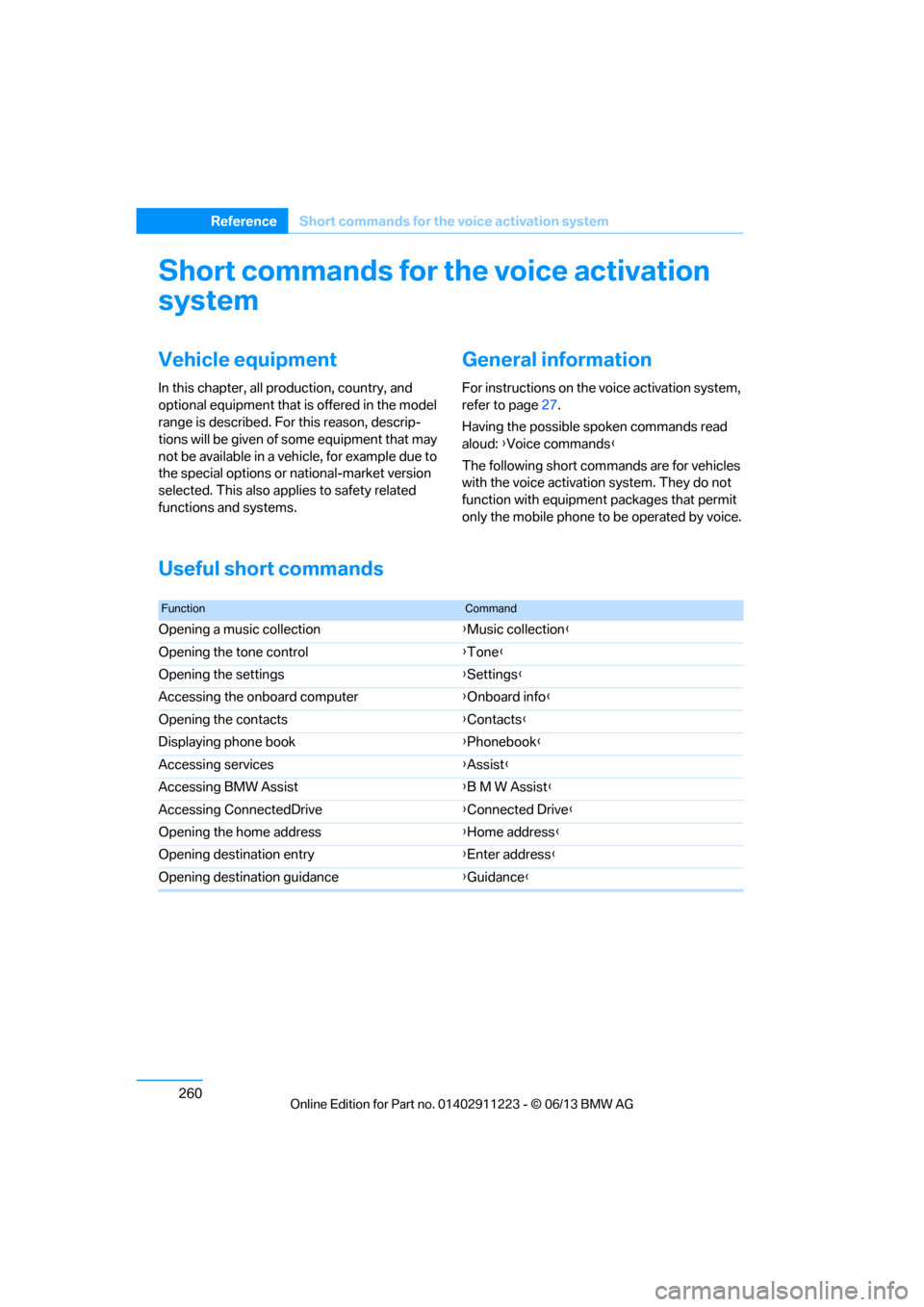
ReferenceShort commands for the voice activation system
Short commands for the voice activation
system
Vehicle equipment
In this chapter, all pr oduction, country, and
optional equipment that is offered in the model
range is described. For this reason, descrip-
tions will be given of some equipment that may
not be available in a vehi cle, for example due to
the special options or national-market version
selected. This also app lies to safety related
functions and systems.
General information
For instructions on the voice activation system,
refer to page 27.
Having the possible spoken commands read
aloud: {Voice commands }
The following short commands are for vehicles
with the voice activation system. They do not
function with equipment packages that permit
only the mobile phone to be operated by voice.
Useful short commands
FunctionCommand
Opening a music collection {Music collection }
Opening the tone control {Tone }
Opening the settings {Settings }
Accessing the onboard computer {Onboard info }
Opening the contacts {Contacts }
Displaying phone book {Phonebook }
Accessing services {Assist }
Accessing BMW Assist {B M W Assist }
Accessing ConnectedDrive {Connected Drive }
Opening the home address {Home address }
Opening destination entry {Enter address }
Opening destination guidance {Guidance }
00320051004F004C00510048000300280047004C0057004C005200510003
Page 266 of 288

261
Short commands for the voice activation system
Reference
CD/Multimedia
CD/DVD drive
Music collection
External devices
Tone control
FunctionCommand
Selecting a track
{Track … } e.g. track 5
or
{ C D track … } e.g. CD track 5
Playing back a CD {C D on }
Selecting a CD {Select C D }
Selecting a CD and track {C D … track … } e.g. CD 3 track 5
Opening the CD and Multimedia menu {C D and multimedia }
CD and DVD {C D }
Displaying entertainment details on the split
screen {
Entertainment details }
FunctionCommand
Searching for music; opening the menu {Music search }
Calling up the current playback {Current playback}
Opening a music collection {Music collection }
Playing back a music collection {Music collection on }
Playing back the most frequently played tracks {Top fifty }
FunctionCommand
Opening external devices {External devices }
Accessing Bluetooth devices {Bluetooth }
AUX front {AUX }
FunctionCommand
Opening the tone control {Tone }
00320051004F004C00510048000300280047004C0057004C005200510003
Page 267 of 288

262
ReferenceShort commands for the voice activation system
Radio
FM
AM
Satellite radio
Presets
FunctionCommand
Selecting a station directly {Station … } e.g. National Public Radio
Calling up the radio {Radio }
Calling up an FM station {F M }
Opening manual search {Manual }
Selecting the frequency range {Select frequency }
Calling up a station {Select station }
FunctionCommand
Calling up an AM station {A M }
Opening manual search {Manual }
FunctionCommand
Calling up the satellite radio {Satellite radio }
Switching on the satellite radio {Satellite radio on}
Selecting a satellite radio channel {Select satellite radio } e.g. channel 2
FunctionCommand
Opening the stored stations {Presets }
Choosing a stored station {Select preset }
Selecting a stored station {Preset … } e.g. stored station 2
00320051004F004C00510048000300280047004C0057004C005200510003