2013 AUDI S6 steering wheel
[x] Cancel search: steering wheelPage 94 of 306

92 Audi active lane assist
Activating and deactivating
Appl ies to vehicles: with active lan e assis t
Fig. 93 Turn signal leve r: Active lane ass ist butto n
Fig. 94 Windshie ld: Active lane assist ca mera viewing
win dow
-
I
~ Press the c::> fig. 93 button to activate or de
activate the system. The indicator light.
or . in the instrument cluster will illumi
nate or go out.
Instrument cluster indicator light
• Ready: The indicator light shows that the
system is ready to use . The system can now
warn you if you are about to cross a known
lane marker line .
• Not ready: The indicator light shows that
the system is turned on but unable to send a
warning . This can be due to the following:
- There is no lane marker line .
- The relevant lane marker lines are not de·
tected (for example, markings in a construc
tion zone or because they are obstructed by
snow, dirt, water or backlight ing).
- The vehicle 's speed is below the speed need
ed to activate it, which is about 40 mph (65
km/h) .
- The lane is narrower than about 8 ft . (2 .5 m)
or wider than 4 .5 m .
- The curve is too sharp. - The driver's hands are not on the steering
wheel.
(D Tips
Make sure the camera's field of view
c::> fig. 94 is not obstructed by stickers, de
posits or anything else. For information on
cleaning, refer to
c::> page 211.
Active lane assist display in the
instrument cluster
Applies to vehicles: wit h active lane assist
Fig. 95 D isplay : Active lane assist is switc hed on a nd is
warning
Fig. 96 Instrument cl uster: Active lane assist is switch ·
ed o n but not r eady to p rov id e warn ings
You can call up the active lane assist display
using the buttons in the multifunction steer
ing wheel
c::> page 23.
An additional indicator appears in the Head
up Display*.
When active lane assist is switched on, the
system indicates which lines are detected by
displaying solid lines on the left and/or right
side of your vehicle: .,..
Page 95 of 306
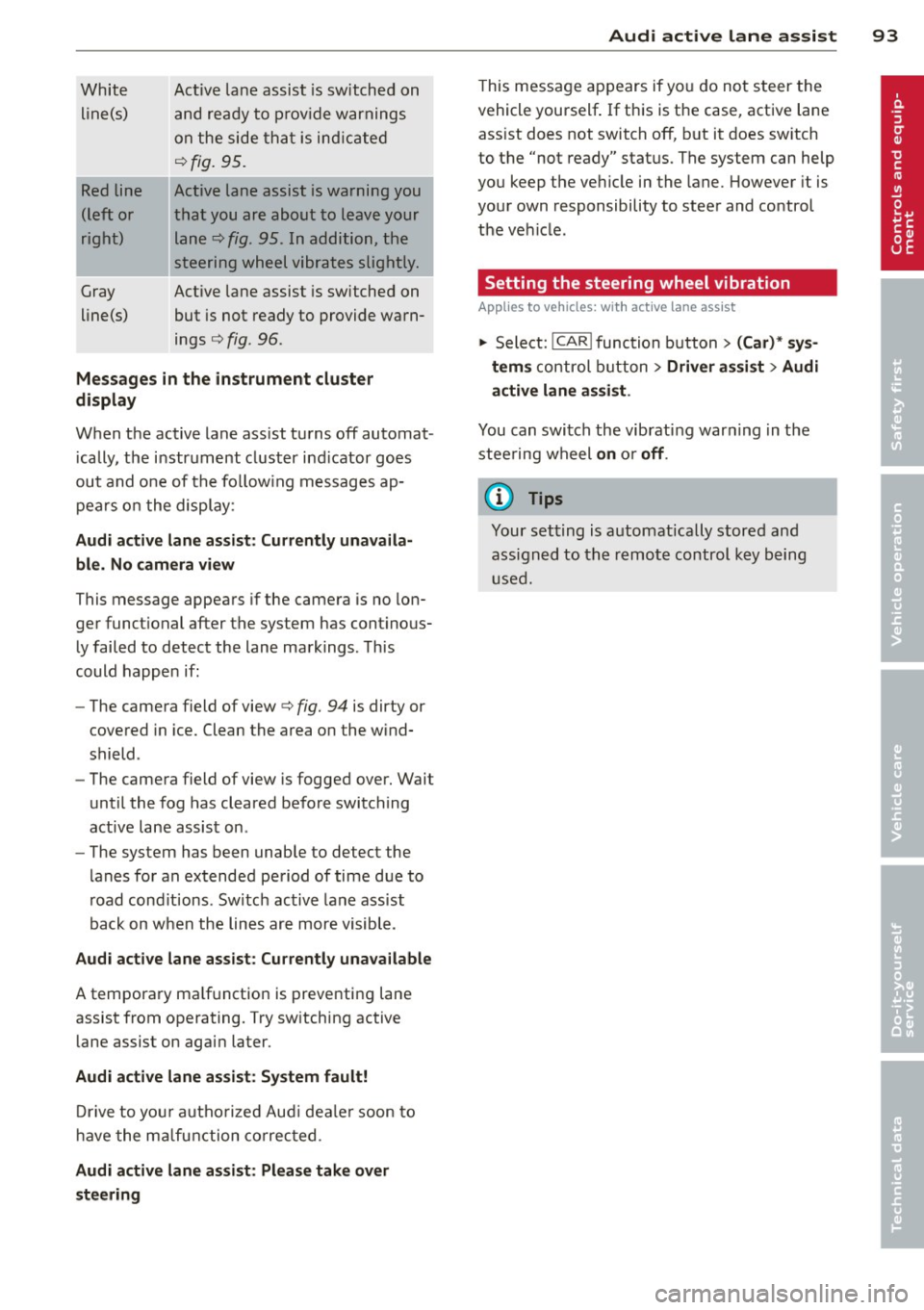
White line(s)
Red line
(left or
right)
Gray
line(s) Act
ive lane assist is switched on
and ready to p rov ide warnings
on the side that is ind icated
Q fig. 95.
Act ive lane assist is warning you
that you are about to leave your lane
Q fig. 95. In addition, the
steering wheel vibrates slightly.
Act ive l ane assist is switched on
but is not ready to provide warn
ings
Q fig . 96 .
Mes sages in the instrument clu ster
display
When the active lane ass ist turns off automat
i cally, the i nstrument cluster ind icator goes
out and o ne of the fo llow ing messages ap
pears on the display :
Audi active lane a ssist : Currently un availa
ble . No camera view
This message appears if the camera is no lon
ger funct ional after the system has cont inous
ly failed to detec t the lane markings . This
could happe n if:
- The camera field of view
Q fig. 94 is dirty or
covered in ice. Clean the area o n the wind
shield .
- The camera field of view is fogged over. Wait
until the fog has cleared before switching
active lane assis t on .
- The system has been unable to detect the
lanes for an extended period of time due to
road cond it ions . Switch active lane ass ist
back on when the lines are more visible .
Audi active lane assist: Currently un available
A temporary ma lf u nction is preventing lane
assist from operating. Try sw itching active
lane assist on again later.
Audi active lane a ssist : Sy stem fault!
D rive to you r autho rized Aud i dea le r soon to
h ave the ma lfunction co rrec ted .
Audi active lane a ssist : Pl ea se take over
s te ering
Audi acti ve lane a ssis t 93
This message appears if yo u do not s teer the
vehicle yourself . If this is the case, active lane
ass ist does not switch off, b ut it does sw itch
to the "not ready" stat us. The system can help
you keep the ve hicle in the lane. However it is
your own responsibility to steer and control
t h e ve hicle .
Setting the steering wheel vibration
Applies to vehicles: with active lane assist
11> Select: !CAR !function button> (Car) * sys
tem s
control button > Driver assi st > Audi
active lan e assi st.
You can switch the vibrat ing war ning in t he
stee ring wheel
on o r off .
(D Tips
Your setting is a utomat ically stored and
assigned to the remo te control key being
used.
Page 103 of 306

Night vision assistant
Night vision assistant
with detected pedestrian marking
Description
App lies to vehicles: with night v isio n assistant
Fig . 103 Disp lay: nig ht v is ion assistant
"N ight v is ion assistant with pedestrian detec
tion" uses an infrared camera to monitor the
area in front of your vehicle at night. Within
the limits of the system , it can display objects
up to about 1000 feet (300 meters) away. The
heat image of a pedestrian detected by the
camera is shown in the instrument cluster dis
play
Q fig . 103 . Warm areas appear lighter
and cold areas appear darker .
Pedestrian detection
Applies to vehicles: with n ig ht v ision ass istant
Fig. 104 Display : yellow pedestrian marking
Night vision assistant 101
Fig. 105 D isp lay: symbo l w hen infrare d image is not
visi ble
Night vision assistant can detect pedestrians
that are between about 50 and 300 feet (15
and 90 meters) in front of the vehicle, under
ideal conditions .
If a pedestrian is detected
when it is dark outside and the vehicle head
lights are switched on, the pedestrian is high
lighted in yellow
Qf/g . 104, Qpage 102,
General information.
If another display such
as navigation replaces the image from the
night vision assistant, the symbo l~,, appears
in a tab
Q fig. 105.
(D Tips
If the night vision assistant image does
not appear when the system is sw itched
on, you can access it with the buttons on
the multifunction steering wheel
Q page24 .
Page 111 of 306

a gear that is suitable for the incline. Hill de
scent control tries to maintain the speed ach
ieved at the time of brak ing, within physical
and technica l limitations. If may still be nec
essary to adjust the speed with the brakes.
Hill descent control switches off once the de
cline levels out or you press the accelerator pedal.
On vehicles with the cruise control system*
¢ page 79, hill descent control is also activat
ed when the speed is set.
.&_ WARNING
-
H ill descent control cannot overcome
physical limitations, so it may not be able
to maintain a constant speed under all
conditions. Always be ready to app ly the
brakes .
Manual shift program
Applies to vehicles: with mult itronic/S tronic/tiptron ic
Using the manual shift program you can
manually select gears.
Fig. 114 Center co nsole: shi fting the gears manually
Fig. 115 Steering wheel: Shift buttons•
"' 8 0 CJ
cb
Automatic Transmission 109
Gear selection with selector lever
The tiptronic mode can be selected either with
the vehicle stationary or on the move.
"' Push the se lecto r lever to the right from D/
S. An M appears in the instrument cluster
display as soon as the transm ission has
shifted.
"' To upshift, push the se lector lever forward
to the plus position
0 ¢ fig . 114.
"' To downshift, push the lever to the minus
position
0 .
Gear selection with paddle levers*
The shift buttons are activated when these
lector lever is in D/S or the tiptronic manual
shift program .
"'To upshift, touch the button on the rig ht G)
C) fig. 115 .
.,. To downshift, touch the button on the left
0 .
"' If you do not press a sh ift button within a
short time while in the D/S position, the
transm iss ion w ill retur n to automat ic mode.
To keep shifting using the sh ift buttons,
move the selector lever to the r ight out of
t he D/S posit ion.
The transmission automatically shifts up or
down before cr itical engine speed is reached .
The transm ission only a llows manual sh ifting
when the engine speed is w ithin the permit
ted range.
(D Tips
- When you shift into the next lower gear,
the transmission will downshift only
when there is no possibility of over-rev
ving the engine.
- When the kick-down comes on, the
transmission will shift down to a lower
gear, depending on vehicle and engine
speeds.
- T iptron ic is inoperat ive when the trans
mission is in the fail-safe mode.
Page 112 of 306

110 Automatic Tran sm iss ion
Kick-down
Applies to vehicles: with multitron ic/S tronic/t iptronic
Kick-down enables maximum acceleration .
Applies to ve hicle s w ith a multit ro nic ®
t ra nsmission
When you depress the accelerator pedal be
yond the resistance po int, the transmission
downshifts into a lower gear ratio depend ing
on the vehicle speed and engine speed. As l ong as the accelerator peda l is depressed, the
engine speed is a utomat ica lly regulated for
maximum accelera tion.
Appli es to veh icl es with a S tronic ®-/ ,
tiptronic tran smi ssion
When you dep ress the accele rator pedal be
yond the resistance po int, the a utomat ic
transmission downshifts into a lower gear, de
pending on vehicle speed and engine speed.
The upshift into the next higher gear takes p lace once the maximum specified engine
speed is reached.
A WARNING
,-
Please note that the drive wheels can spin
if kick-down is used on a smooth slippery
road - there is a risk of skidding .
Launch Control Program
Applies to vehicles: with S tronic
The Launch Control Program provides the
best acceleration possible when starting from
a stop .
Requirement : The engine must be at operat
ing temperature and the steering wheel must
not be turned .
.. Press the
I~ O FF I button ¢ page 194 while
the engine is running. The
IJ indica tor light
illuminates in the instrument cluster and
Sta bilization contr ol (ESC ): Off Warn ing!
R educed stabi lit y
appears in the dr iver in
fo rmat io n system disp lay .
.. Move the selecto r lever to posit ion D/S to
select sport mode (5) or select
D yna mic
mode in Audi dr ive select c:> page 99 .
.. Press the b rake pedal strongly with you r left
foot and hold it down for at least 1 second .
.. At the same time, press the accelerator
pedal down complete ly with your r ight foot
until the engine reaches and mainta ins a
high RPM .
.. Remove your foot from the brake pedal
w ith in
5 seconds c:> ,&. .
_&. WARNING
-Always adapt your dr iving to the tr aff ic
f low.
- Onl y use the Launch Cont ro l Program
when road and t raff ic condi tions a llow i t
and other d rivers w ill not be endangered
or annoyed by your driving and the vehi
cle 's acceleration.
- Please note that the driving wheels can spin and the vehicle can b reak away
when ESC is switched off, especially
when the road is slippery .
- Once the vehicle has started moving,
press the
1 1' OFFI button brief ly to turn
the ESC on .
(D Tips
- The transmission temperature may in
crease signif icantly after using the
launch control program. If that happens,
the program may not be ava ilable for a
few minutes. It w ill be available again af
ter a cool-down per iod.
- When accelerating using the launch con
tro l program, all vehicle parts are subject
to heavy loads . This can resu lt in in
creased wear .
Transmission malfunction
Applies to vehicles: with multitronic/S tronic/tiptronic
[O] Tran smi ssi on: Pr ess brake pedal and se
lect gear again
Press the brake peda l and select the desired
selector lever position again. You can the n
continue d riving .
[O] Transmi ssion overheating: Plea se drive
con servatively
Page 118 of 306

116 Parking systems
Cross parking
Applies to vehicles: with park ing system p lus w it h rear
view ca mera
This view may be used when parking in a ga
rage or in a parking space.
F ig. 124 Infotainment: aim ing at a parking space
Fig. 125 Infotainment : aligning the ve hicle
... Turn the Infotainment on and shift into re
verse gear.
... The orange colored orientation lines@
show the direction of travel of the vehicle.
Turn the steering wheel until the orange ori
entat ion lines appear in the parking space
c:::> fig. 124 . Use the markings @to help you
est imate the distance from an obstacle.
Each marking represents about 3 ft (1 m).
The blue area represents an extens ion of the
vehicle's out line by approximately 16 ft
(5 m) to the rear.
... While driving in reverse gear, adj ust the
steering wheel angle to fit the parking space
with the aid of the orange orientation lines
c:> & in General information on page 114,
c:::> @ in General information on page 115 .
@ marks the rear bumper . Stop the vehicle
when the red orientation line@ borders an
object.
Parallel parking
Applies to vehicles : wit h parking system pl us with rear
v iew camera
This view may be used when parallel parking
along the side of a street.
Fig . 126 Infotainment : blue surface align ed in the
par king space
Fig. 127 Infotainme nt: contact of the blue curved lin e
w ith the curb
Parking on the right is described here. It is
identical when parking on the left.
If there is an obstacle next to the parking
space (such as a wall), refer to information for
"Parking next to obstacles"
c:::> page 117.
"' Ac tivate the turn signal.
"' Position your vehicle next to a parked vehi
cle in front of the desired parking space. The
distance to this vehicle should be approxi
mate ly 3 ft (lm) .
... Turn the Infotainment on and shift into re
verse gear. The parking system is turned on
and the
cross parking indicator is displayed.
"' Press the control button on the Infotain
ment un it
(D c:::> fig. 126 . The parallel park
ing
indicator is displayed.
"' Back up and align your vehicle so the blue
area @borders on the rear end of the vehi-
cle behind you or on the parking space line ..,.
Page 119 of 306

r::> & in General information on page 114,
r::> (Din General information on page 115 .
The blue area represents an extension of the
vehicle's outline by approximately 16 ft
(5 m) to the rear . The long side of the blue
area should be on the curb . The entire blue
area must fit into the parking space.
• With the vehicle stopped, turn the steering
wheel to the right as far as it will go.
• Back into the parking space until the blue
curve
r::> fig. 12 7 touches the curb r::> & in
General information on page 114,
r::> (D in
General information on page 115.
Stop the
vehicle.
• With the vehicle stopped, turn the steering
wheel to the left as far as it will go .
• Continue to back into the parking space un
t il the vehicle is parked parallel to the curb
r::> & in General information on page 114,
r::> (D in General information on page 115.
@ marks the rear bumper. Stop the vehicle,
at the latest, when the red orientation line
@ borders an object. Keep an eye on the
front of your vehicle while doing this .
Parking next to obstacles
If there is an obstacle (such as a wall) next to
the parking space, position the vehicle so
there is more space on that side. Position the
long side of the blue surface so that there is
sufficient space from the obstacle. The sur
face must not be touching . You will also need
to start turning the steering wheel much ear
lier . The blue curve
r::> fig . 12 7 must not touch
the obstacle and should have sufficient room.
(D Tips
The left or right orientation lines and sur
faces will be displayed, depending on the
turn signal being used.
Peripheral cameras
Introduction
Applies to vehicles: with parki ng system plus w ith periph
eral cameras
In addition to parking system plus
r::>page 113, this parking system contains pe-
Parking systems 117
ripheral cameras. Depending on the vehicle
equipment, you are assisted by various views
such as peripheral view, corner views at the
front and rear of the vehicle, and views direct
ly in front of or behind the vehicle.
General information
Applies to vehicles: with parking system plus with periph
eral cameras
Fig. 128 Locat ion of per ipheral cameras
Depending on the vehicle equipment , the pe
ripheral cameras are found in the radiator
grille, in the luggage compartment lid and on
both exterior mirrors*
r::> fig. 128. Make sure
that the lenses are not covered by deposits or
any other obstructions as it may impair the
system. For information on cleaning, refer to
qpage 211.
In the peripheral mode, black corners are
shown in the vehicle silhouette. Objects in
these areas are outside of the camera's field
of view and are not detected .
The accuracy of the orientation lines and the
blue surfaces is reduced if the adaptive air
suspension* is faulty, if the vehicle is lifted or
if the
Dynamic mode is activated 9 page 98.
A WARNING
-Always read and follow the applicable
warnings
r::> .&. in General information on
page 112.
- If the position or the installation angle
of a camera was changed, after a colli
sion for example, do not continue to use
the system for safety reasons. Have it checked by your author ized Audi dealer-
-
ship. ~
Page 120 of 306

118 Parking systems
- Keep in mind that the image in the dis
play is distorted if the exter ior mirror
housing has been manually adjusted.
- Use the
re ar mode and the corne r view
( rear )
mode on ly when the luggage com
partment lid is fully closed . Otherwise
the image in the display will be distort
ed .
- The veh icle surroundings are shown us
ing the camera images. The vehicle im
age is shown by the system . Objects and
obstacles above the camera are not dis
played .
- Camera lenses en la rge and distort the
field of v is io n . The objects appear bo th
alte red and in accu rate on the screen.
(D Note
- Always read and follow the applicable
warnings
r:!>0 in Gen eral information on
page 112 .
-The Infota inment display shows the di
r ection in wh ic h the rear of the vehicle is
t ra veli ng based on the steering wheel
angle . T he front o f the ve hicle front
swings o ut more than the rear of the ve
hicle . Ma inta in plenty of distance so that
you r outside m irror or a corner of your
vehicle does not col lide with any obsta
cles.
(D Tips
If the 8/~/,c:;s symbol appears in the
disp lay and the respective d isplay area is
grayed out, then the power exterior mir
rors were fo lded in or the dr iver 's door/
front passenger's door/luggage compart
ment Lid was opened.
Switching on or off
Applies to vehicles: with parking system plus with periph
eral cameras
F ig. 1 29 Ce nt er co n so le: f» A butt on
Fig . 1 30 In fota inme nt: se lect in g th e mo de
Switching on
.,. Shift into reverse, or
.,. Press the
p,,;A button in the cente r consol e
r:!> fig. 129 . A short confirmation tone
sounds and the LED in the but to n tur ns on .
Selecting the mode
.,. Turn the control knob to the symbol fo r the
desi red mode @through
® r:!> fig. 130 .
Switching off
.,. Drive forward faster than 6 mph (10 km/h),
or
.,. Press the
P,,1A button, or
.,. Switch the ignit ion off .
You may select from the following modes:
@ -Top view*
c>page 119
@ -Corner view (front)* r:!> page 119
©-Front* r:!>page 119
@ -Rear* r:!> pag e 120
@ -Corner view (re ar)* r:!> page 119