Page 77 of 325
76
uuGauges and Multi- Information Display uMulti-Information Display
Instrument Panel
Multi-Information DisplayThe multi-information display shows the odometer, trip meter, outside temperature
indicator, and other gauges.
It also displays important messages such as warnings and other helpful information.
Press the (information) button or the SEL/RESET button to change the
display.■
Switching the Display
SEL /RESET Button Tire Pressure
for each tireHFL
*
Trip Computer
Trip B
Engine Oil Life Trip A
Outside Temperature
Odometer
Button
: Press the SEL/RESET button.
: Press the button.Shown when
Bluetooth®
HandsFreeLink ® is activated.
* Not available on all models
Page 138 of 325
137
Features
This chapter describes how to operate technology features.
Audio SystemAbout Your Audio System ................ 138
USB Adapter Cable .......................... 139
Auxiliary Input Jack .......................... 140
Audio System Theft Protection ......... 140
Audio System Basic Operation Adjusting the Sound ........................ 142
Playing the AM/FM Radio ................. 143
Playing the XM® Radio ..................... 145
Playing a CD .................................... 147
Playing an iPod ®............................... 150
Playing a USB Flash Drive ................. 153 Playing
Bluetooth ® Audio................. 156
Audio Error Messages CD Player ......................................... 158
iPod ®/USB Flash Drive....................... 159
Audio Remote Controls .................... 160
General Information on the Audio System XM ® Radio Service ........................... 161
Recommended CDs ......................... 162
Compatible iPod ® and USB Flash Drives ... 164
HomeLink ® Universal Transceiver
Training HomeLink ........................... 165 Bluetooth®
HandsFreeLink ®
Using HFL ........................................ 167
HFL Menus ...................................... 169
Compass
*.......................................... 179
* Not available on all models
Page 157 of 325
156
uuAudio System Basic Operation uPlaying Bluetooth ® Audio
Features
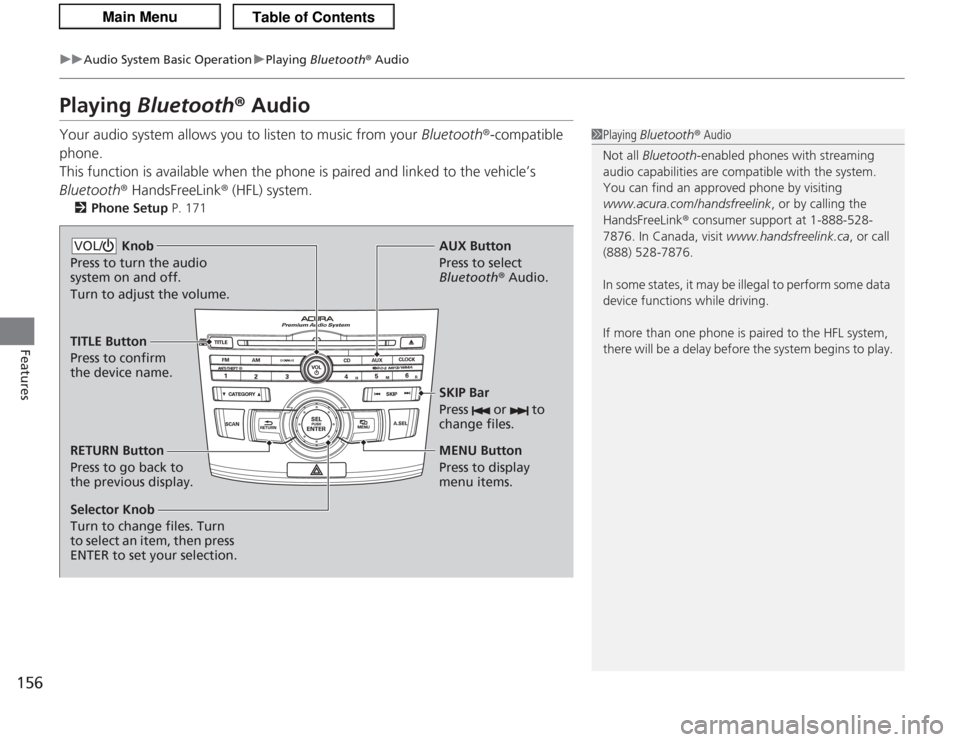
Playing Bluetooth ® AudioYour audio system allows you to listen to music from your Bluetooth®-compatible
phone.
This function is available when the phone is paired and linked to the vehicle’s
Bluetooth ® HandsFreeLink ® (HFL) system.
2 Phone Setup P. 171
1Playing Bluetooth ® Audio
Not all Bluetooth -enabled phones with streaming
audio capabilities are compatible with the system.
You can find an approved phone by visiting
www.acura.com/handsfreelink , or by calling the
HandsFreeLink ® consumer support at 1-888-528-
7876. In Canada, visit www.handsfreelink.ca, or call
(888) 528-7876.
In some states, it may be illegal to perform some data
device functions while driving.
If more than one phone is paired to the HFL system,
there will be a delay before the system begins to play.
Selector Knob
Turn to change files. Turn
to select an item, then press
ENTER to set your selection. AUX Button
Press to select
Bluetooth®
Audio.
SKIP Bar
Press or to
change files.RETURN Button
Press to go back to
the previous display. MENU Button
Press to display
menu items.
Knob
Press to turn the audio
system on and off.
Turn to adjust the volume.VOL/TITLE Button
Press to confirm
the device name.
Page 158 of 325
157
uuAudio System Basic Operation uPlaying Bluetooth ® Audio
Features
1. Make sure that your phone is linked to HFL.
2. Press the AUX button.
Check the following if the phone is not recognized:
Another HFL-compatible phone, which is not compatible for Bluetooth® Audio, is
already linked.■
To pause or resume a file
1. Press the MENU button.
2. Rotate to select RESUME/PAUSE, then press .
Each time you press , the setting switches between PAUSE and RESUME.
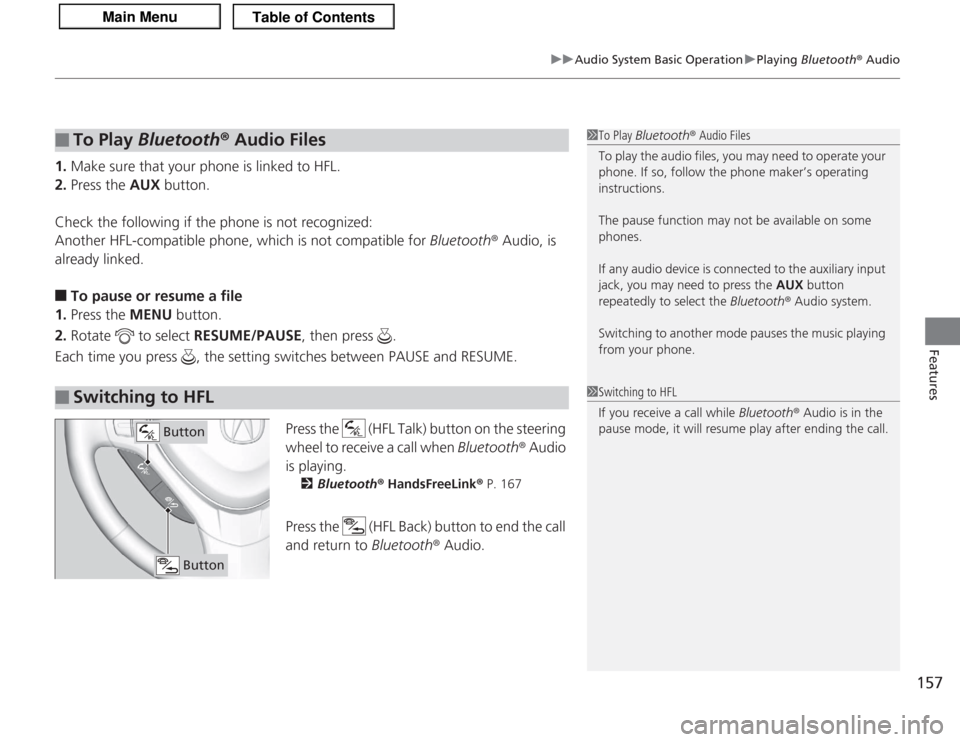
Press the (HFL Talk) button on the steering
wheel to receive a call when Bluetooth® Audio
is playing.
2 Bluetooth ® HandsFreeLink ® P. 167
Press the (HFL Back) button to end the call
and return to Bluetooth ® Audio.
■
To Play Bluetooth ® Audio Files
■
Switching to HFL
1 To Play Bluetooth ® Audio Files
To play the audio files, you may need to operate your
phone. If so, follow the phone maker’s operating
instructions.
The pause function may not be available on some
phones.
If any audio device is connected to the auxiliary input
jack, you may need to press the AUX button
repeatedly to select the Bluetooth® Audio system.
Switching to another mode pauses the music playing
from your phone.1 Switching to HFL
If you receive a call while Bluetooth® Audio is in the
pause mode, it will resume play after ending the call.
Button
Button
Page 168 of 325
167
Continued
Features
Bluetooth® HandsFreeLink ®For models with the navigation system, see the Navigation System Manual for how
to operate Bluetooth® HandsFreeLink ®.
Bluetooth ® HandsFreeLink ® (HFL) allows you to place and receive phone calls using
your vehicle’s audio system, without handling your cell phone.Using HFL
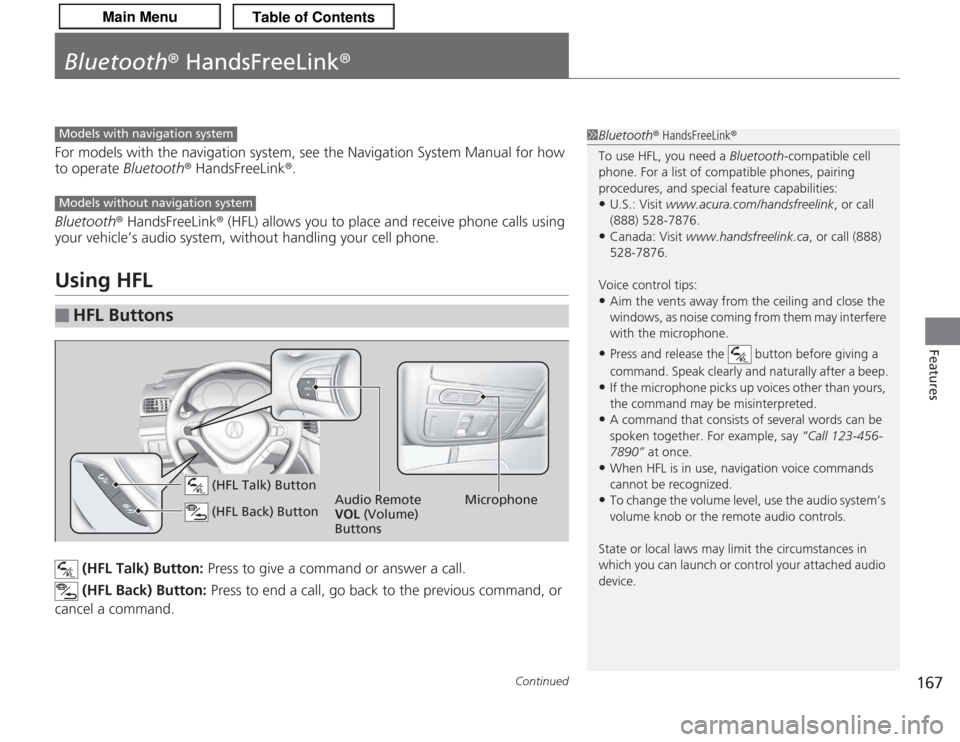
(HFL Talk) Button: Press to give a command or answer a call.
(HFL Back) Button: Press to end a call, go back to the previous command, or
cancel a command.
■
HFL Buttons
1 Bluetooth ® HandsFreeLink ®
To use HFL, you need a Bluetooth-compatible cell
phone. For a list of compatible phones, pairing
procedures, and special feature capabilities:•U.S.: Visit www.acura.com/handsfreelink , or call
(888) 528-7876.•Canada: Visit www.handsfreelink.ca , or call (888)
528-7876.
Voice control tips:•Aim the vents away from the ceiling and close the
windows, as noise coming from them may interfere
with the microphone.•Press and release the button before giving a
command. Speak clearly and naturally after a beep.•If the microphone picks up voices other than yours,
the command may be misinterpreted.•A command that consists of several words can be
spoken together. For example, say “Call 123-456-
7890” at once.•When HFL is in use, navigation voice commands
cannot be recognized.•To change the volume level, use the audio system’s
volume knob or the remote audio controls.
State or local laws may limit the circumstances in
which you can launch or control your attached audio
device.
Models with navigation systemModels without navigation system
Microphone
Audio Remote
VOL (Volume)
Buttons
(HFL Talk) Button (HFL Back) Button
Page 169 of 325
uuBluetooth ® HandsFreeLink ®u Using HFL
168Features
• To hear general HFL information and help, say “Tutorial.”
• Say “Hands free help” or “Help” any time to get help or hear a list of commands.
The multi-information display notifies you
when there is an incoming call.■
Help Features
■
Information Display
1Bluetooth ® HandsFreeLink ®
Bluetooth ® Wireless Technology
The Bluetooth ® word mark and logos are registered
trademarks owned by Bluetooth SIG, Inc., and any
use of such marks by Honda Motors Co., Ltd., is
under license. Other trademarks and trade names are
those of their respective owners.
HFL Limitations
An incoming call on HFL will interrupt Bluetooth®
Audio when it is playing. Audio will resume when the
call is ended.1 Information Display
The information that appears on the multi-
information display varies between phone models.
Signal
Strength HFL Mode Battery
Level
Status
Roam Status Phone
Number
Page 170 of 325
169
uuBluetooth ® HandsFreeLink ®u HFL Menus
Continued
Features
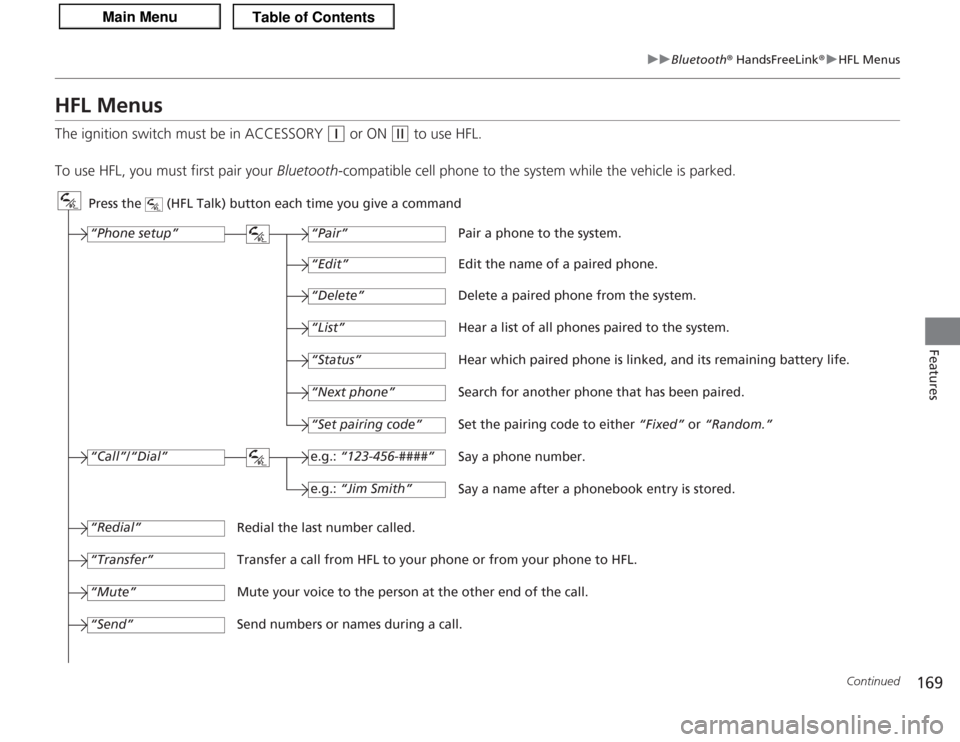
HFL MenusThe ignition switch must be in ACCESSORY
(q
or ON
(w
to use HFL.
To use HFL, you must first pair your Bluetooth-compatible cell phone to the system while the vehicle is parked.
Press the (HFL Talk) button each time you give a command
“Set pairing code”
Pair a phone to the system.
Edit the name of a paired phone.
Delete a paired phone from the system.
Hear a list of all phones paired to the system.
Hear which paired phone is linked, and its remaining battery life.
Search for another phone that has been paired.
Set the pairing code to either “Fixed” or “Random.”
Say a phone number.
Say a name after a phonebook entry is stored.
Redial the last number called.
Transfer a call from HFL to your phone or from your phone to HFL.
Mute your voice to the person at the other end of the call.
Send numbers or names during a call. “Pair”
“Edit”“Delete”“List”“Status”“Next phone”e.g.: “123-456-####”e.g.: “Jim Smith”
“Phone setup”“Call”/“Dial”“Transfer”“Mute”“Send”“Redial”
Page 171 of 325
170
uuBluetooth ® HandsFreeLink ®u HFL Menus
Features
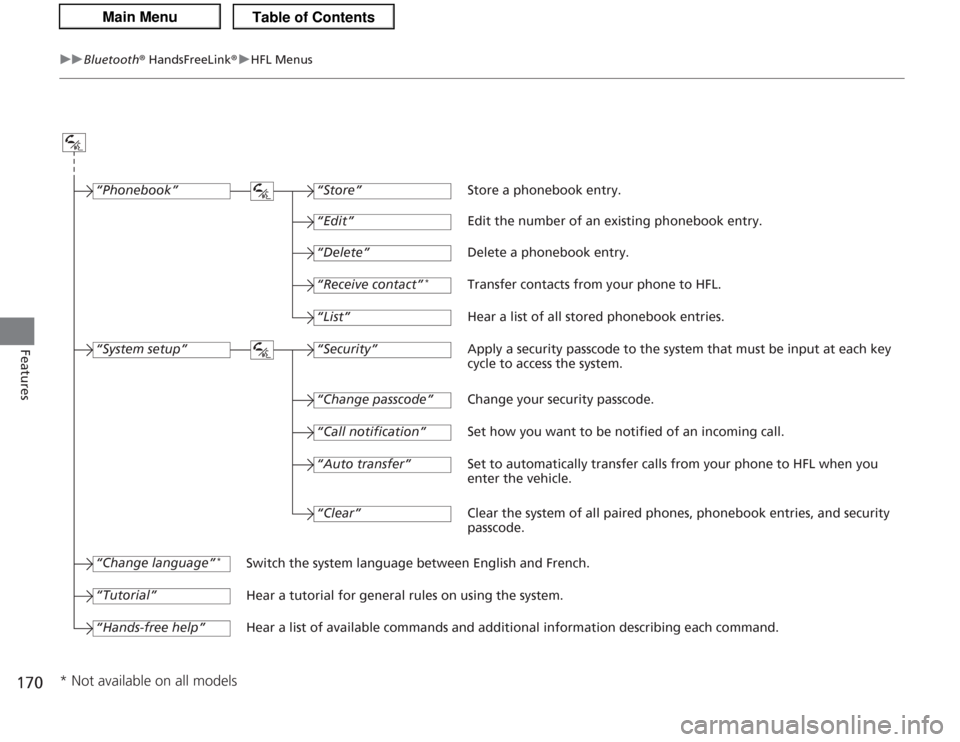
“Change passcode”
Store a phonebook entry.
Edit the number of an existing phonebook entry.
Delete a phonebook entry.
Transfer contacts from your phone to HFL.
Hear a list of all stored phonebook entries.
Apply a security passcode to the system that must be input at each key
cycle to access the system.
Change your security passcode.
Set how you want to be notified of an incoming call.
Set to automatically transfer calls from your phone to HFL when you
enter the vehicle.
Switch the system language between English and French.
Hear a tutorial for general rules on using the system.
Hear a list of available commands and additional information describing each command. “Store”
“Edit”“Delete”“Receive contact”
*
“List”“Security”“Call notification”“Auto transfer”
“Phonebook”“System setup”“Change language”
*
“Tutorial”“Hands-free help”
Clear the system of all paired phones, phonebook entries, and security
passcode.
“Clear”
* Not available on all models

