2013 Acura RDX USB
[x] Cancel search: USBPage 178 of 364

177
uuAudio System Basic Operation uPlaying Pandora ®
Continued
Features
Playing Pandora ®Activate Pandora® , and connect the iPhone ® using your dock connector to the USB
adapter cable, then press the AUX button.
2USB Adapter Cable P. 159U.S. modelsiPhone® use only
CATEGORY Bar
Press
(+
to the next station.
Press
( -
to the previous station.
VOL/ (Power/volume) Knob
Press to turn the audio system on
and off.
Turn to adjust the volume.
SKIP Bar
Press to skip a song.SETUP Button
Press to display menu items. Selector Knob
Press to enter PANDORA MENU.
Press and turn to select an item, then
press to set your selection. AUX Button
Press to select iPhone
® (if connected
when the Pandora ® application is
activated).
Album Art
Rating Icon
BACK Button
Press to go back to the previous
display.
Page 180 of 364
179
uuAudio System Basic Operation uPlaying a USB Flash Drive
Continued
Features
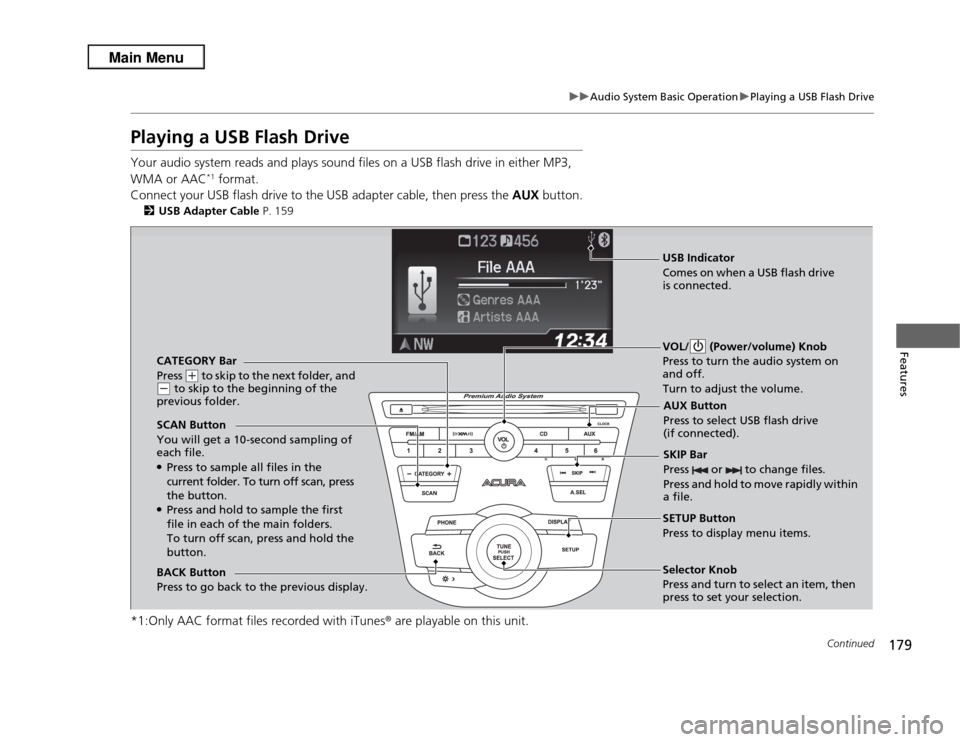
Playing a USB Flash DriveYour audio system reads and plays sound files on a USB flash drive in either MP3,
WMA or AAC
*1 format.
Connect your USB flash drive to the USB adapter cable, then press the AUX button.
2USB Adapter Cable P. 159
*1:Only AAC format files recorded with iTunes ® are playable on this unit.
CATEGORY Bar
Press
(+
to skip to the next folder, and
(-
to skip to the beginning of the
previous folder.
SCAN Button
You will get a 10-second sampling of
each file.
●Press to sample all files in the
current folder. To turn off scan, press
the button.●Press and hold to sample the first
file in each of the main folders.
To turn off scan, press and hold the
button. VOL/ (Power/volume) Knob
Press to turn the audio system on
and off.
Turn to adjust the volume.
SKIP Bar
Press or to change files.
Press and hold to move rapidly within
a file.SETUP Button
Press to display menu items.
Selector Knob
Press and turn to select an item, then
press to set your selection.
AUX Button
Press to select USB flash drive
(if connected).
USB Indicator
Comes on when a USB flash drive
is connected.
BACK Button
Press to go back to the previous display.
Page 181 of 364

uuAudio System Basic Operation uPlaying a USB Flash Drive
180Features
1. Press to switch the display to a folder list.
2. Rotate to select a folder.
3. Press to change the display to a list of
files in that folder.
4. Rotate to select a file, then press .
■
How to Select a File from a Folder with the Selector Knob
1Playing a USB Flash Drive
Use the recommended USB flash drives.
2 General Information on the Audio System
P. 190
Files in WMA format protected by digital rights
management (DRM) are not played.
The audio system displays Unplayable File , and then
skips to the next file.
If there is a problem, you may see an error message
on the audio/information screen.
2 iPod ®/USB Flash Drive P. 188
Folder Selection
Track Selection
Page 182 of 364

181
uuAudio System Basic Operation uPlaying a USB Flash Drive
Features
You can select repeat and random modes when playing a file.
1.Press the SETUP button.
2. Rotate to select Play Mode , then press
.
3. Rotate to select a mode, then press .■
To turn off a play mode
1. Press the SETUP button.
2. Rotate to select Play Mode, then press .
3. Rotate to select Normal Play, then press .
■
How to Select a Play Mode
1How to Select a Play Mode
Play Mode Menu Items
Normal Play
Repeat One Track : Repeats the current file.
Repeat One Folder : Repeats all files in the current
folder.
Random in Folder : Plays all files in the current folder
in random order.
Random All : Plays all files in random order.
Play Mode
Items
Page 185 of 364
184
uuAudio System Basic Operation uWallpaper Setup
Features
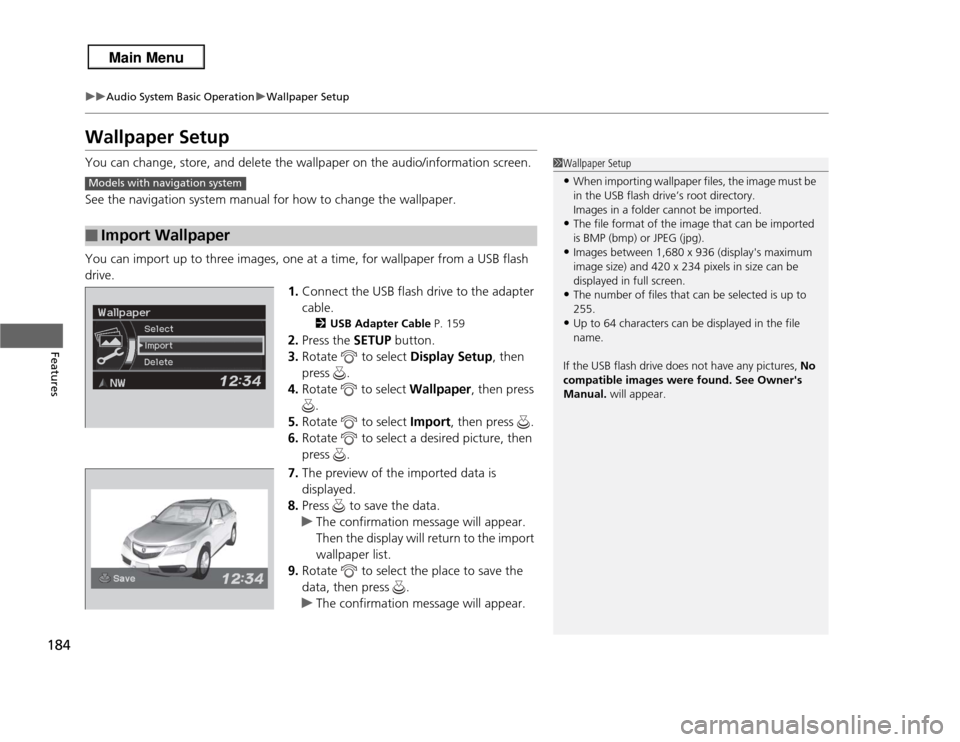
Wallpaper SetupYou can change, store, and delete the wallpaper on the audio/information screen.
See the navigation system manual for how to change the wallpaper.
You can import up to three images, one at a time, for wallpaper from a USB flash
drive.
1.Connect the USB flash drive to the adapter
cable.
2 USB Adapter Cable P. 159
2.Press the SETUP button.
3. Rotate to select Display Setup, then
press .
4. Rotate to select Wallpaper, then press
.
5. Rotate to select Import, then press .
6. Rotate to select a desired picture, then
press .
7. The preview of the imported data is
displayed.
8. Press to save the data.
u The confirmation message will appear.
Then the display will return to the import
wallpaper list.
9. Rotate to select the place to save the
data, then press .
u The confirmation message will appear.
■
Import Wallpaper
1Wallpaper Setup•When importing wallpaper files, the image must be
in the USB flash drive’s root directory.
Images in a folder cannot be imported.•The file format of the image that can be imported
is BMP (bmp) or JPEG (jpg).•Images between 1,680 x 936 (display's maximum
image size) and 420 x 234 pixels in size can be
displayed in full screen.•The number of files that can be selected is up to
255.•Up to 64 characters can be displayed in the file
name.
If the USB flash drive does not have any pictures, No
compatible images were found. See Owner's
Manual. will appear.
Models with navigation system
Page 189 of 364

188
uuAudio Error Messages uiPod ®/USB Flash Drive
Features
iPod®/USB Flash DriveIf an error occurs while playing an iPod ® or USB flash drive, you may see the
following error messages. If you cannot clear the error message, contact a dealer.
Error Message
Solution
USB Error
Appears when there is a problem with the USB adapter unit. Check if the device is compatible with the
USB adapter unit.
Bad USB Device Please Check
Owners Manual.
Appears when an incompatible device is connected. Disconnect the device. Then turn the audio system
off, and turn it on again. Do not reconnect the device that caused the error.
No Song
Appears when the iPod ® is empty. Check that compatible files are stored on the device.
Unsupported Ver
Appears when an unsupported iPod ® is connected. If it appears when a supported iPod ® is connected,
update the iPod ® software to the newer version.
Retry Connection
Appears when the system does not acknowledge the iPod ®. Reconnect the iPod ®.
Unplayable File
Appears when the files in the USB flash drive are DRM or an unsupported format. This error message
appears for about 3 seconds, then plays the next song.
No Data
Appears when the USB flash drive is empty or there are no MP3, WMA, or AAC files in the USB flash
drive. Check that compatible files are stored on the device.
Unsupported
Appears when an unsupported device is connected. If it appears when a supported device is
connected, reconnect the device.
Page 194 of 364

193
uuGeneral Information on the Audio System uCompatible iPod ®, iPhone® , and USB Flash Drives
Features
Compatible iPod ®, iPhone®, and USB Flash Drives•Use a recommended USB flash drive of 256 MB or higher.
• Some digital audio players may not be compatible.
• Some USB flash drives (e.g., a device with security lockout) may not work.
• Some software files may not allow for audio play or text data display.
• Some versions of MP3, WMA, or AAC formats may be unsupported.■
iPod® and iPhone® Model Compatibility
Model
iPod ® (5th generation)
iPod classic ® 80GB/160GB (launch in 2007)
iPod classic ® 120GB (launch in 2008)iPod classic ® 160GB (launch in 2009)
iPod nano ® (1st to 6th generation*) *launch in 2010iPod touch ® (1st to 4th generation*) *launch in 2010
iPhone ® 3G/iPhone ® 3GS/iPhone ® 4
■
USB Flash Drives
1 iPod ® and iPhone ® Model Compatibility
This system may not work with all software versions
of these devices.1 USB Flash Drives
Files on the USB flash drive are played in their stored
order. This order may be different from the order
displayed on your PC or device.
Page 356 of 364

Index
355
Index
Index
Numbers4WD.......................................................... 253AABS (Anti-lock Brake System) .................. 259
Accessories and Modifications ................ 266
Accessory Power Sockets ......................... 148
Additives
Coolant .................................................. 282
Engine Oil ............................................... 277
Washer ................................................... 286
Additives, Engine Oil ............................... 277
Adjusting Armrest .................................................. 142
Front Seats.............................................. 136
Head Restraints ....................................... 138
Mirrors.................................................... 133
Rear Seats ............................................... 141
Steering Wheel ....................................... 132
Temperature ............................................. 85
Air Conditioning System (Climate Control System) ....................... 152
Changing the Mode................................ 152
Defrosting the Windshield and Windows .............................................. 153
Dust and Pollen Filter .............................. 312
Recirculation/Fresh Air Mode.... ............... 152
Sensors ................................................... 155
Synchronized Mode ................................ 154
Using Automatic Climate Control............ 152 Air Conditioning System
(Heating and Cooling System)Dust and Pollen Filter ............................... 312
Air Pressure ....................................... 302, 345
Airbags ........................................................ 37
Advanced Airbags ..................................... 43
After a Collision......................................... 41
Airbag Care ............................................... 51
Event Data Recorder .................................. 21
Front Airbags (SRS) .................................... 40
Indicator ........................................ 48, 72, 75
Passenger Airbag Off Indicator .................. 49
Sensors...................................................... 37
Side Airbag Cutoff System ......................... 46
Side Airbag Off Indicator ........................... 50
Side Airbags .............................................. 44
Side Curtain Airbags .................................. 47
AM/FM Radio ............................................ 167
Anti-lock Brake System (ABS) .................. 259
Indicator .................................................... 71
Armrest ..................................................... 142
Audio Remote Controls ............................ 165
Audio System ............................................ 158
Adjusting the Sound ................................ 166
Auxiliary Input Jack .................................. 159
Error Messages ........................................ 187
General Information ................................ 190
iPod® ....................................................... 174
MP3/WMA/AAC ...................................... 179
Pandora ®................................................. 177
Reactivating............................................. 160 Recommended CDs ................................. 191
Recommended Devices............................ 193
Security Code .......................................... 160
Theft Protection ...................................... 160
USB Adapter Cable.................................. 159
USB Flash Drives ...................................... 193
Audio/Information Display ...................... 162
Authorized Manuals ................................ 353
Auto Door Locking/Unlocking ................. 106
Customize ................................................. 92
Automatic Lighting .................................. 123
Automatic Transmission ........................... 243
Creeping ................................................. 243
Fluid ........................................................ 284
Kickdown ................................................ 243
Operating the Shift Lever................... 14, 245
Sequential Shift Mode ............................. 246
Shift Lever Does Not Move ...................... 330
Shifting ................................................... 244
Auxiliary Input Jack .................................. 159
Average Fuel Economy .............................. 85
Average Speed ........................................... 86
AWD .......................................................... 253
BBattery ...................................................... 310
Charging System Indicator................. 69, 333
Jump Starting .......................................... 328
Maintenance (Checking the Battery) ........ 310
Belts (Seat) .................................................. 29