Page 153 of 346
AUDIO/VIDEO SYSTEM
153
U6007GS
1. Touch “Sound” tab to display this
screen.
2. Touch the desired button.
“Treble” “
+” or “–”: Adjust high−pitched
tones.
“Mid” “
+” or “–”: Adjust mid−pitched
tones.
“Bass” “
+” or “–”: Adjusts low −pitched
tones.
“Front” or “Rear”: Adjusts sound bal-
ance between the front and rear speakers.
“L” or “R”: Adjusts sound balance be-
tween the left and right speakers.
3. Touch “OK”.
The tone of each mode (for such as AM,
FM and CD changer) can be adjusted. (f) Selecting screen size (with rear
seat entertainment system)
1. Push
the “AUDIO” button and touch
“DVD” tab.
U6088GS
2. Touch “Settings”.
U6064GS
3. Touch “Wide”.
Page 155 of 346
AUDIO/VIDEO SYSTEM
155
(h) Your DVD player
(with rear seat entertainment system)
The sound of the rear seat entertainment
system can be enjoyed by pushing the
“DISC·AUX” button or touching the
“DVD” tab on AUDIO screen.
(i) AUX adapter
The sound of portable audio players
connected to the AUX adapter can be
enjoyed. Push the “DISC·AUX” button or
push the “AUDIO” button to display audio
screen and touch the “AUX” tab to switch
to AUX mode. When the portable audio
player is not connected to the AUX
adapter, the tab will tone down. For
details, refer to the “Owner’s Manual”.
(j) USB port
It is available to connect a USB
memory/iPod device with the USB port.
When the USB memory/iPod is not
connected to the USB port, the tab will tone
down. For details, see “(a) Connecting a
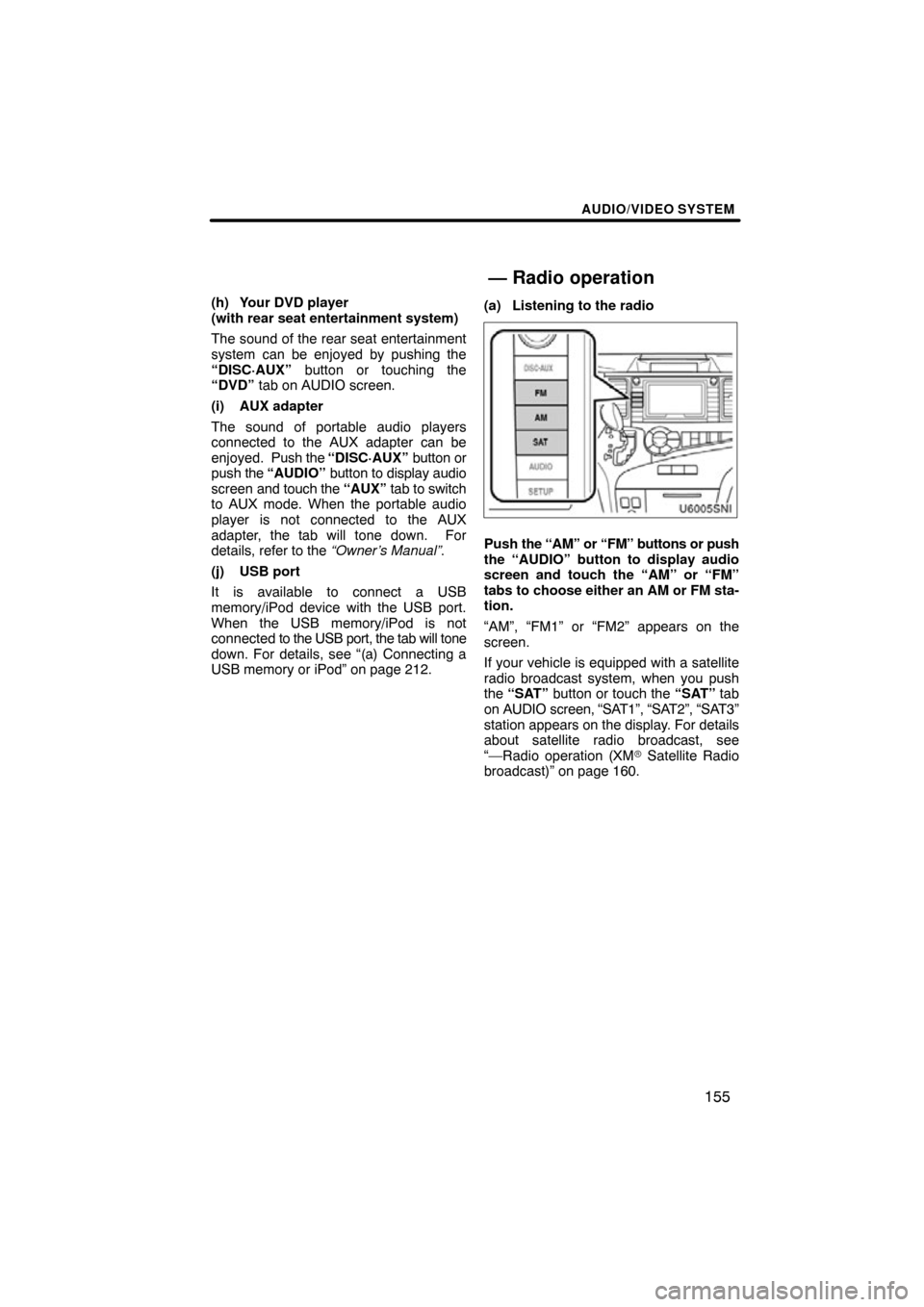
USB memory or iPod” on page 212. (a) Listening to the radio
Push
the “AM” or “FM” buttons or push
the “AUDIO” button to display audio
screen and touch the “AM” or “FM”
tabs to choose either an AM or FM sta-
tion.
“AM”, “FM1” or “FM2” appears on the
screen.
If your vehicle is equipped with a satellite
radio broadcast system, when you push
the “SAT” button or touch the “SAT” tab
on AUDIO screen, “SAT1”, “SAT2”, “SAT3”
station appears on the display. For details
about satellite radio broadcast, see
“—Radio operation (XM � Satellite Radio
broadcast)” on page 160.
— Radio operation
Page 169 of 346

AUDIO/VIDEO SYSTEM
169
(c) Playing a disc
Push the “DISC·AUX” button or push
the “AUDIO” button to display audio
screen and touch the “CD” tab if the
discs are already loaded in the changer.
The discs set in the changer are played
continuously, starting with the last disc you
inserted. The disc number of the disc cur-
rently being played, the track number and
the time from the beginning of the program
appear on the screen.
When play of one disc ends, the first track
of the following disc starts. When play of
the final disc ends, play of the first disc
starts again.
The changer will skip any empty disc trays.
Vehicles with rear seat entertainment sys-
tem —
If the DVD player is turned on, push the
“DISC·AUX” button again or touch “CD”
tab to switch to the CD changer.
If the rear seat entertainment system is on,
pushing the “DISC·AUX” button switches
the sound of the front audio system and
that of the rear seat entertainment system. (d) Selecting a desired disc
U6021GS
Touch “Change Discs” on
“CD” screen
and touch the desired disc number on
the screen.
The selected disc number is highlighted.
The changer will start playing the selected
disc from the first track.
Page 186 of 346

AUDIO/VIDEO SYSTEM
186
“RAND”: Use this for automatic and ran-
dom selection of tracks on the album that
you are currently listening to.
Playing the tracks in the album in ran-
dom order—
While the track is playing, touch
“RAND” briefly.
“RAND” appears on the screen. The sys-
tem selects a track in the album you are
currently listening to. To cancel this func-
tion, touch “RAND” once again.
INFORMATION
Depending on the portable player that
is connected to the system, certain
functions may not be available.
The DVD player can play DVD video, au-
dio CD, video CD, CD text, dtsCD or
MP3 disc only when a disc is loaded in
the DVD player. A WMA and DVD audio
disc cannot be played.
For details of “Rear seat entertainment
system”, refer to “Owner’s Manual”.
For appropriate discs for this player, see
“Audio/video system operating hints” on
page 221.
(a) Inserting the disc
U6012SNI
Pull down the cover and insert the disc
into the slot with the label side up.
An adapter must be used for 3 in. (8 cm)
discs which are loaded in the same man-
ner as for 4.7 in. (12 cm) discs.
—DVD player operation
Page 220 of 346

AUDIO/VIDEO SYSTEM
220
Vehicles with rear seat entertainment sys-
tem —
DVD player
While the DVD player is in operation, the
chapter or track can be changed by push-
ing the “
” or “” switch.
Bluetooth � audio player
Use this switch to skip up or down to a dif-
ferent track or album in either direction.
To select a desired track:
Quickly push and release the “
” or “”
side of the switch until the track you want
to listen to is set. If you want to return to the
beginning of the current track, push the
“
” side of the switch once quickly.
To select a desired album:
Push and hold “
” or “” switch until
you hear a beep to change to the next or
the previous album. Repeat this operation
until you reach the album you want to listen
to.
USB memory/iPod
Use this switch to skip up or down to a dif-
ferent track, file, album or folder in either
direction.
To select a desired track or file:
Quickly push and release the “
” or “”
side of the switch until the track or file you
want to listen to is set. If you want to return
to the beginning of the current track or file,
push the “
” side of the switch once,
quickly.
To select a desired album or folder:
Push and hold “
” or “” switch until
you hear a beep to change to the next or
the previous album or folder. Repeat this
operation until you reach the album or fold-
er you want to listen to.
3“MODE” switch
Push “MODE” switch to select an audio
mode. Each push changes the mode se-
quentially if the desired mode is ready to
use.
To turn the audio/video system on, push
the “MODE” switch.
To turn the audio/video system off, push
and hold the “MODE” switch until you hear
a beep.
Page 227 of 346
AUDIO/VIDEO SYSTEM
227
�
When playing back files recorded as
VBR (Variable Bit Rate) files, the play
time will not be correctly displayed if
fast−forward or
reverse operations are
used.
�It is not possible to check folders that
do not include MP3/WMA files.
�MP3/WMA files in folders up to 8 levels
deep can be played. However, the
start of playback may be delayed when
using discs containing numerous lev-
els of folders. For this reason, we rec-
ommend creating discs with no more
than two levels of folders.
6U5161aX003.mp3
001.mp3
002.mp3
Folder 1
Folder 2004.mp3
005.mp3
Folder 3006.mp3
MP3 player (rear seat entertainment system)
6U5161aX
001.mp3
002.wma
Folder 1003.mp3
Folder 2
004.mp3
005.wma
Folder 3006.mp3
MP3/WMA player (front audio system)
Page 228 of 346

AUDIO/VIDEO SYSTEM
228
�
The play order of the compact disc with
the structure shown above is as fol-
lows:
MP3 player (rear seat entertainment sys-
tem)
001.mp3 002.mp3 . . . 006.mp3
MP3/WMA player (front audio system)
001.mp3 002.wma . . . 006.mp3
�MP3 player (rear seat entertainment
system)—It is possible to play up to
253 folders on one disc.
�MP3/WMA player (front audio sys-
tem)—It is possible to play up to 192
folders or 255 files on one disc.
�USB memory—It is possible to play up
to 999 folders or 255 files per folder.
�The order changes depending on the
PC and MP3/WMA encoding software
you use. CDR and CDRW discs
�CD−R/CD−RW discs that have not
been subject to the “finalizing process”
(a process that allows discs to be
played on a conventional CD player)
cannot be played.
�It may not be possible to play CD
−
R/CD−RW discs recorded on a music
CD recorder or a personal computer
because of disc characteristics,
scratches or dirt on the disc, or dirt,
condensation, etc. on the lens of the
unit.
�It may not be possible to play discs re-
corded on a personal computer de-
pending on the application settings and
the environment. Record with the cor-
rect format. (For details, contact the
appropriate application manufacturers
of the applications.)
�CD−R/CD−RW discs may be damaged
by direct exposure to sunlight, high
temperatures or other storage condi-
tions. The unit may be unable to play
some damaged discs.
�If you insert a CD−RW disc into the
MP3/WMA player, playback will begin
more slowly than with a conventional
CD or CD− R disc.
�Recordings on CD −R/CD−RW cannot
be played using the DDCD (Double
Density CD) system.
Page 254 of 346
SETUP
254
�
Rear
system lock (with rear seat en-
tertainment system)
If the vehicle is equipped with the rear seat
entertainment system, the rear seat enter-
tainment system can be locked to prevent
rear passengers from operating the enter-
tainment system.
1. Push the “SETUP” button.
2. Touch “General” on the “Setup”
screen.
3. Touch “Rear System Lock”.
4. Select “On” or “Off” and then touch
“Save”.
“On”: The rear passengers cannot oper-
ate the rear seat entertainment system.
Only front passengers can operate the
system.
“Off”: Both the front and rear passengers
can operate the rear seat entertainment
system.
�Selecting the line color
Line color can be changed.
1. Push the “SETUP” button.
2. Touch “General” on the “Setup”
screen.
3. Touch “Line Color”.
4. Touch the desired color.
The line color will be changed.
5. Touch “Save”.


