Page 233 of 544
Interior features3
233
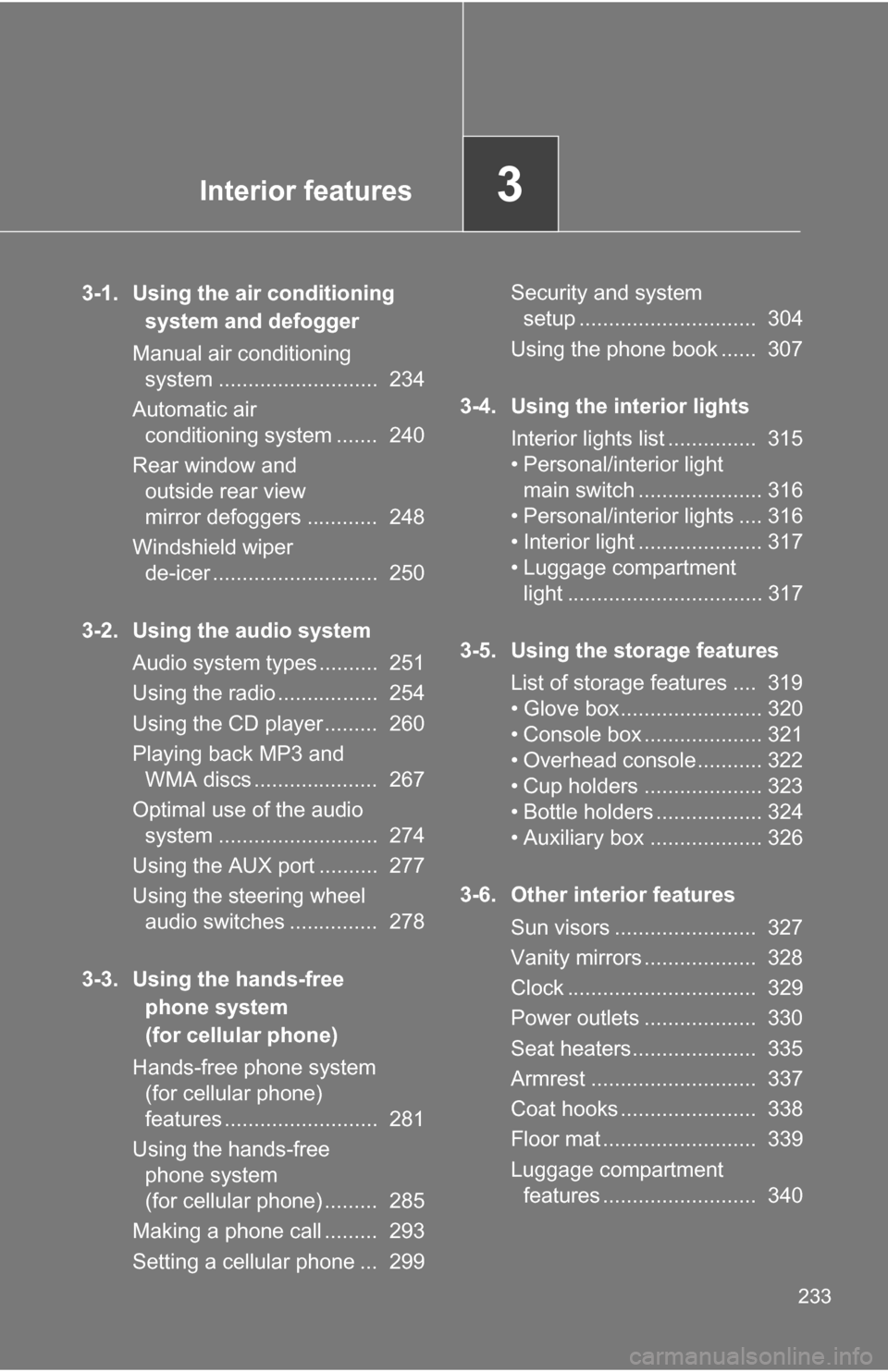
3-1. Using the air conditioning system and defogger
Manual air conditioning system ........................... 234
Automatic air conditioning system ....... 240
Rear window and outside rear view
mirror defoggers ............ 248
Windshield wiper de-icer ............................ 250
3-2. Using the audio system Audio system types .......... 251
Using the radio ................. 254
Using the CD player ......... 260
Playing back MP3 and WMA discs ..................... 267
Optimal use of the audio system ........................... 274
Using the AUX port .......... 277
Using the steering wheel audio switches ............... 278
3-3. Using the hands-free phone system
(for cellular phone)
Hands-free phone system (for cellular phone)
features .......................... 281
Using the hands-free phone system
(for cellular phone) ......... 285
Making a phone call ......... 293
Setting a cellular phone ... 299 Security and system
setup .............................. 304
Using the phone book ...... 307
3-4. Using the interior lights Interior lights list ............... 315
• Personal/interior light main switch ..................... 316
• Personal/interior lights .... 316
• Interior light ..................... 317
• Luggage compartment light ................................. 317
3-5. Using the storage features List of storage features .... 319
• Glove box........................ 320
• Console box .................... 321
• Overhead console ........... 322
• Cup holders .................... 323
• Bottle holders .................. 324
• Auxiliary box ................... 326
3-6. Other interior features Sun visors ........................ 327
Vanity mirrors ................... 328
Clock ................................ 329
Power outlets ................... 330
Seat heaters..................... 335
Armrest ............................ 337
Coat hooks ....................... 338
Floor mat .......................... 339
Luggage compartment features .......................... 340
Page 251 of 544
251
3
Interior features
3-2. Using the audio system
Audio system types
With navigation system
Owners of models equipped with a navigation system should refer
to the “Navigation Sy stem Owner's Manual”.
Without navigation system (type A)
CD player with changer controller and AM/FM radio
Without navigation system (type B)
CD player with changer and AM/FM radio
Page 252 of 544
252 3-2. Using the audio system
■Using cellular phones
Interference may be heard through the audio system's speakers if a cellular
phone is being used inside or close to the vehicle while the audio syste\
m is
operating.
Without navigation system (type C)
CD player with changer and AM/FM radio
TitlePage
Using the radioP. 254
Using the CD playerP. 260
Playing back MP3 and WMA discsP. 267
Optimal use of the audio systemP. 274
Using the AUX portP. 277
Using the steering wheel audio switchesP. 278
Page 254 of 544
254
3-2. Using the audio system
Using the radio
Setting station presets (excluding XM® Satellite Radio)
Search for desired stations by turning or pressing “
”
or “ ” on .
Press and hold the button (from to ) the station is
to be set to until you hear a beep.
Seeking the
frequency Station selector
AM
·SAT/FM mode buttons
Scanning for receivable stations
Changing the
channel
Power Volume Adjusting the frequency
(AM, FM mode) or
channel (SAT mode)
Displaying
radio text
messages
STEP 1
STEP 2
Page 255 of 544
255
3-2. Using the audio system
3
Interior features
Scanning radio stations (excluding XM® Satellite Radio)
■ Scanning the preset radio stations
Press and hold until you hear a beep.
Preset stations will be played for 5 seconds each.
When the desired station is reached, press once
again.
■ Scanning all radio stations within range
Press
.
All stations with reception will be played for 5 seconds each.
When the desired station is reached, press once
again.
XM® Satellite Radio (if equipped)
■ Receiving XM
® Satellite Radio
Press .
The display changes as follows each time is
pressed.
AM SAT1 SAT2 SAT3
Turn to select the desired channel in the all categories,
or press “ ” or “ ” on to select the desired channel in
the current category.
■ Setting XM
® Satellite Radio channel presets
Select the desired channel. Pres s and hold the button (from
to ) the channel is to be set to until you hear a beep.
STEP 1
STEP 2
STEP 1
STEP 2
STEP 1
STEP 2
Page 256 of 544
256 3-2. Using the audio system
■Changing the channel category
Press “ ” or “ ” on .
■ Scanning XM
® Satellite Radio channels
● Scanning channels in the current category
Press .
When the desired channel is reached, press again.
● Scanning preset channels
Press and hold until you hear a beep.
When the desired channel is reached, press again.
■ Displaying text information
Press .
The display will show up to 10 characters.
The display changes as follows each time is pressed.
●Channel name
● Title (song/program title)
● Name (artist name/feature)
● Channel number
STEP 1
STEP 2
STEP 1
STEP 2
Page 257 of 544

257
3-2. Using the audio system
3
Interior features
■
When the battery is disconnected
Station presets are erased.
■ Reception sensitivity
●Cargo loaded on the roof luggage carrier, especially metal objects, may
adversely affect the reception of XM
® Satellite Radio.
● Maintaining perfect radio reception at all times is difficult due to the con-
tinually changing position of the antenna, differences in signal strength
and surrounding objects, such as trains, transmitters, etc.
● The radio antenna is mounted on the roof. The antenna can be removed
from the base by turning it.
■ XM
® Satellite Radio (if equipped)
An XM
® Satellite Radio is a tuner designed exclusively to receive broadcasts
provided under a separate subscription. Availability is limited to the 48 con-
tiguous states and 10 Canadian provinces.
● XM
® subscriptions
For detailed information about XM® Satellite Radio or to subscribe:
U.S.A.
Visit on the web at www.xmradio.com
or call 1-800-967-2346.
Canada
Visit on the web at www.xmradio.ca
or call 1-877-438-9677.
● Radio ID
You will need the radio ID when activating XM
® service or reporting a
problem. Select “CH000” using , and the receiver's 8-character ID
number will appear.
● Satellite tuner
The tuner supports only Audio Services (Music and Talk) and the accom-
panying Text Information of XM
® Satellite Radio.
Page 258 of 544

258 3-2. Using the audio system
■If the satellite radio does not operate normally (if equipped)
If a problem occurs with the XM
® tuner, a message will appear on the dis-
play. Refer to the table below to identify the problem, and take the suggested
corrective action.
“ANTENNA” The XM
® antenna is not connected. Check
whether the XM® antenna cable is attached
securely.
There is a short-circuit in the antenna or the sur-
rounding antenna cable. See a Toyota certified
dealer.
“UPDATING” You have not subscribed to the XM
® Satellite
Radio. The radio is being updated with the latest
encryption code. Contact the XM
® Satellite Radio
for subscription information. When a contract is
canceled, you can choose the “CH000” and all
free-to-air channels.
The premium channel you selected is not autho-
rized. Wait for about 2 seconds until the radio
returns to the previous channel or “CH001”. If it
does not change automatically, select another
channel. If you want to listen to the premium chan-
nel, contact the XM
® Satellite Radio.
“NO SIGNAL” The XM
® signal is too weak at the current location.
Wait until your vehicle reaches a location with a
stronger signal.
“LOADING” The unit is acquiring audio or program information.
Wait until the unit has received the information.
“OFF AIR”The channel you selected is not broadcasting any
programming. Select another channel.
“-----”There is no song/program title or artist name/fea-
ture associated with the channel at that time. No
action is needed.


