Page 187 of 502

▫ Controlling The iPod � Or External USB
Device Using Radio Buttons ............. 248
▫ Play Mode ......................... 249
▫ List Or Browse Mode ................. 250
▫ Bluetooth Streaming Audio (BTSA) ........ 252
� Steering Wheel Audio Controls —
If Equipped .......................... 253
▫ Radio Operation ..................... 254
▫ CD Player ......................... 254
� CD/DVD Disc Maintenance .............. 255
� Radio Operation And Mobile Phones ....... 255 � Climate Controls ...................... 256
▫ Manual Heating And Air Conditioning
System ............................ 256
▫ Automatic Temperature Control (ATC) — If
Equipped .......................... 260
▫ Summer Operation ................... 265
▫ Winter Operation .................... 265
▫ Vacation/Storage .................... 266
▫ Window Fogging And Frosting .......... 266
▫ Outside Air Intake ................... 266
▫ Operating Tips ...................... 267
4 UNDERSTANDING YOUR INSTRUMENT PANEL 185
Page 218 of 502

NOTE: Keep magnetic materials away from the top of
the instrument panel, such as iPod’s, Mobile Phones,
Laptops and Radar Detectors. This is where the compass
module is located, and it can cause interference with the
compass sensor, and it may give false readings.
1. Turn the ignition switch ON. 2. Press the UP or DOWN button until the System Setup
(Customer-Programmable Features) menu is reached,
then press the SELECT button.
3. Press the DOWN button until the “Compass Variance”
message is displayed in the EVIC, then press the SELECT
button. The last variance zone number displays in the
EVIC.
4. Press and release the SELECT button until the proper
variance zone is selected, according to the map.
5. Press and release the BACK button to exit.
Customer-Programmable Features (System
Setup)
Personal Settings allows you to set and recall features
when the transmission is in PARK. If the transmission is
out of PARK or the vehicle begins moving, a warning
message SYSTEM SETUP NOT AVAILABLE, is fol-
lowed in three seconds by, VEHICLE NOT IN PARK.Compass Variance Map216 UNDERSTANDING YOUR INSTRUMENT PANEL
Page 224 of 502
MEDIA CENTER 730N/430/430N (RHR/RER/RBZ/
RHB) CD/DVD/HDD/NAV — IF EQUIPPED
NOTE: The sales code is located on the lower right side
of the unit’s faceplate.
Refer to your Uconnect™ Multimedia RHR, RER, RBZ or
RHB user’s manual for detailed operating instructions.
Operating Instructions (Voice Command System)
— If Equipped
Refer to “Voice Command” in the Uconnect™ User
Manual located on the DVD for further details.
Operating Instructions (Uconnect™ Phone) — If
Equipped
Refer to “Uconnect™ Phone” in the Uconnect™ User
Manual located on the DVD for further details. MEDIA CENTER 130 (SALES CODE RES)
NOTE: The radio sales code is located on the lower right
side of the radio faceplate.
Media Center 130 (RES)222 UNDERSTANDING YOUR INSTRUMENT PANEL
Page 234 of 502

to seek up and the left switch to seek down. The radio
will remain tuned to the new station until you make
another selection. Holding either button will bypass
stations without stopping until you release it.
Voice Command System (Radio) — If Equipped
Refer to “Voice Command” in “Understanding The Fea-
tures Of Your Vehicle”.
Voice Command Button Uconnect™ Phone — If
Equipped
Press this button to operate the Uconnect™ Phone feature
(if equipped). Refer to “Uconnect™ Phone” in “Under-
standing The Features Of Your Vehicle”.
If your vehicle is not equipped with or this feature is not
available on your vehicle, a “Not Equipped With
Uconnect Phone” message will display on the radio
screen. Phone Button Uconnect™ Phone — If Equipped
Press this button to operate the Uconnect™ Phone feature
(if equipped). Refer to “Uconnect™ Phone” in “Under-
standing The Features Of Your Vehicle”.
If your vehicle is not equipped with or this feature is not
available on your vehicle, a “Not Equipped With
Uconnect Phone” message will display on the radio
screen.
TIME Button
Press the TIME button to alternate display of the time
and radio frequency.
Clock Setting Procedure
1. Press and hold the TIME button until the hours blink.
2. Adjust the hours by turning the right side TUNE/
SCROLL control knob.232 UNDERSTANDING YOUR INSTRUMENT PANEL
Page 248 of 502
Select the button (1-6) you wish to lock onto this channel
and press and release that button. If a button is not
selected within five seconds after pressing the SET but-
ton, the channel will continue to play but will not be
stored into pushbutton memory.
You may add a second channel to each pushbutton by
repeating the above procedure with this exception: Press
the SET button twice and SET 2 will show in the display
window. Each button can be set for SET 1 and SET 2. This
allows a total of 12 Satellite channels to be stored into
pushbutton memory. The channels stored in SET 2
memory can be selected by pressing the pushbutton
twice.
Every time a preset button is used, a corresponding
button number will display.
Button s1-6
These buttons tune the radio to the channels that you
commit to pushbutton memory (12 Satellite stations). Operating Instructions - Uconnect™ Phone (If
Equipped)
Refer to “Uconnect™ Phone” in “Understanding The
Features Of Your Vehicle”.
iPod � /USB/MP3 CONTROL — IF EQUIPPED
NOTE: This section is for sales code RES and REQ/
REL/RET radios only with Uconnect™. For sales code
RBZ/RHB, RHR, RHP, RHW or RB2 touch-screen radio
iPod � /USB/MP3 control feature, refer to the separate
RBZ/RHB, RHR, RHP, RHW or RB2 User’s Manual.
iPod � /USB/MP3 control is available only if equipped as
an option with these radios.
This feature allows an iPod � or external USB device to be
plugged into the USB port, located in the glove compart-
ment.246 UNDERSTANDING YOUR INSTRUMENT PANEL
Page 249 of 502
iPod � control supports Mini, 4G, Photo, Nano, 5G iPod �
and iPhone � devices. Some iPod � software versions may
not fully support the iPod � control features. Please visit
Apple’s website for software updates.
NOTE:
• If the radio has a USB port, refer to the appropriate
Uconnect™ Multimedia radio User ’s Manual for
iPod � or external USB device support capability.
• Connecting an iPod � or consumer electronic audio
device to the AUX port located in the radio faceplate,
plays media, but does not use the iPod � /MP3 control
feature to control the connected device.
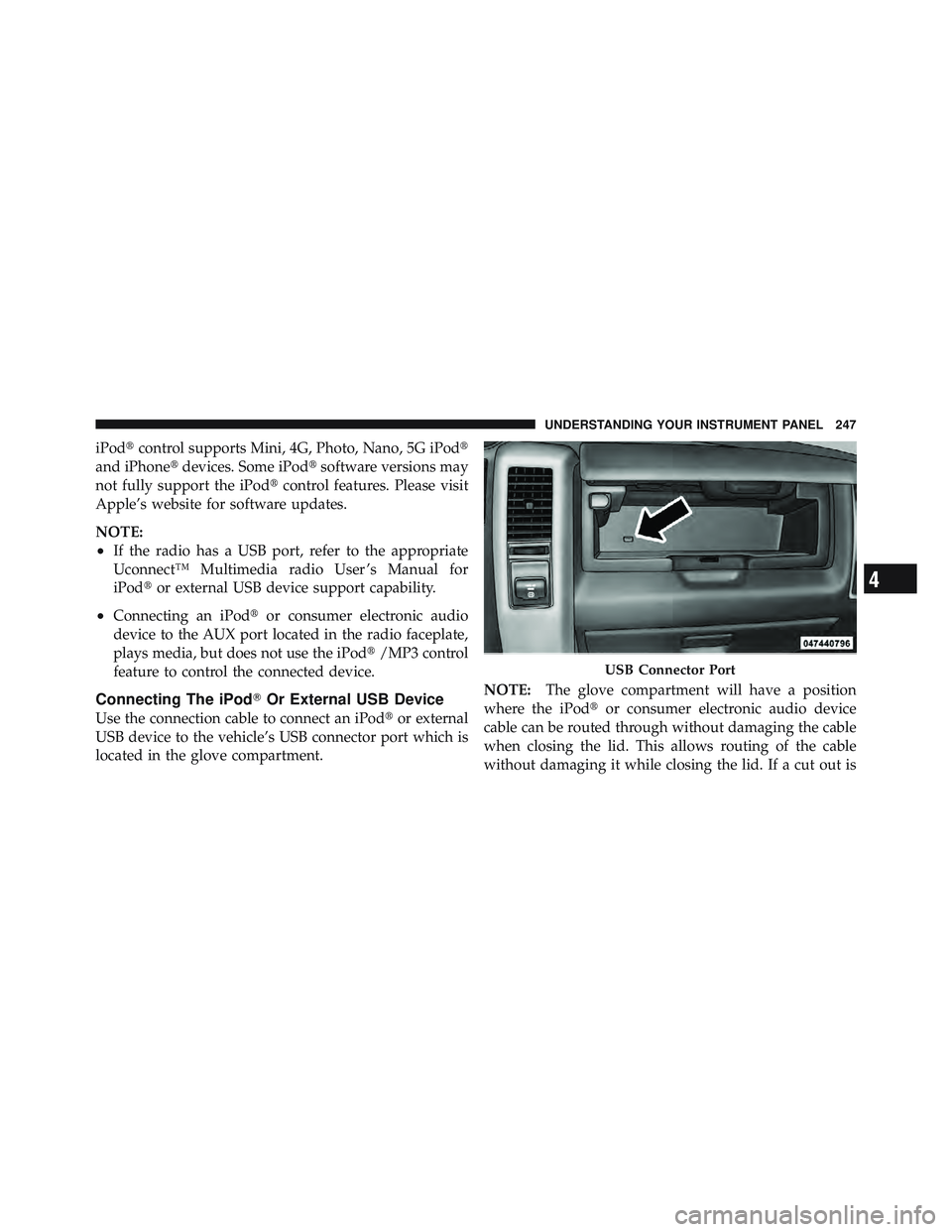
Connecting The iPod � Or External USB Device
Use the connection cable to connect an iPod � or external
USB device to the vehicle’s USB connector port which is
located in the glove compartment. NOTE: The glove compartment will have a position
where the iPod � or consumer electronic audio device
cable can be routed through without damaging the cable
when closing the lid. This allows routing of the cable
without damaging it while closing the lid. If a cut out is USB Connector Port
4 UNDERSTANDING YOUR INSTRUMENT PANEL 247
Page 254 of 502
CAUTION!• Leaving the iPod � or external USB device (or any
supported device) anywhere in the vehicle in
extreme heat or cold can alter the operation or
damage the device. Follow the device manufactur-
er ’s guidelines.
• Placing items on the iPod � or external USB device,
or connections to the iPod � or external USB device
in the vehicle, can cause damage to the device
and/or to the connectors.
WARNING!Do not plug in or remove the iPod � or external USB
device while driving. Failure to follow this warning
could result in an accident. Bluetooth Streaming Audio (BTSA)
Music can be streamed from your cellular phone to the
Uconnect™ phone system.
Controlling BTSA Using Radio Buttons
To get into the BTSA mode, press either “AUX” button on
the radio or press the VR button and say “Bluetooth
Streaming Audio”.
Play Mode
When switched to BTSA mode, some audio devices can
start playing music over the vehicle’s audio system, but
some devices require the music to be initiated on the
device first, then it will get streamed to the Uconnect™
phone system. Seven devices can be paired to the
Uconnect™ phone system, but just one can be selected
and played.
Selecting Different Audio Device
1. Press PHONE button to begin.252 UNDERSTANDING YOUR INSTRUMENT PANEL
Page 255 of 502
2. After the � Ready � prompt and the following beep, say
� Setup � , then � Select Audio Devices � .
3. Say the name of the audio device or ask the
Uconnect™ phone system to list audio devices.
Next Track
Use the SEEK UP button, or press the VR button on the
radio and say “Next Track” to jump to the next track
music on your cellular phone.
Previous Track
Use the SEEK DOWN button, or press the VR button on
the radio and say “Previous Track” to jump to the
previous track music on your cellular phone.
Browse
Browsing is not available on a BTSA device. Only the
current song that is playing will display info. STEERING WHEEL AUDIO CONTROLS — IF
EQUIPPED
The remote sound system controls are located on the rear
surface of the steering wheel. Reach behind the wheel to
access the switches.
Remote Sound System Controls
(Back View Of Steering Wheel)
4 UNDERSTANDING YOUR INSTRUMENT PANEL 253

